How to Make a Video Using Photos in Canva
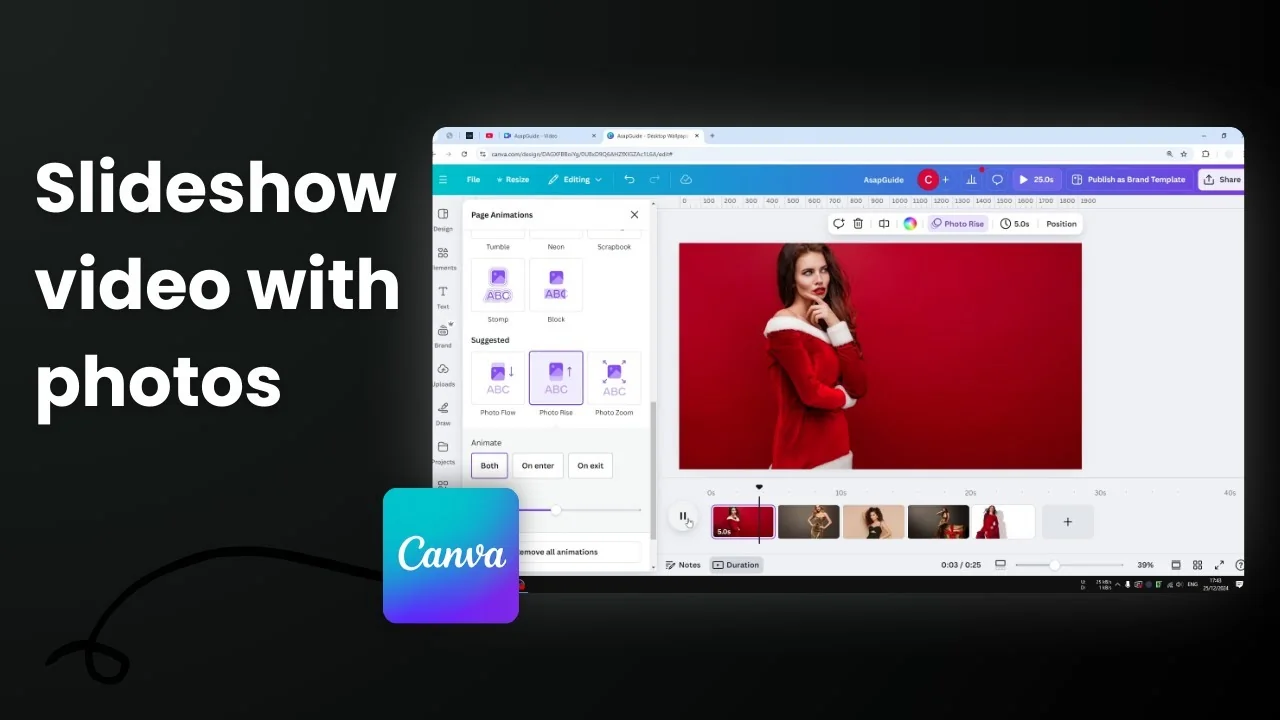
You can create a slideshow-style video in Canva using photos, and make those photos move a little with zooms or subtle slides. Effects like zoom in, zoom out, or sliding to the side make the whole presentation a lot more interesting than just a static picture. The process is easy, and there are many animations and transitions you can apply.
Make a Video Using Photos in Canva
Start a new document and pick a template
I’m starting with a desktop wallpaper template, but you can use any template in Canva. Instagram, Facebook, or YouTube templates all work for video editing. Canva Document is the exception - you cannot create a video from that. Use the general Canva templates.

Insert photos
Insert photos from:
- Elements, if you want to use Canva’s stock library.
- Uploads, if you have photos on your computer.

I’m using photos from the stock library. Search for professional-looking photos, for example model dress woman, and pick images that fit your theme.

Fill the canvas with your first photo
- Drag a photo onto the page.
- Right-click the photo and choose Set image as background to fill the entire canvas.
- Double-click the photo to open the crop view. Drag to choose the area you want visible.
- Rotate if needed, or set rotation back to 0 if it’s not necessary.

Add animation to the photo
- Click the photo, then click Animate.
- For slideshow photos, use the Suggested options:
- Photo Flow
- Photo Rise
- Photo Zoom
- Choose if the animation happens on enter, on exit, or both.
- Adjust settings like direction.
- For Photo Zoom, adjust the scale and choose zooming in or zooming out.
- Example: set Photo Zoom to zoom out with a comfortable scale, then preview.

Add more photos and manage pages
I recommend opening the Thumbnail view and enabling Duration. This makes it easier to manage multiple photos.
- Drag and drop a new photo onto a new page for each slide.
- Adjust the crop so the important part of each photo is visible.

Apply animations to all pages or customize per page
- You can apply the same animation to all pages. Choose your animation, then click Apply to all pages.
- You can remove an animation on any page and pick a different one if you want each slide to feel unique.
- Preview to see how it looks and adjust as needed.

Add transitions between pages
- Hover between pages and click Add transition.
- Pick a simple transition like Line wipe.
- Adjust the speed and direction.
- Click Apply between all pages to keep it consistent, or set different transitions per gap.

Set slide durations
- By default, each page might be 4.5 seconds.
- Adjust duration to be longer or faster based on your pacing.
- Apply to all pages if you want a uniform length.

Final Thoughts
That’s the general idea for turning photos into a slideshow video in Canva. Fill the canvas with each photo, add subtle animations like Photo Zoom, and use transitions to connect slides. Mix animations across pages if you want more variety, and adjust durations to control the pacing. Preview, tweak, and you’ll have a clean, engaging photo video.

Recent Posts

How to Visualize Yourself as a Pixelized Character with AI?
How to Visualize Yourself as a Pixelized Character with AI?

How to Revive Faded Memories and Enhance Image Clarity with AI?
How to Revive Faded Memories and Enhance Image Clarity with AI?

How to Visualize Yourself as an Animal Crossing Character with AI?
How to Visualize Yourself as an Animal Crossing Character with AI?