How to Create a Simple Glossy Text Effect in Canva
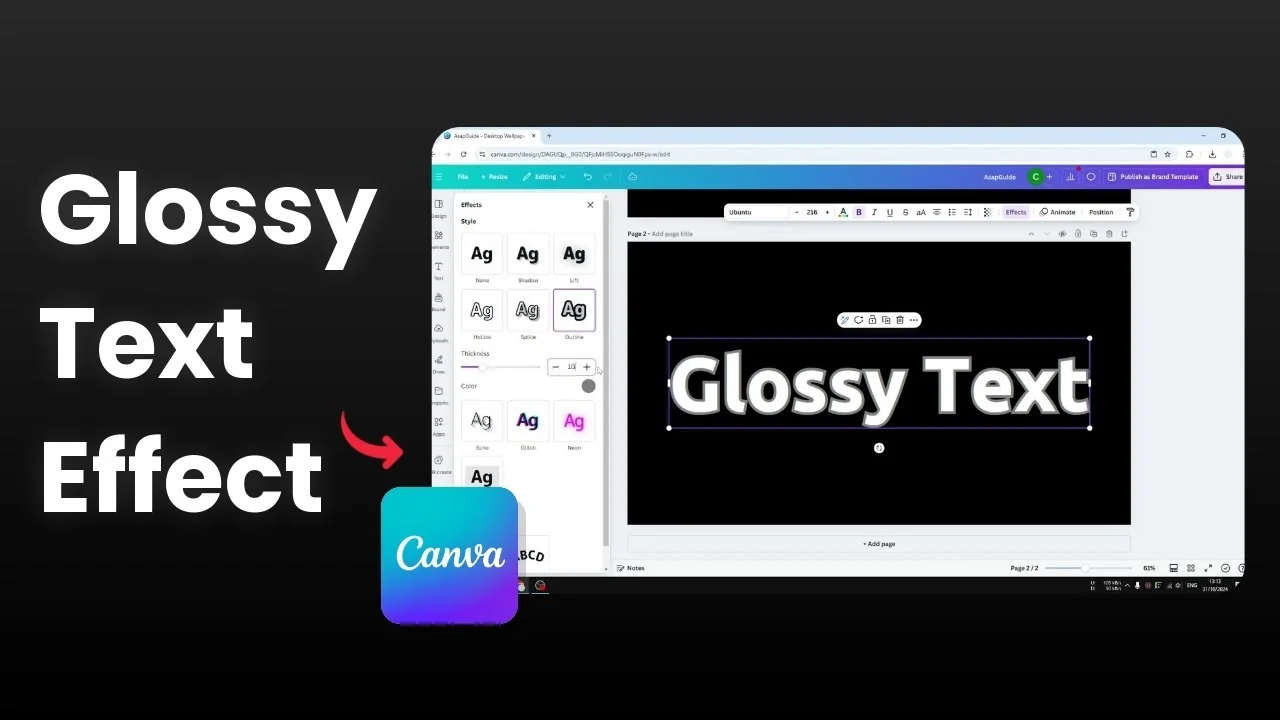
I’m going to show you how you can create a simple glossy effect to text in Canva using only what’s already available in Canva. It’s surprisingly not very difficult.
Let’s recreate the design from scratch.
Create a Simple Glossy Text Effect in Canva
Text setup
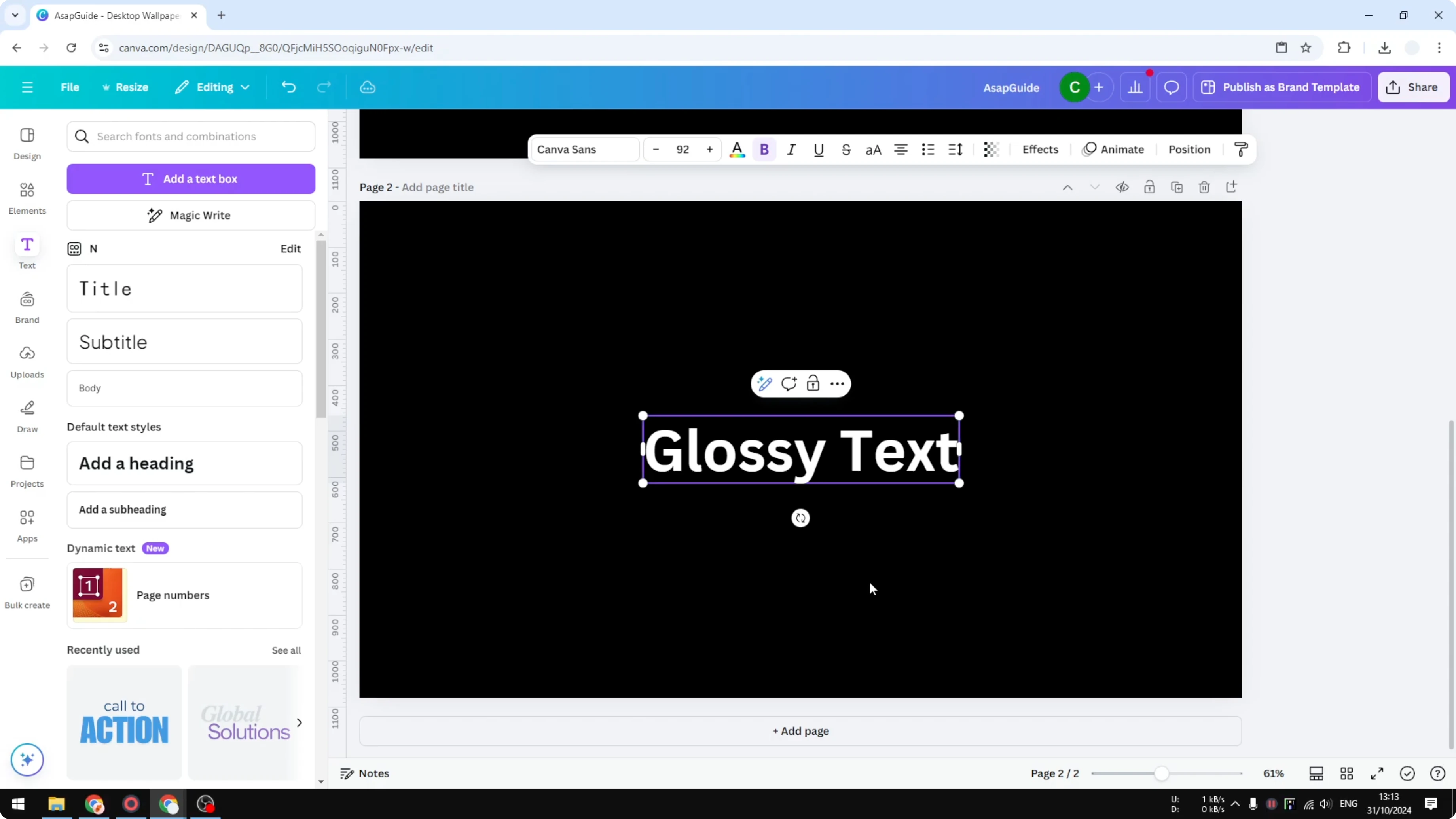
Add a new page.
Insert some text and call it Glossy Text.
Change the font to something you prefer, maybe a UB font, and make the text way bigger.
Outline the text
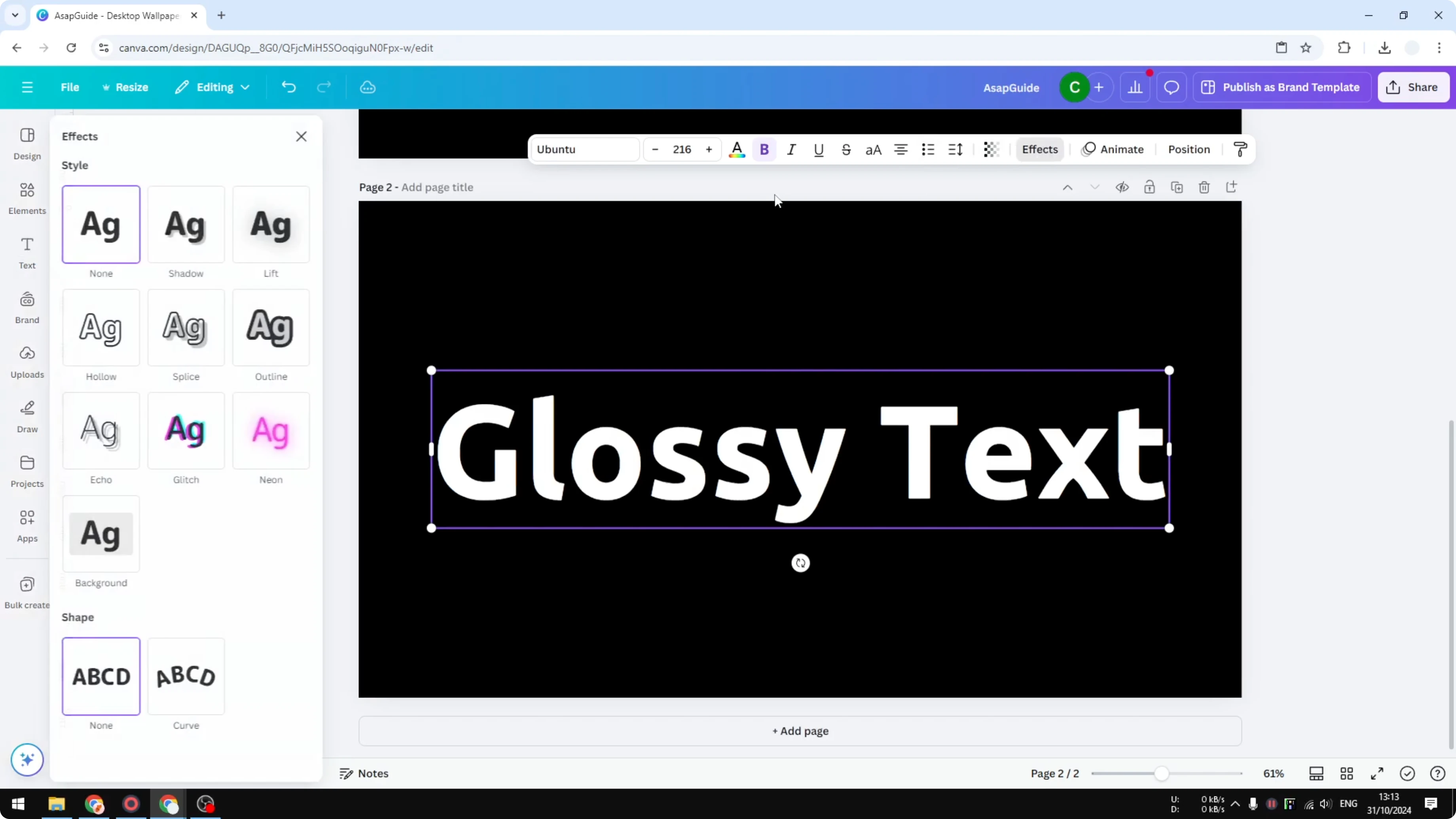
Click on the text, go to Effects, and choose Outline.
Set the thickness to 10.
Change the outline color to a light gray.
If you enjoy text styling workflows like this, you might also like this echo text effect approach for bold titles.
Find the gradient
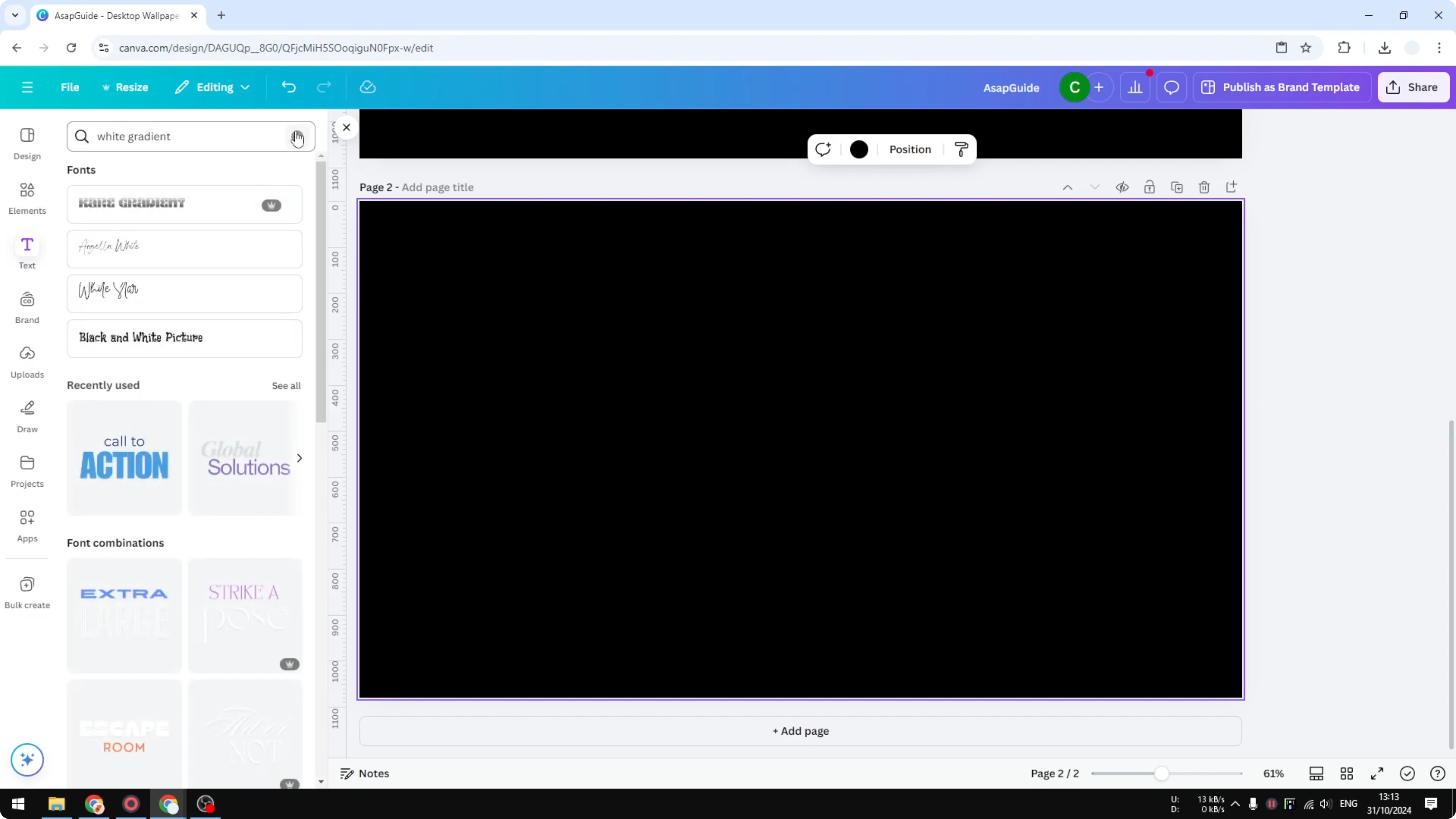
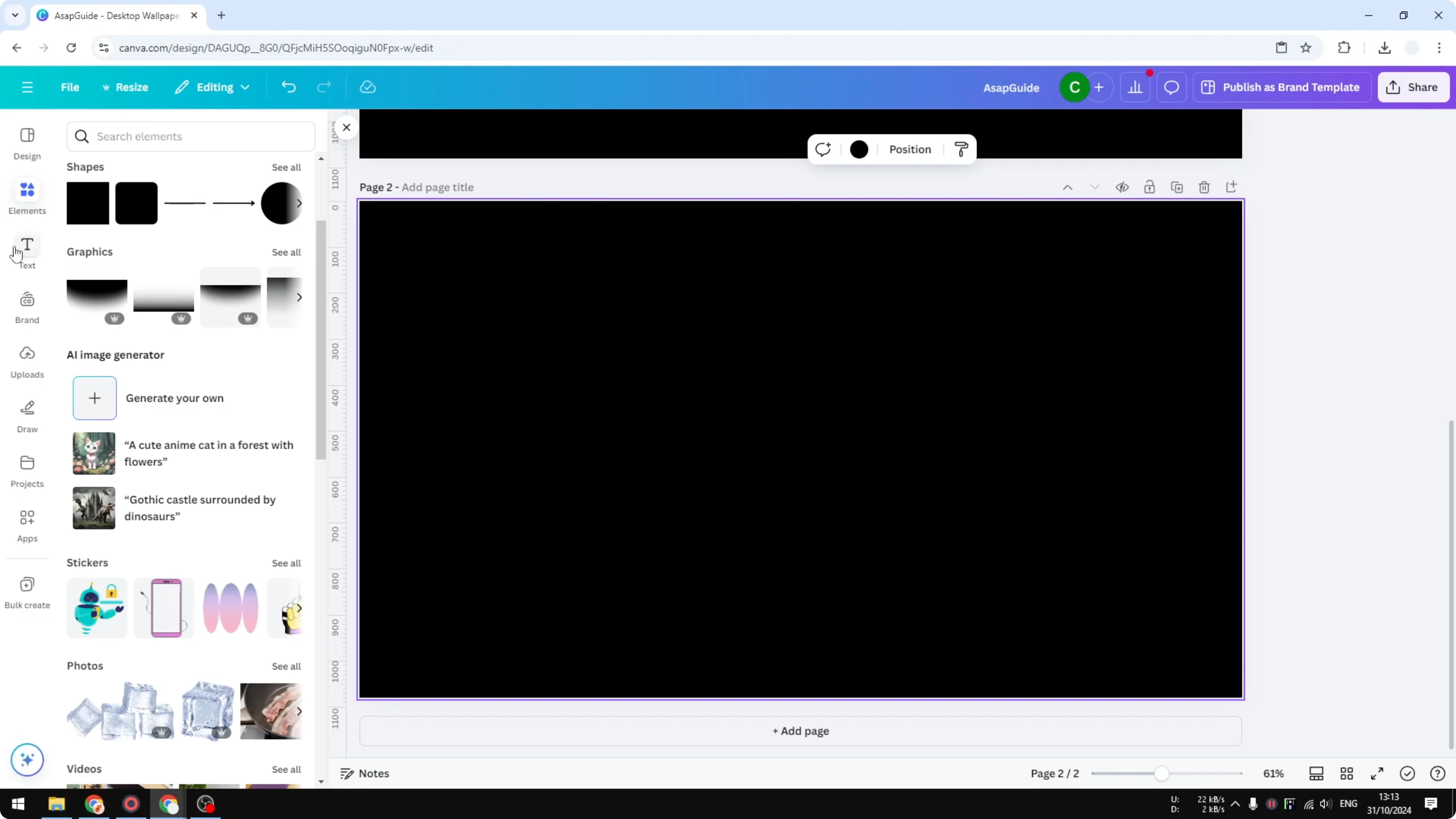
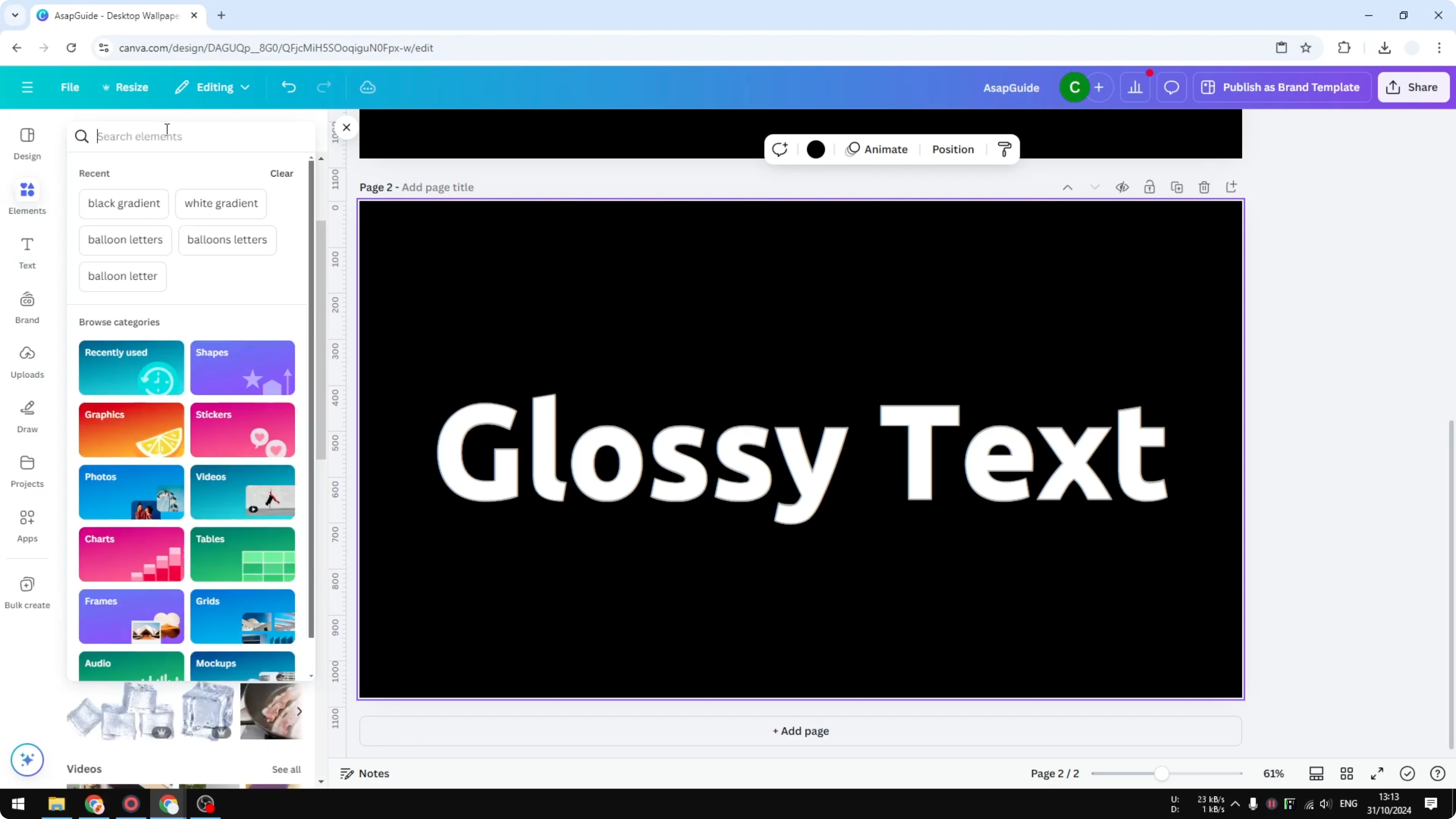
Go to Elements and search for the color of your background plus the word gradient.
For example, if your background is black, search for black gradient.
If you use a white background, search for white gradient, and if it’s yellow, search for yellow gradient.
Open the Graphics tab.
Select a gradient Graphics Vector you want to apply to your text.
I prefer one with a very close zone between the dark and light areas, so the transition is tight.
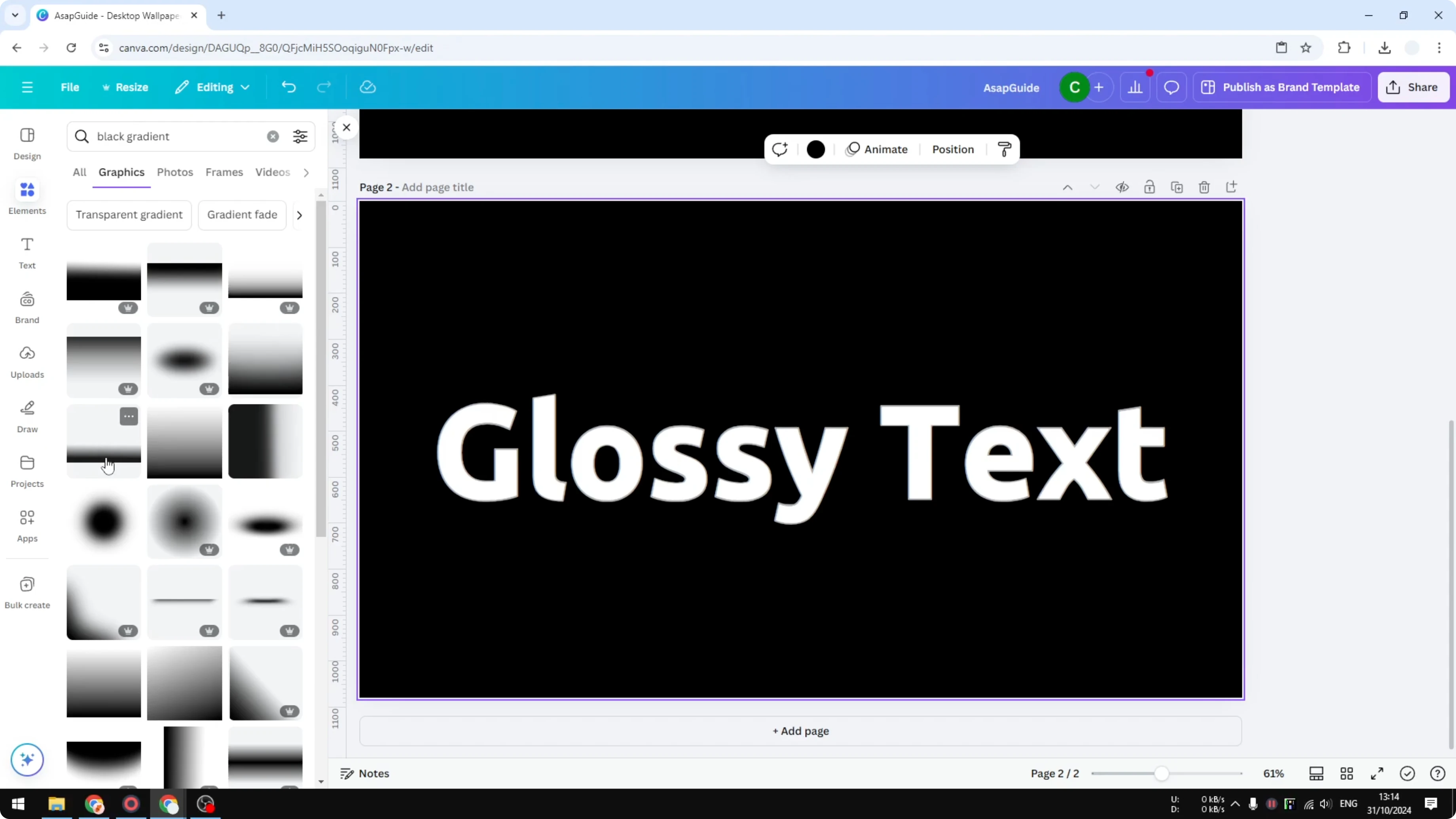
Some options look great with a sharp transition, and others with a wide transition are not so great.
Pick the one where the dark and light colors meet closely.
That gives you a stronger glossy feel.
You can also create a softer look with a gentle fade.
For that kind of style, see this simple faded text effect walkthrough.
Place the shine
Position the gradient on the canvas and bring it to the very top of the layers.
Open Layers and choose Bring forward until it sits above the text.
Rotate the gradient 180 degrees.
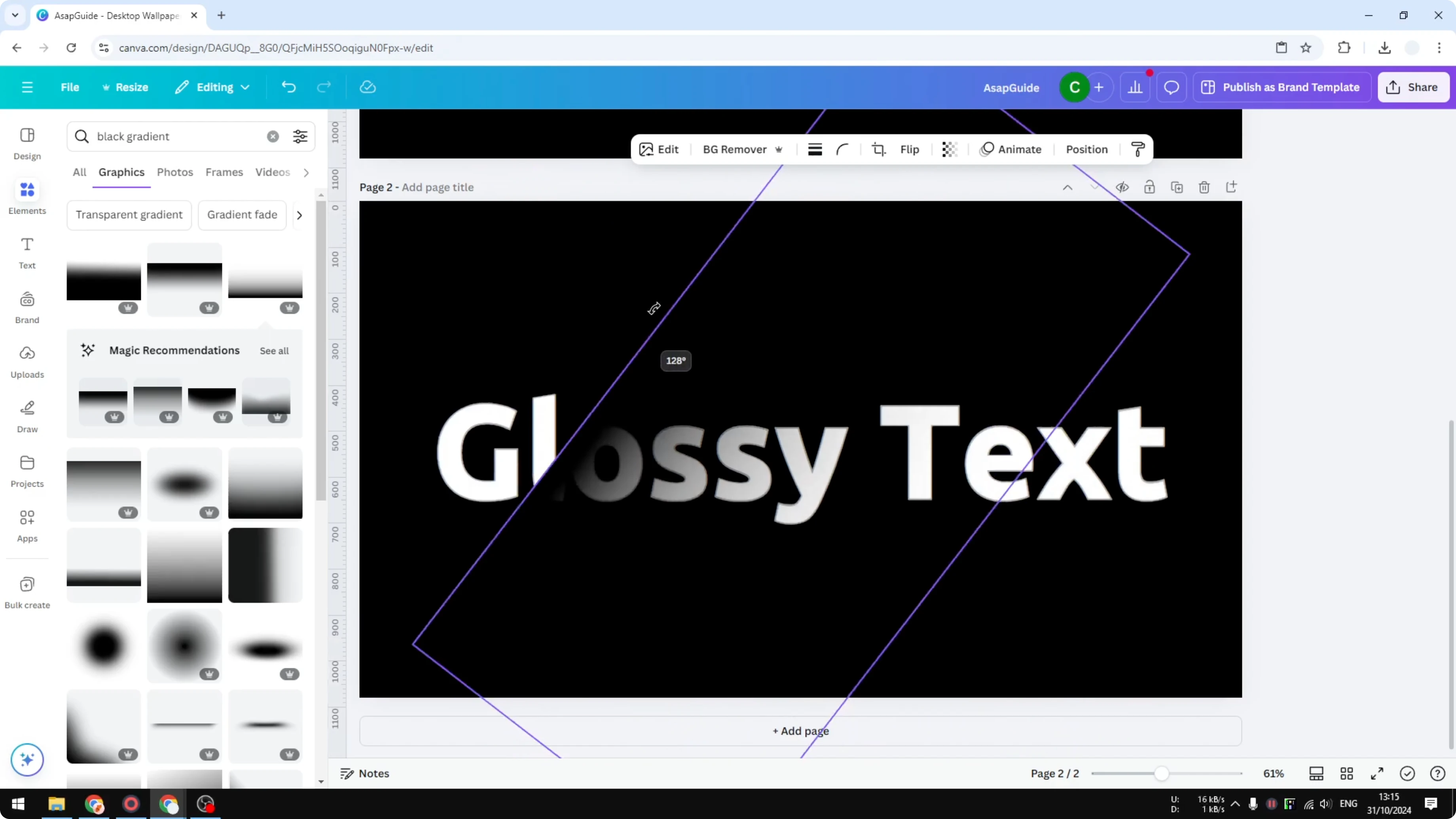
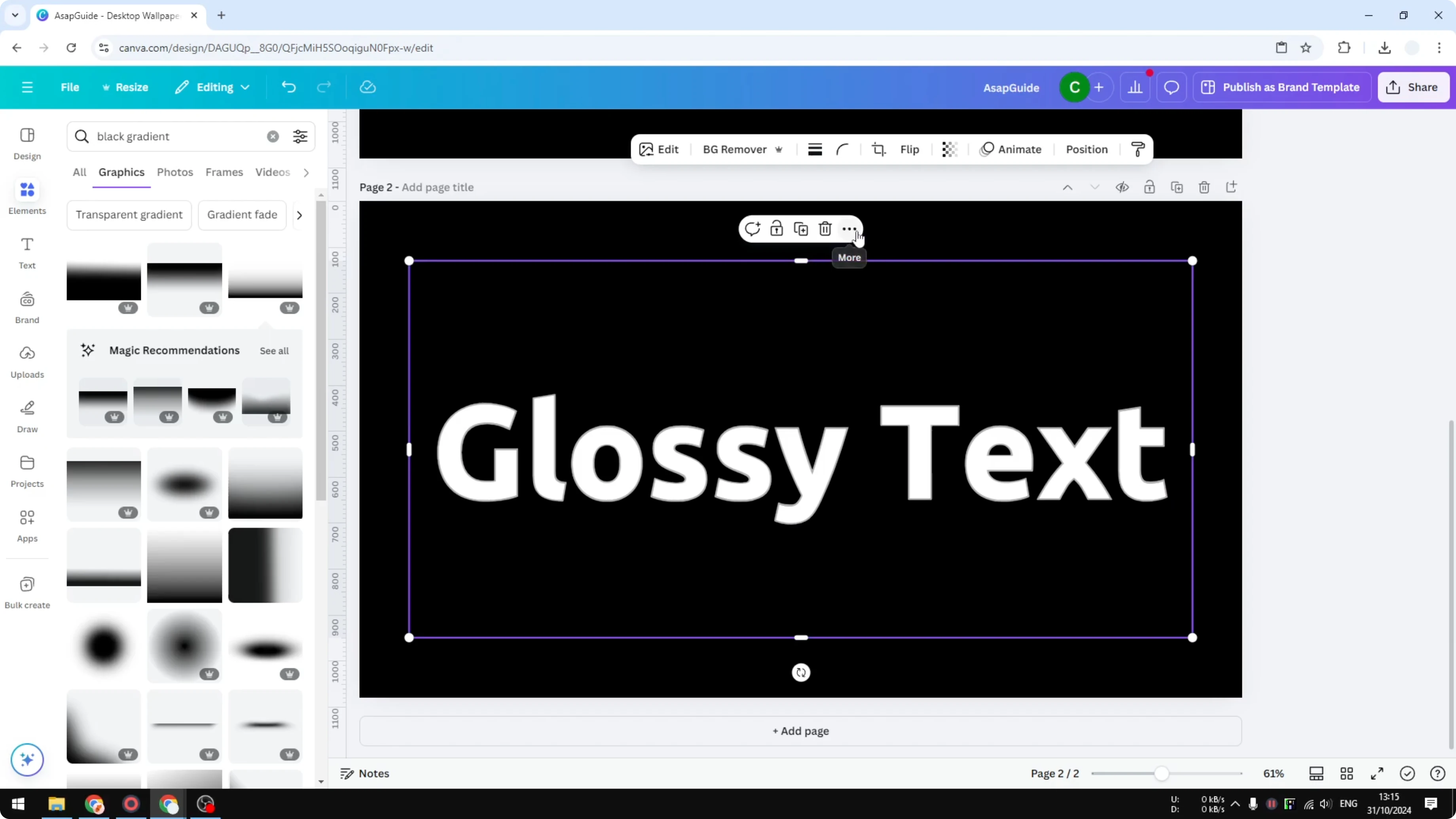
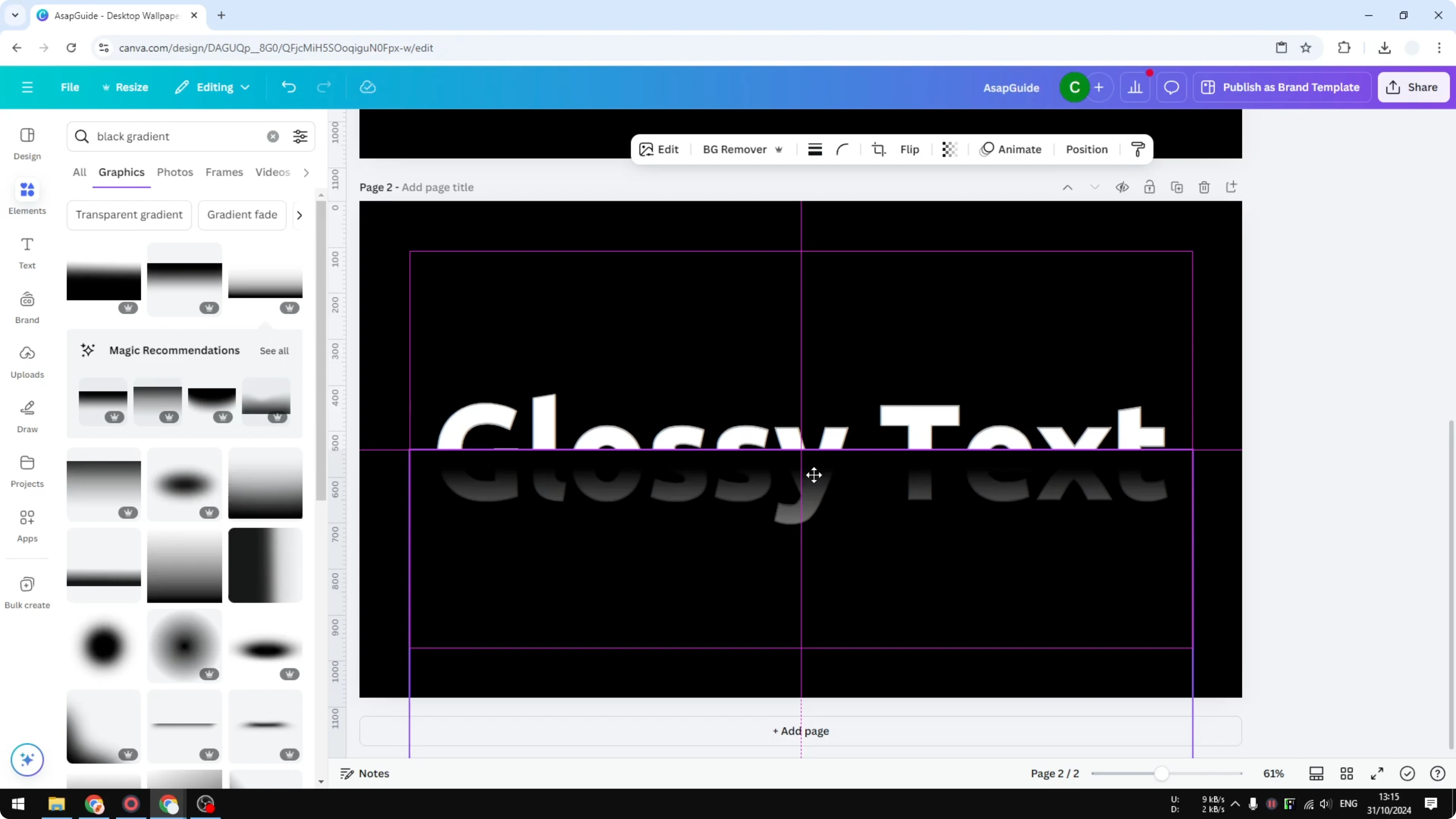
Resize the gradient and place it roughly in the middle of the text.
Adjust its size so the bright area sits where you want the highlight.
You can also rotate the text slightly to change the angle of the shine.
For a different creative vibe, try a stylized glitch highlight instead of a smooth shine.
Here’s a quick guide to a bold glitch text effect in Canva.
Final thoughts
That’s a simple way to create a glossy text effect in Canva with just native tools.
Choose a tight-transition gradient, place it above your outlined text, rotate to taste, and align the bright zone for the highlight.
A few small adjustments to position and angle make the effect pop.
Recent Posts

How to Visualize Yourself as a Pixelized Character with AI?
How to Visualize Yourself as a Pixelized Character with AI?

How to Revive Faded Memories and Enhance Image Clarity with AI?
How to Revive Faded Memories and Enhance Image Clarity with AI?

How to Visualize Yourself as an Animal Crossing Character with AI?
How to Visualize Yourself as an Animal Crossing Character with AI?