How To Show Rulers In Canva
I will show you how you can Show Rulers In Canva to get precise measurements on your design. I have a square on my design and I want the length of each side to be 5 cm. I have no idea how much 5 cm really is without a visual aid.
Show Rulers In Canva basics
I need a benchmark on the canvas for exact sizing. Rulers give a clear reference for both directions. With rulers on, I can size elements with confidence.
Enable Show Rulers In Canva
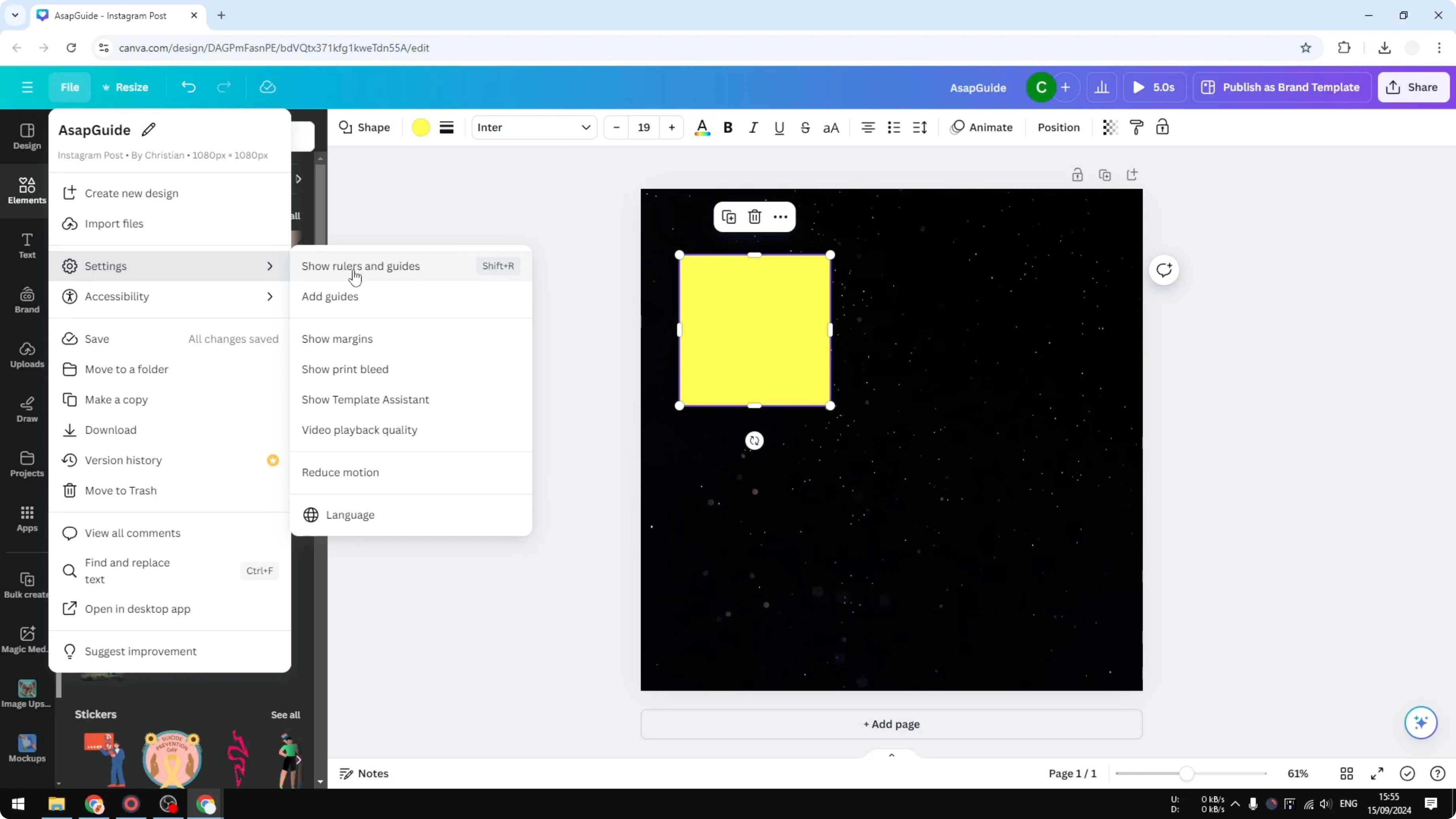
Go to the File menu, open Settings, and click Show rulers and guides.
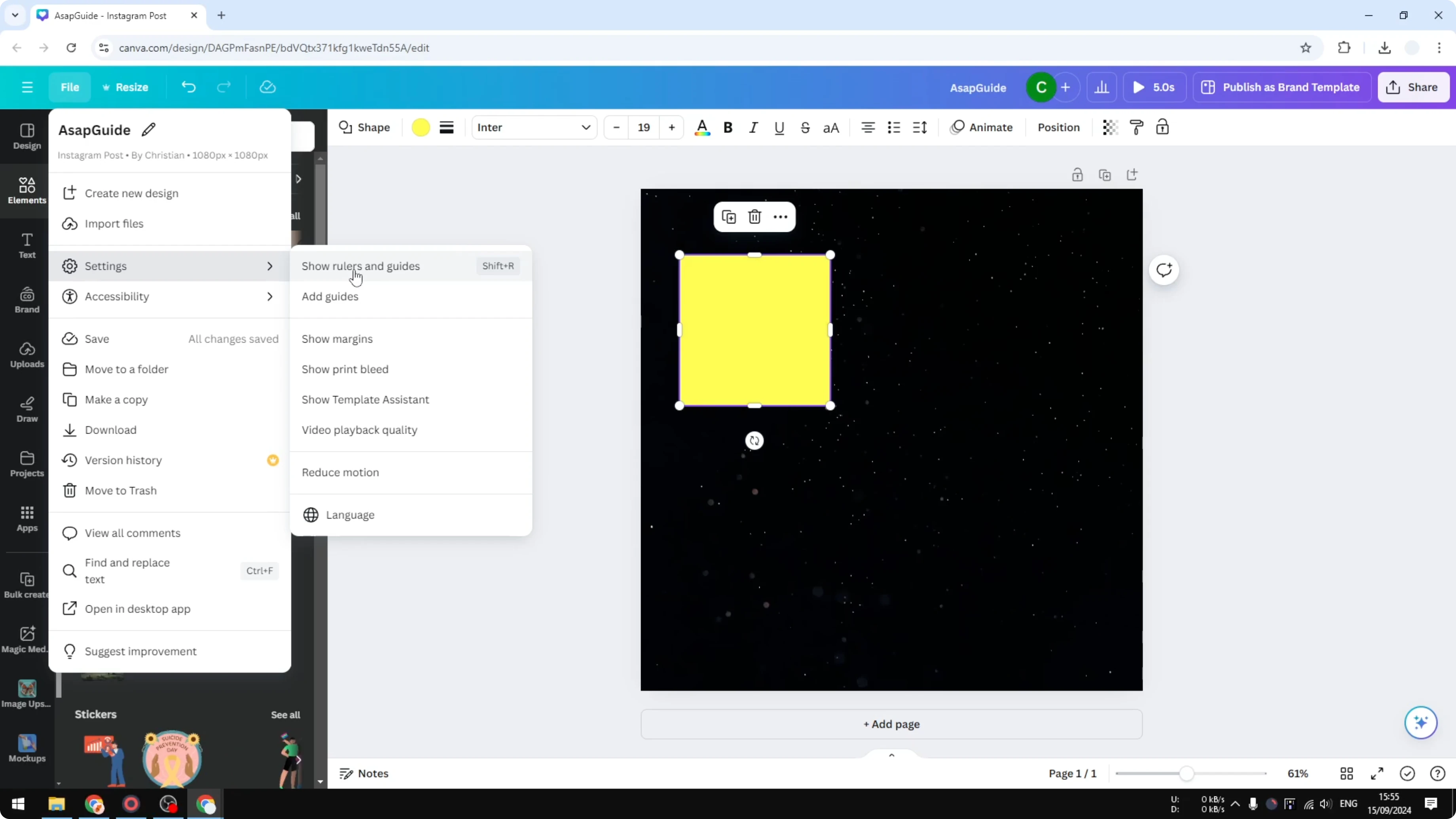
You can also use the keyboard shortcut C and R.
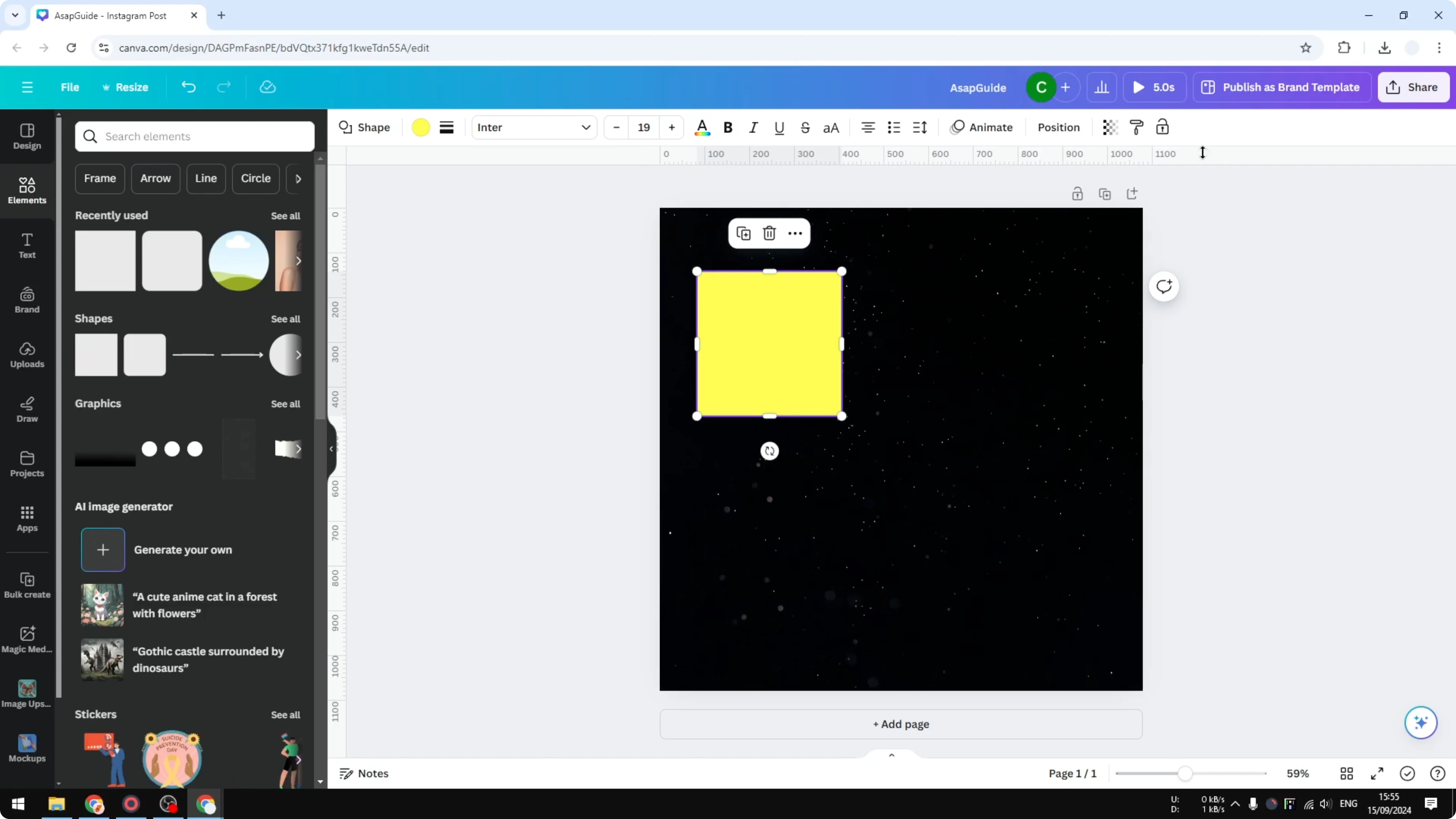
On the top side you will see the horizontal ruler, and on the left side you will see the vertical ruler.
If you also need help typing special characters while labeling designs, see how to add accent marks in Canva.
Measure with Show Rulers In Canva
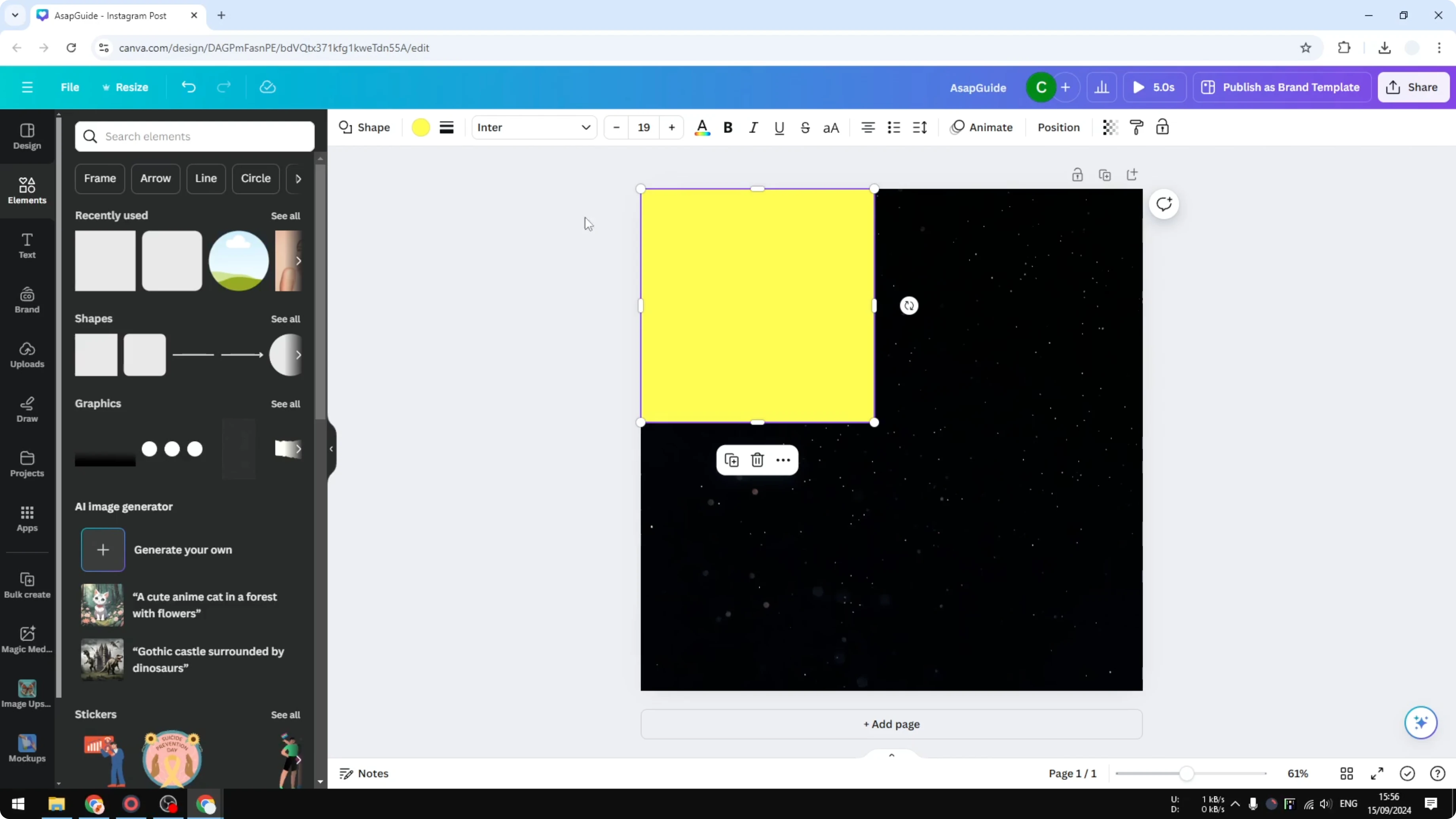
I want to make this square precisely 5 cm on each side.
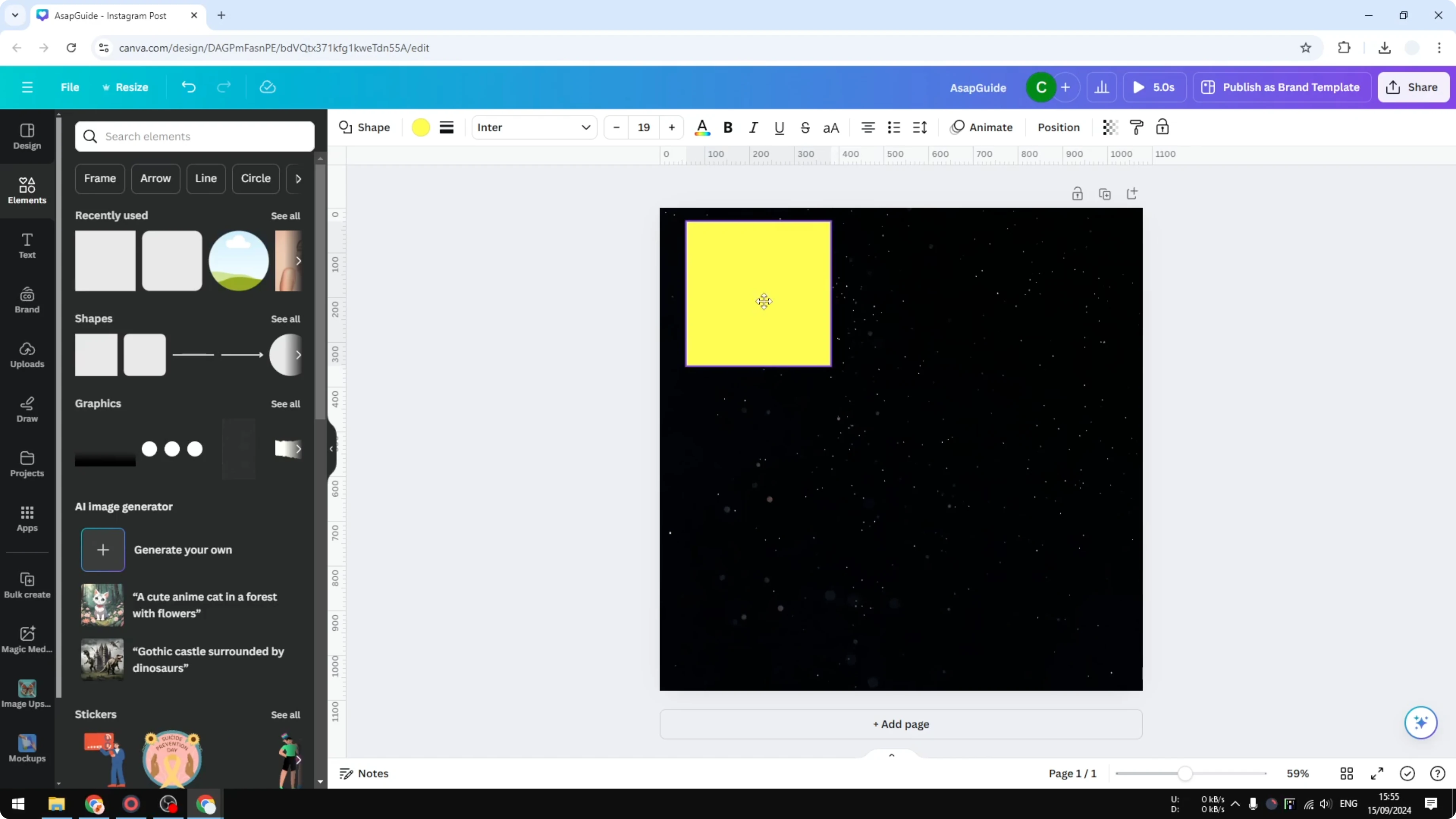
Put the square on the top left corner of the canvas.
Press Shift and drag until the rulers read 5 cm on both the top and the left.
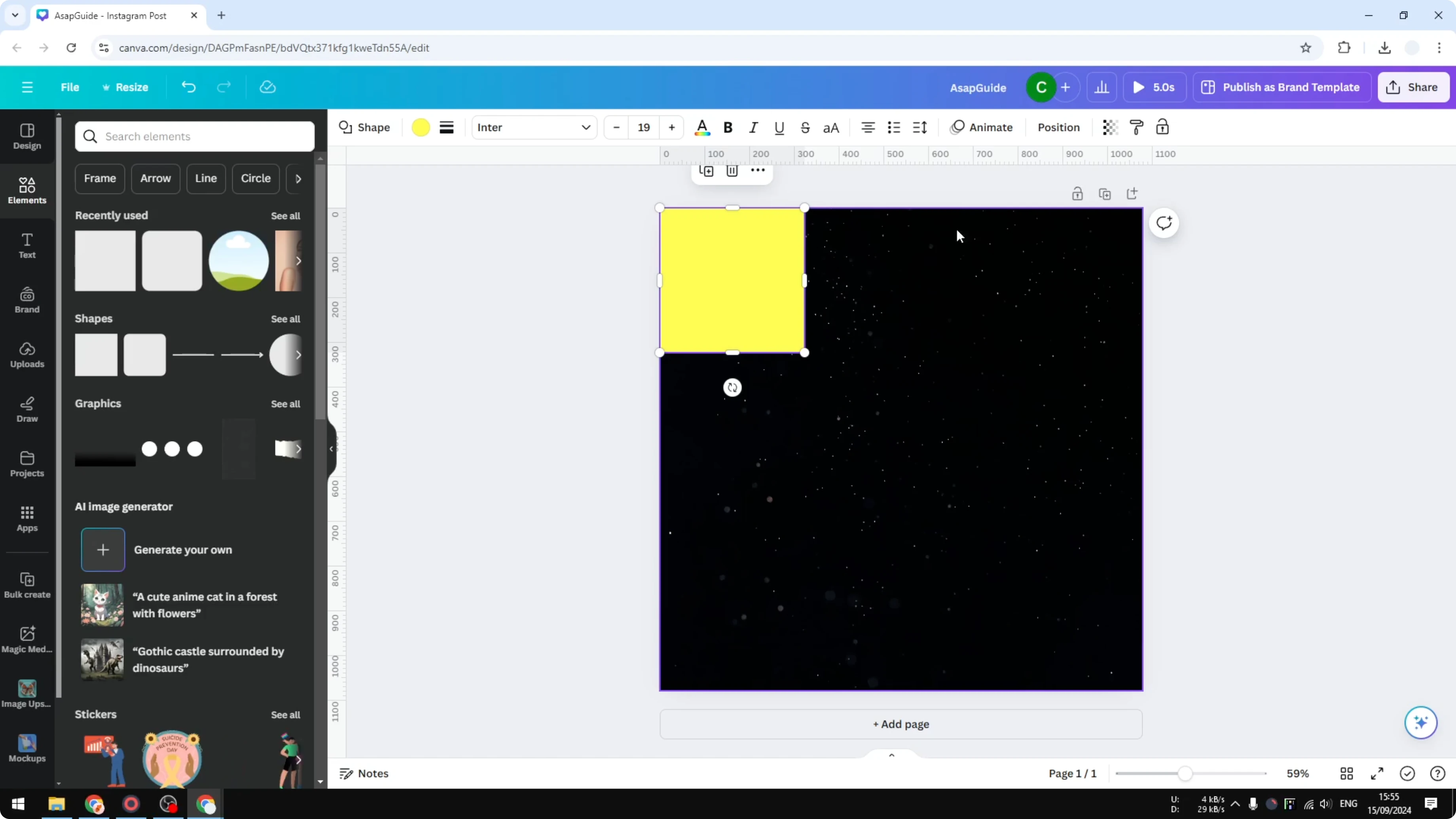
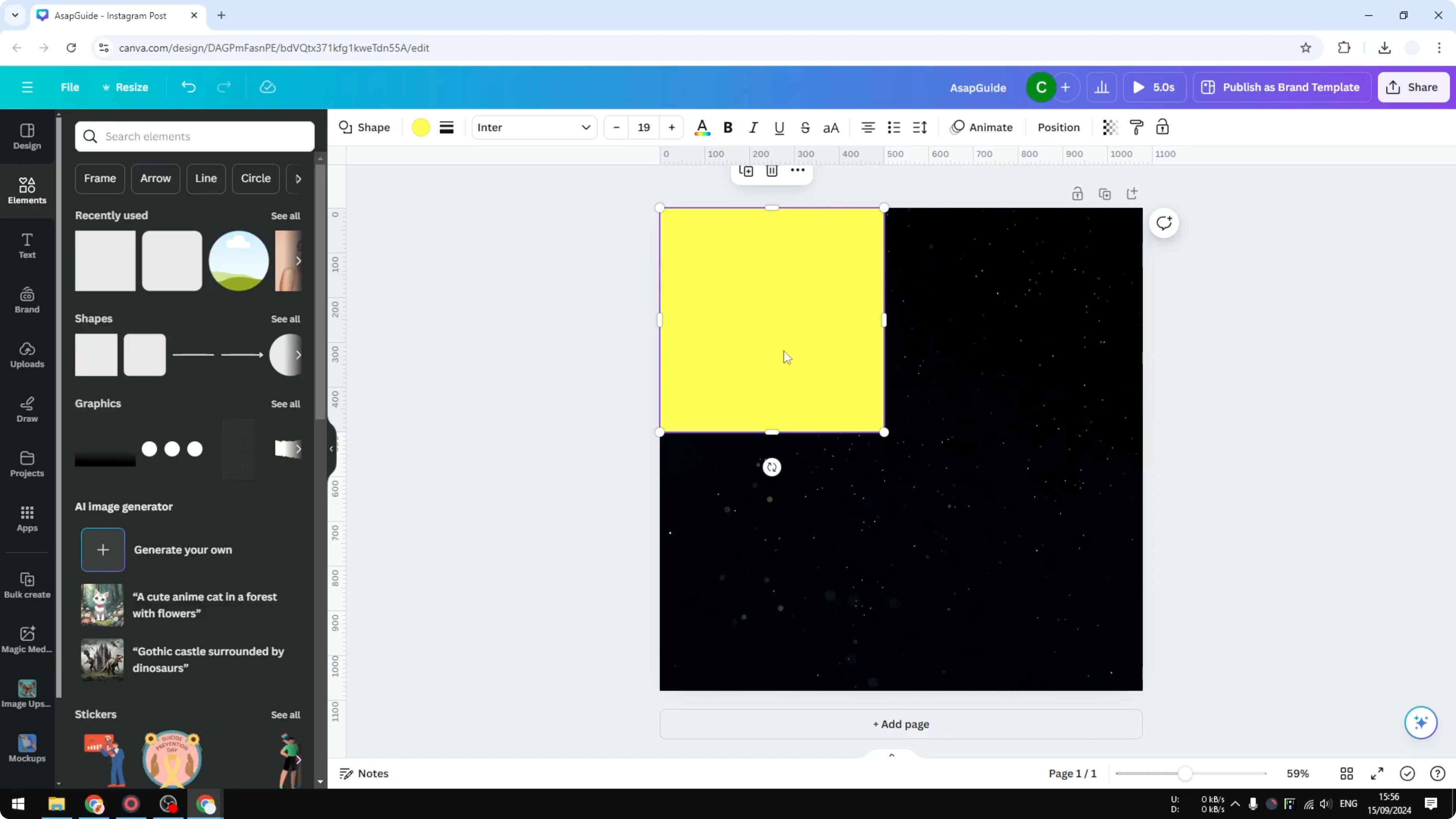
This is exactly 5 cm horizontally and 5 cm vertically. That is the benefit of using rulers in Canva, you can make some elements extremely precise.
If you want a project that benefits from exact sizing, you can create a 3D book cover in Canva.
Hide Show Rulers In Canva
You can hide the rulers any time.
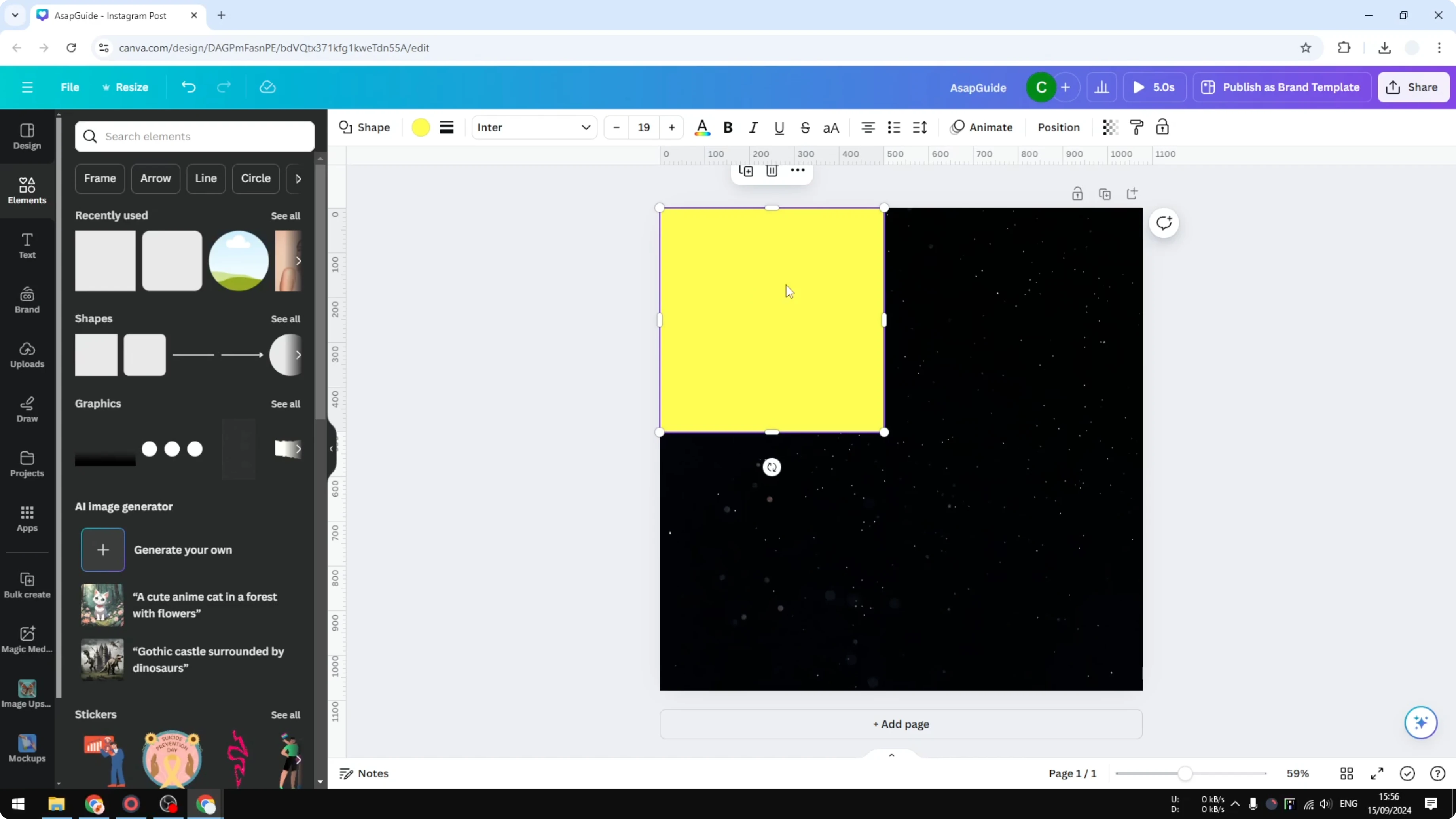
Go to File, open Settings, and disable the rulers again.
You can also use the keyboard shortcut if you want to. For a focused walkthrough, see how to remove rulers in Canva.
Final thoughts on Show Rulers In Canva
Turn on rulers when you need accurate alignment and measurable sizing. I use Show Rulers In Canva to hit exact measurements like 5 cm with ease. That is basically how you can show and hide rulers in Canva.
Recent Posts

How to Visualize Yourself as a Pixelized Character with AI?
How to Visualize Yourself as a Pixelized Character with AI?

How to Revive Faded Memories and Enhance Image Clarity with AI?
How to Revive Faded Memories and Enhance Image Clarity with AI?

How to Visualize Yourself as an Animal Crossing Character with AI?
How to Visualize Yourself as an Animal Crossing Character with AI?