How to Remove Rulers in Canva
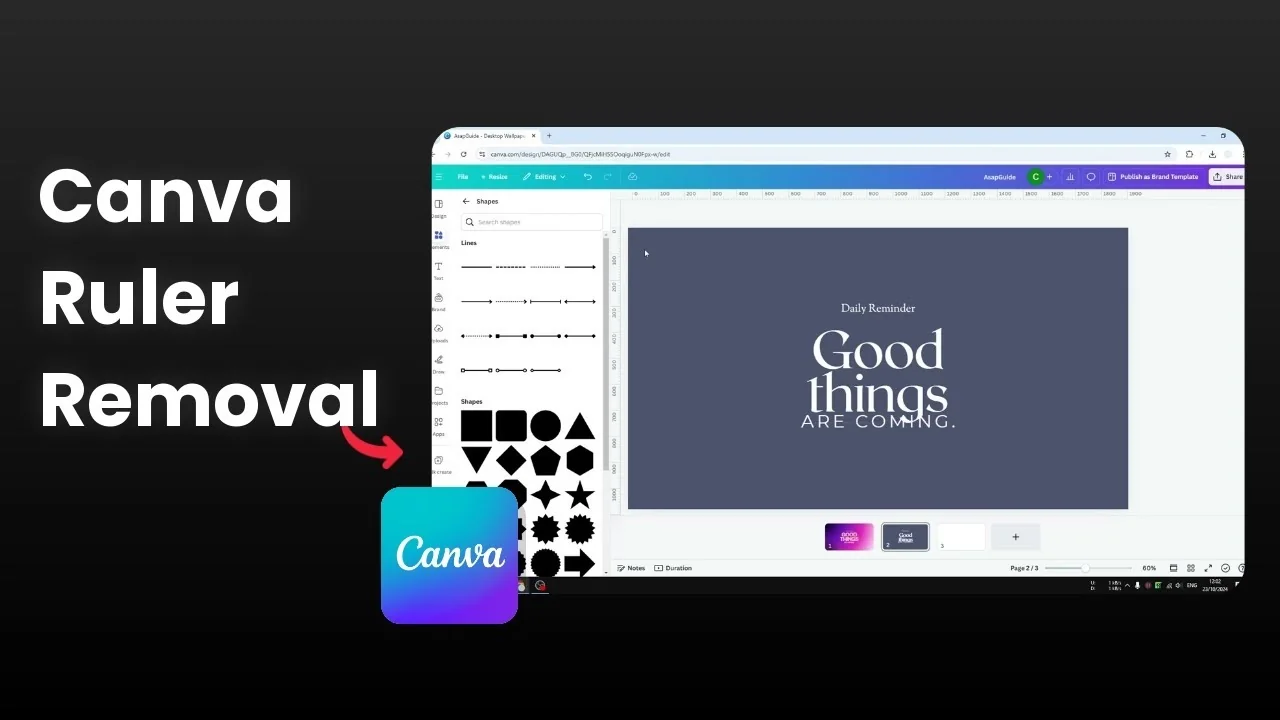
There are two rulers in your Canva interface. There is a horizontal ruler and a vertical ruler. They are useful to make sure your design or elements have a specific size and to guide the position of elements.
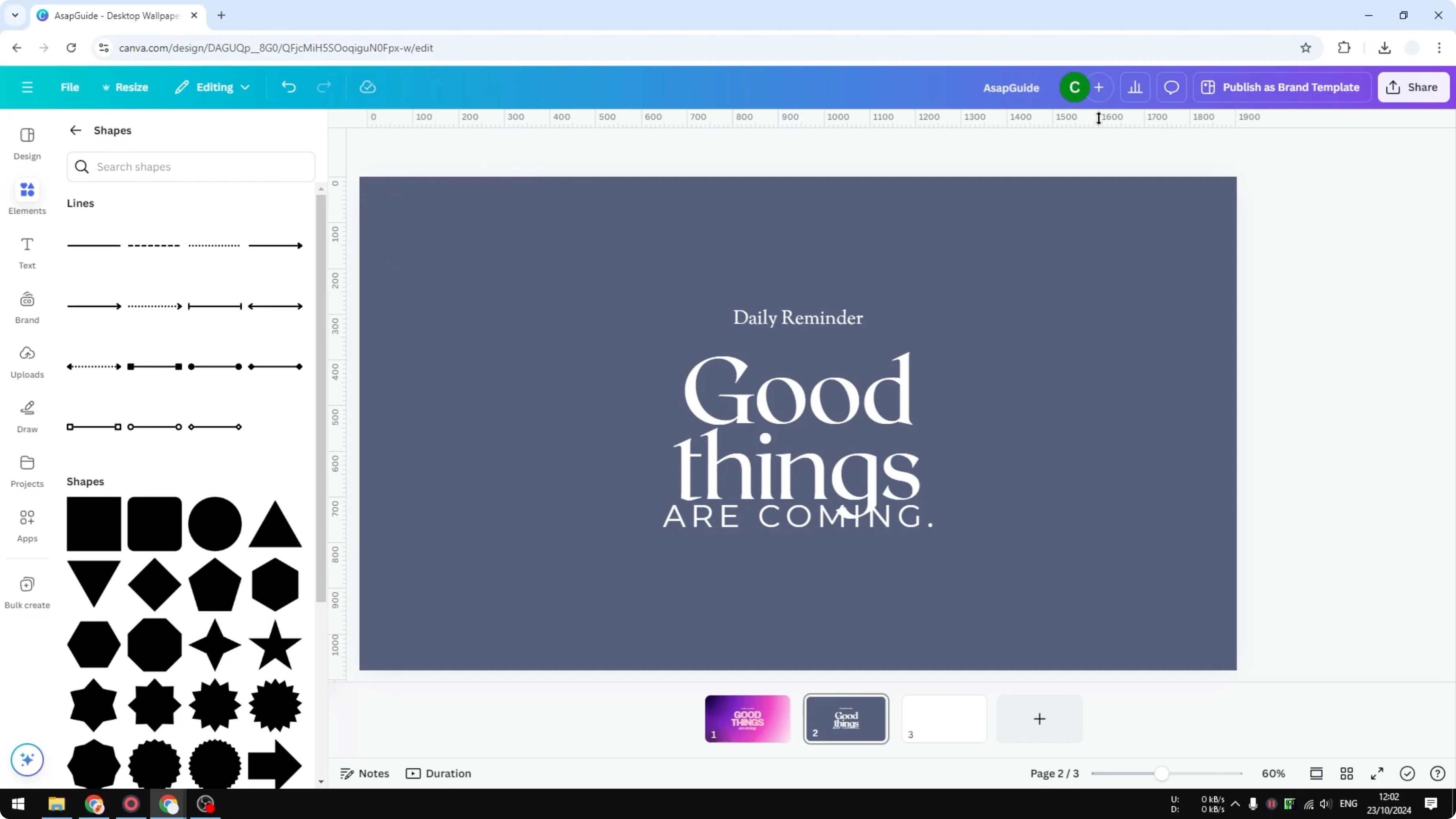
If you do not want to use them and you prefer more space on your screen to make the design look bigger, you can hide them. Here is the quick way to remove the rulers in Canva. If you are also cleaning up motion in your project, you can remove animations in Canva.
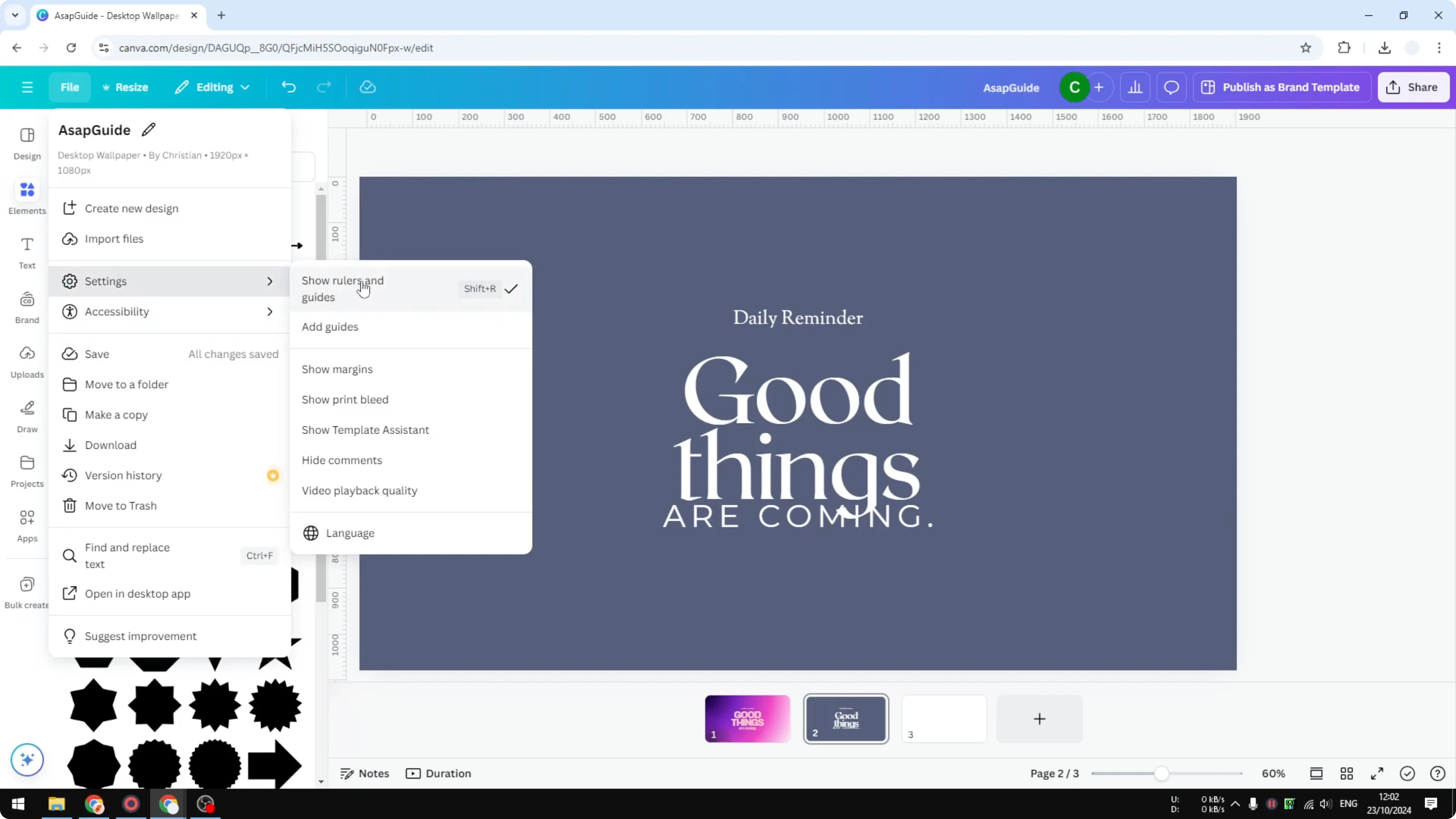
Remove Rulers in Canva: Menu method
Go to File.
Click Settings.
Click the button for Show rulers and guides.
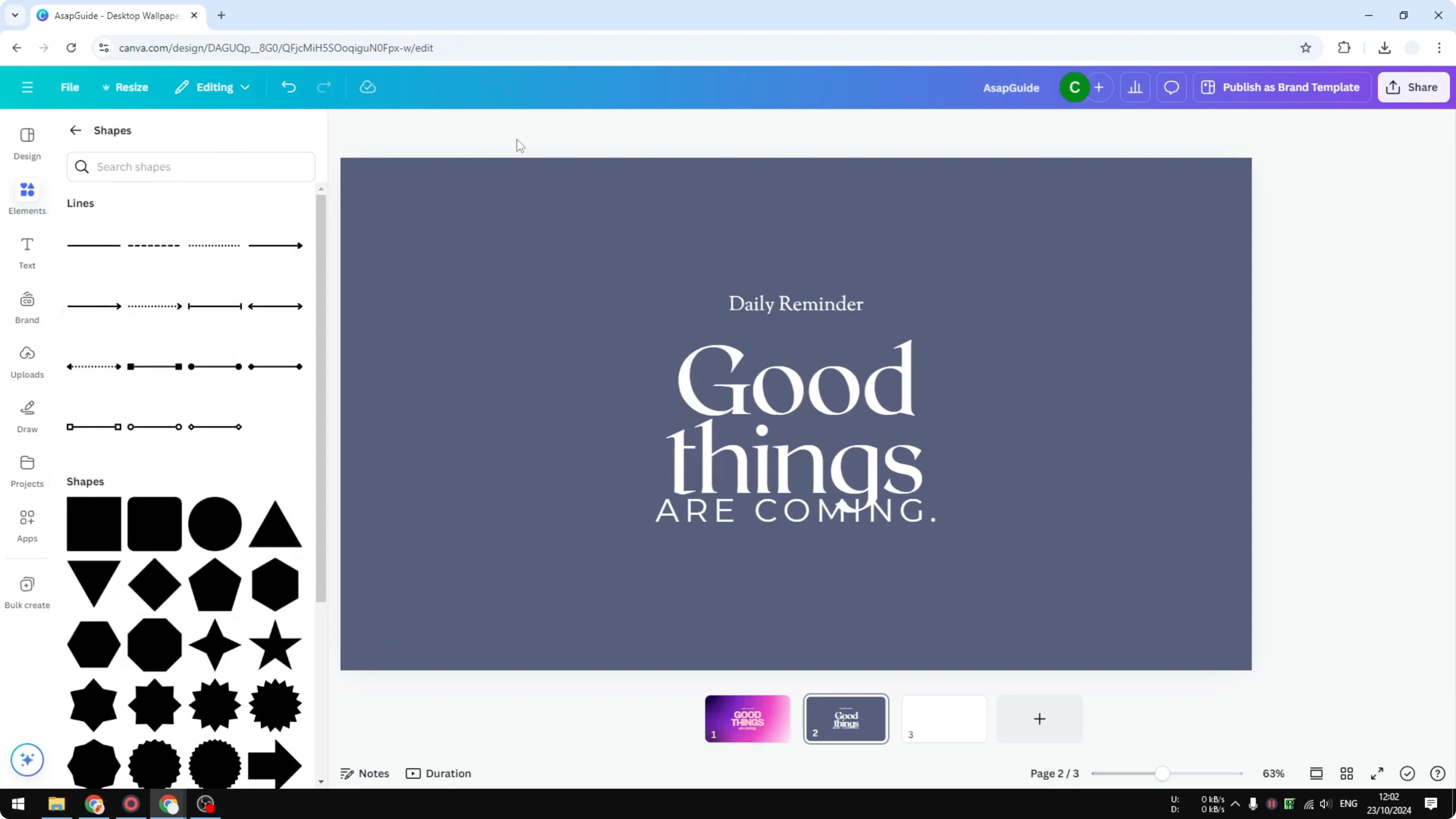
The rulers are now gone.
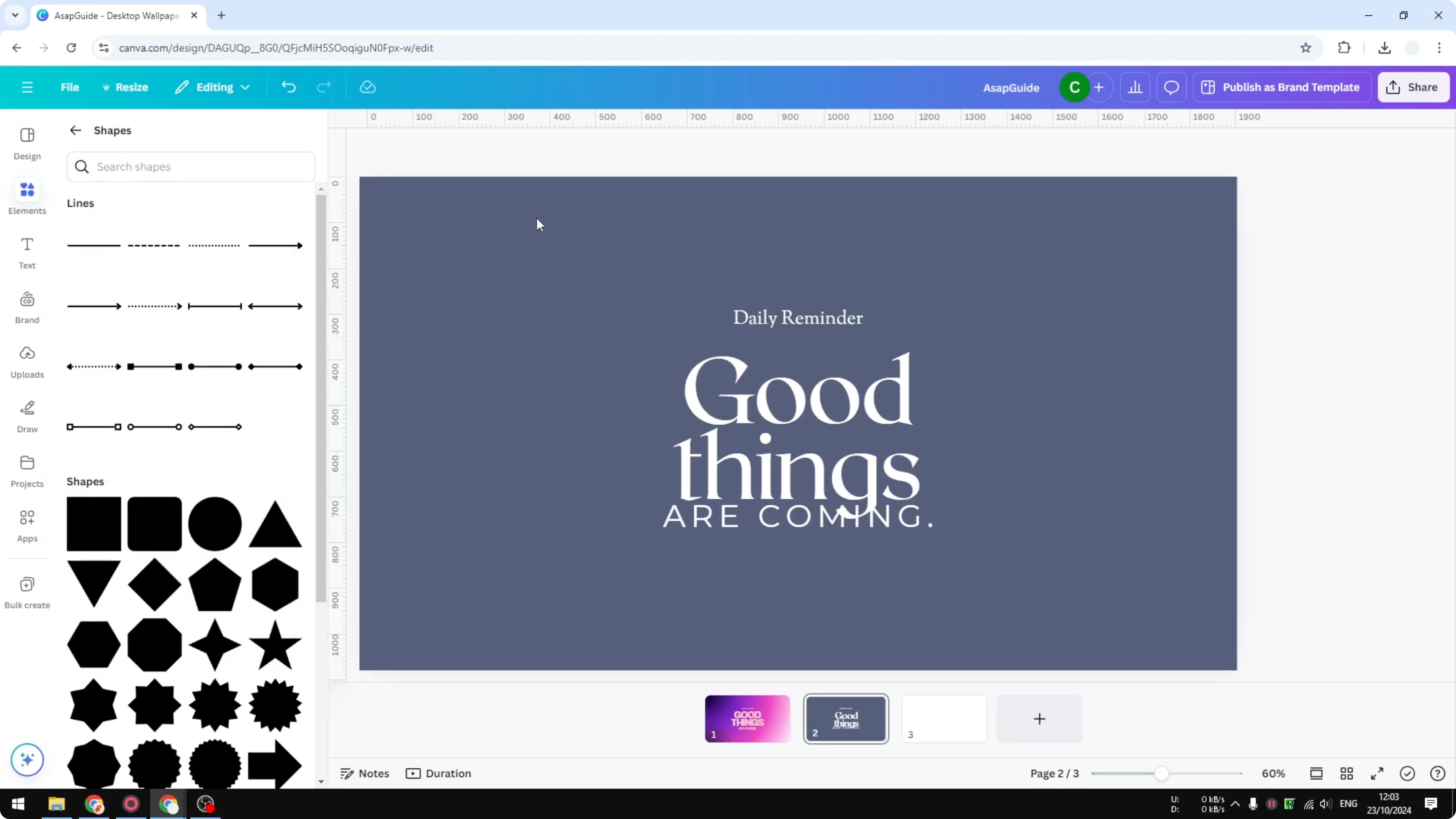
Go back to File.
Open Settings.
Click the same button to get the rulers back.
Remove Rulers in Canva: Keyboard shortcut
You can also use the keyboard shortcut to toggle rulers. Press Shift + R to hide them, and press it again to show them. For audio polish in the same edit, you can remove background audio noise in Canva.
Toggle rulers: Shift + R
Remove Rulers in Canva: Final thoughts
Rulers help with precise sizing and positioning, but you can hide them any time to get more screen space. Use File > Settings > Show rulers and guides, or press Shift + R to toggle them on and off. If you are editing video overlays, see how to remove text from a video in Canva.
Recent Posts

How to Visualize Yourself as a Pixelized Character with AI?
How to Visualize Yourself as a Pixelized Character with AI?

How to Revive Faded Memories and Enhance Image Clarity with AI?
How to Revive Faded Memories and Enhance Image Clarity with AI?

How to Visualize Yourself as an Animal Crossing Character with AI?
How to Visualize Yourself as an Animal Crossing Character with AI?