How to Remove Background Audio Noise in Canva
I'm going to show you how you can remove background audio noise in your Canva video project. You have a recording of people talking, but the background noise is too noticeable and it's going to destroy the viewer's experience.
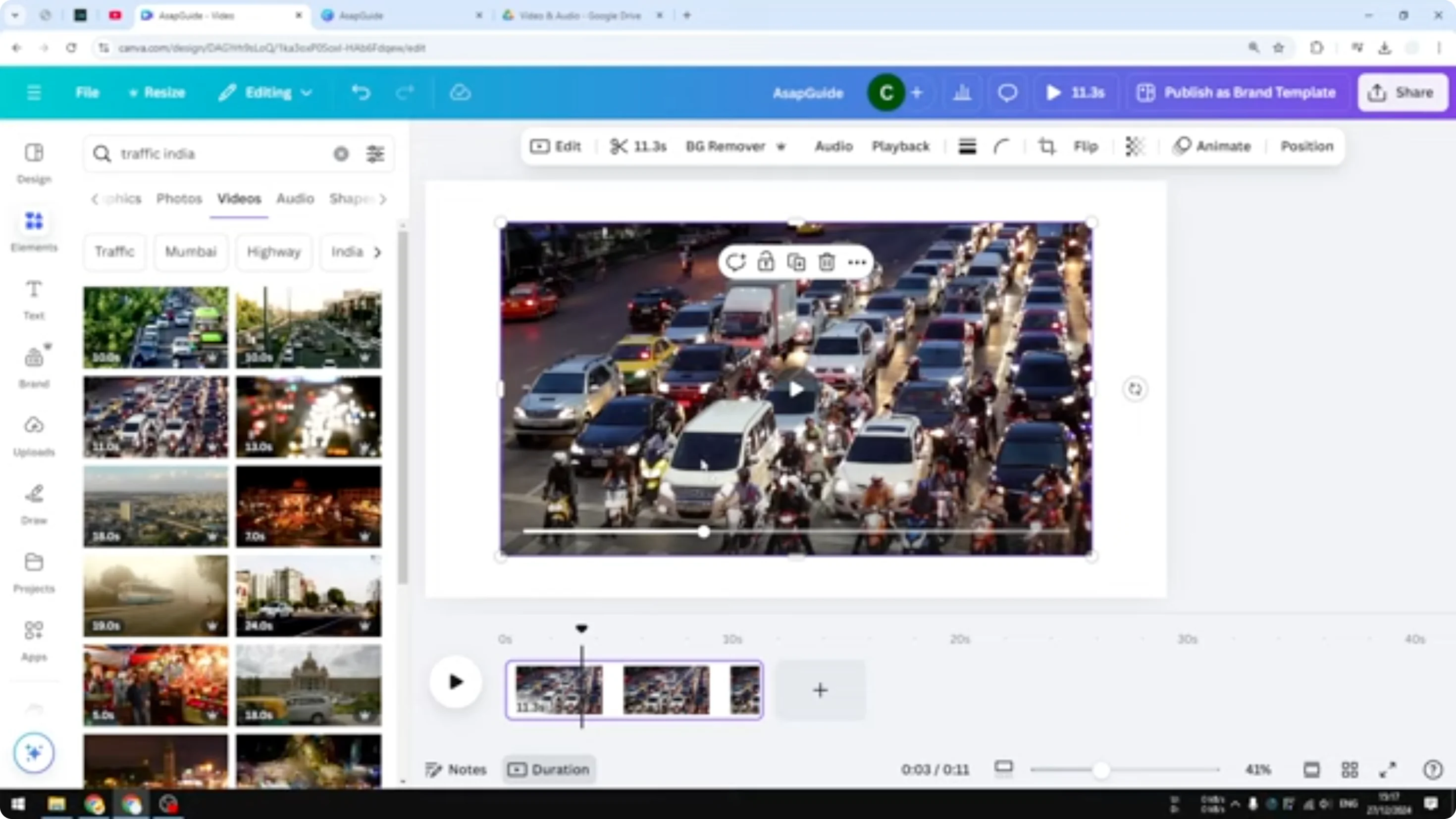
In this demonstration I have a video of a traffic jam. It's actually not a traffic jam, it's just a red light, so people are stopping, but you can still hear the engine noise from the vehicles. It's pretty noisy. There is no voice, nobody is talking here, this is just a demonstration. You can remove those annoying noises from the video, and I think the result is pretty good.
Remove Background Audio Noise in Canva
Steps to Remove Background Audio Noise in Canva
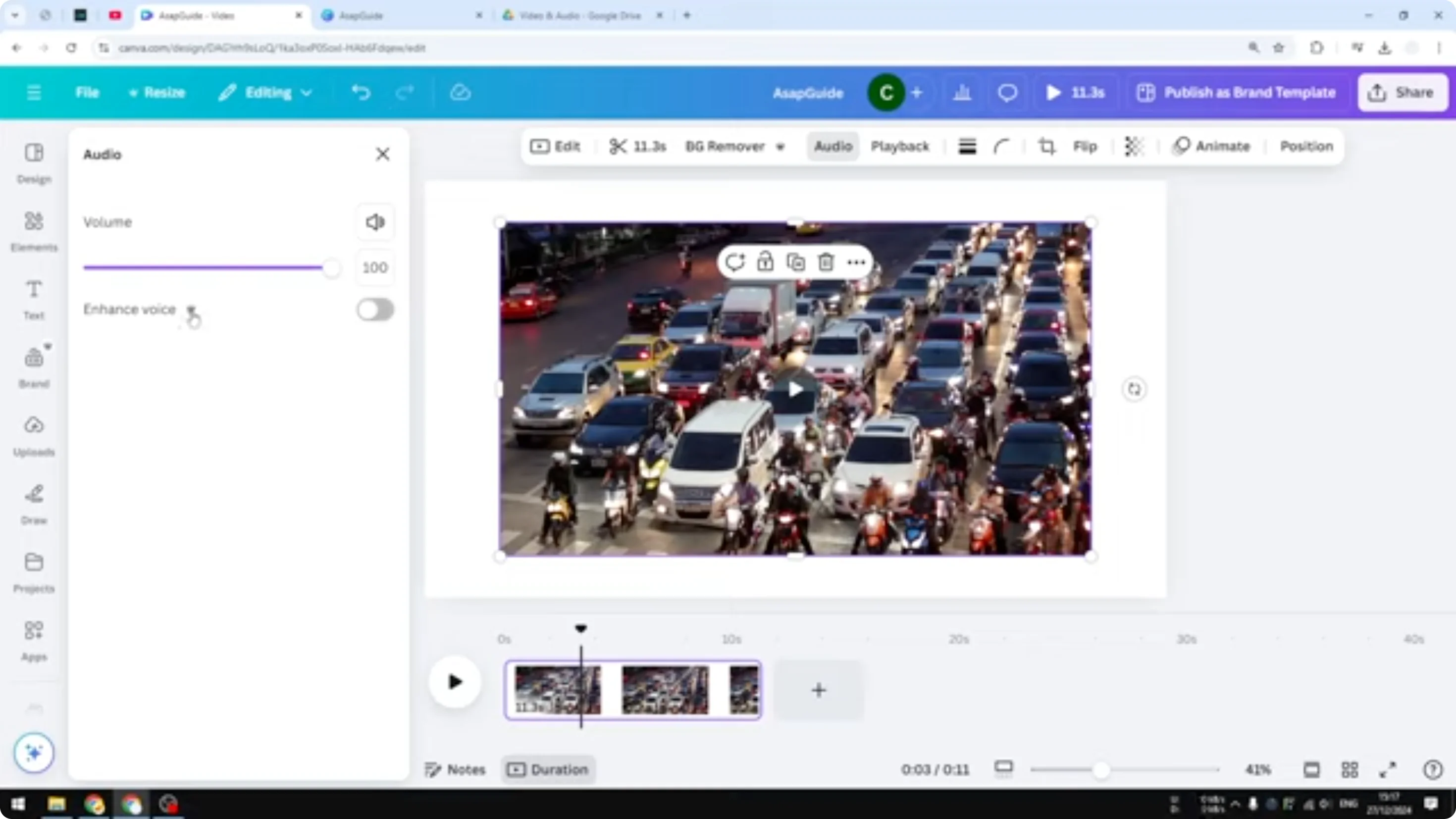
- Click on the video.
- Make sure the video and the audio are not separated. This is very important.
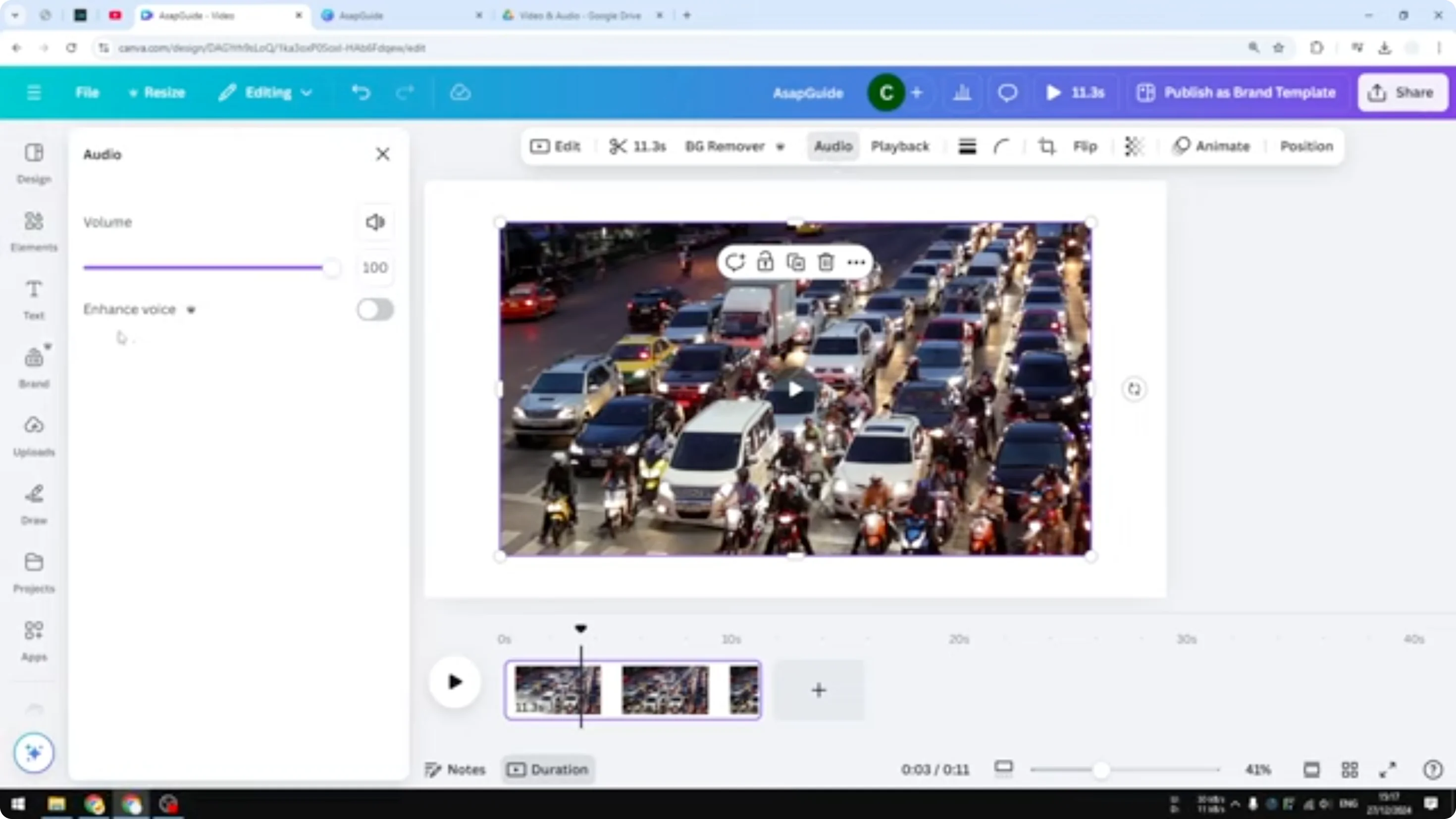
- Click Audio.
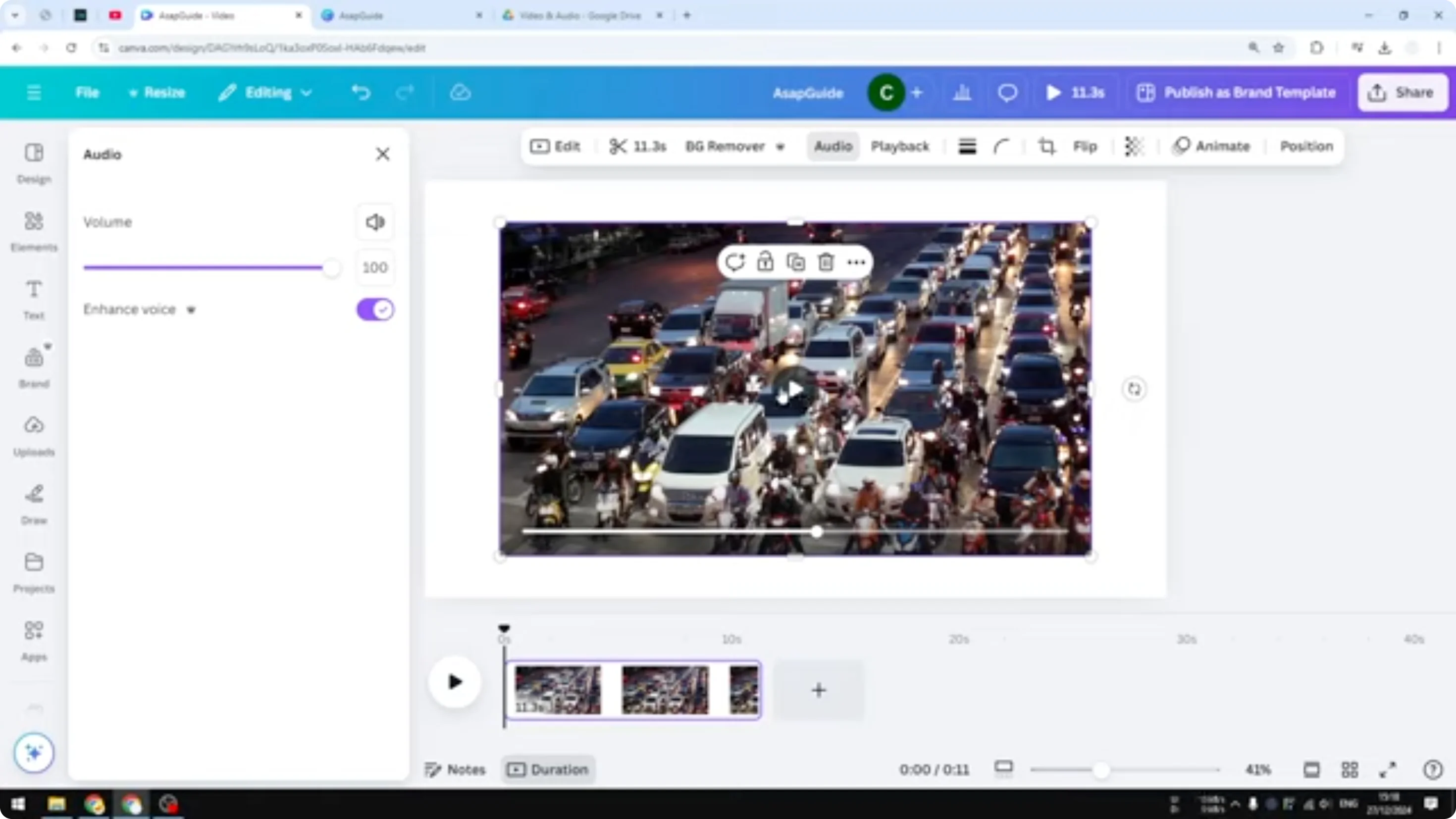
- You will see the option that says Enhance voice.
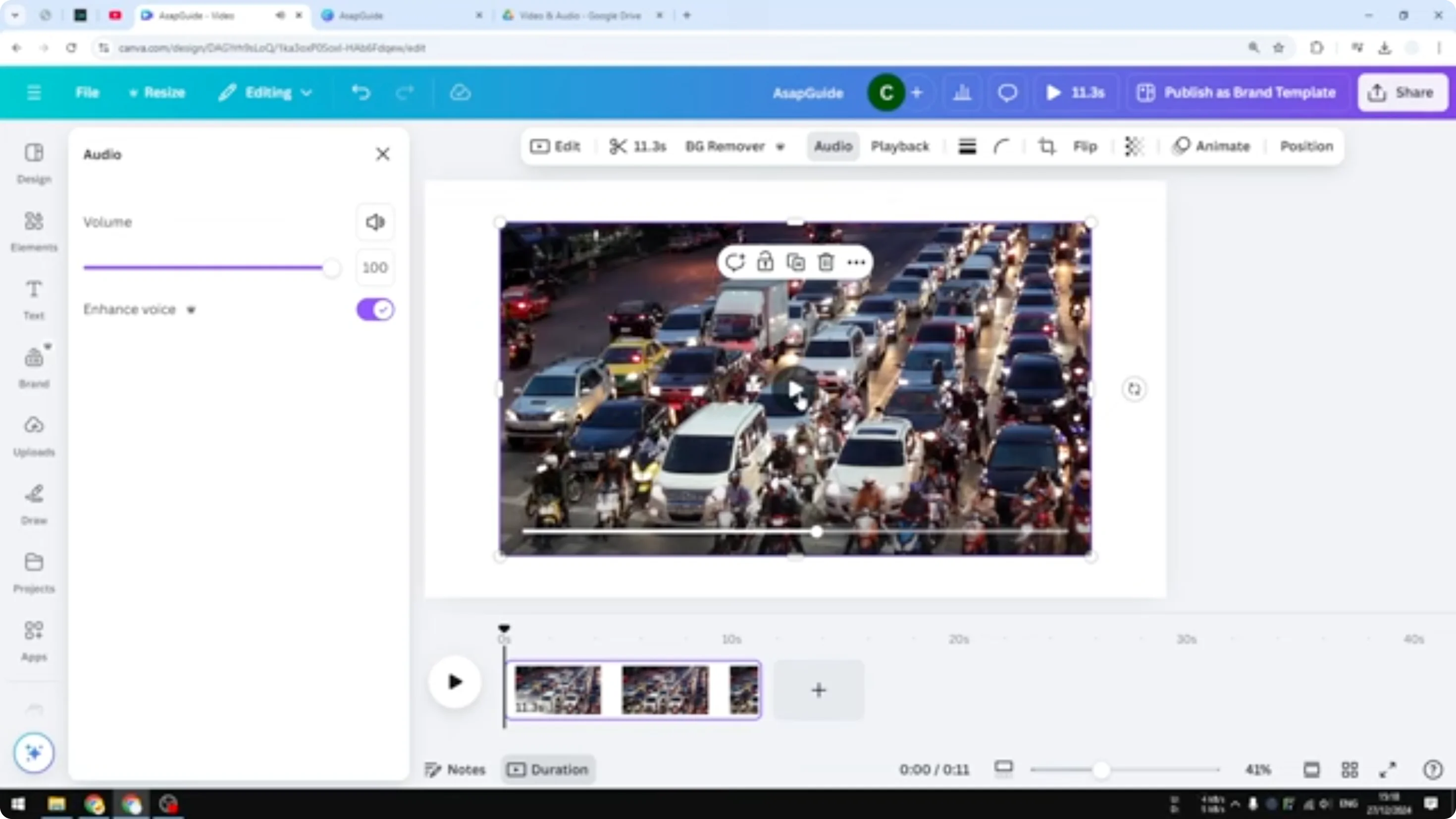
- Click Enhance voice and it will instantly remove the background noise of the video.
Note: this feature is for premium users only. If you're using the free option in Canva, this won't be accessible. Keep that in mind.
Results and What to Expect
You will hear the difference. There is still a little bit of background noise, but it is way, way toned down compared to the original video where the voice is not yet enhanced. I think this is a good feature in Canva that lets users make a great video with a clear voice. It allows people to enjoy the voice instead of being bothered by the background noise.
Final Thoughts
Use Enhance voice in Canva to reduce background noise quickly:
- Keep the video and audio linked.
- Open Audio and select Enhance voice.
- Expect noticeable reduction in noise, with some remaining in the background. This works well for making voices clearer so viewers can focus on what matters.
Recent Posts

How to Visualize Yourself as a Pixelized Character with AI?
How to Visualize Yourself as a Pixelized Character with AI?

How to Revive Faded Memories and Enhance Image Clarity with AI?
How to Revive Faded Memories and Enhance Image Clarity with AI?

How to Visualize Yourself as an Animal Crossing Character with AI?
How to Visualize Yourself as an Animal Crossing Character with AI?