How to Remove Animations From Canva
I’m going to show you how to remove animations from your Canva document or presentation. I have a Canva template with a lot of animations, which makes it easy to demonstrate how this design performs its animation and how to turn it all off.
Remove Animations From Canva
Preview Existing Animations
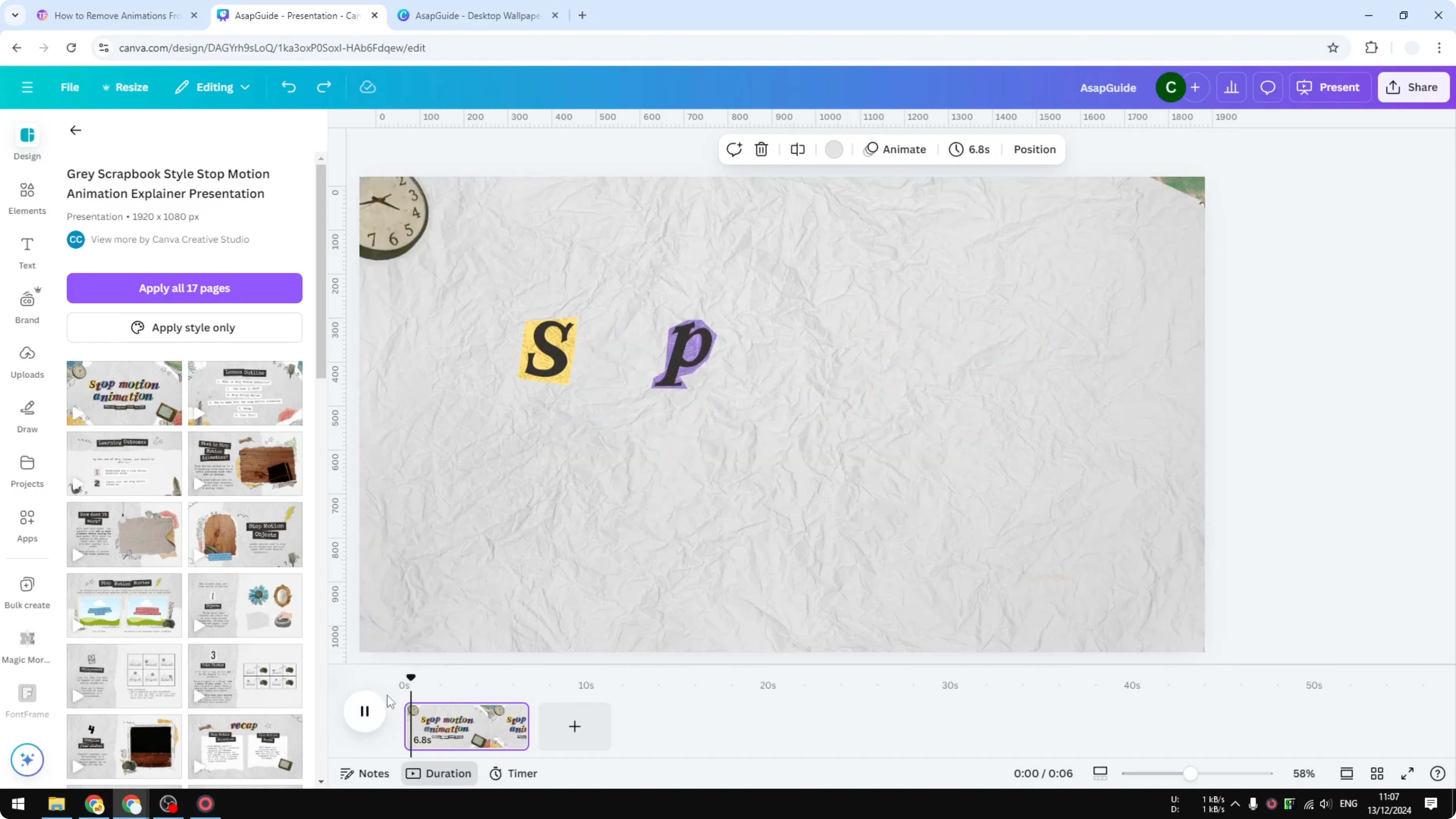
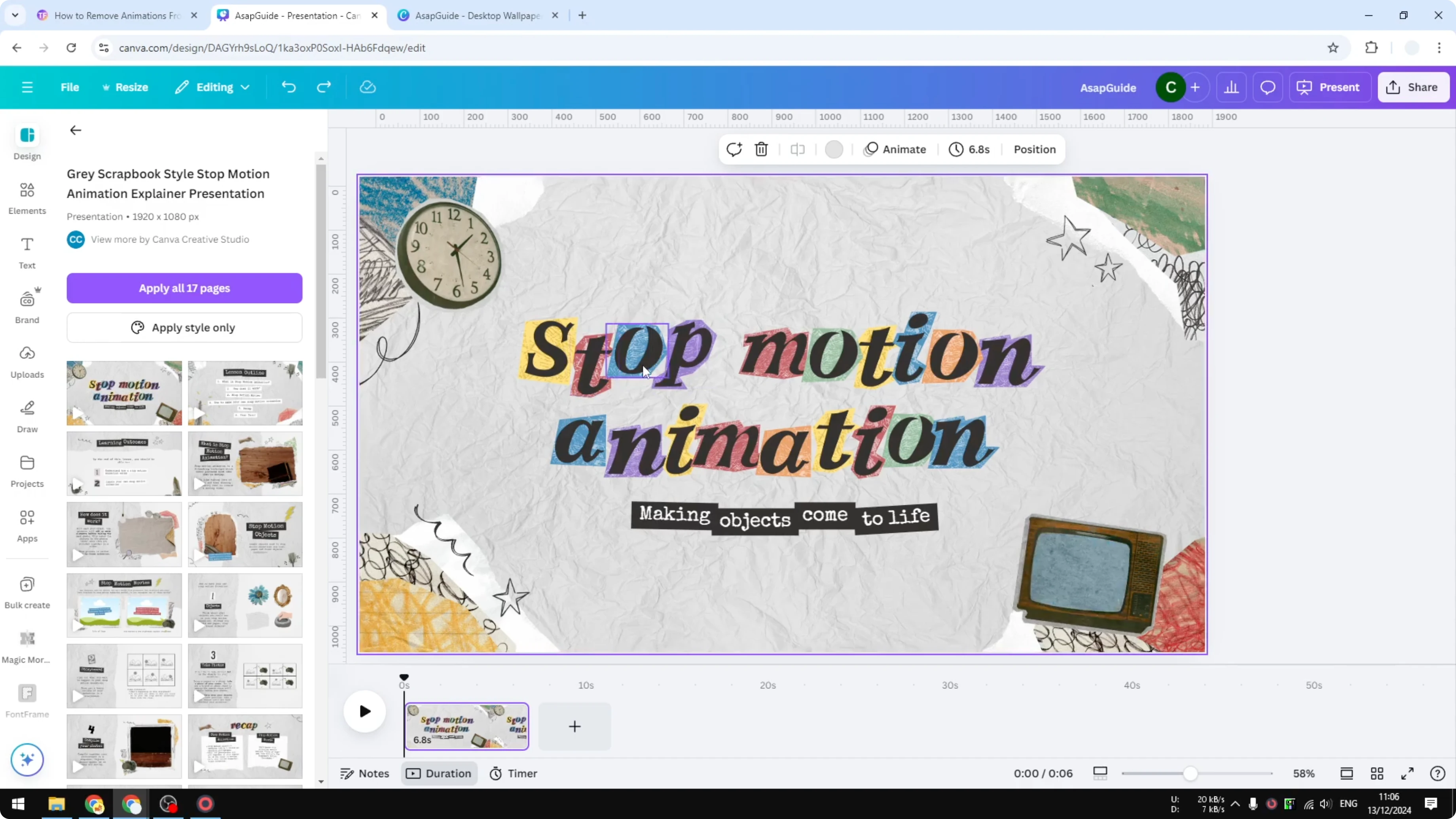
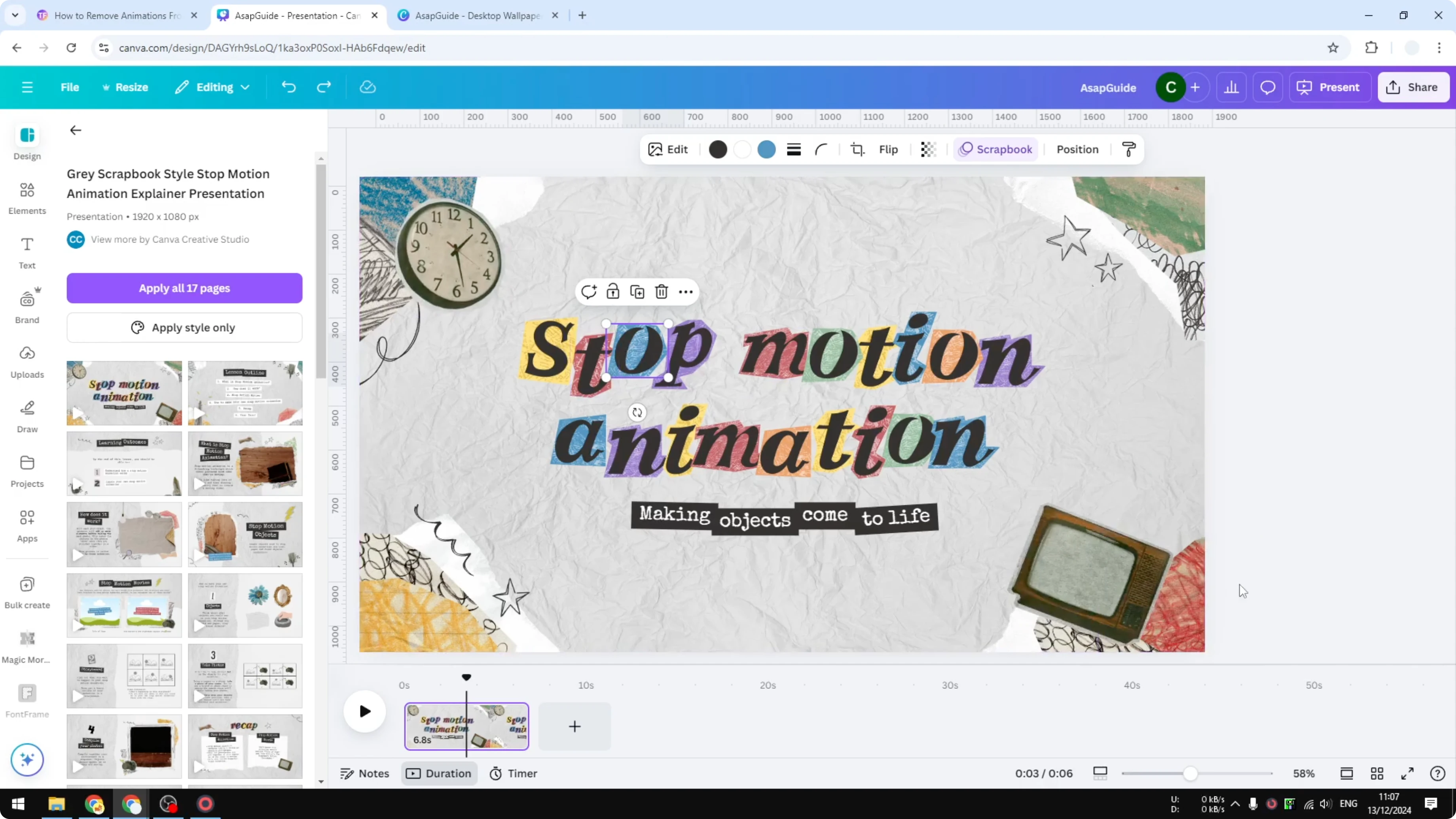
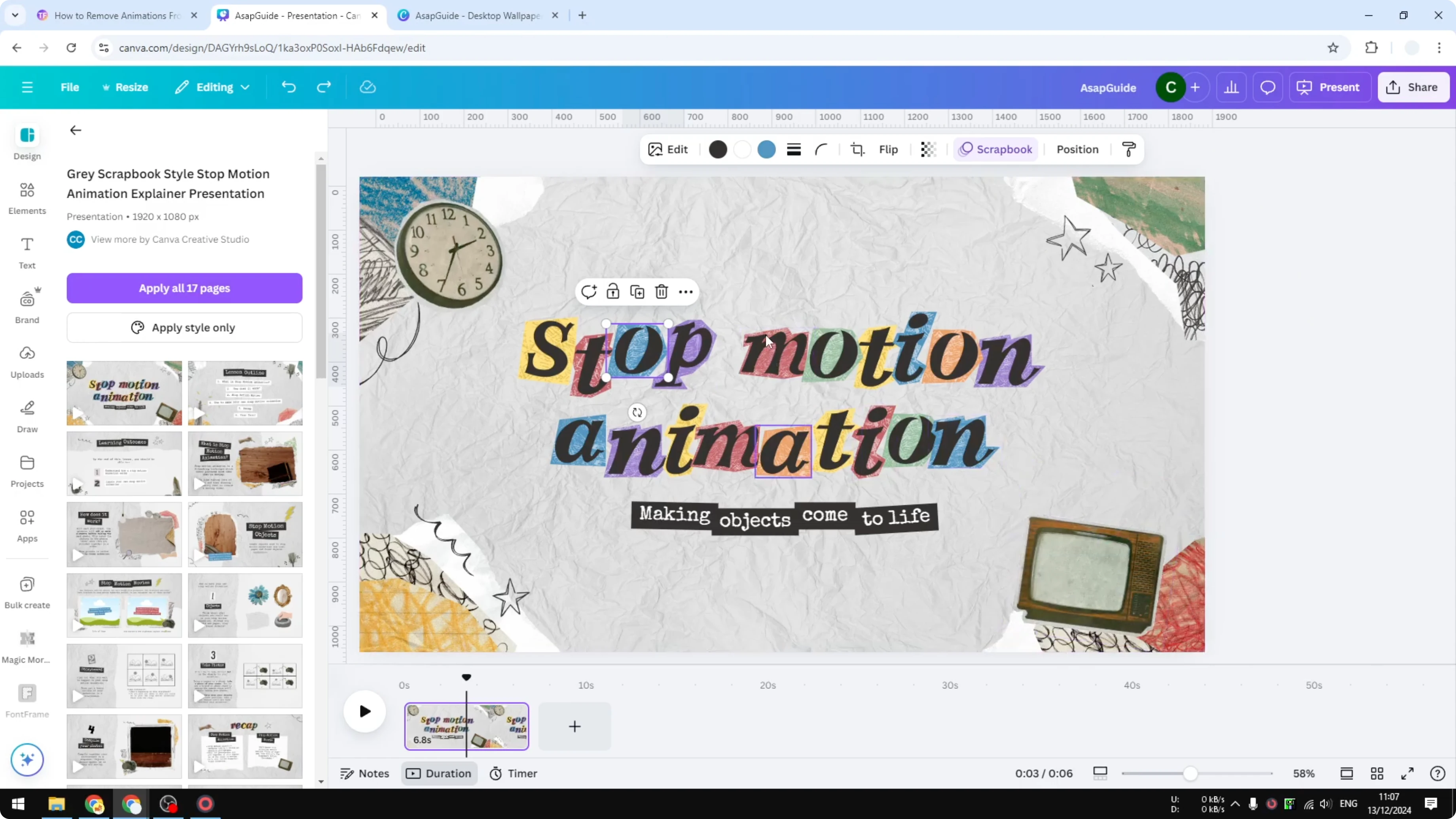
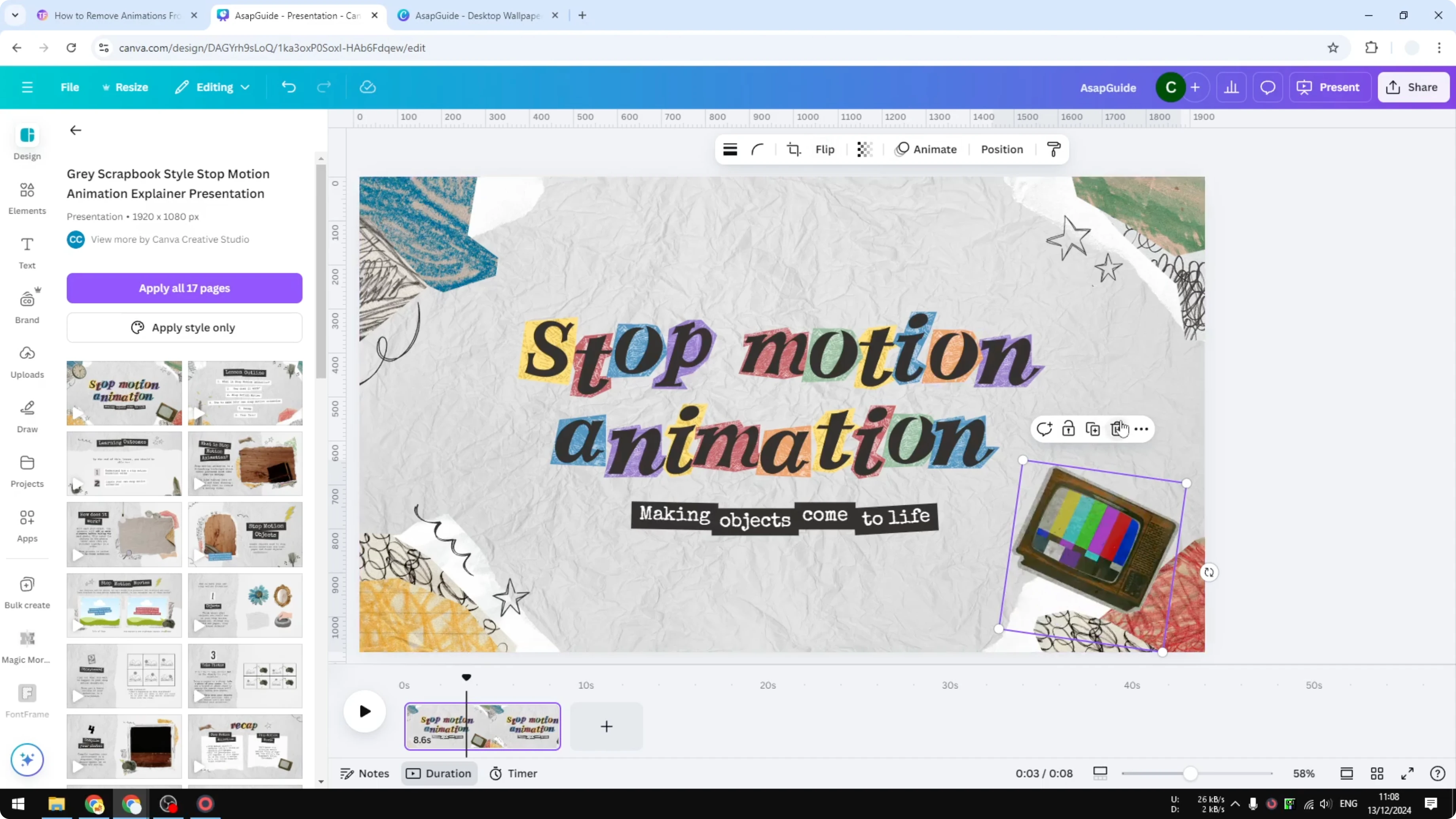
Click Thumbnail view and enable duration to preview what the slide looks like when it has all the animations. Click Play and you’ll see there are many animations. If you click any element, you’ll see that it has an animation style.
Select Elements to Modify
Decide which elements in your design you want to remove the animation from. You can select them in a few ways:
- Press Ctrl + A to select all objects in the document.
- Click and drag to cover all the objects in the document.
- Press and hold Shift, then click every single element you want to modify.
Clear Animations
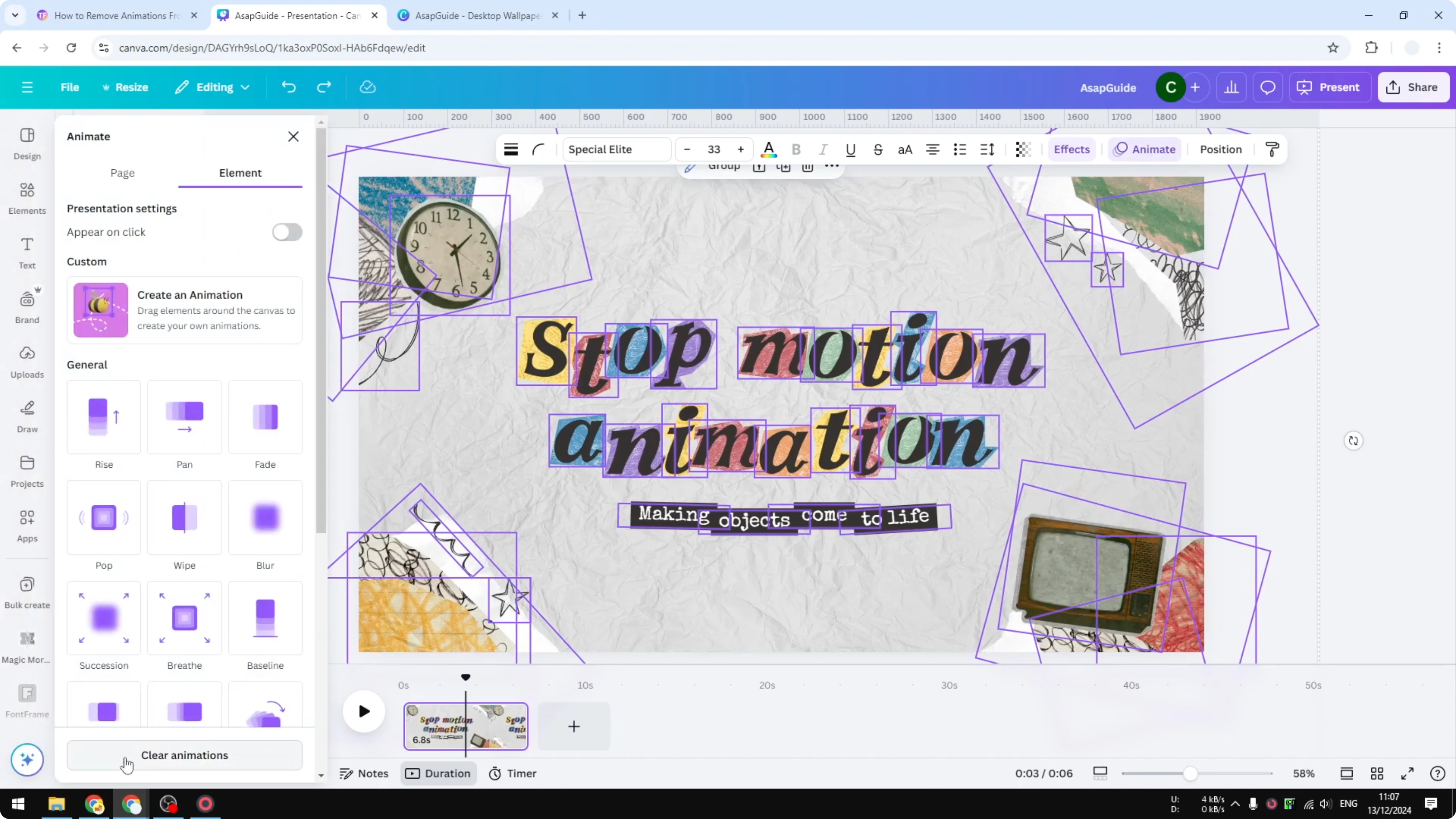
With your elements selected, click Animate. Click Clear animation. All the animations on the selected elements will be removed.
Animated Files That Keep Moving
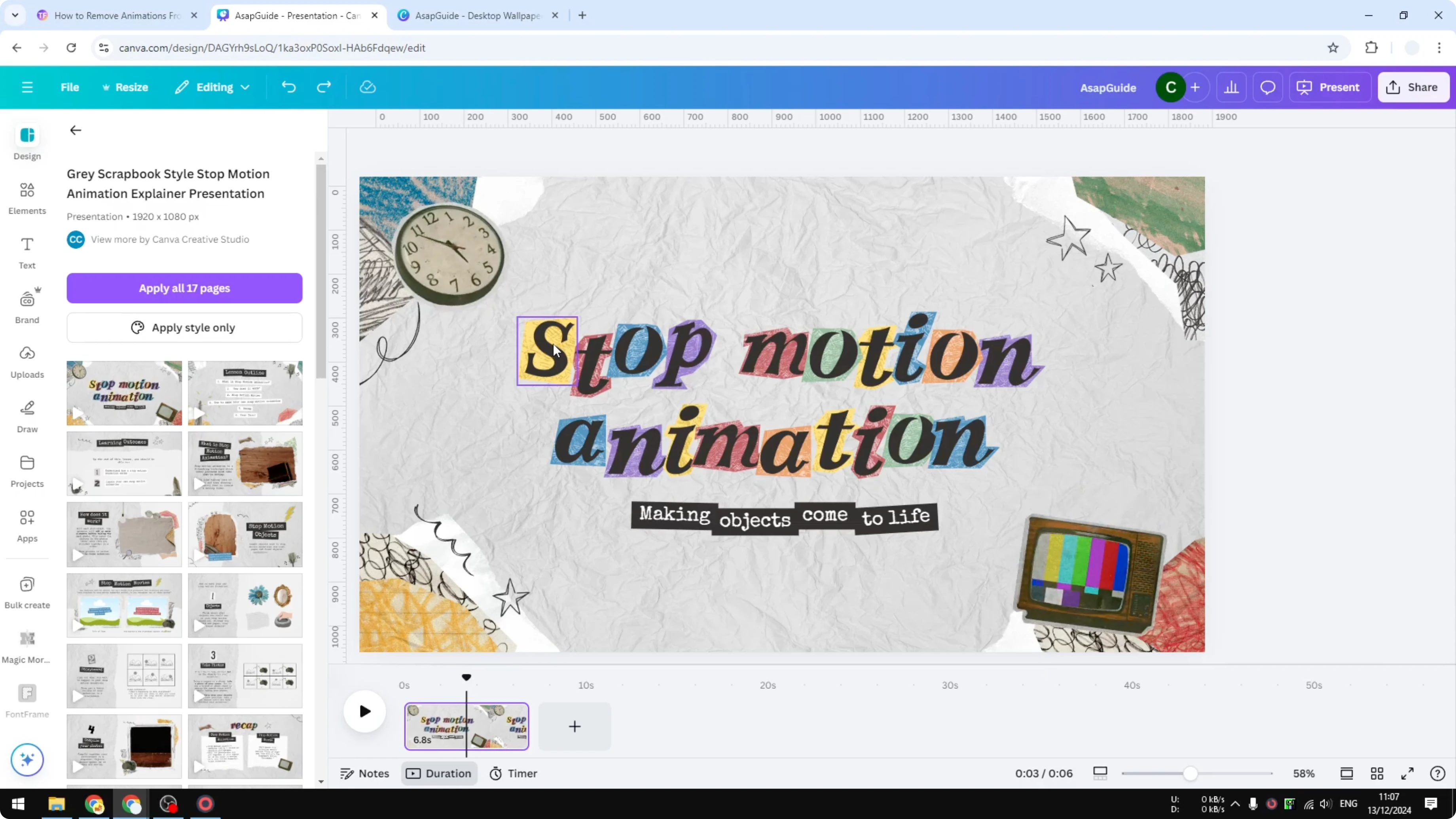
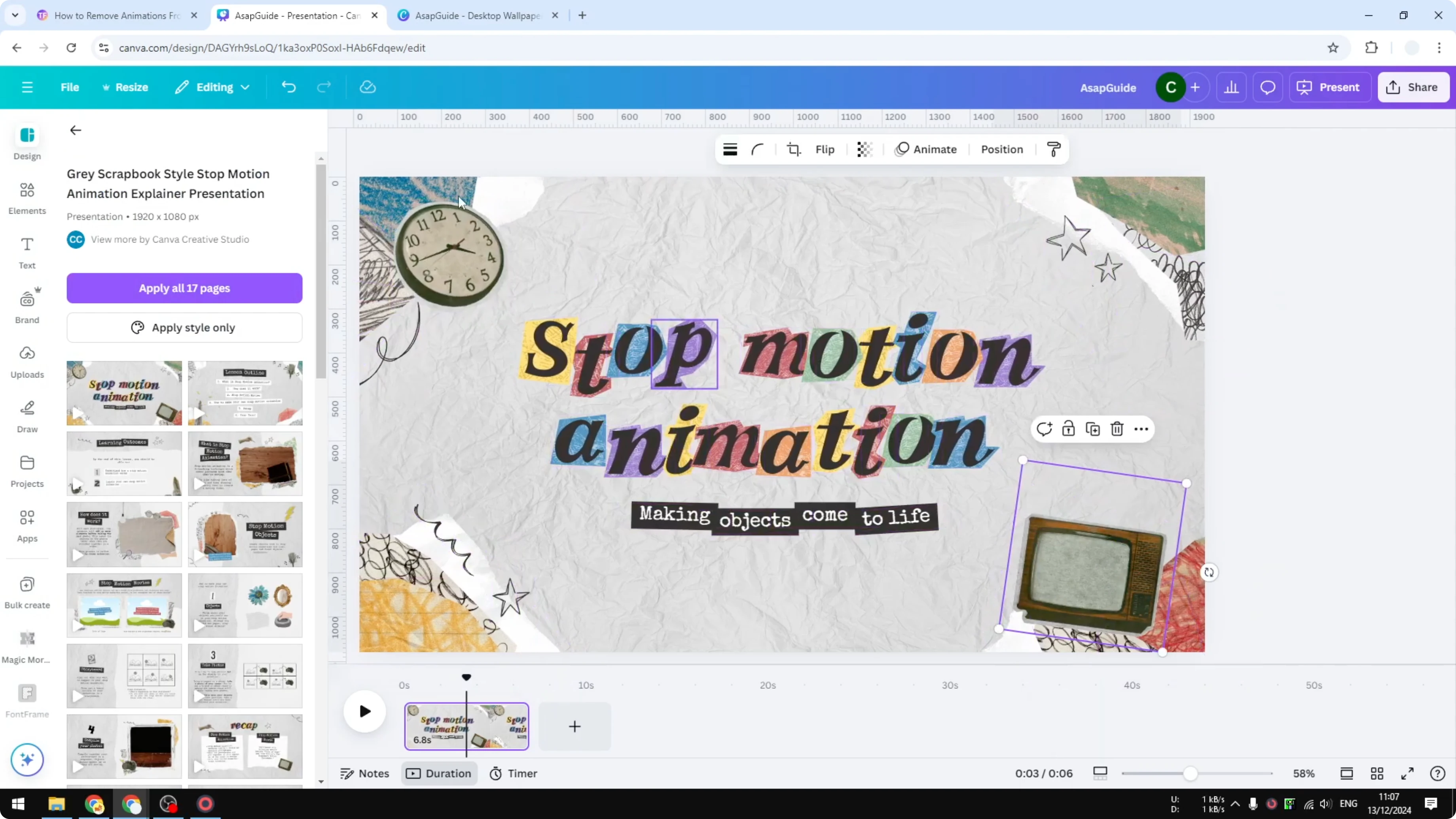
You might notice some elements still animating, like a TV and clock. Those animations are not coming from Canva. The animations are coming from the files themselves, so there’s no control over it. If you remove those elements, everything else will be static.
Verify Your Slide Is Static
Play the slide again to check. Everything should stop moving. There is no animation at all.
Final Thoughts on Remove Animations From Canva
Select your elements, open Animate, and click Clear animation to remove all Canva-applied animations. If something still moves, it’s animated inside the file, not by Canva, and deleting those items will give you a fully static design.
Recent Posts

How to Visualize Yourself as a Pixelized Character with AI?
How to Visualize Yourself as a Pixelized Character with AI?

How to Revive Faded Memories and Enhance Image Clarity with AI?
How to Revive Faded Memories and Enhance Image Clarity with AI?

How to Visualize Yourself as an Animal Crossing Character with AI?
How to Visualize Yourself as an Animal Crossing Character with AI?