How to Add Accent Marks in Canva
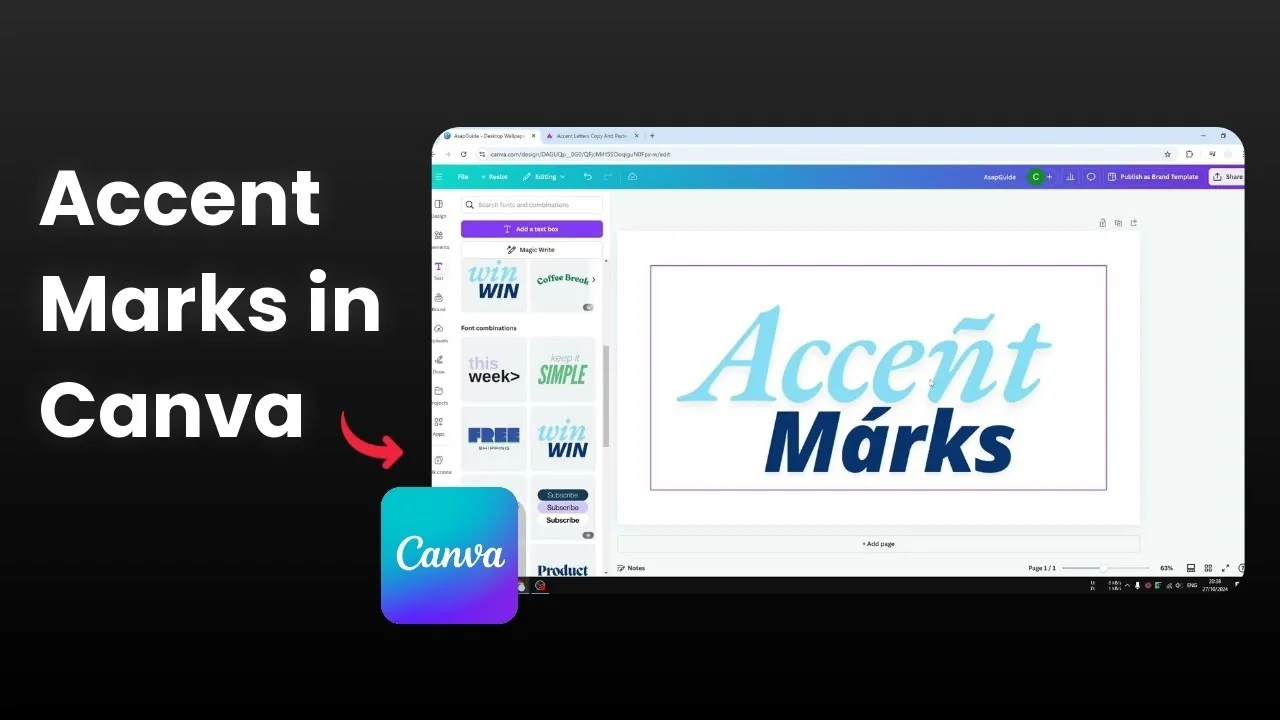
I’m going to show you how to add accent marks to letters in Canva. Accent marks exist in many languages and give cues on how to pronounce a word or a letter. English keyboards often don’t include them, so I use a third-party tool to insert them when needed.
You can visit accentletters.com, copy any letter with the accent you need, and paste it into your Canva design. I created an example with the letter n and the letter a using this method. It works cleanly with most fonts.
If you are styling your typography further, adding a border around your text can help the accented characters stand out. See how to add a border to a text box in Canva here: add a border to a text box.
Add Accent Marks in Canva with copy and paste
Grab the accented character
Go to accentletters.com.
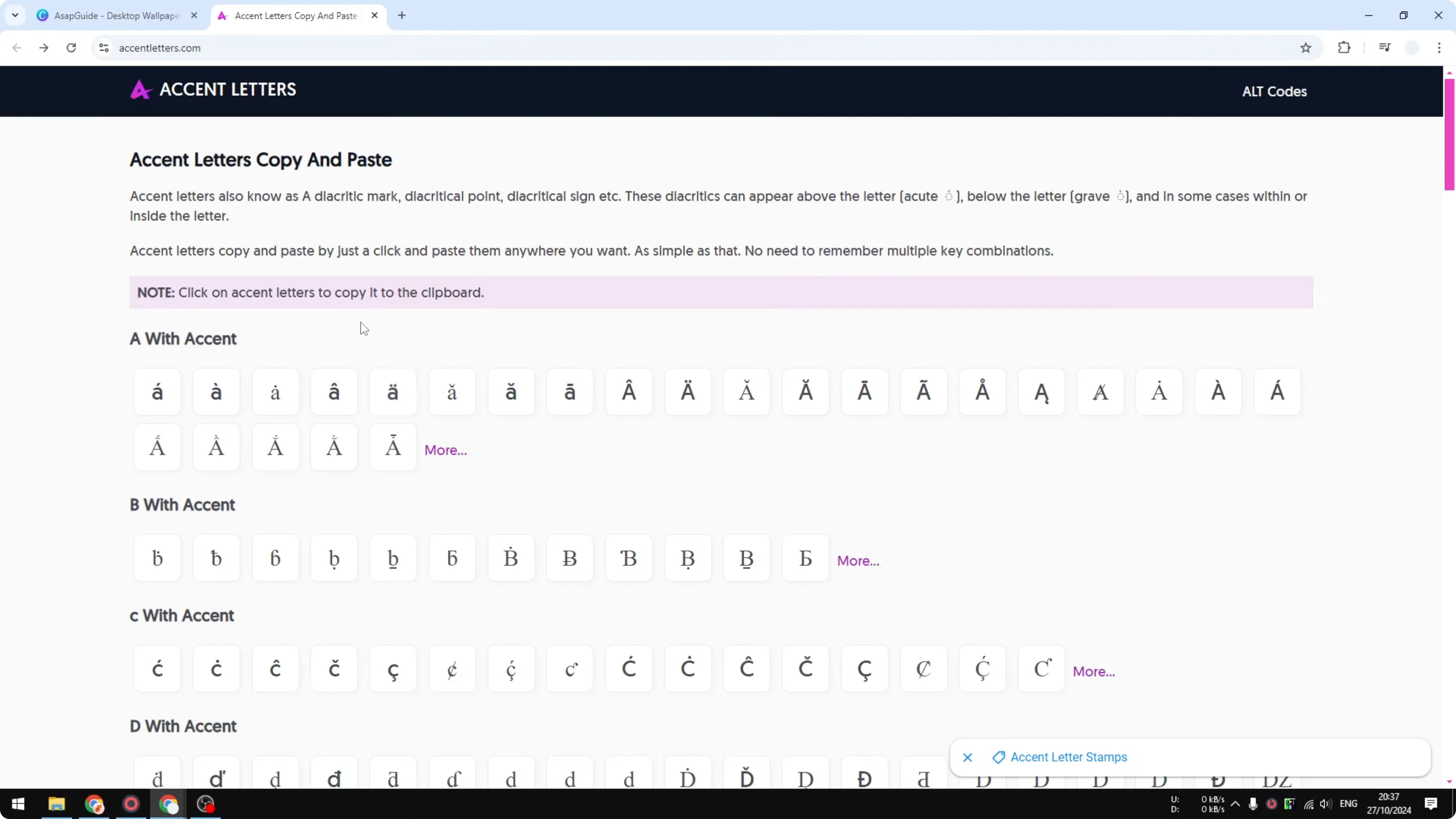
Browse the letters and accents, then copy the exact accented character you need.
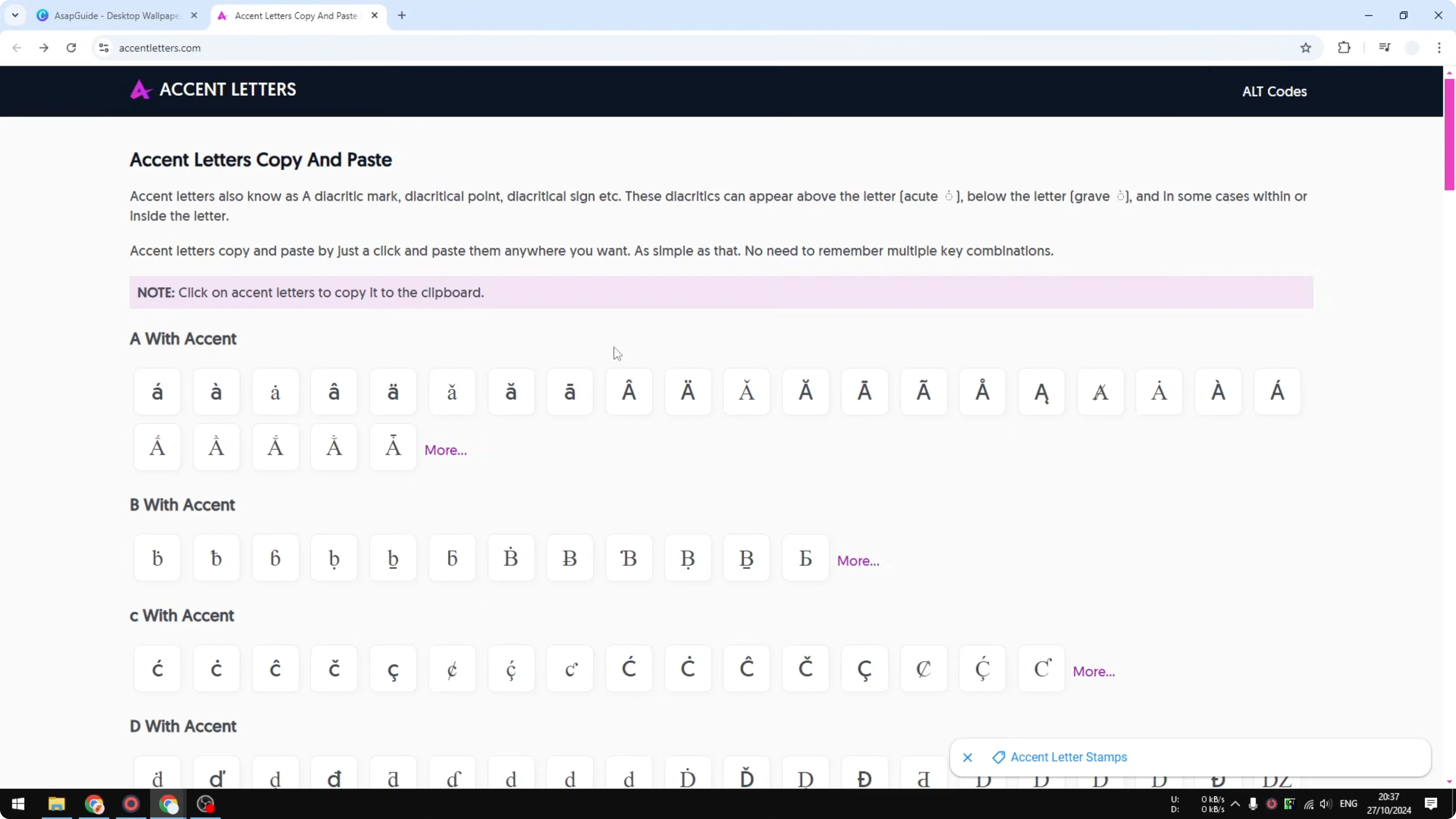
Copy it to your clipboard like any normal character.
Replace the letter in Canva
Open your Canva design.
Insert a text box and type your word or sentence.
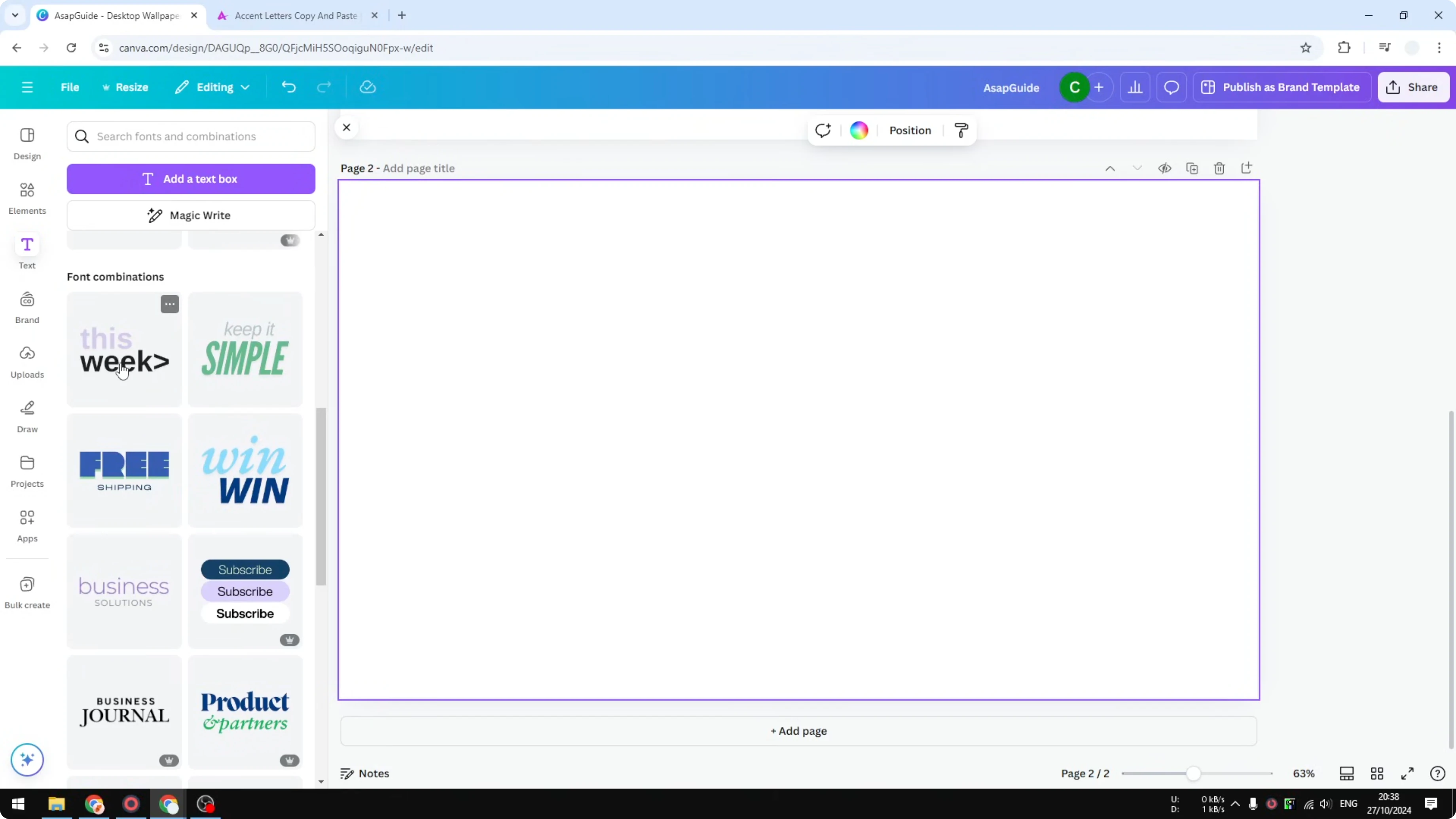
Select the specific letter you want to replace with its accented version.

Paste the accented character to replace the selected letter.
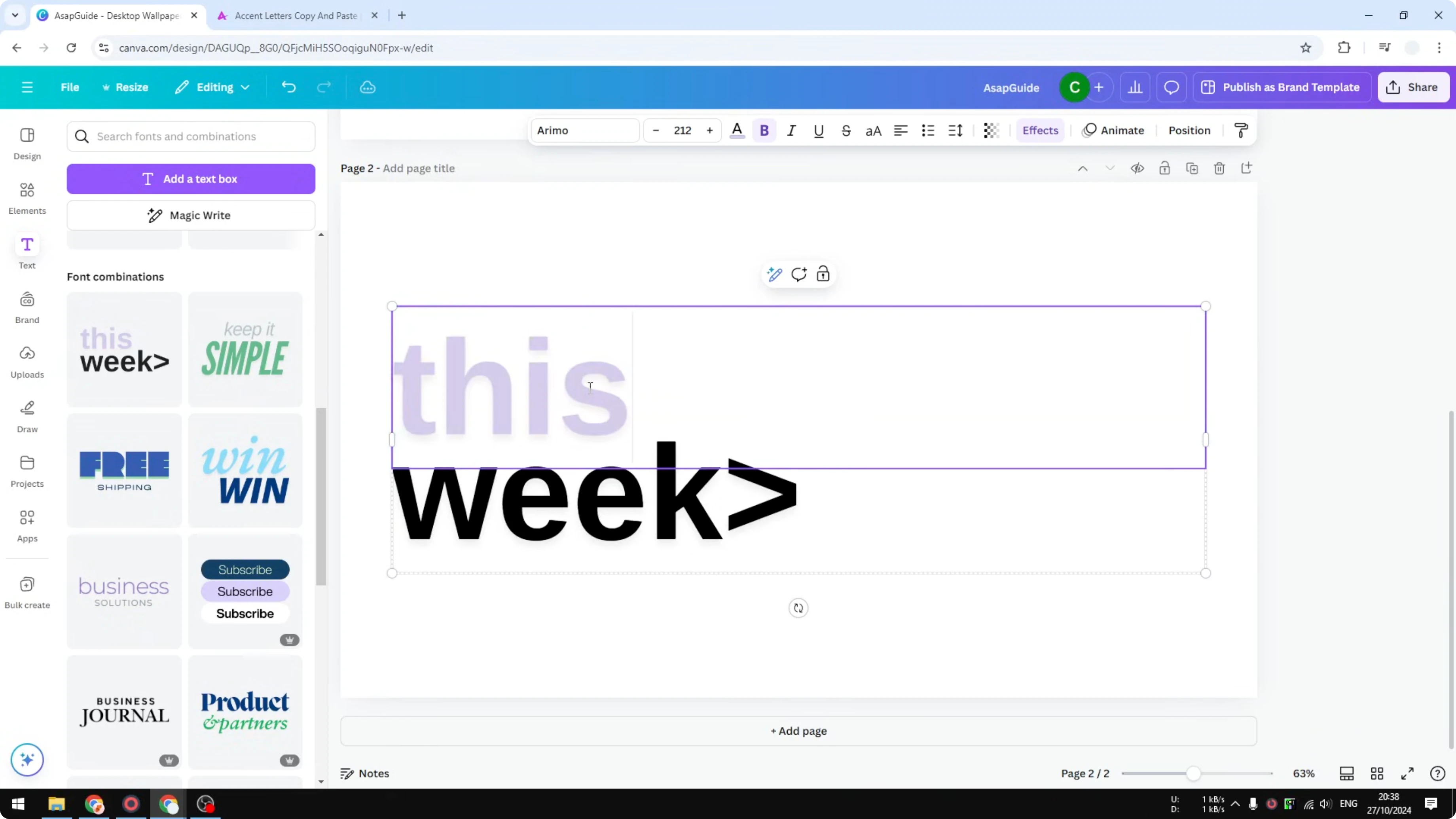
Repeat these steps for any other letters that need accents.
If your layout mixes big typographic elements with accents, background text effects can add impact. Learn the technique here: add background text in Canva.
Example run
I added a new page, inserted a text box, and picked a font I liked. I wanted an accent on the letter s. I scrolled the accent letters site, found an accent that fit, copied it, selected the s in Canva, and pasted.
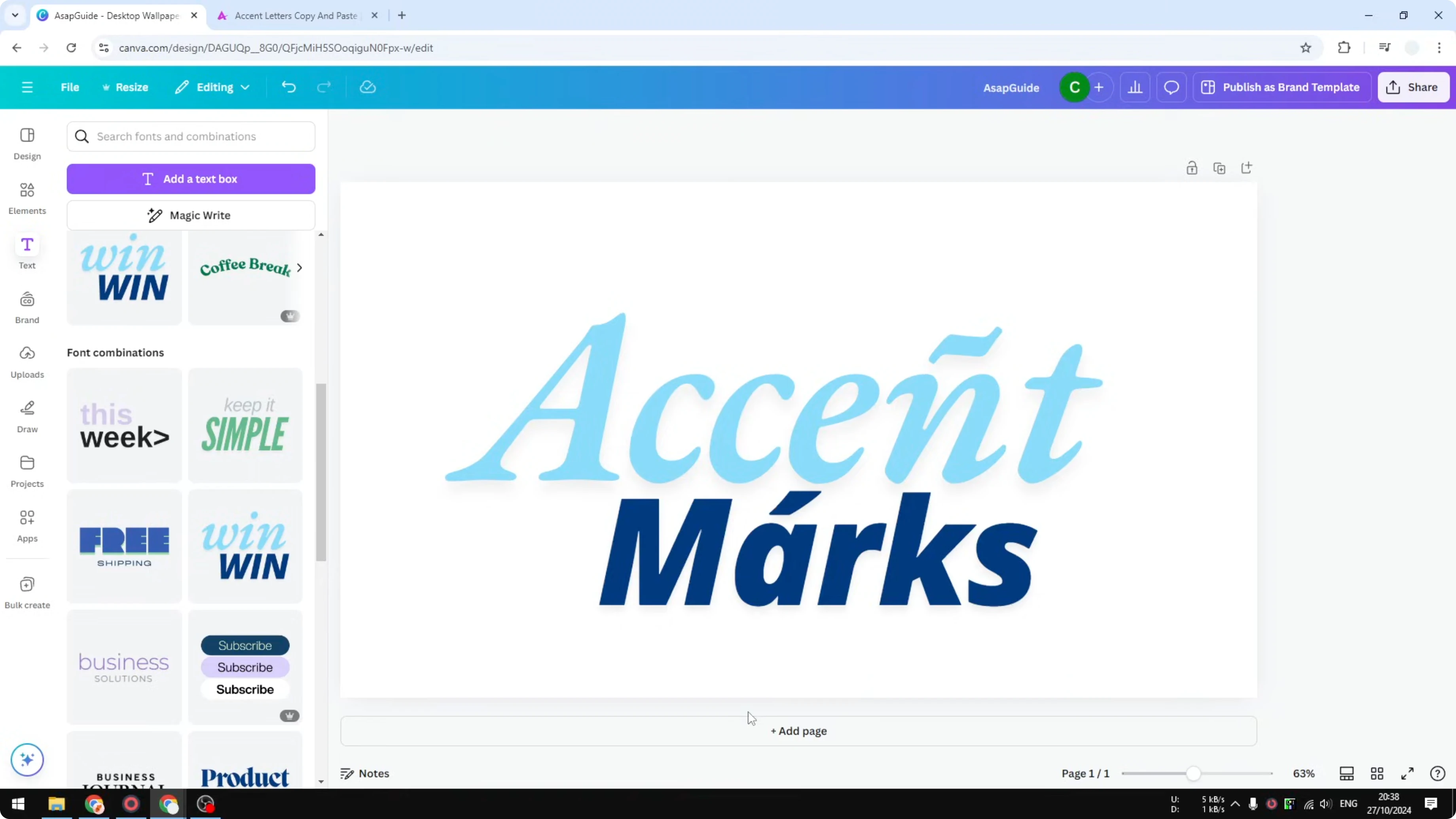
I did the same for the letter e. I don’t actually know how that e would be pronounced here; I’m just demonstrating. Apologies if that combination doesn’t make linguistic sense.

If your design includes photos alongside accented text, softening photo edges can help the composition feel cohesive. Here’s how to do that: blend the edges of a photo in Canva.
Final thoughts
Accent marks are easy to add in Canva by copying the correct accented character from a site like accentletters.com and pasting it into your text. Select the letter, paste the accented version, and repeat for each character. This simple copy and paste approach works well when your keyboard does not support direct accent input.
Recent Posts

How to Visualize Yourself as a Pixelized Character with AI?
How to Visualize Yourself as a Pixelized Character with AI?

How to Revive Faded Memories and Enhance Image Clarity with AI?
How to Revive Faded Memories and Enhance Image Clarity with AI?

How to Visualize Yourself as an Animal Crossing Character with AI?
How to Visualize Yourself as an Animal Crossing Character with AI?