How to Share a Design Template with Canva URL
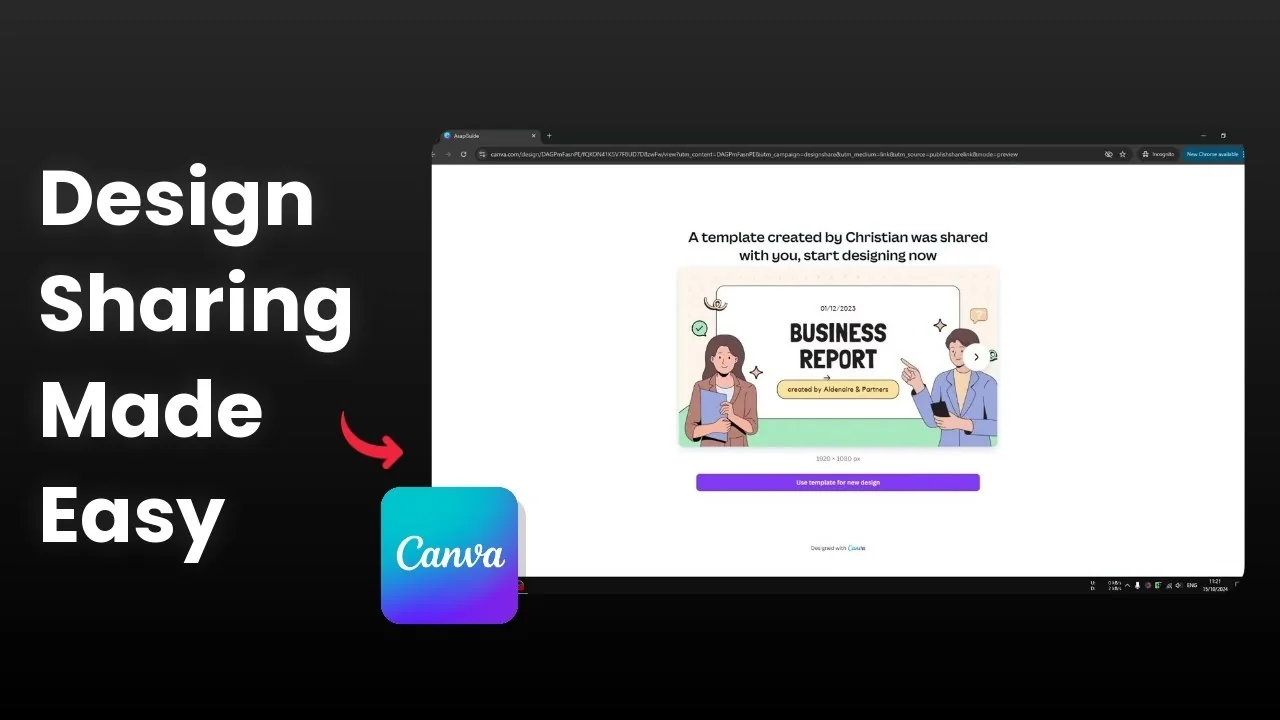
I am going to show you how you can share your Canva document or design template with anyone. I have this document that is a presentation, and if you want to share a document with your coworkers or to the public, the first thing you need to do is go to the Share button.
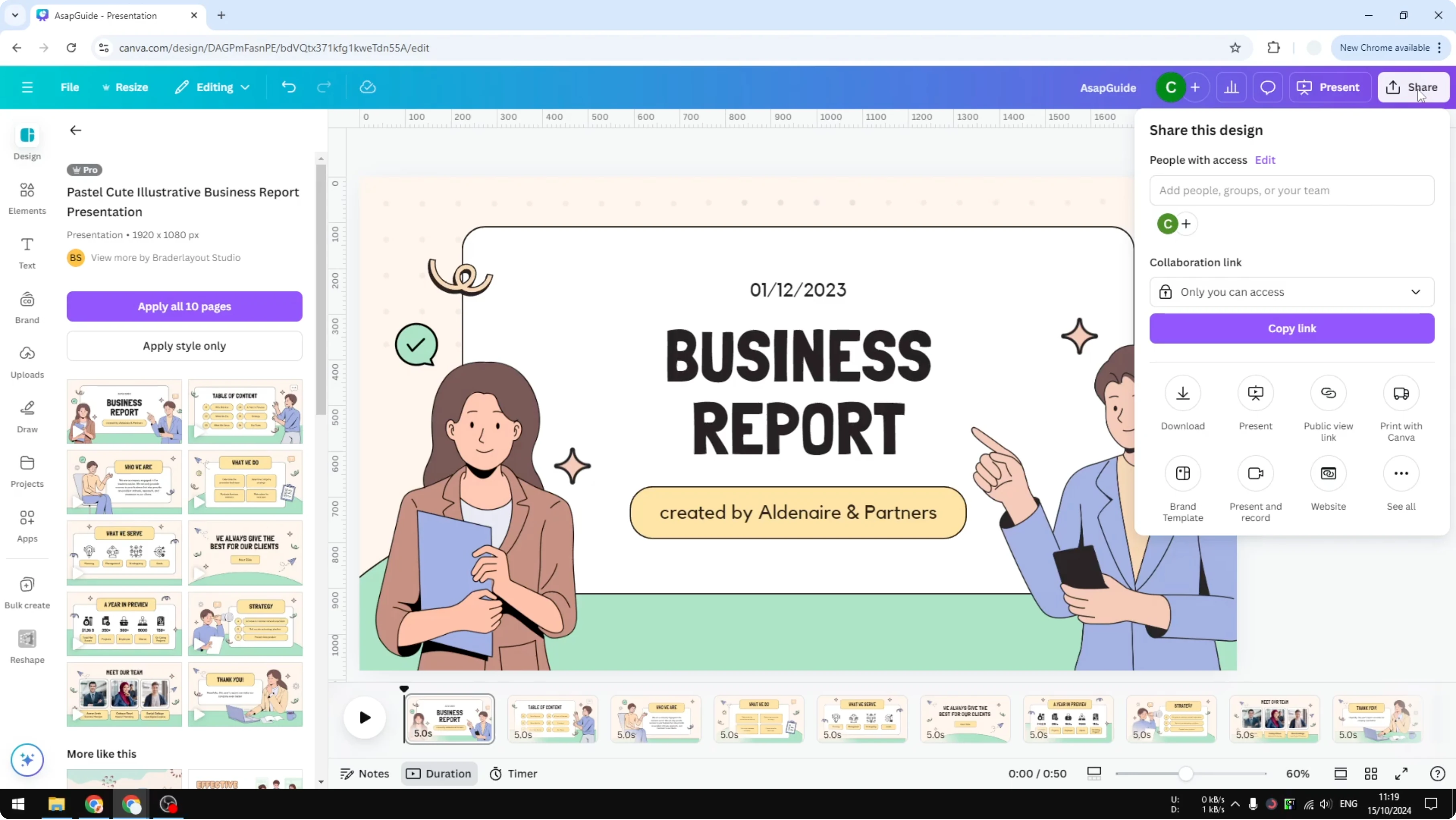
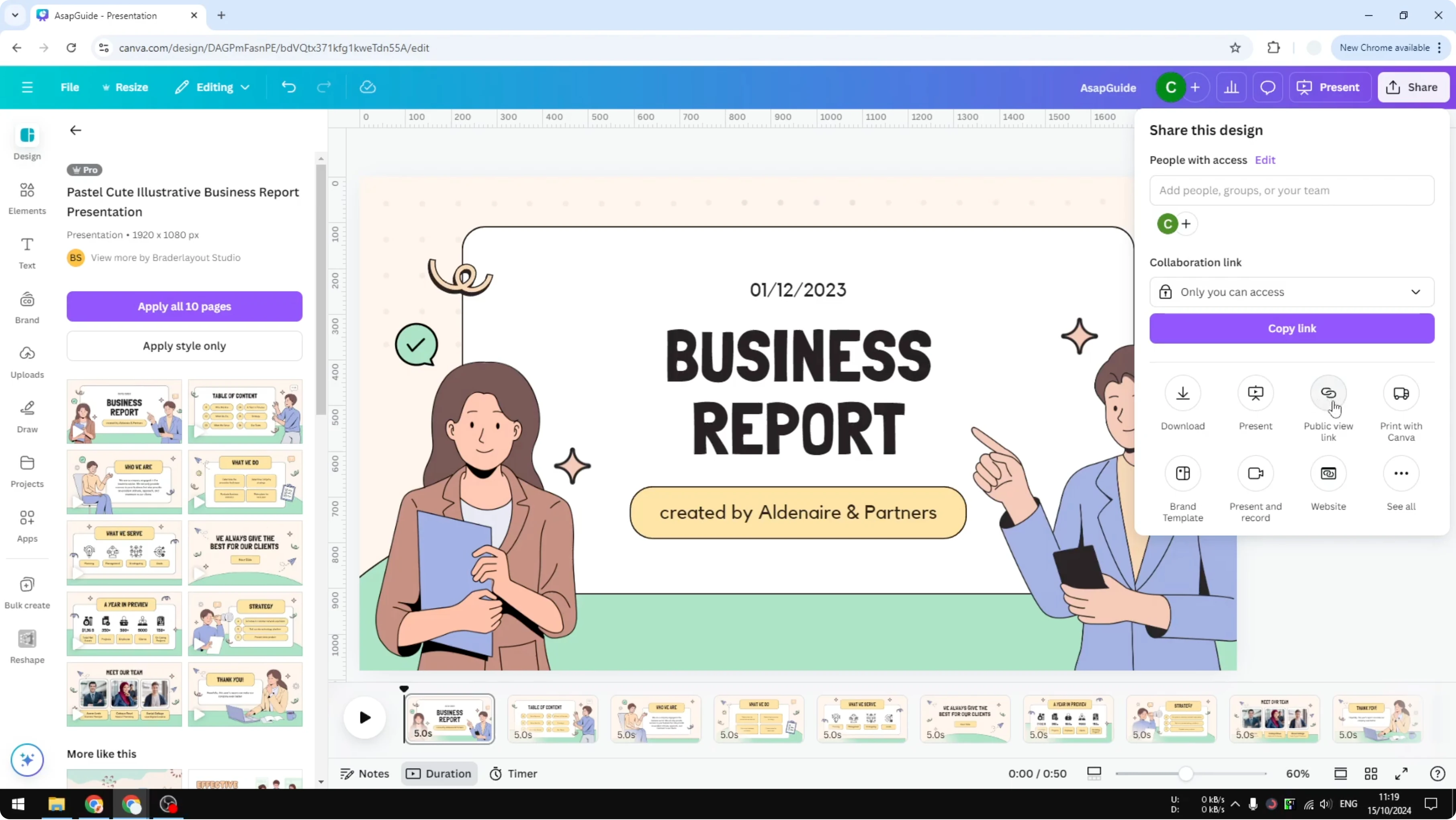
You can share a document with your coworkers or within your limited group by entering their name or their email. You can share a URL, and they will also get a notification that you just shared a document or a template in Canva. For a deeper walkthrough, see this guide on sharing a design template by URL.
Share a Design Template with Canva URL
Share with coworkers
Open the Share button. Enter the names or email addresses of your coworkers. Send the share link so they get a notification.
If you need to confirm your design size before sharing, see how to check your current design dimensions in Canva.
Public view link
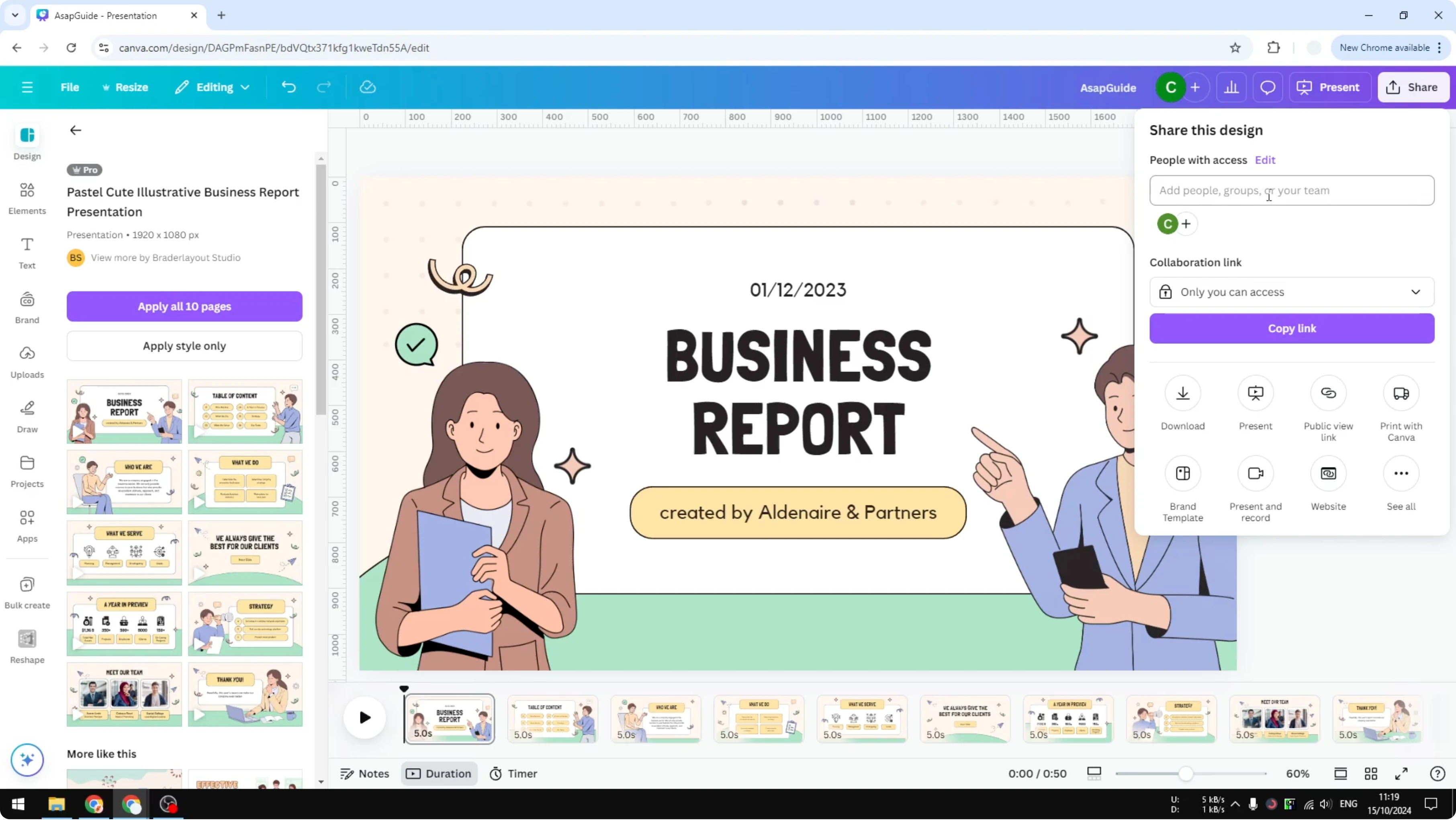
Select the option that says Public view link. Click Create public view link.
Copy the link and open it in an incognito window to confirm how it looks to others. Anyone with the link can see the document, but they cannot change anything. They cannot comment on the document or add suggestions.
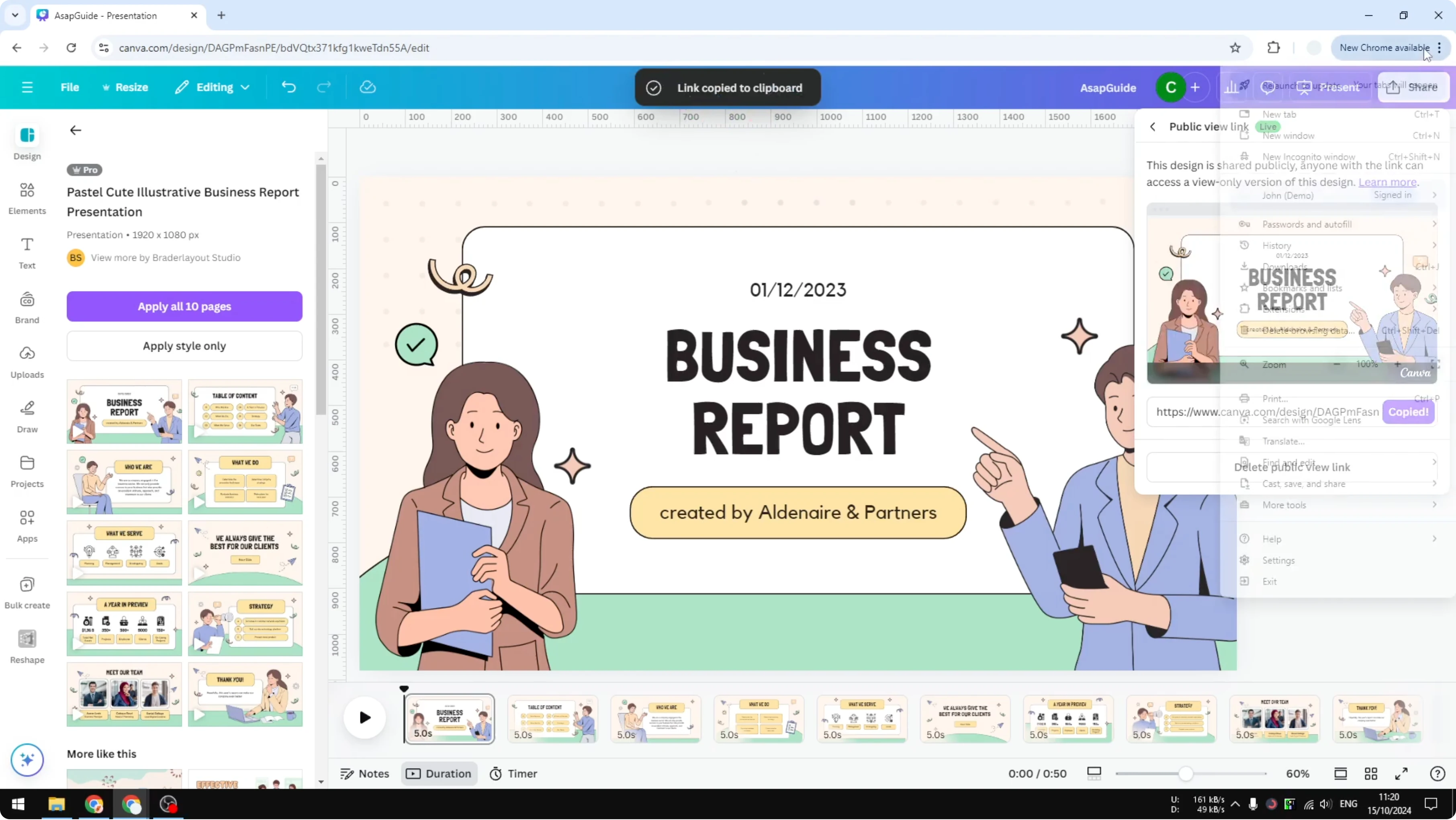
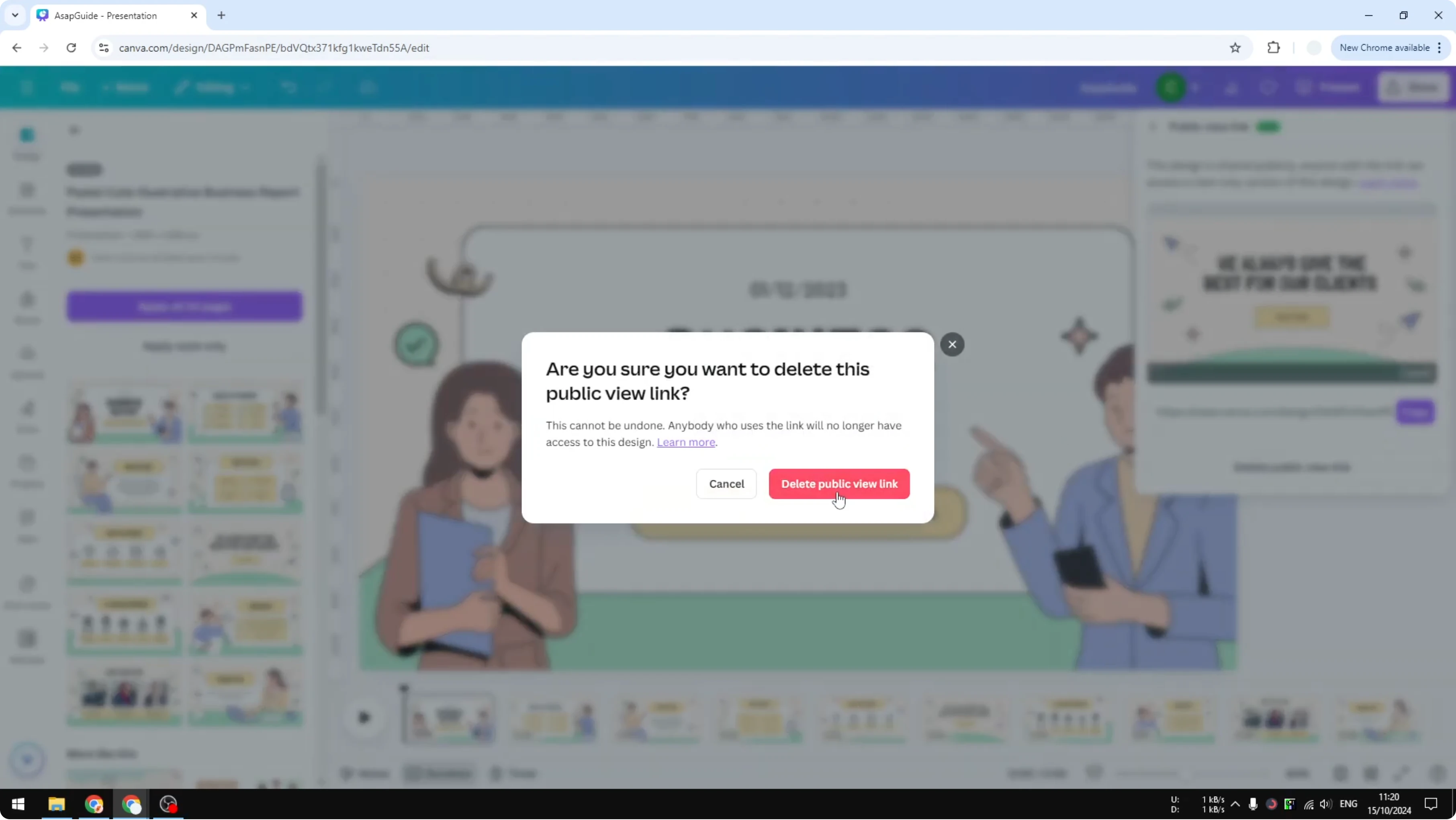
This is purely for viewing the document. You can delete the public view link later when you want to stop sharing. Click the control and select Delete public view link.
Share as a template
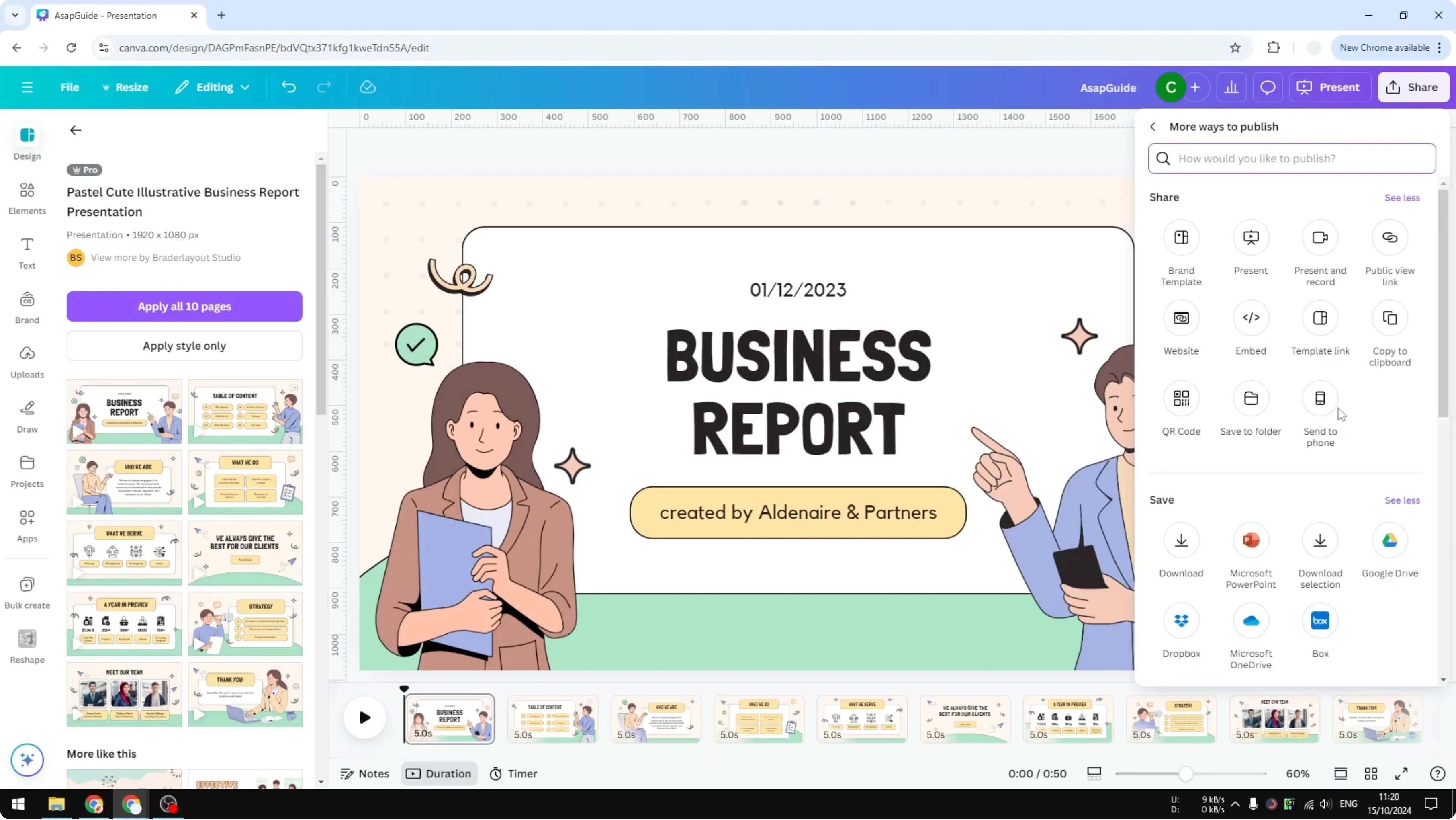
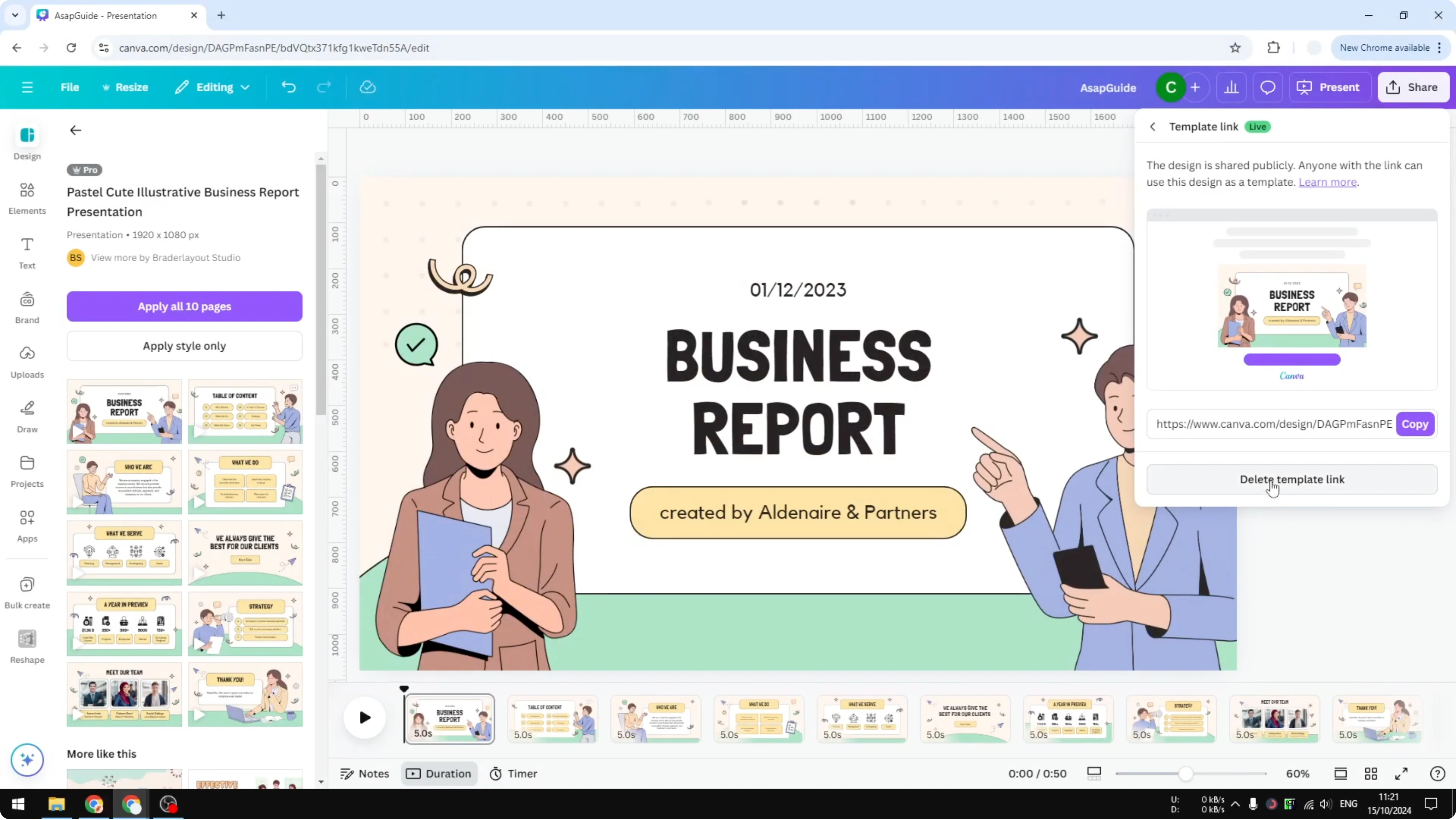
Go to the Share button and click See all. Select Template link. Click Create template link, then click Copy.
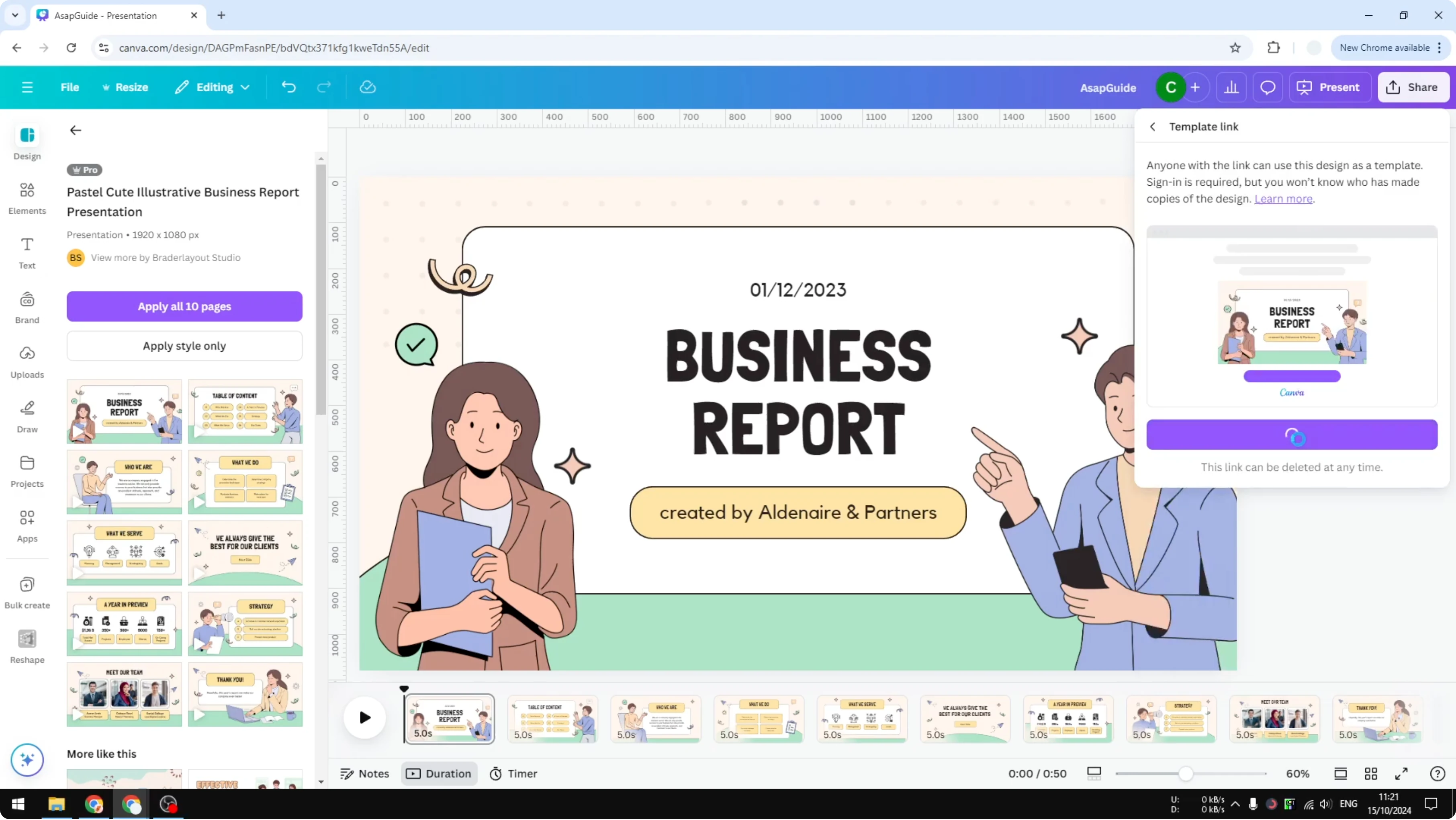
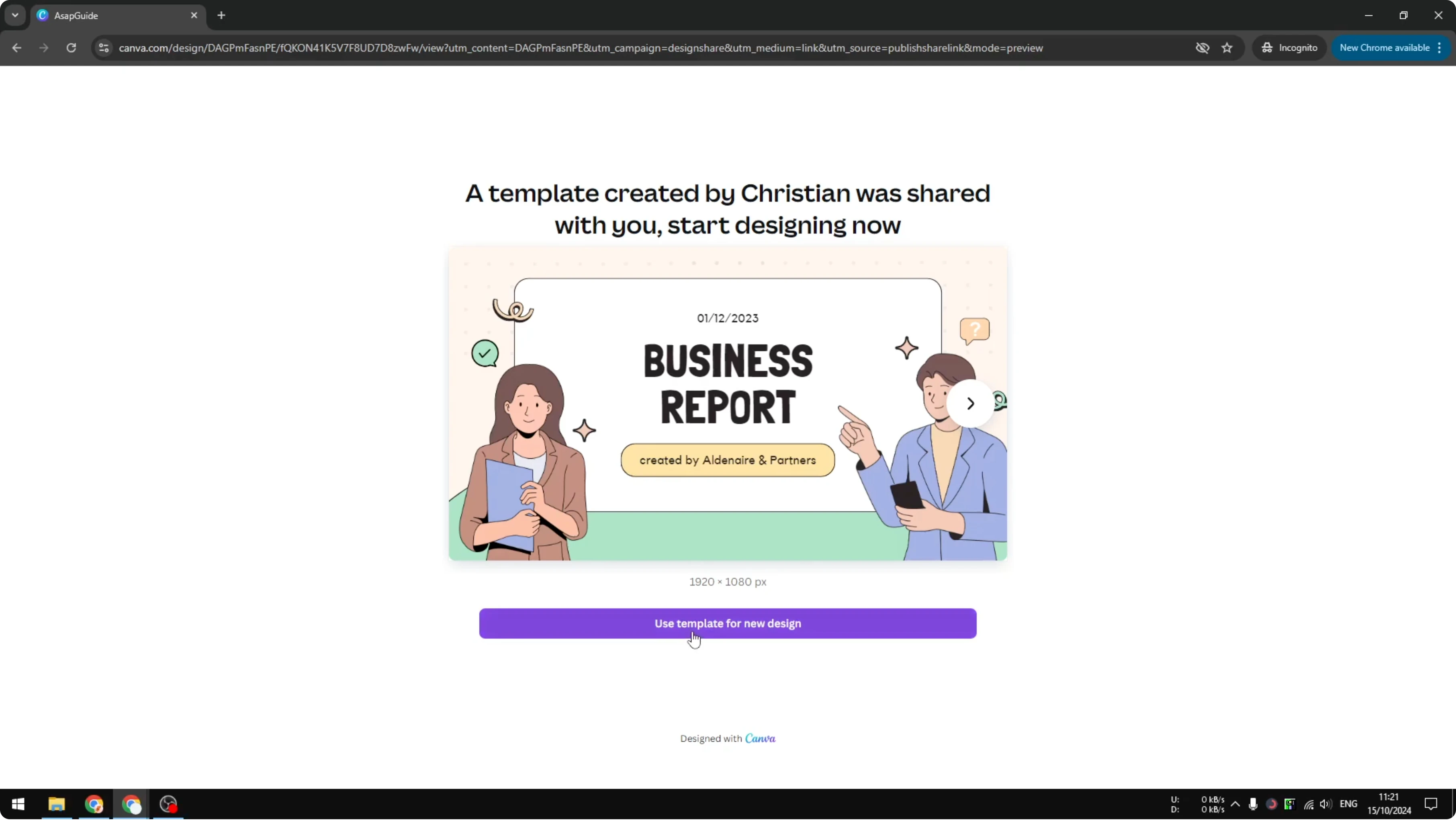
Recipients will see an option to use this template for a new design. When they click the button, a new document is created that is a copy of your document. It is not your document anymore.
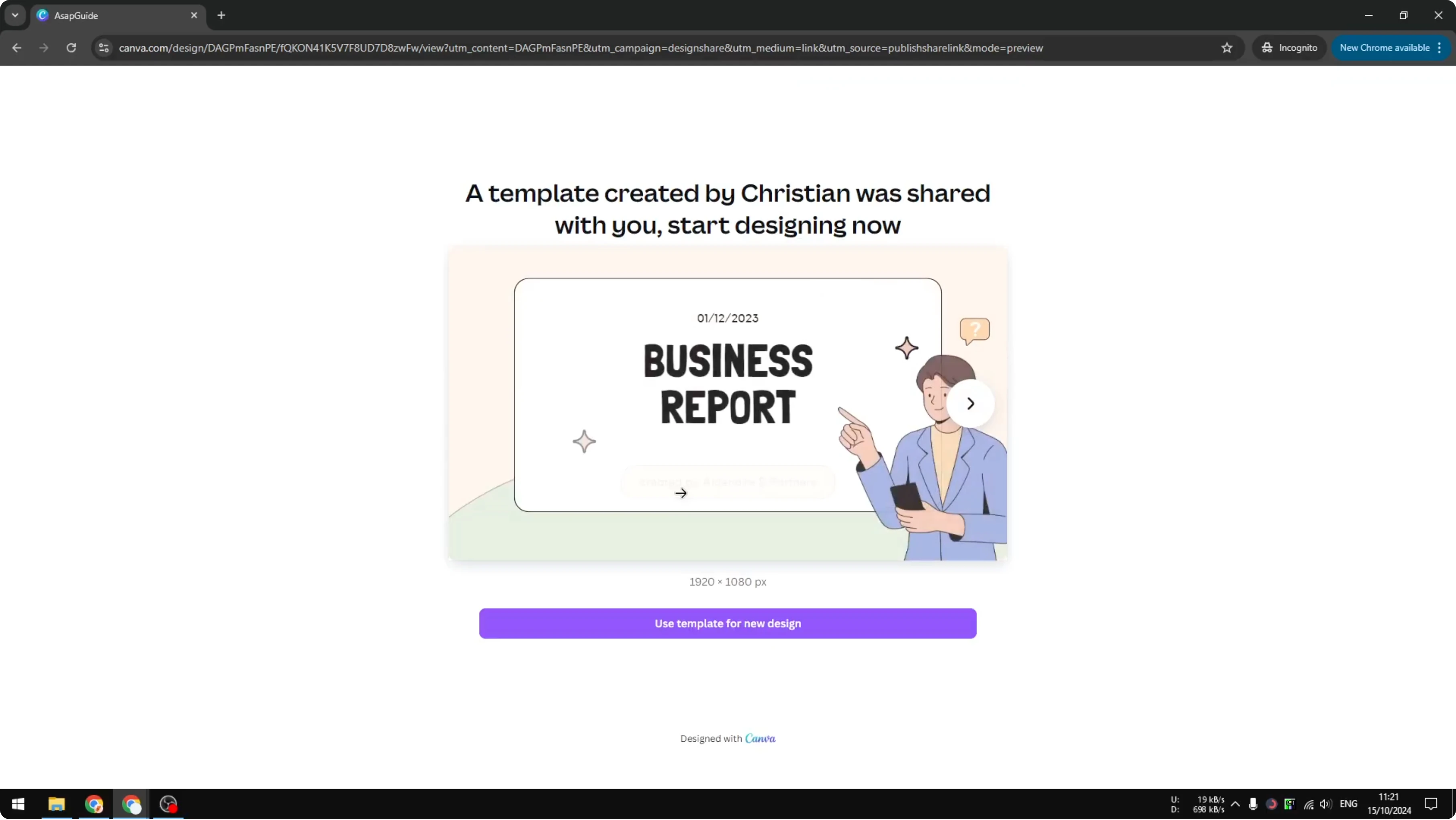
They can work on the copy without affecting your file. If they are not using an account, Canva will prompt them to sign in or register. Whatever they make in that document is theirs, and your document stays intact.
You can always delete the template link later. If you want to move a single page between files, see how to copy a Canva page into another design.
Final thoughts
Use the Share button for coworkers and limited groups. Use a Public view link for read only access and remove it anytime. Use a Template link when you want others to create their own copy while your document stays intact.
Recent Posts

How to Visualize Yourself as a Pixelized Character with AI?
How to Visualize Yourself as a Pixelized Character with AI?

How to Revive Faded Memories and Enhance Image Clarity with AI?
How to Revive Faded Memories and Enhance Image Clarity with AI?

How to Visualize Yourself as an Animal Crossing Character with AI?
How to Visualize Yourself as an Animal Crossing Character with AI?