How to Share Canva Presentation with Anyone
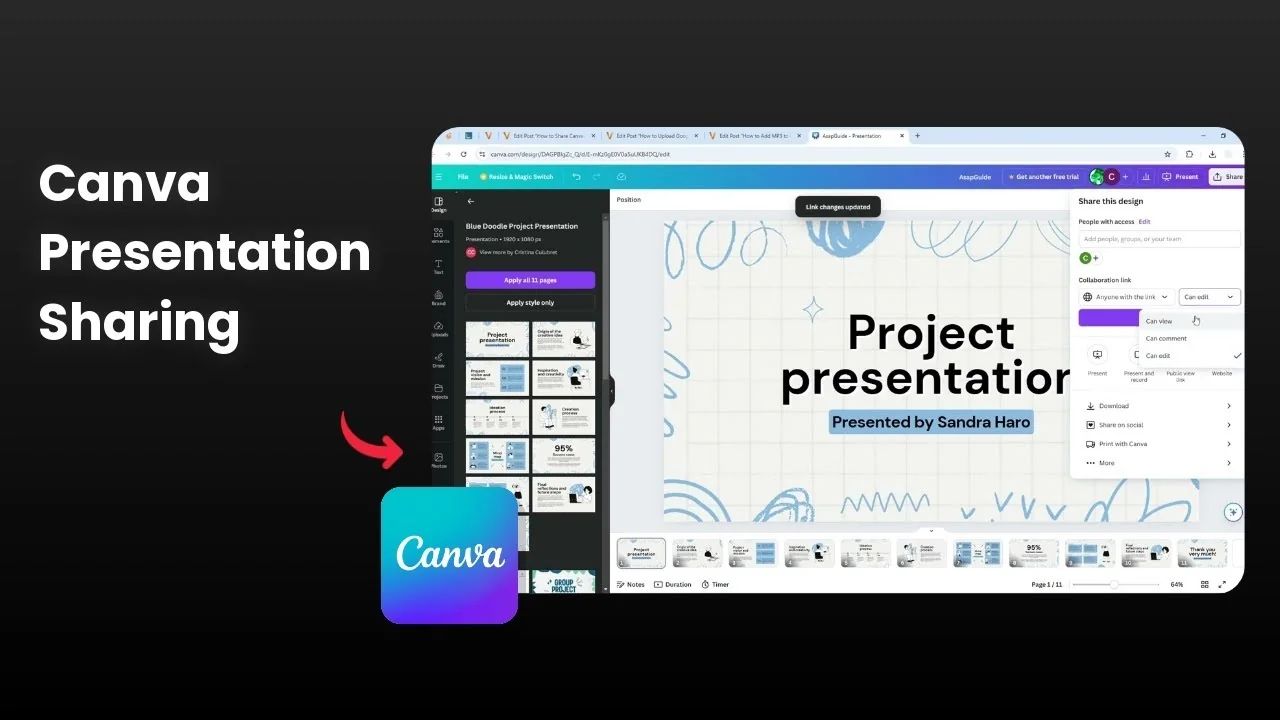
Sharing a Canva presentation with anyone is simple. I’ll show you the two options I use most: adding specific collaborators and creating a public link that anyone can open. You can control access by setting View, Comment, or Edit permissions.
Share Canva Presentation with Anyone: Open and find Share
Open the presentation in Canva. Go to the Share menu to see all sharing options.
Share Canva Presentation with Anyone: Collaborate with specific people
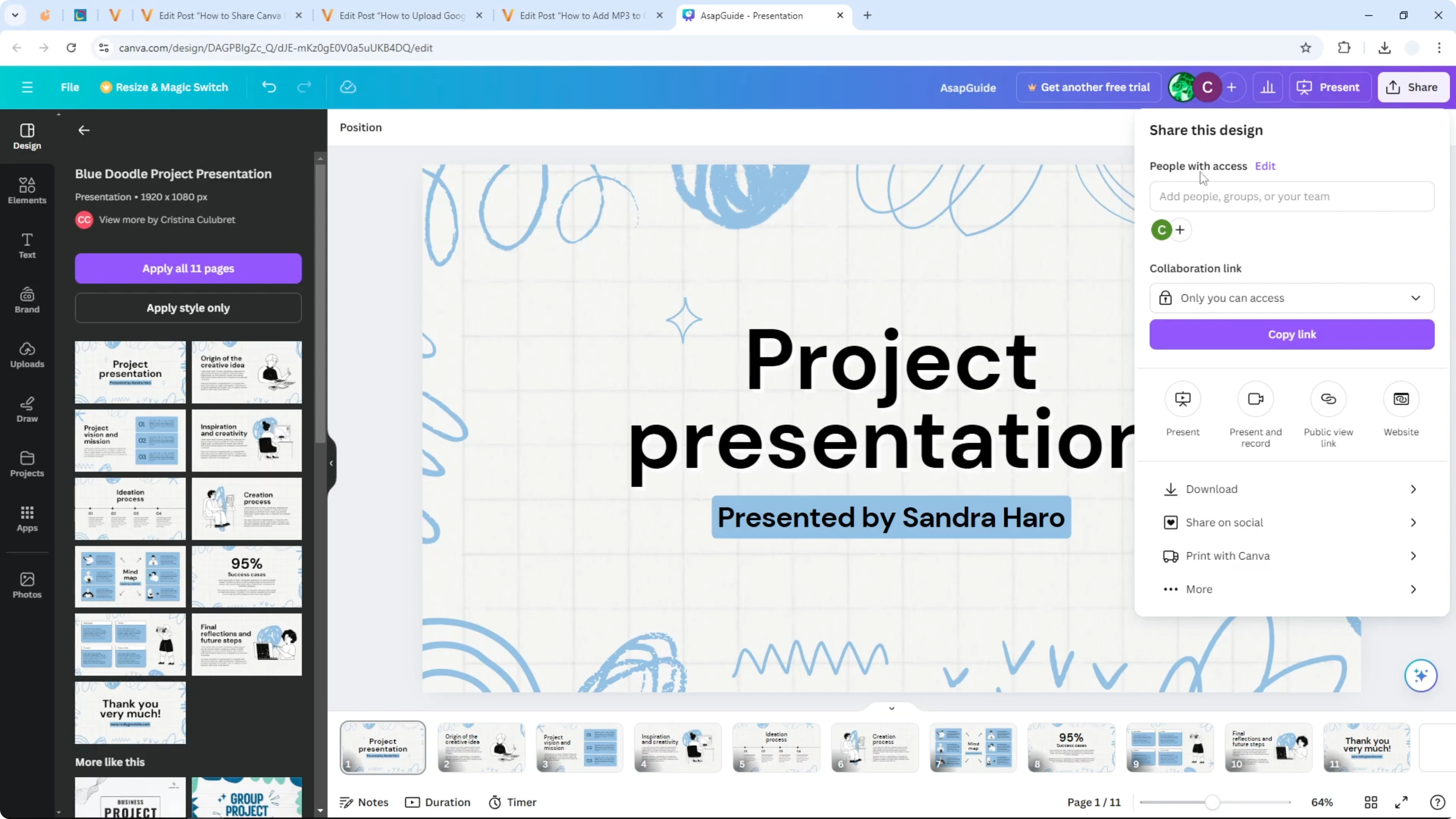
The top section called People with access is built for collaboration. If you want to share a document with a collaborator or coworker, type their email or username, and they will be able to access the document.
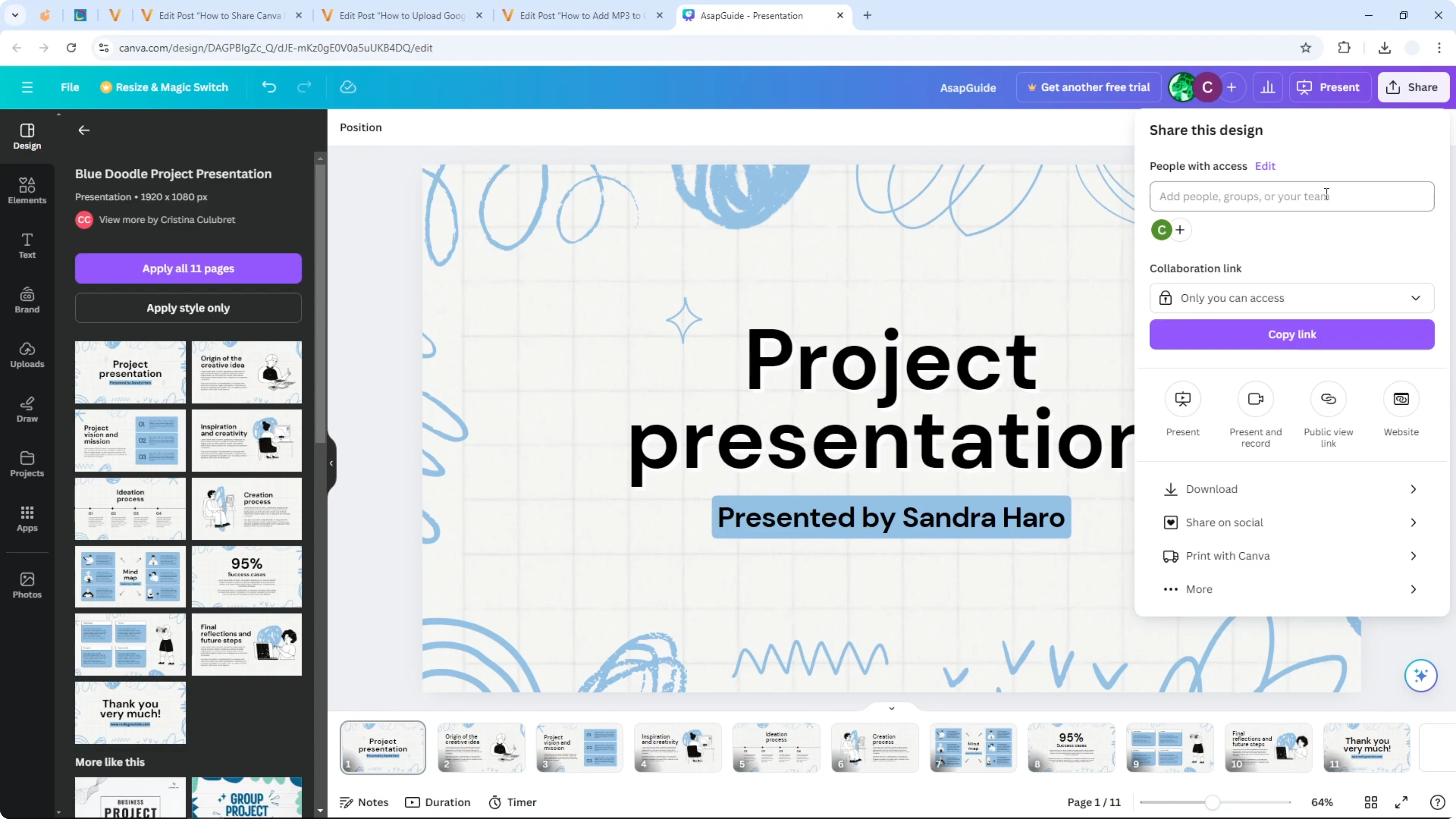
This method is straightforward and keeps access limited to the people you add. Choose the right role before sending access. I keep control tight when I only need feedback or quick checks.
If you are customizing the look before sharing, see how to add a custom background in Canva to make your slides consistent.
Share Canva Presentation with Anyone: Steps for collaborator access
Open your Canva presentation.
Click Share.
Under People with access, enter the person’s email or username.
Set the role to View, Comment, or Edit.
Click Send.
Share Canva Presentation with Anyone: Public link for anyone
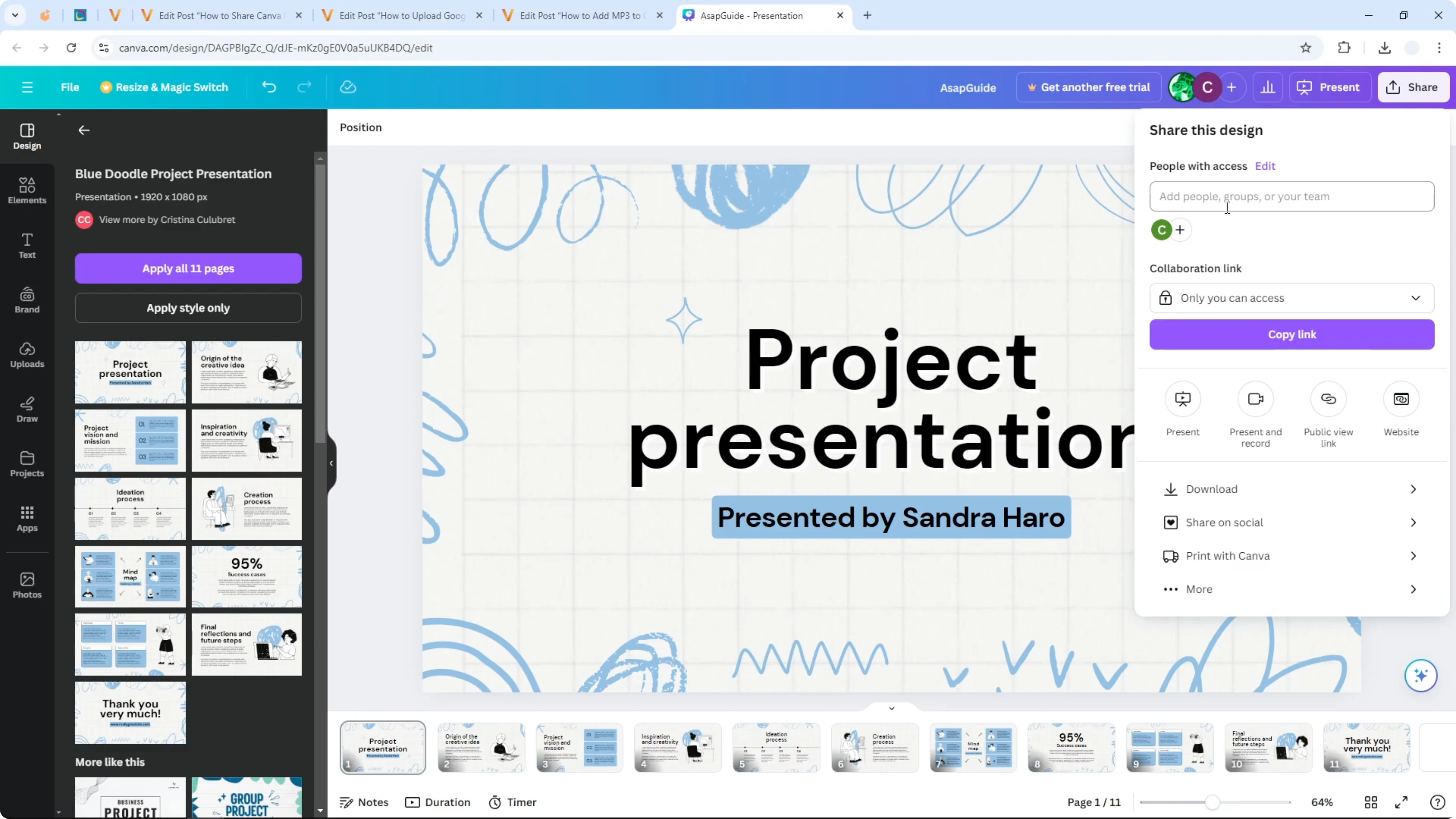
You can also share the document to the public. Anyone without a Canva account can open it, and you can allow viewing, commenting, or editing if needed.
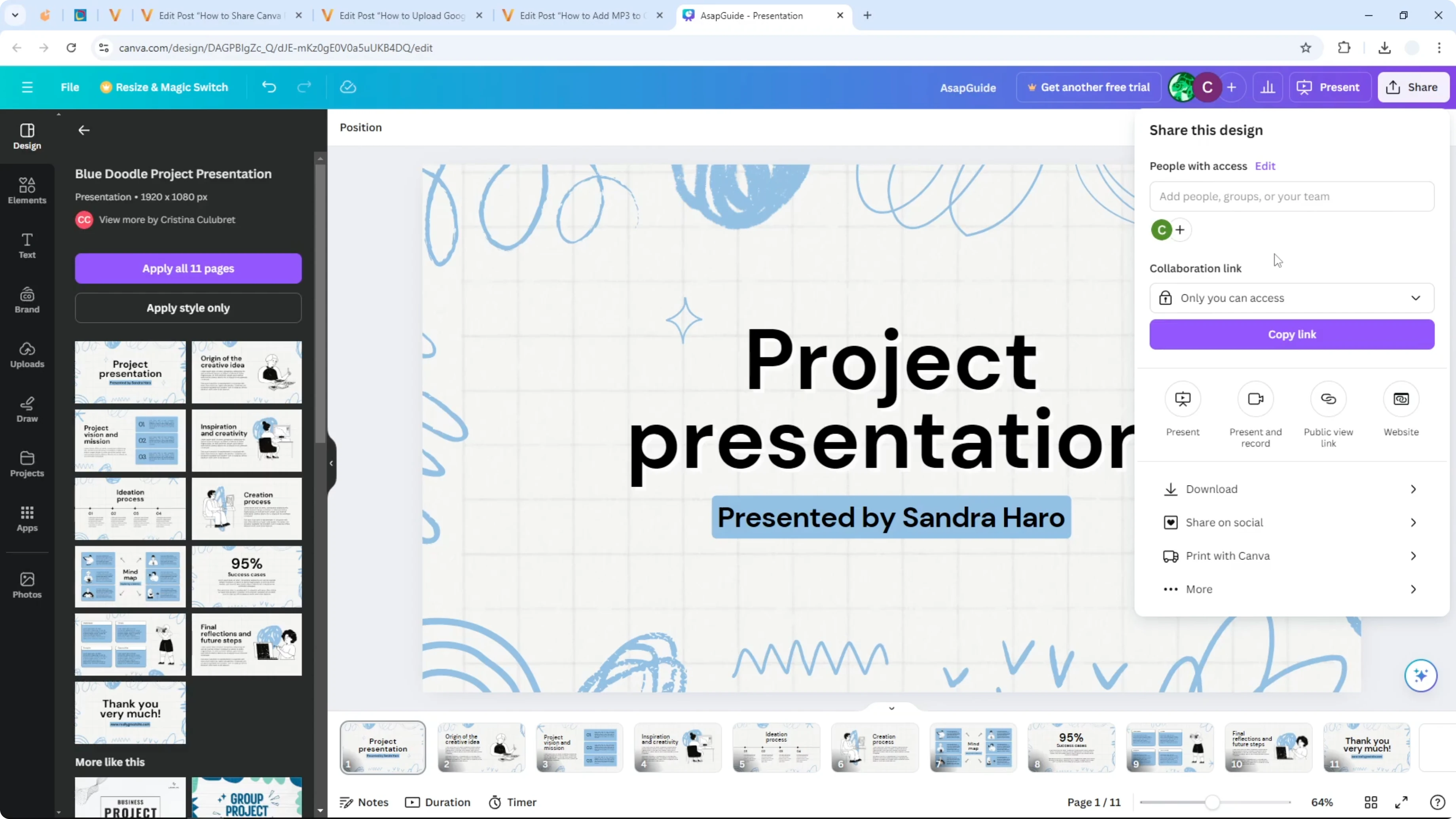
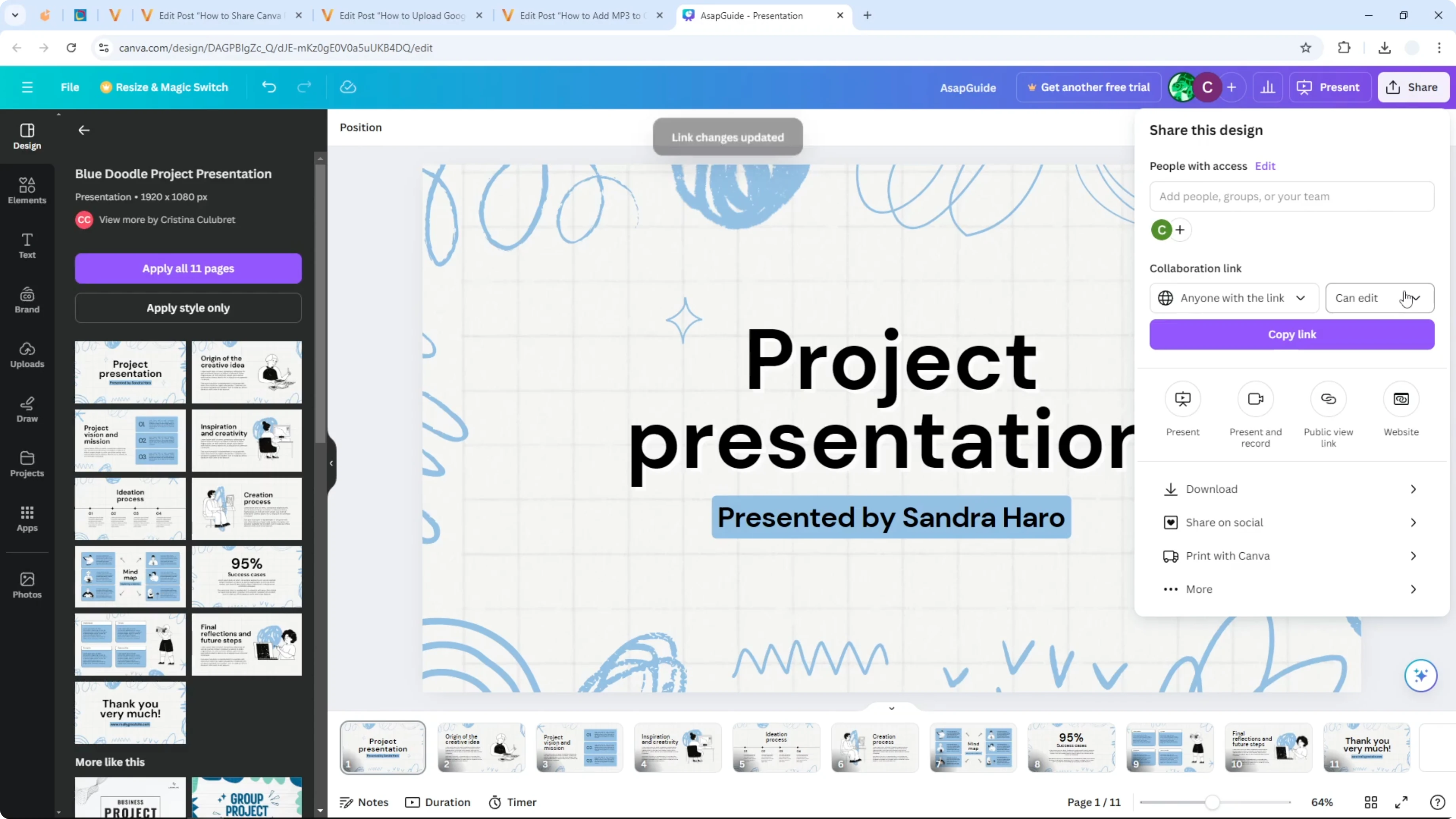
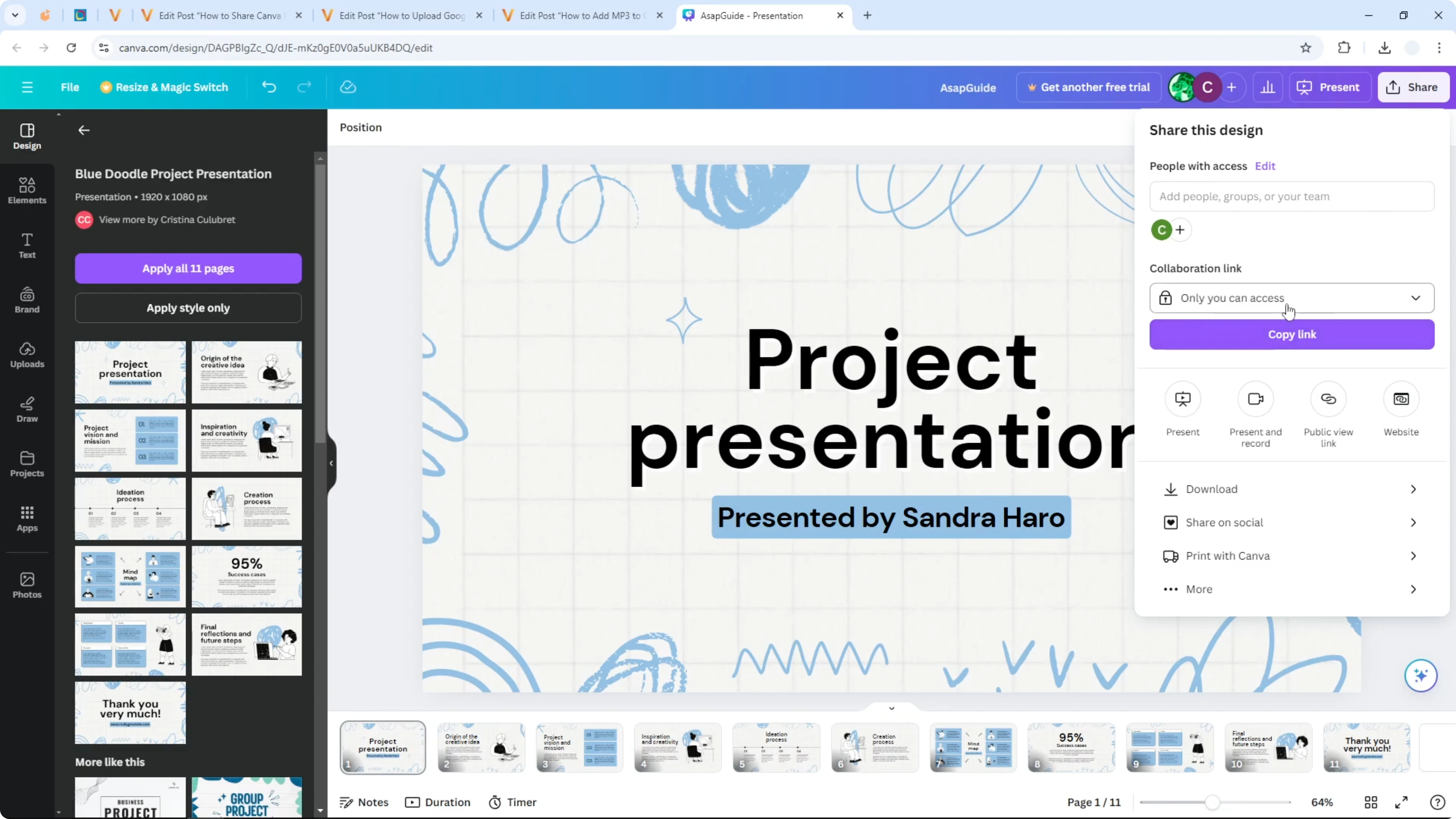
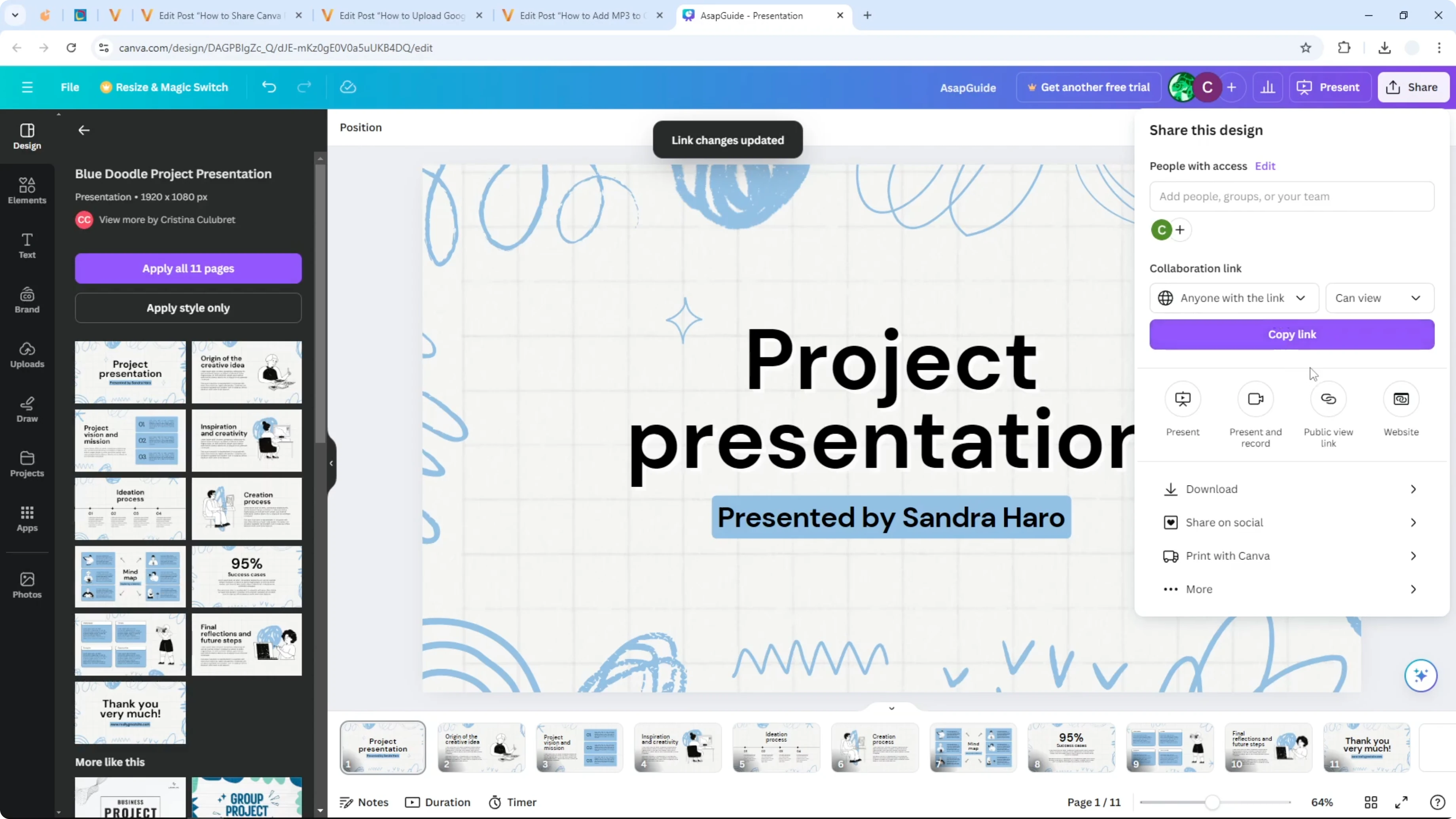
Use the Collaboration link section for this. Change access from Only you to Anyone with the link, then select the role you want. I usually choose View so people can see the document but cannot change anything.
If you want to enhance the experience before sharing publicly, you can add background music to a Canva presentation for live sessions.
Share Canva Presentation with Anyone: Steps for public link access
Open your Canva presentation.
Click Share.
Find Collaboration link.
Change access to Anyone with the link.
Set the role to View, Comment, or Edit.
Click Copy link and share it.
Share Canva Presentation with Anyone: Verify access
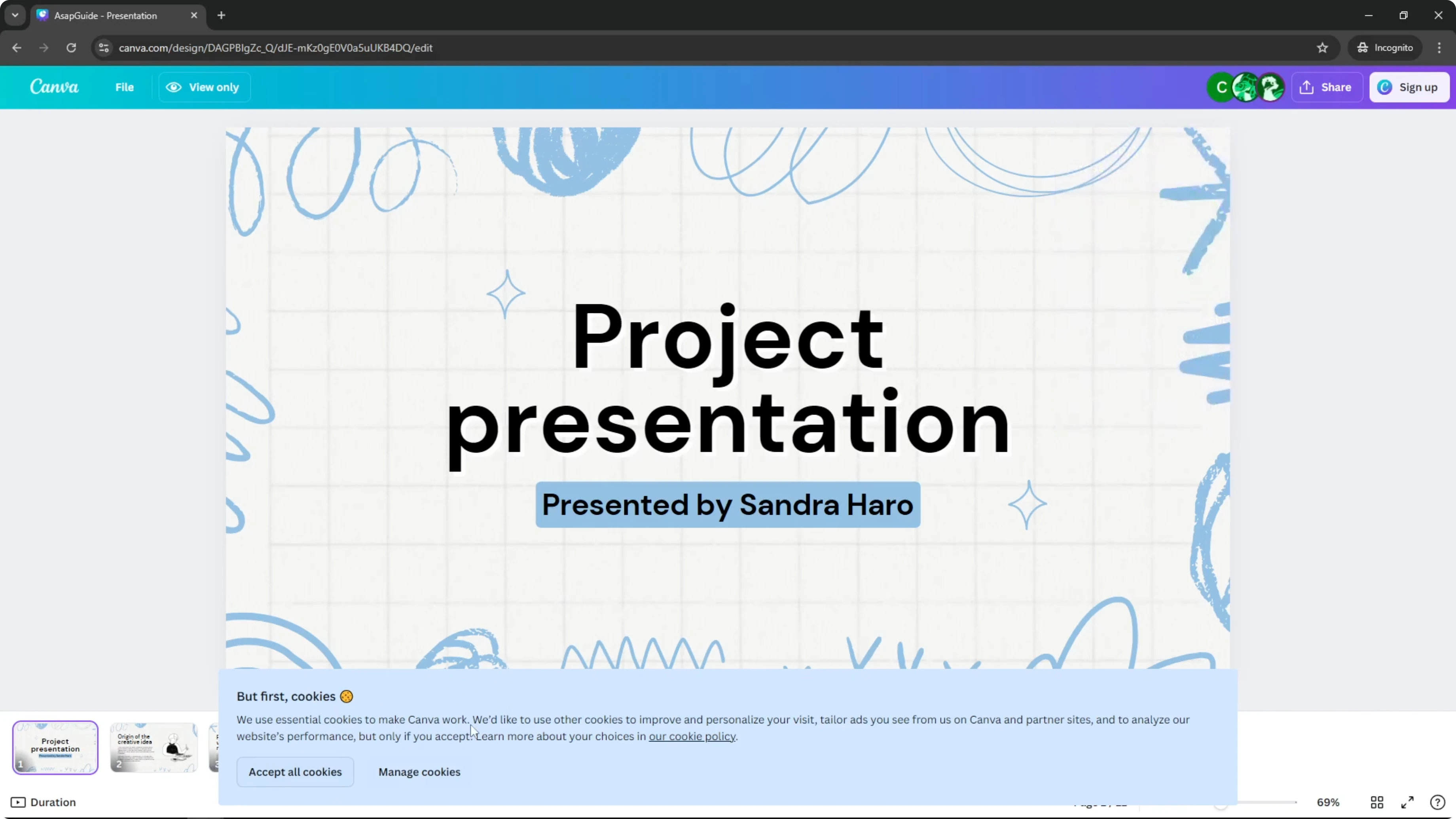
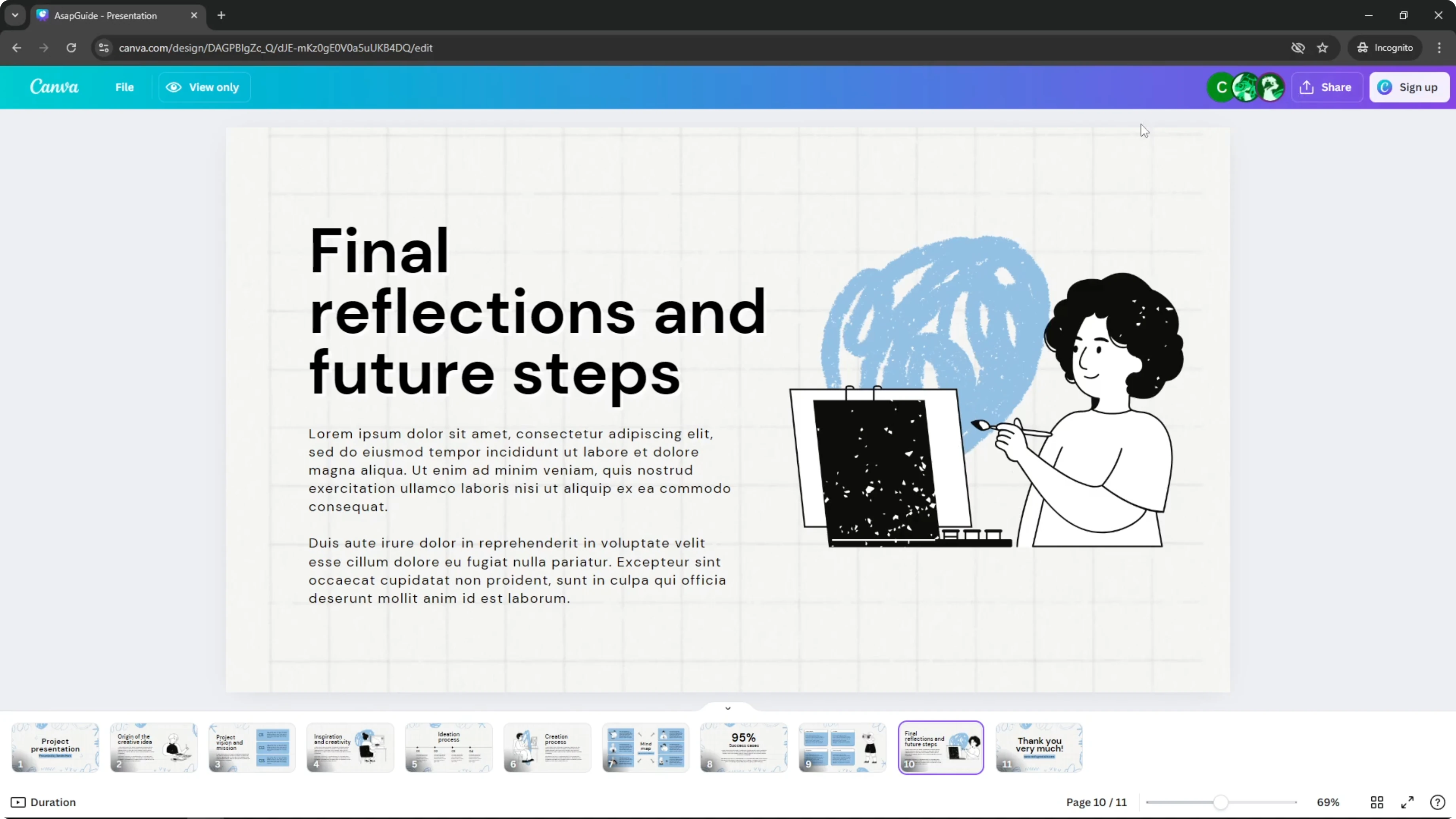
I often test the link in an incognito window to confirm the permission is correct. The same URL should open the document without needing an account. With View role, people can see the document but cannot modify anything or add comments.
Share Canva Presentation with Anyone: Permission choices
View lets people see the document only.
Comment lets people leave feedback without editing content.
Edit gives full editing rights, and I only use it when I fully trust the recipient.
If you want to add motion before sharing, you can insert a GIF in a Canva presentation to highlight key moments.
Share Canva Presentation with Anyone: Final thoughts
Open the presentation, use People with access for collaborators, or switch to Anyone with the link for public access. Set the role to View, Comment, or Edit to match your goal. Copy the link and test it in a private window to make sure it behaves exactly as intended.
Recent Posts

How to Visualize Yourself as a Pixelized Character with AI?
How to Visualize Yourself as a Pixelized Character with AI?

How to Revive Faded Memories and Enhance Image Clarity with AI?
How to Revive Faded Memories and Enhance Image Clarity with AI?

How to Visualize Yourself as an Animal Crossing Character with AI?
How to Visualize Yourself as an Animal Crossing Character with AI?