How to Add Background to Canva Presentation
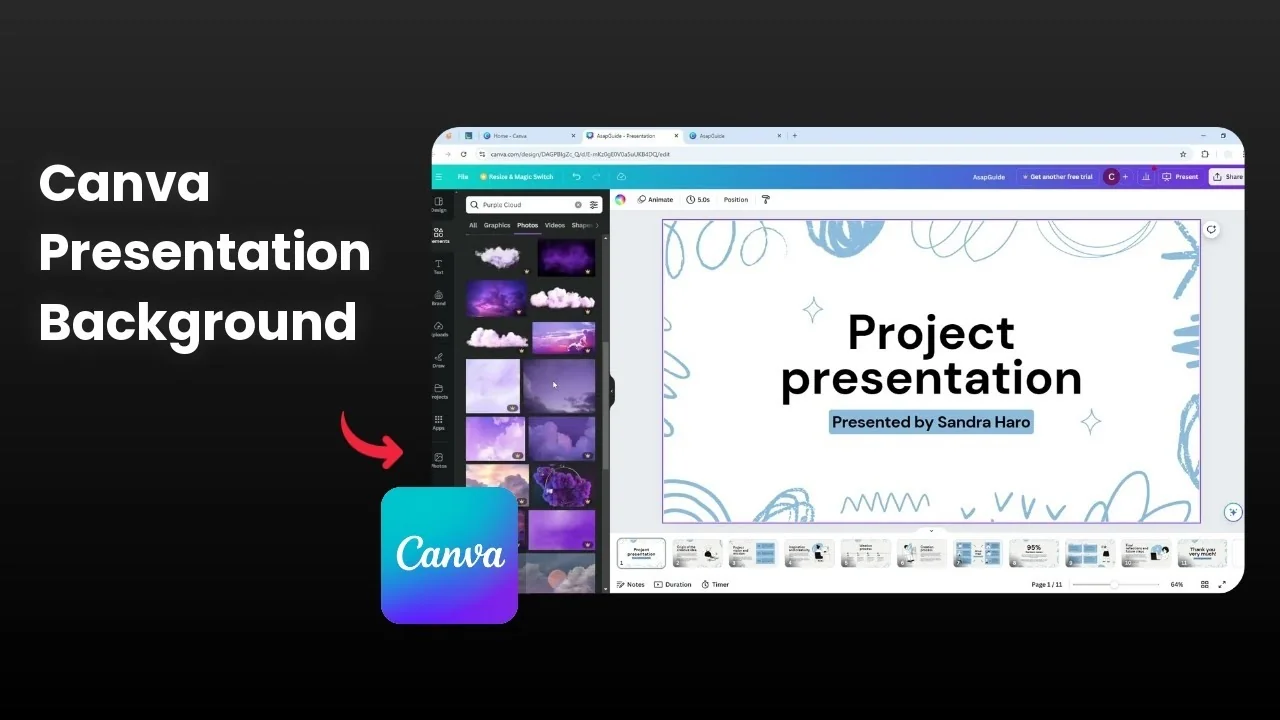
I am going to show you how to change the background image in your Canva presentation. If you are using a template presentation provided by Canva, they often use a background image. Sometimes you are not satisfied with the image and you want to replace it.
I have a presentation that has a gradient background and I think it is not very attractive. For the first slide I am going to change the background with something else. For broader tips on working with photos, see adding a background photo in Canva.
Add Background to Canva Presentation
Remove the current background
Click the background. You can click the empty area of the slide.
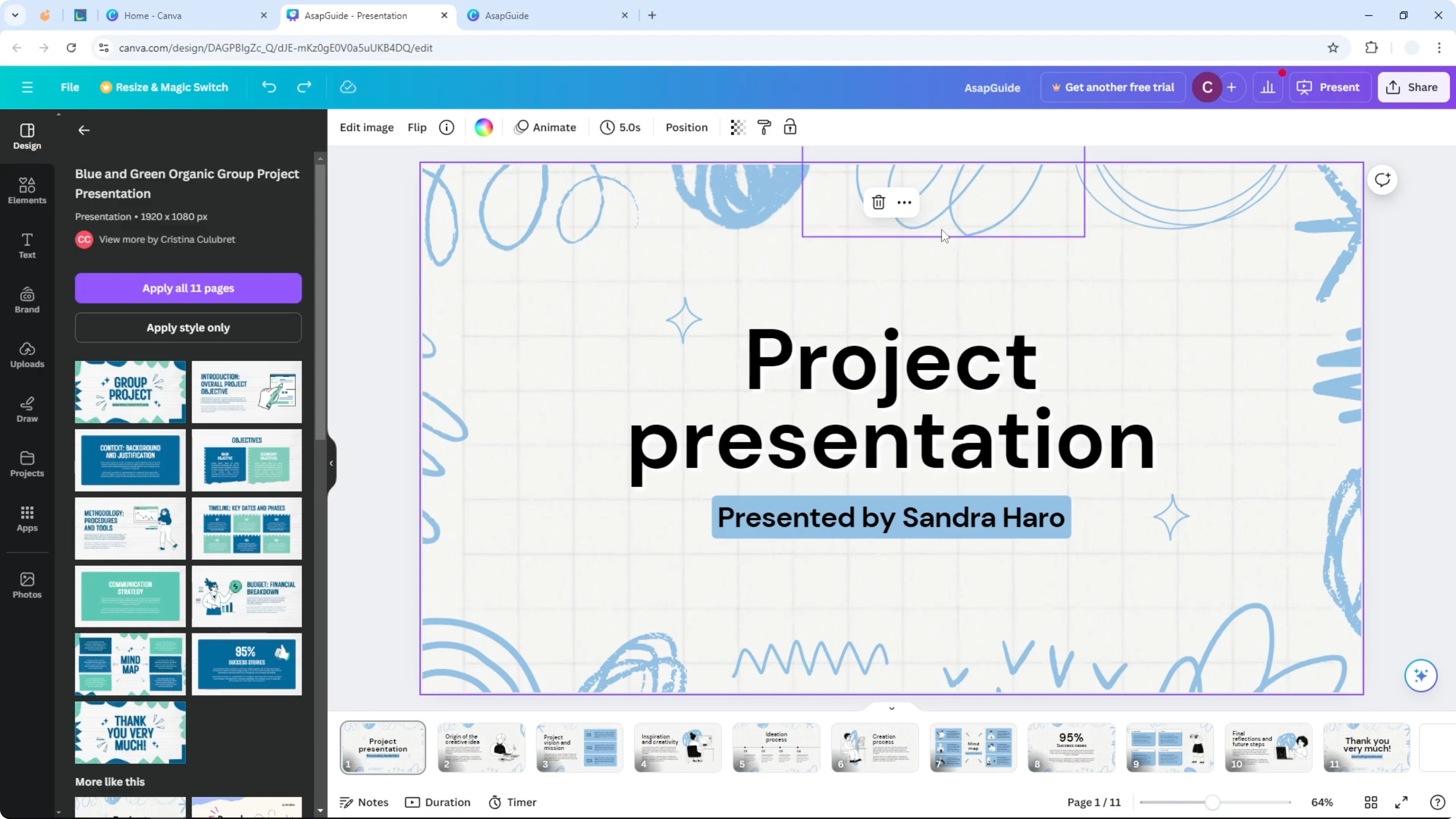
Click Delete or click More and choose Delete image. The slide becomes an empty area you can fill with a different image.
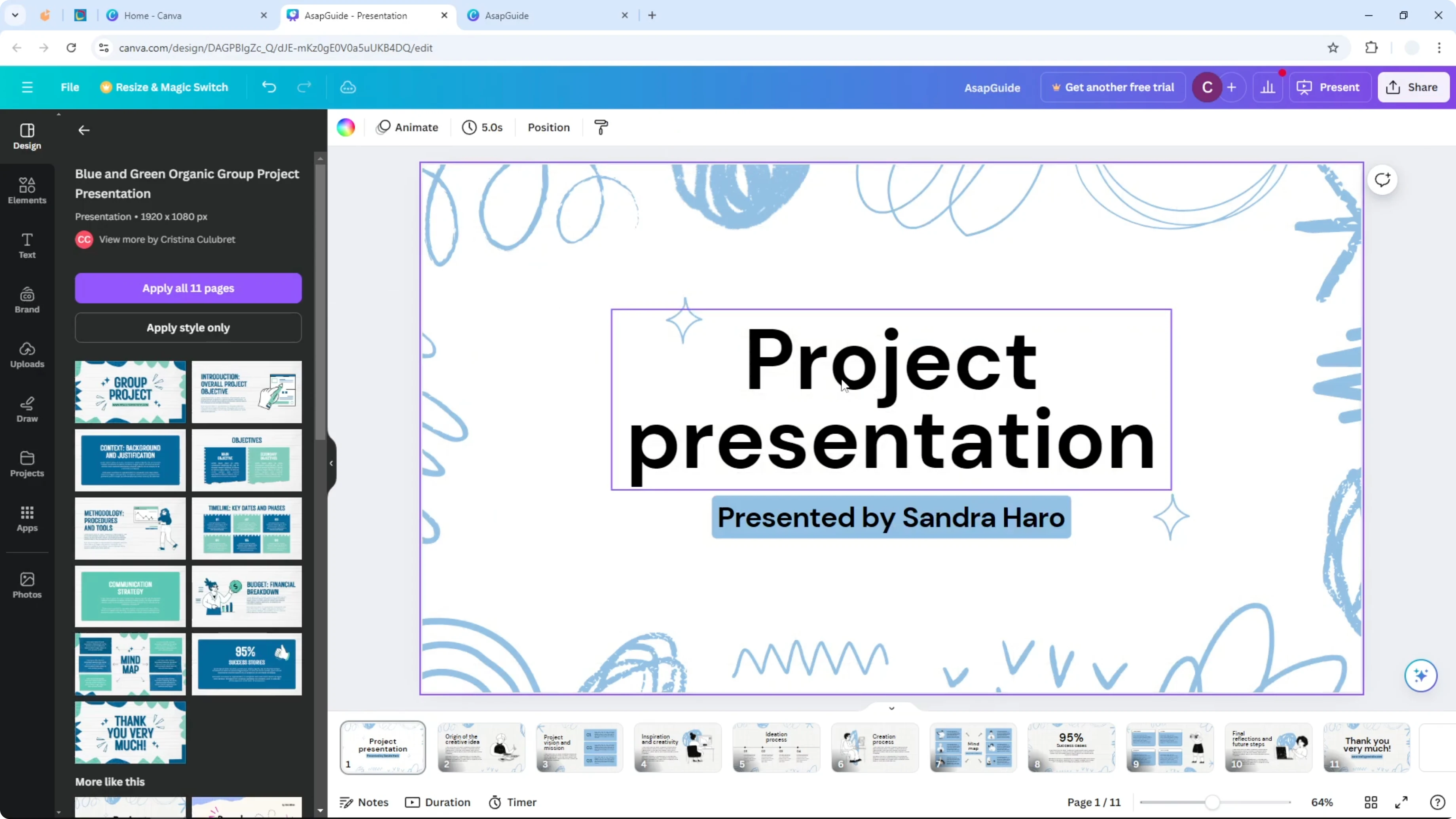
Add a new photo
Go to Elements. I want to add a picture of purple cloud.
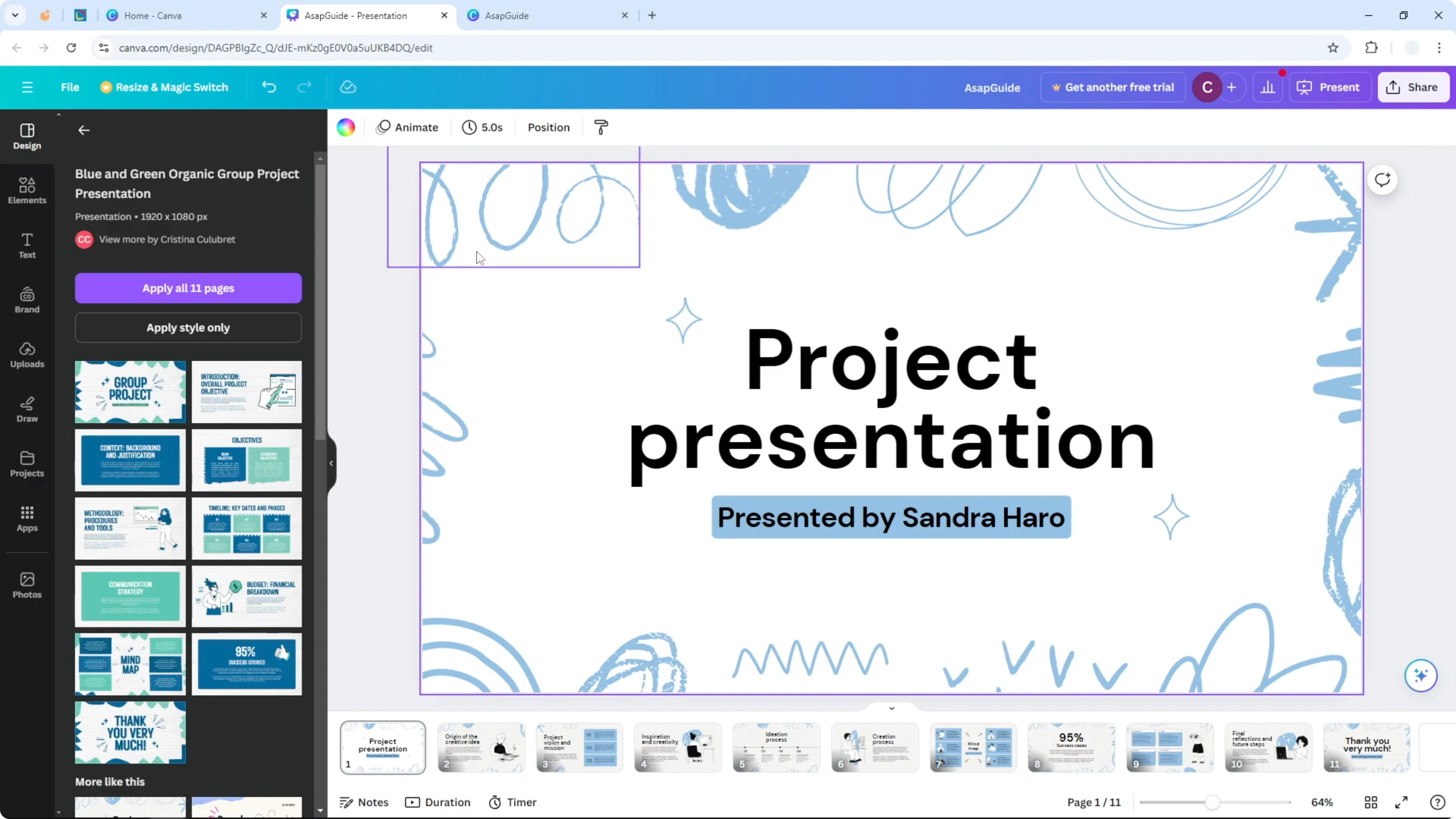
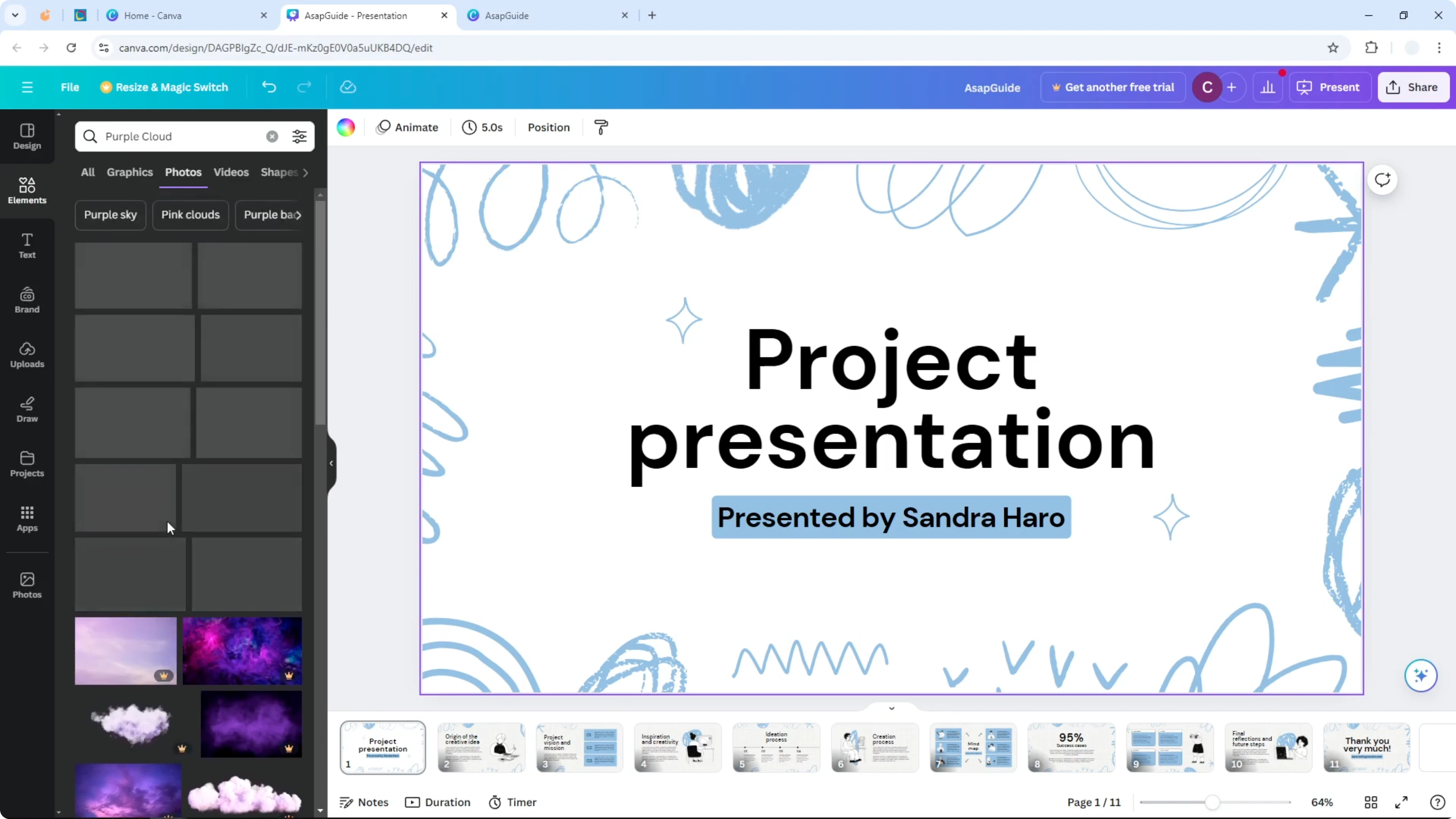
Go to Photos. There are many pictures and I want to pick one that is suitable for this presentation.
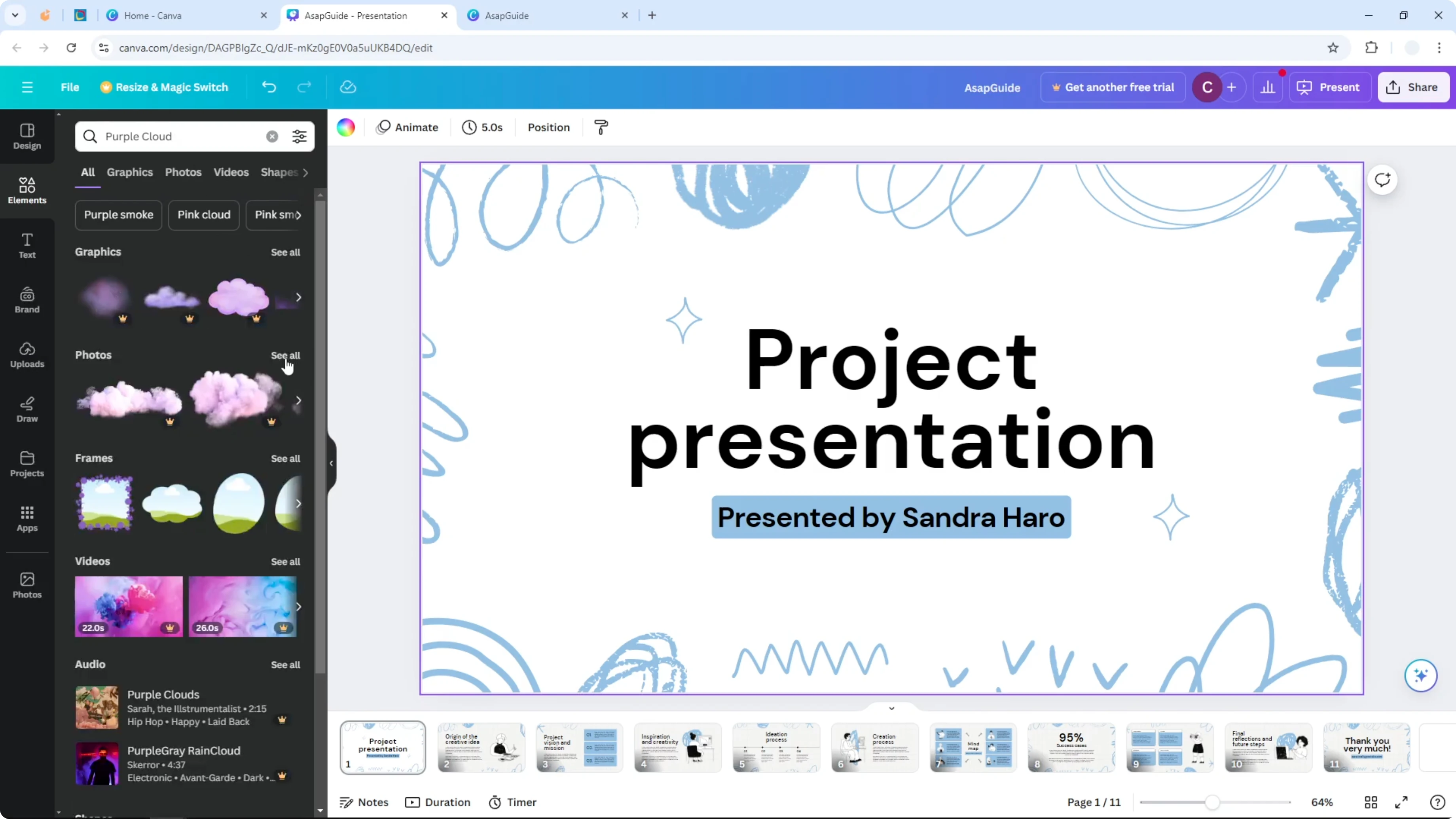
Some images are Pro and I am using the free version. I pick one that is free.
Place it on the slide
Click and drag the photo to the area that is usually recognized as a background image. It will fill the entire slide.
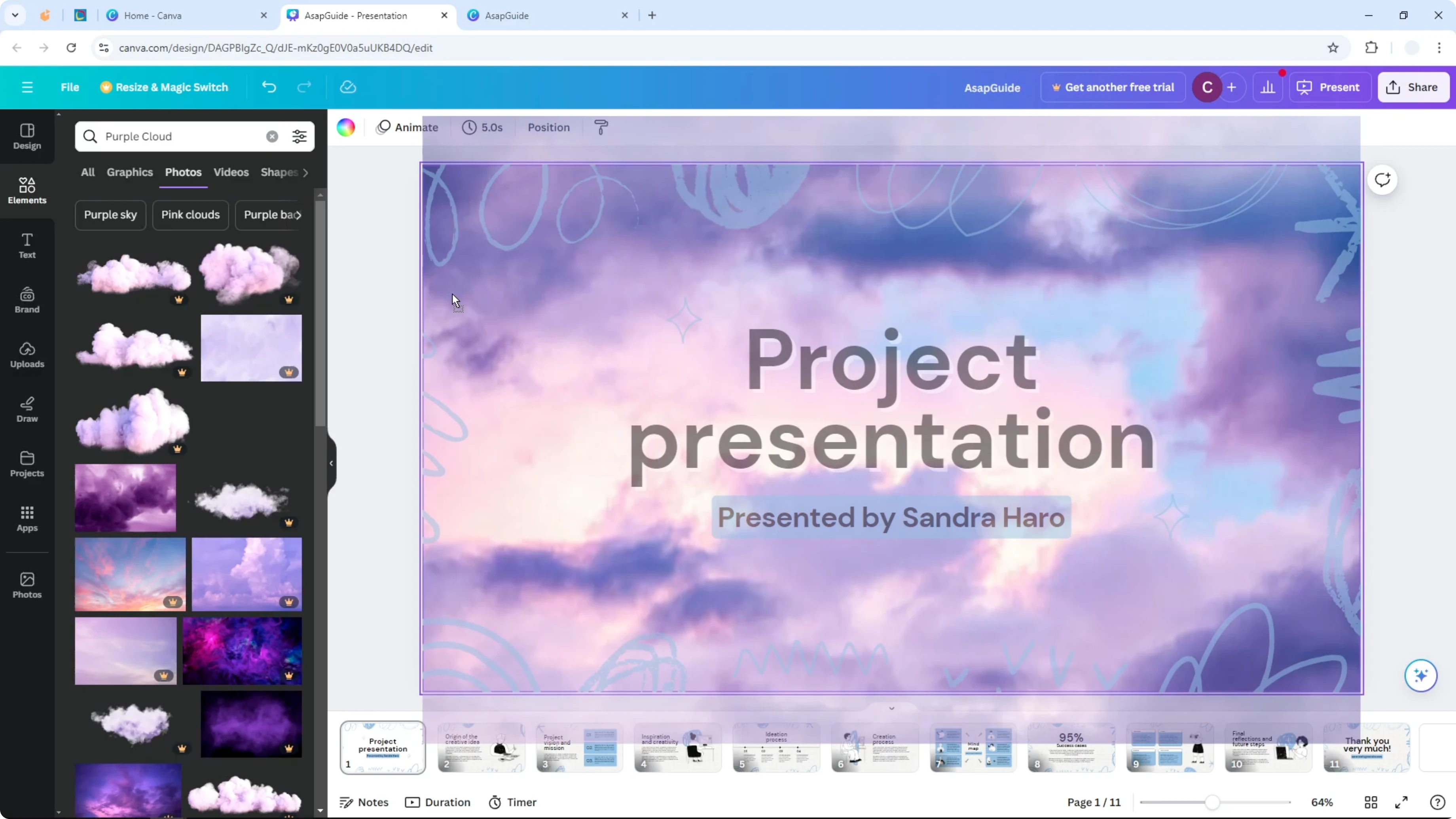
Otherwise resize it manually.
Adjust the visible area
Release the click and double click the image. Select which area is visible.
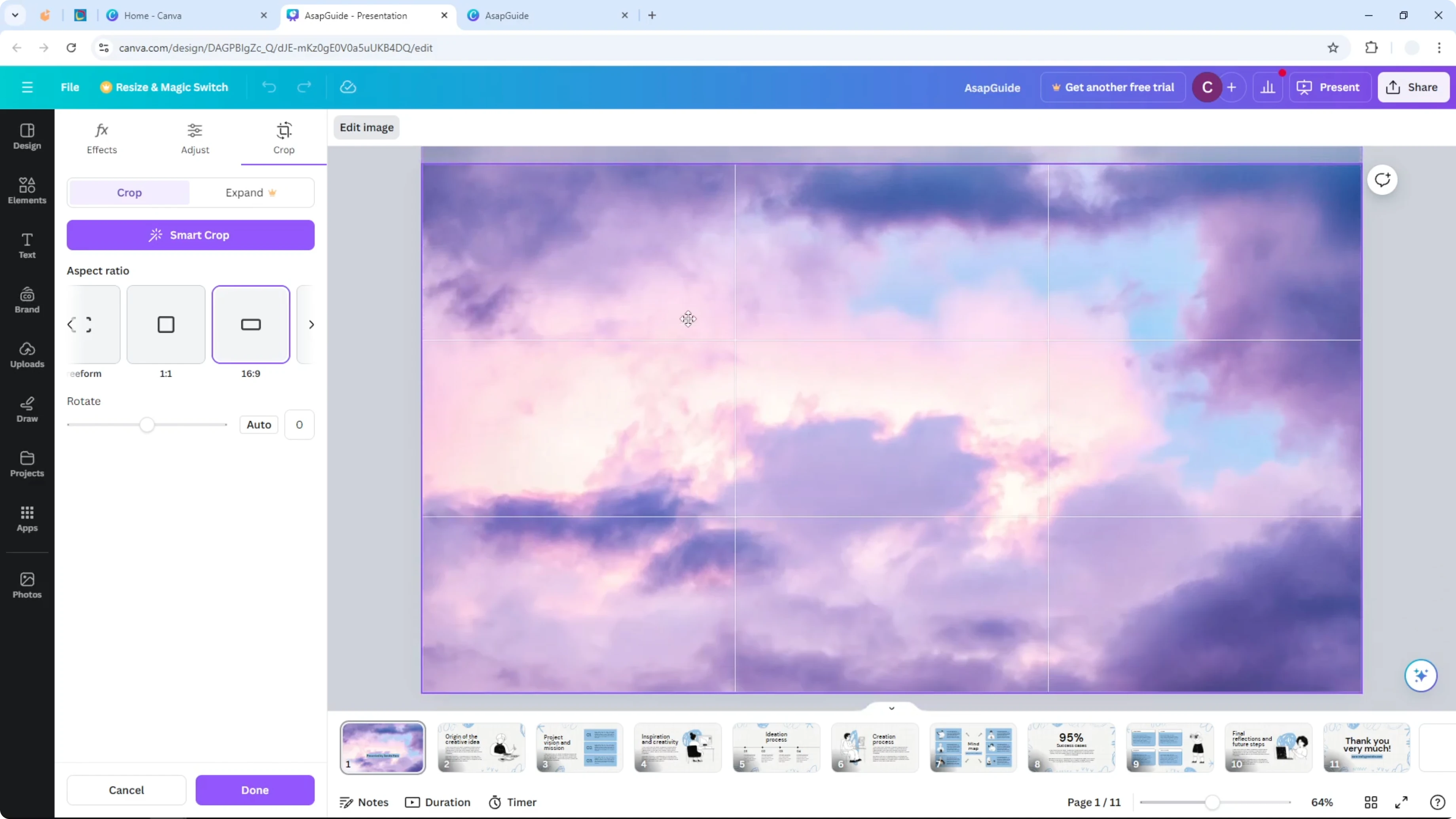
I think this one is perfect. Done.
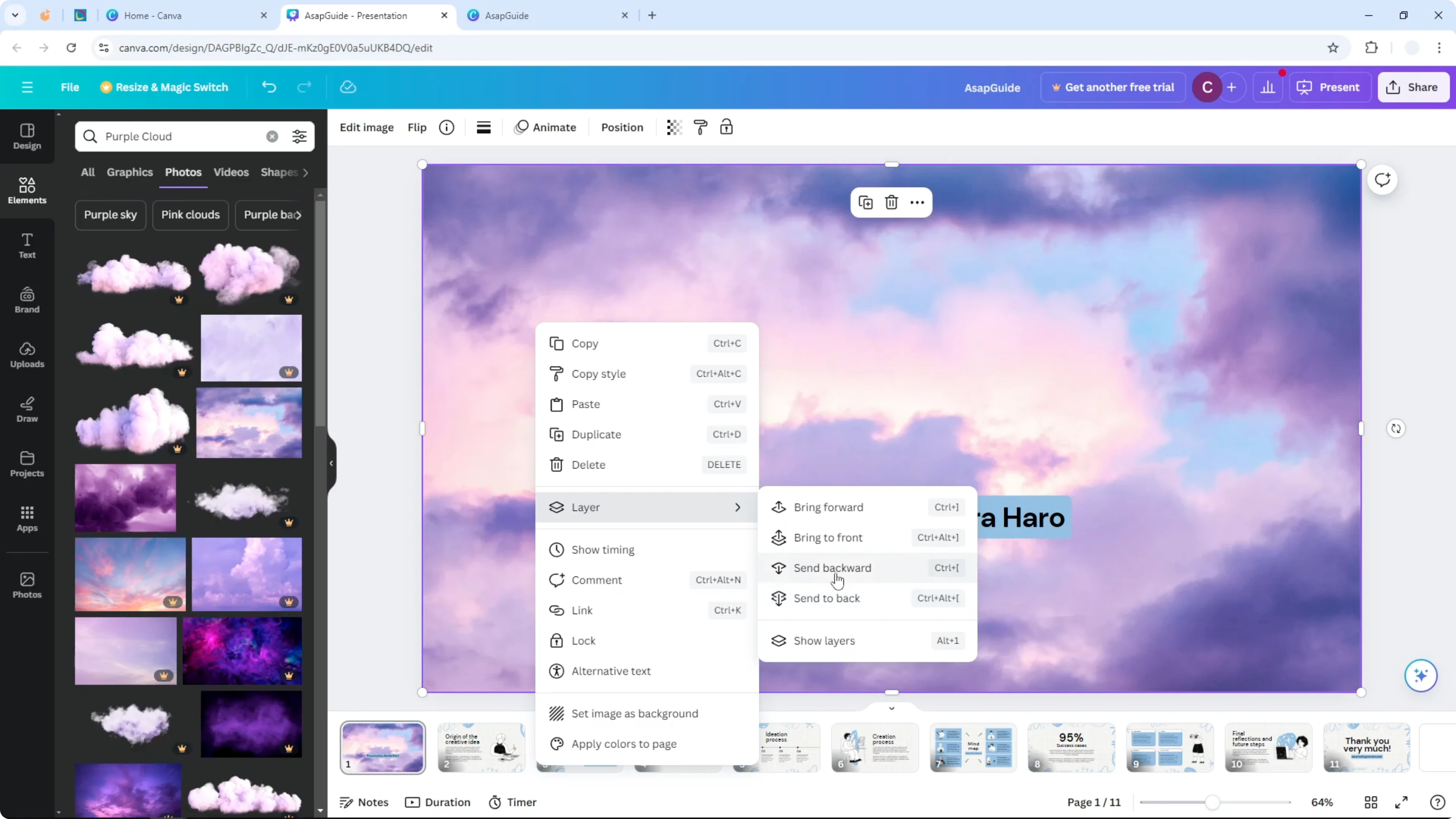
Send it behind your content
The image is blocking the content, which is not what we want. We want to put this image as a background.
Right click the image layer and click Send to back. Sometimes you can select Send backward, but Send to back sends the image to the very back of other layers in your slide.
If your titles need extra contrast, you can add background text in Canva.
There you have it. Now you have a brand new image as a background in this slide in Canva. To enhance the slide even more, you can add background music to your presentation.
Final thoughts
Delete the original background, add a new photo, adjust the crop, and send it to the back. These quick steps let you refresh any template without disrupting your content. You can repeat them on other slides to keep a consistent look.
Recent Posts

How to Visualize Yourself as a Pixelized Character with AI?
How to Visualize Yourself as a Pixelized Character with AI?

How to Revive Faded Memories and Enhance Image Clarity with AI?
How to Revive Faded Memories and Enhance Image Clarity with AI?

How to Visualize Yourself as an Animal Crossing Character with AI?
How to Visualize Yourself as an Animal Crossing Character with AI?