How to Set a Timer in Canva Whiteboard
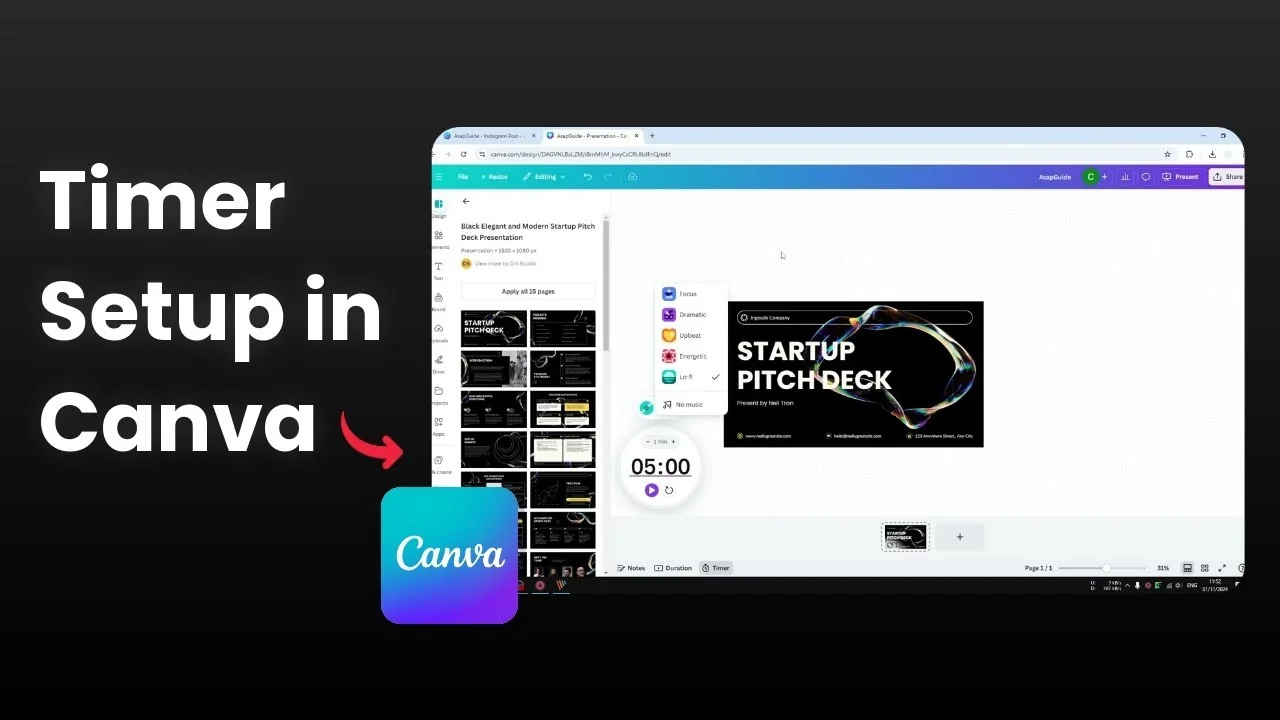
I will show you how you can set a timer on the Canva whiteboard. This is very useful when you are working with multiple people and you want to make sure everything is done within the desired time. It helps everyone contribute and stay productive.
Set a Timer in Canva Whiteboard
Open your whiteboard.
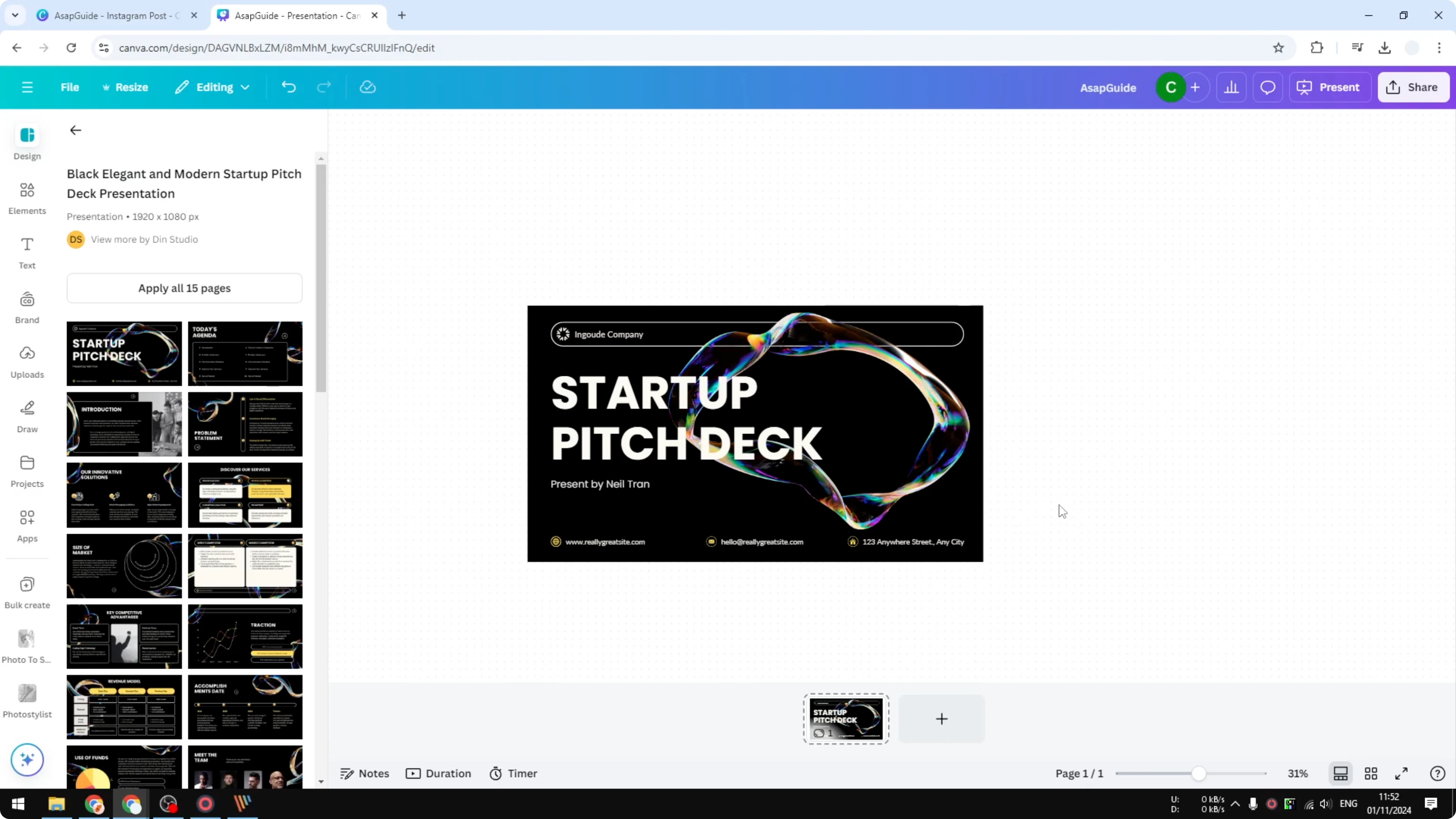
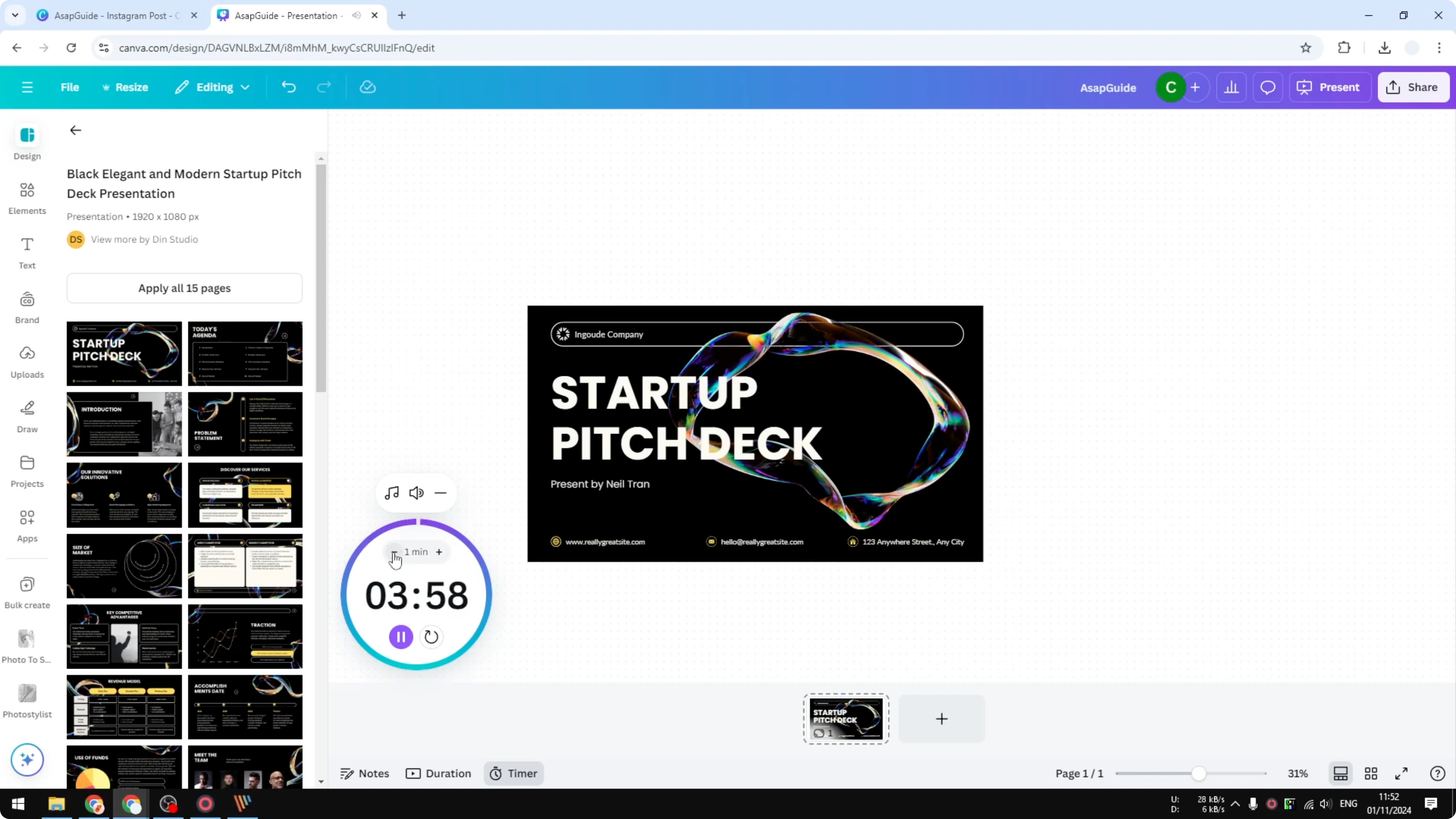
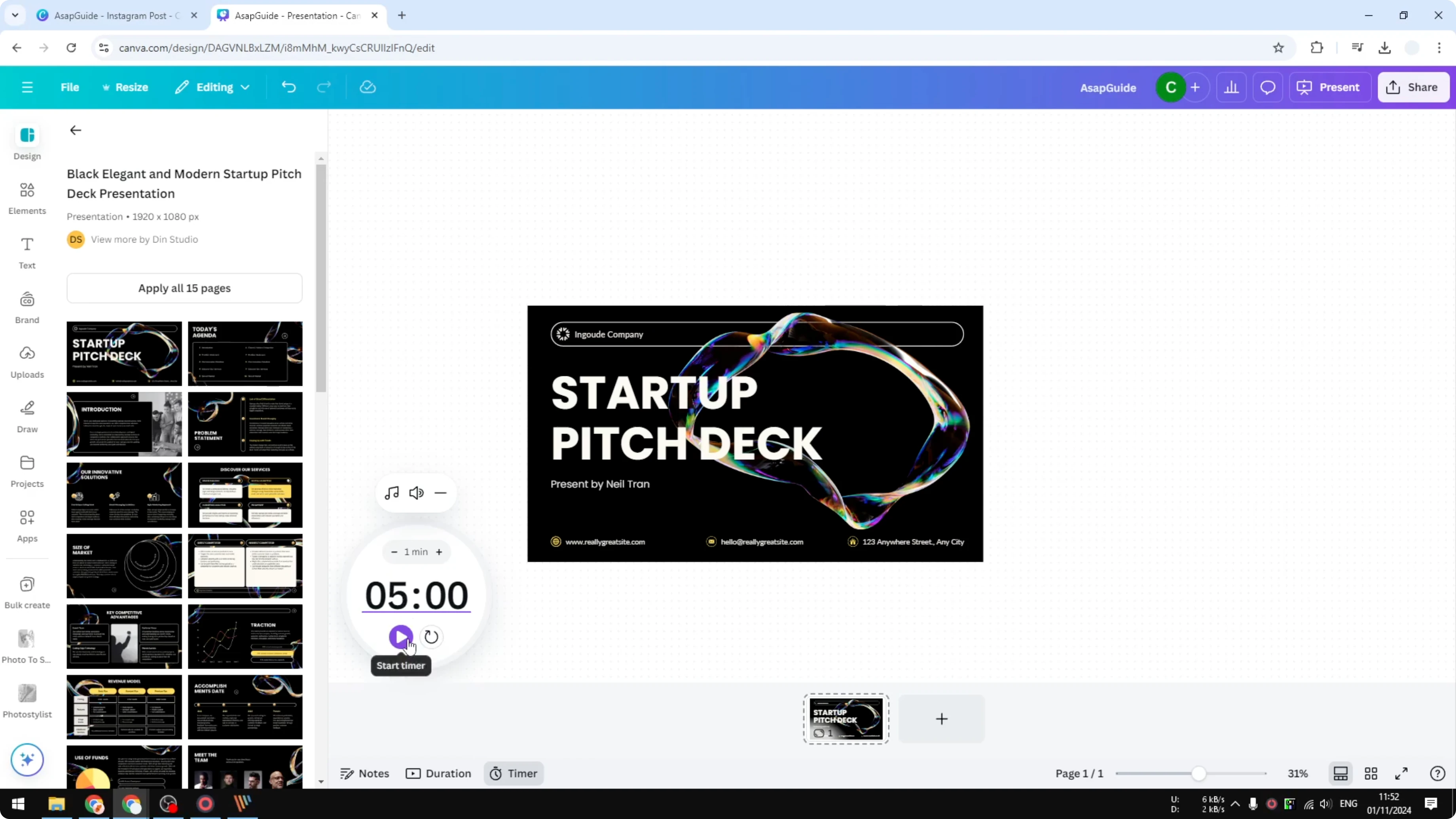
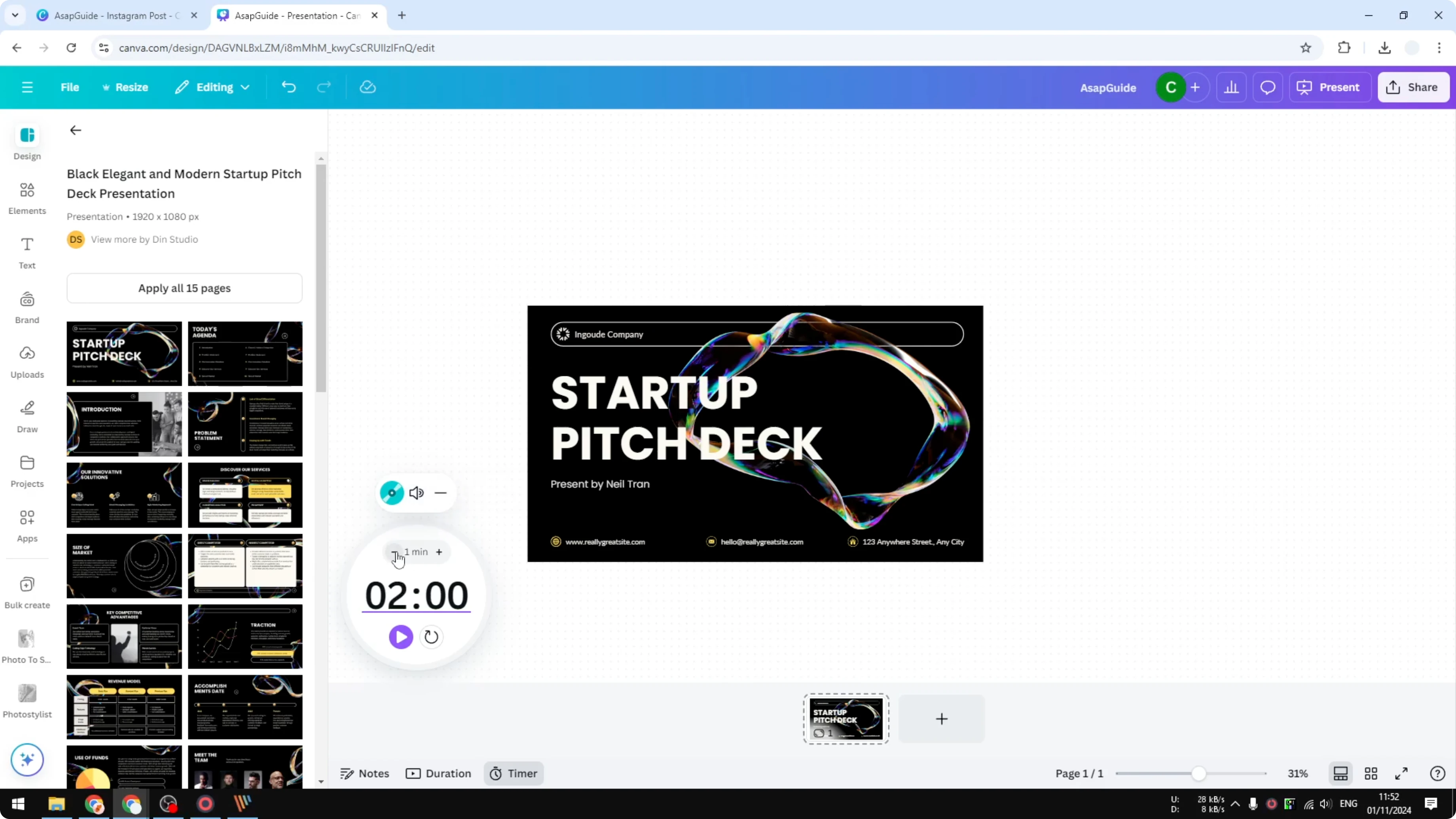
Click the Timer button to show the timer.
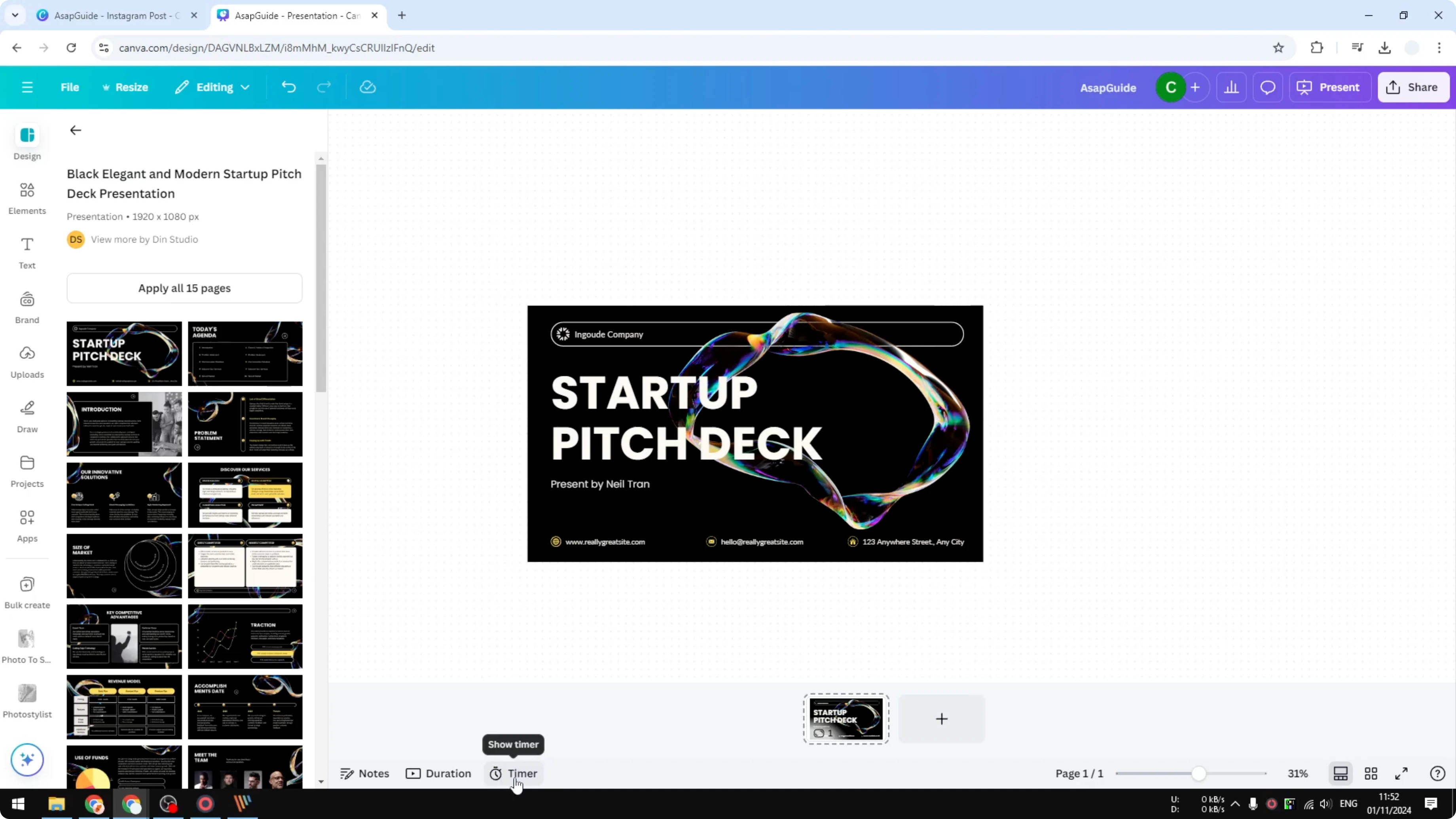
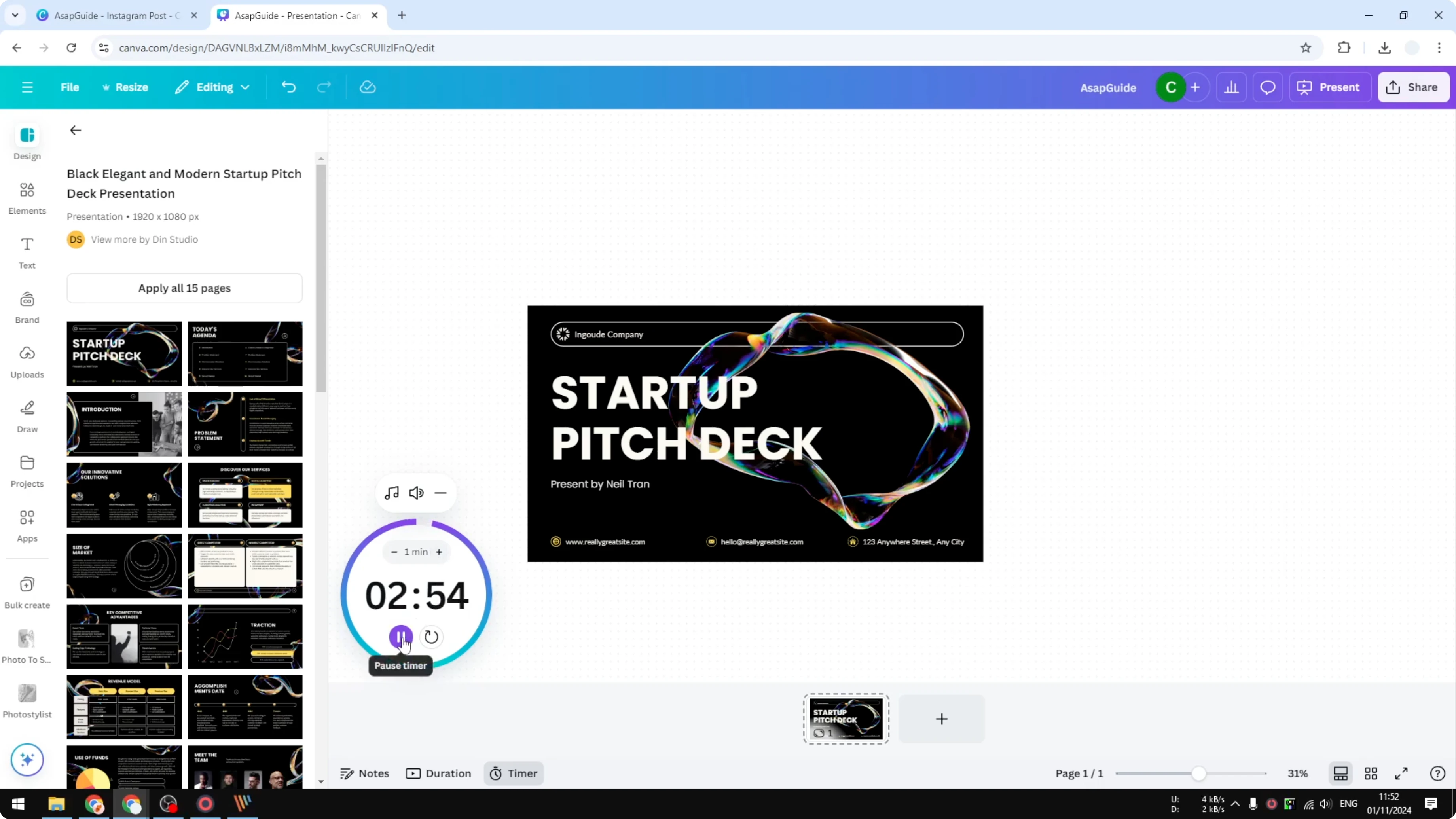
By default you will see a 5 minute countdown. You can add more minutes or reduce it to 2 minutes or 1 minute. You can also pause the timer or reset it at any time.
Read More: Expand Canva Slides Whiteboard
Set a Timer in Canva Whiteboard music and volume
You can adjust the volume of the ticking or the music. The music options include Focus, dramatic, upbeat, energetic, and Lo Fi. These selections give a clear cue to everyone that when the music stops, the time is up.
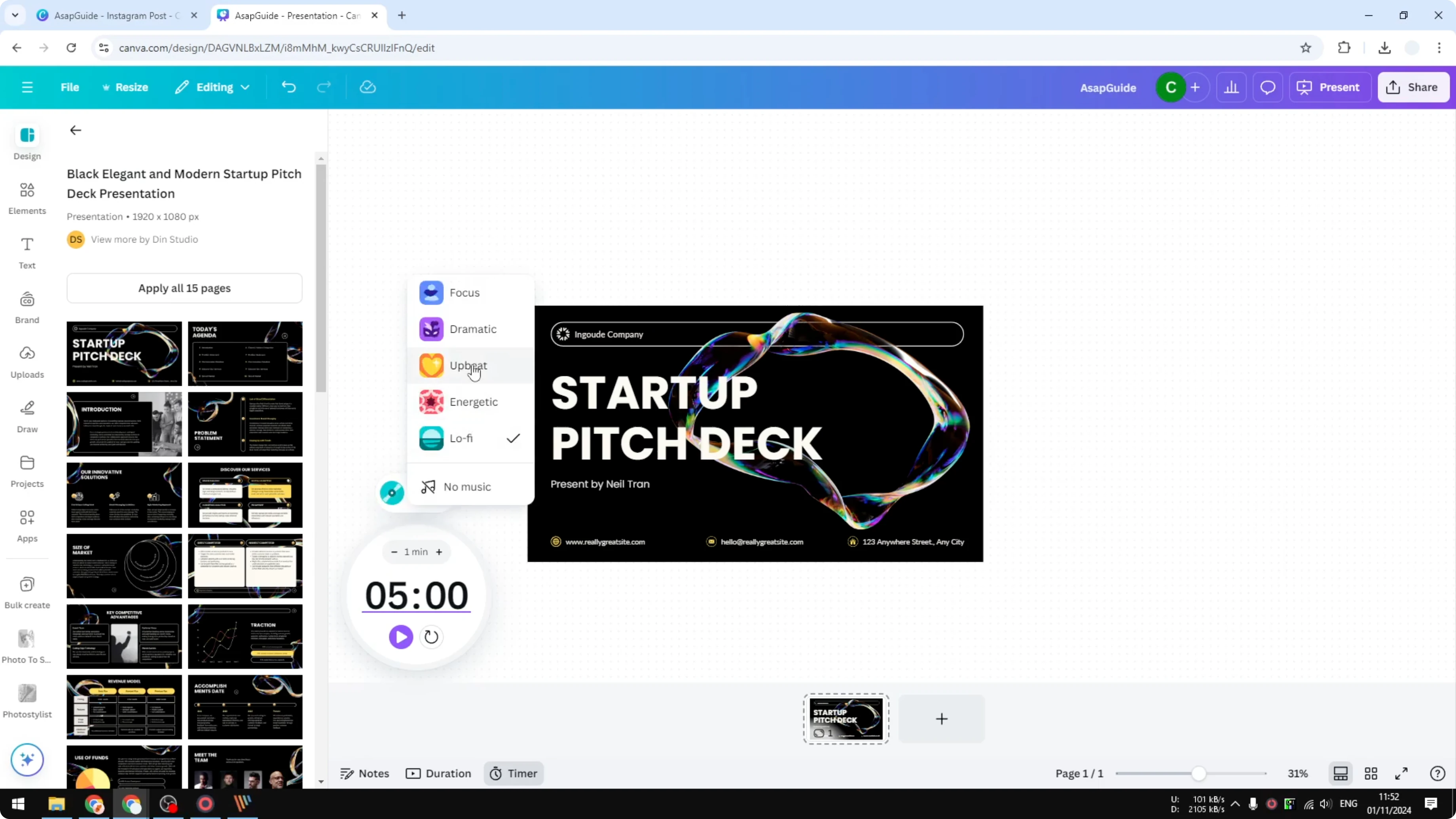
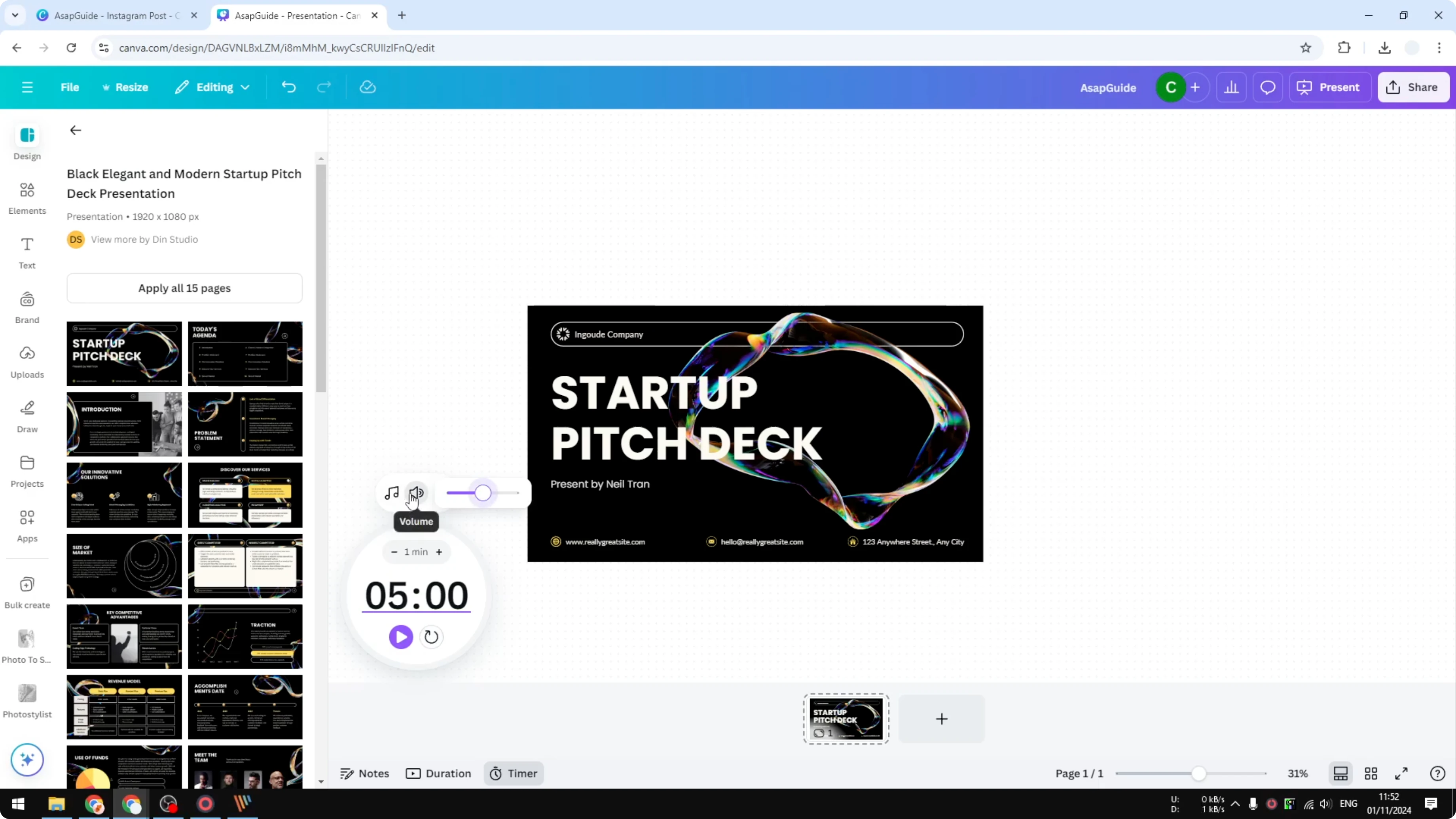
People do not need to look at the timer all the time. Pick the music level you want and set the timer length you need. For example, choose Lo Fi at a comfortable volume and set the timer to 2 minutes, then press Play.
Read More: How To Set Custom Dimensions In Canva
Set a Timer in Canva Whiteboard minimize and present
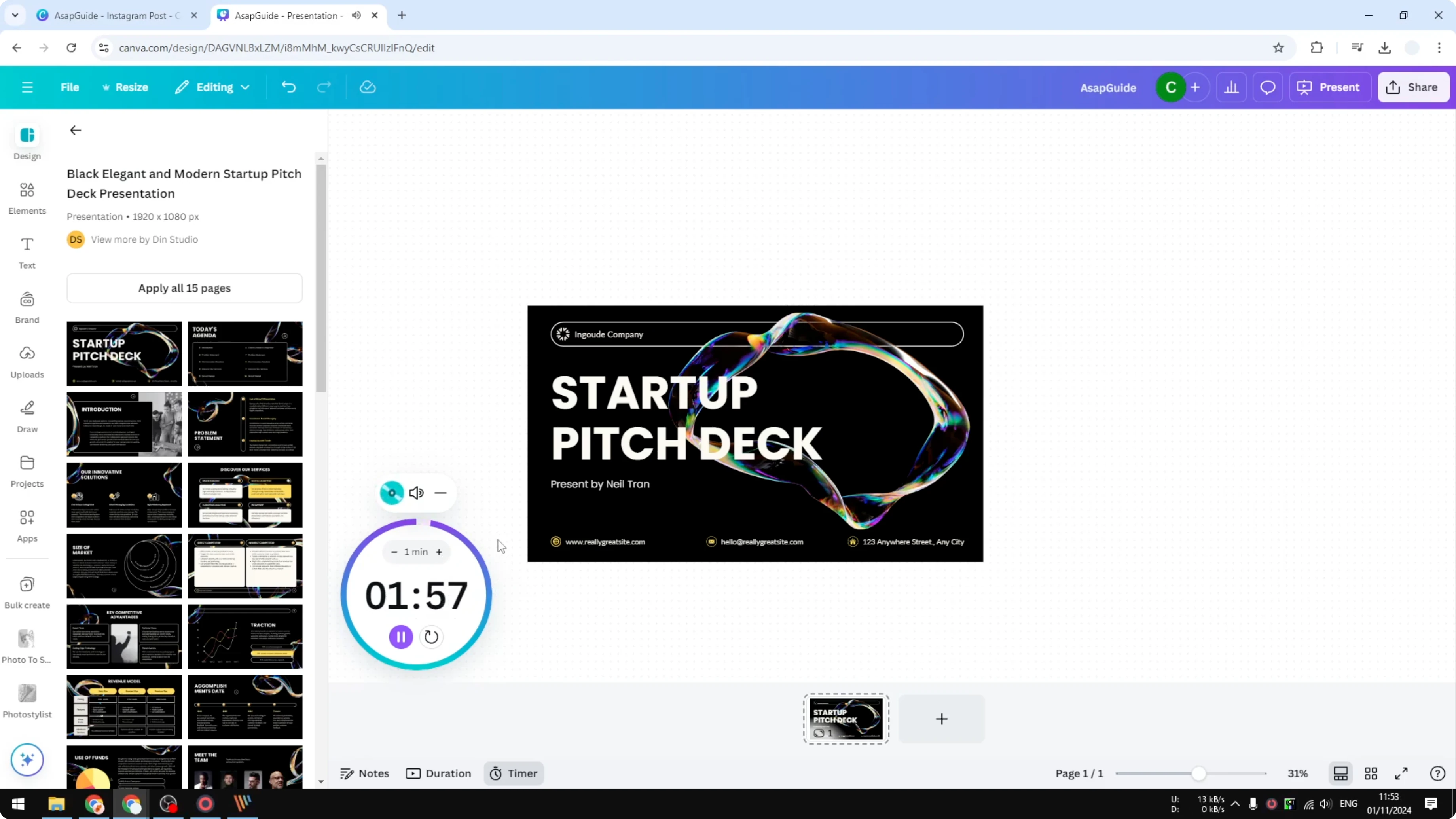
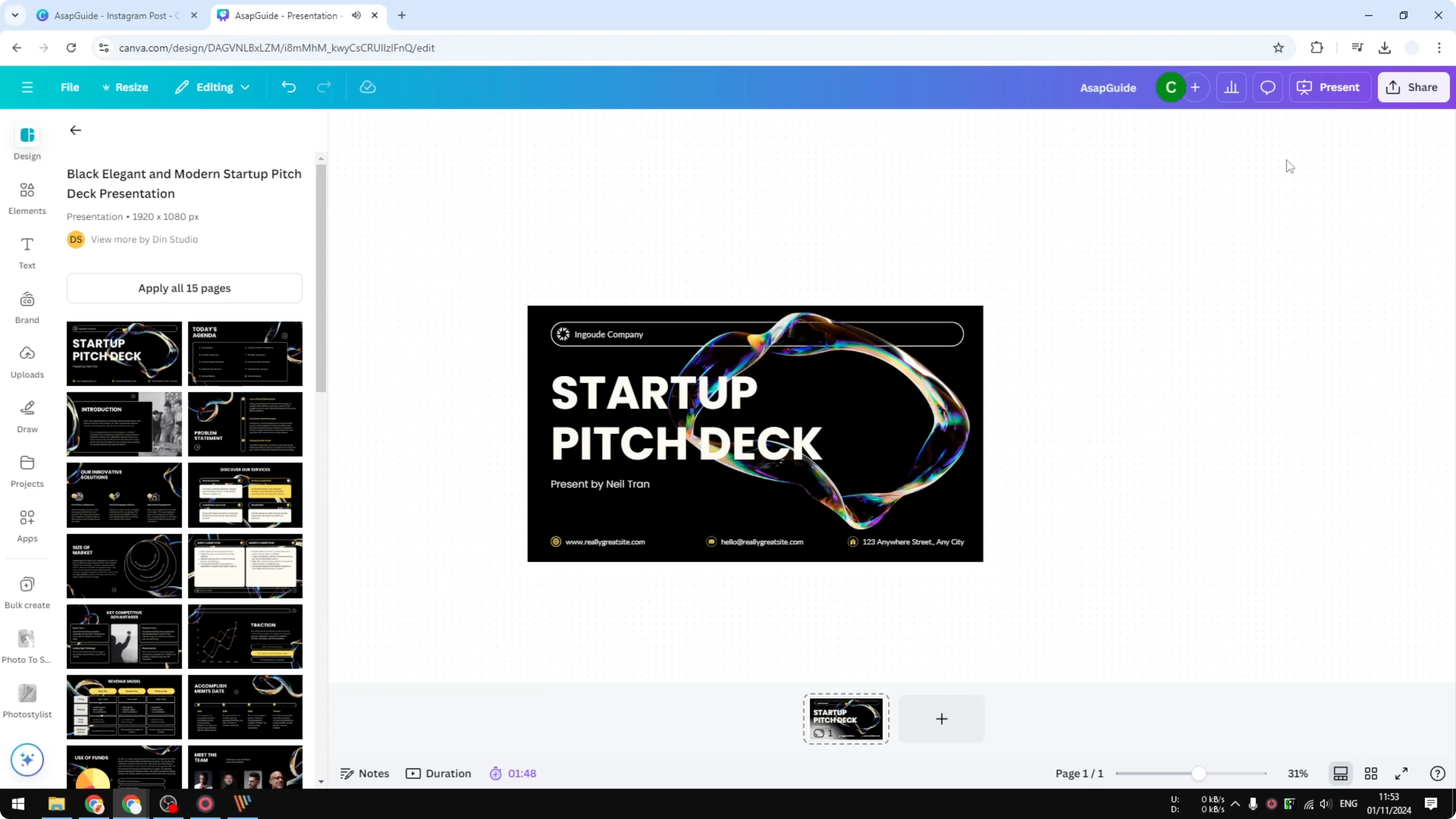
You do not always have to show the timer on the screen. Click Minimize and the timer will keep running along with the music. This also works when you are presenting the document.
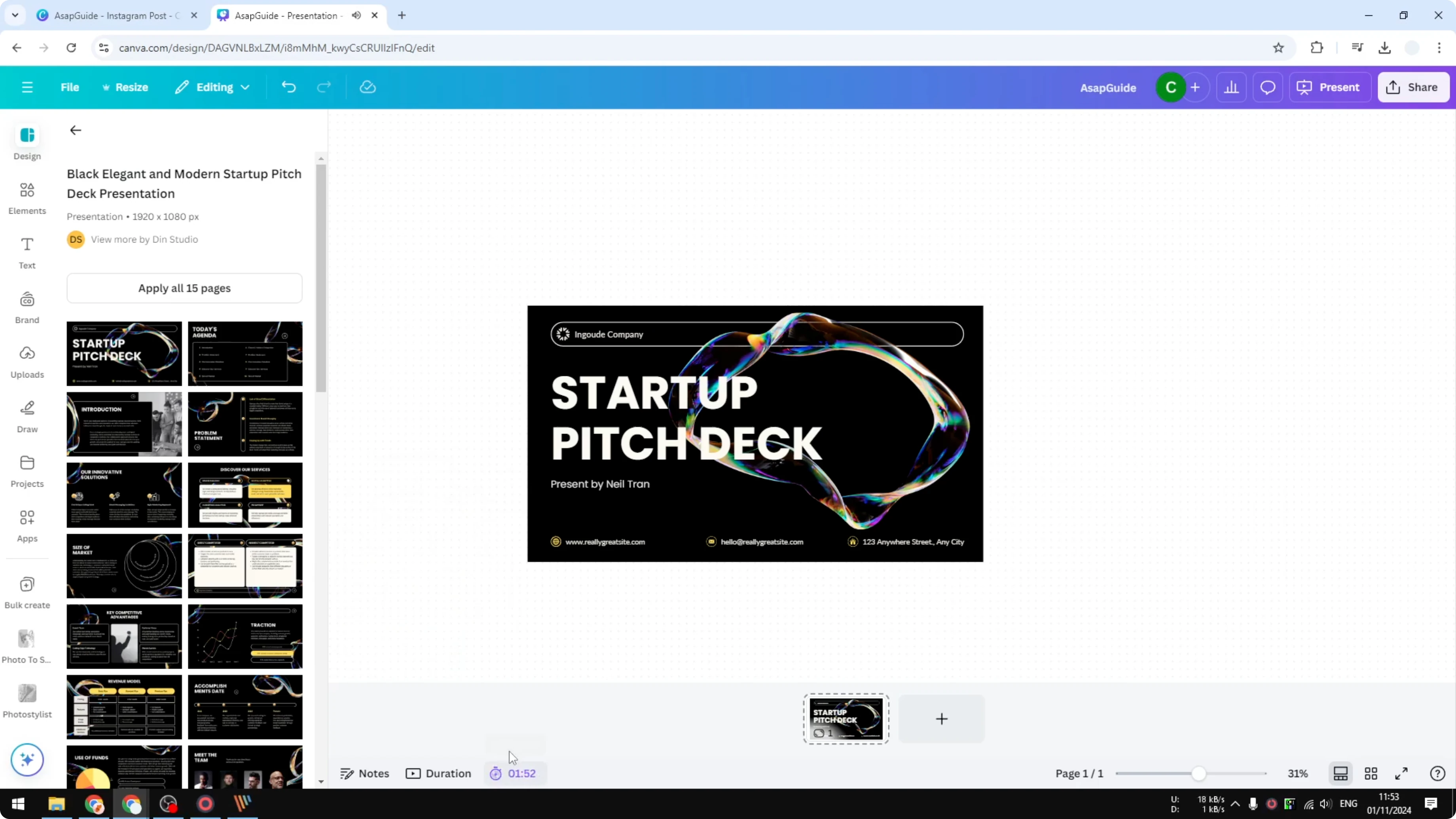
I find this very useful when you want to make sure everything is done correctly in the most efficient way possible. Keep the board clean while the timer keeps everyone on track. When the music stops, the session is complete.
Read More: 3D Book Cover Canva
Final Thoughts
The timer in Canva whiteboard helps teams stay on time and focused. Set the duration, pick a cue with music, and minimize the control while you work or present. Press Play and let the timer keep the session productive.
Recent Posts

How to Visualize Yourself as a Pixelized Character with AI?
How to Visualize Yourself as a Pixelized Character with AI?

How to Revive Faded Memories and Enhance Image Clarity with AI?
How to Revive Faded Memories and Enhance Image Clarity with AI?

How to Visualize Yourself as an Animal Crossing Character with AI?
How to Visualize Yourself as an Animal Crossing Character with AI?