How to Send Text Behind Image in Canva
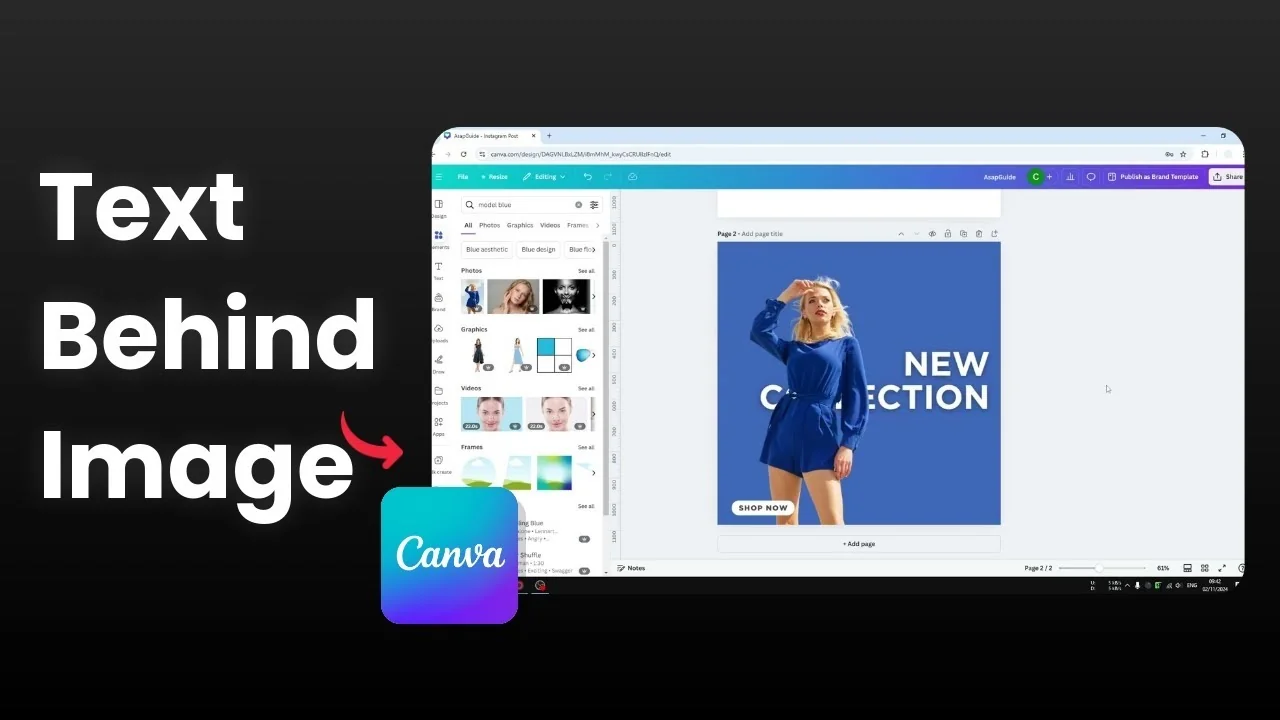
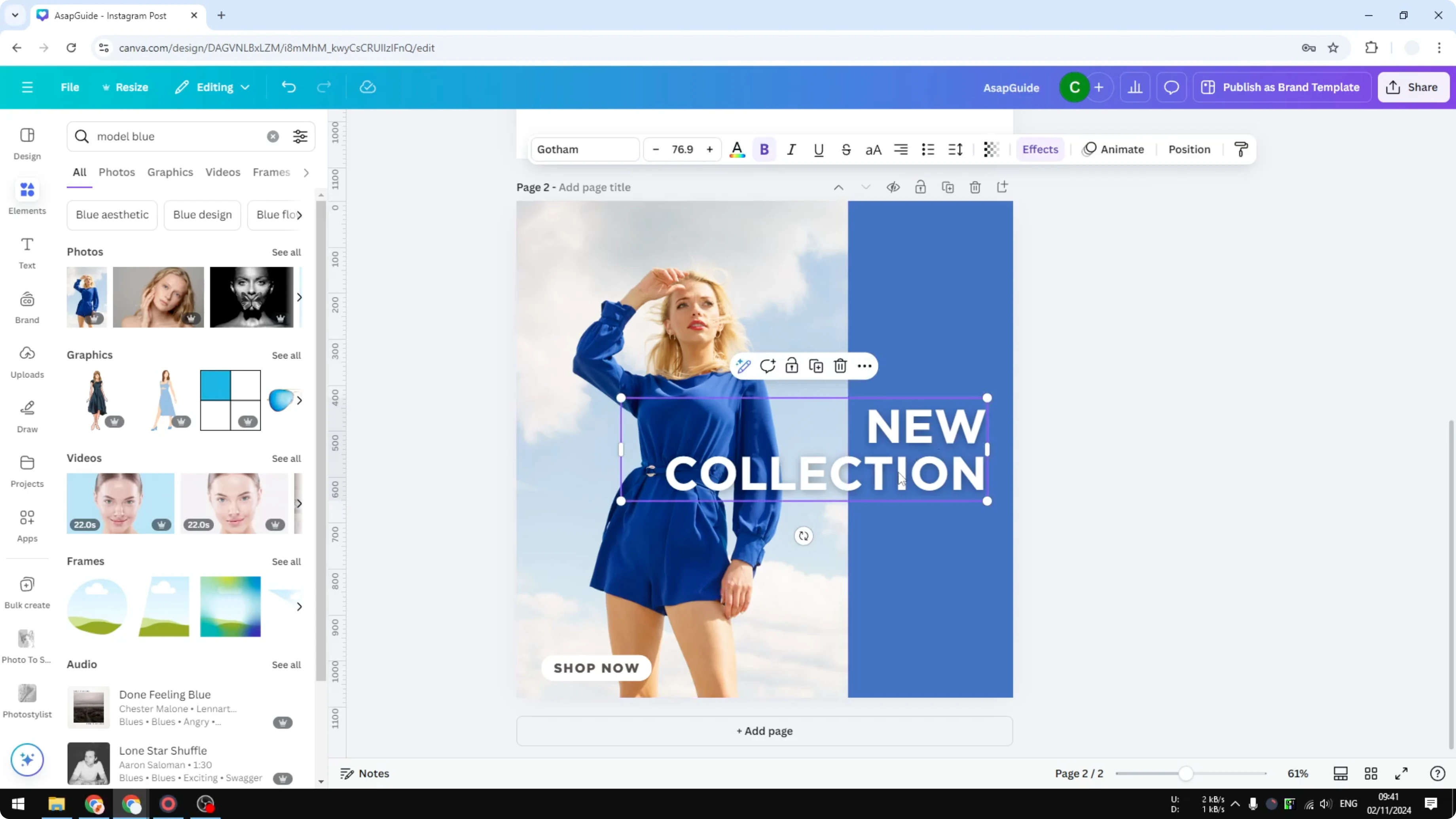
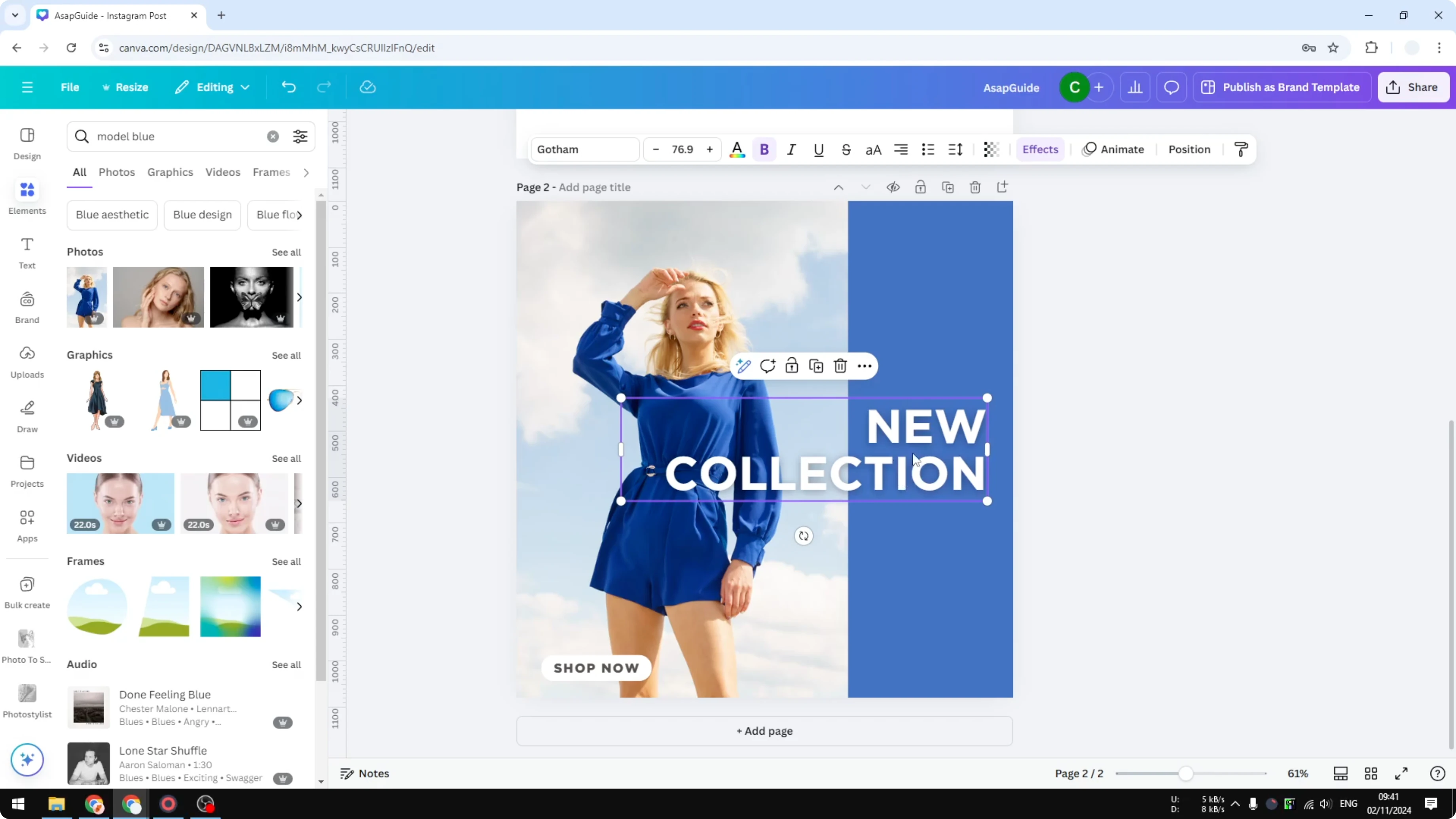
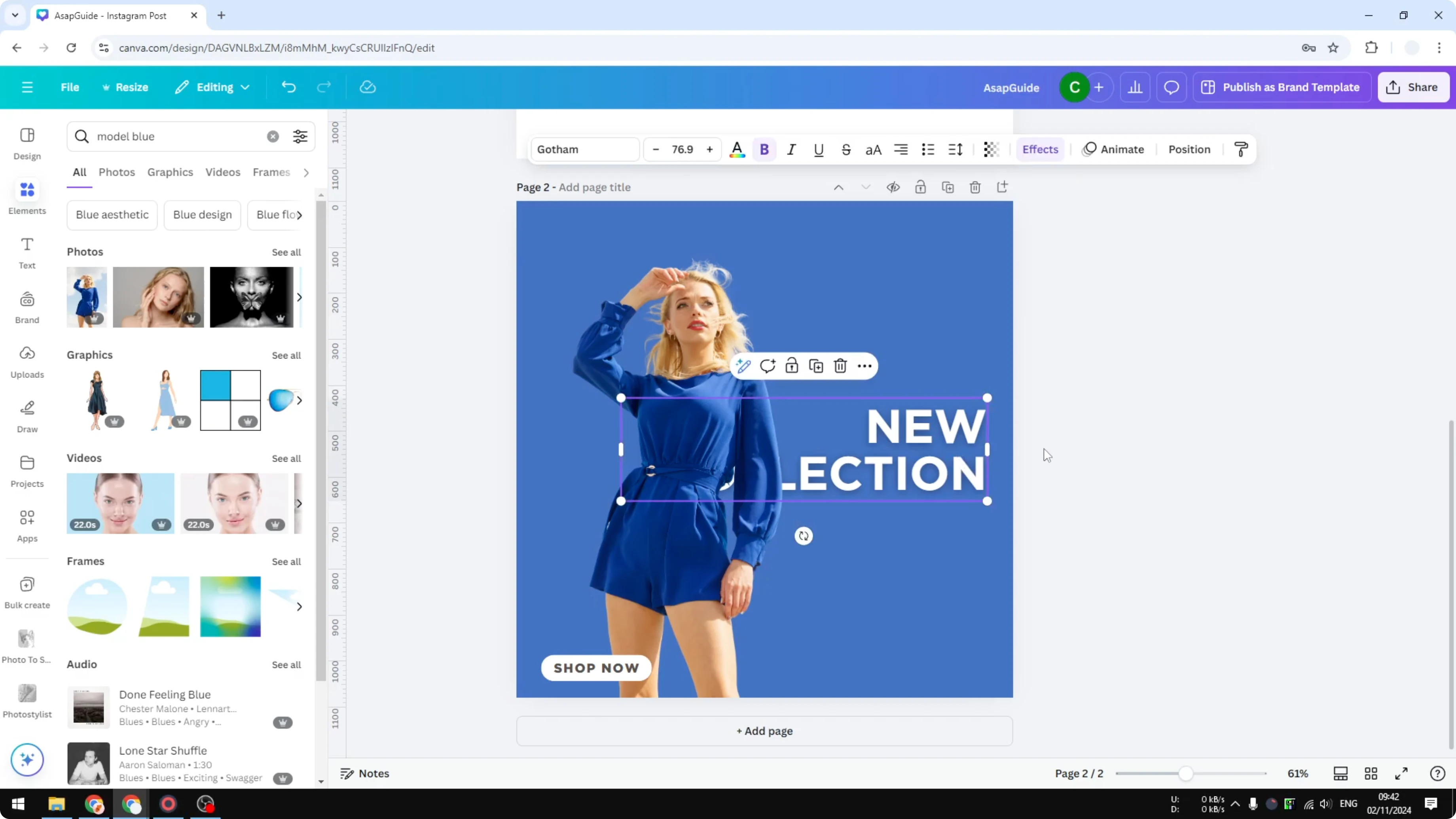
I will show you how to send text behind an image in Canva. I have this text and there is this image. Right now the text is positioned on top of the image, so the text is blocking the image.
Read More: How To Add Text Behind Image In Canva
Send Text Behind Image in Canva
It is pretty simple.
Right click on the text box.
Go to Layer.
Click Send backward or Send to back.
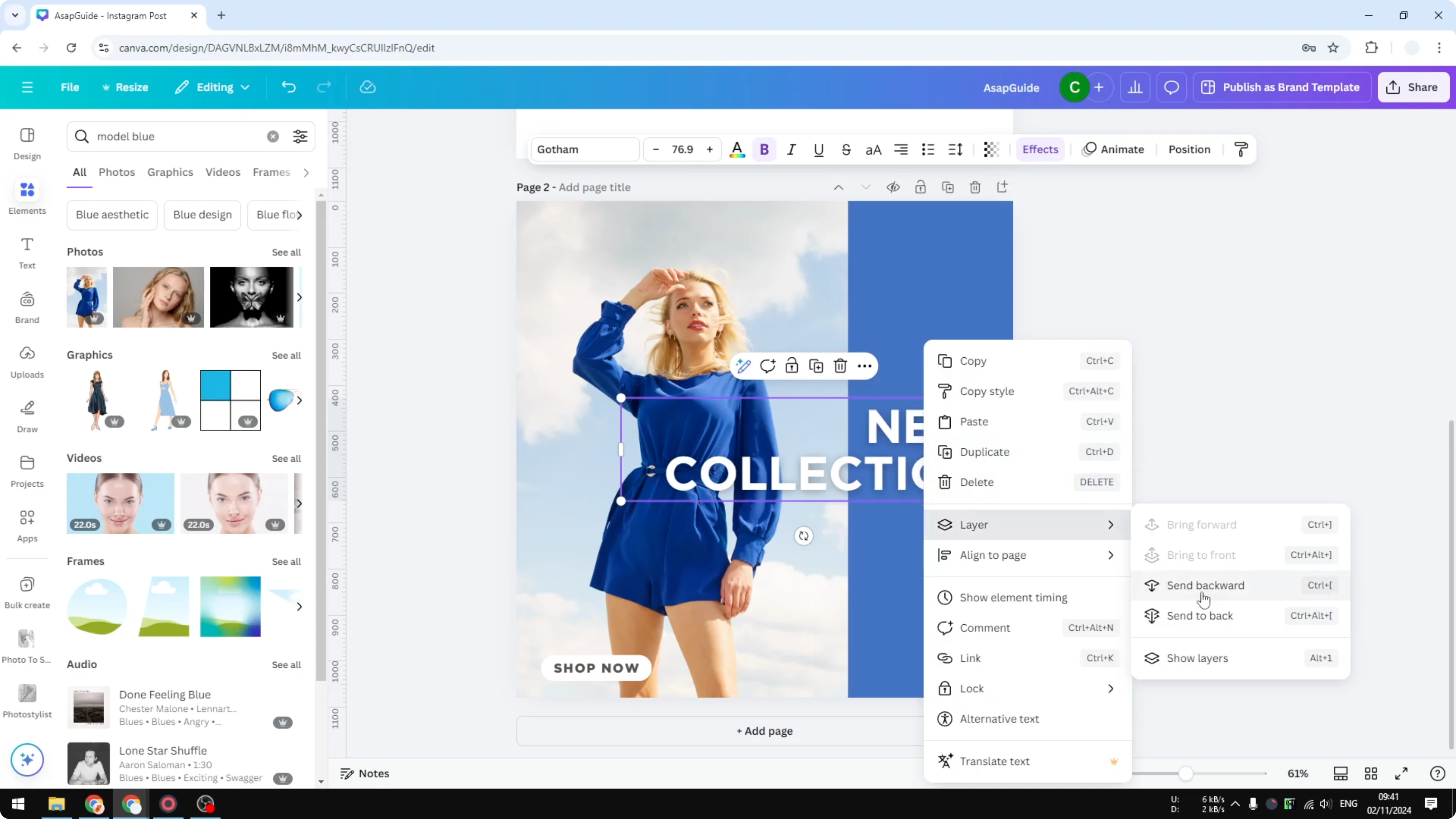
Send to back sends the text to the very back of layers in your document. Usually Send backward is enough to send the object to a lower layer level to see which one is actually going to be enough.
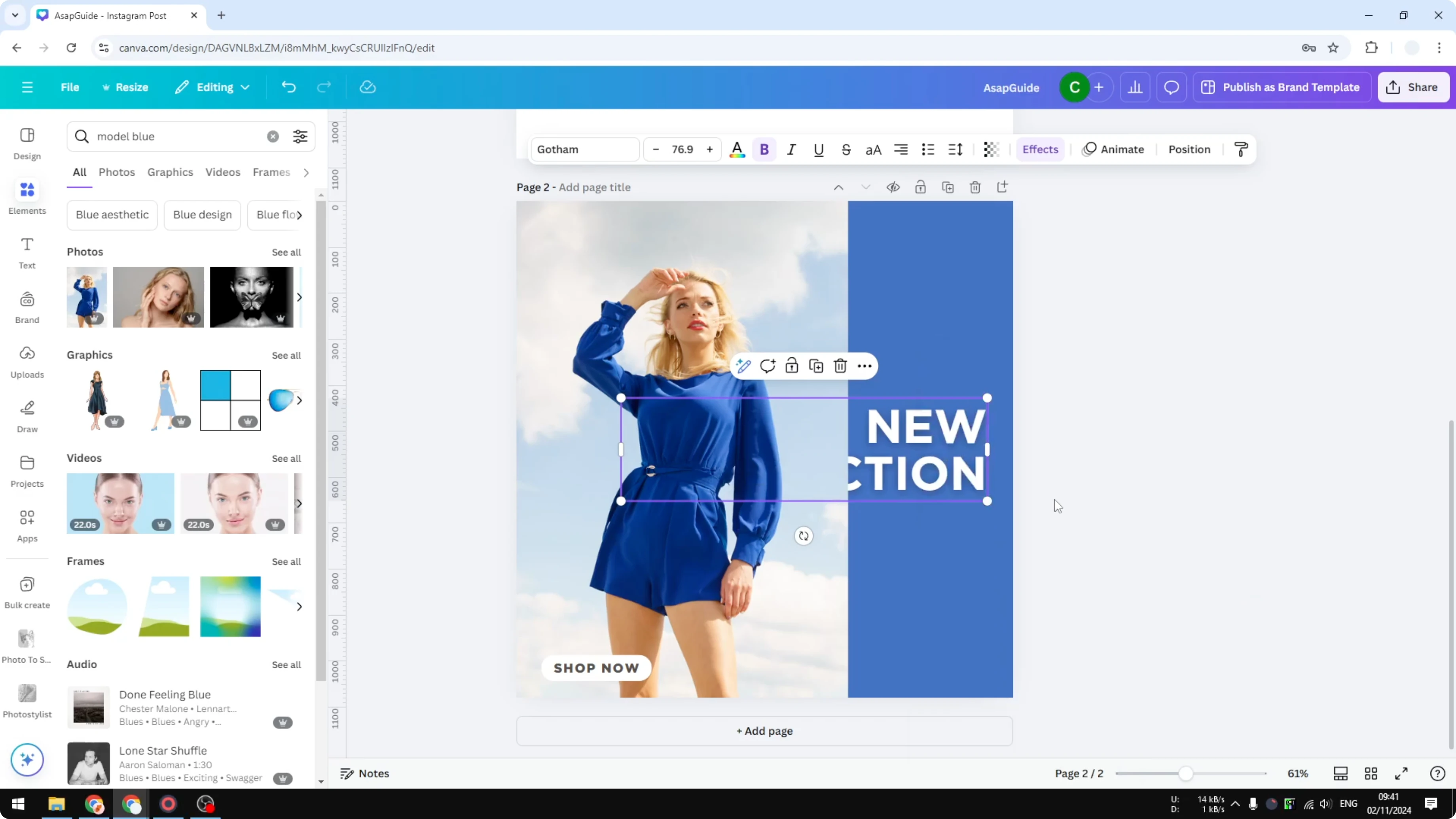
In this case one click is enough, but this result is not good because now we cannot see the text at all.
Make the image background transparent
Sometimes it is a great idea to make the background of the image transparent. Canva has a feature for it.
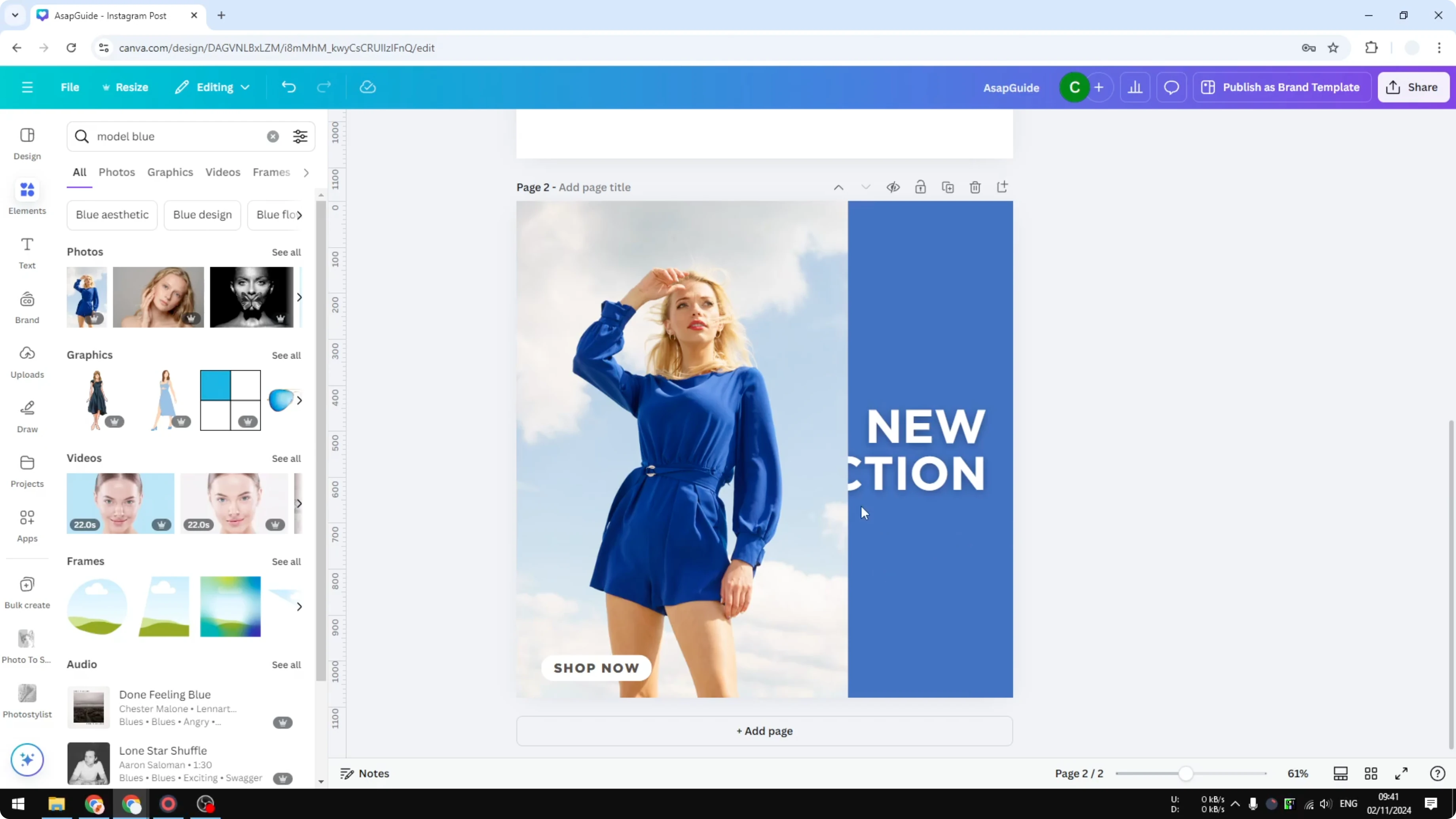
Click on the image.
Click Background Remover.
This is the new AI feature that allows you to remove background from the object.
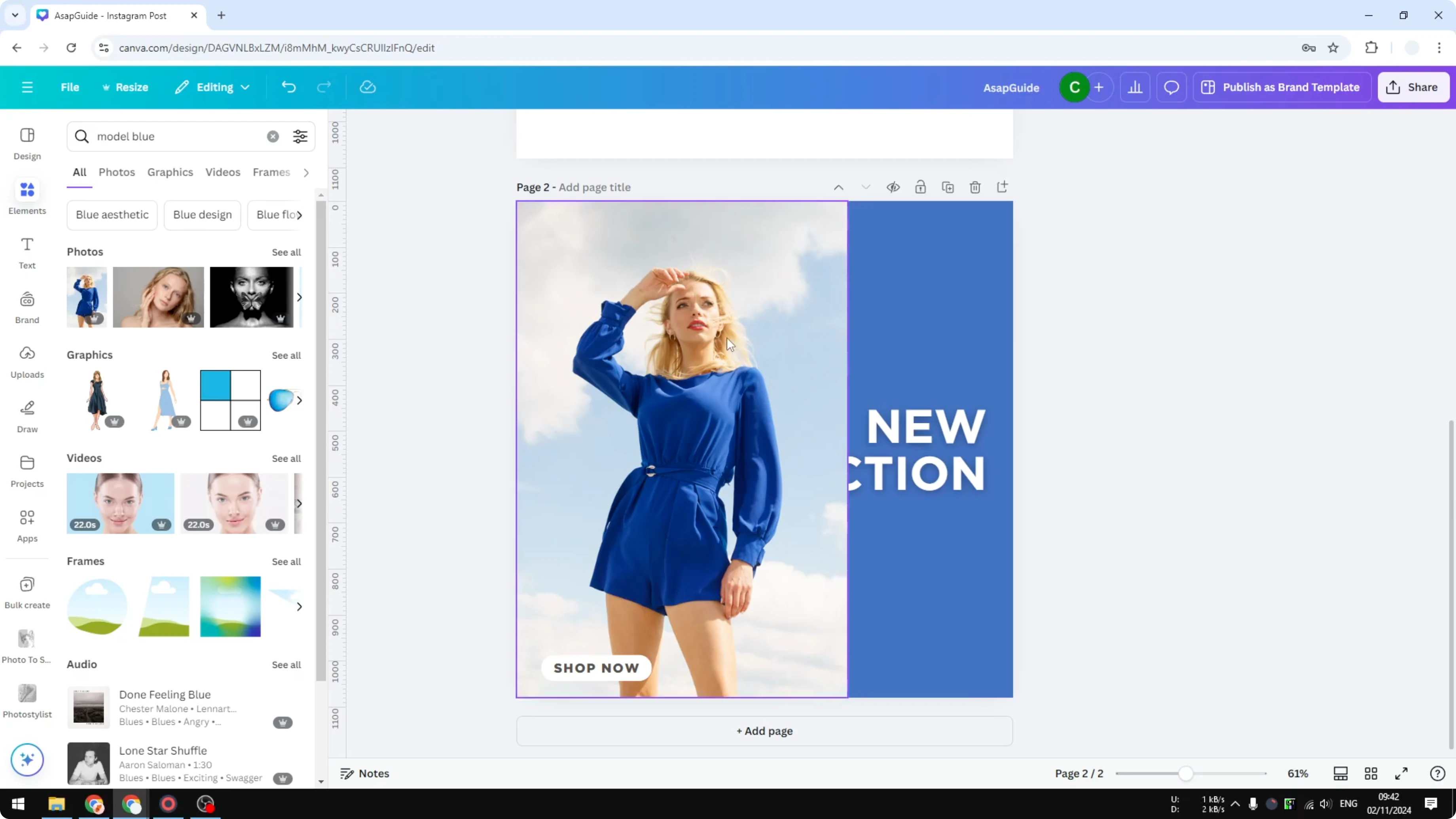
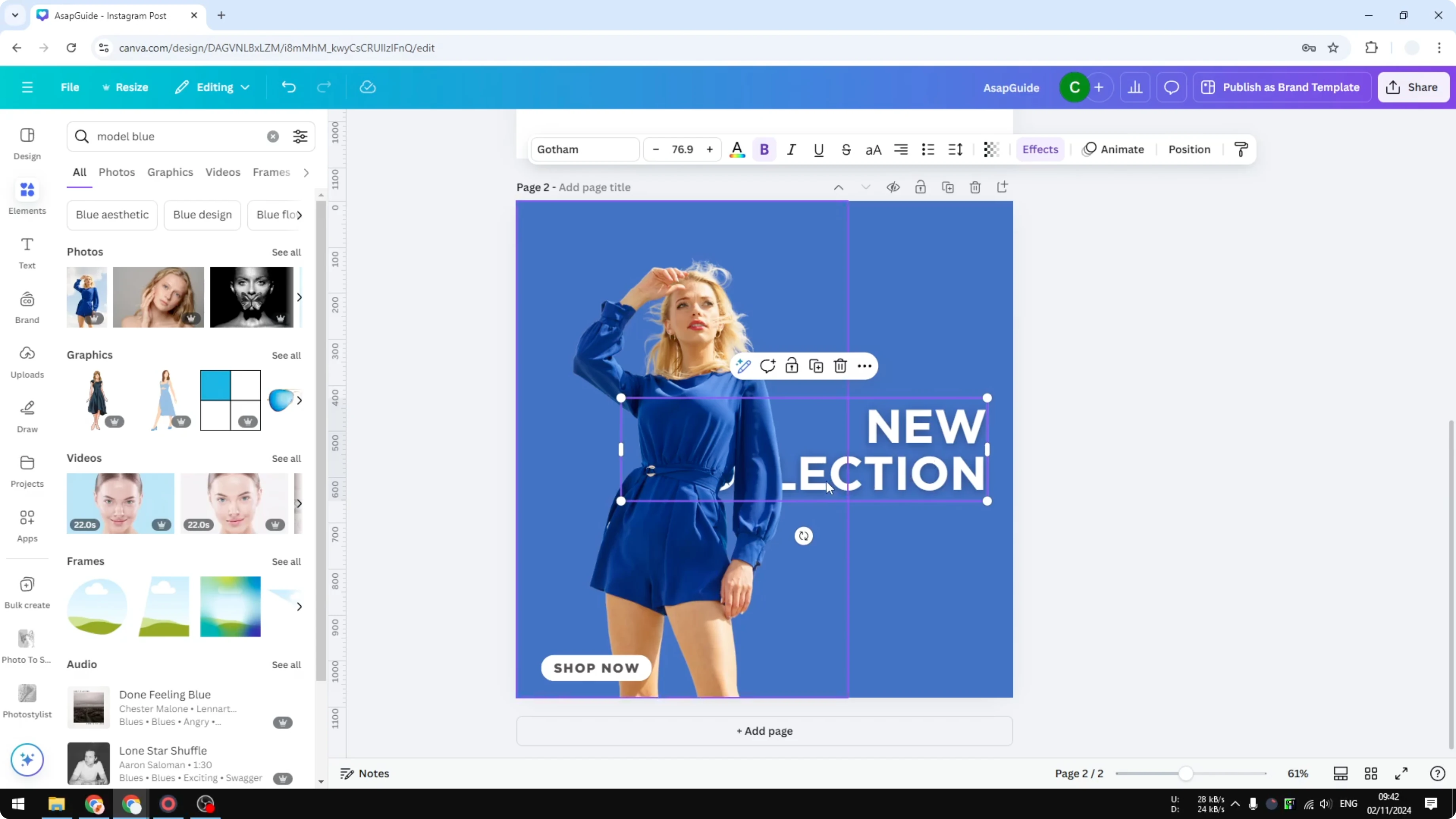
This is the result that we got. I still cannot see the text, but this is one example of a design that many people use. It is just enough for people to see the context of the text so they know what is the actual text behind it, even though a part of it is being blocked by this image.
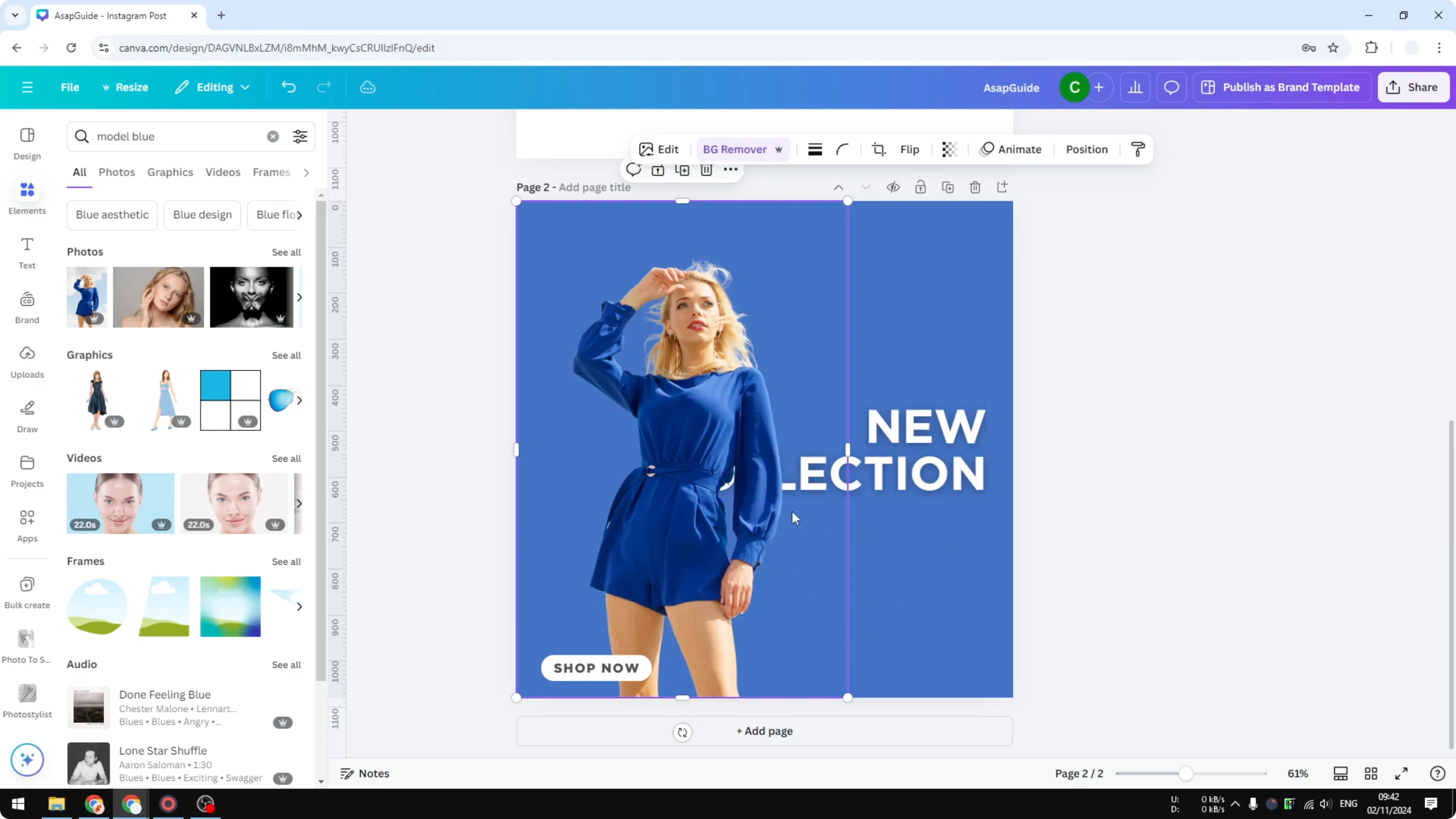
There is something unique about this design, and that is why many people are using it for their marketing campaign or through their design. This is pretty good.
Read More: Remove Text Image Canva
Read More: Add Background Text Canva
Final Thoughts
Right click the text, adjust the layer order with Send backward or Send to back, and check visibility. If the text is lost, remove the image background with Background Remover to create a clean overlap effect. That is how you can put text behind an image in Canva.
Recent Posts

How to Visualize Yourself as a Pixelized Character with AI?
How to Visualize Yourself as a Pixelized Character with AI?

How to Revive Faded Memories and Enhance Image Clarity with AI?
How to Revive Faded Memories and Enhance Image Clarity with AI?

How to Visualize Yourself as an Animal Crossing Character with AI?
How to Visualize Yourself as an Animal Crossing Character with AI?