How to Remove Text from Image in Canva

Here is how I remove text from a picture in Canva using two methods. I use Magic Eraser with a brush for clean removal, and I use Grab Text to isolate the text so I can replace it. For motion content, see remove text from a video.
Remove Text from Image in Canva: Brush method
The click method in Magic Eraser uses AI to figure out elements in the picture, but it is usually not going to work well for text. I recommend using a good old brush and manually selecting the text you want to remove. This can be tedious and probably a bit more annoying, but I think it gives a much more accurate result.
You do not have to do it perfectly, because the AI understands what you are trying to remove. Click Erase and wait until Canva figures out the content you want to remove. It will eliminate that from the picture, and the result looks really great.
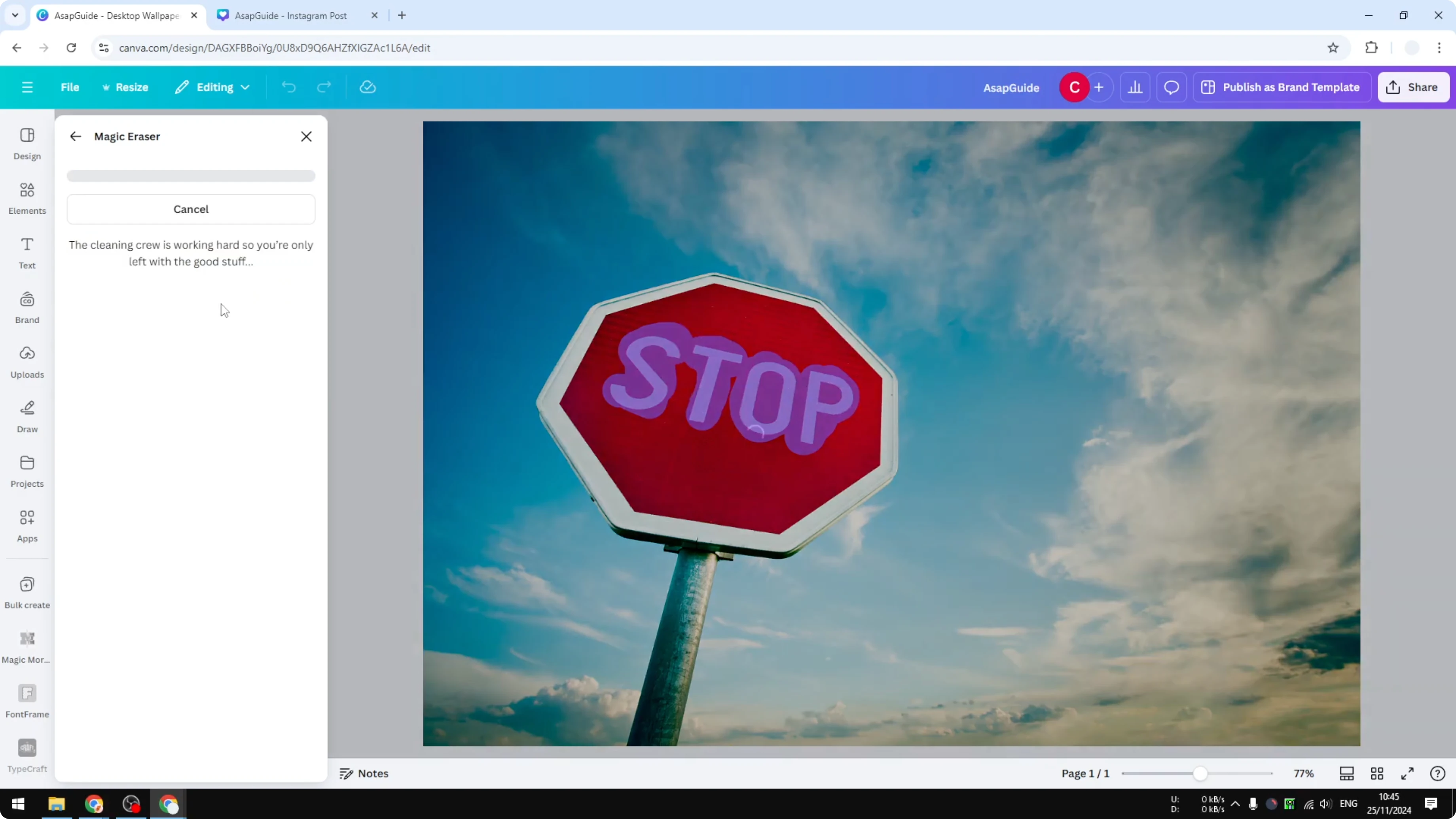
Steps
Select the picture and click Edit.
Click Magic Eraser.
Choose Brush and paint over the text you want to remove.
Do not worry about perfect edges, the AI will understand your intent.
Click Erase and wait for processing.
Review the result and proceed to replace the text if needed.
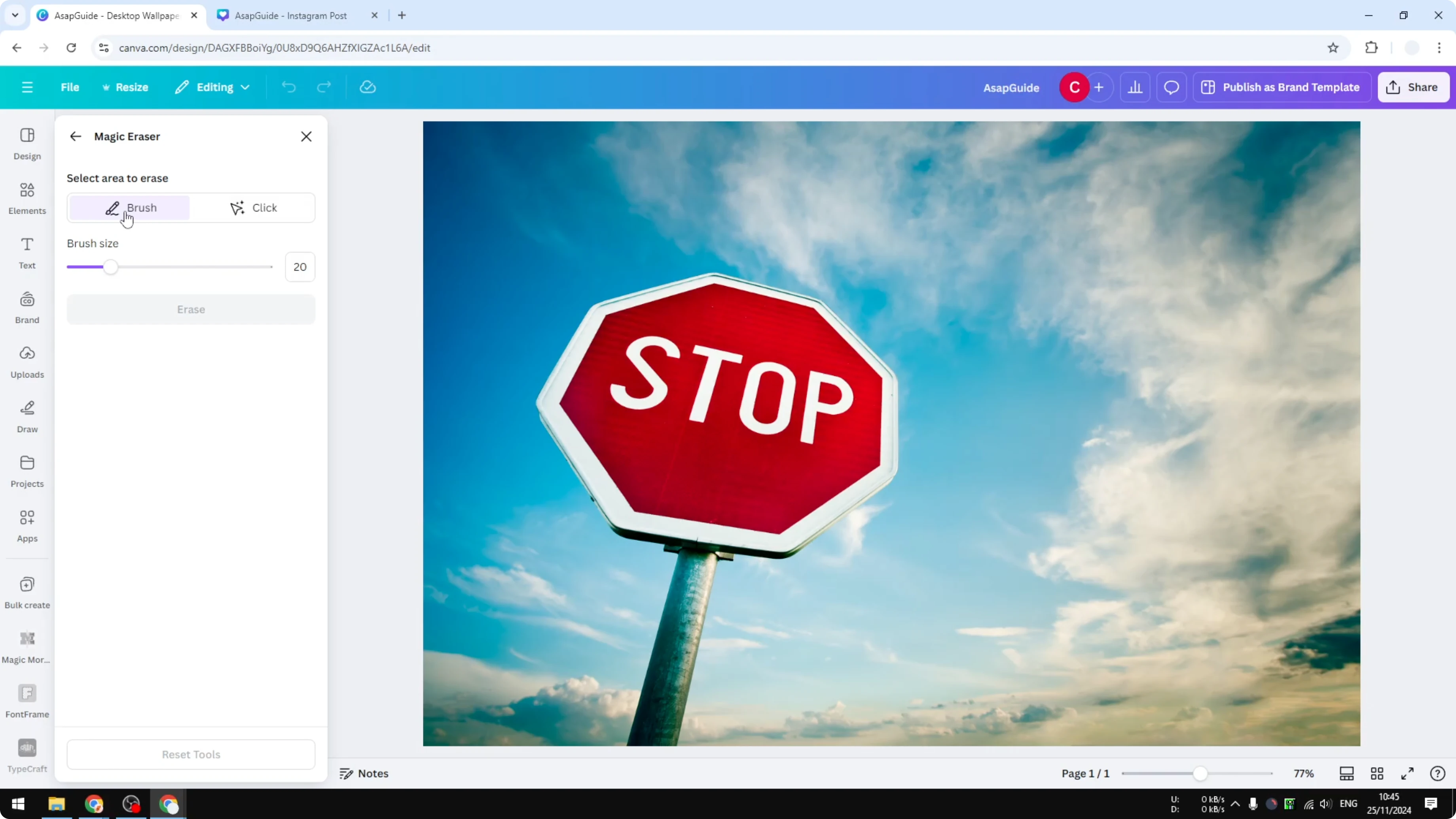
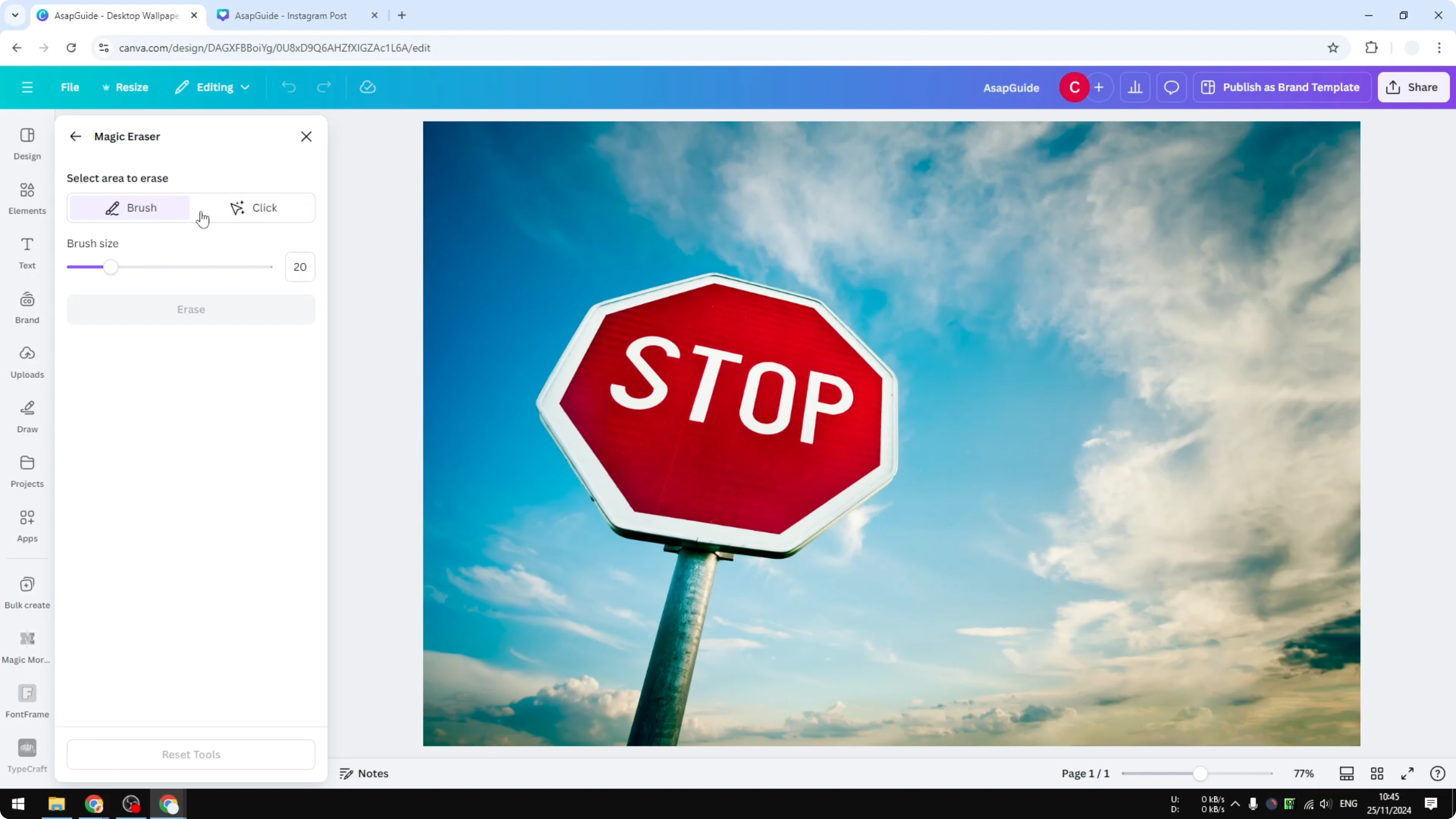
If you plan to place your new text behind elements, see text behind image for a clean effect.
Remove Text from Image in Canva: Grab Text method
This method is similar, but I think it is slightly better because you are not removing the text, you are isolating it. That way you can do whatever you want with the text. I undo the first process, select the picture again, and stay in the Edit menu.
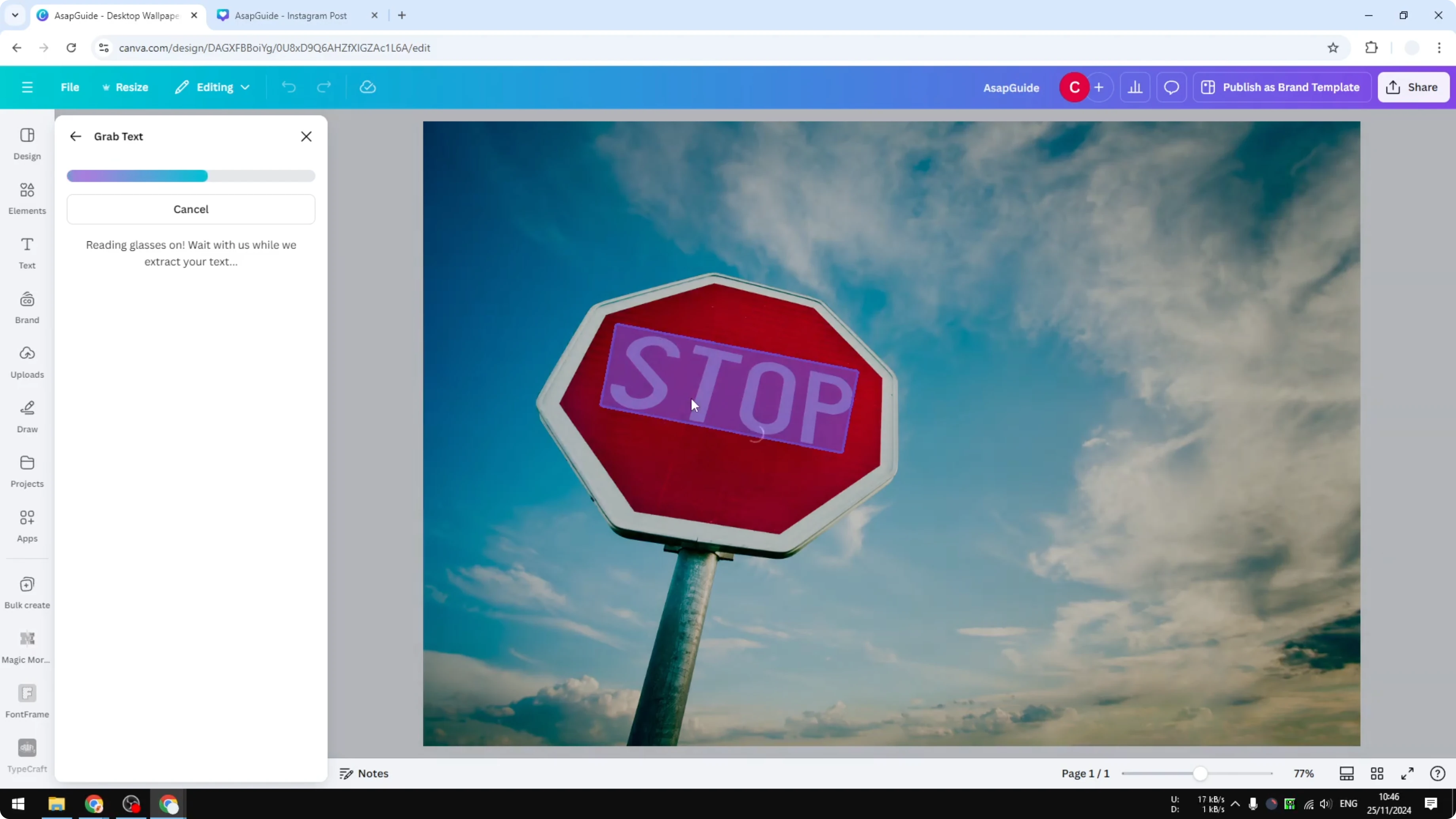
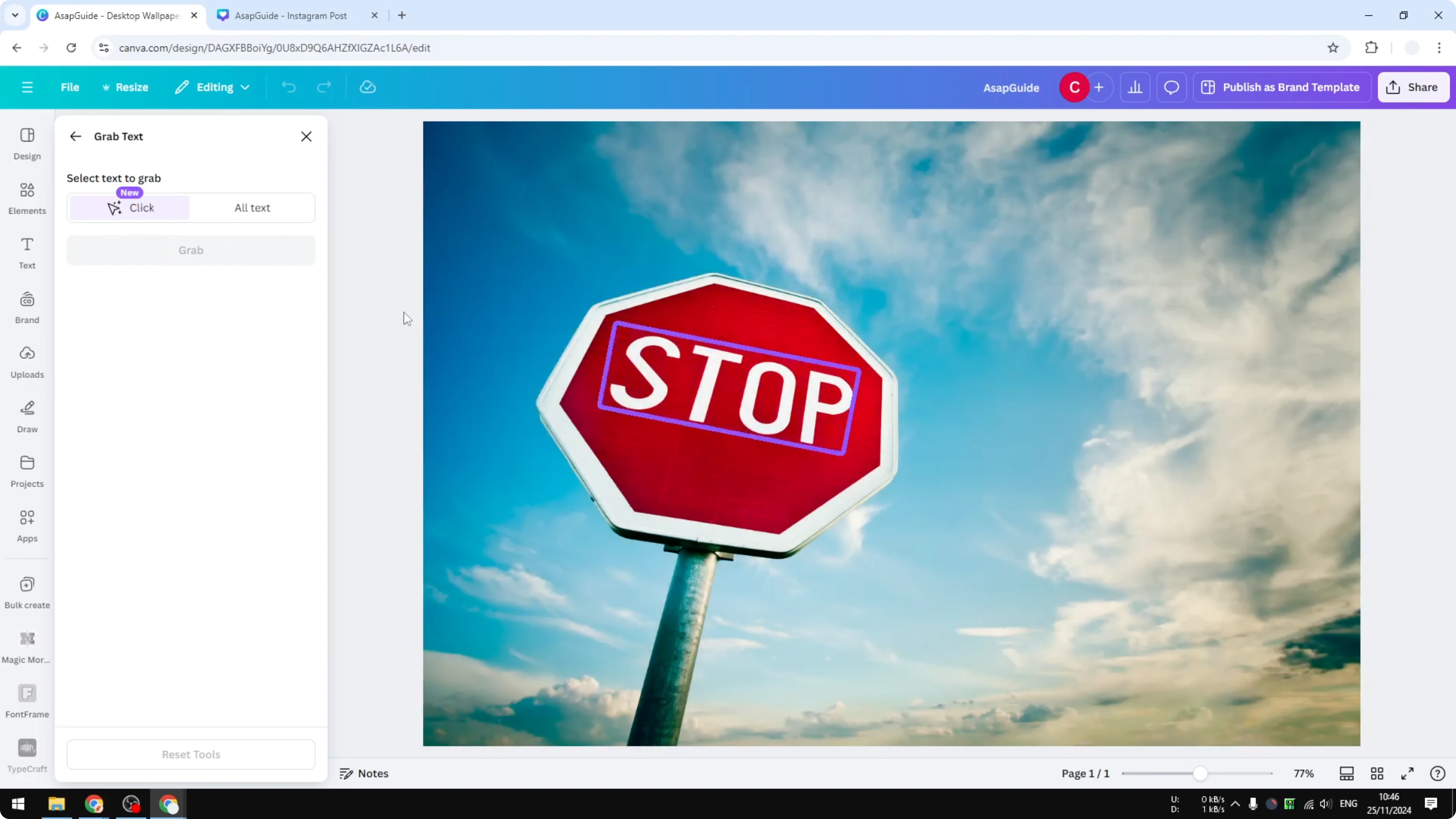
I click Grab Text or Magic Grab. I recommend using the click method here, because it will figure out the text for you. Click on the text and click Grab again, then wait until Canva finishes its work.
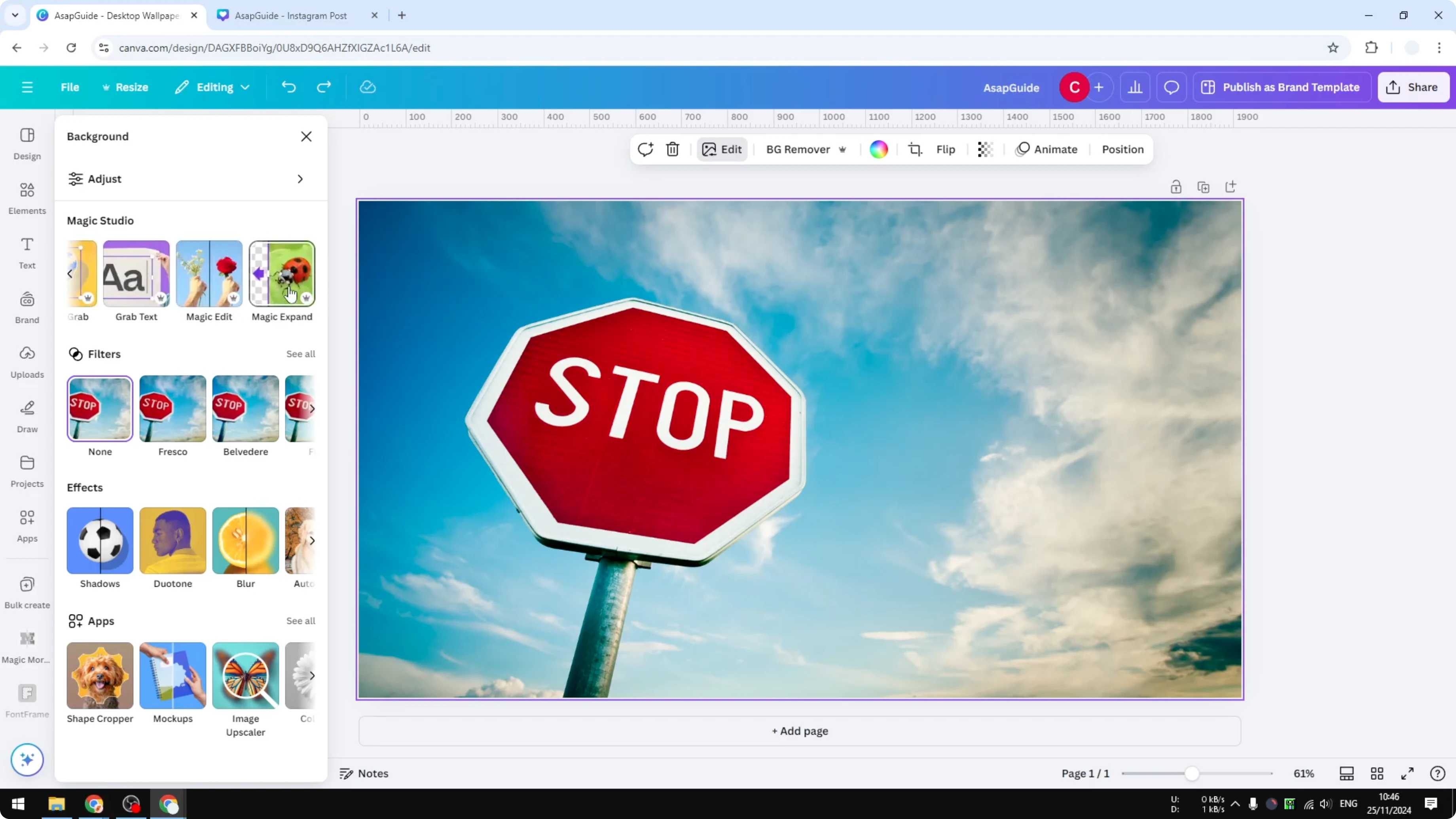
Steps
Undo if needed and select the picture again.
Open Edit and click Grab Text or Magic Grab.
Use the click method to detect the text.
Click the detected text, then click Grab again.
Wait for processing.
The text is isolated and the stop sign is now empty.
I can customize the text to any other text however I want. That is basically it for isolating and replacing text. If your design includes motion, you can remove animations before exporting.
Final thoughts
Use Magic Eraser with a brush when you want clean removal and inpainting over the old text. Use Grab Text when you want to isolate and edit the text separately while leaving the background intact. That is how you can remove text from an image in Canva quickly and accurately.
Recent Posts

How to Visualize Yourself as a Pixelized Character with AI?
How to Visualize Yourself as a Pixelized Character with AI?

How to Revive Faded Memories and Enhance Image Clarity with AI?
How to Revive Faded Memories and Enhance Image Clarity with AI?

How to Visualize Yourself as an Animal Crossing Character with AI?
How to Visualize Yourself as an Animal Crossing Character with AI?