How to Select an Object Behind Another Object in Canva
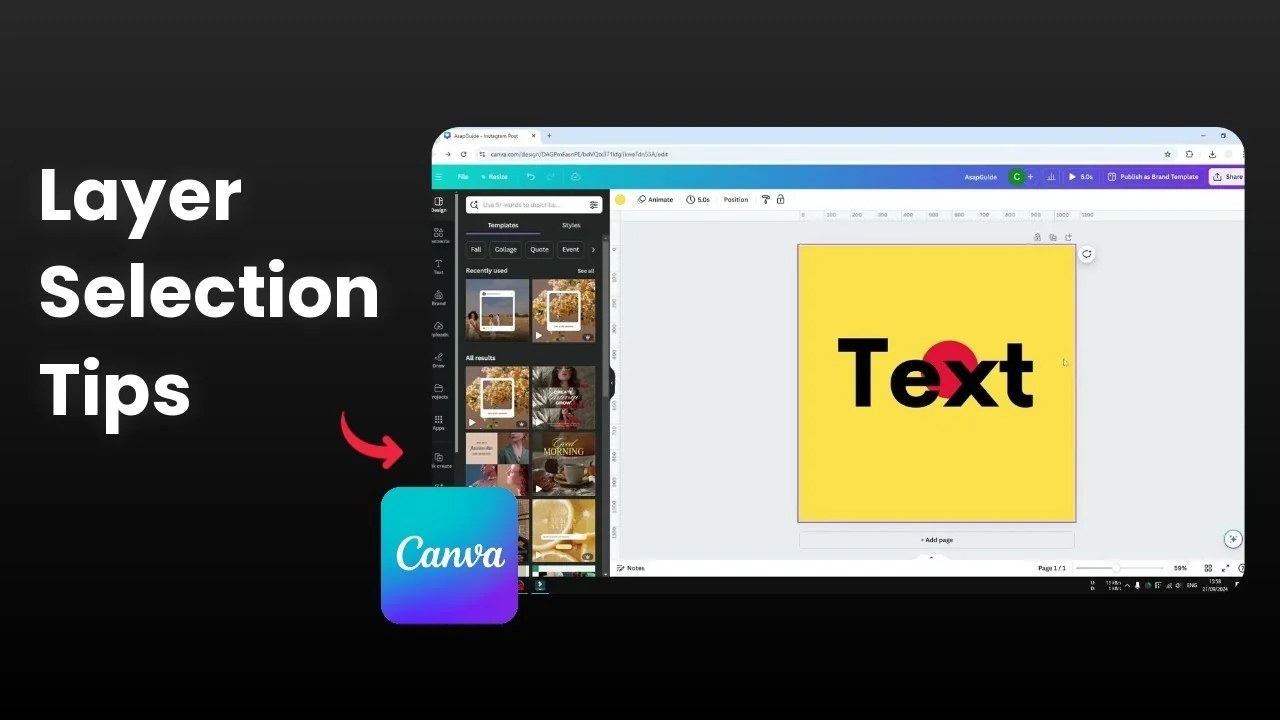
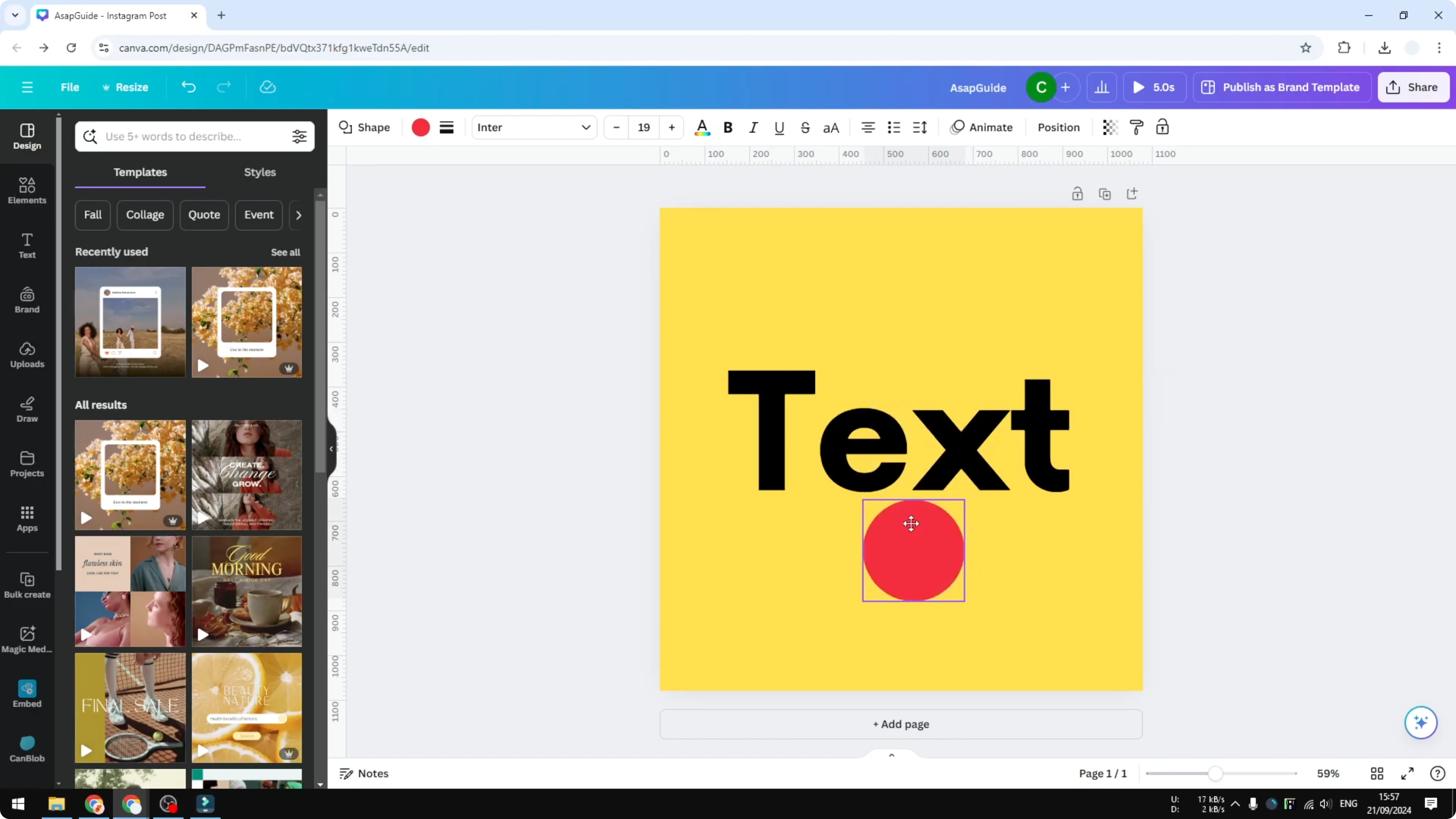
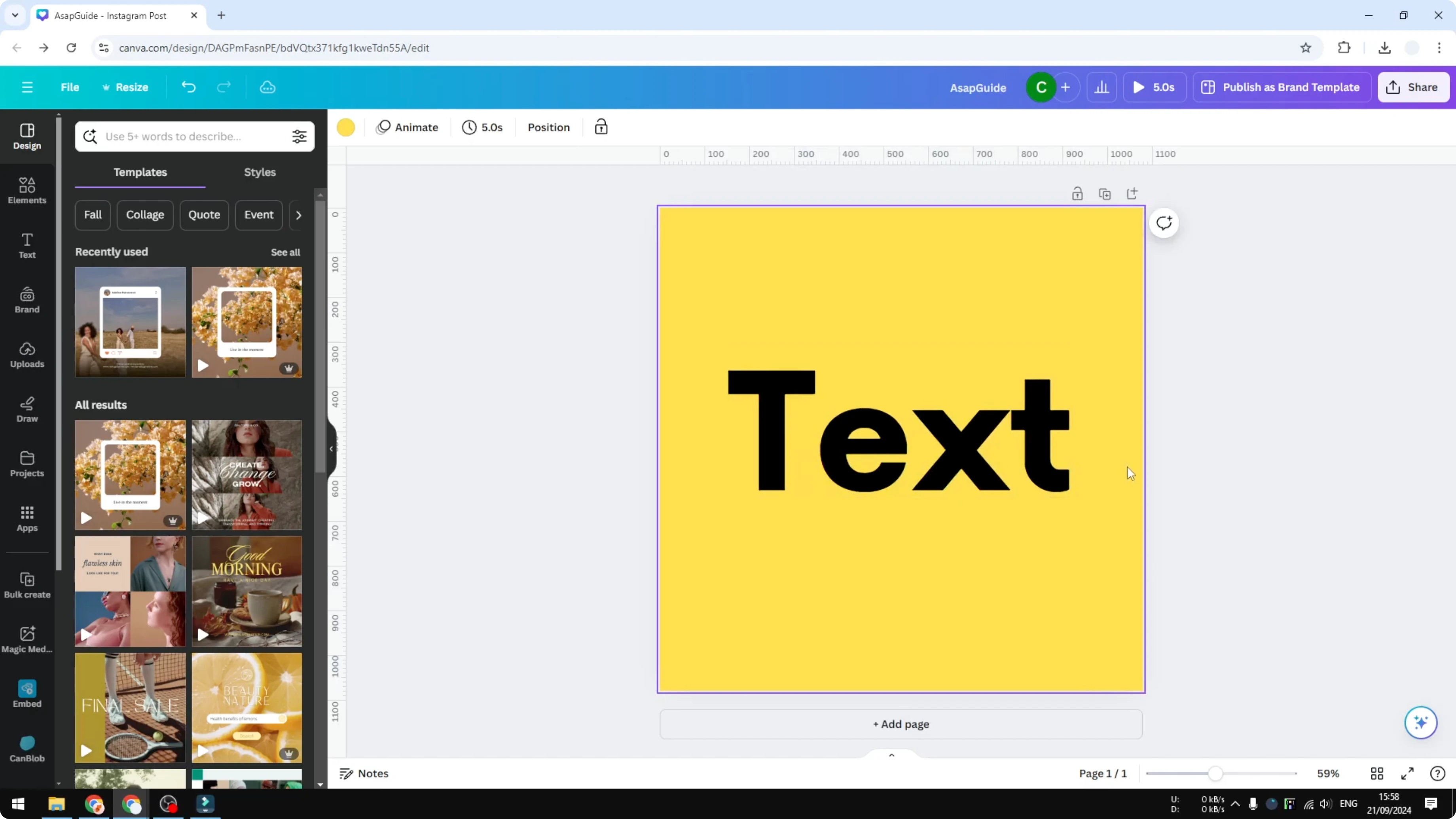
I will show you how to select or move an object that sits behind another object in Canva. I have a text box with a circle shape behind it that I really want to remove, but I cannot select it because the text is blocking it.
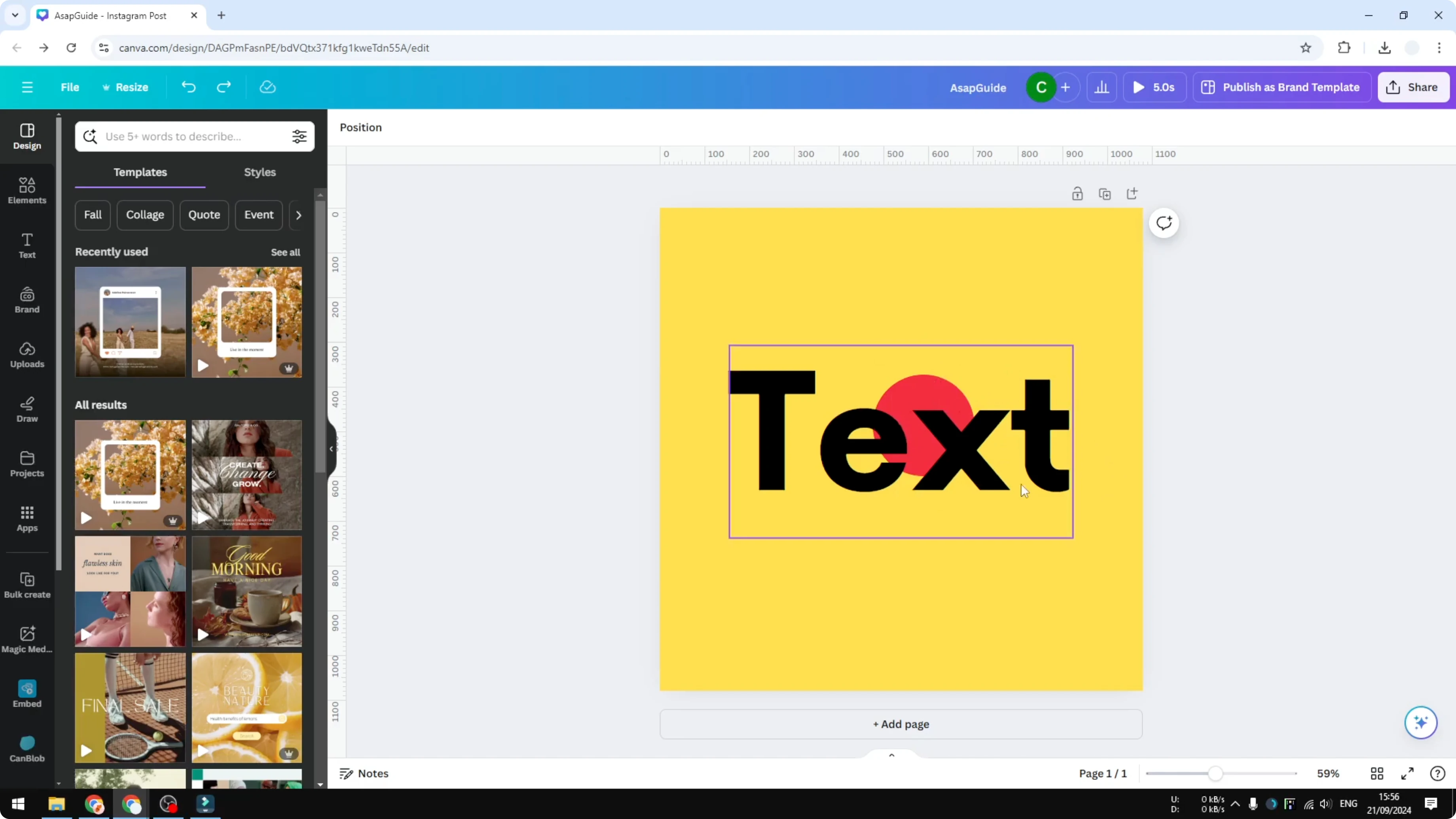
Most people move the text aside to access the circle, remove it, and then try to put the text back in the exact spot. That works, but it is messy and not efficient. Here are two options that keep your layout intact.
If you are working with layers, you might also want to see how to add text behind an image in Canva for more controlled stacking.
Why you cannot Select an Object Behind Another Object in Canva
The top object intercepts your clicks, so the element behind it never gets focus. You need a way to freeze the top object or temporarily create a gap to click through.
Select an Object Behind Another Object in Canva with Lock
I use the lock feature to keep the top element fixed. Lock the text so it cannot move or be edited. This makes the object behind selectable without shifting your layout.
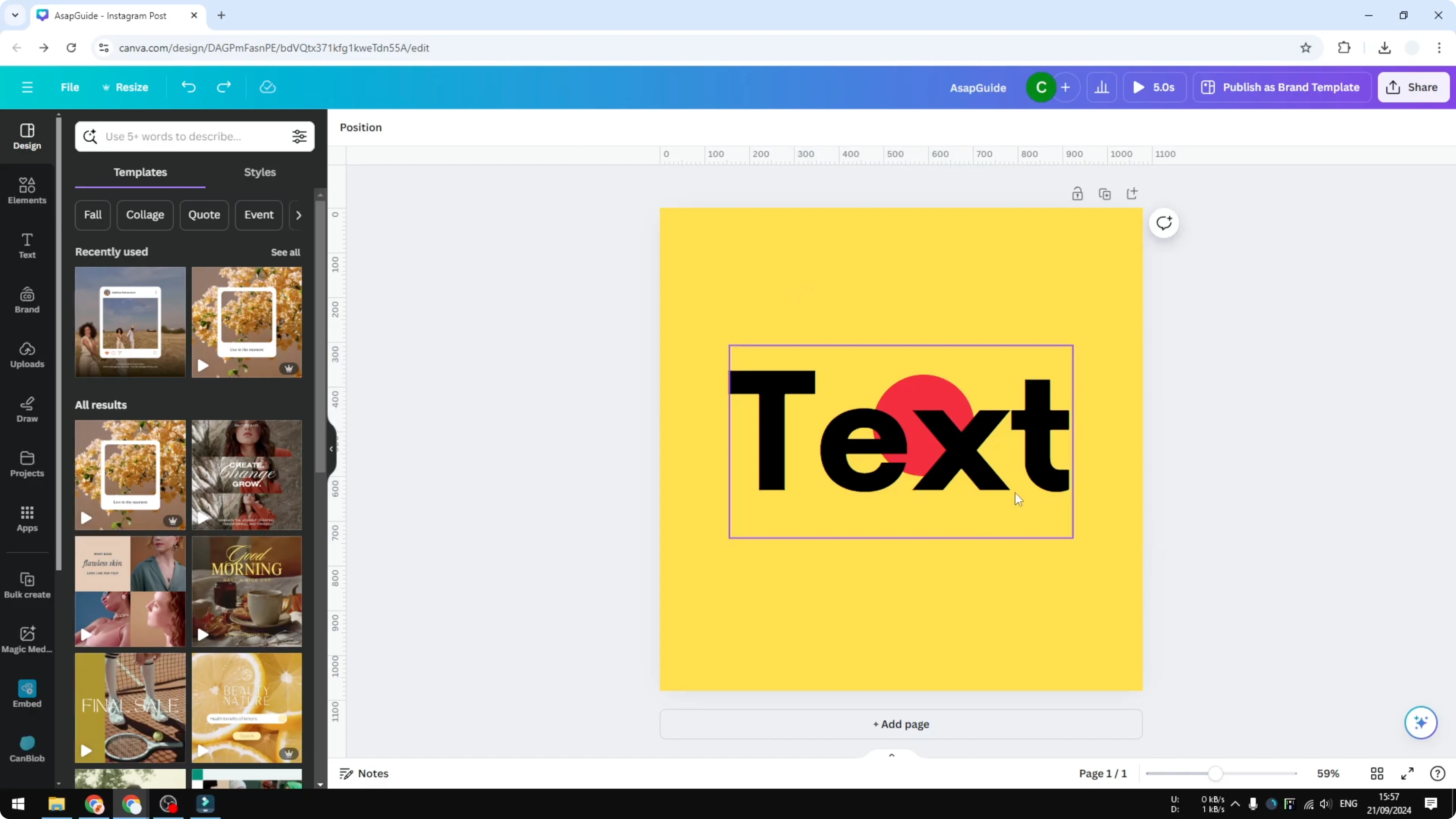
Click the text to select it. Click the lock icon to lock it in place. Confirm the text is immovable.
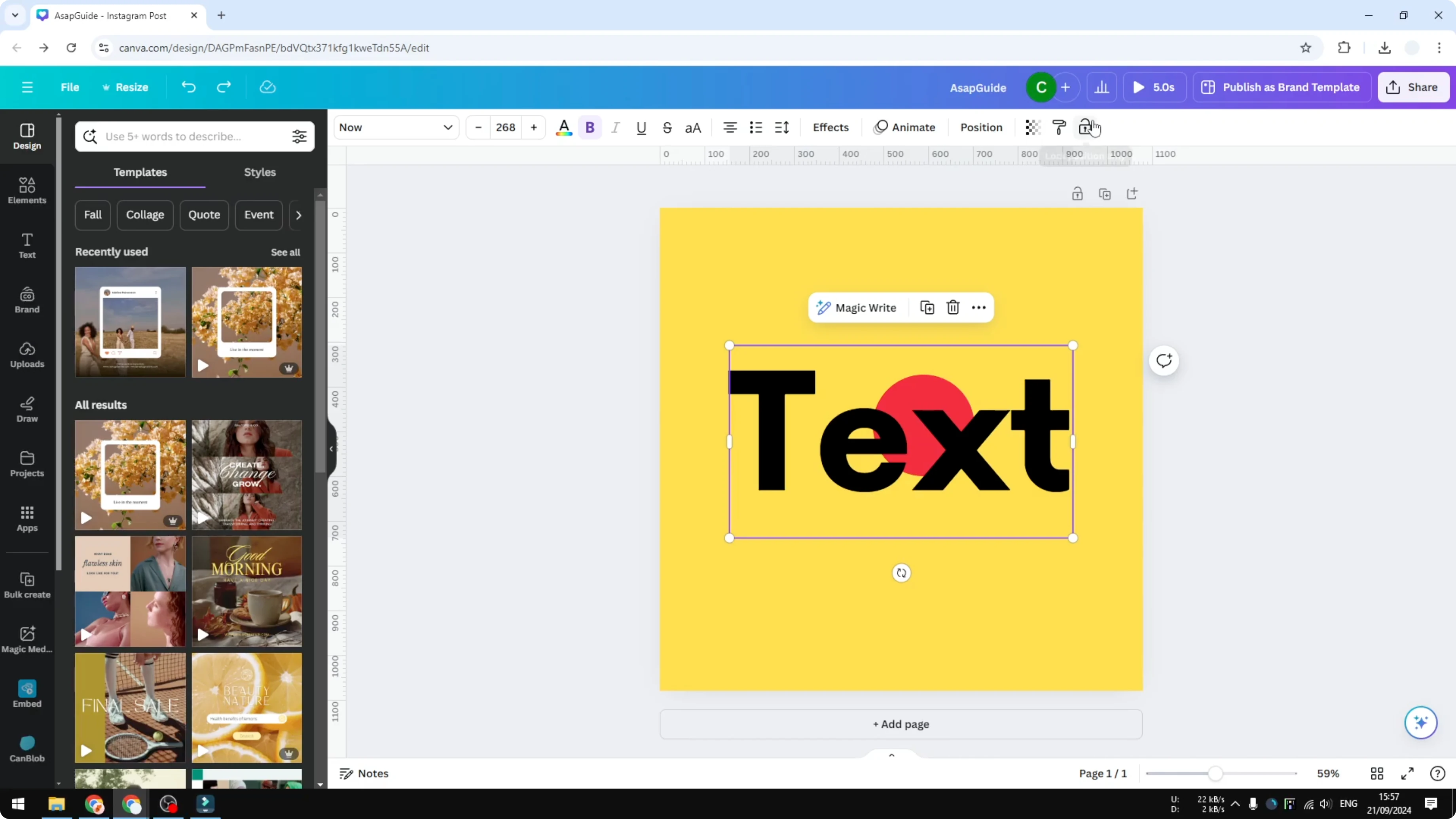
Click the object behind using your cursor. Move it to a new spot or delete it. Your text stays untouched and your design remains aligned.
If you are reorganizing elements across files, you can copy a Canva page to another design to keep versions clean.
Select an Object Behind Another Object in Canva by Duplicating the Top Object
This method is simple and works well if you need a click area. I duplicate the top object to create room to select the element behind it.
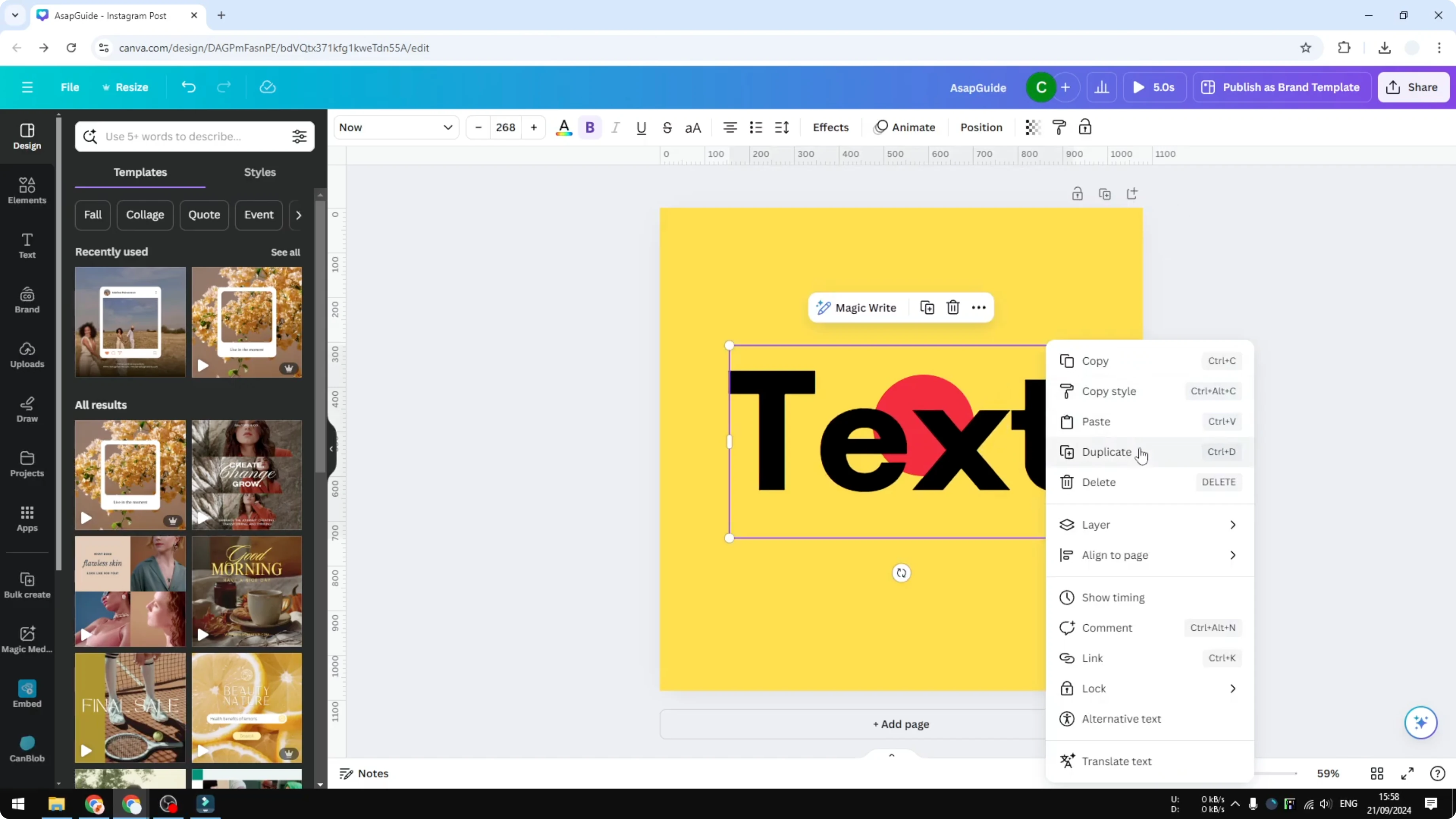
Duplicate the object on top. Drag the duplicate away from the original spot to open a small area where the back object is visible. Resize the duplicate if needed.
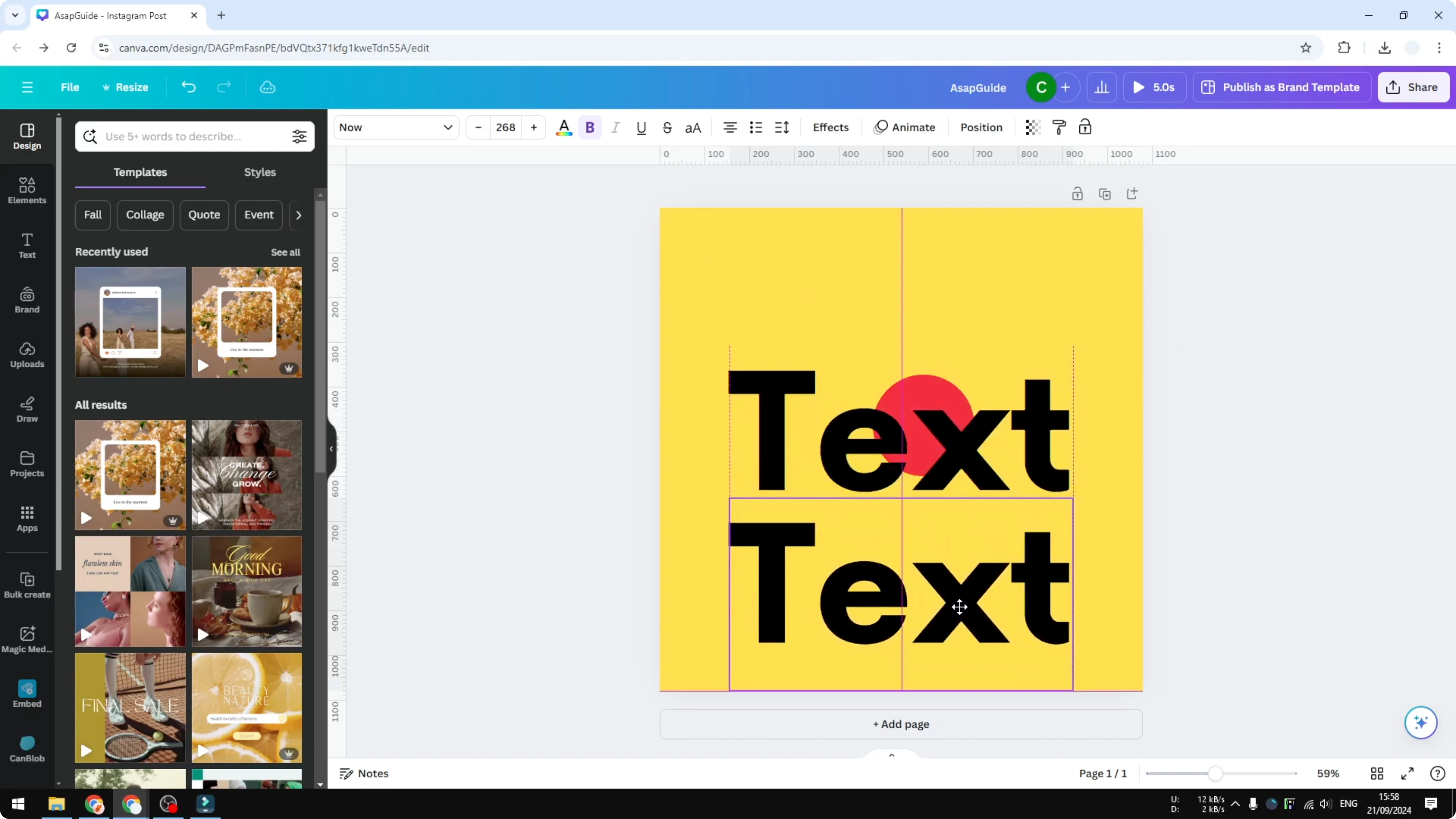
Click the newly exposed area to select the object behind. Move it or delete it. To restore the original position of your top element, follow the alignment guides and match it with the duplicate.
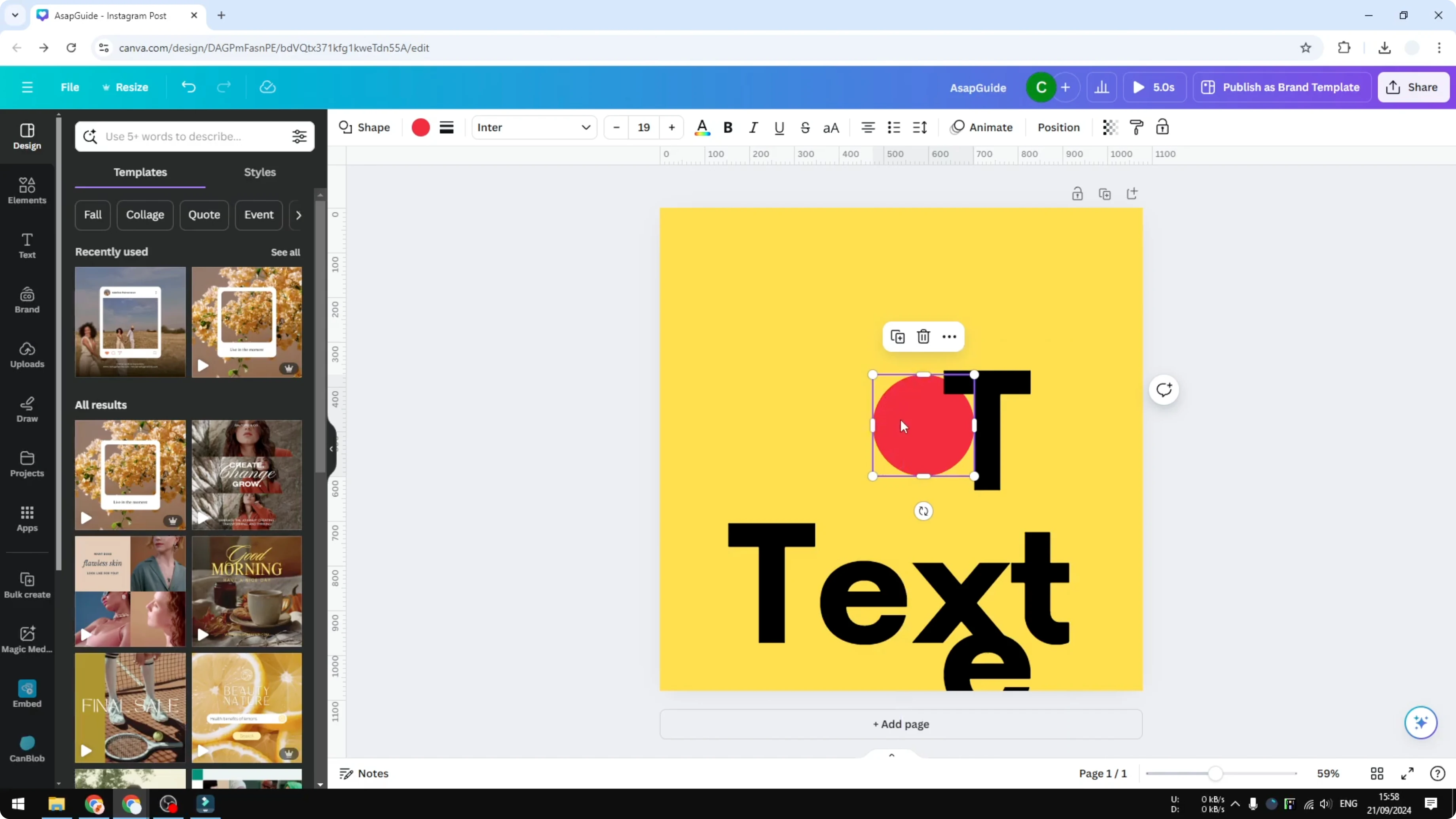
The result is the same as the first method. You avoid shifting your entire design and still get to the hidden element.
If you are moving content between files, it helps to copy a page to another project to keep your workflow smooth.
Final Thoughts
You can solve the blocked selection problem in two clean ways. Lock the top object to freeze it and click through, or create a quick opening by duplicating and moving the top element, then restore it with alignment guides.
Both approaches keep your layout intact and save time compared to dragging elements around.
Recent Posts

How to Visualize Yourself as a Pixelized Character with AI?
How to Visualize Yourself as a Pixelized Character with AI?

How to Revive Faded Memories and Enhance Image Clarity with AI?
How to Revive Faded Memories and Enhance Image Clarity with AI?

How to Visualize Yourself as an Animal Crossing Character with AI?
How to Visualize Yourself as an Animal Crossing Character with AI?