How to Add Branded QR Codes in Canva
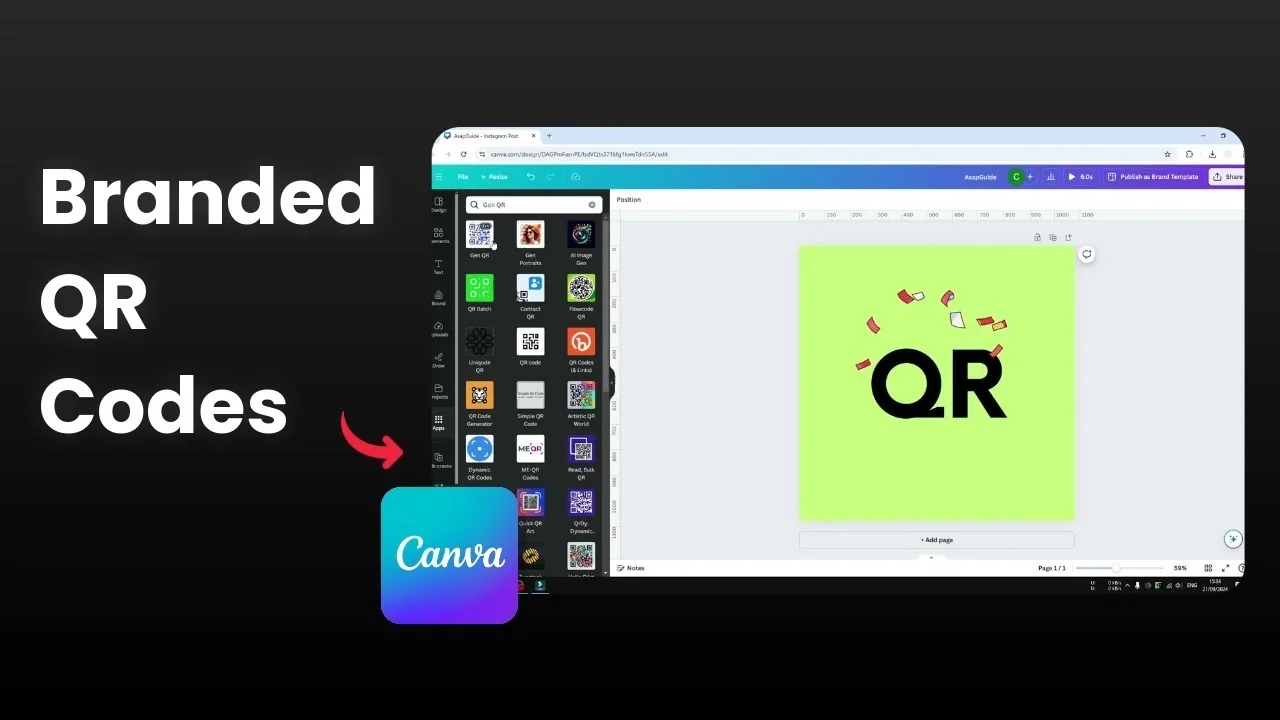
I will show you how you can create a branded QR code using Canva. I have a QR code with a logo in the middle, and the color and the design look different than a traditional QR code. The color is blue, the pattern is more like circle, and the corners are also circle, which makes the QR code stand out.
This is actually working and can be scanned. If you scan the QR code it will lead you to the content or to the link. You can insert your website URL or your social media page.
Add Branded QR Codes in Canva: Start
Remove the old QR code from your canvas.
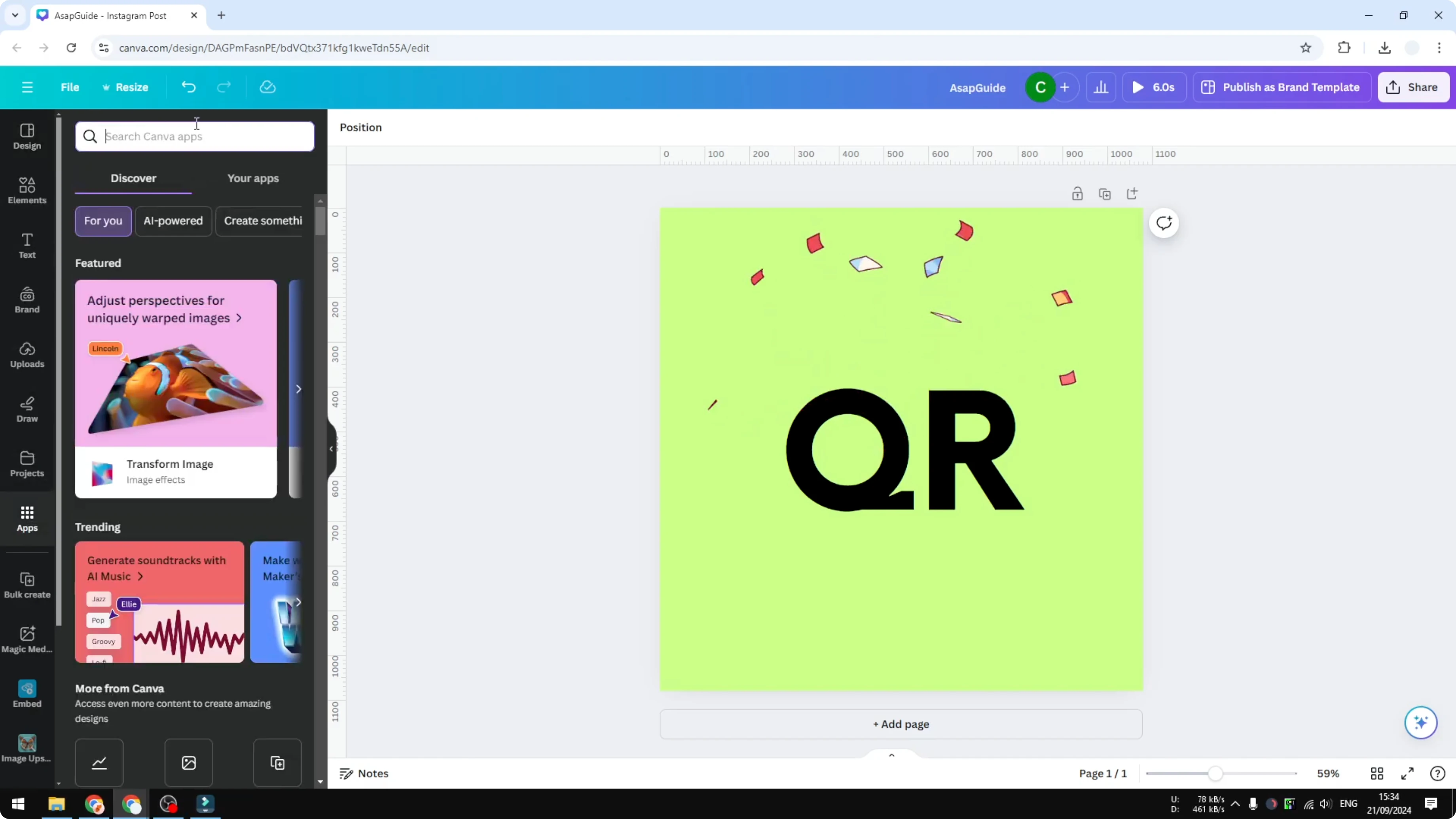
Go to the Apps section in Canva.
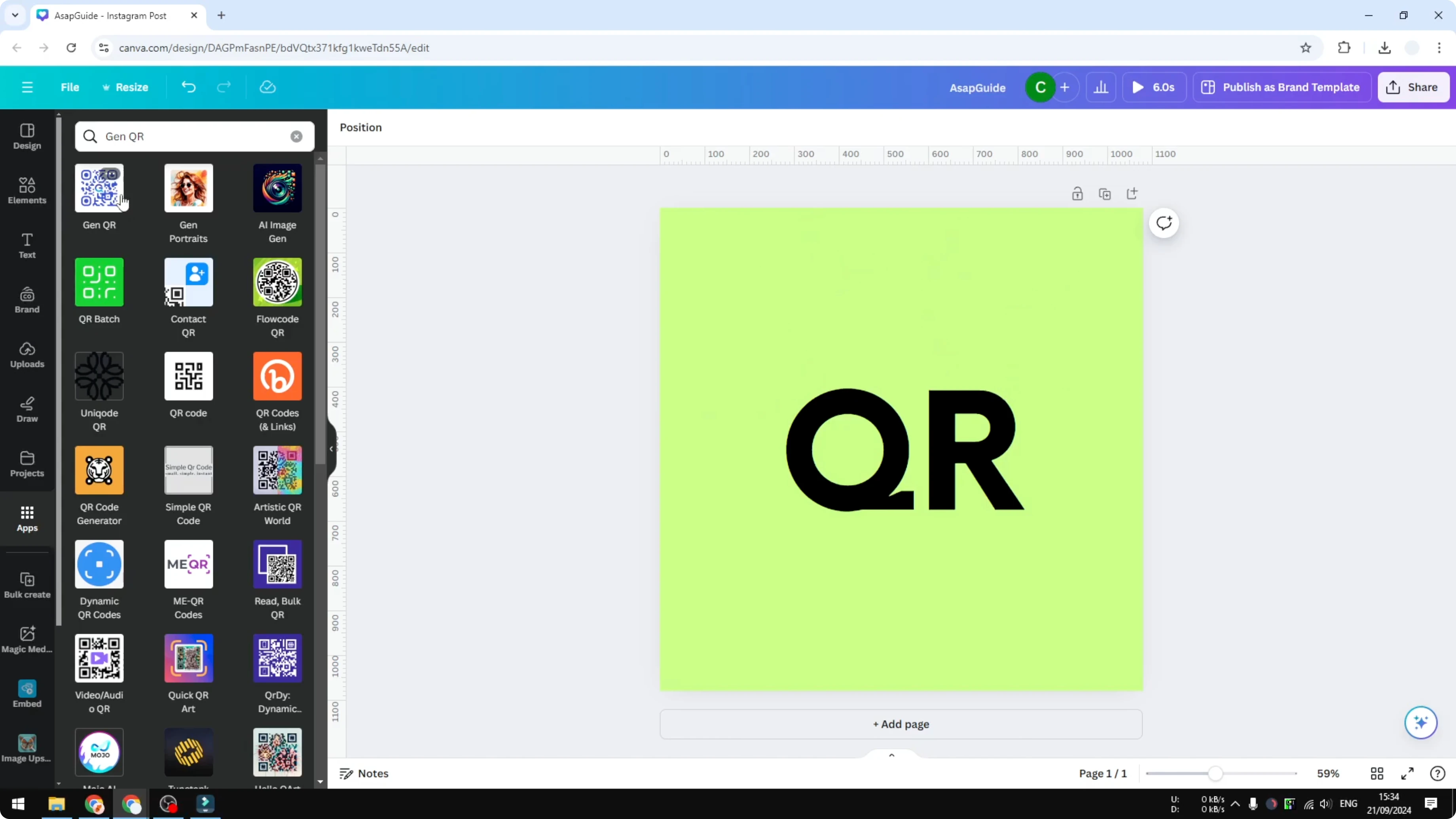
Search for Gen QR.
There are many other options out there, but this one is simple and intuitive.
Click it and click Open.
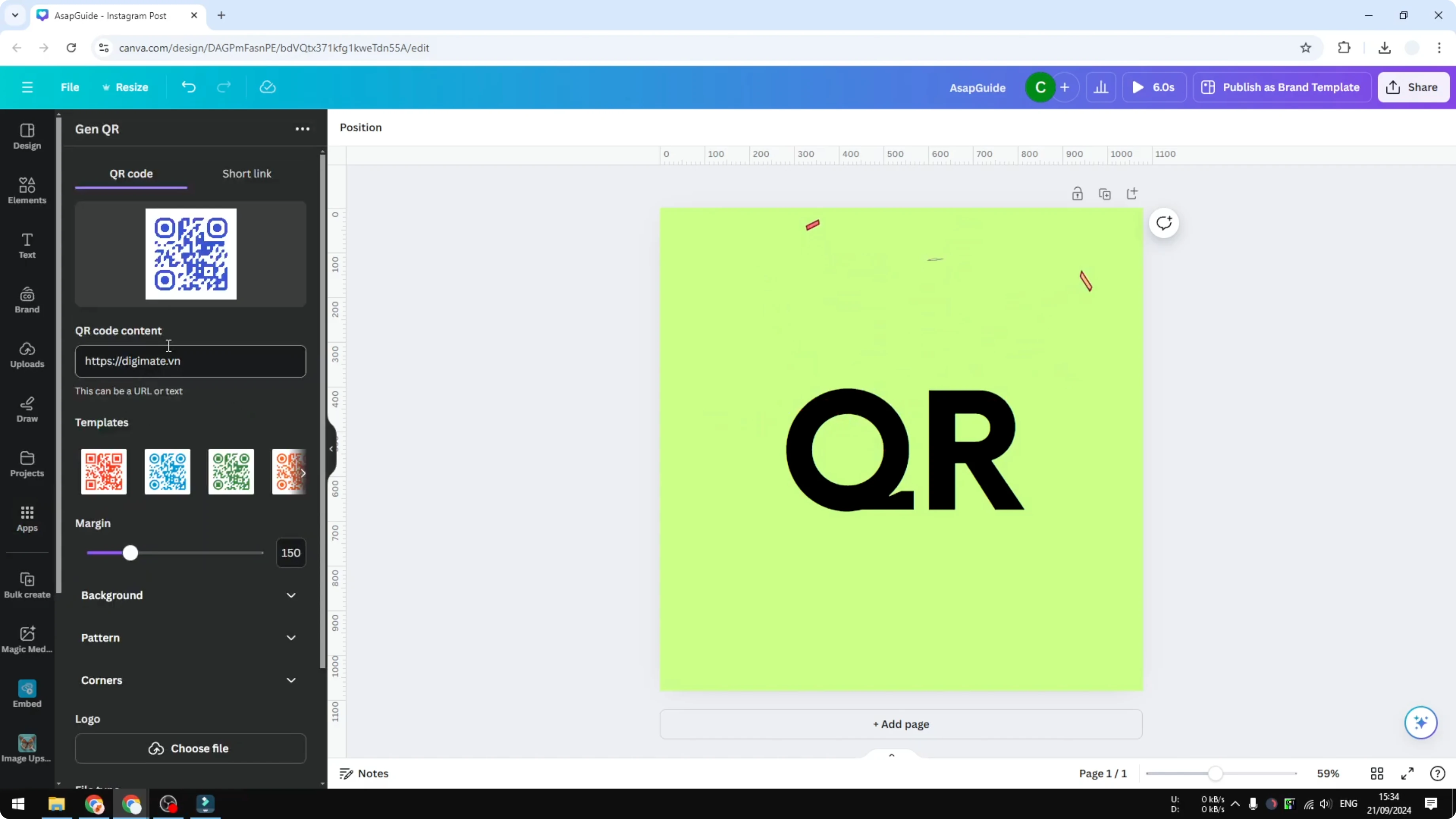
Enter your content. I will write something like QR Code test.
Read More: Add Background Photo Canva
Add Branded QR Codes in Canva: Style and background
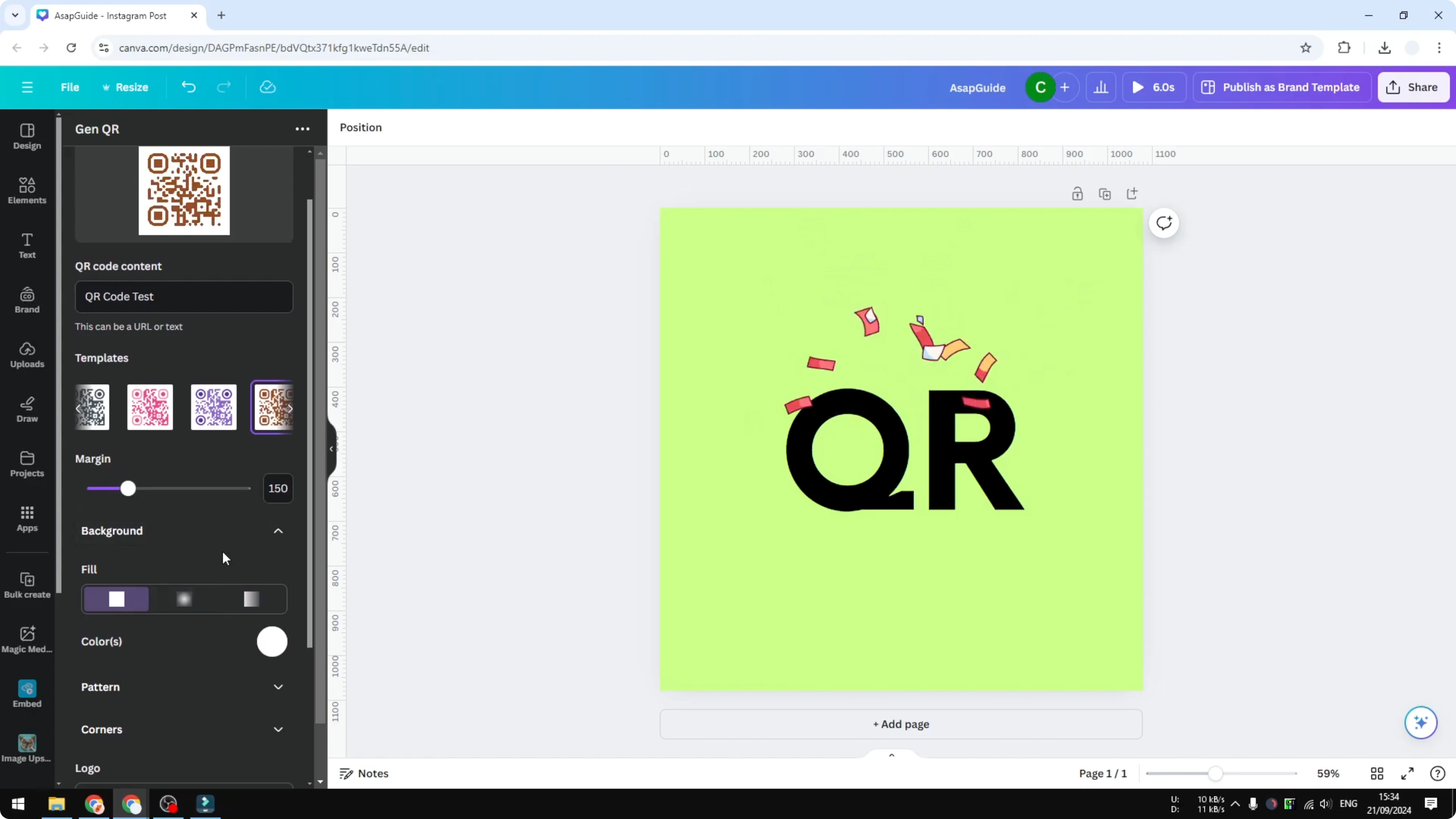
The template is the style you want to get. There are many colors and variations you can pick. You can also choose options that change the feel of the code.
For the background, I keep the dark pattern with a white background. People are already used to that contrast. White background works best because your code will be scanned using a camera and you want as much light as possible.
Add Branded QR Codes in Canva: Pattern and corners
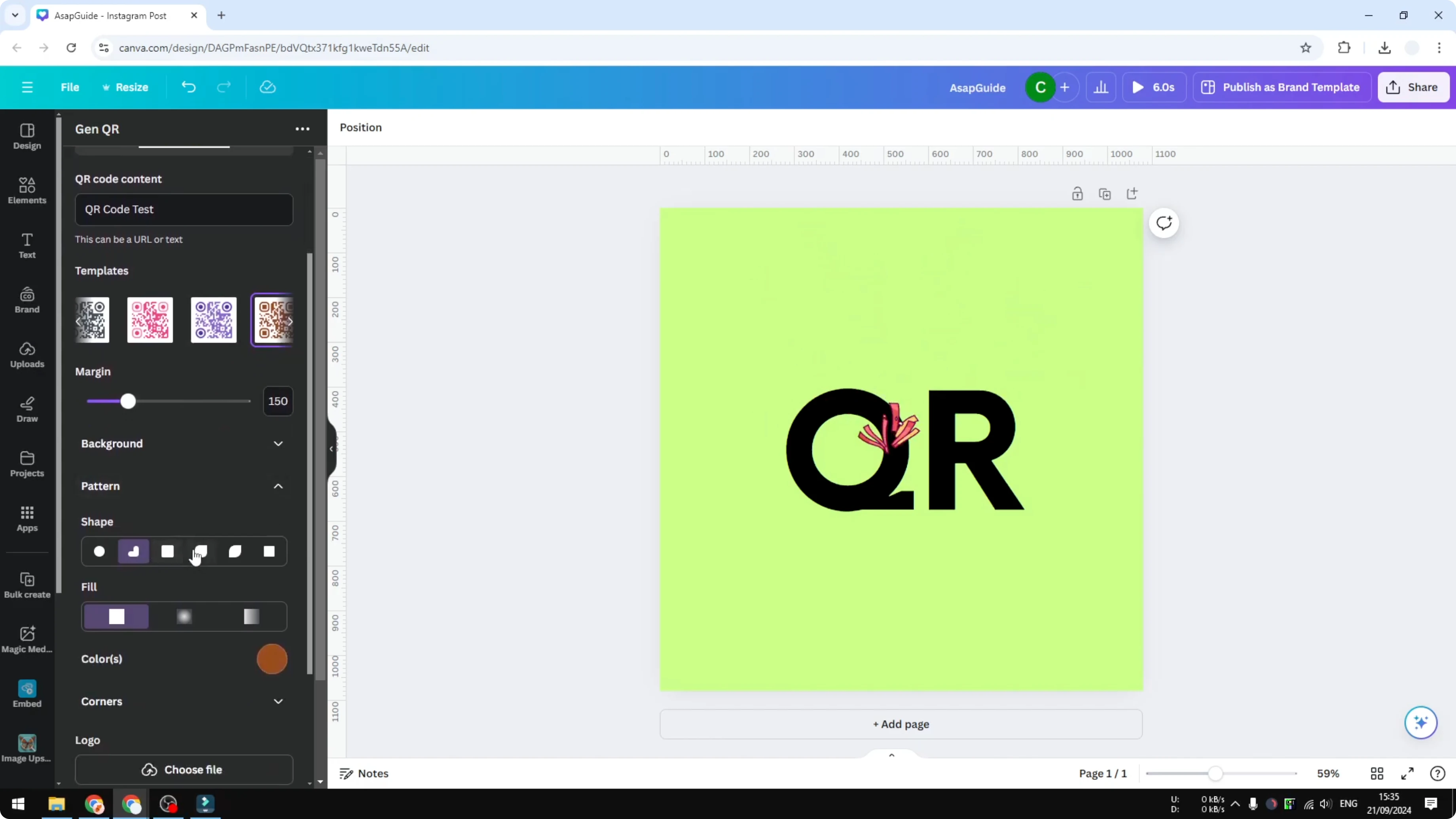
You can use the default pattern or switch to the circle pattern. You can see the preview right away, which makes it easy to compare. I am not changing the color.
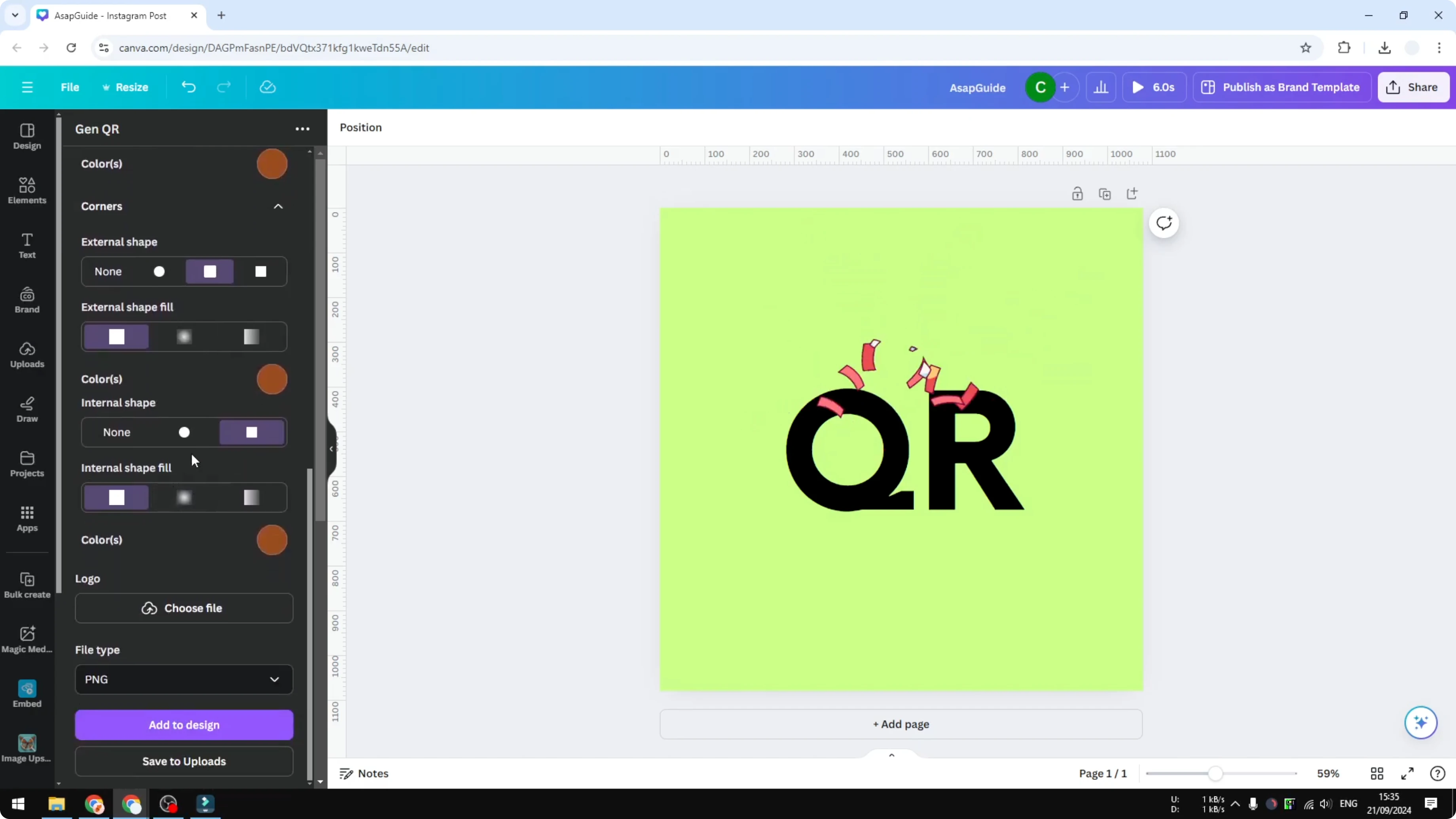
The corner refers to the corner of the QR code design. You can change the color and adjust the shape a bit. I am not touching that.
Read More: Add Alt Text Picture Canva
Add Branded QR Codes in Canva: Logo and export
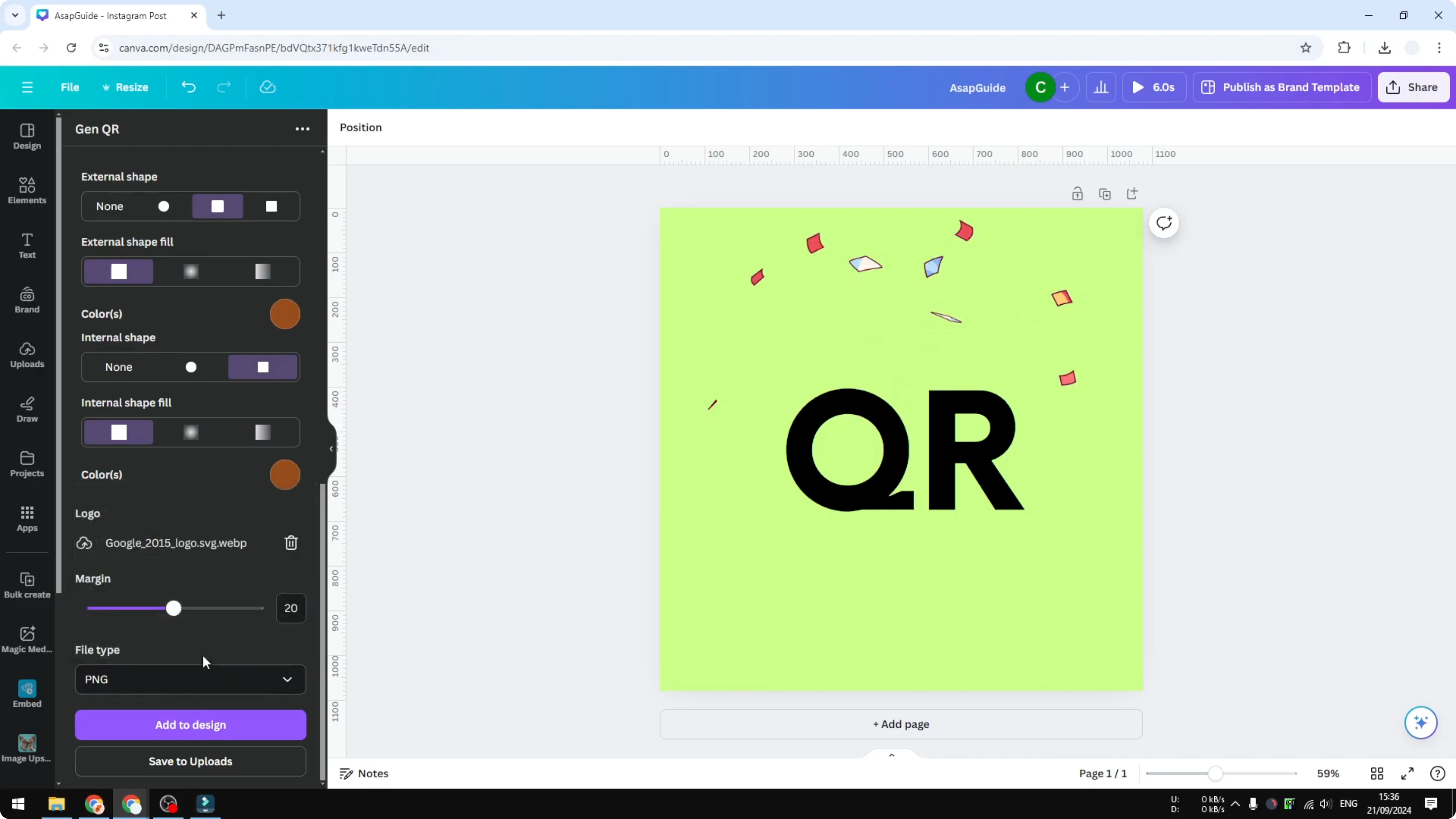
Most important is the logo. Upload your logo or even upload your photo if you want to. The logo will be placed in the middle of the code.
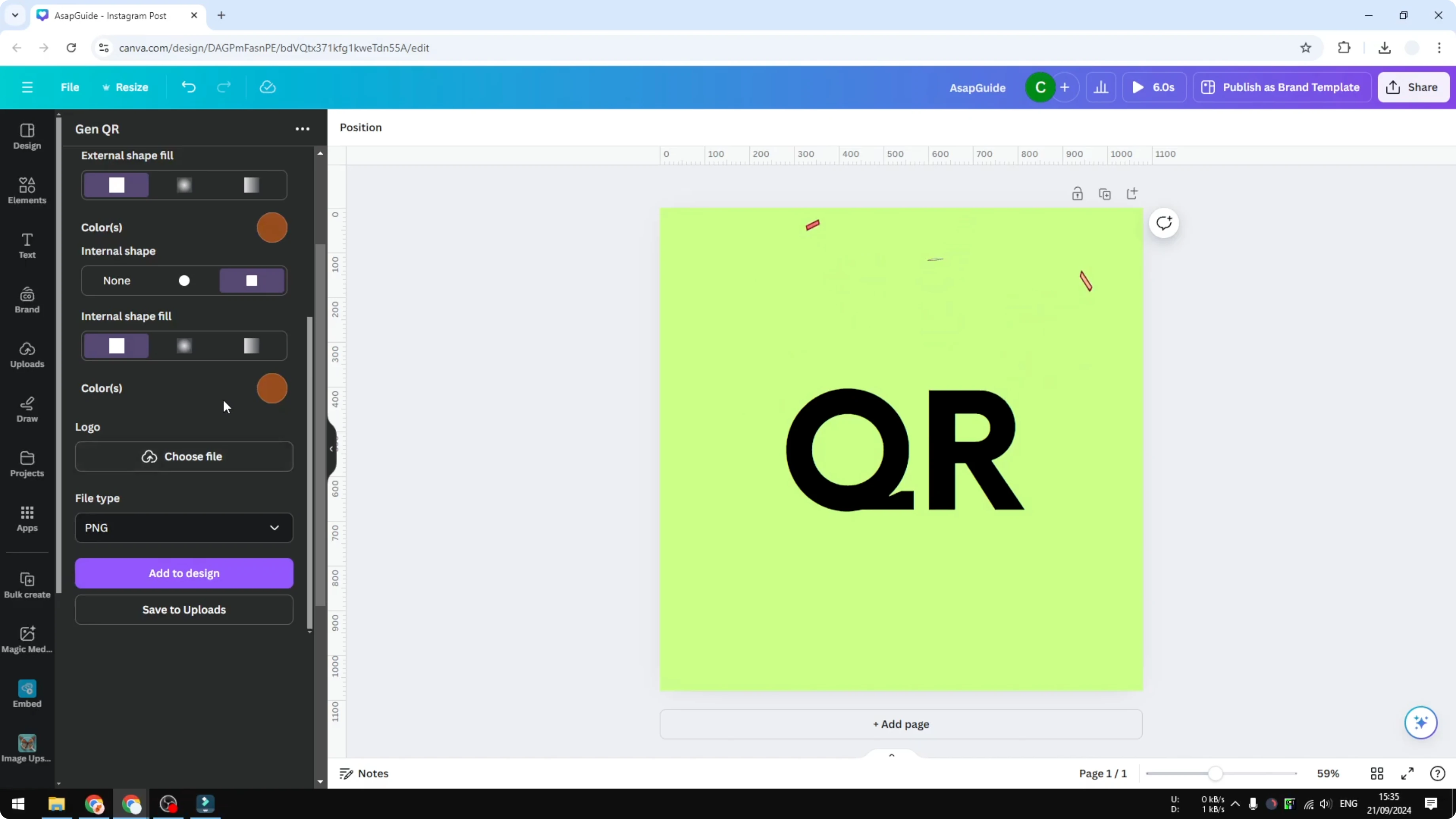
I upload the logo. Choose the file type. PNG is the best to preserve the detail of the design.
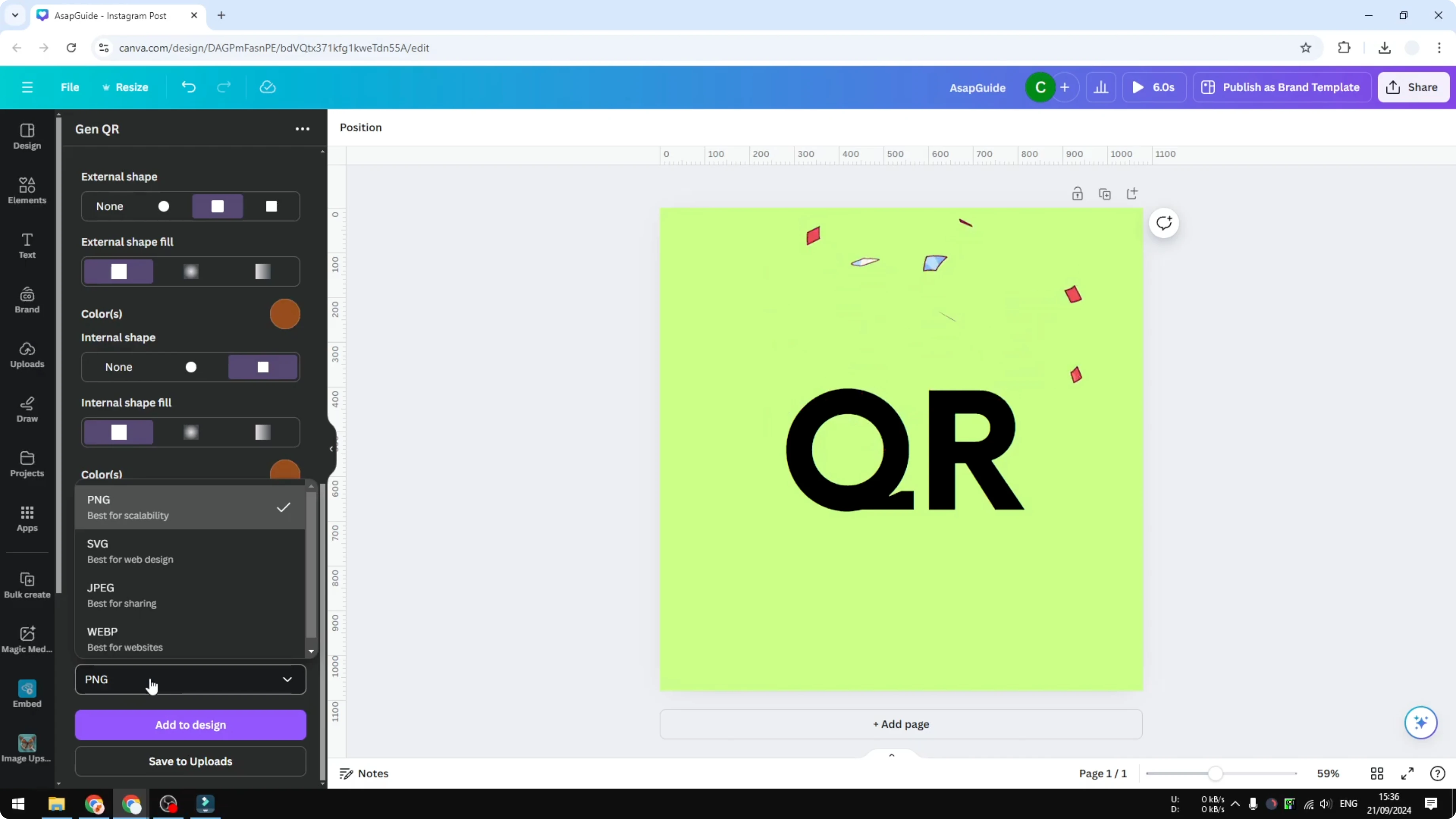
Click Add to the design. There you go, this is the design we just created. You can resize or position it in your layout.
Add Branded QR Codes in Canva: Test
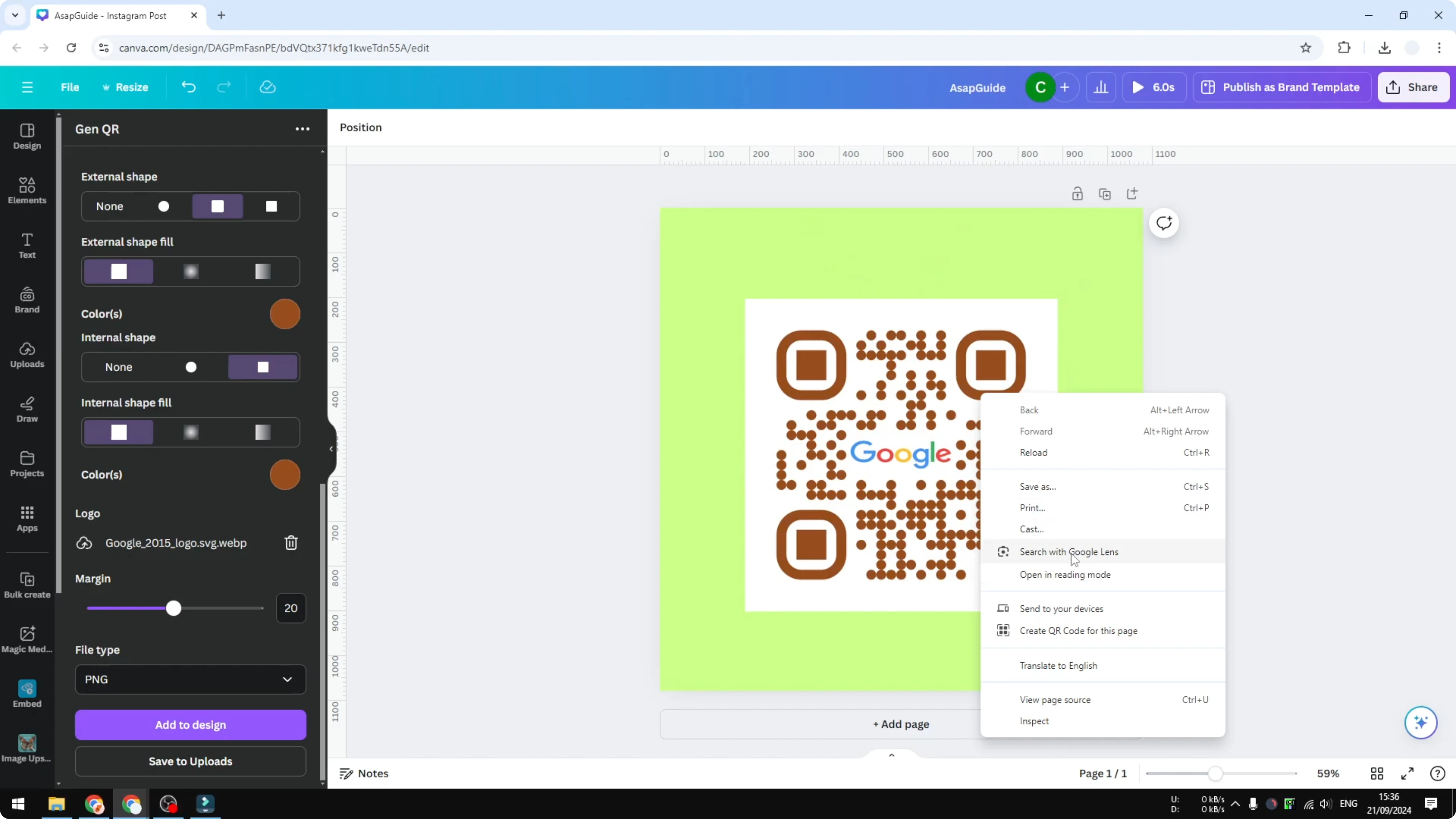
If you are using Chrome you can test the code immediately by right clicking and searching with Google Lens. You should see the content QR Code test. That matches the content of this QR code and confirms it works.
Read More: Add Accent Marks Canva
Add Branded QR Codes in Canva: Final thoughts
You can create a branded QR code in Canva that looks different and still scans reliably. Keep strong contrast, use a white background, and place a clear logo in the middle. PNG keeps the design crisp, and a quick scan test confirms everything is set.
Recent Posts

How to Visualize Yourself as a Pixelized Character with AI?
How to Visualize Yourself as a Pixelized Character with AI?

How to Revive Faded Memories and Enhance Image Clarity with AI?
How to Revive Faded Memories and Enhance Image Clarity with AI?

How to Visualize Yourself as an Animal Crossing Character with AI?
How to Visualize Yourself as an Animal Crossing Character with AI?