How to Add Alt Text to an Picture in Canva
Alt text, or alternative text, is useful to describe a picture. It is mainly used by people with impaired vision who cannot see the picture and want a description. It also helps when you publish an image to the internet because search engines like images with descriptive alt text.
Here is how you can do it in Canva and a quick tip for background images.
Add Alt Text to an Picture in Canva
Steps
Insert a picture into your Canva document.
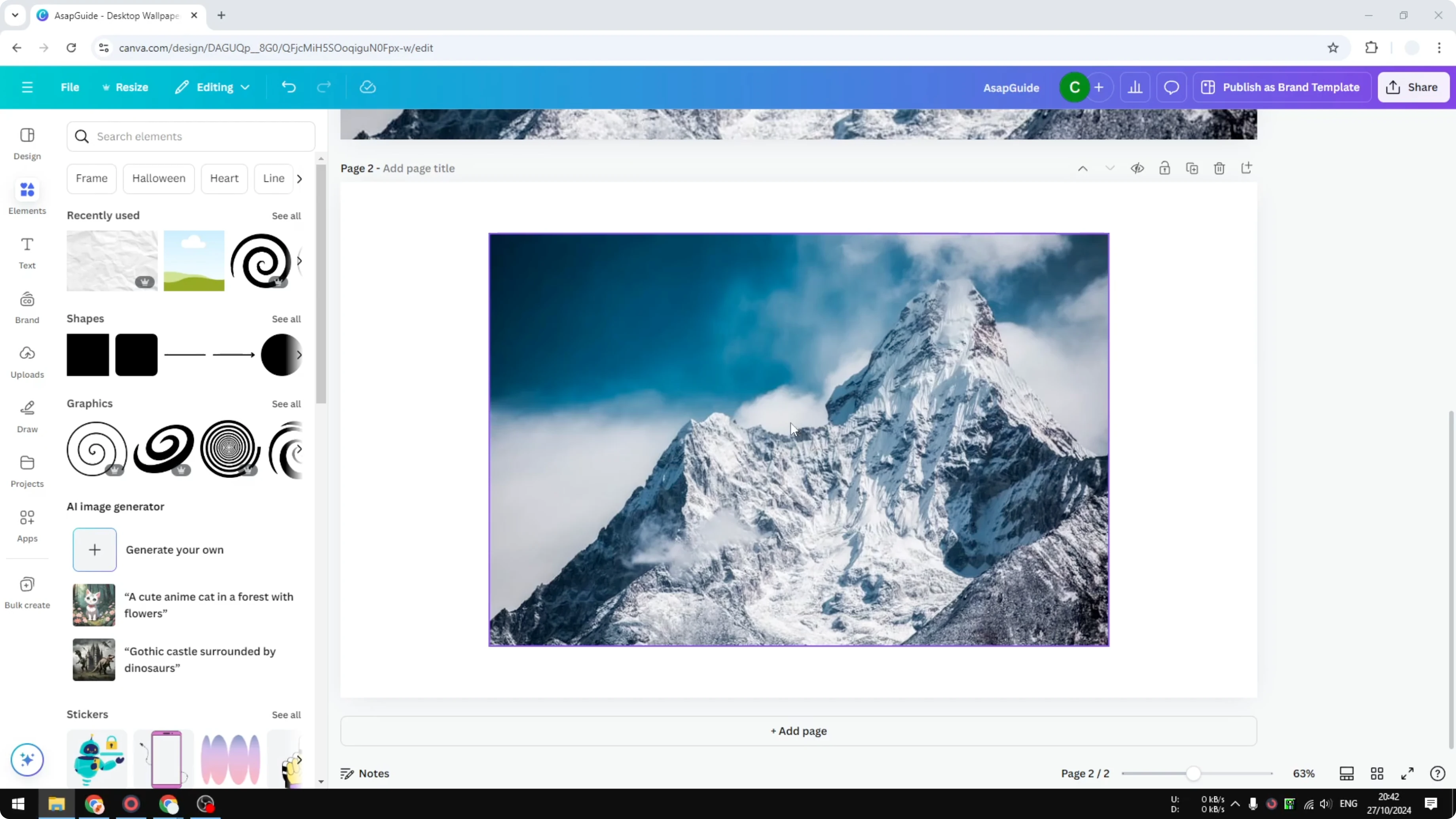
Right click the picture.
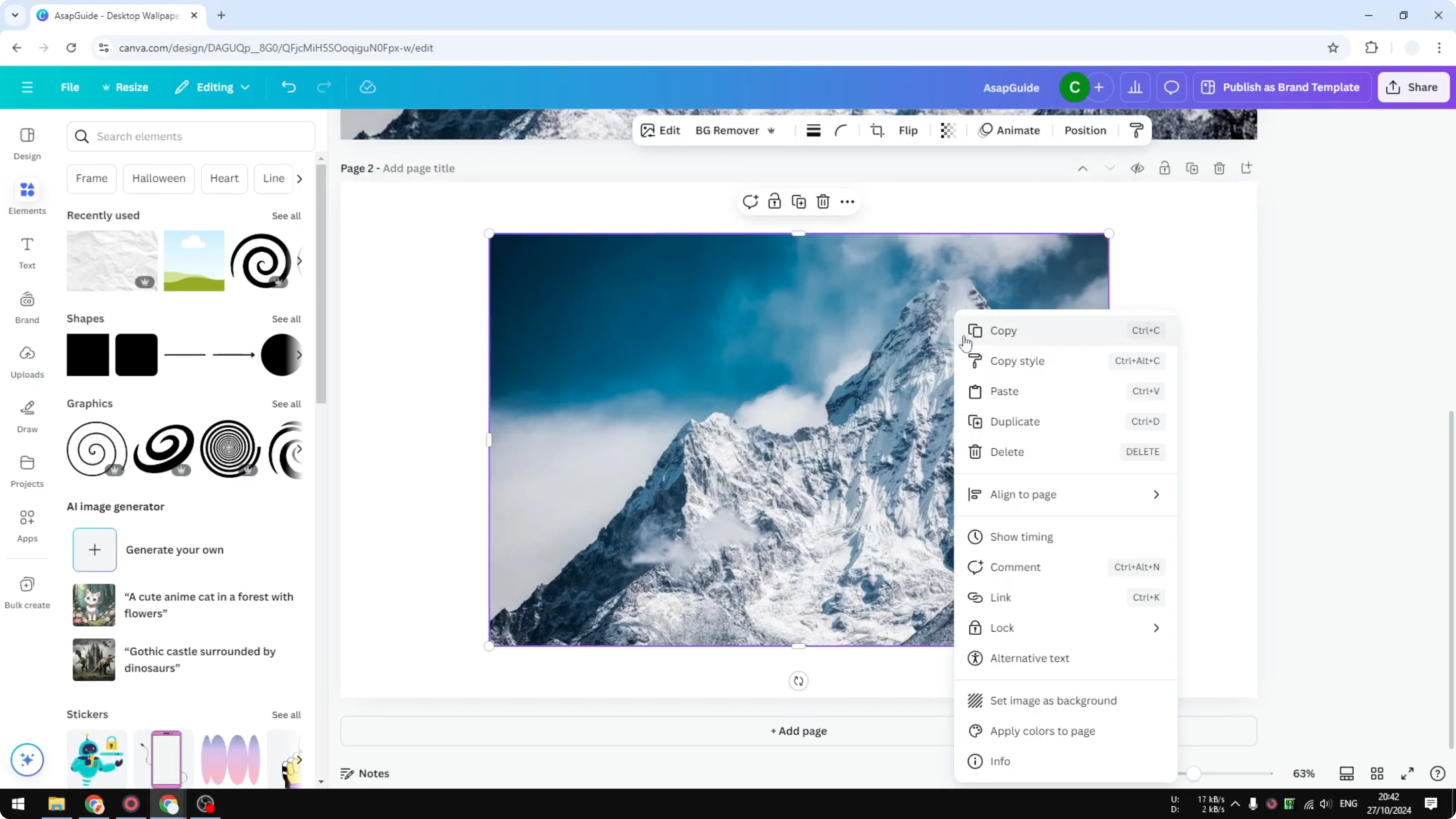
Click Alternative text.
Describe what is in the picture in the text box.

Be specific when it helps the viewer understand the image.
Click Save.
Use AI to suggest a description
If you want help writing a description, click Suggest description. Canva will generate a description based on the picture, which you can review and edit. Click Save when you are happy with it.

If you are also styling your layout, you might want to add background text in Canva to create contrast behind important captions.
Alt text for background images
While you can add alt text to a picture, you cannot add it directly to a picture used as a background image. When you right click a background image, there is no option to add alt text. This is the same picture, but as a background, the option is missing.
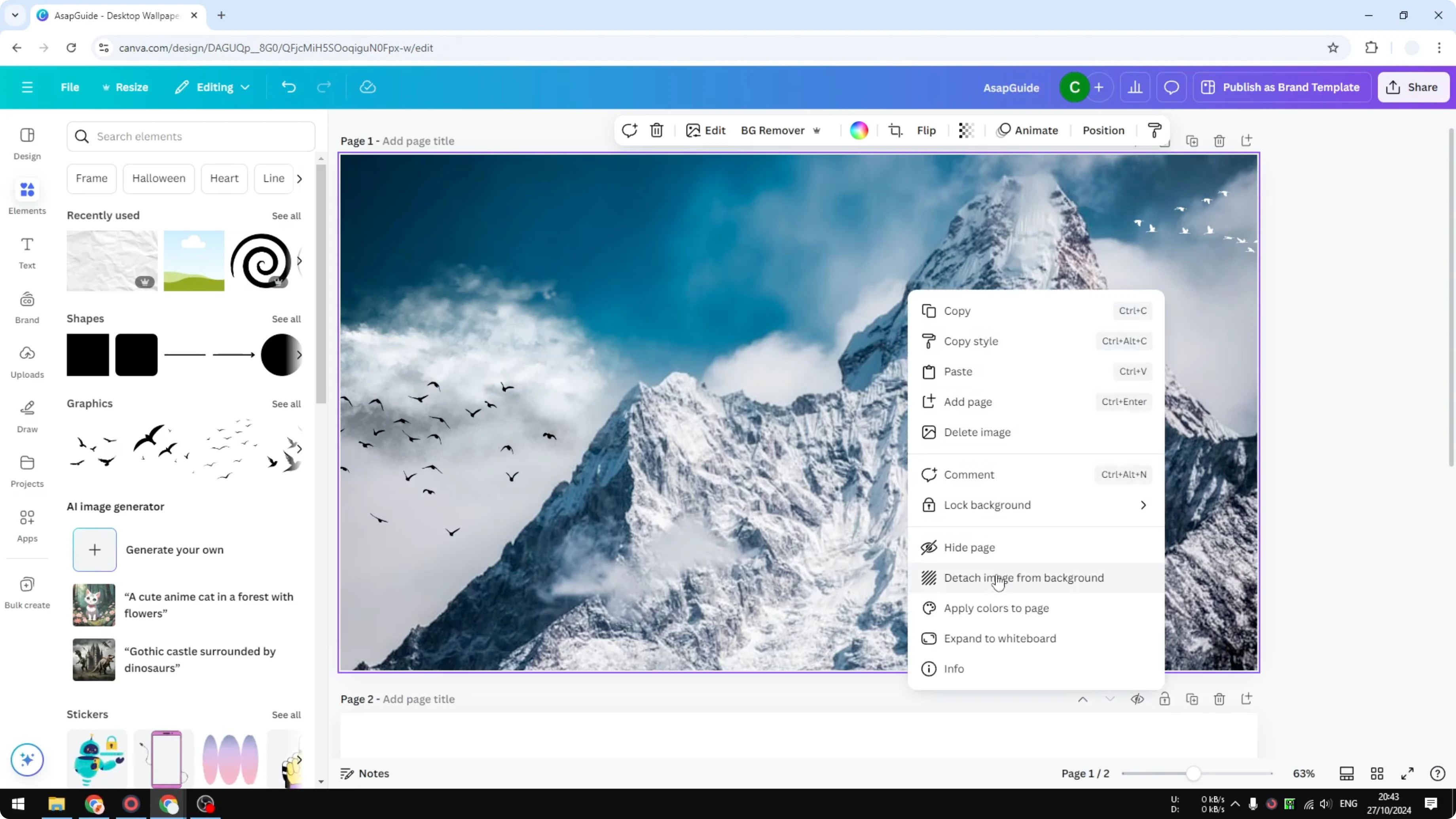
Make background images editable
Right click the background image.

Click Detach image from background.
Right click the detached image and add the alt text as shown above.
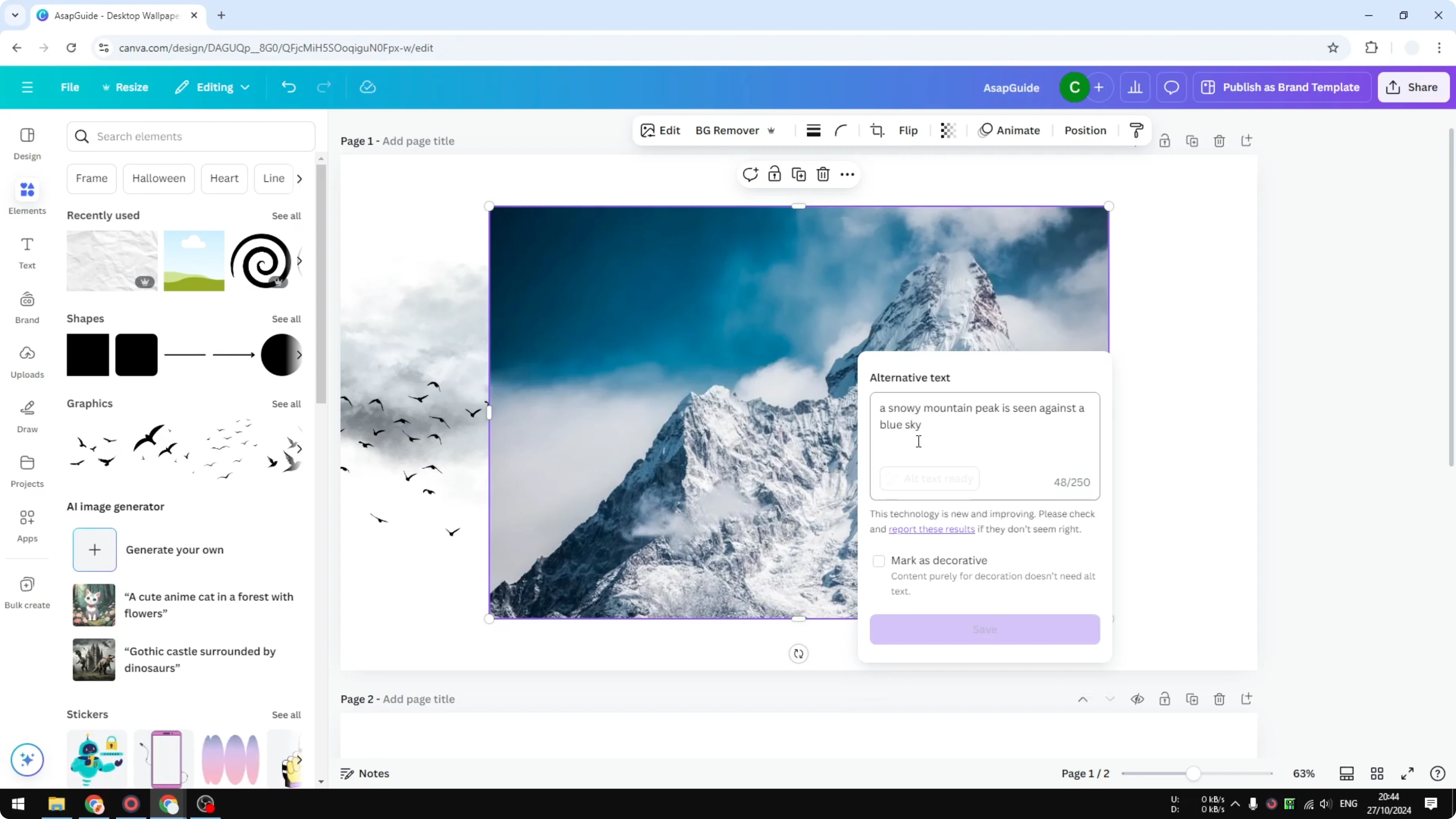
Put the picture back as a background.
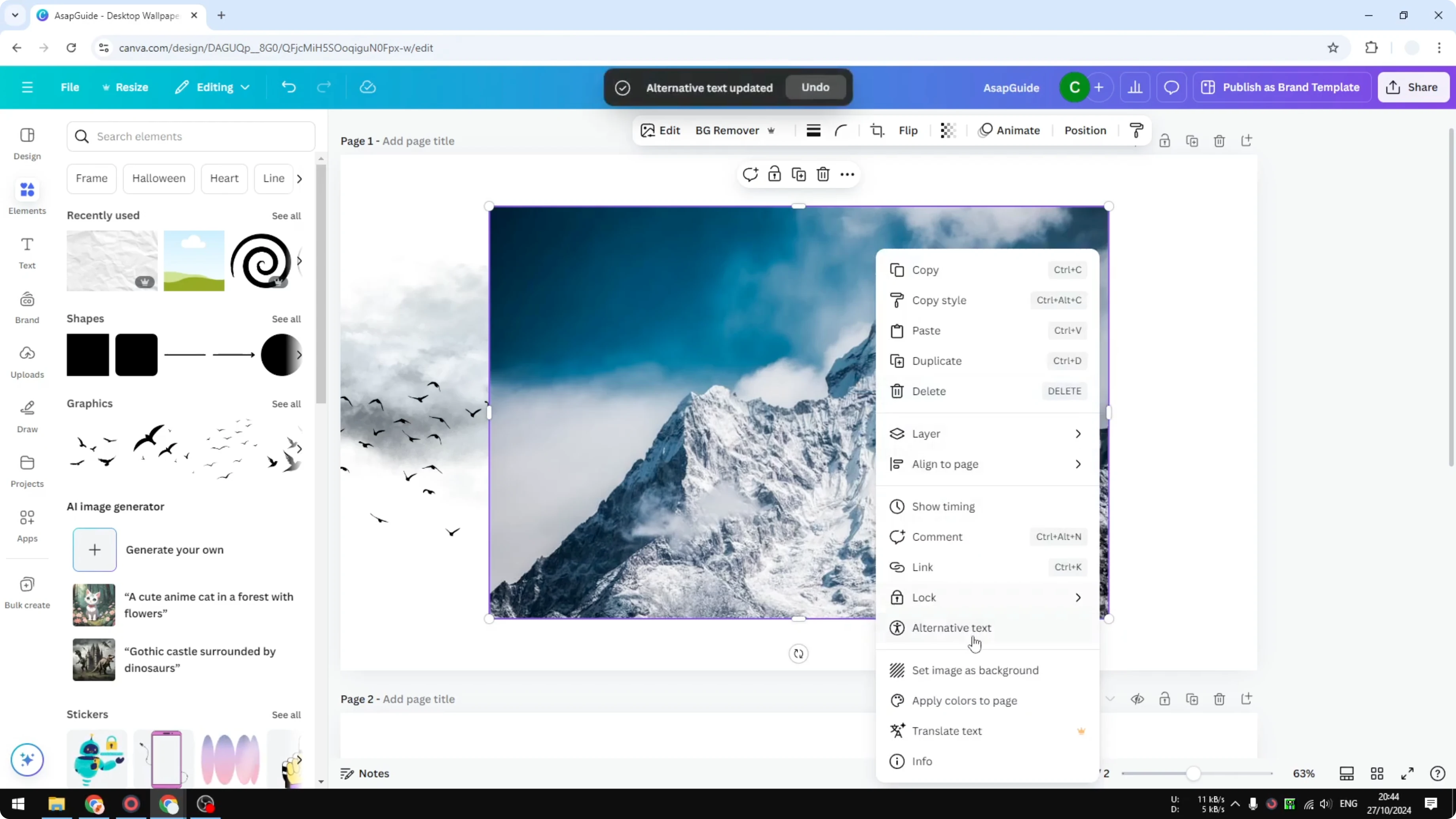
The image will keep the description.
As you refine your design, you may also want to add a border to a text box so your captions stand out next to images.
Final Thoughts
That is how you can add alt text in Canva and handle the background image limitation. Remember to detach the image, add the description, and then set it back as the background. If you are arranging layers, see how to put text behind an image in Canva for a clean stacked layout.
Recent Posts

How to Visualize Yourself as a Pixelized Character with AI?
How to Visualize Yourself as a Pixelized Character with AI?

How to Revive Faded Memories and Enhance Image Clarity with AI?
How to Revive Faded Memories and Enhance Image Clarity with AI?

How to Visualize Yourself as an Animal Crossing Character with AI?
How to Visualize Yourself as an Animal Crossing Character with AI?