How to Copy a Page in Canva to Another Project
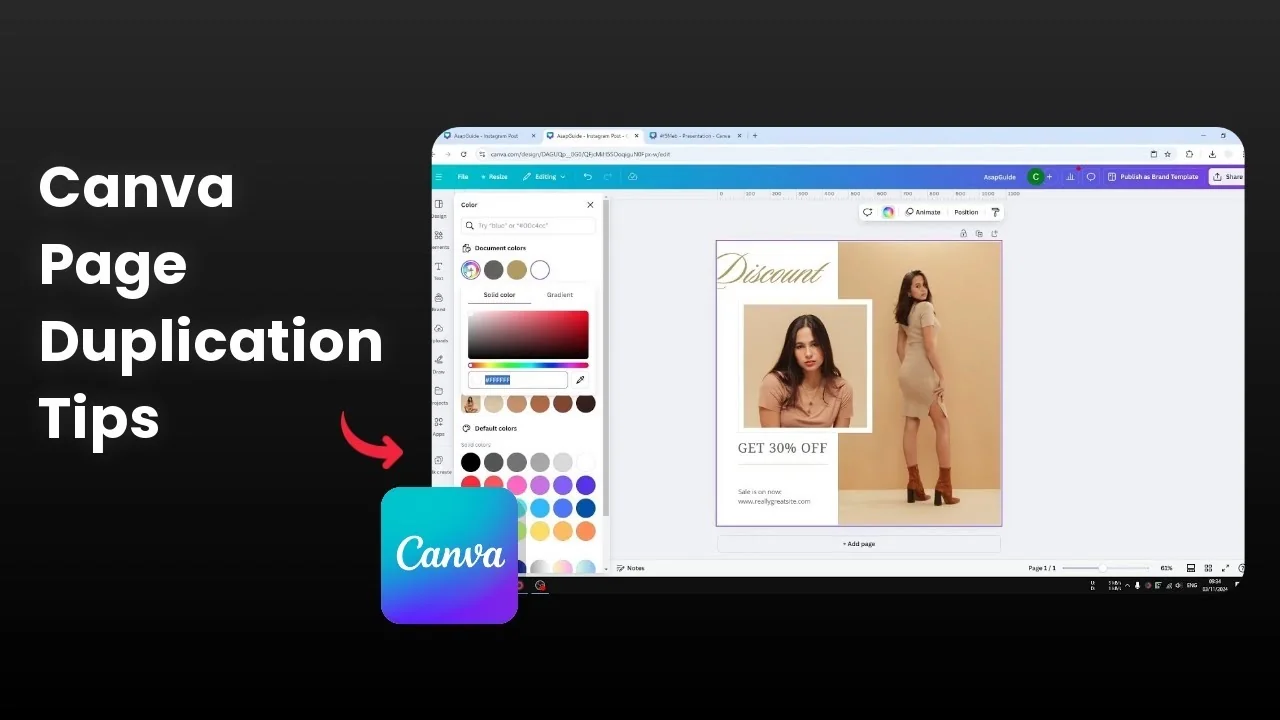
I show how to copy an entire page from one Canva document to another. The process is very easy and takes just a few steps. You will get the same layout in a different document with a quick copy and paste.
Select elements to Copy a Page in Canva to Another Project
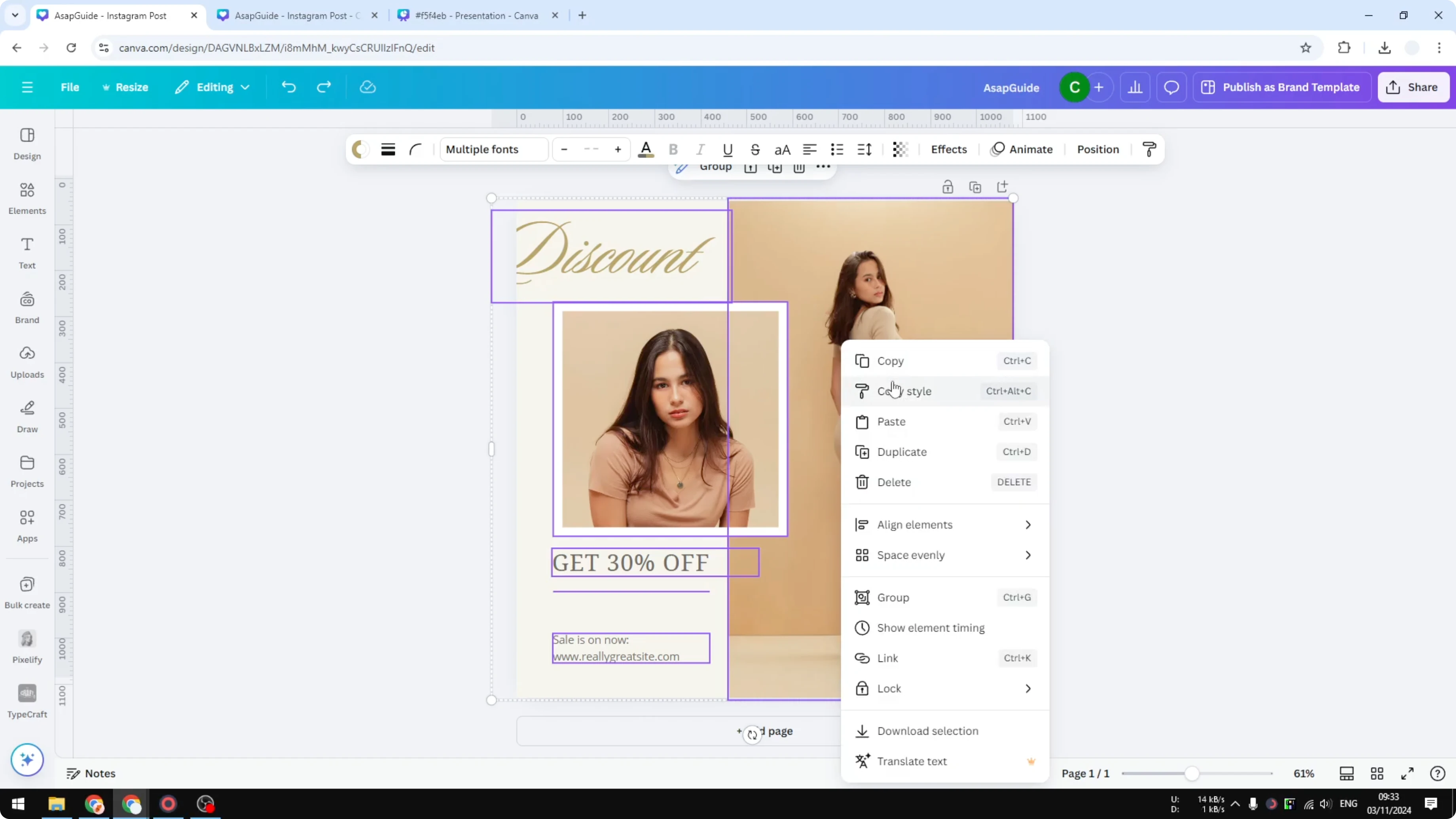
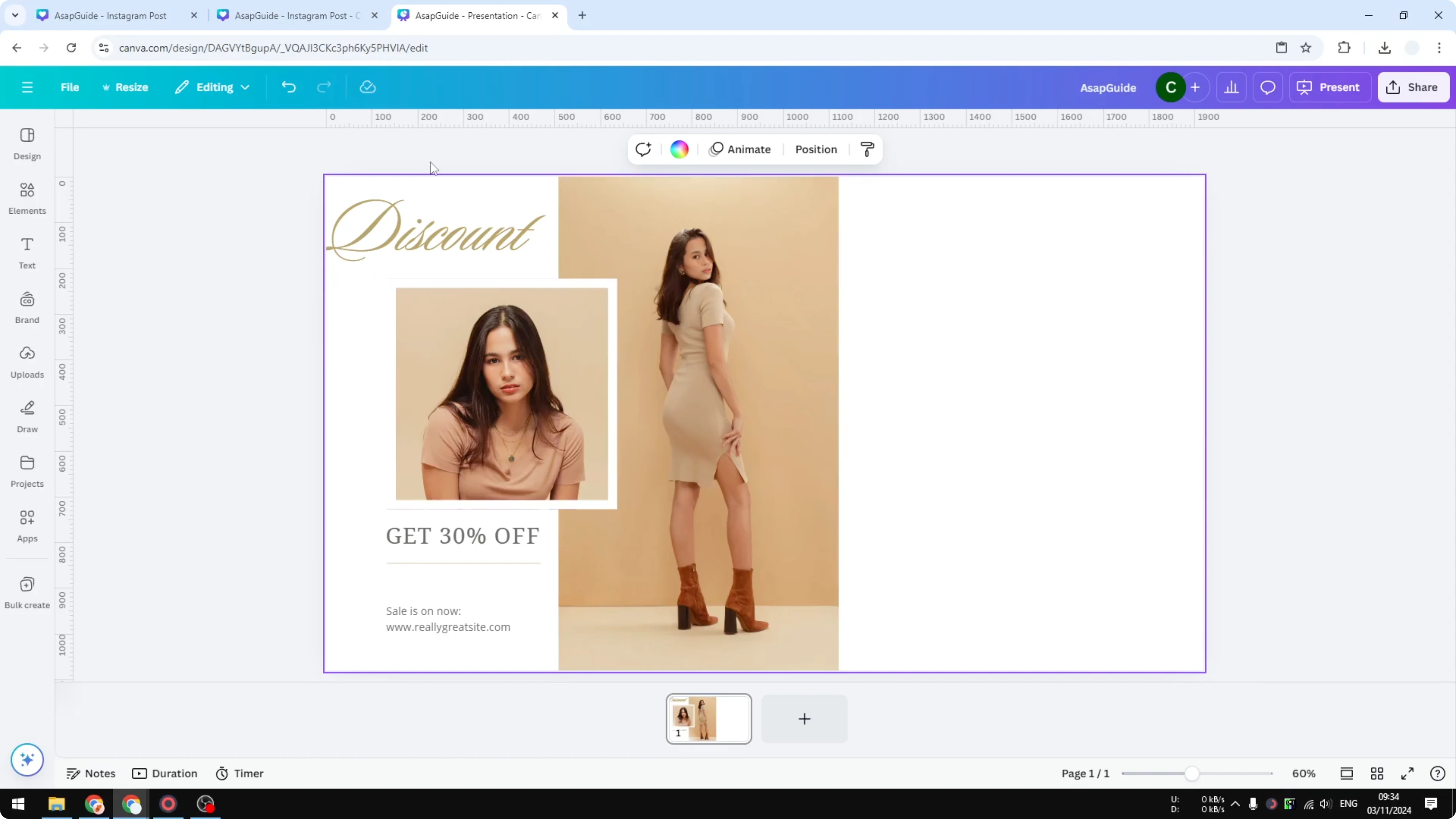
First select all the elements on the page you want to copy. I am copying this page and pasting it into a blank new page.
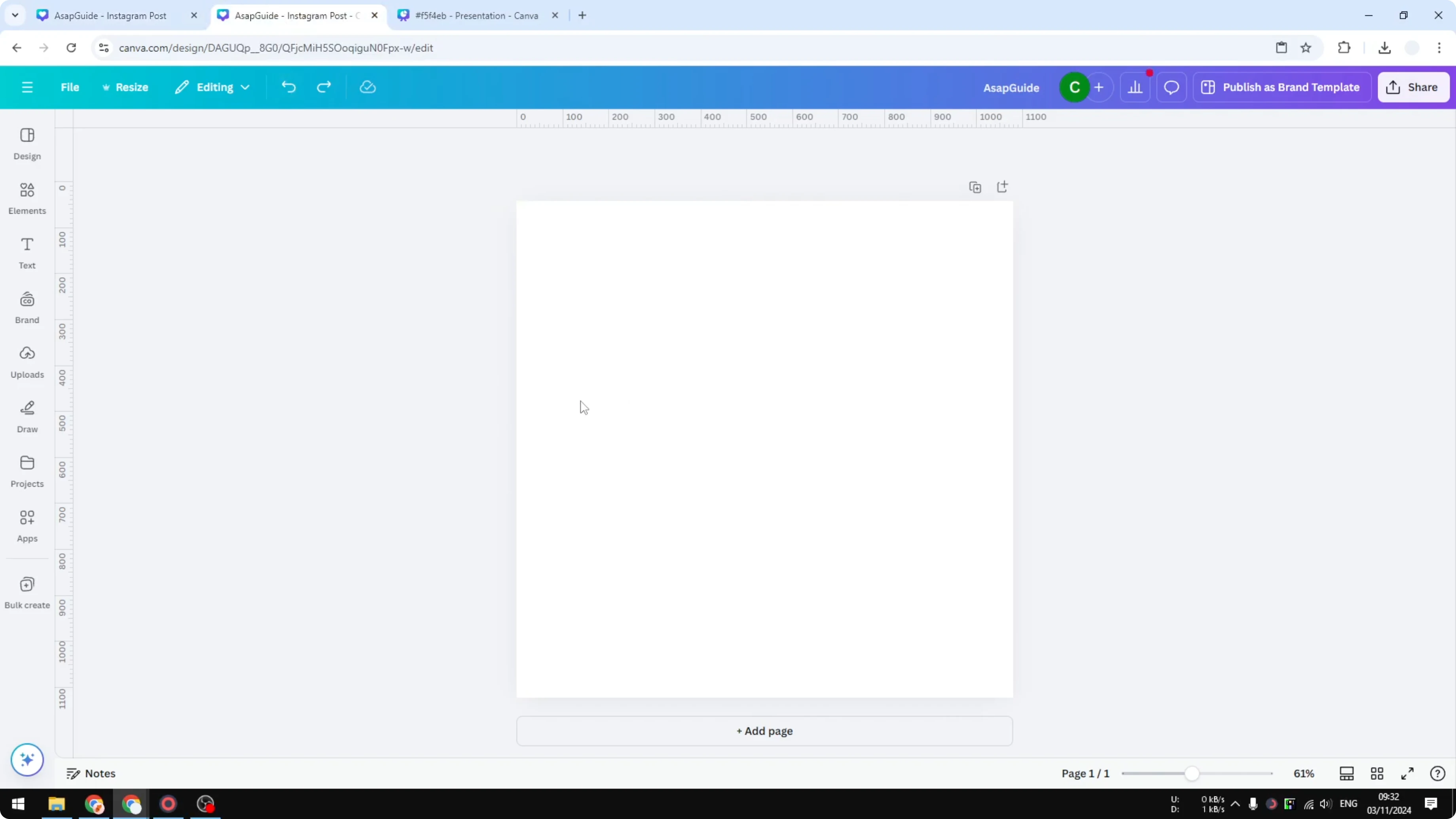
You can click and drag to encapsulate every element on the page. You can also press the keyboard shortcut to select everything at once.
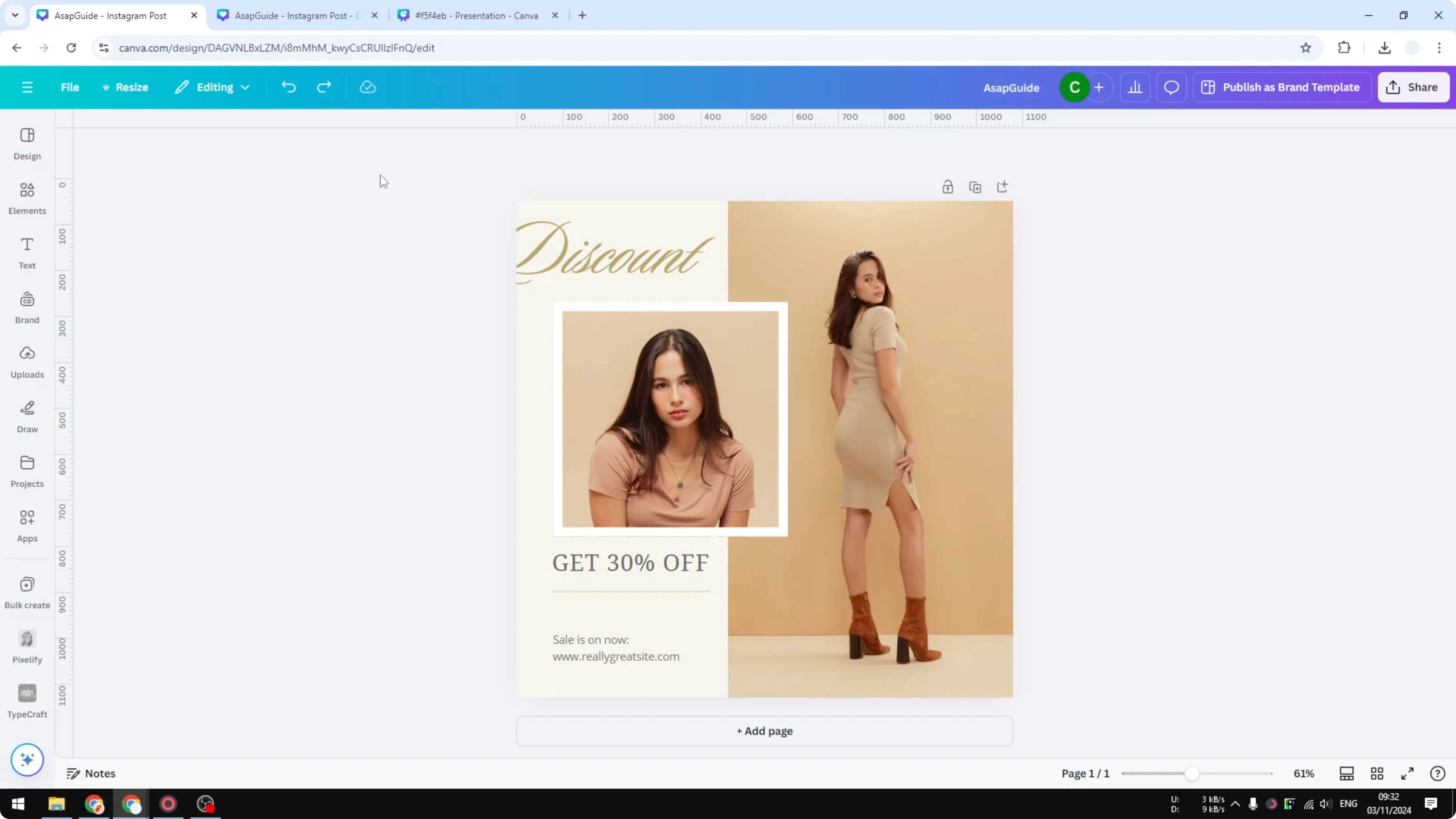
Windows: Ctrl + A
Mac: Command + A
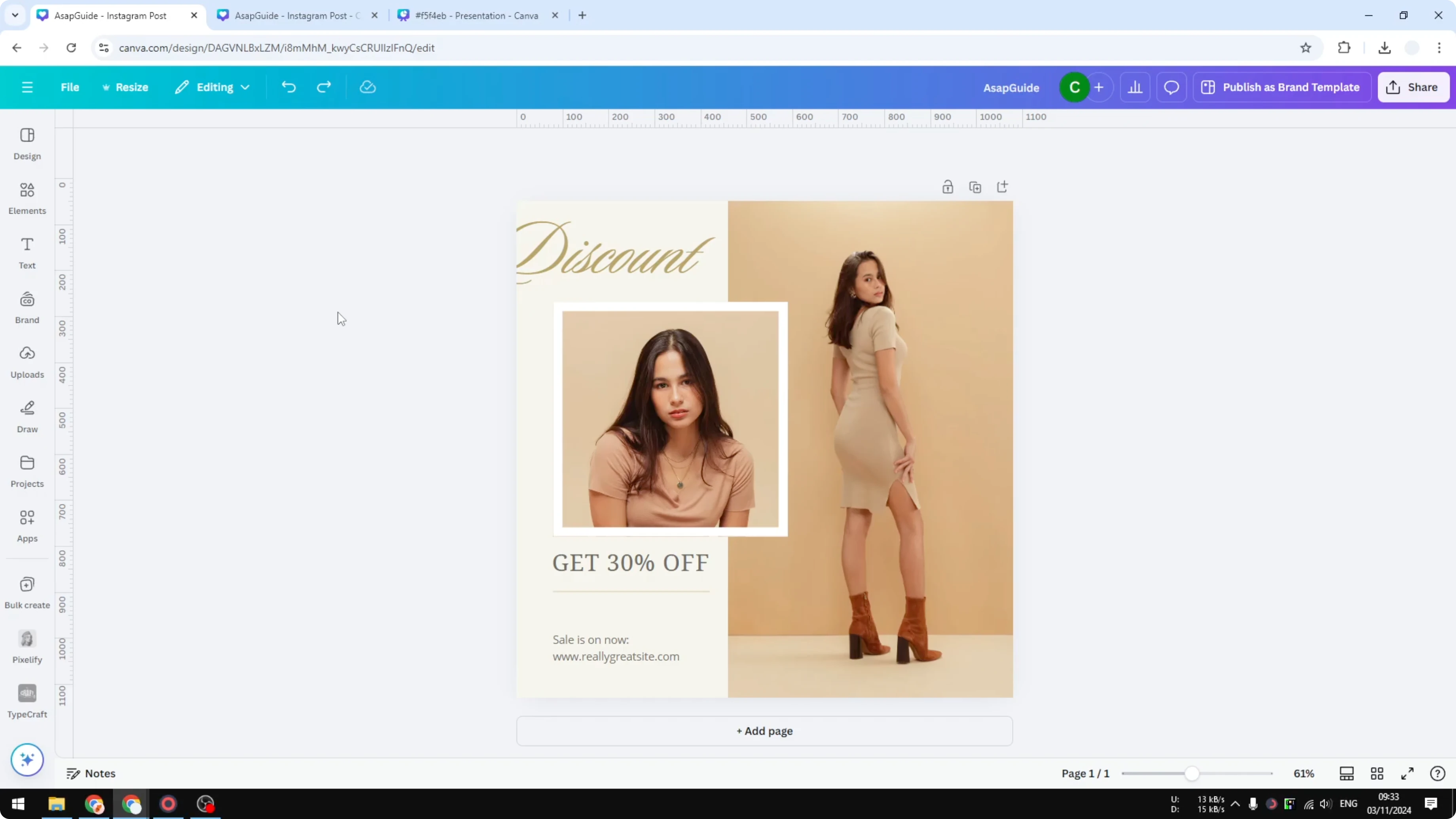
If some elements refuse to select, they may be locked. See how to lock or unlock a Canva page before you copy.
Copy and paste to a new document
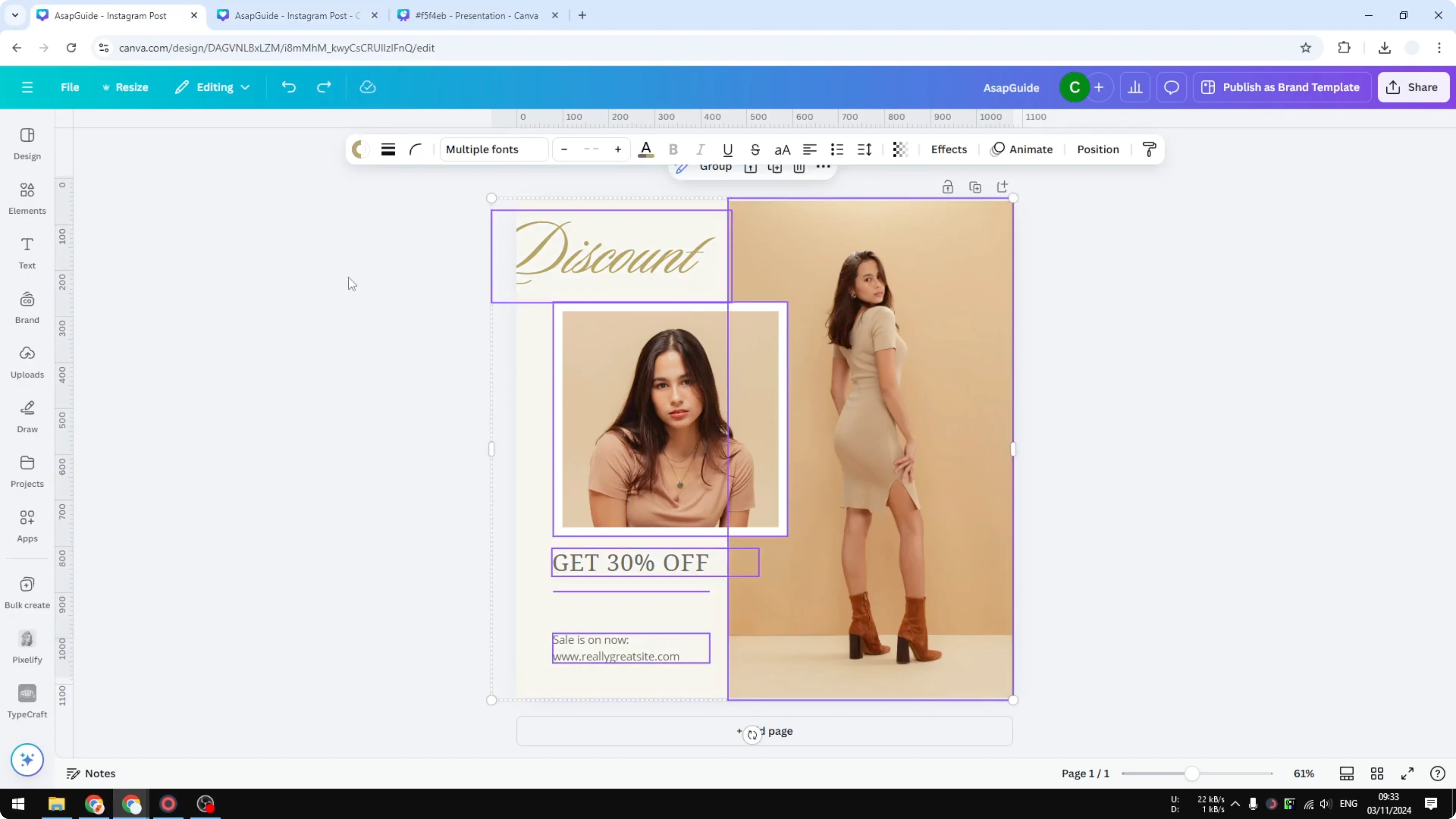
After selecting everything, right click anywhere and click Copy. Go to the new document or new page, right click, and click Paste.
You should see the same design in a completely different document. For a quick reference on this workflow, check how to copy a Canva page to another design.
Fix background color after you Copy a Page in Canva to Another Project
You might notice the color looks a bit different, especially the background. The original document may have a background color, but the new one might not.
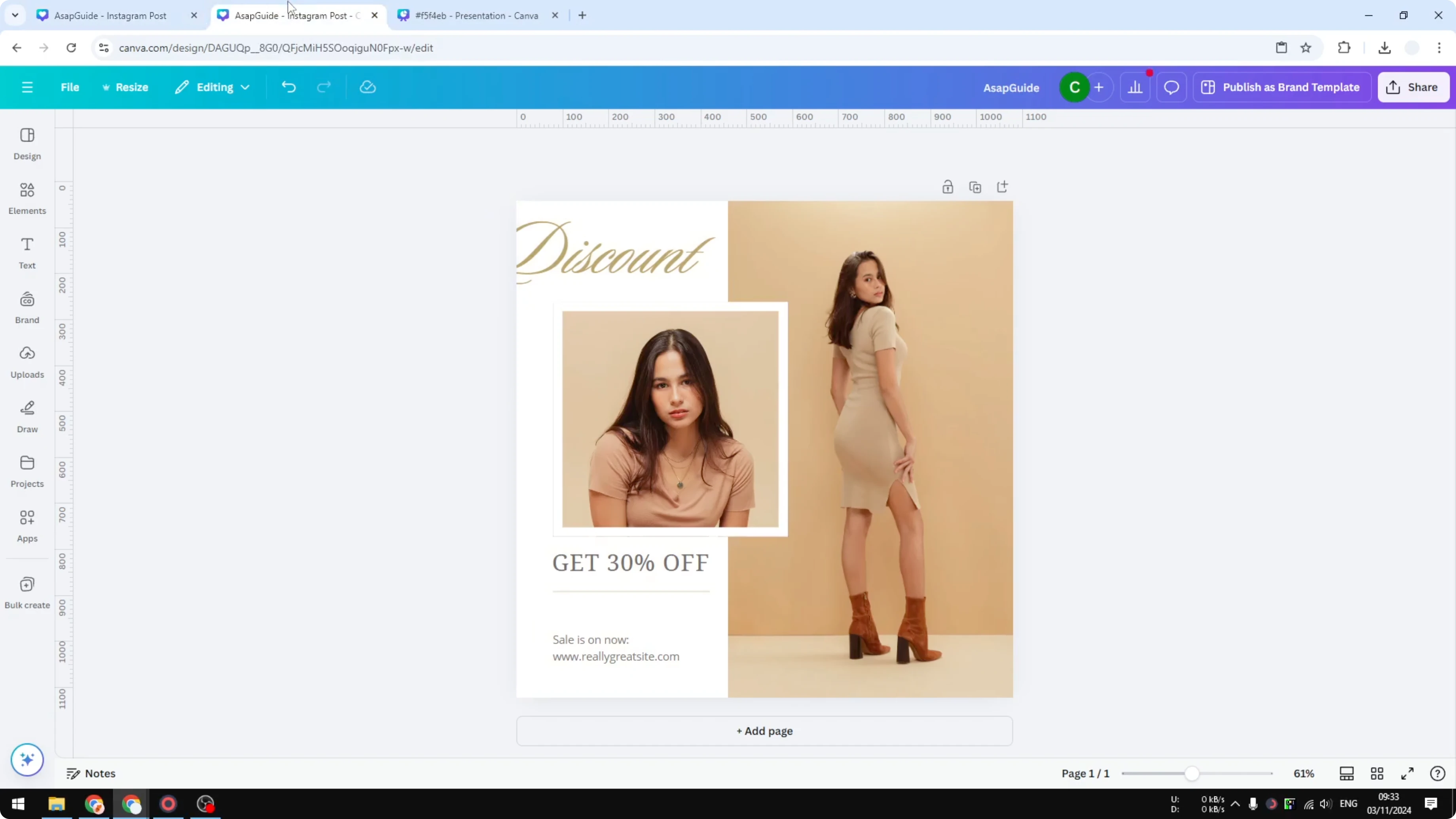
Background colors usually do not copy over. This is simple to fix by copying the color code.
Copy the background color code
Click the background of the original document. Open the color menu and copy the color code.
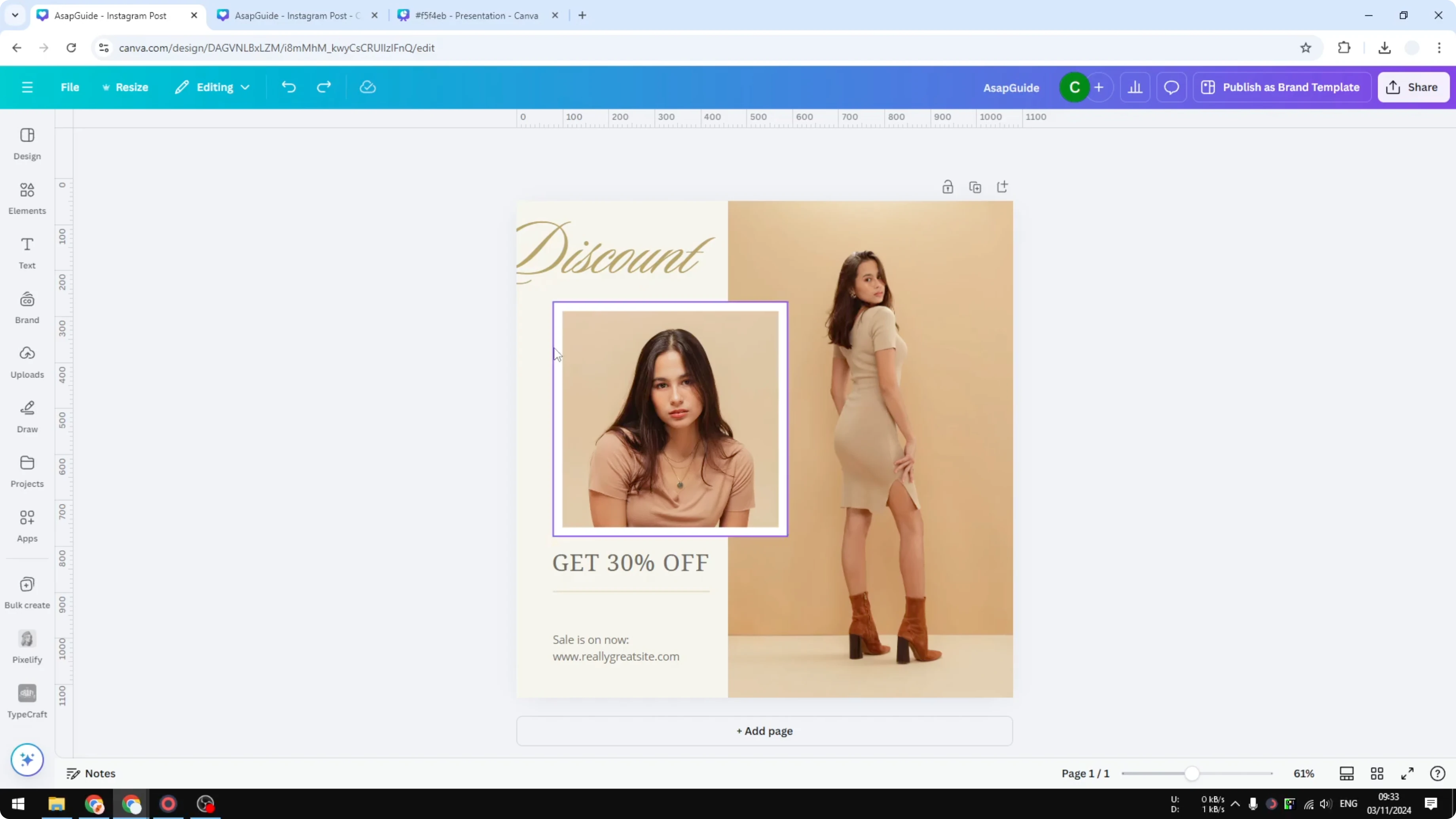
Go to the target document and click the background. Add a new color, paste the code, and apply it.
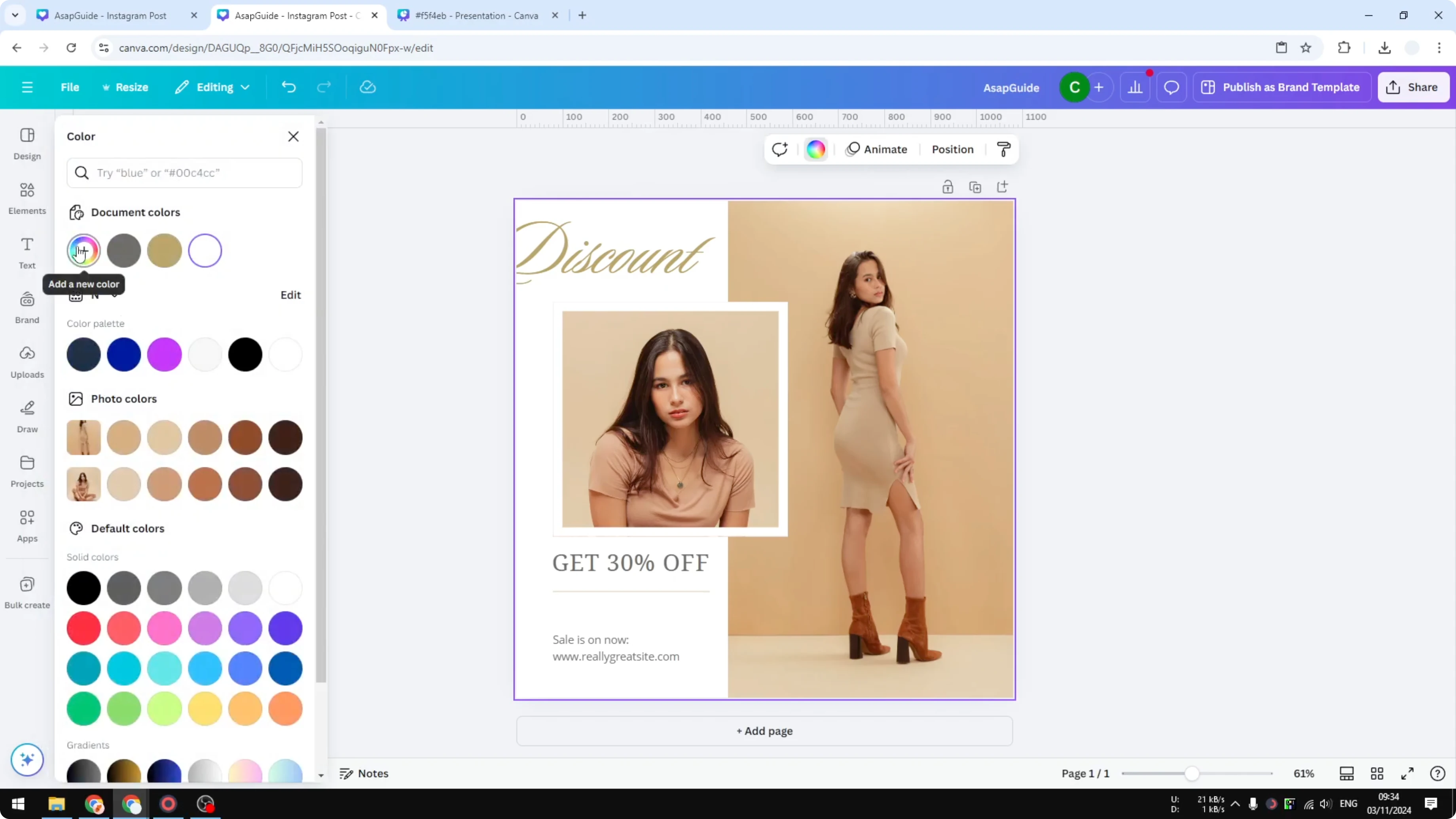
You should now have two identical pages. Everything, including colors, matches what you had before.
Dimensions matter when you Copy a Page in Canva to Another Project
You cannot copy and paste to a document that has different dimensions and expect Canva to auto-adjust the layout. My source page is 16:9, and pasting it into a different size does not automatically adjust the size or format.
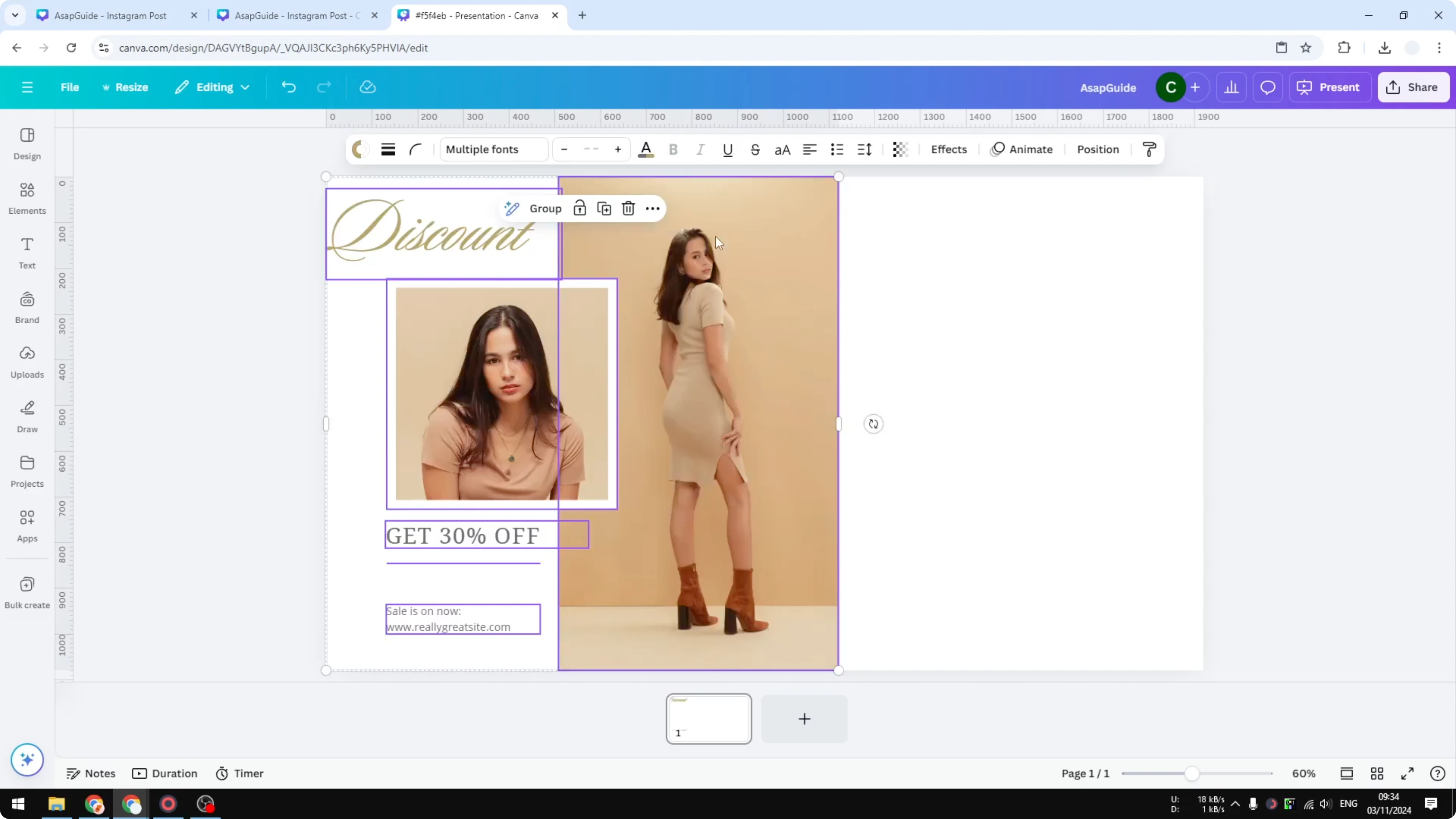
It is best to copy and paste into a document that has the same dimensions. If your page includes a video and you want to swap it after pasting, see how to replace a video with another in Canva.
Final thoughts
Select all elements, copy, and paste into the new document for a fast transfer. Manually set the background color using the color code, and keep dimensions the same for a clean result. That is all you need to copy a page in Canva to another project without layout issues.
Recent Posts

How to Visualize Yourself as a Pixelized Character with AI?
How to Visualize Yourself as a Pixelized Character with AI?

How to Revive Faded Memories and Enhance Image Clarity with AI?
How to Revive Faded Memories and Enhance Image Clarity with AI?

How to Visualize Yourself as an Animal Crossing Character with AI?
How to Visualize Yourself as an Animal Crossing Character with AI?