How to Lock & Unloack Canva Page

Lock a Canva page when you do not want to accidentally change anything on that page. It prevents unwanted edits and keeps your layout intact. I have a document with multiple pages, and I am going to lock a particular page.
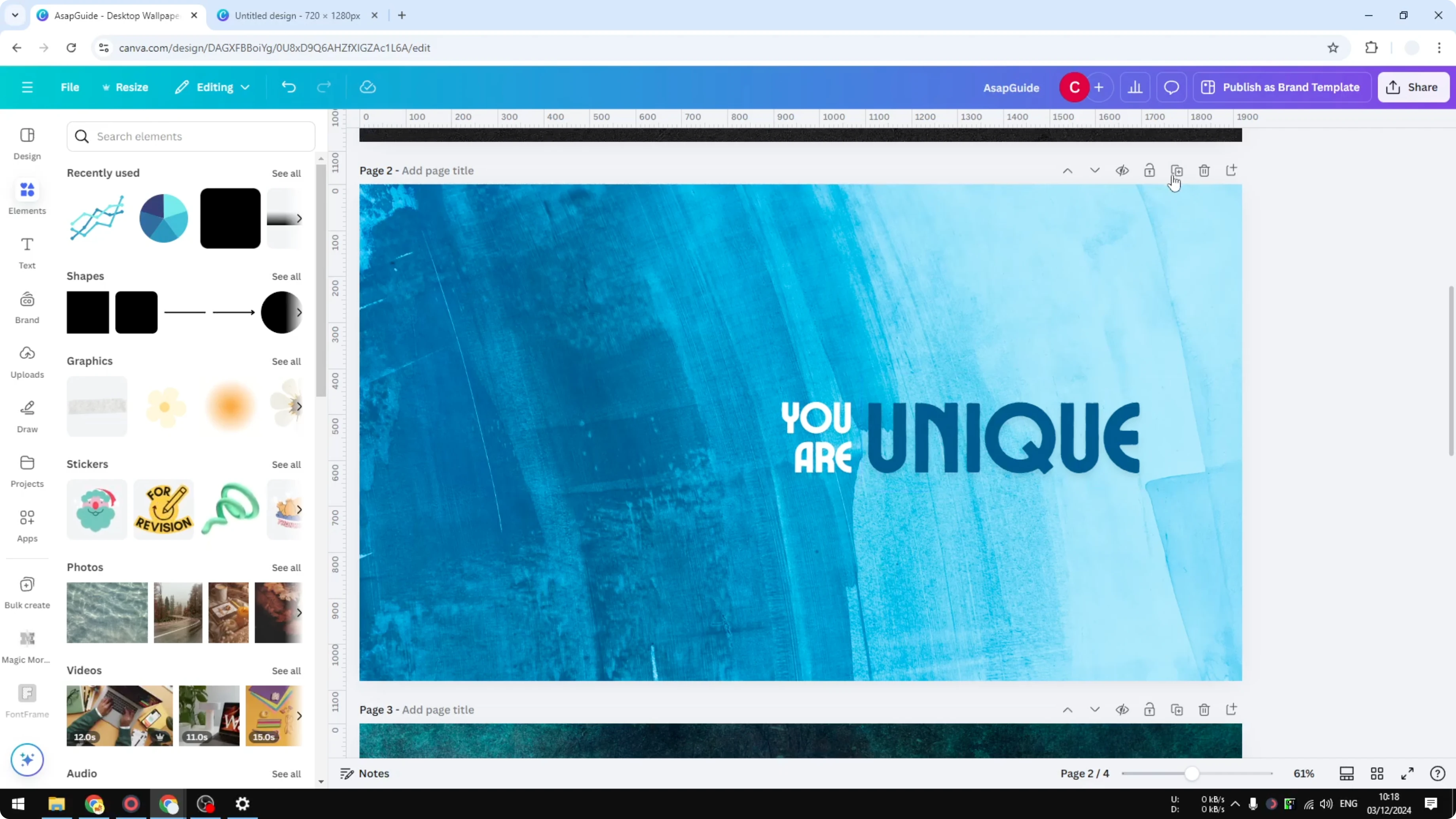
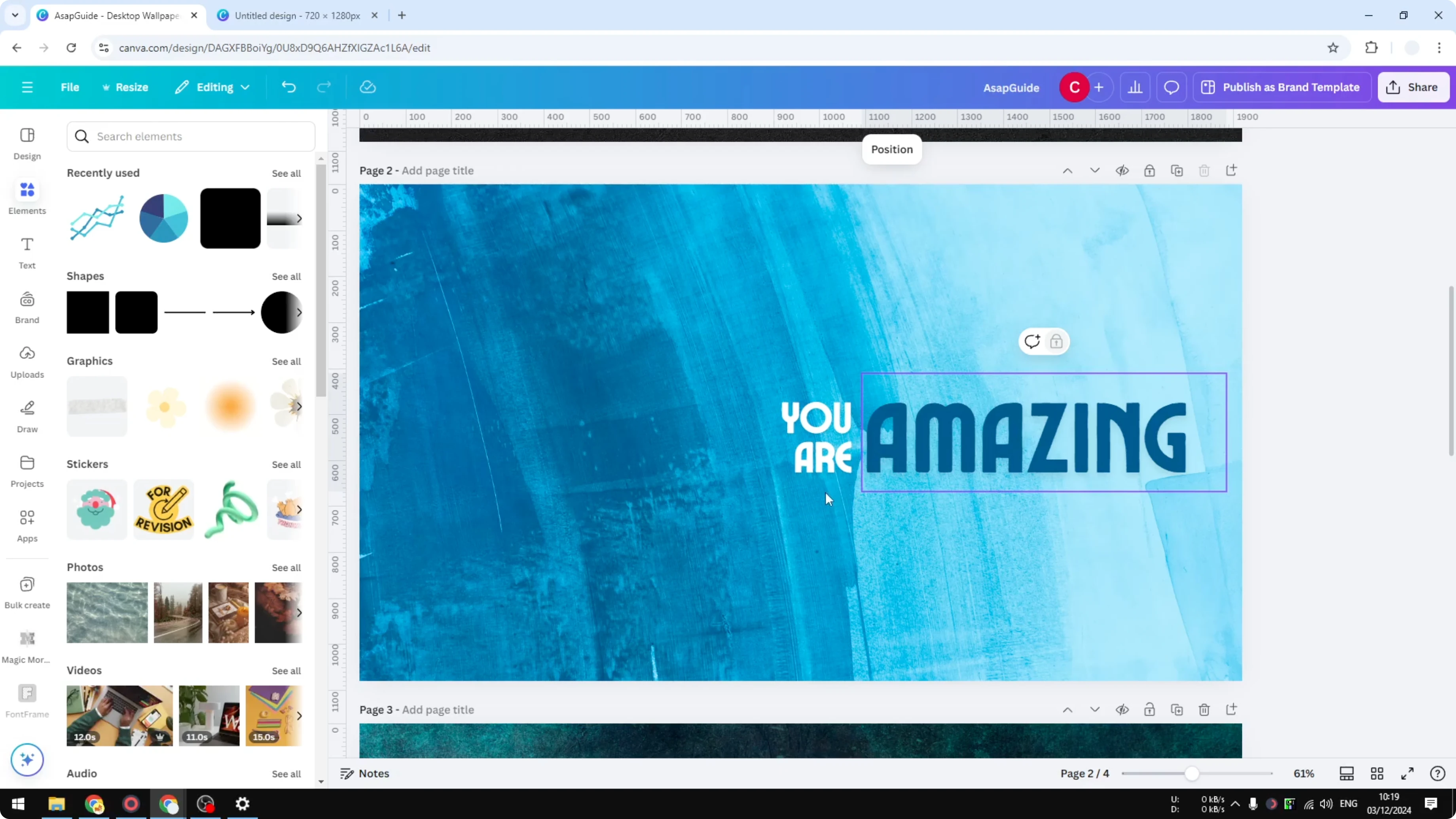
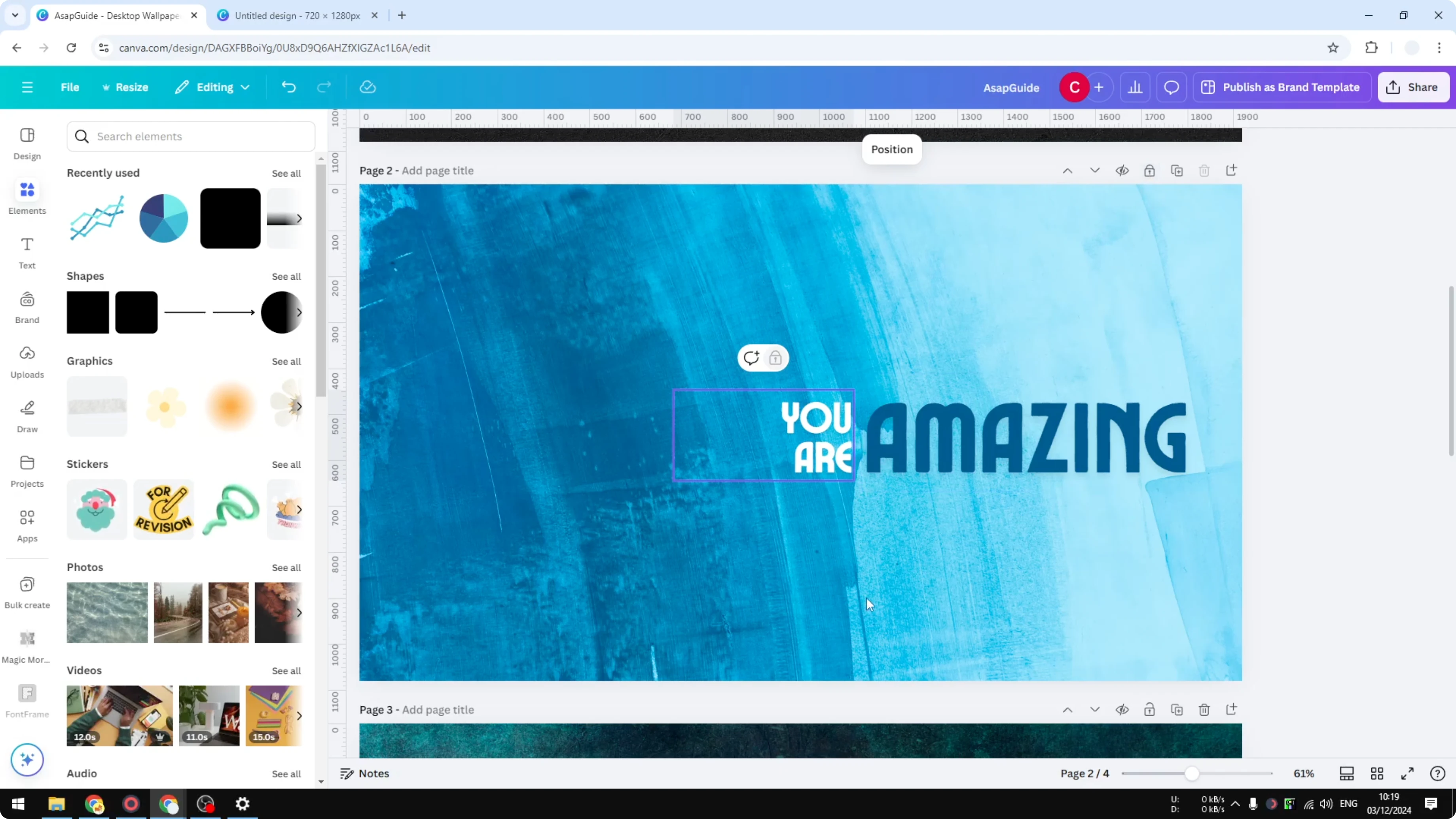
Click the padlock icon on the page. This enables the first lock mode. You are not allowed to change the position of each element of the page.
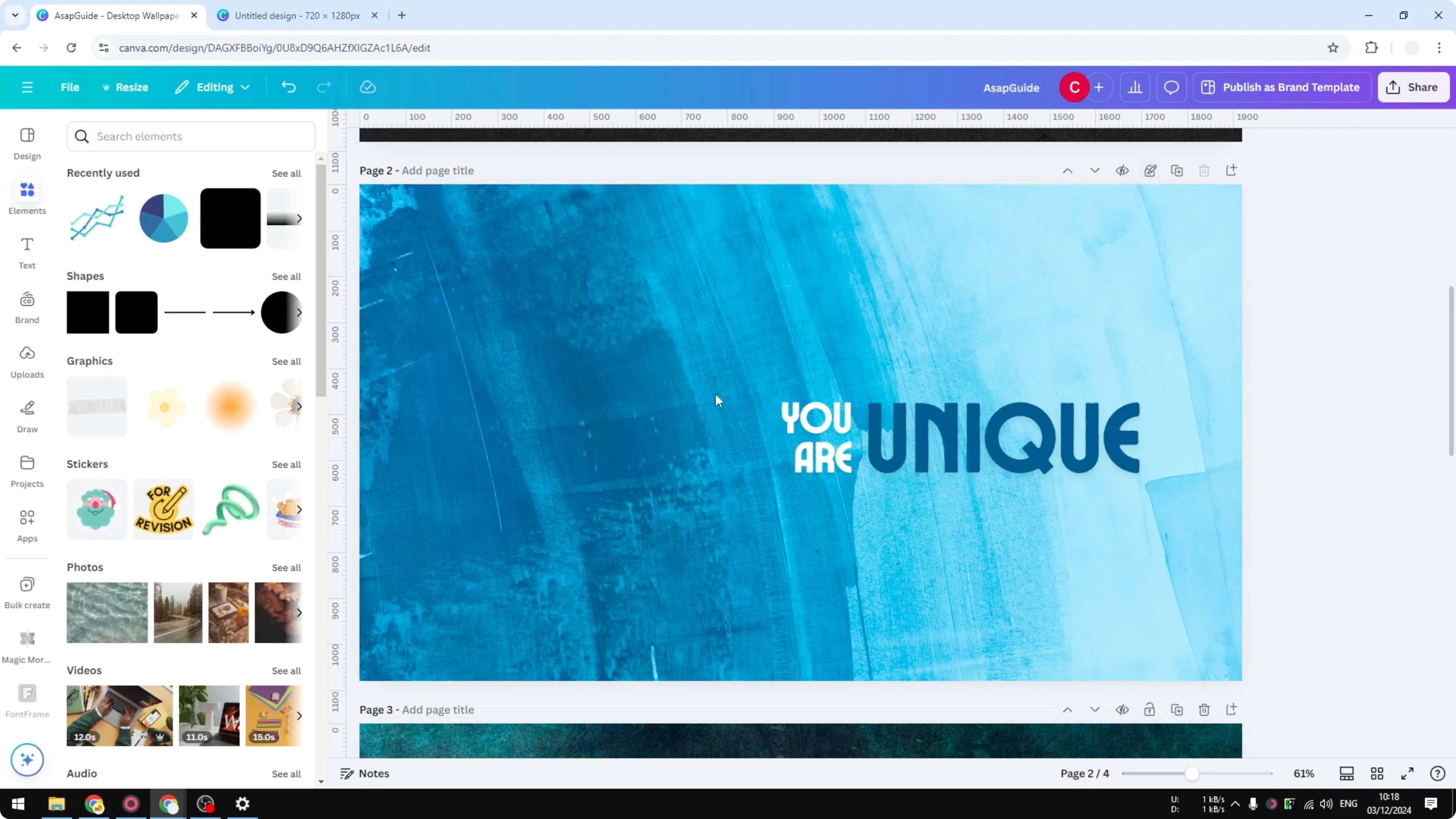
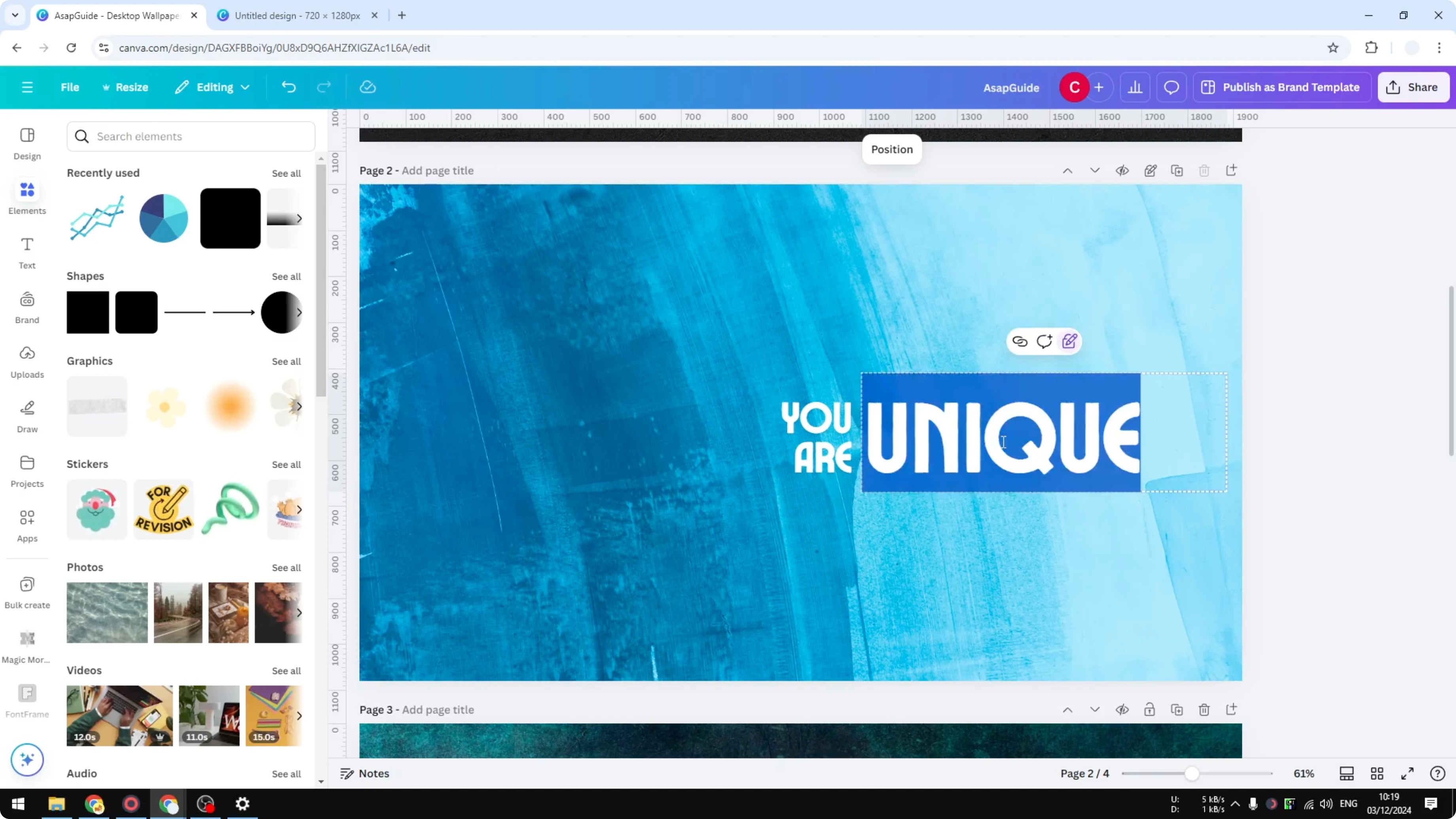
You can still change the text. You can change other things, but you cannot change the position. It locks everything in place, which is really good.
Partial lock - Lock & Unloack Canva Page
Click the padlock icon to enable the first lock. You cannot move elements around the page. You can still edit text and some style settings.
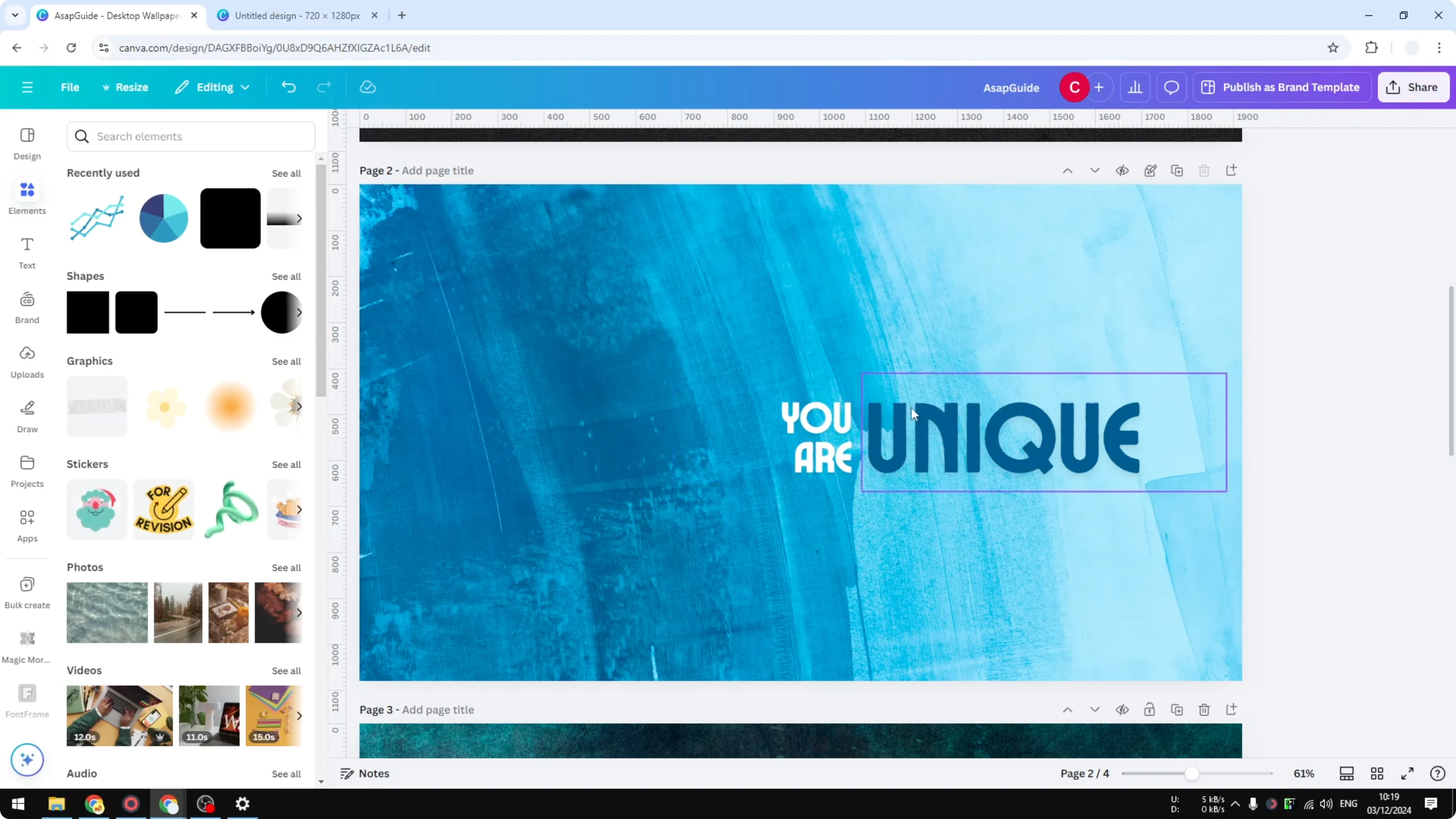
If you see the padlock open with a strike, it is in the movable-off state. Text boxes stay put, images stay put, and layout integrity is preserved. Use this when you want to tweak words without nudging layouts.
Read More: Lock Background Canva
Absolute lock - Lock & Unloack Canva Page
Click the padlock icon again for the absolute lock. You cannot change the text, you cannot change the color, and you cannot change the position. This page is not in the editing mode.
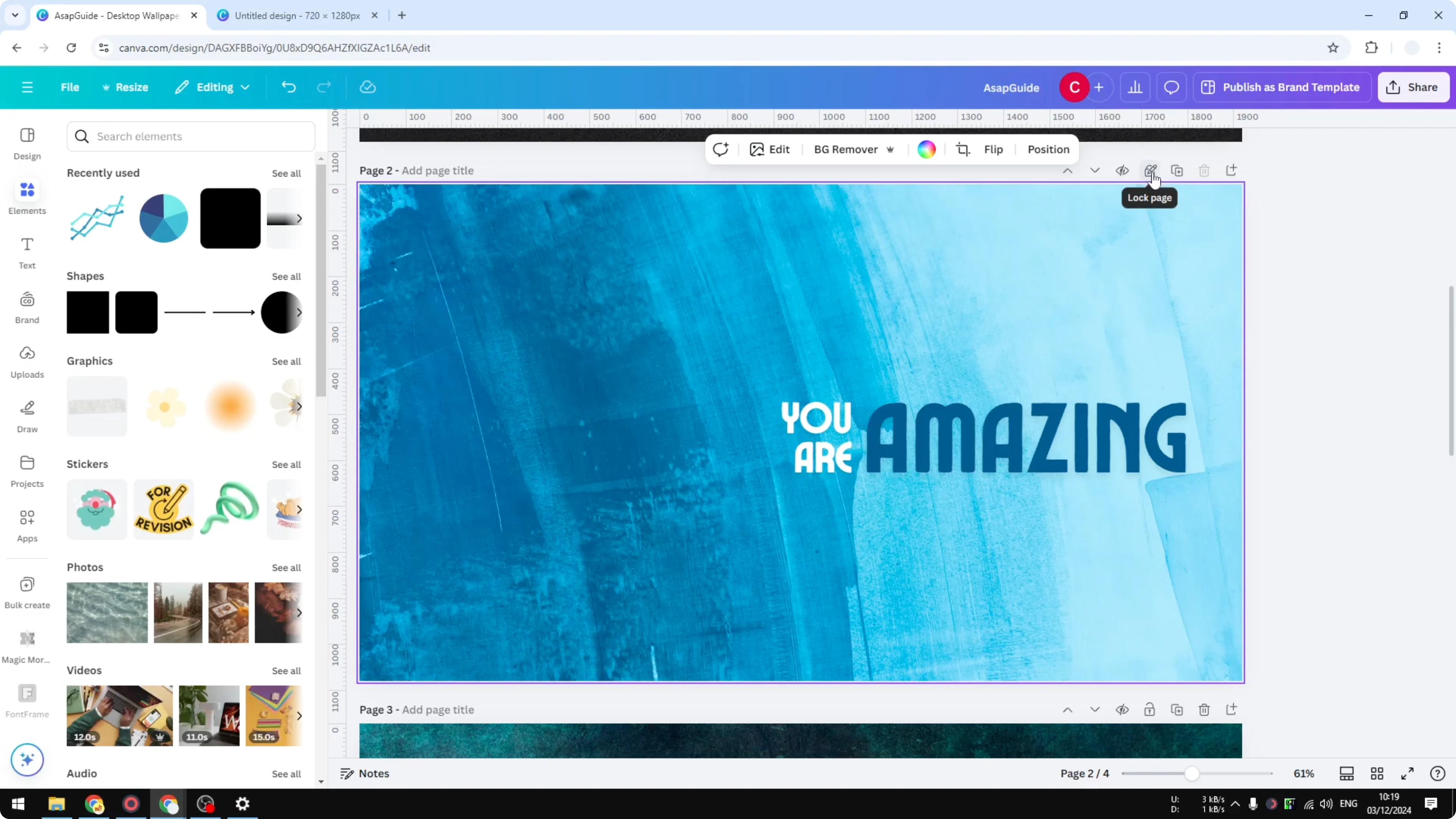
Look for the closed padlock. That indicates the page is fully locked. Use this when the page is final and must not be edited.
Thumbnail view and right-click - Lock & Unloack Canva Page
I recommend enabling Thumbnail view. It is easier to look at, and the lock icon is visible on each page. This makes it quick to confirm which pages are locked.
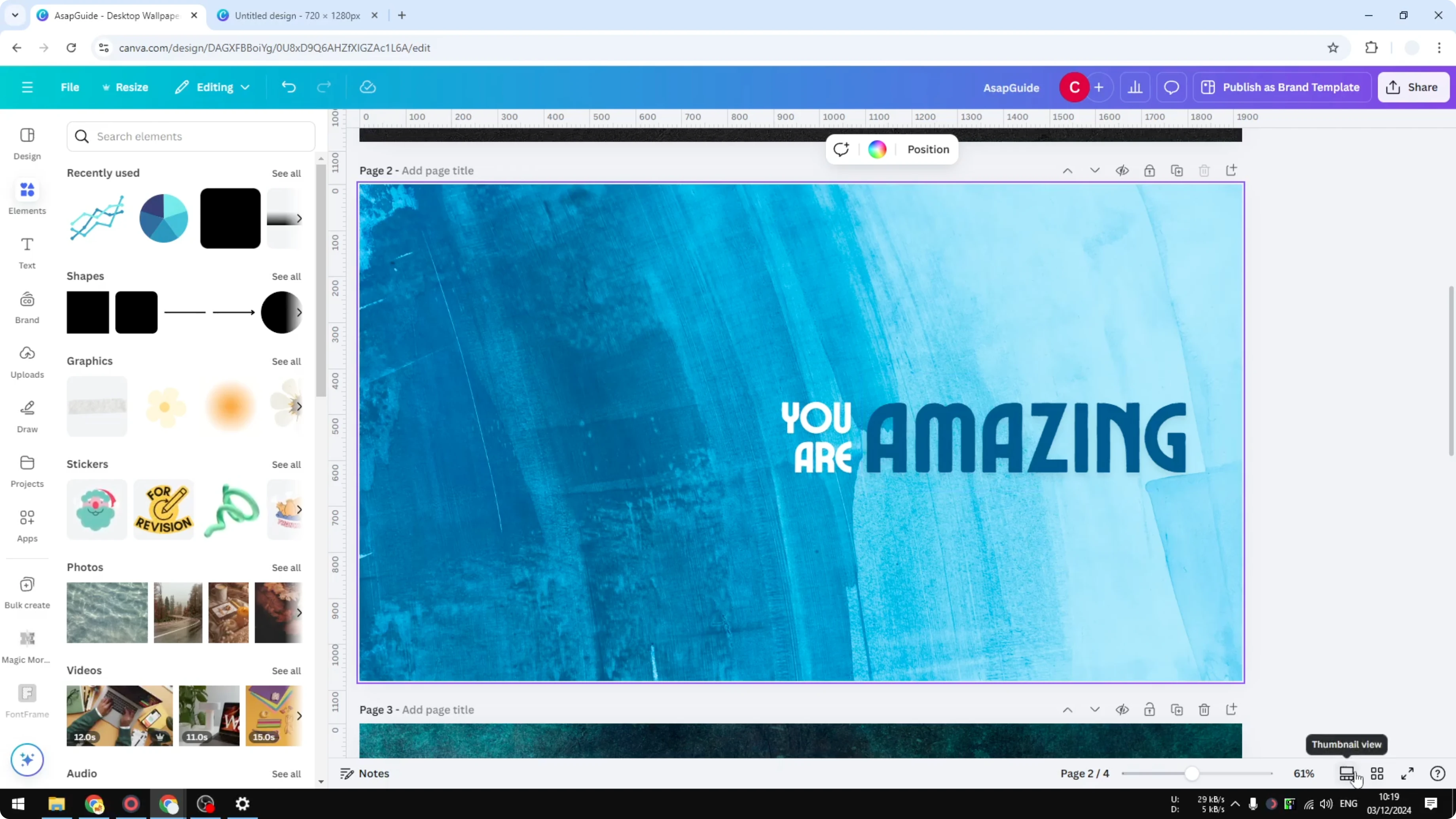
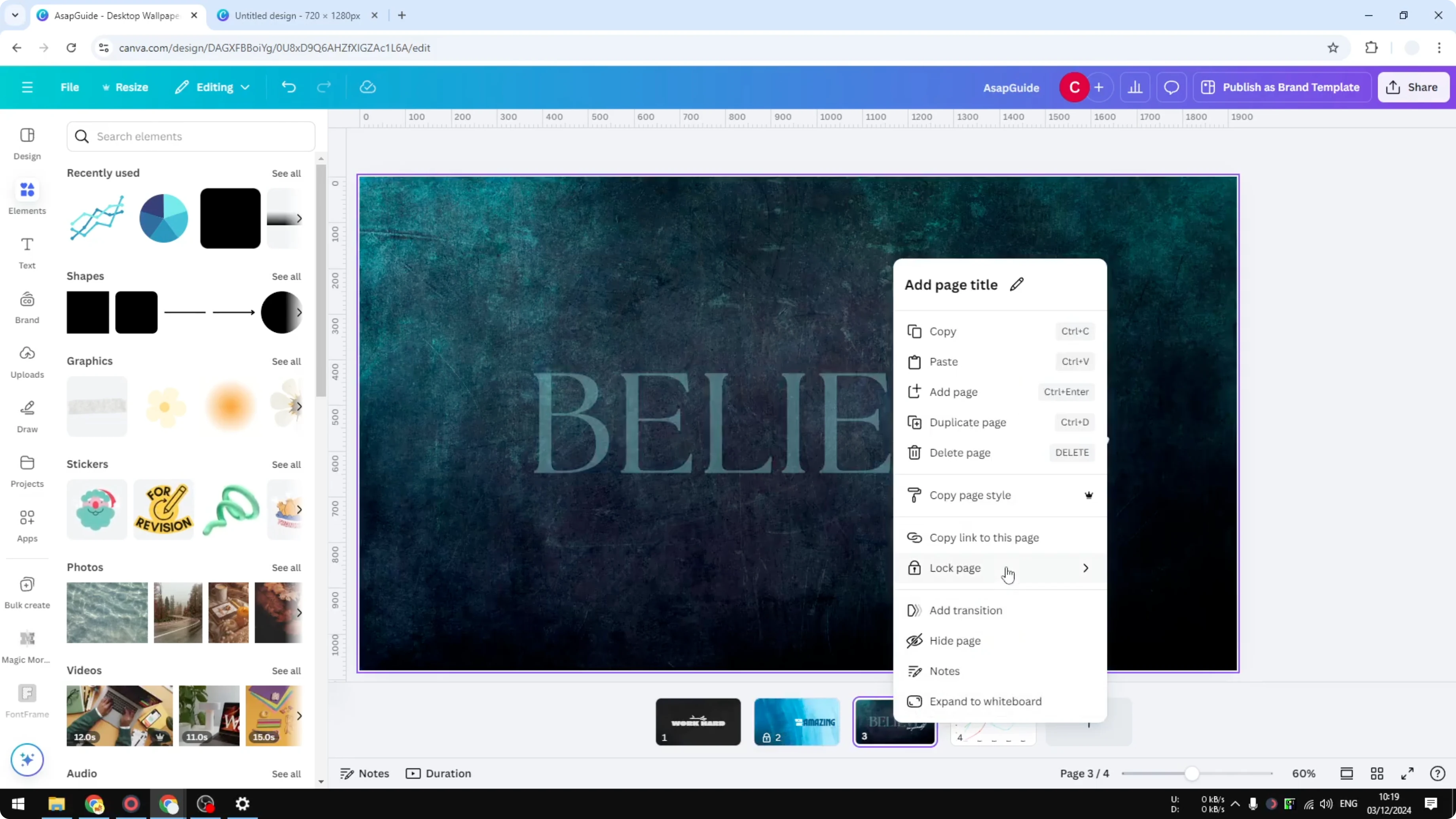
Right-click on any page in the thumbnail panel. Click Lock page. Select one of the two options to pick partial or absolute lock without cycling the padlock multiple times.
Read More: Copy Canva Page Another Design
Unlock - Lock & Unloack Canva Page
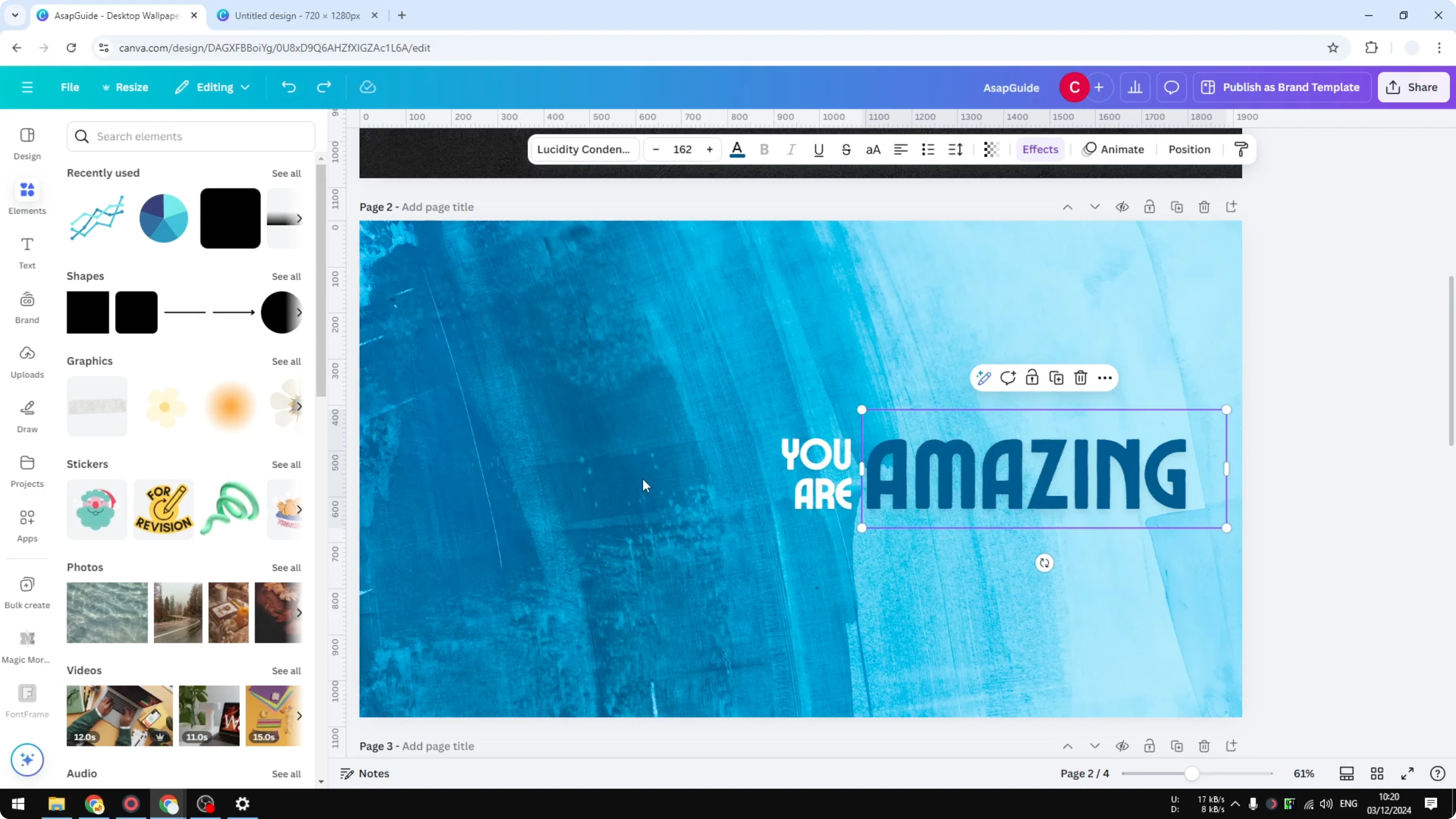
Click the padlock icon again to disable the locking feature. The page unlocks and returns to normal editing mode. You can edit everything on the page.
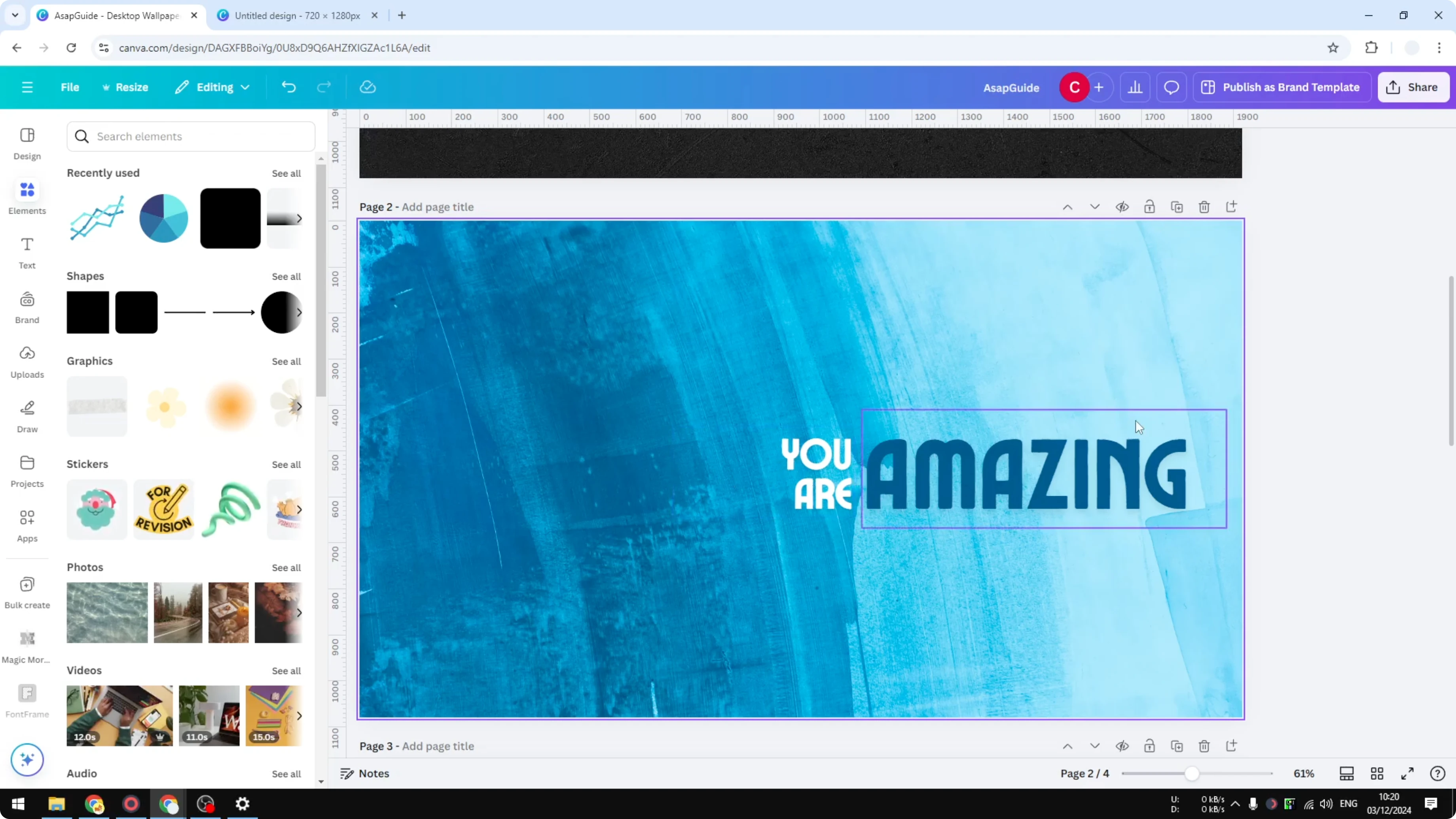
If you used the right-click Lock page menu, return to the same menu. Choose Unlock page. Confirm the icon updates before continuing your edits.
Final thoughts - Lock & Unloack Canva Page
Use partial lock when you want to edit text without breaking your layout. Use absolute lock when you want to freeze the page completely. Click the padlock again or use the right-click menu to unlock and continue working.
Read More: 3D Book Cover Canva
Recent Posts

How to Visualize Yourself as a Pixelized Character with AI?
How to Visualize Yourself as a Pixelized Character with AI?

How to Revive Faded Memories and Enhance Image Clarity with AI?
How to Revive Faded Memories and Enhance Image Clarity with AI?

How to Visualize Yourself as an Animal Crossing Character with AI?
How to Visualize Yourself as an Animal Crossing Character with AI?