How to Lock Background in Canva

I’m going to show you how to lock the background in your Canva design. The background is usually a picture or a color located at the very back of your design layers. If you go to Position and then click Layers, Background is positioned at the very bottom.
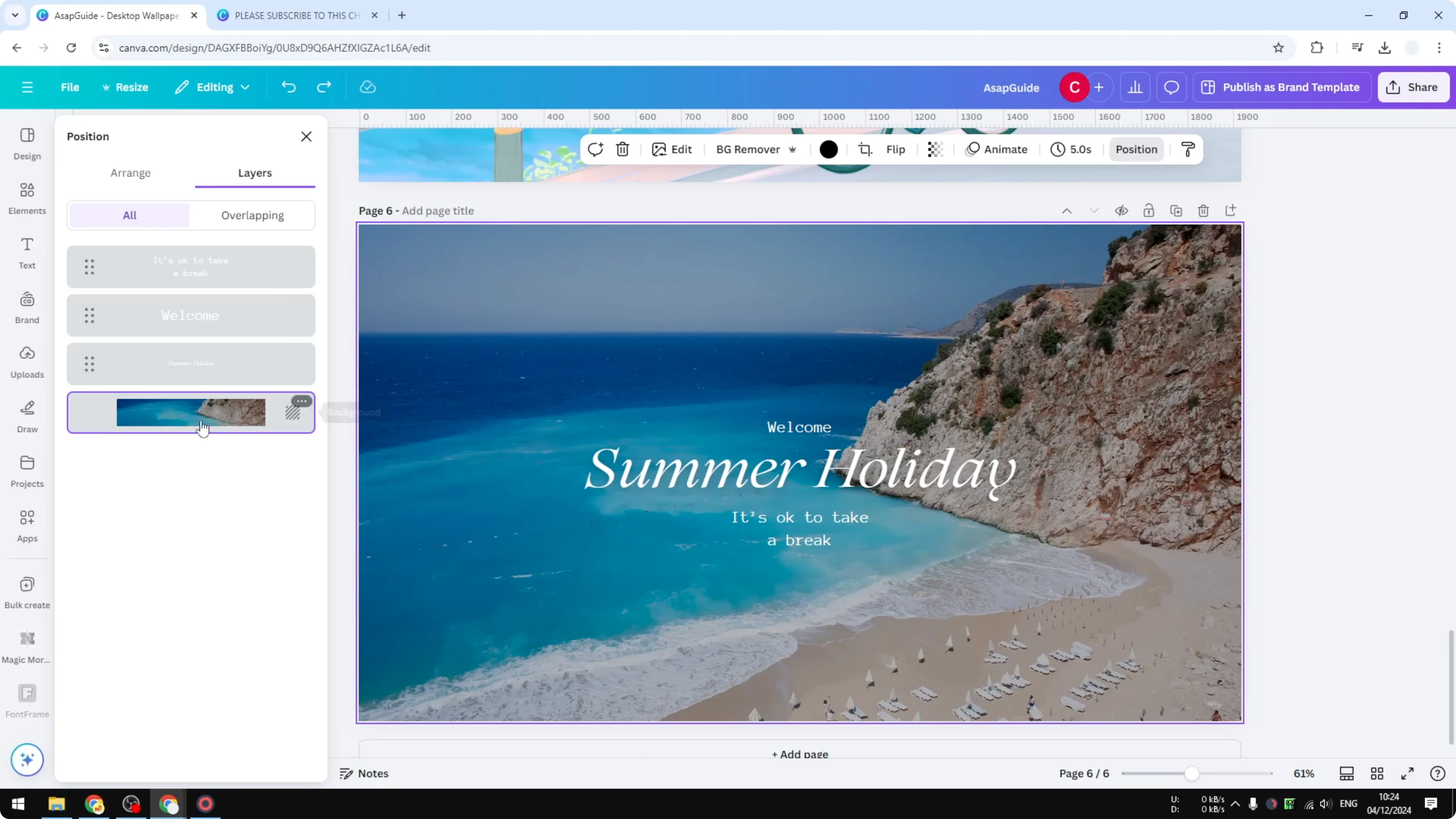
There are other elements stacked on top of it, and that is what makes it the background. It’s very useful to lock the background because you don’t want to accidentally change it into a different picture. For quick background edits before you lock, check our AI guide.
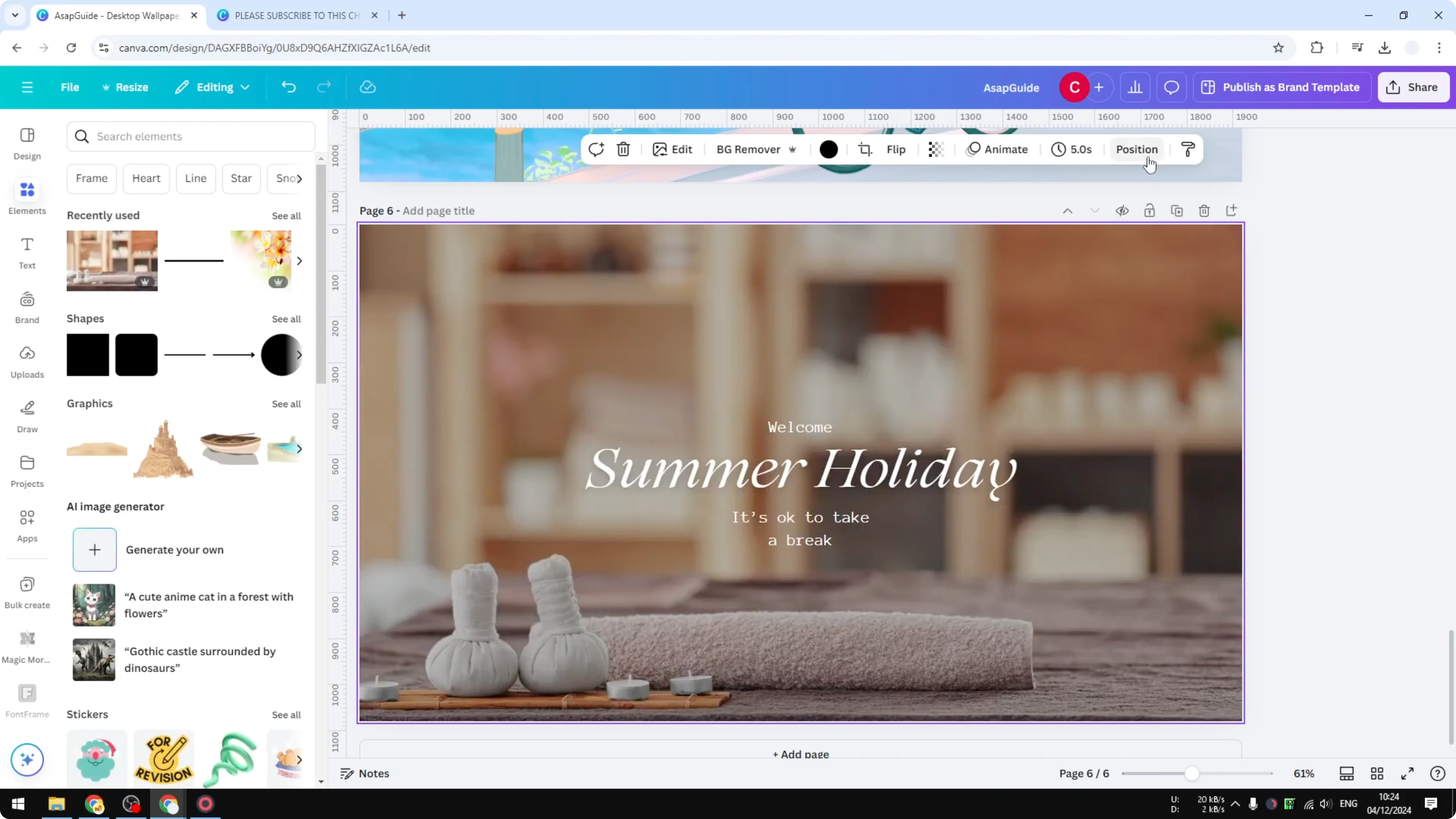
If I go to Elements and insert a picture by dragging, I could accidentally change the background. If you navigate to Position again, you’ll see the background is different. That’s why locking the background is highly recommended when you have a complicated design or when you want to insert other pictures.
Why Lock Background in Canva
When you drag and drop images onto a page, Canva may treat them as a new background. This happens if the drop targets the background area. Locking prevents that replacement and keeps your design stable.
It also helps when you’re iterating on layouts with many overlapping items. You can focus on foreground elements without nudging the background. This saves time and avoids unwanted edits.
How to Lock Background in Canva
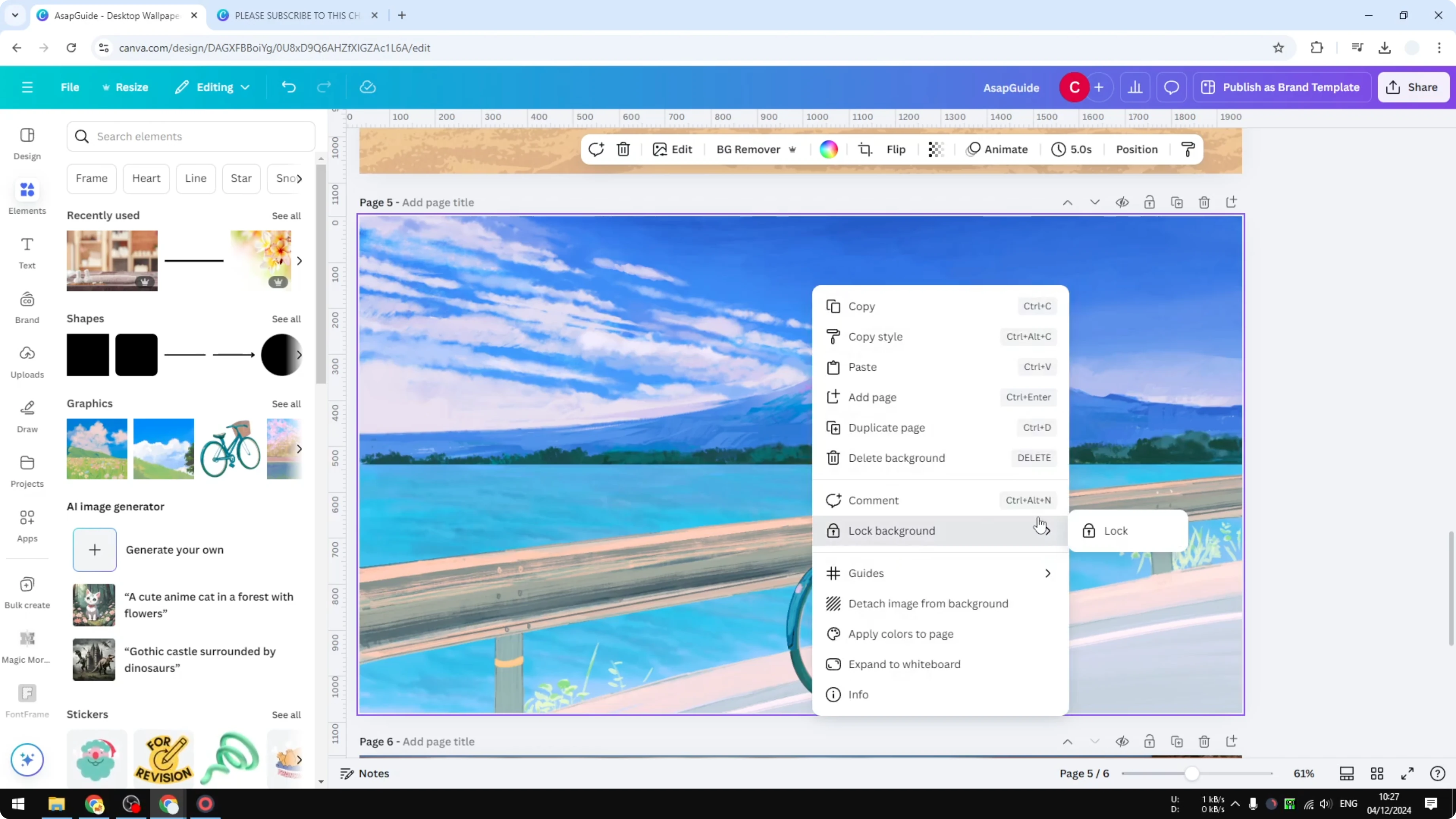
Right-click on the background and click Lock background, then click Lock. This protects the page background from changes and movement. You can still add new elements on top.
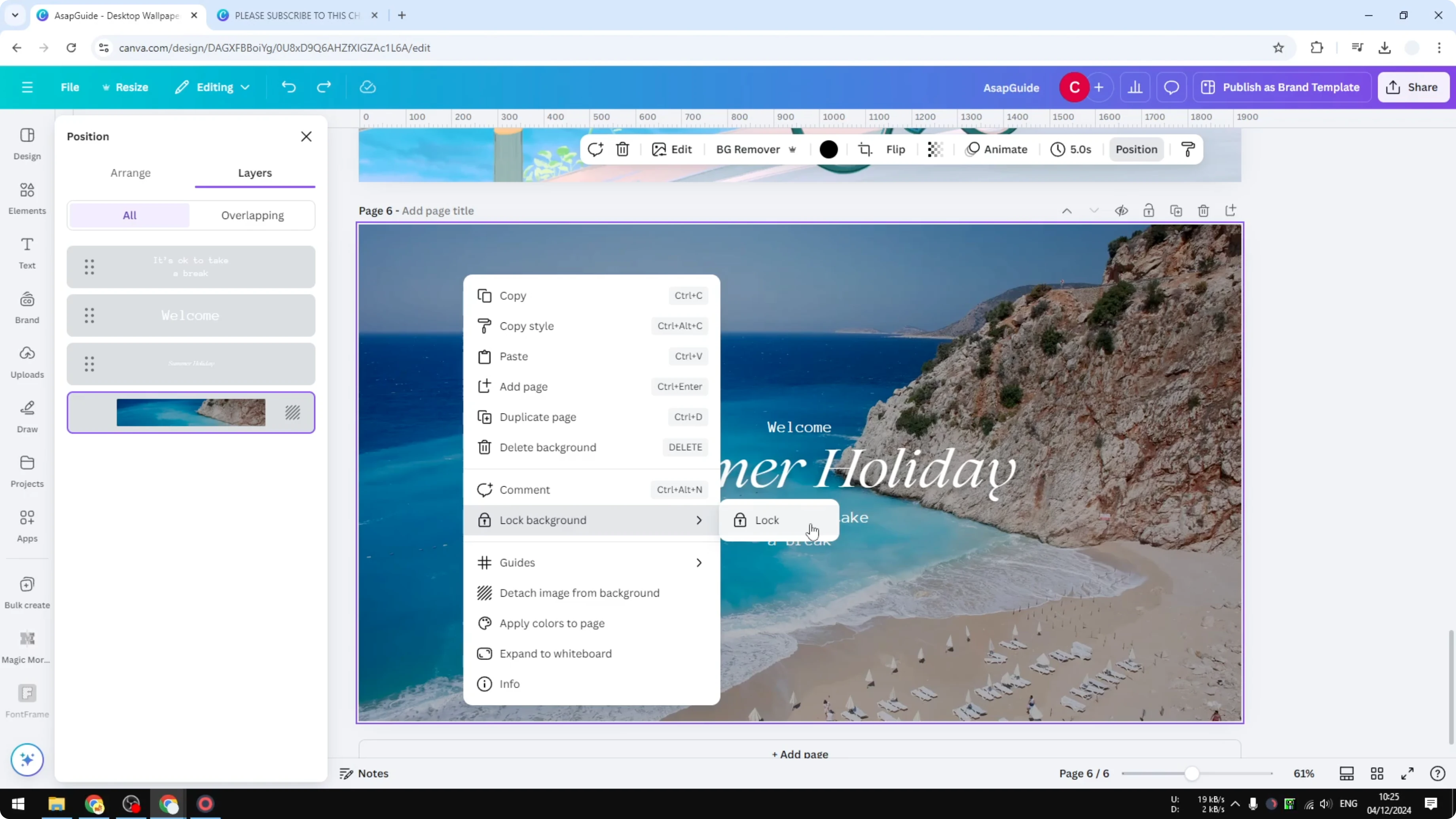
You can also go to Position, open Layers, right-click Background in the list, choose Lock background, then click Lock. Both methods achieve the same protection. After locking, dragging images will not replace the background.
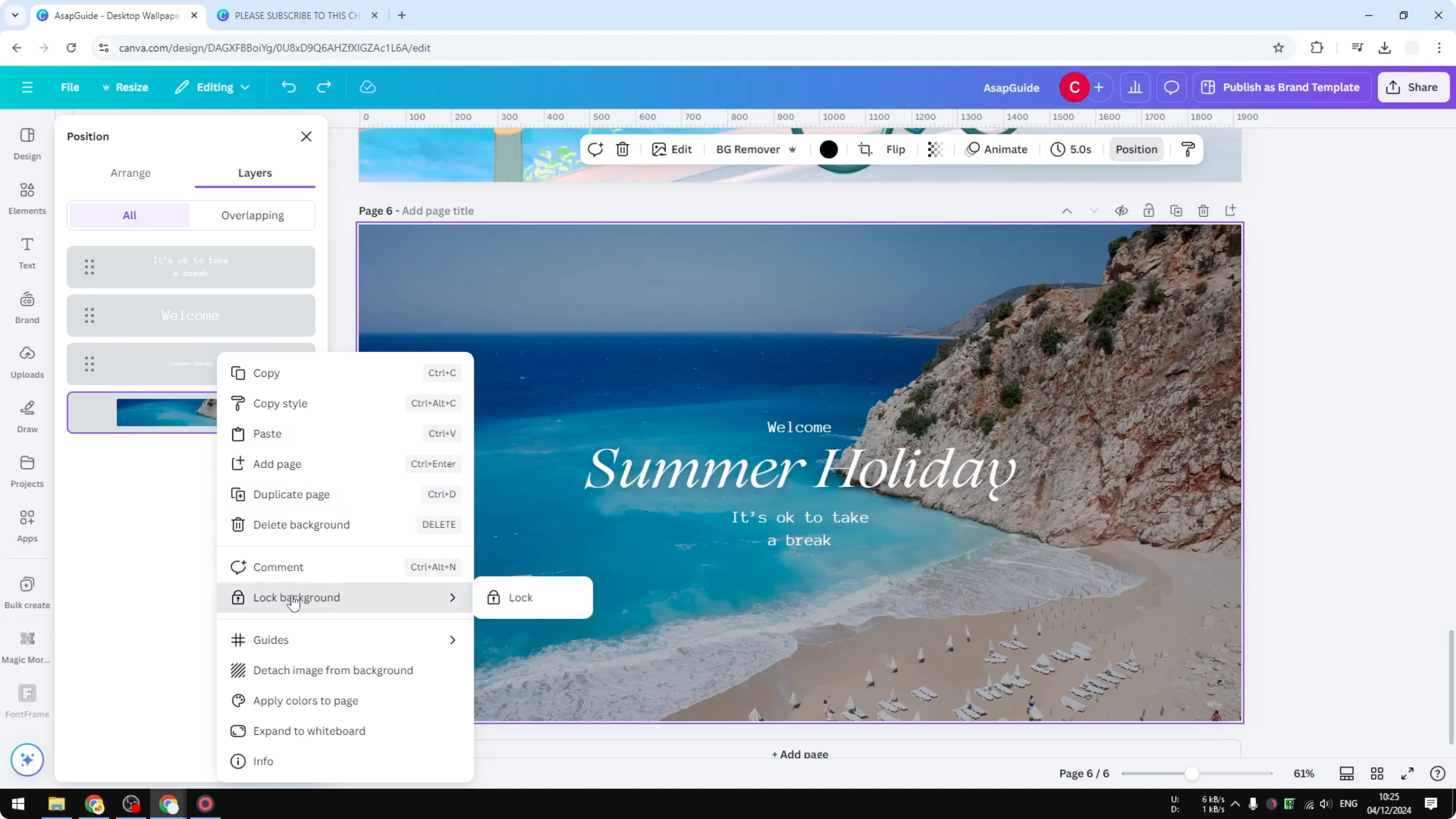
I won’t accidentally change the background even if I try to put a different picture into this design. If I go to Elements again and drag and drop, the new image is not a background. If you go to Position and click Layers, you’ll see it’s just a big image positioned on top of the background.
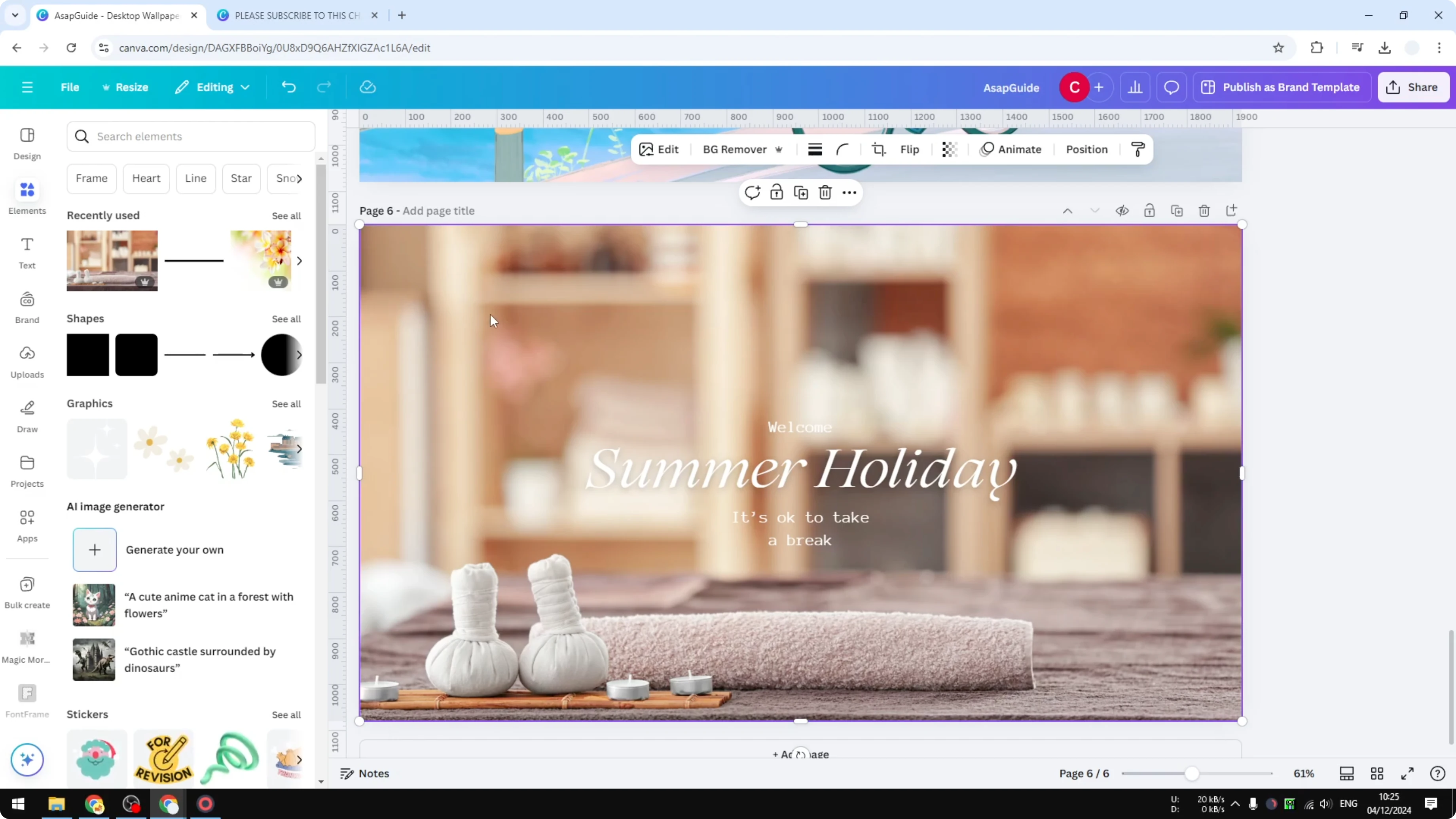
I can move it somewhere else and it will reveal the actual background. That prevents the background from being accidentally changed. For video projects, see this quick tip on video background.
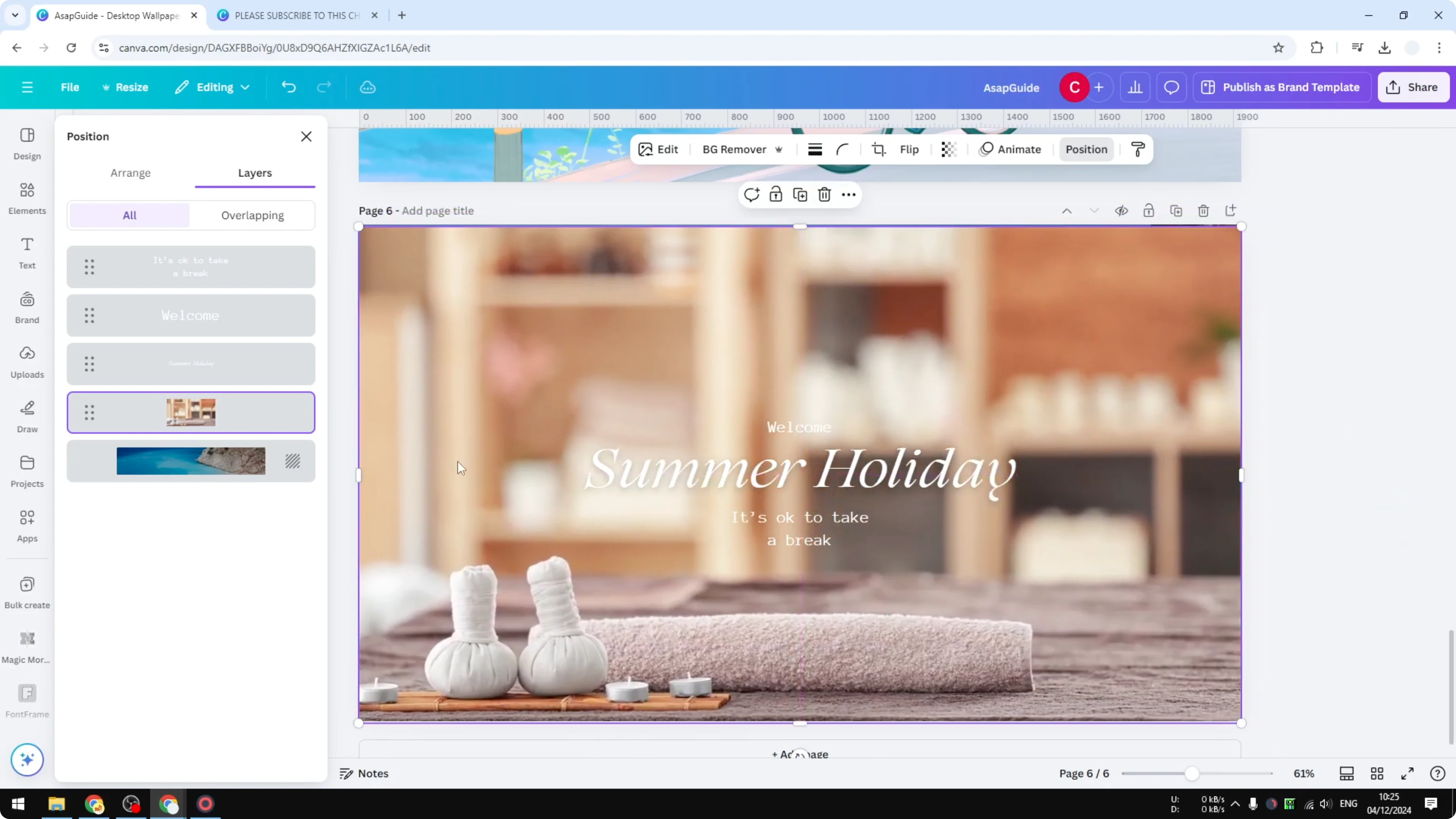
Check With Layers While You Lock Background in Canva
Open Position and view Layers to confirm Background sits at the bottom. Any new image you drop should appear above it. If you see the Background label change after a drop, unlock and reapply the correct background, then lock it again.
Lock Background in Canva With Multiple Elements
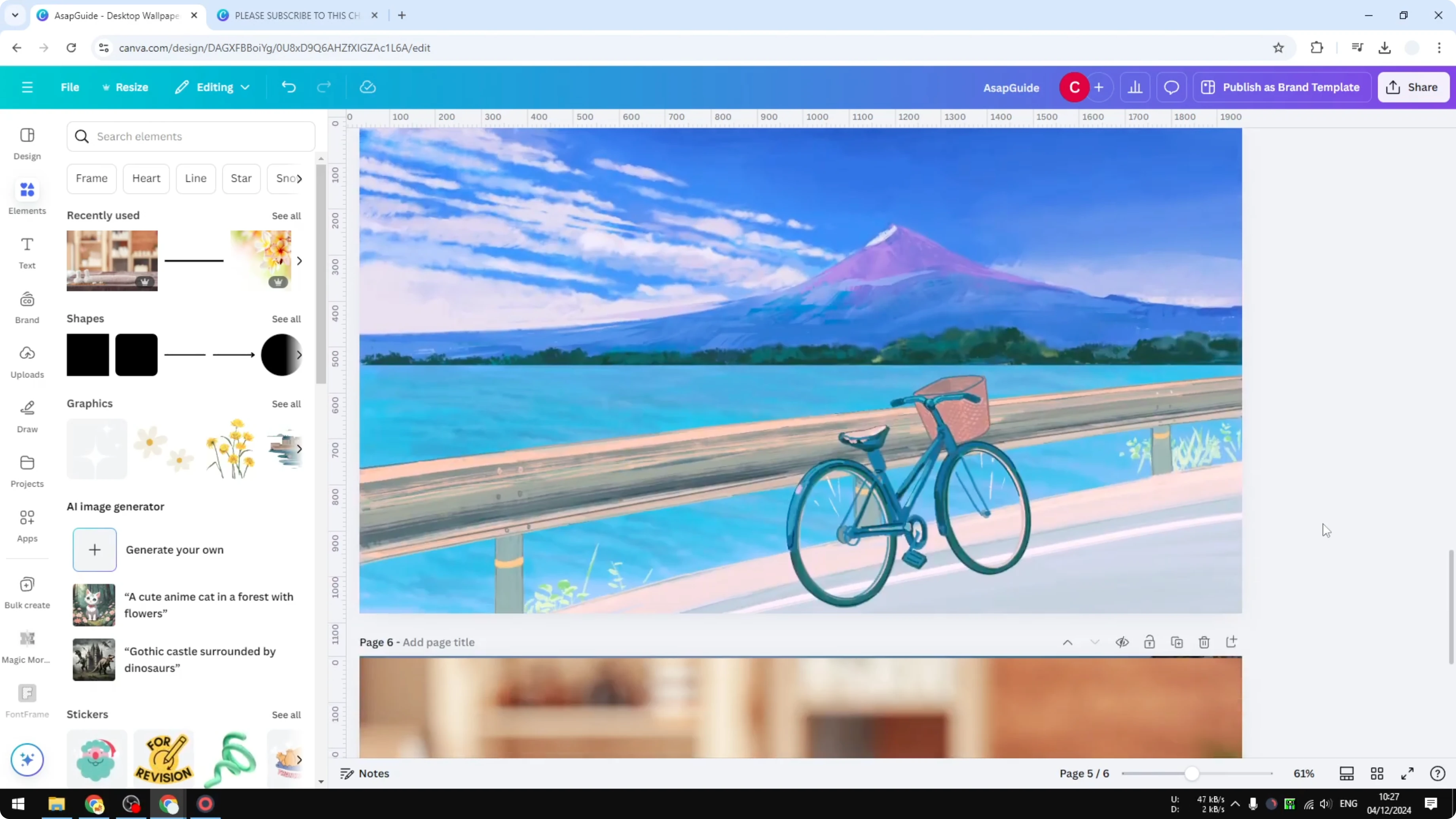
If you’re using other elements like shapes or vector art, or if you have multiple items combined to act as a background, lock those too. In this document, for example, it’s not one picture but two different pictures - a lower part and a top section. The top section is the actual background, and I used another picture to create the illusion of a bicycle, even though the original picture was different.
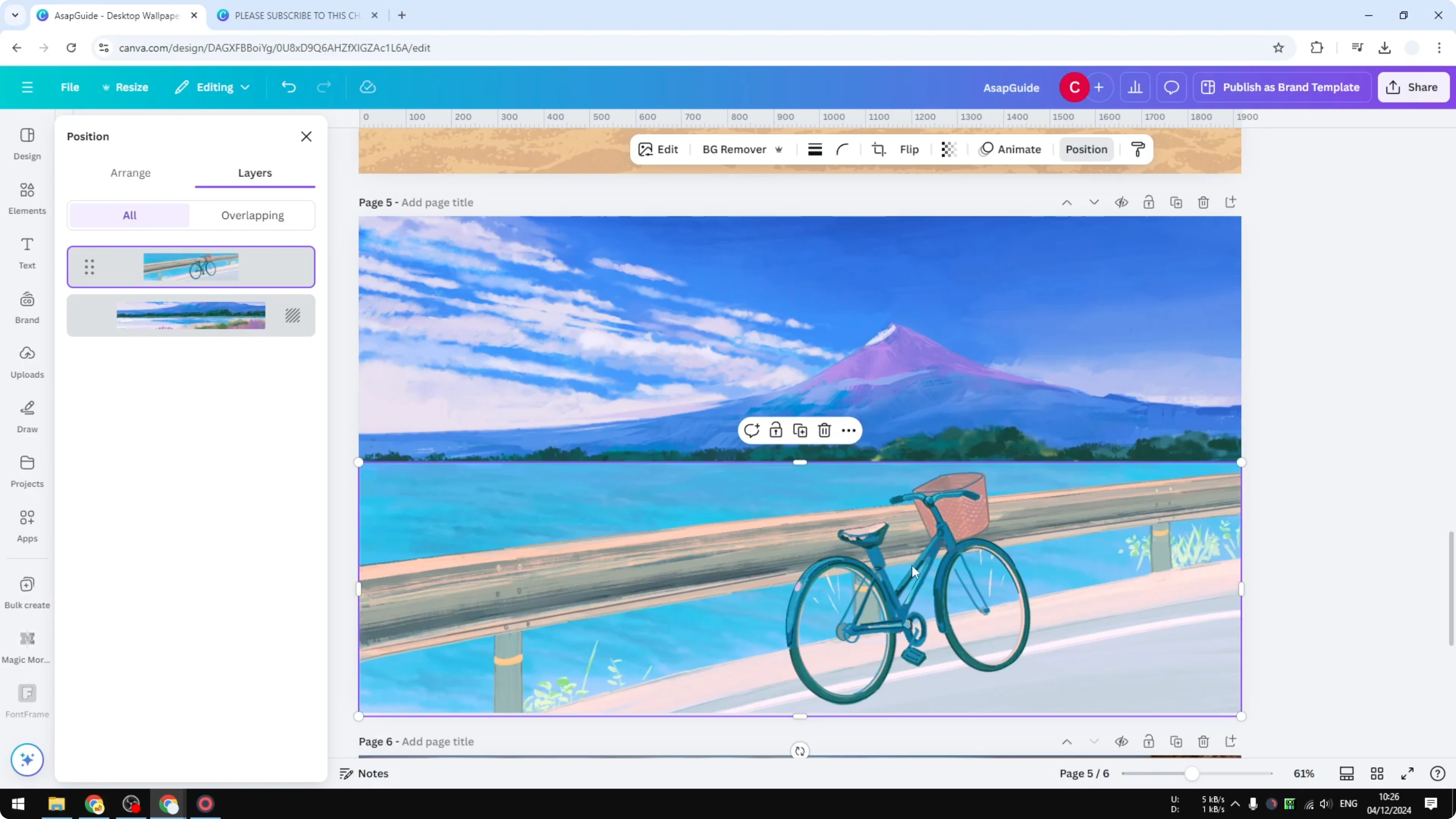
This is one type of background built from two elements overlapping. Usually there’s not much you can do, but one thing that helps is locking the extra element as well. This element is free to move, and I don’t want that to happen.
Click the element and click the padlock icon to lock the position. Click Lock once again to fully lock it. The first click locks its position but you can still change content, and the second click locks the entire thing so you won’t move or change the object.
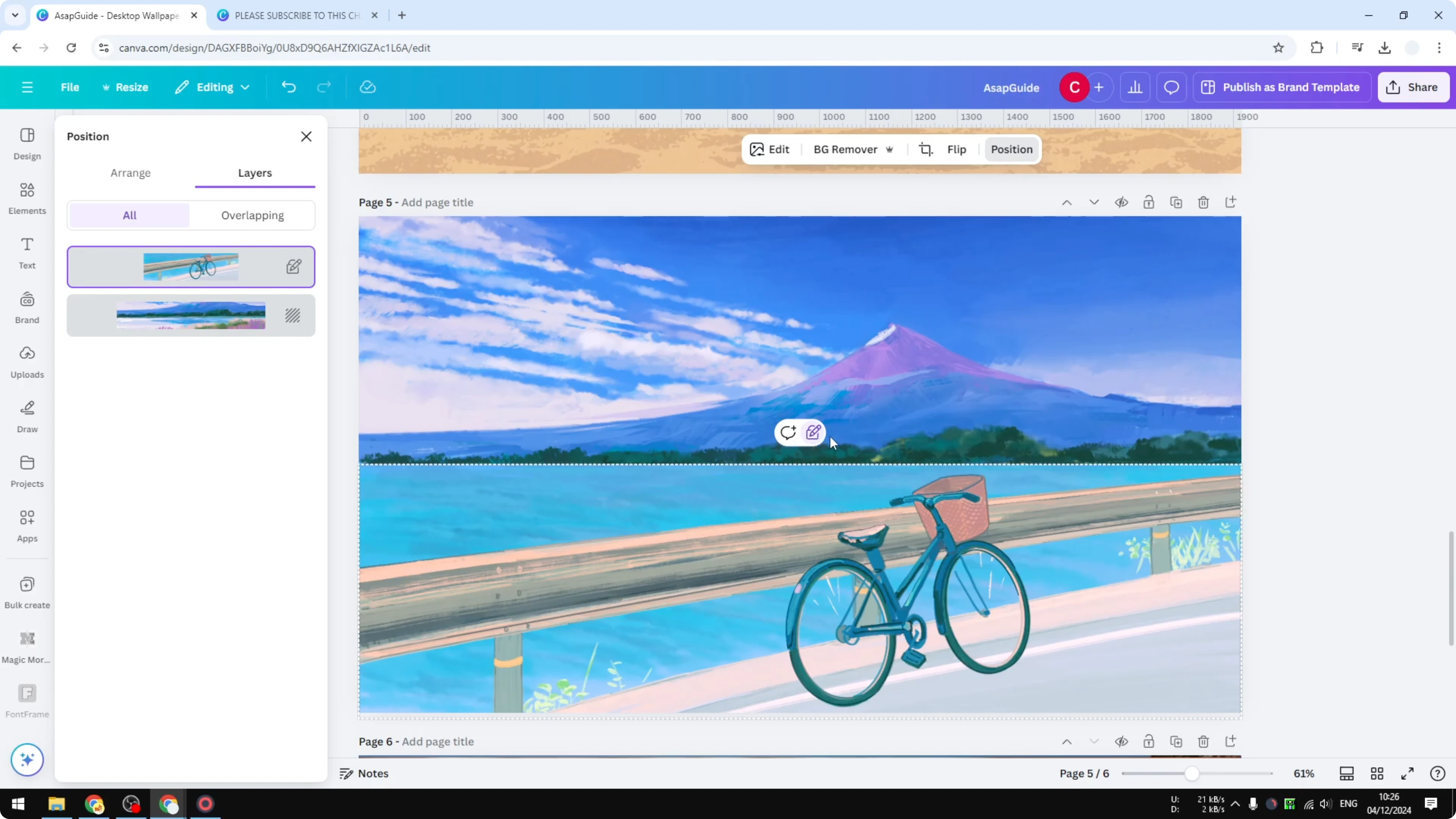
Do the same for the background - right-click, Lock background, and click Lock. Now these two are not going to be accidentally moved while working on the page. If you need animated scenes later, see how to make an animated Zoom background.
Final Thoughts on Lock Background in Canva
Background sits at the bottom of Layers, and locking it prevents accidental replacements when dragging images. Use right-click Lock background or lock it from the Layers panel. For composite backgrounds, lock each element and the background to avoid unwanted movement or edits.
Recent Posts

How to Visualize Yourself as a Pixelized Character with AI?
How to Visualize Yourself as a Pixelized Character with AI?

How to Revive Faded Memories and Enhance Image Clarity with AI?
How to Revive Faded Memories and Enhance Image Clarity with AI?

How to Visualize Yourself as an Animal Crossing Character with AI?
How to Visualize Yourself as an Animal Crossing Character with AI?