How to Replace a Video with Another in Canva
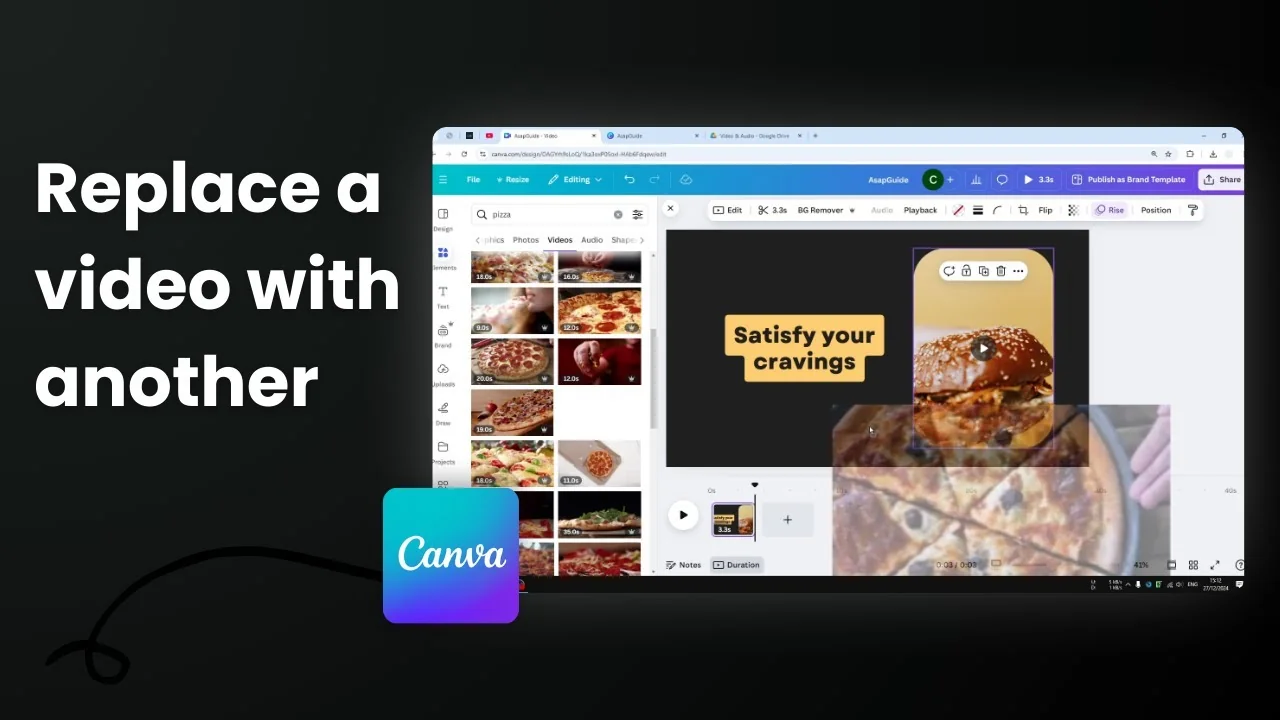
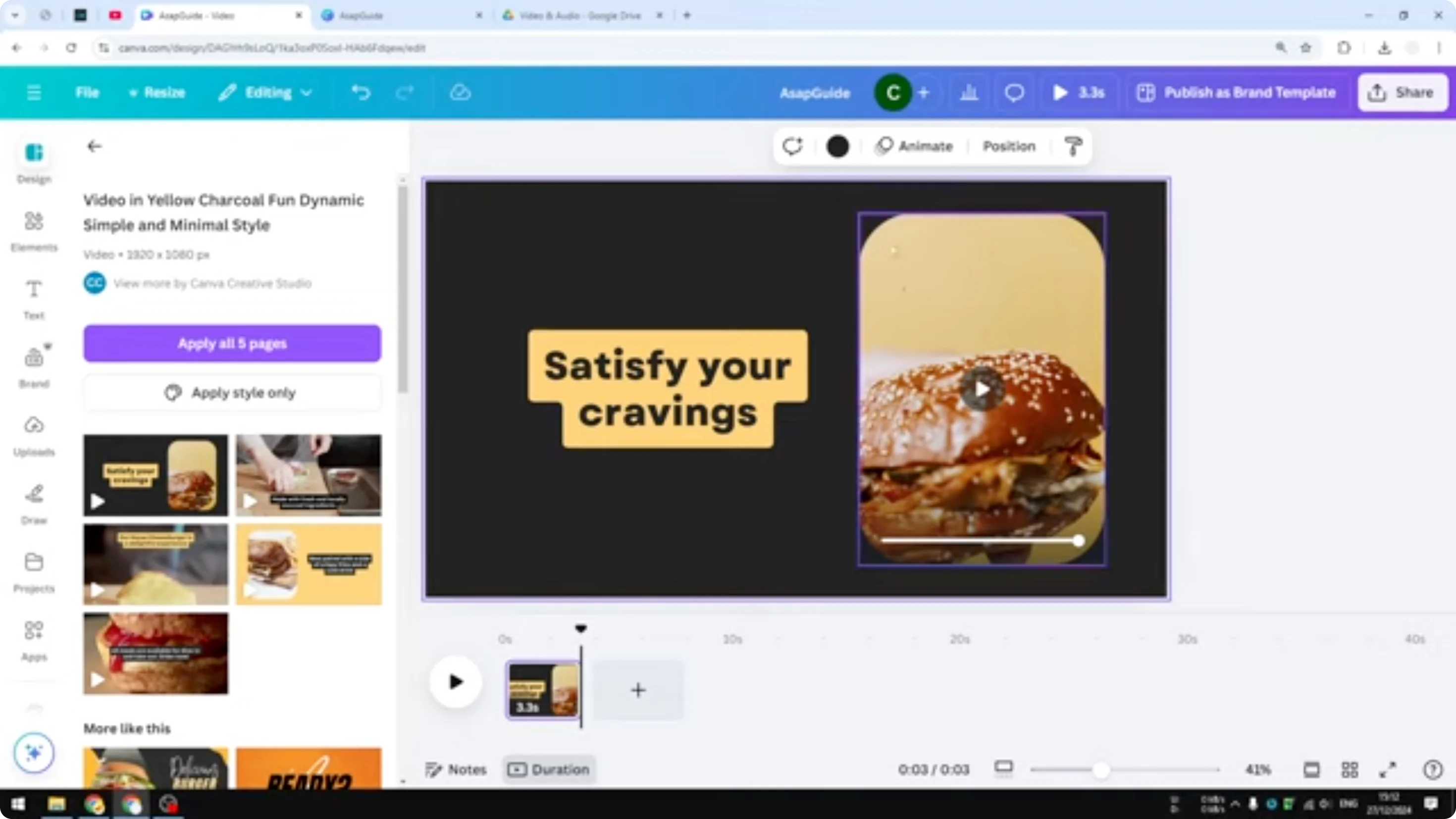
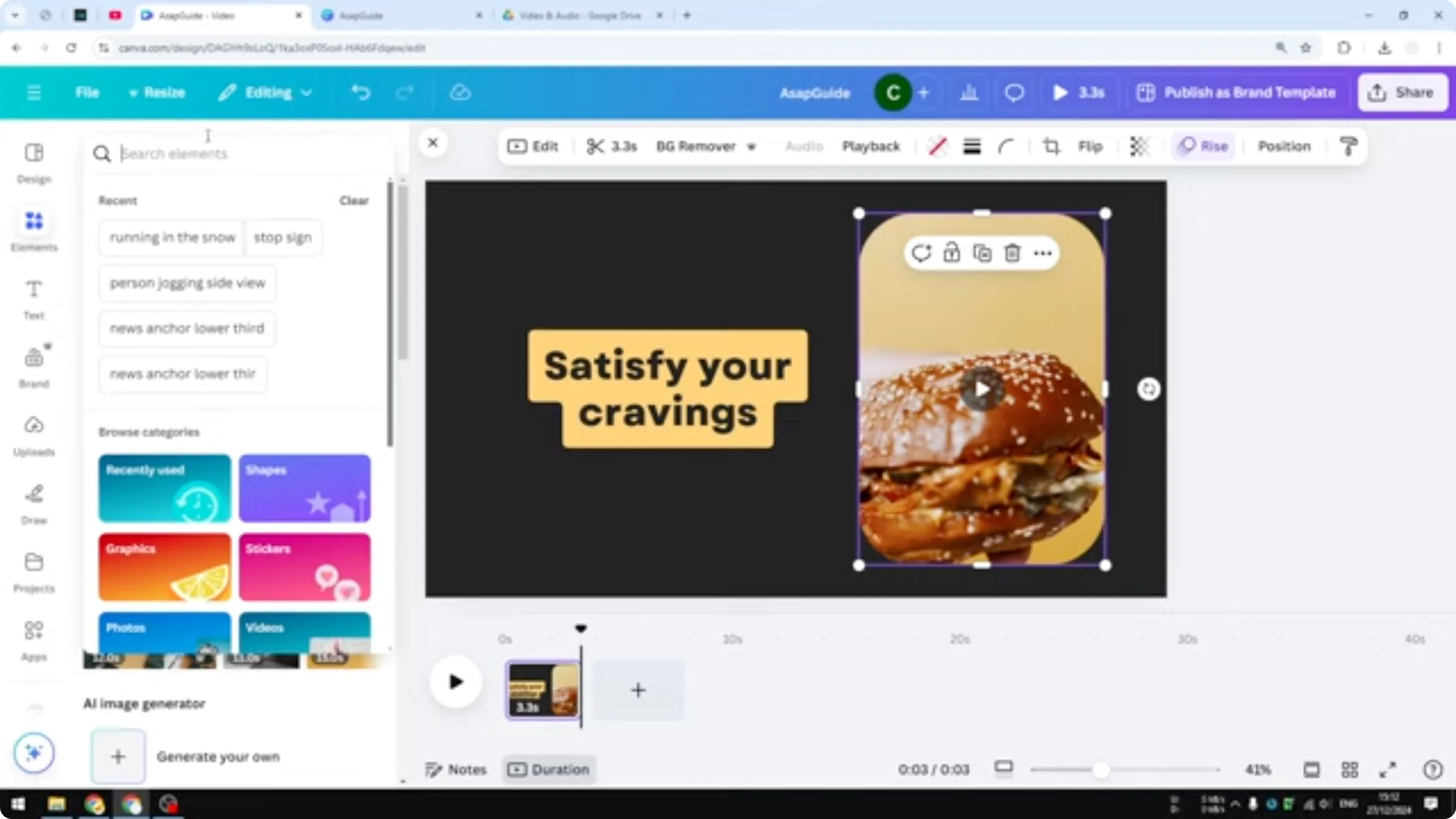
I'm going to show you how you can replace a video in your Canva video project. I have a video template that is supposed to be showcasing a product - in this case, food and beverages.
You want to replace this video with something that is actually yours. You don't want to manually insert a video into this template and then crop and adjust the settings manually. You just want to replace this video with your video.
Replace a Video with Another in Canva
Follow these steps:
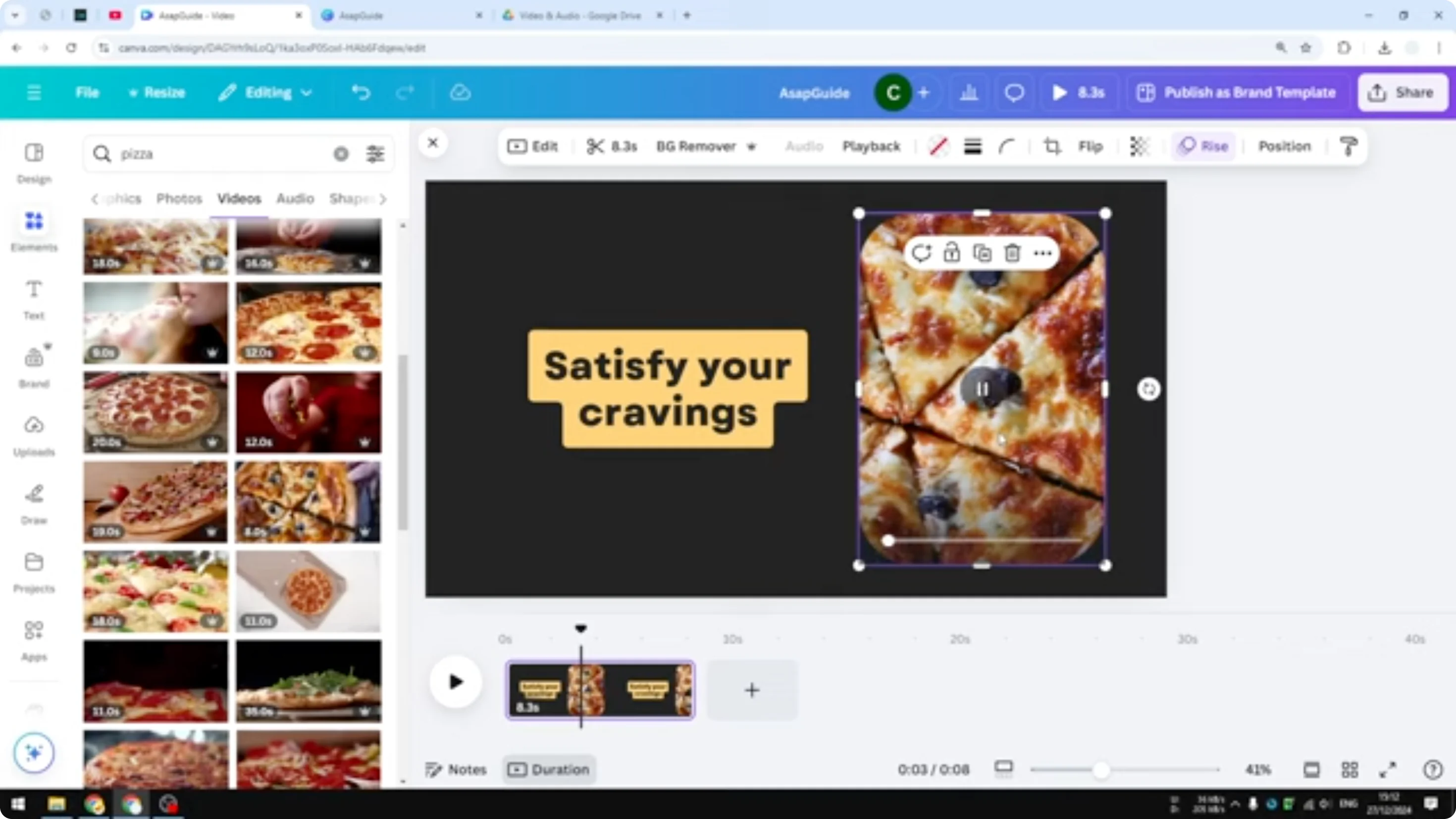
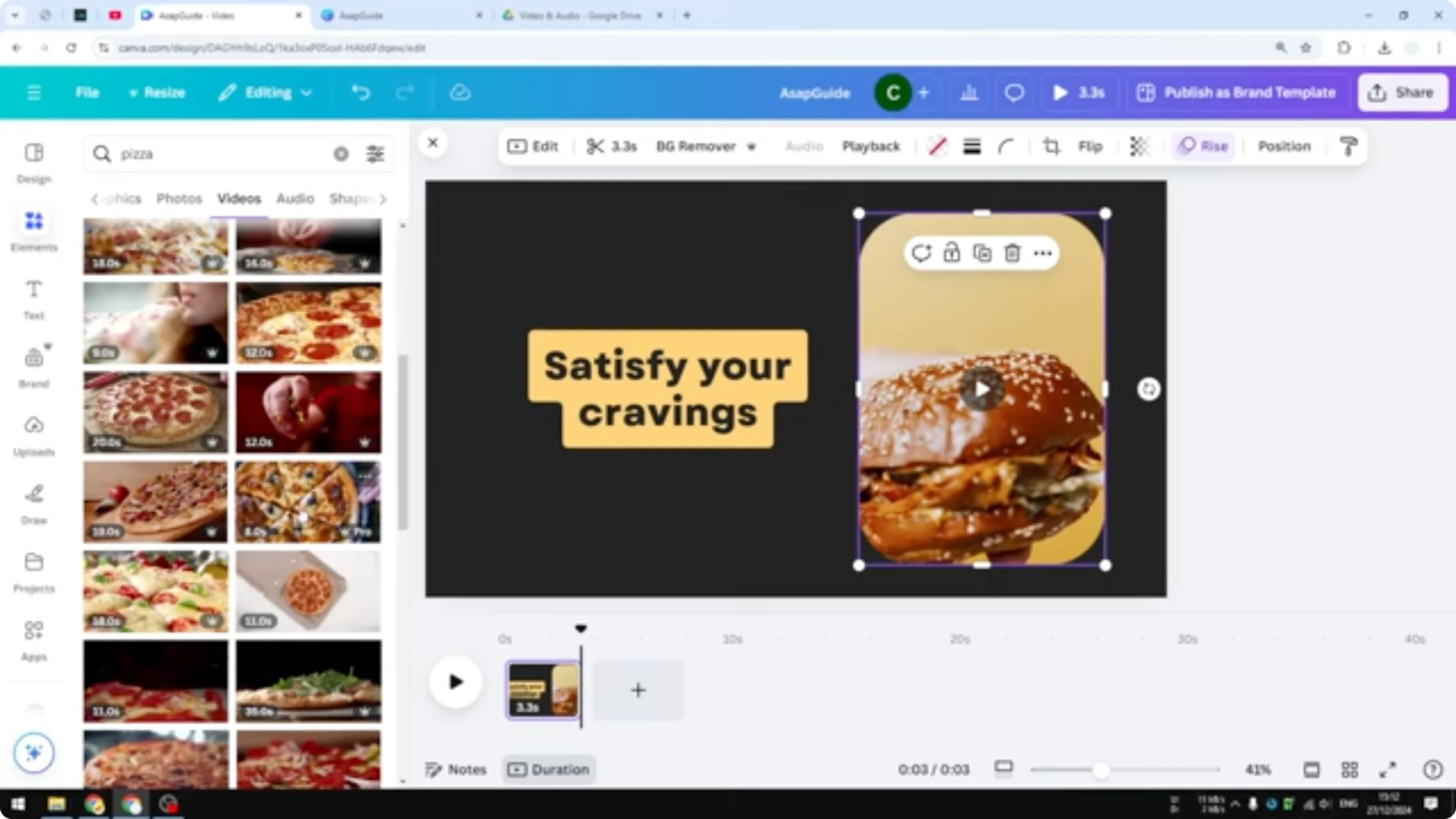
- Upload a video to your Canva gallery, or choose one from the stock library. For example, search for a video of pizza.
- Click and drag the video on top of the frame in the template to replace the existing clip.
- To make sure it shows the most important area, double-click the video and adjust the cropping and position. In this case, I show the edge of the pizza.
- Click Done.
- Play the video to see the result. It looks a lot better than the previous area shown in the frame.
Final Thoughts
This is the simplest way to replace a video with another video in Canva - literally just drag and drop, then adjust the crop if needed.
Recent Posts

How to Visualize Yourself as a Pixelized Character with AI?
How to Visualize Yourself as a Pixelized Character with AI?

How to Revive Faded Memories and Enhance Image Clarity with AI?
How to Revive Faded Memories and Enhance Image Clarity with AI?

How to Visualize Yourself as an Animal Crossing Character with AI?
How to Visualize Yourself as an Animal Crossing Character with AI?