How to Blur a Shape in Canva
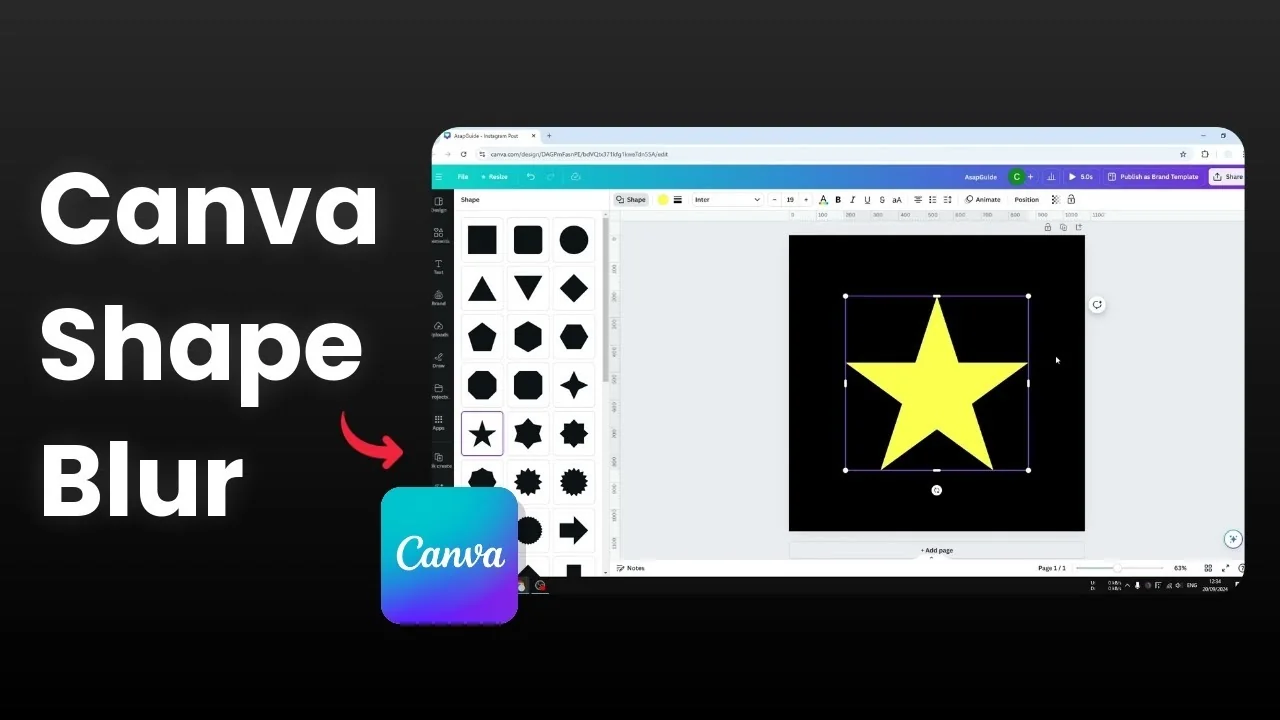
I will show you how to blur a shape in Canva. A shape is a new type of element in Canva that is similar to shapes in Microsoft Word or PowerPoint. You can choose presets like square, circle, triangle, stars, arrows, and many others.
Shapes can be expanded or enlarged without pixelation, similar to vector art. We can use them much more easily in Canva. This scalability is great, but it also limits some effects.
Blur a Shape in Canva basics
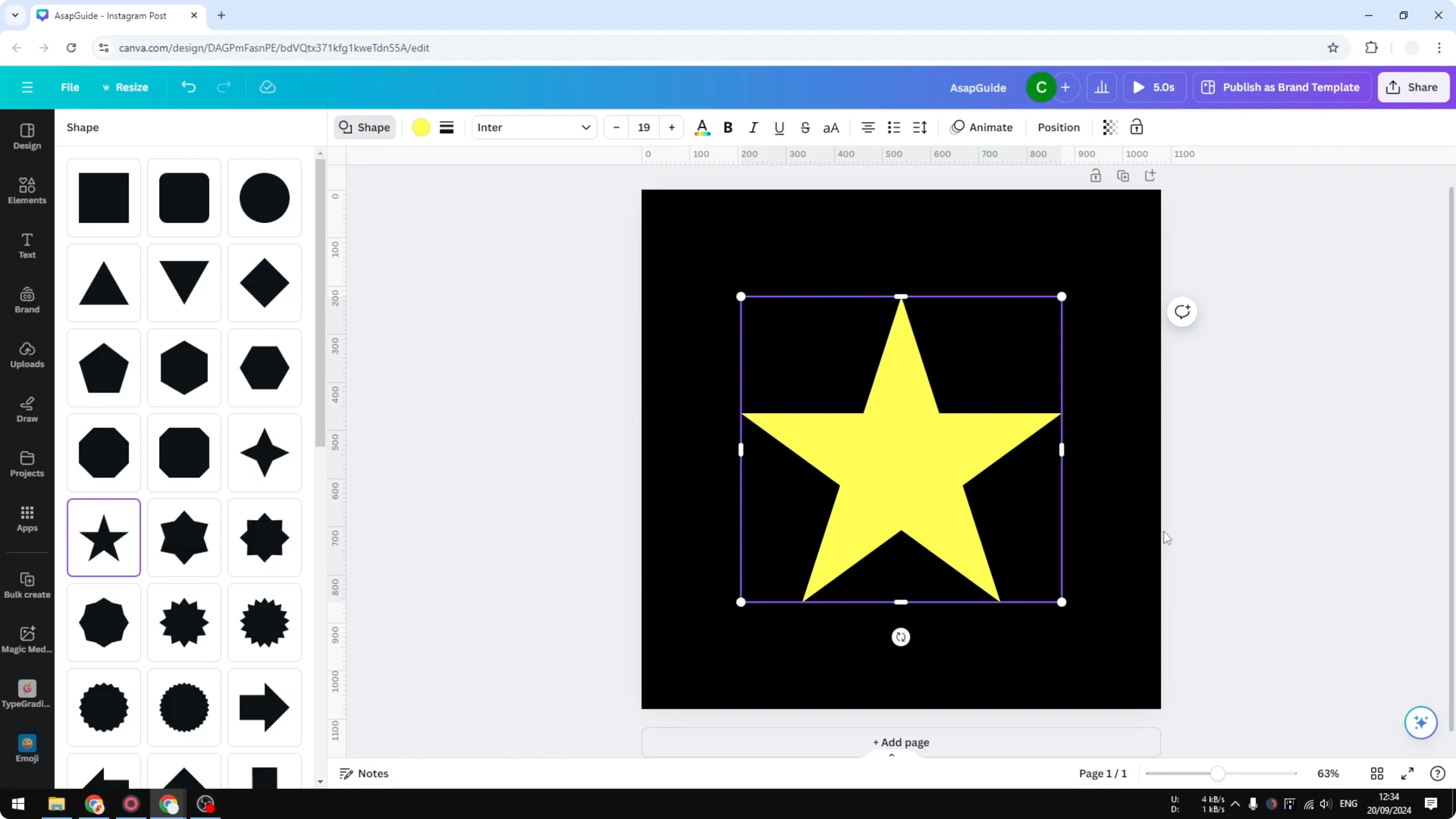
A shape is not an image, and that is why some editing effects cannot be applied directly. If you click a shape, there is no menu that allows you to add a blur effect. You can change the color, the size, and add a border, but that is it.
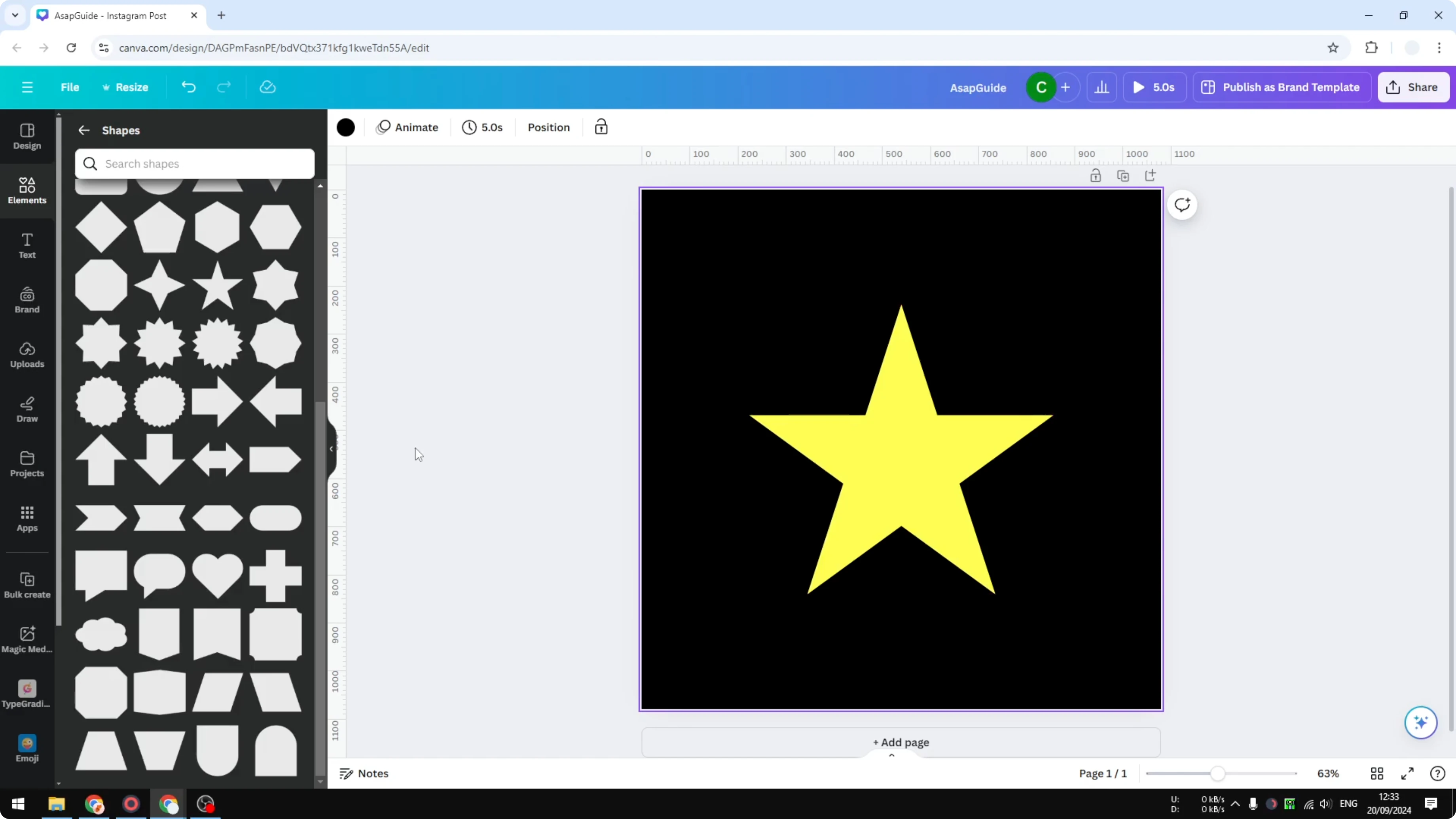
To blur a shape in Canva, convert it into an image first. If you do not want to involve any third party plugin, this method works well. It keeps the background transparent and lets you apply the blur.
Read More: adjust blur position
Steps to Blur a Shape in Canva
Prepare the page
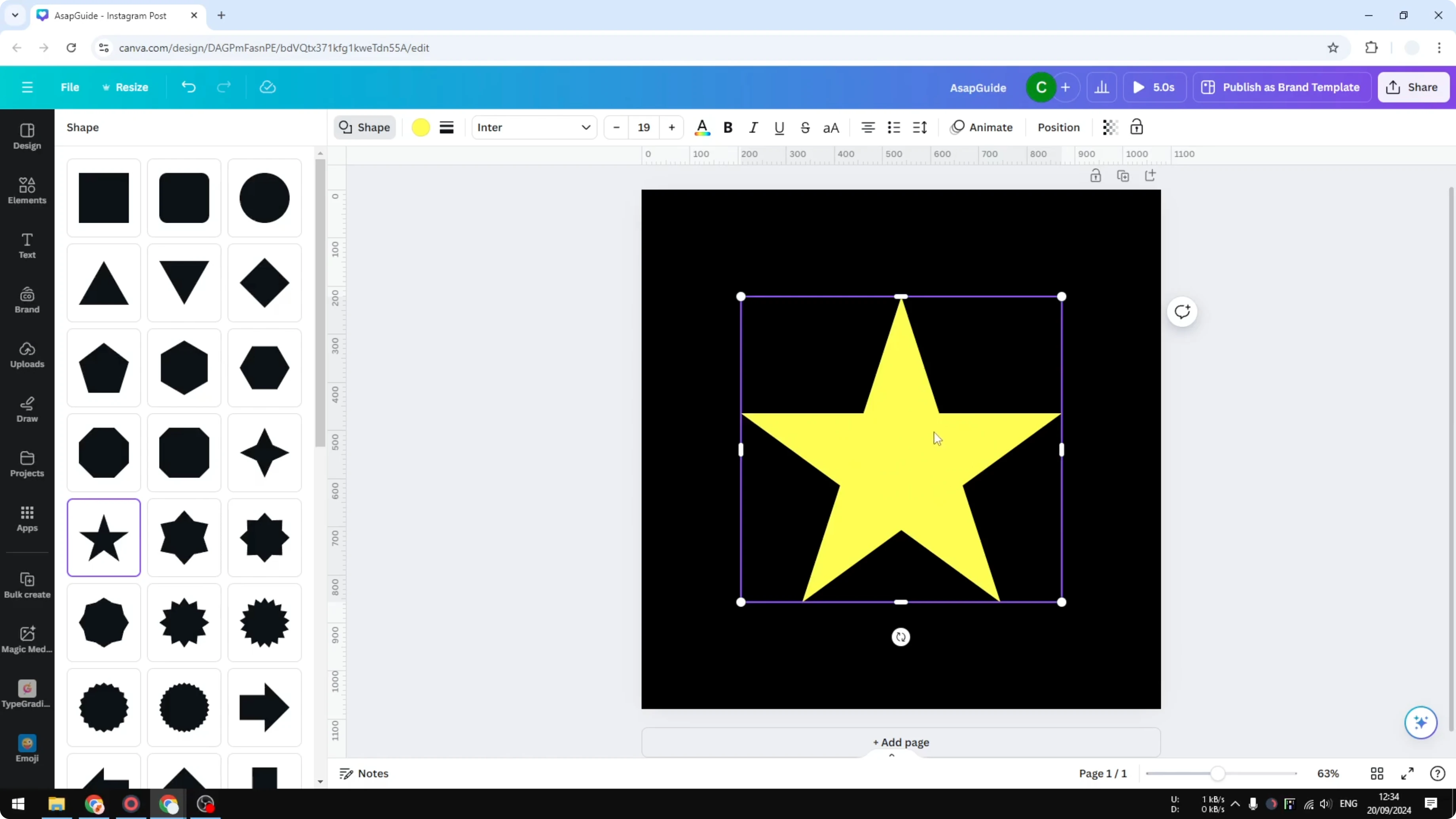
Put the shape on a new page that is empty. I prefer to use a white background.
Export to PNG
Open the Share menu and click Download. Select the format as PNG, then enable Transparent background. Select only the page that contains the shape and click Download.
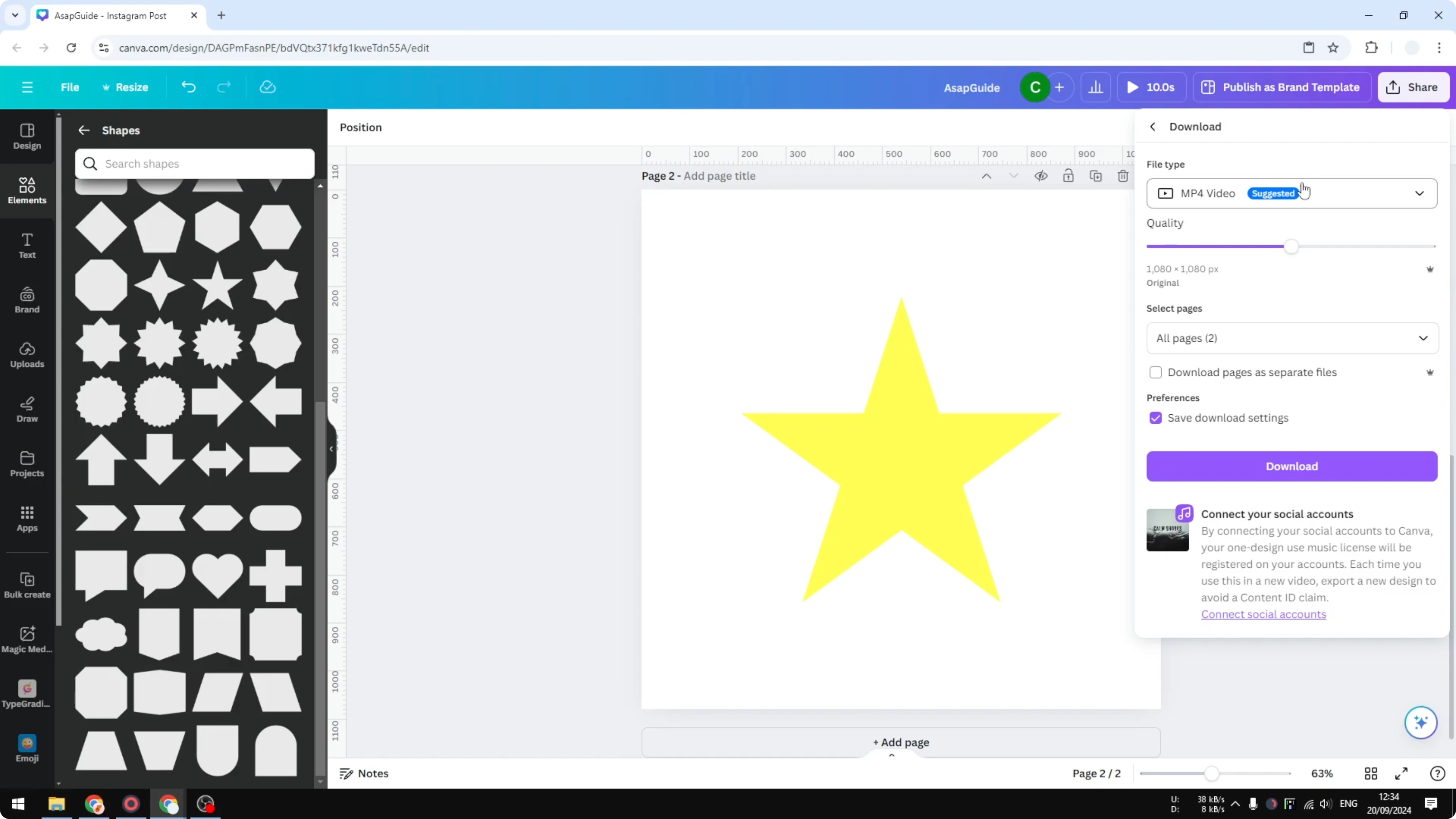
Insert the PNG
Delete the temporary page and return to your original page. Take the downloaded PNG of the shape from your computer and paste it into your Canva document. You can also upload it by dragging the file into the editor.
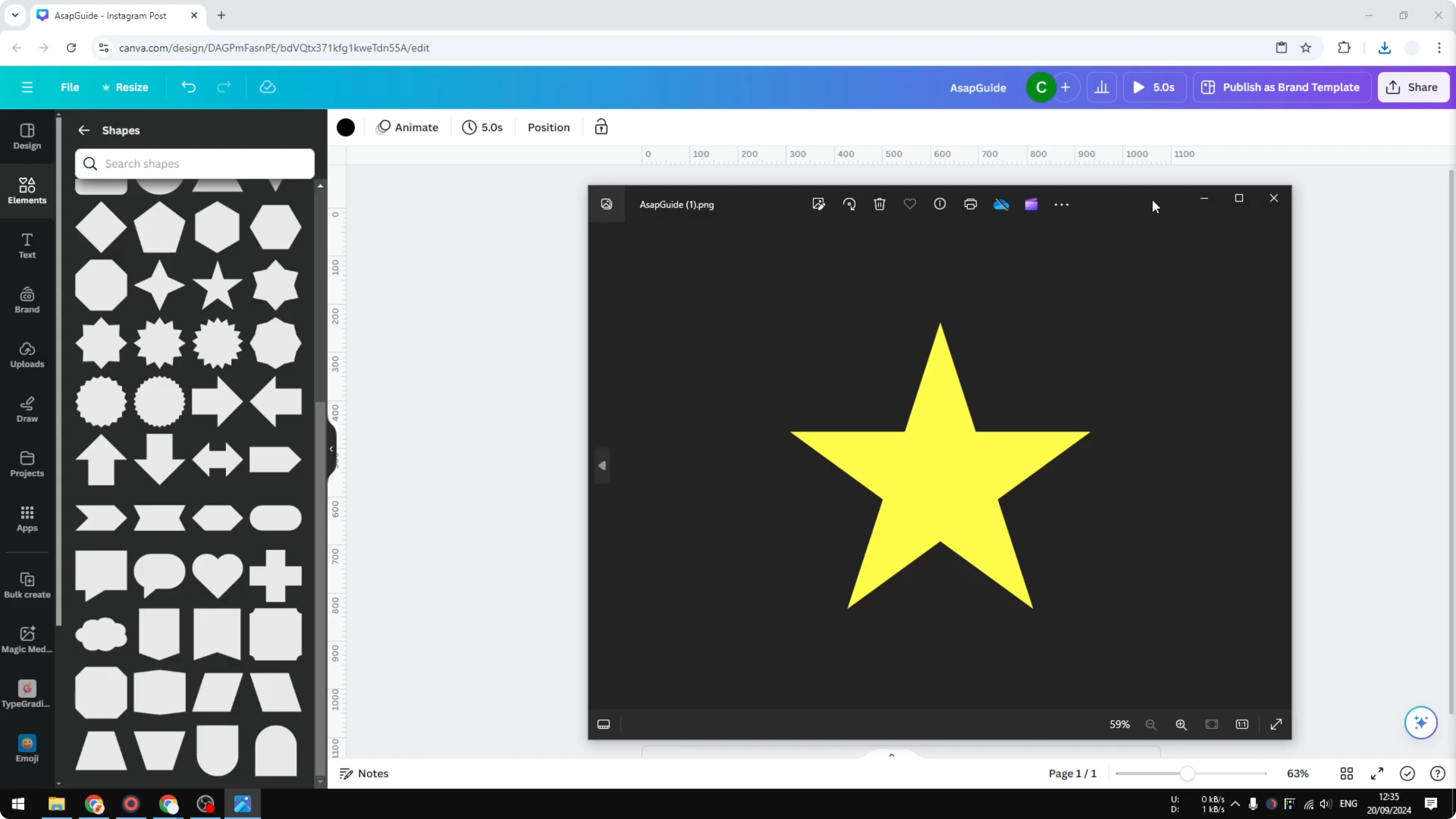
Apply the blur
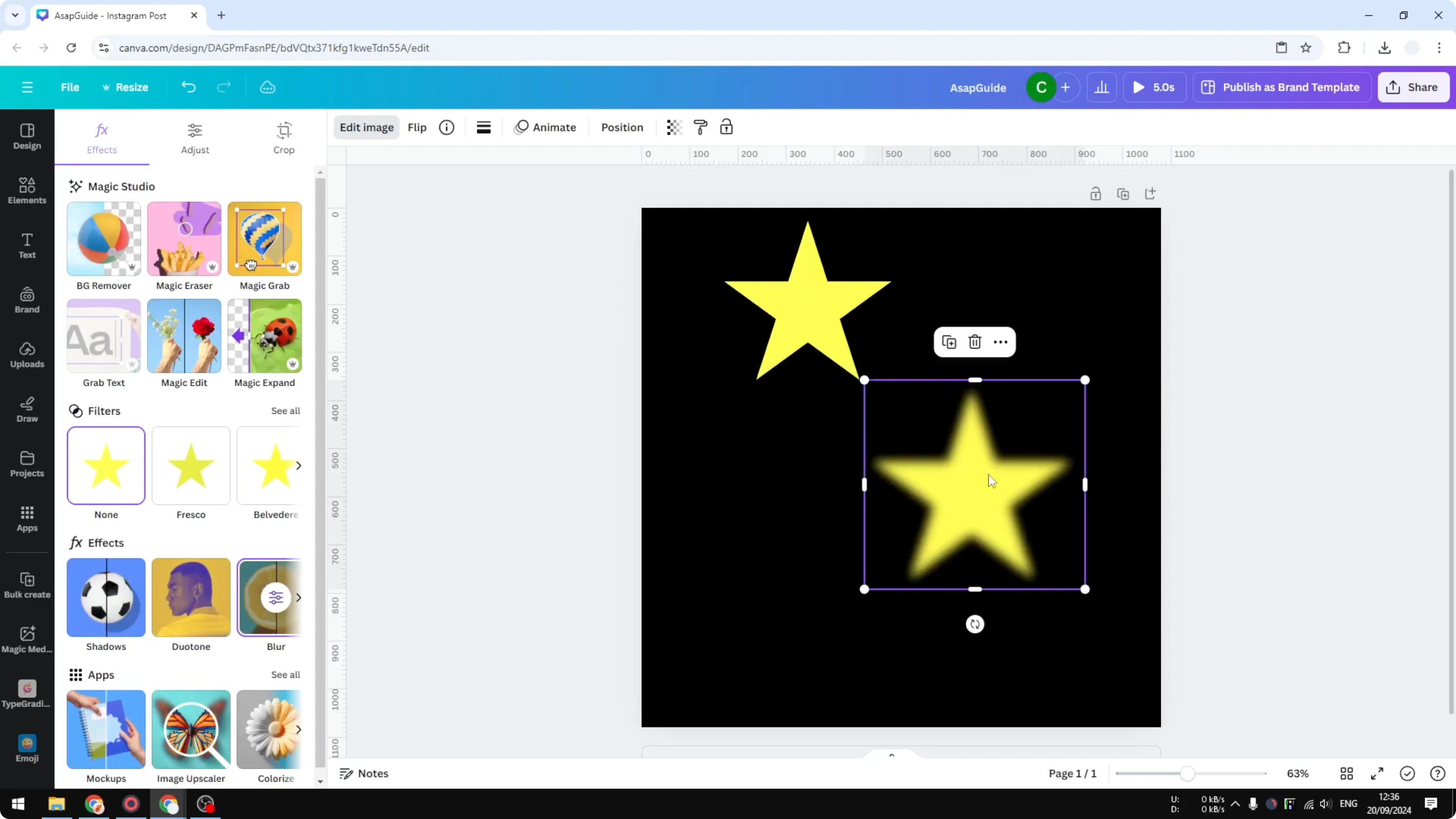
Click the image and click Edit image. Open the Effects section and choose Blur. Choose Whole image and adjust the intensity to a level that looks good, around 50 to 70 percent.
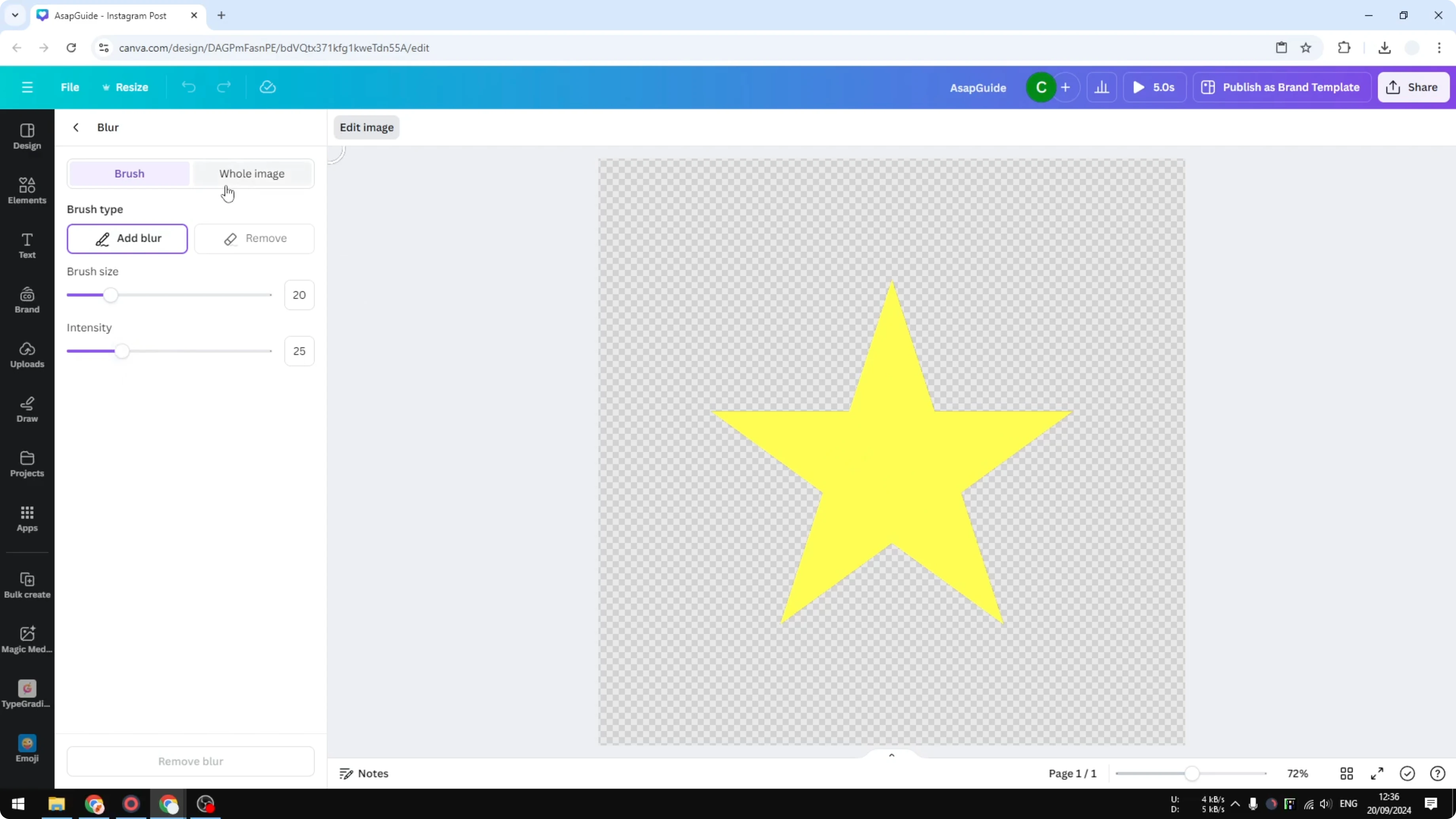
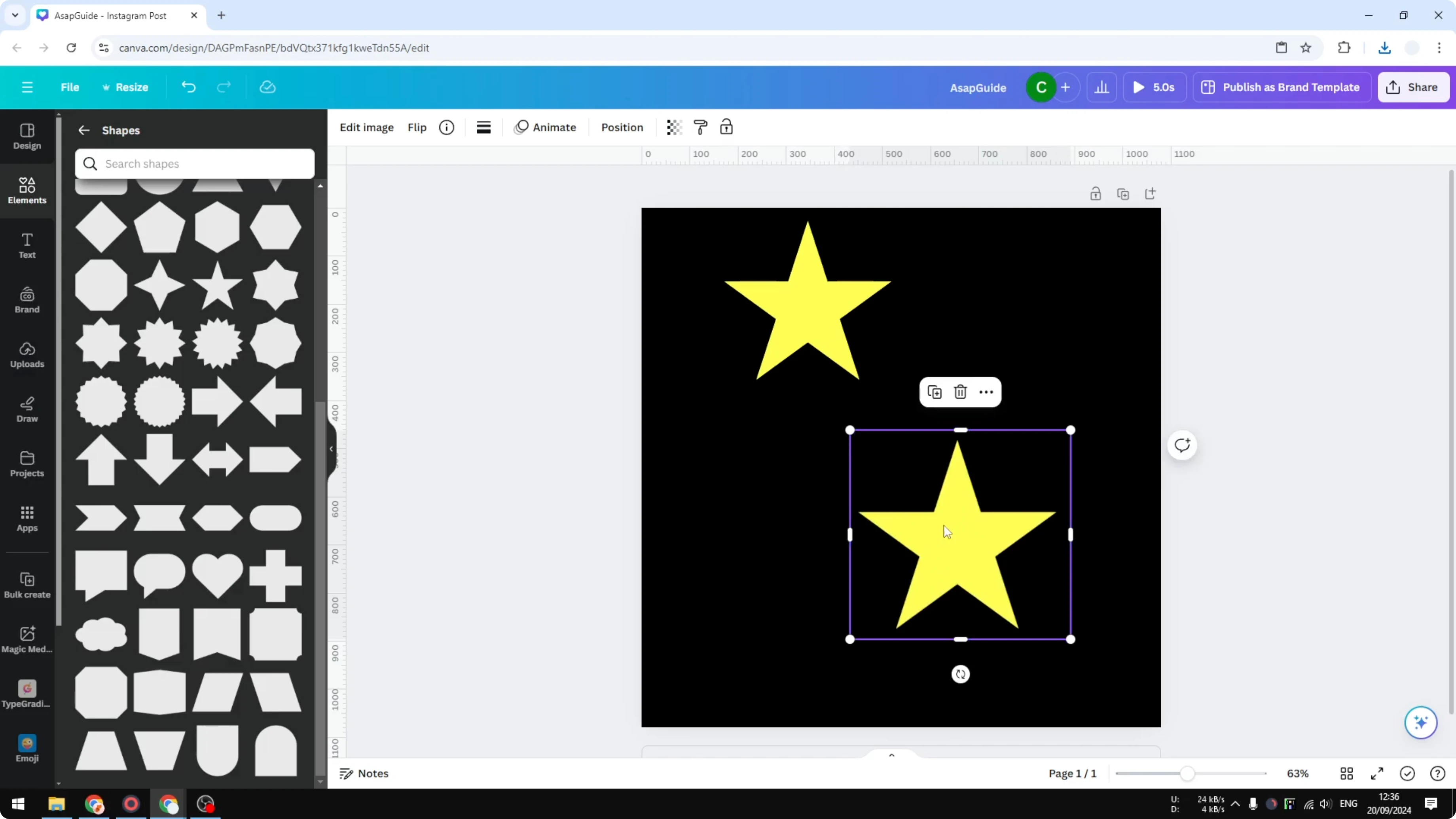
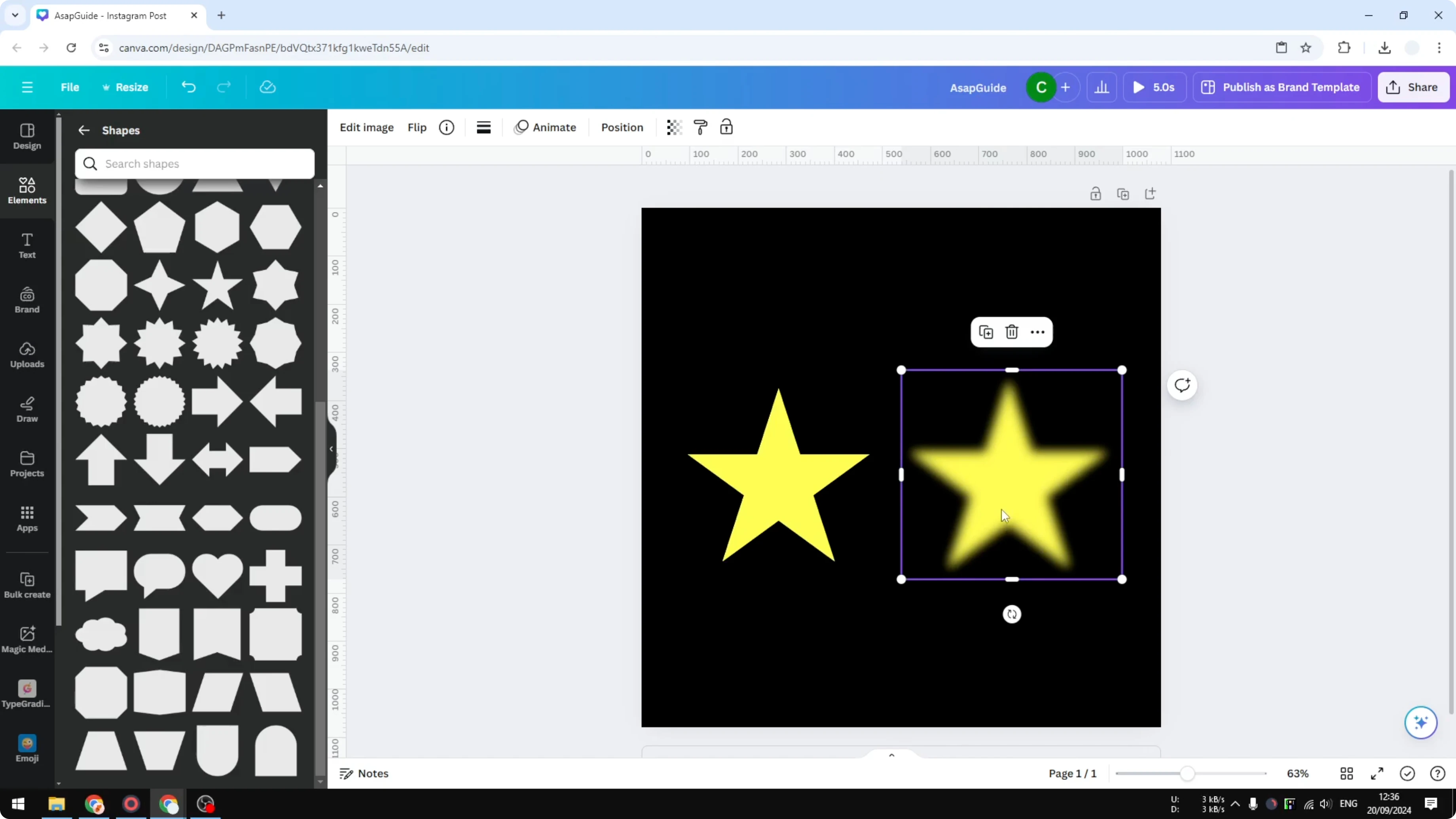
You now have the original shape that remains vector and cannot be blurred directly. You also have an image version of that shape that you can blur freely. This image came from the shape, and that is why the blur works.
Read More: blur text in Canva
Final thoughts on Blur a Shape in Canva
The key is simple. Convert the shape to a transparent PNG, reinsert it, and apply the Blur effect. This keeps your design flexible while giving you the soft look you want.
If you also plan to format words inside or around shapes after blurring, it helps to manage text placement cleanly. You can attach text to shapes for precise layouts.
Read More: attach text to a shape
Recent Posts

How to Visualize Yourself as a Pixelized Character with AI?
How to Visualize Yourself as a Pixelized Character with AI?

How to Revive Faded Memories and Enhance Image Clarity with AI?
How to Revive Faded Memories and Enhance Image Clarity with AI?

How to Visualize Yourself as an Animal Crossing Character with AI?
How to Visualize Yourself as an Animal Crossing Character with AI?