How to Blur Text in Canva
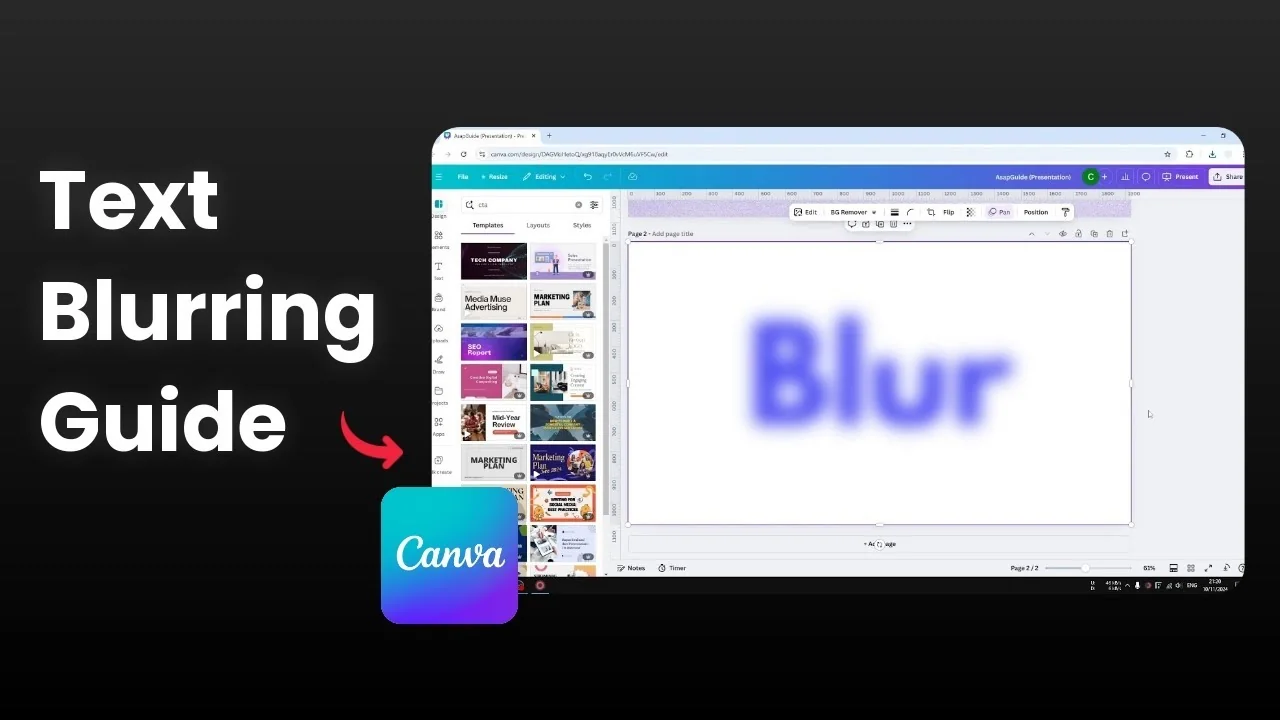
Blur text directly on regular text in Canva is not possible. Canva lets you blur images, but it does not offer a dedicated blur control for text elements. The workaround is simple and reliable.
You convert the text into an image, then apply the blur effect to that image. This gives you full control over the blur intensity and where it appears. It takes a minute and works every time.
If you are designing titles or captions and want more styling control, you can also add a background behind text to boost readability before applying effects.
Why Blur Text in Canva is limited
Canva has many effects for images but excludes direct blur tools for standard text layers. You can blur photos and graphics, but not editable text. Converting the text to an image solves this limitation without changing the look.
Convert text to image for Blur Text in Canva
Duplicate the page that contains your text so you have a clean copy to export.
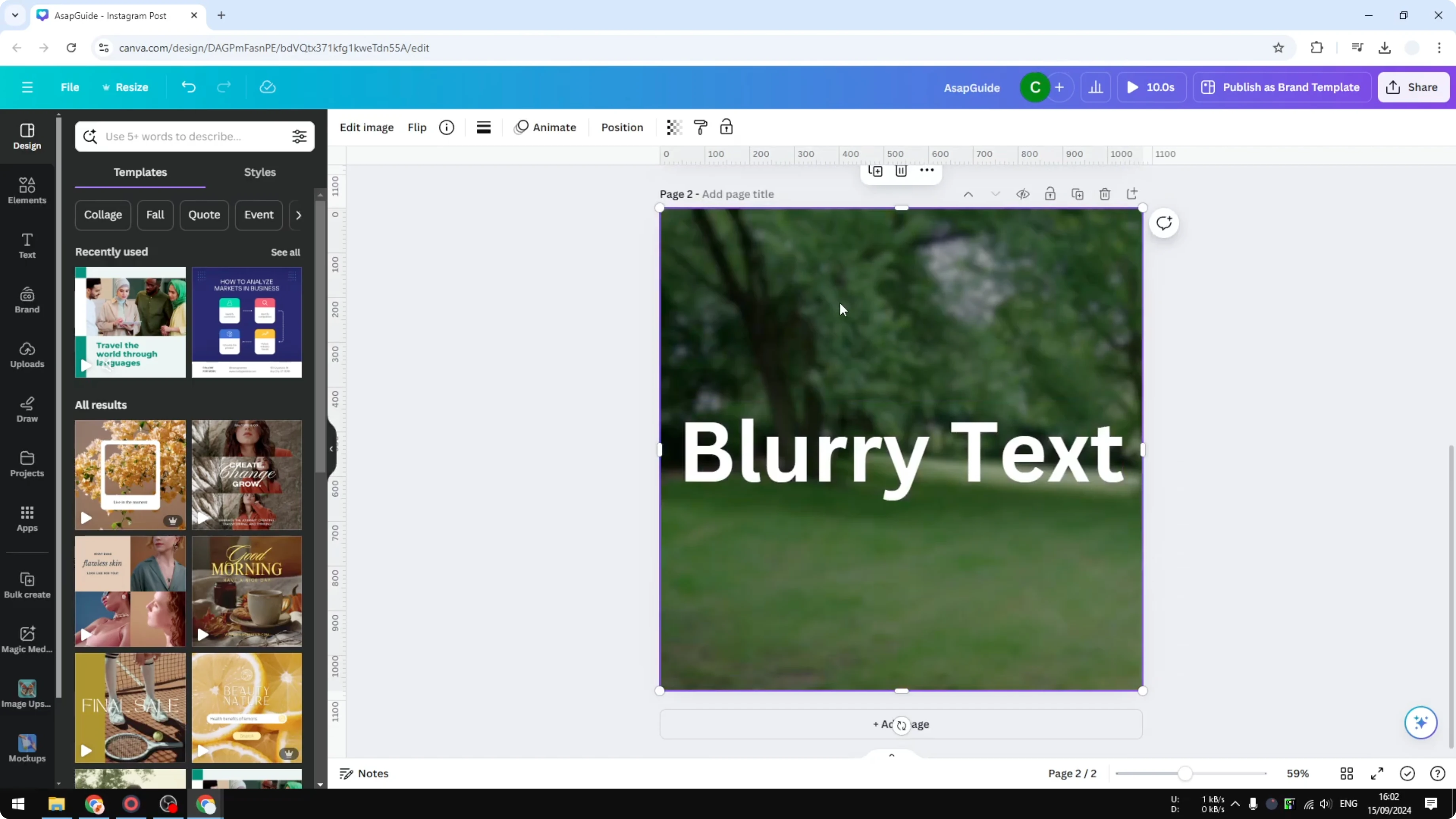
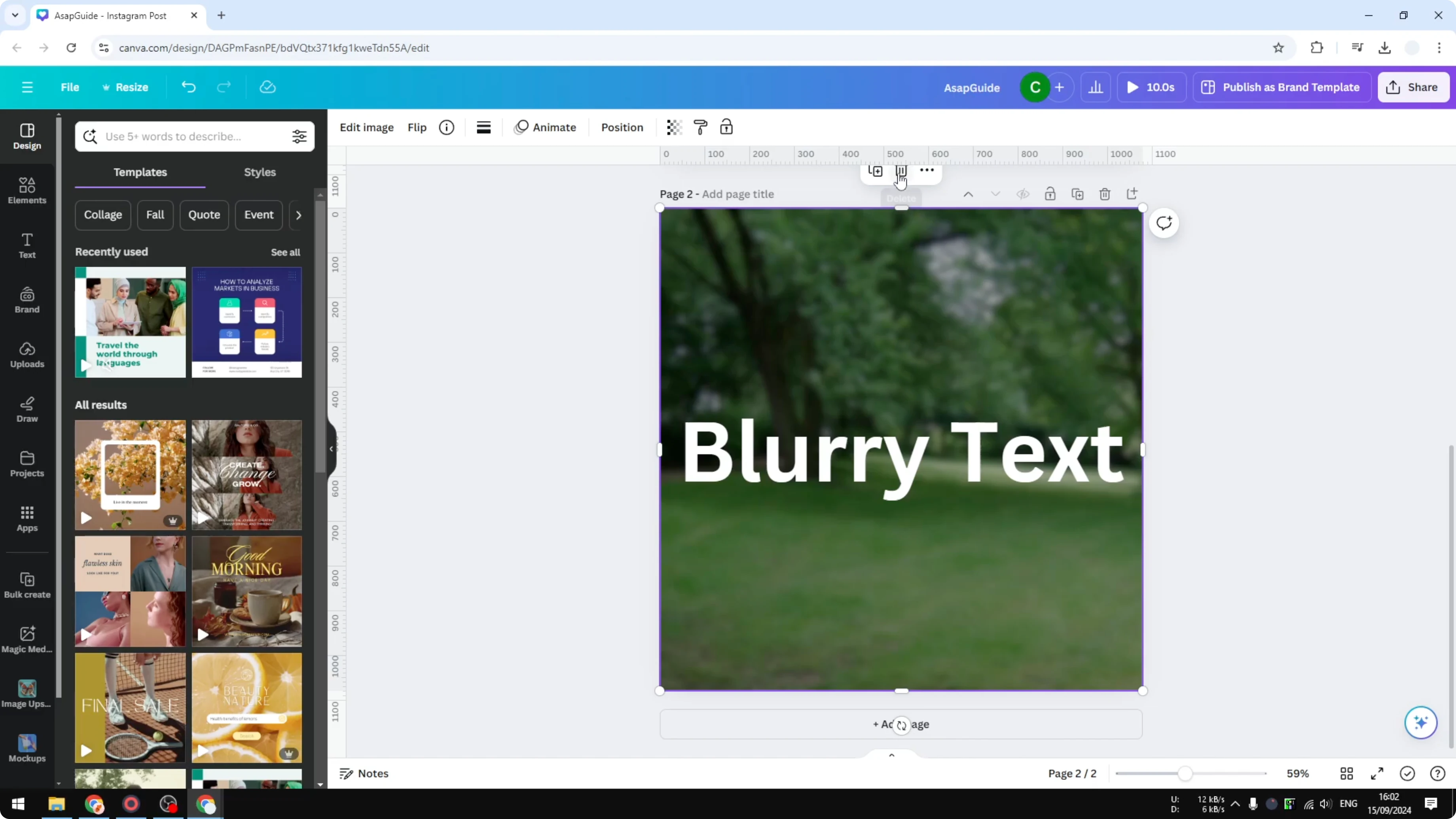
Remove the background so only the text is visible on the duplicated page.
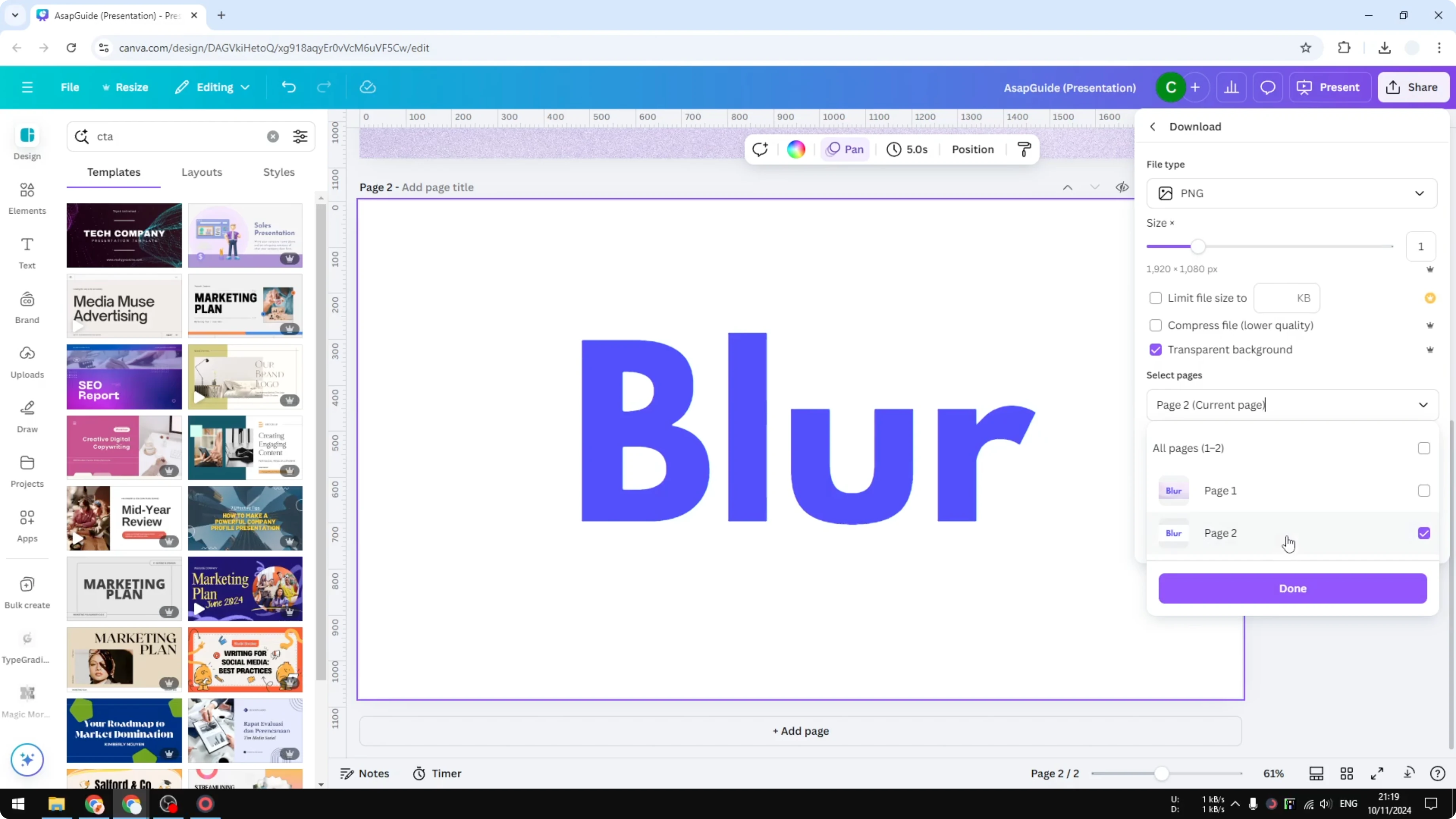
Click Share, then Download, pick PNG, and enable transparent background.
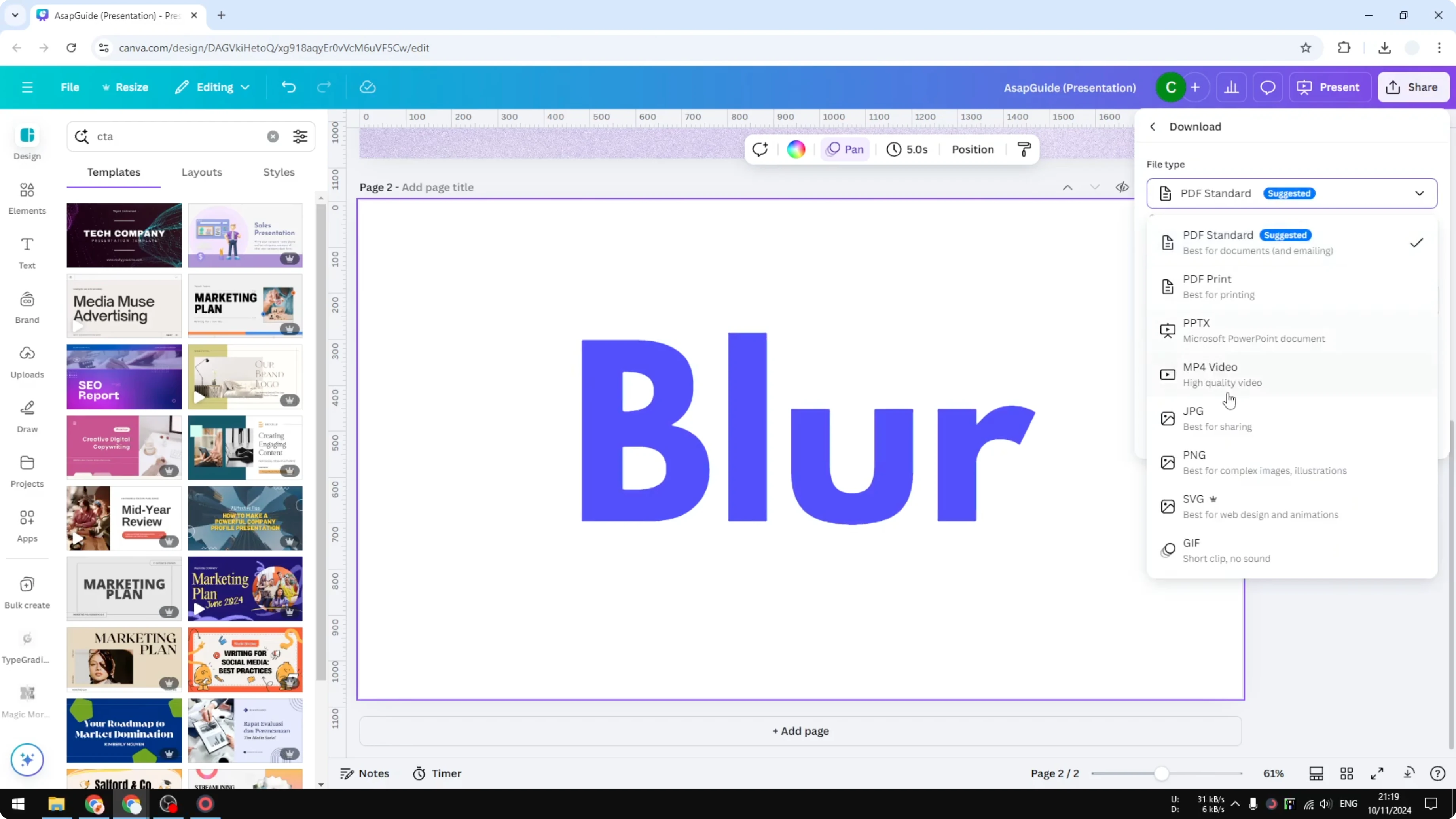
Select only the page with the text you want to blur, then download it.
Upload and position
Upload the new PNG back into your design or drag and drop it onto the canvas.
Place the PNG exactly where the original text was to keep alignment consistent.
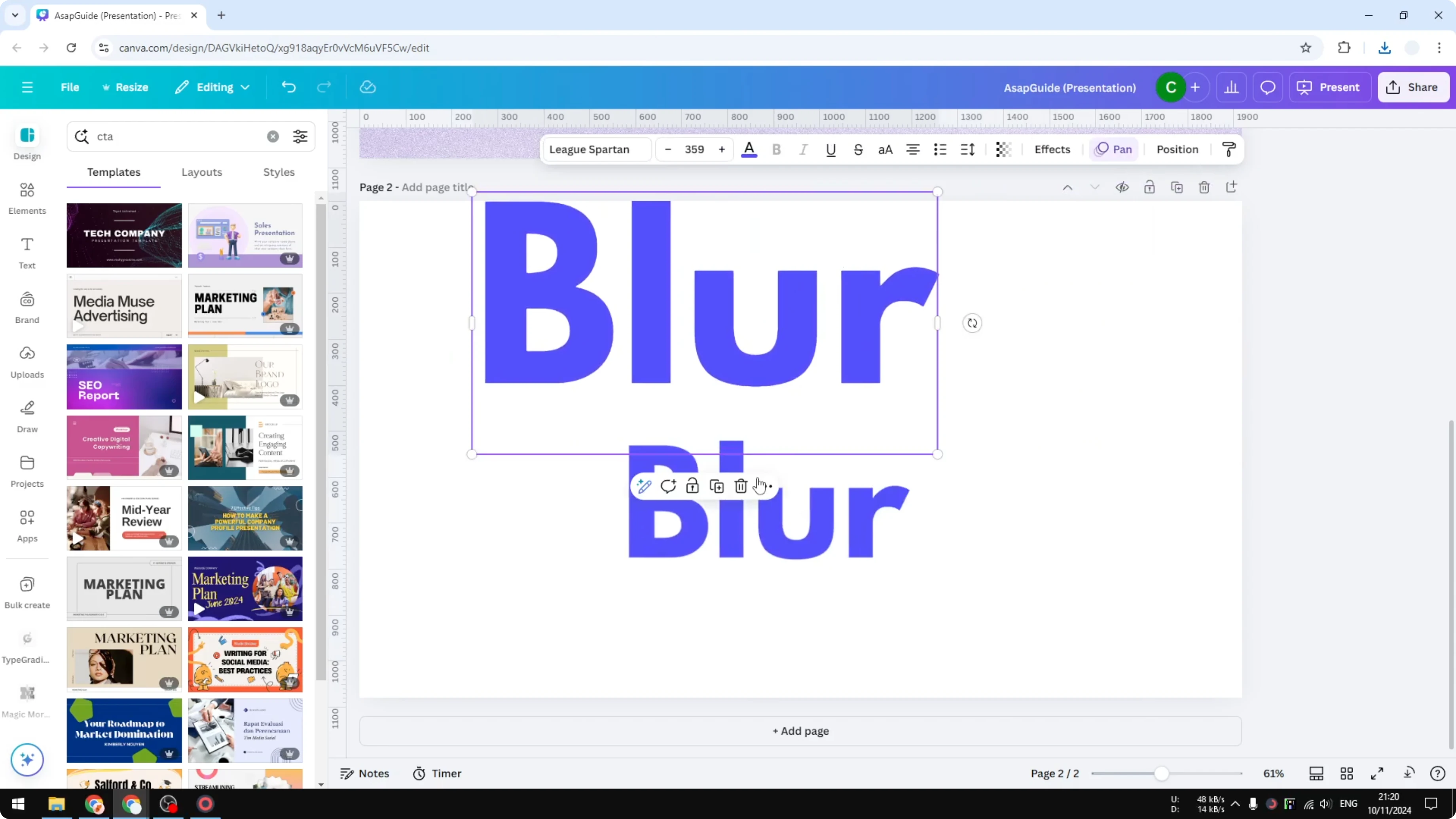
Resize if needed, then double click to crop the image and remove empty areas around the text.
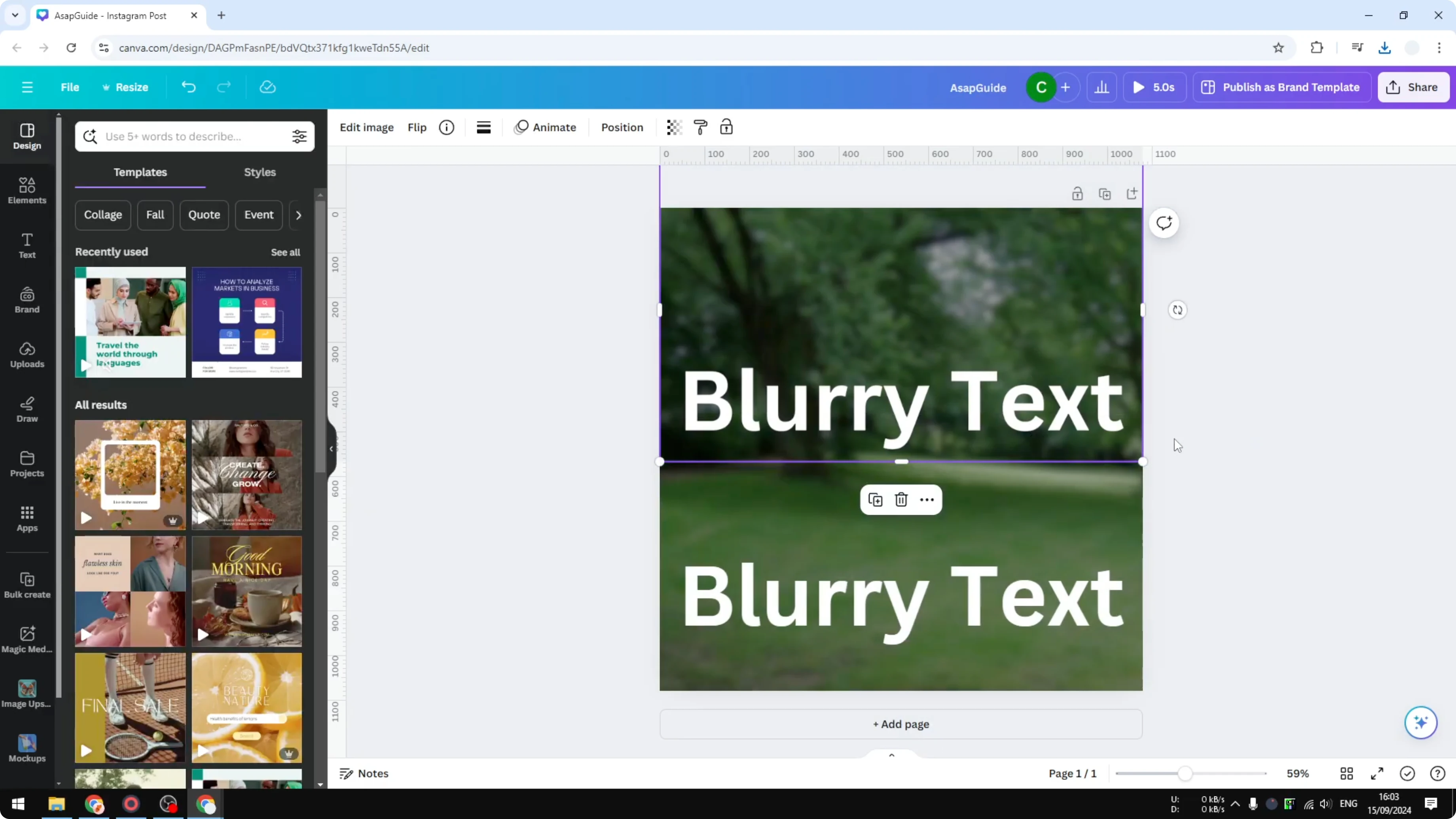
If you are preparing assets for accessibility, remember you can add alt text to pictures in Canva so blurred text still has descriptive context in your exports.
Apply blur effect in Canva
Select the PNG that contains your text.
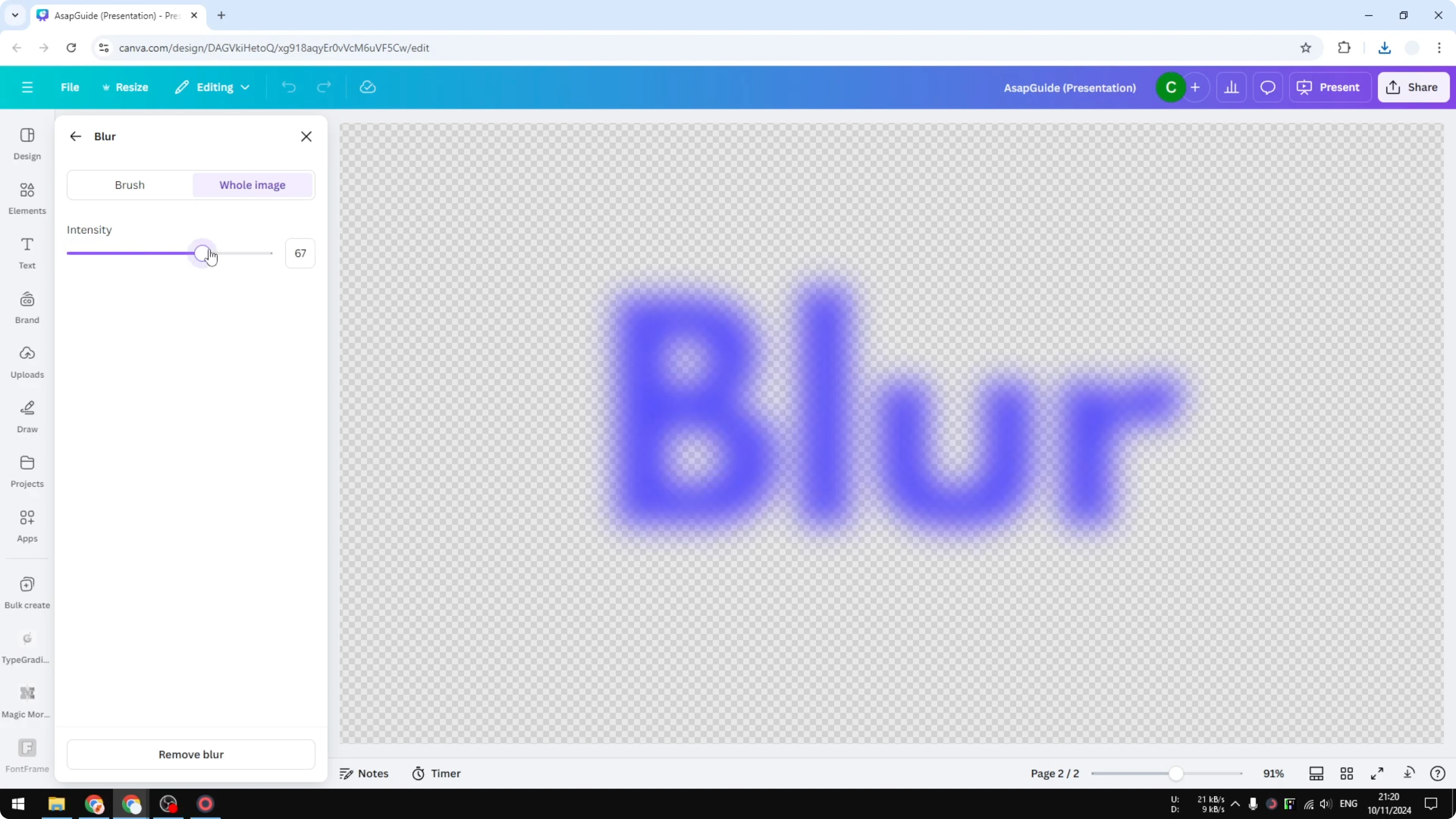
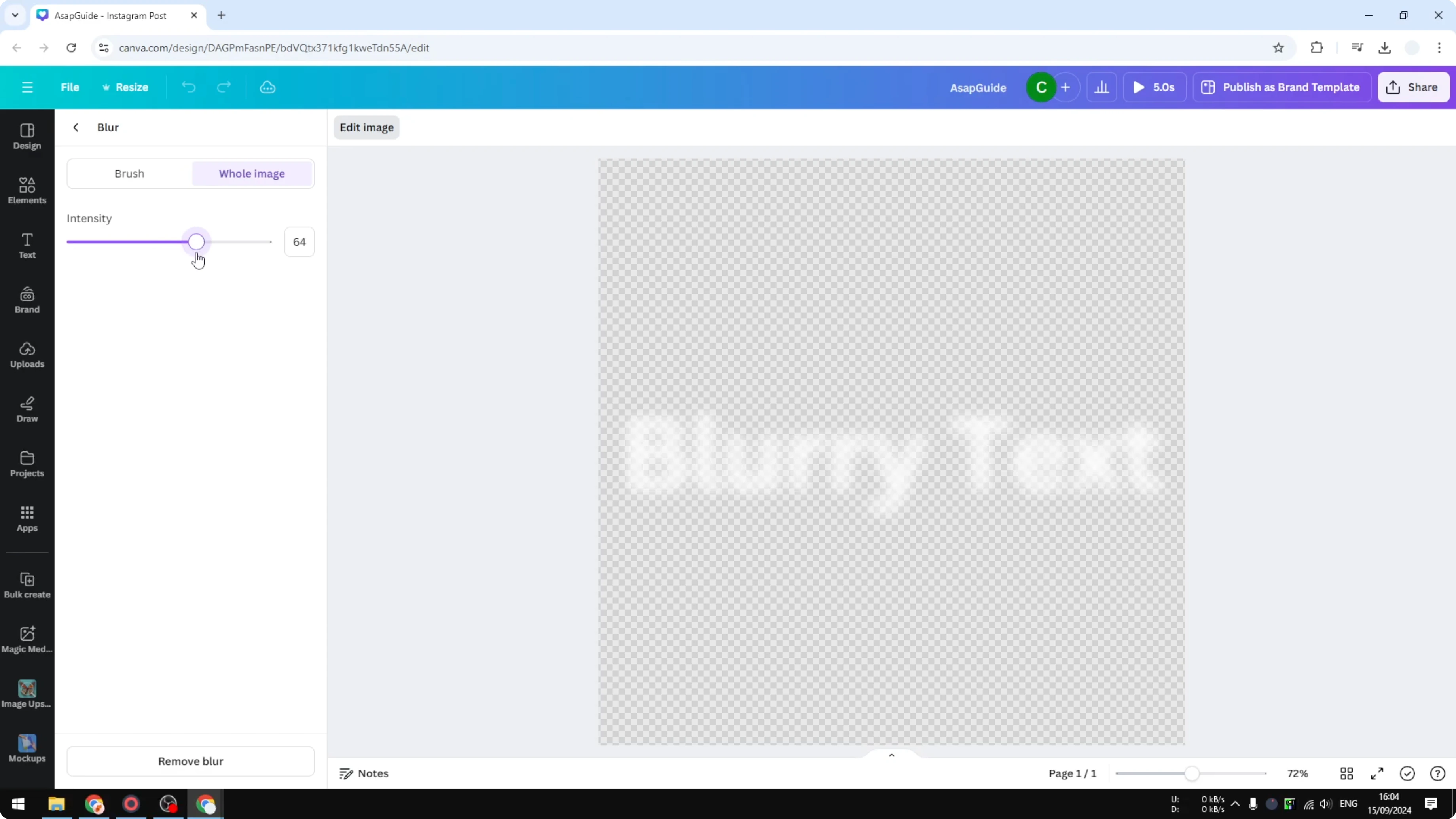
Click Edit image, find Blur under Effects, and apply it to the entire image.
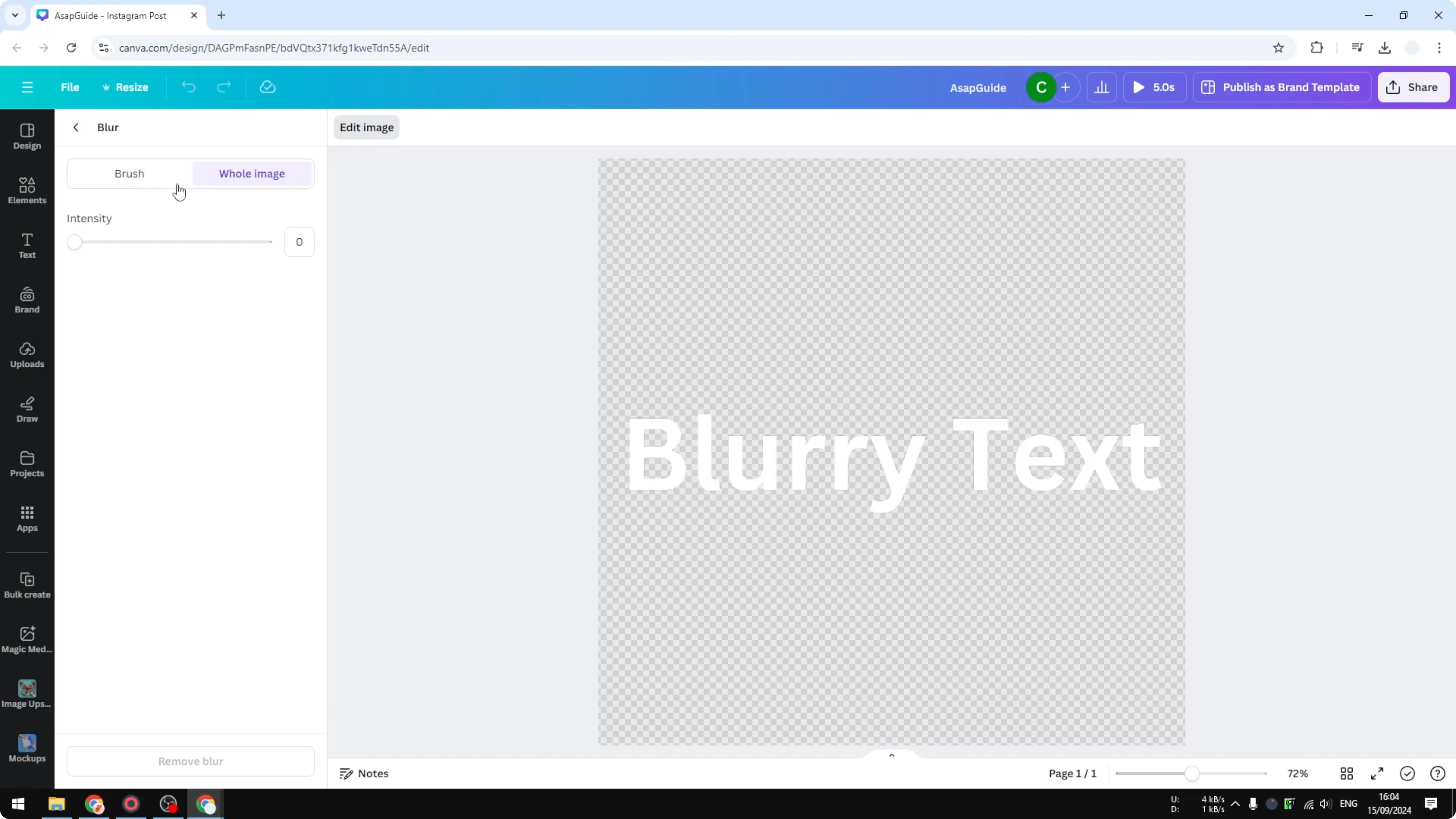
Increase the intensity to around 60 for a strong blur or lower it for a softer look.
Selective blur on parts of the text
Switch to the Brush option inside the Blur effect if you only want to blur specific areas.
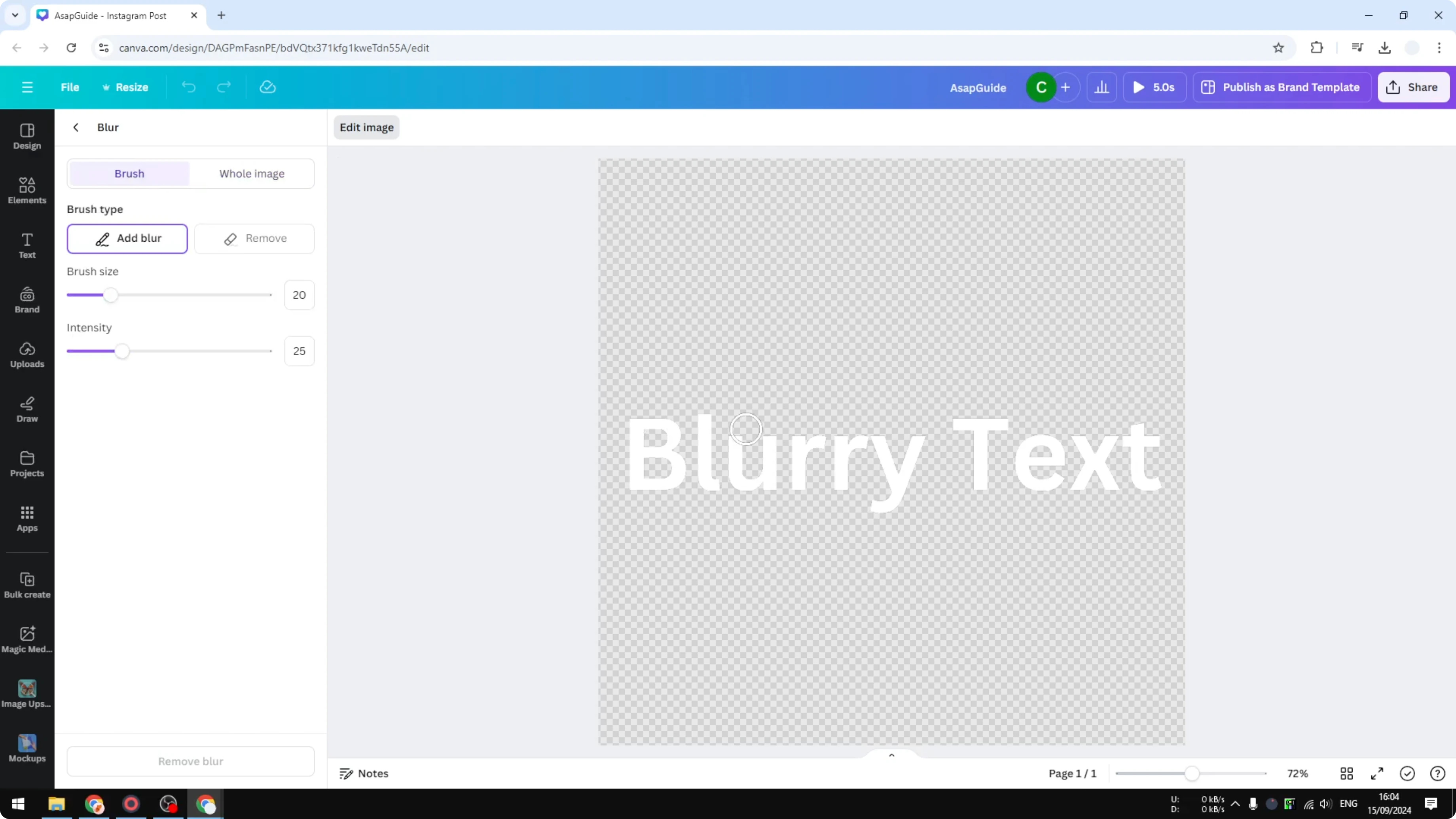
Paint over the sections that need to be obscured and leave the rest sharp.
Adjust intensity and size to refine the edges for a cleaner result.
For variations and more techniques, see our guide on blurring text in Canva to compare styles and workflows.
Final thoughts
You cannot blur editable text in Canva directly, but converting the text to an image unlocks the full blur effect. Export the text as a PNG with transparent background, bring it back in, then apply Edit image → Blur at the intensity you want. This method is quick, consistent, and keeps your layout intact.
Recent Posts

How to Visualize Yourself as a Pixelized Character with AI?
How to Visualize Yourself as a Pixelized Character with AI?

How to Revive Faded Memories and Enhance Image Clarity with AI?
How to Revive Faded Memories and Enhance Image Clarity with AI?

How to Visualize Yourself as an Animal Crossing Character with AI?
How to Visualize Yourself as an Animal Crossing Character with AI?