How to Blur Position in Canva
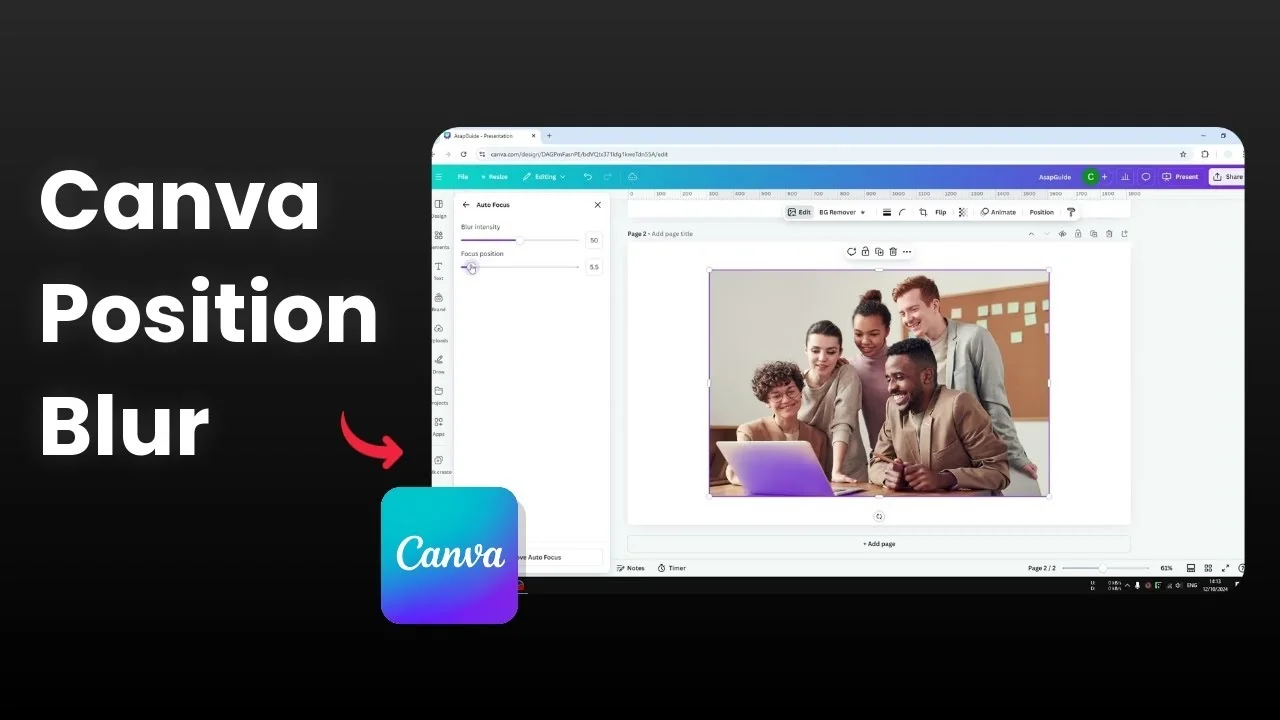
I will show you how you can blur position in Canva. This technique is useful if you want to draw attention to a specific subject in a photo. I modified a picture to make one person the main focus, while the background is blurred.
You can use a feature in Canva to achieve this effect quickly. If you only need to blur a small area of an image, see how to blur part of a photo in Canva for a more targeted approach. Here is how I apply it.
Getting started with Blur Position in Canva
Click the photo to select it.
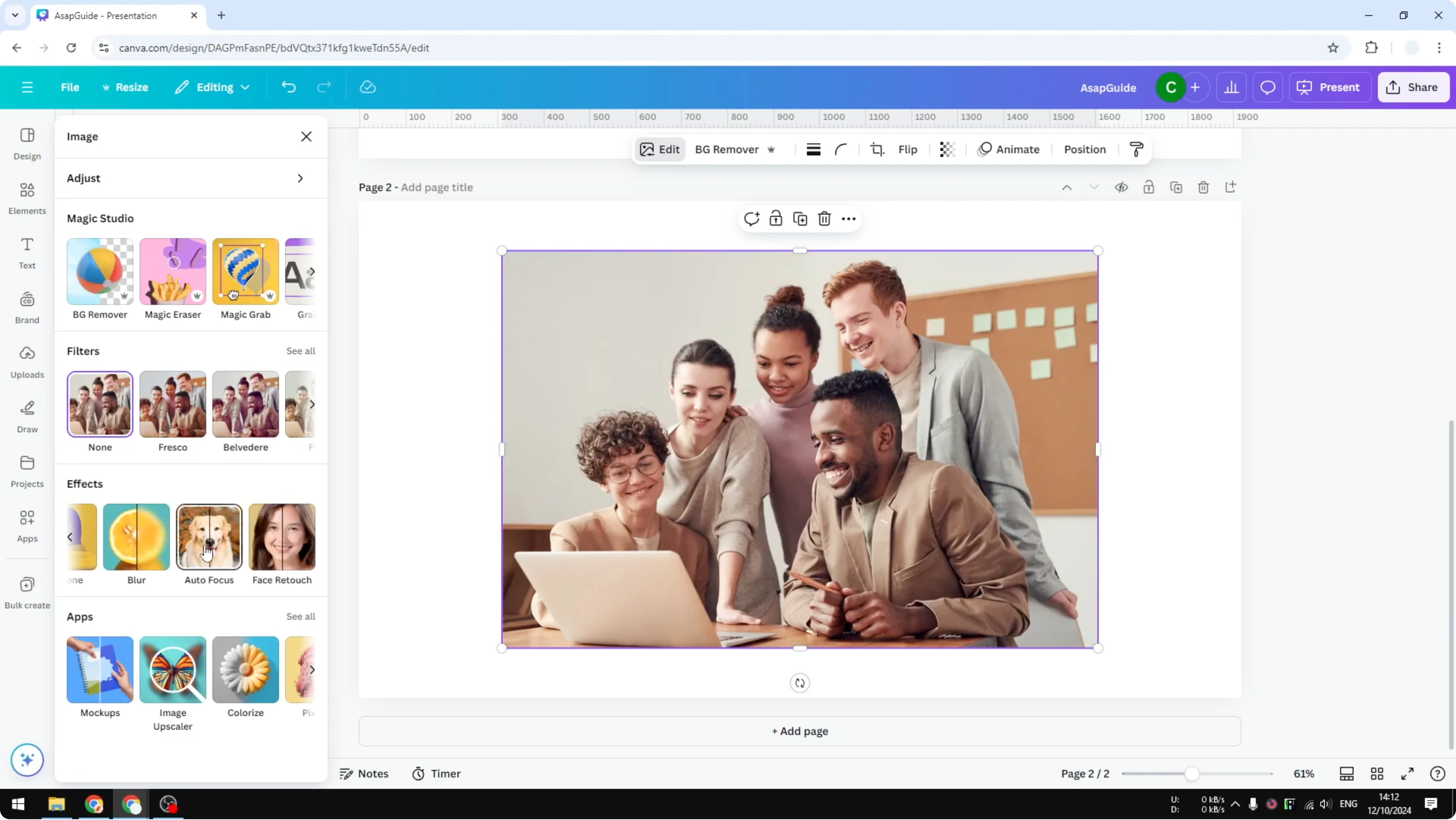
Open Edit.
Choose Auto Focus.
Set focus position in Blur Position in Canva
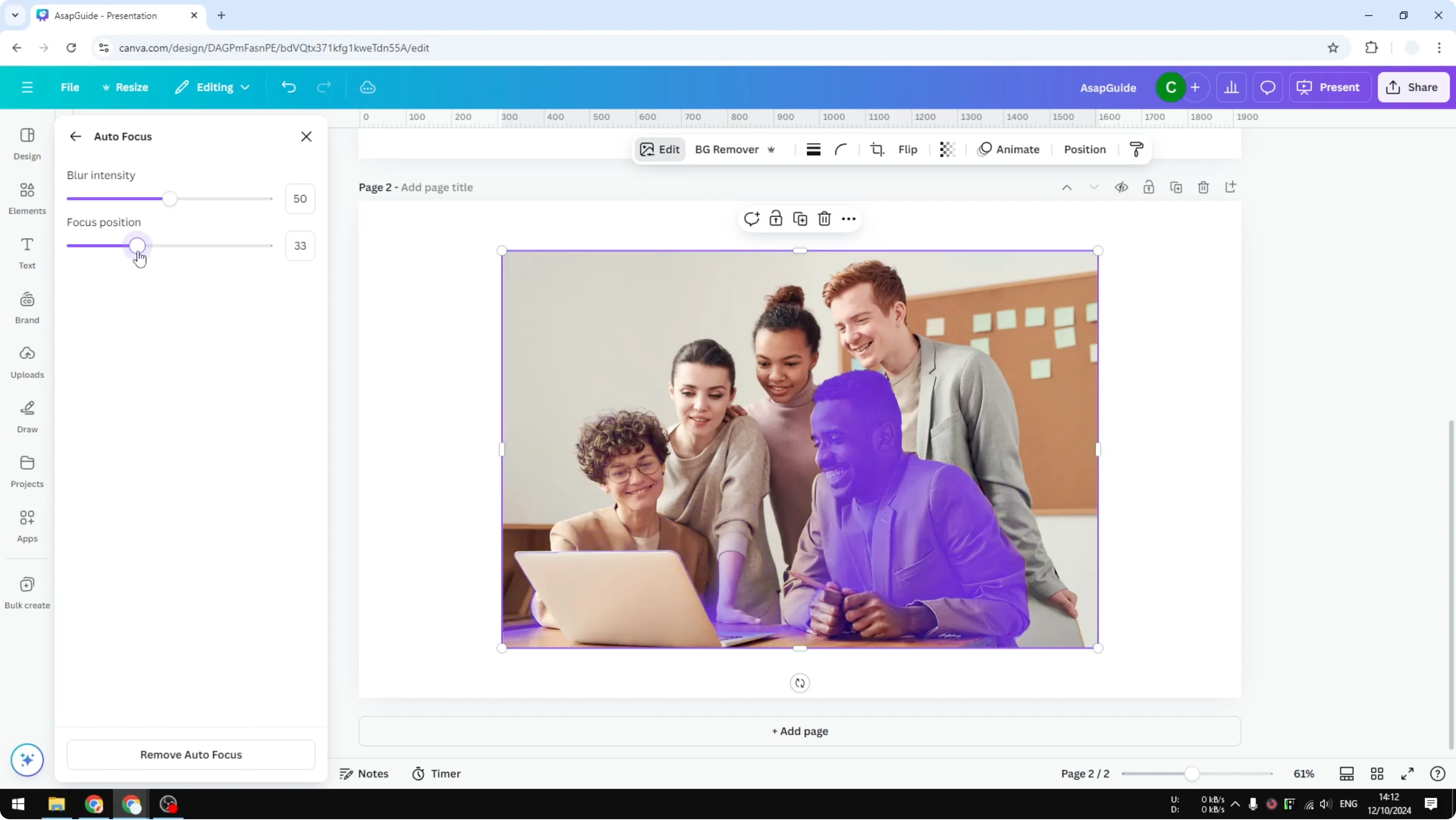
On Focus position, decide the area that will be the main focus.
Move the slider to the left or to the right to set the position.
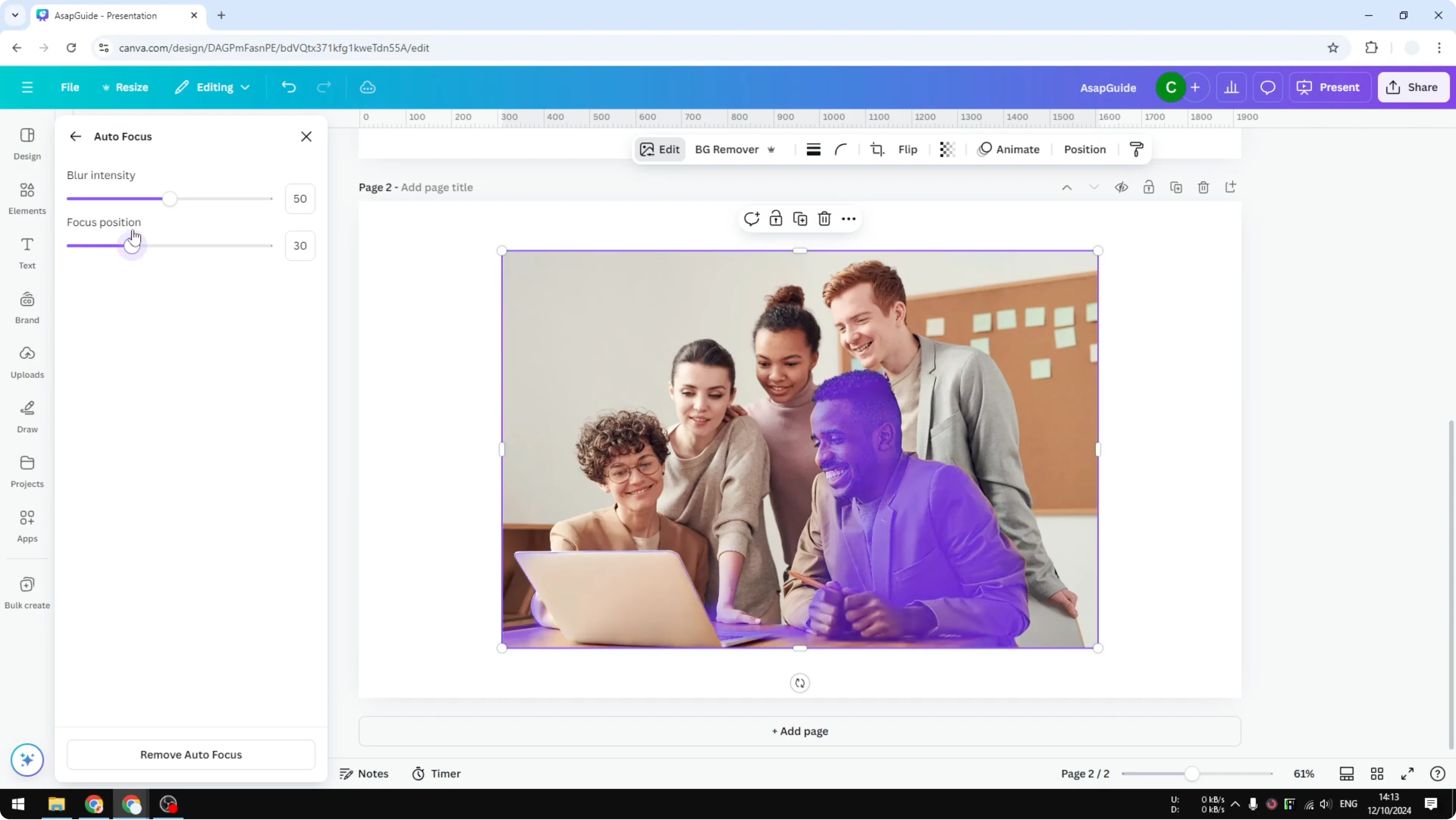
The purple area represents the part that will stay sharp.
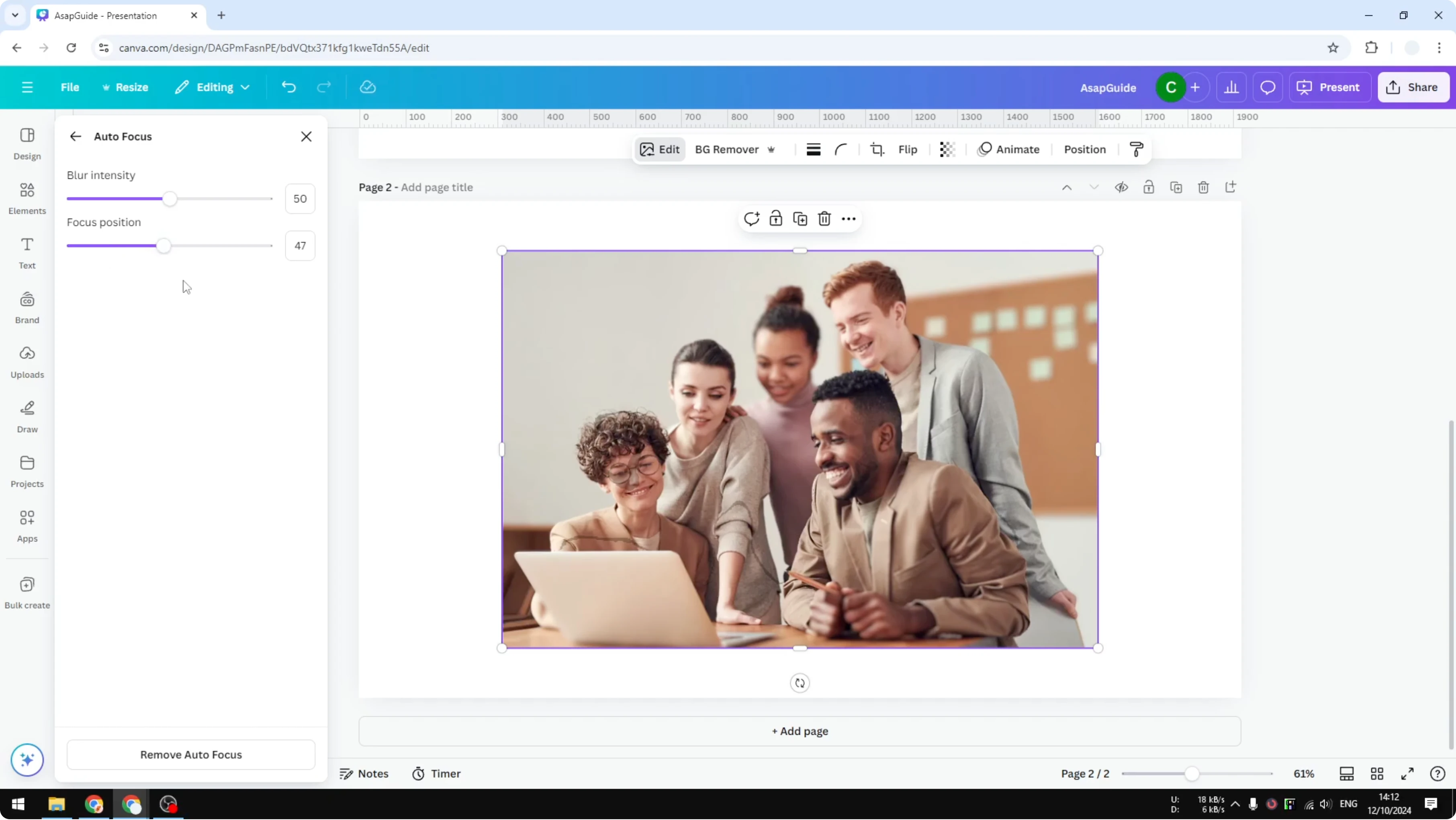
If you move the slider to a different location, it usually focuses on a different subject.
This is AI interpretation, so it might not be fully accurate.
Very detailed areas like hair may not be detected well.
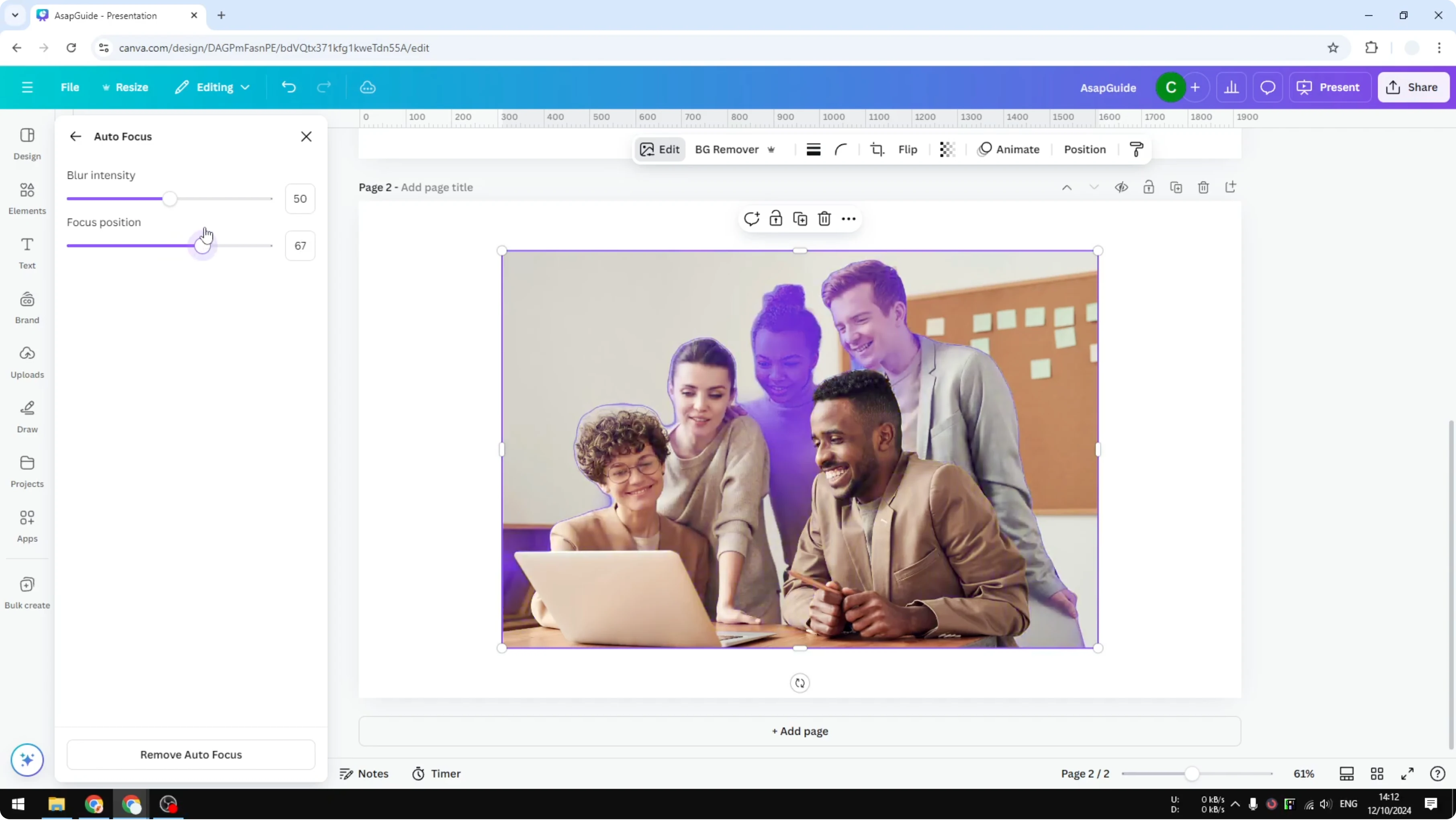
I want to focus on the man in the front.
I release the mouse when the purple area covers him.
That sets the main focus on the person I want.
If your goal is to blur words in a design rather than a subject, see this guide on blurring text in Canva.
It pairs well with the approach here when you mix text and photos.
Use it when you only want the letters softened while keeping the subject clear.
Adjust blur intensity in Blur Position in Canva
Adjust Blur intensity to decide how strong the blur will be.
You can make it light or very strong.
This is adjustable anytime.
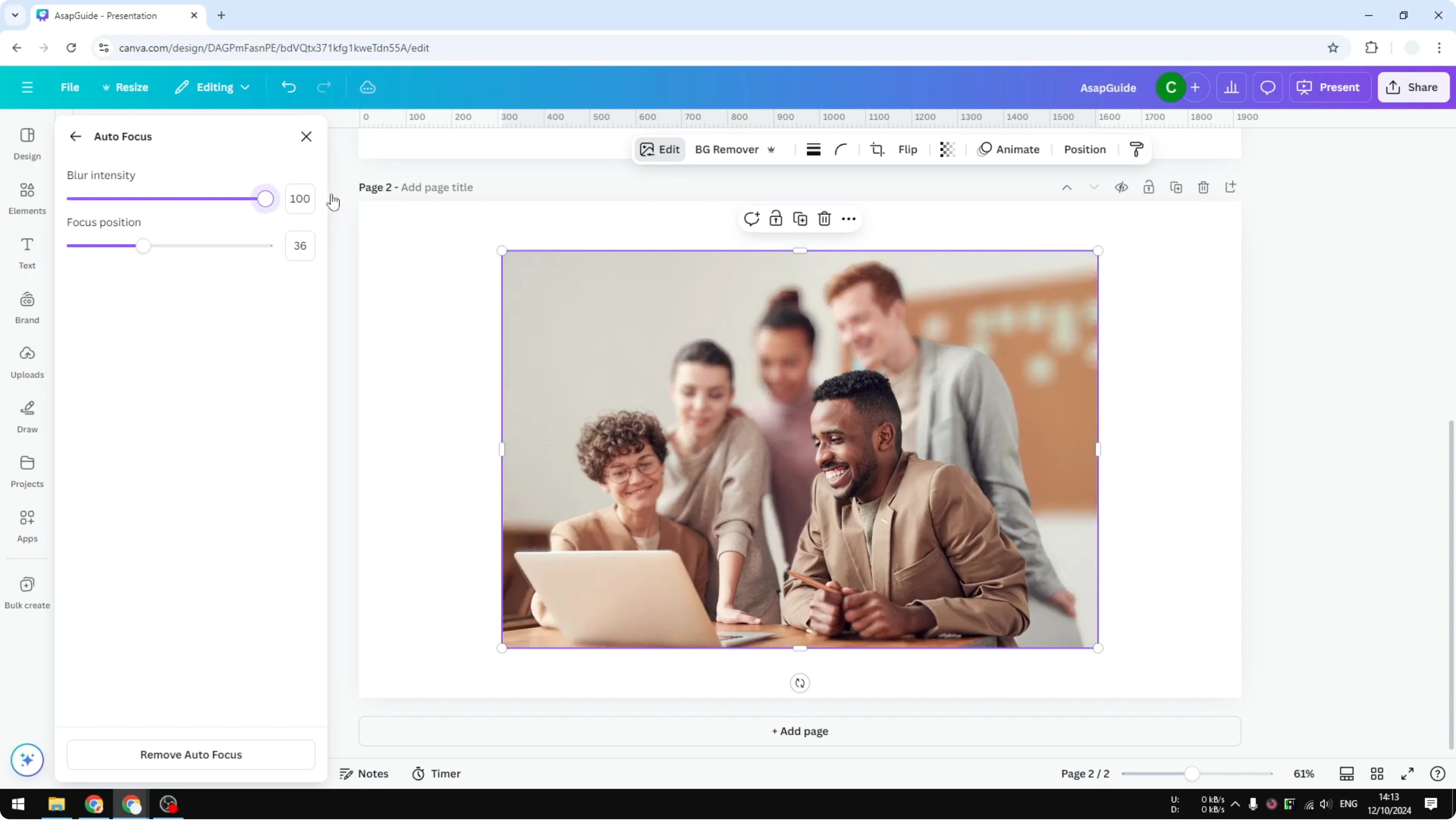
I can also put the focus on the man in the back.
I move the Focus position until the purple area covers him.
The two people at the front become blurred, and the person in the back becomes the main focus.
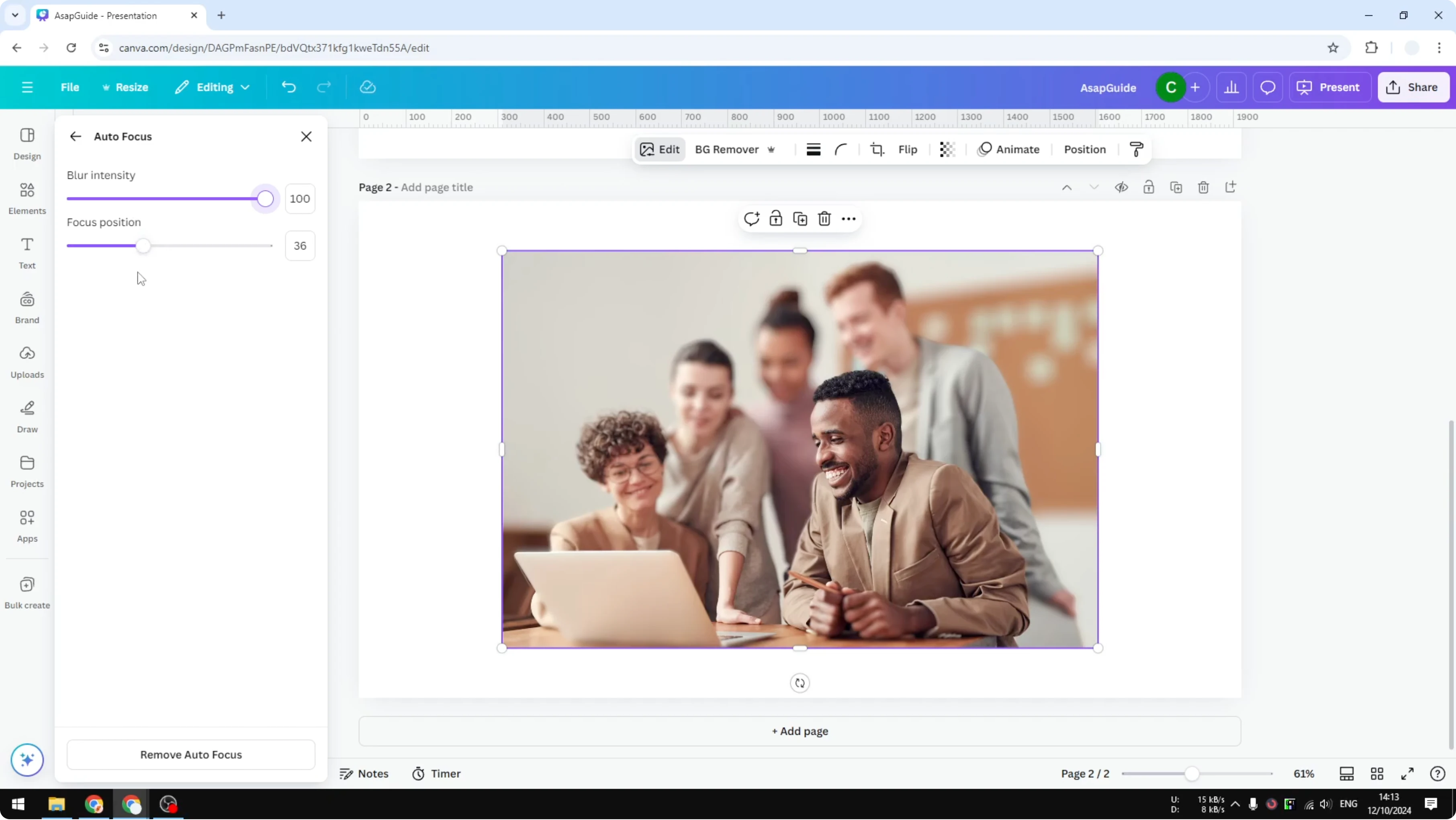
It may not be perfect because this is AI doing the work.
Most of the time it works just fine for portraits and clear subjects.
I check edges like hair and refine the position if needed.
Apply and review in Blur Position in Canva
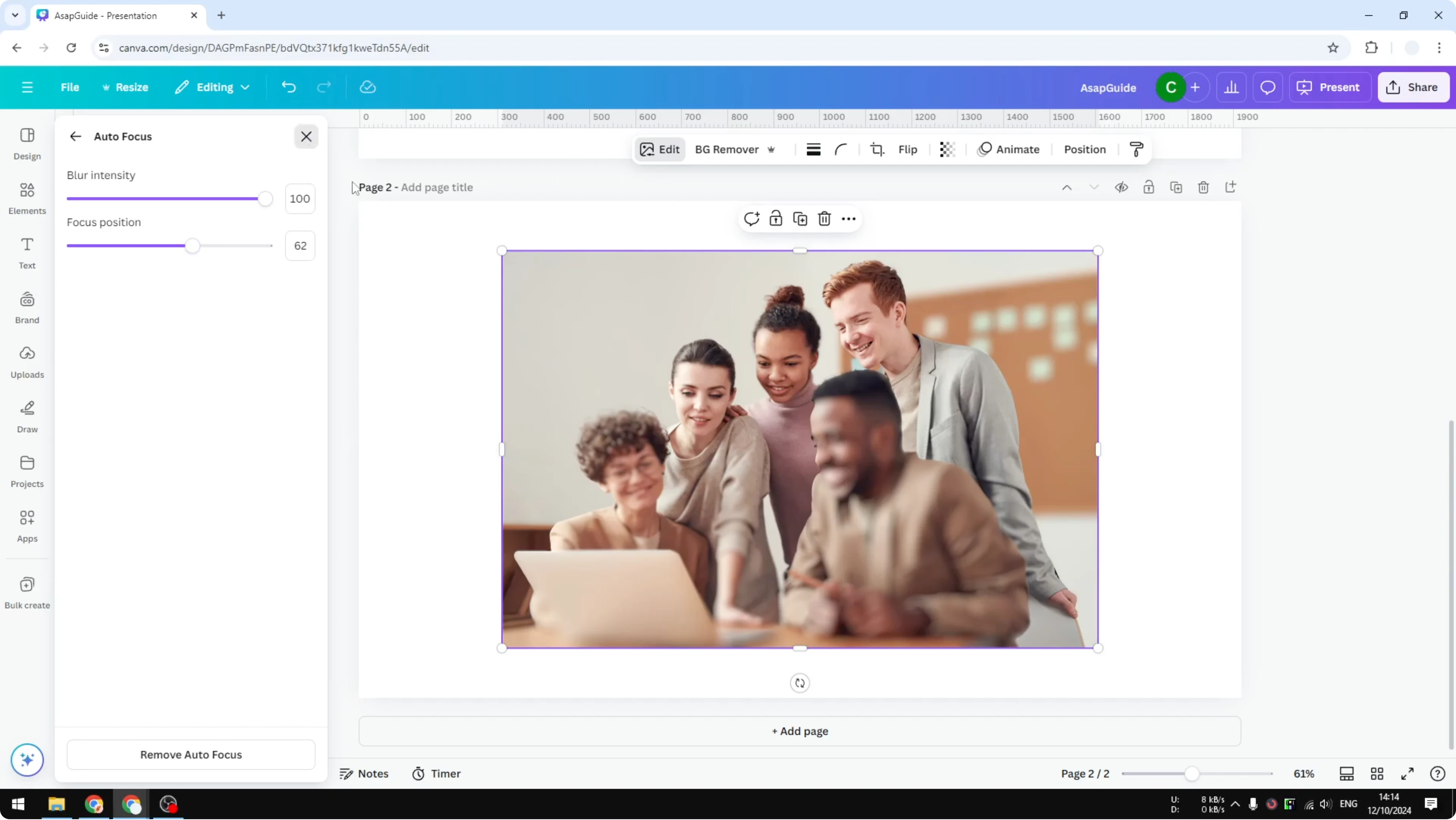
Close the tool when you are done.
The effect is applied to the photo.
You can reopen Auto Focus anytime to tweak the Focus position and Blur intensity.
Final thoughts on Blur Position in Canva
This feature is very useful to focus attention on a specific person or object.
Set the Focus position with the purple overlay, then fine tune Blur intensity to match the look you want.
If you need to blur moving footage instead of a photo, see this guide on blurring video in Canva for a similar workflow.
Recent Posts

How to Visualize Yourself as a Pixelized Character with AI?
How to Visualize Yourself as a Pixelized Character with AI?

How to Revive Faded Memories and Enhance Image Clarity with AI?
How to Revive Faded Memories and Enhance Image Clarity with AI?

How to Visualize Yourself as an Animal Crossing Character with AI?
How to Visualize Yourself as an Animal Crossing Character with AI?