How to See Layers in Canva
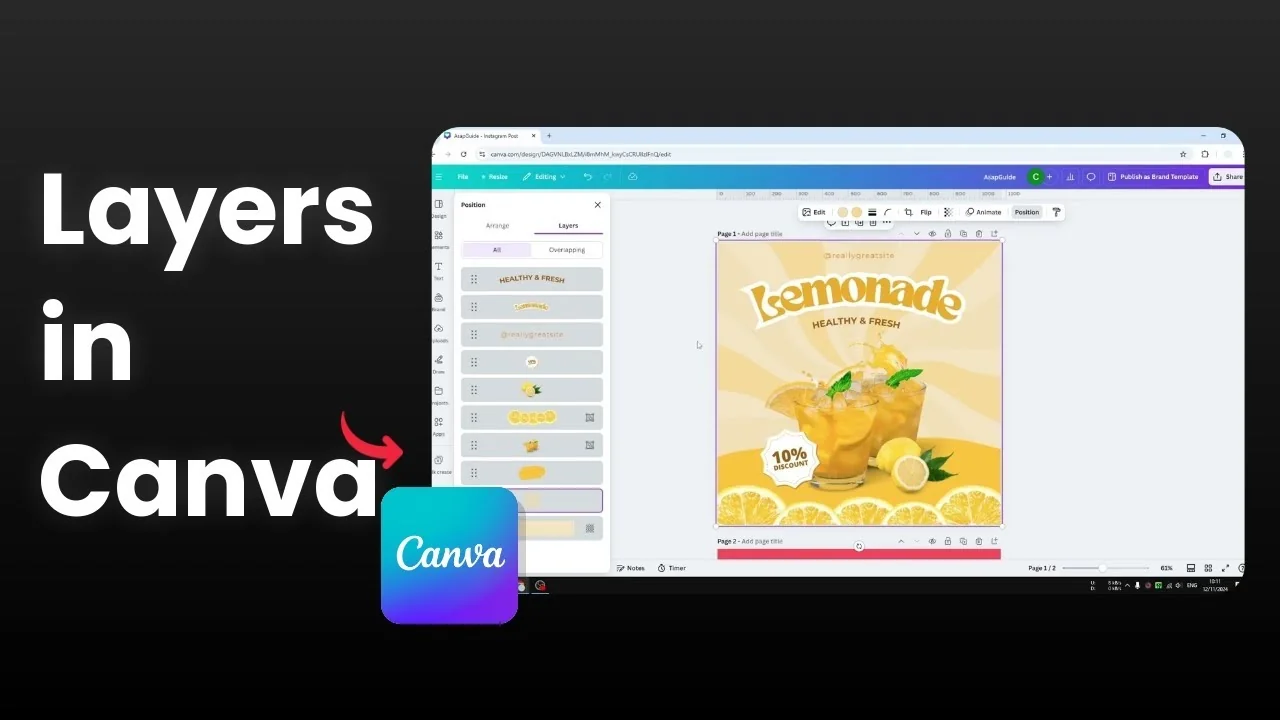
I'm going to show you how you can see layers in your Canva design. If you have multiple elements in your design and you want to see what object occupies a certain level, you can do it. You can see the layers in Canva just like layers in Photoshop.
See Layers in Canva basics
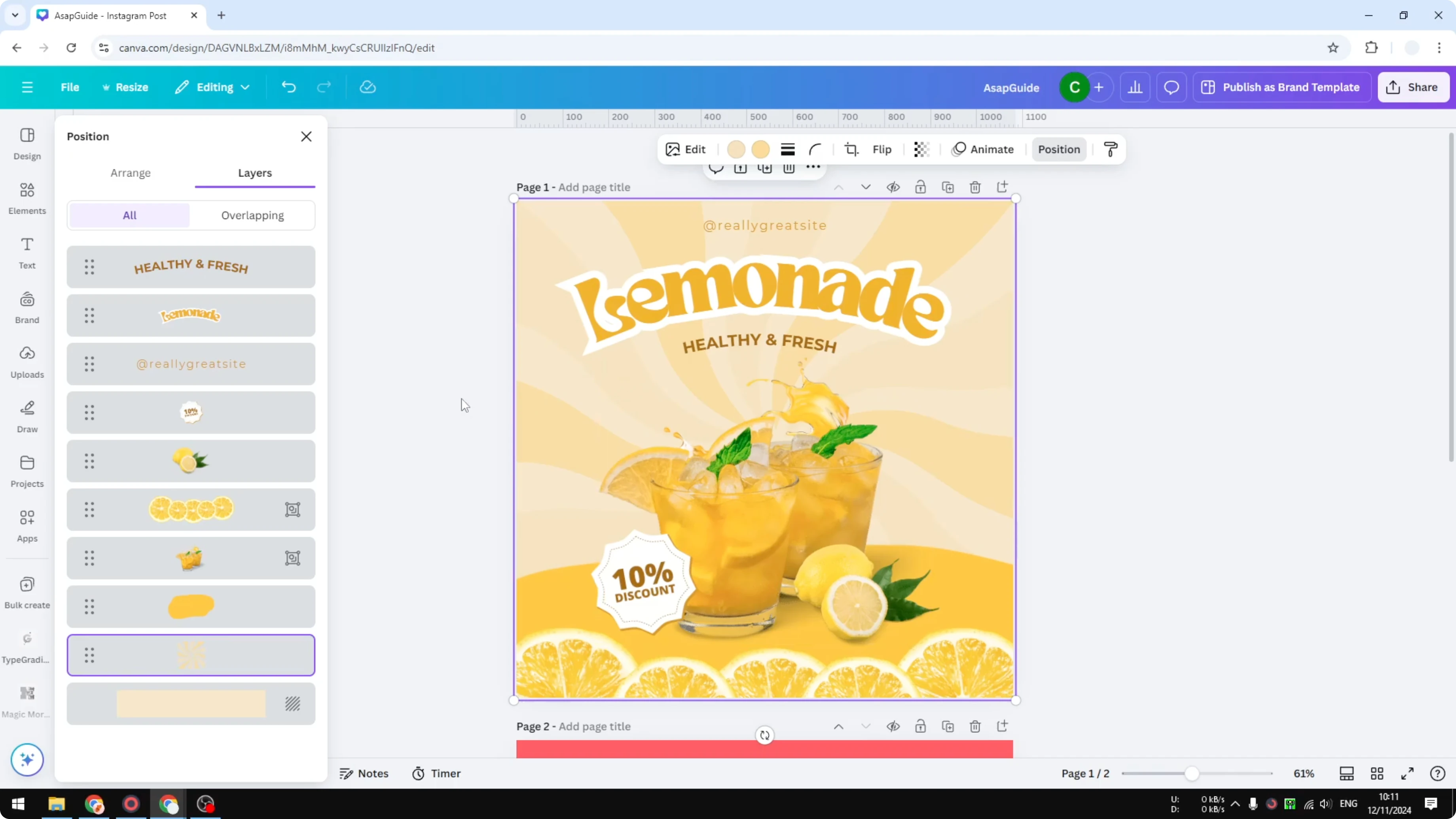
To open that section you must select any object in your design. It could be anything, including the background. After that, click Position and go to Layers.
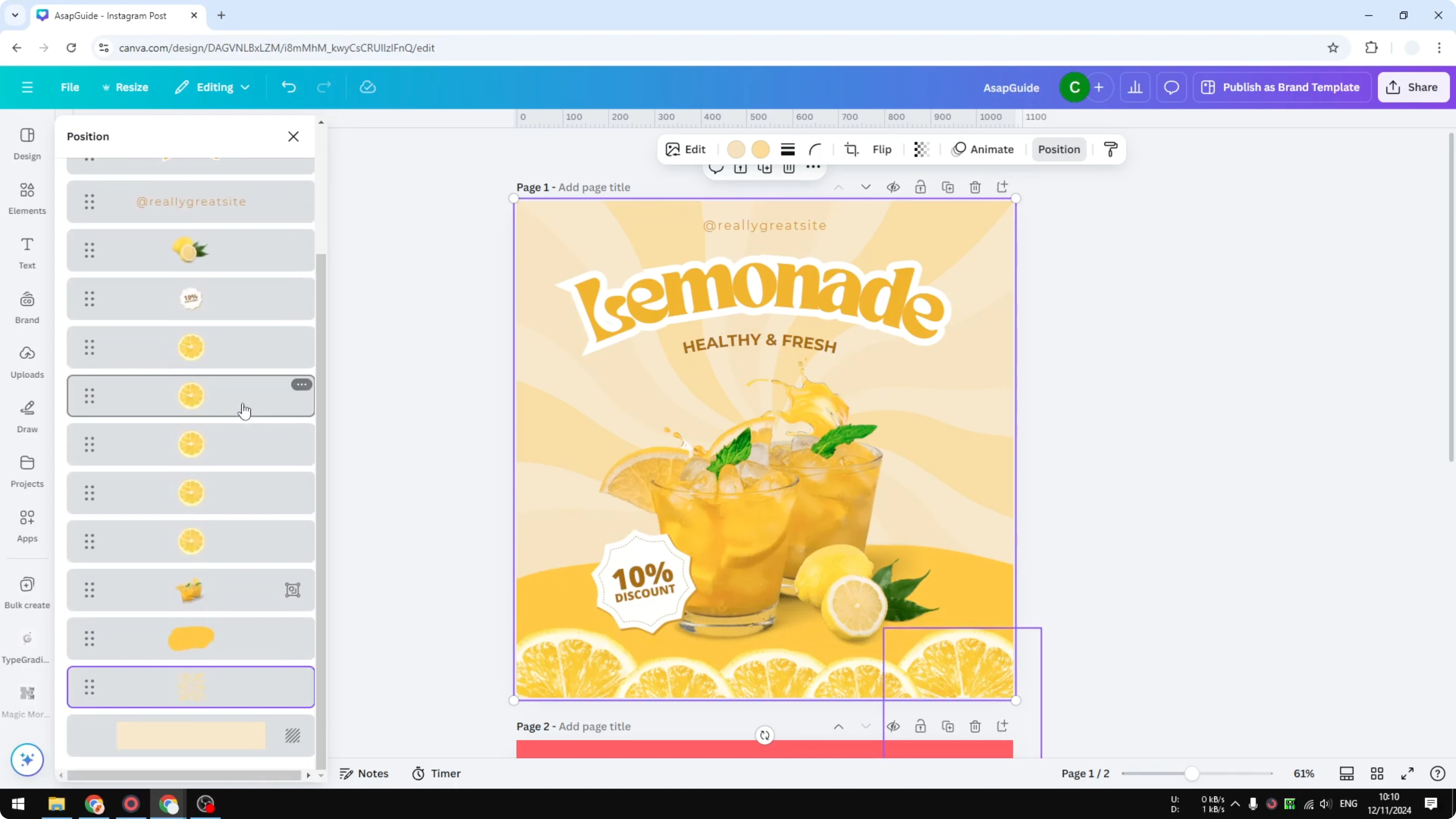
This is where you can see all the layers or all the elements in this design. At the bottom is the background, and at the top is the text. If you prefer rearranging items directly, you can arrange layers with drag and drop.
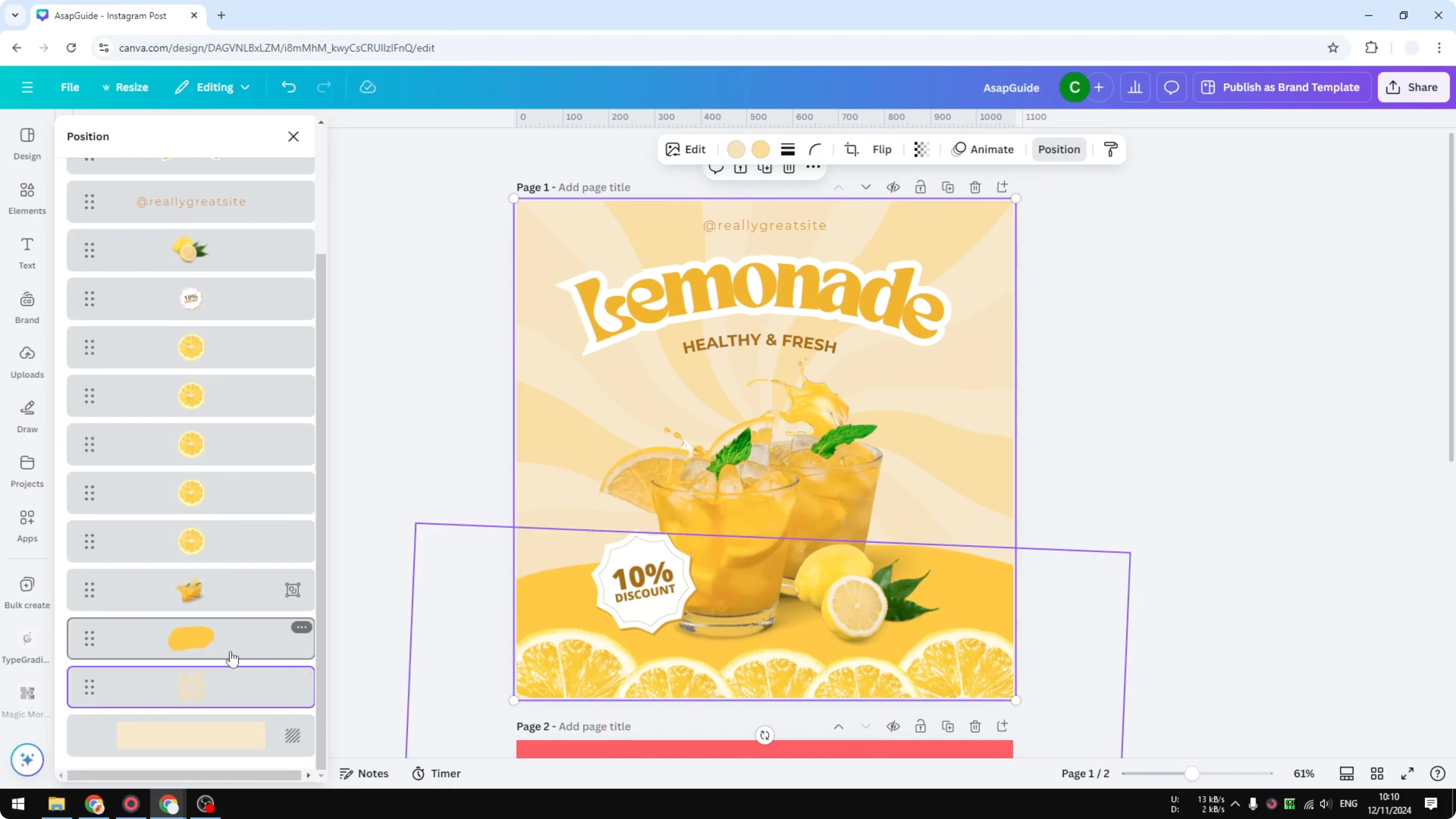
See Layers in Canva - steps to open the panel
Click any object on your canvas.
Click Position.
Click Layers to open the panel.
See Layers in Canva - groups on one layer
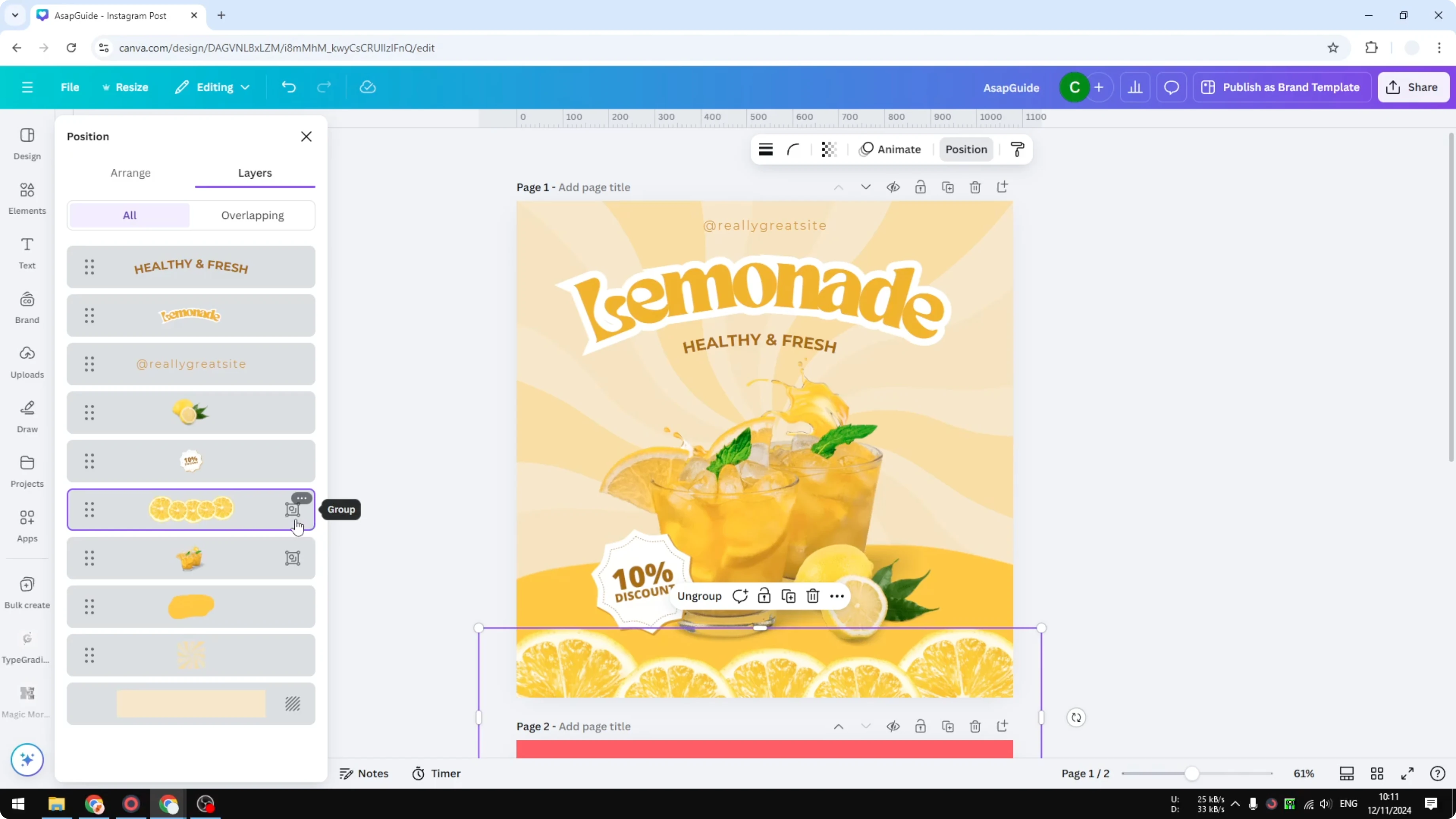
There is also a group item. A group item will be grouped into one layer. Multiple elements in a group cannot be placed on different levels.
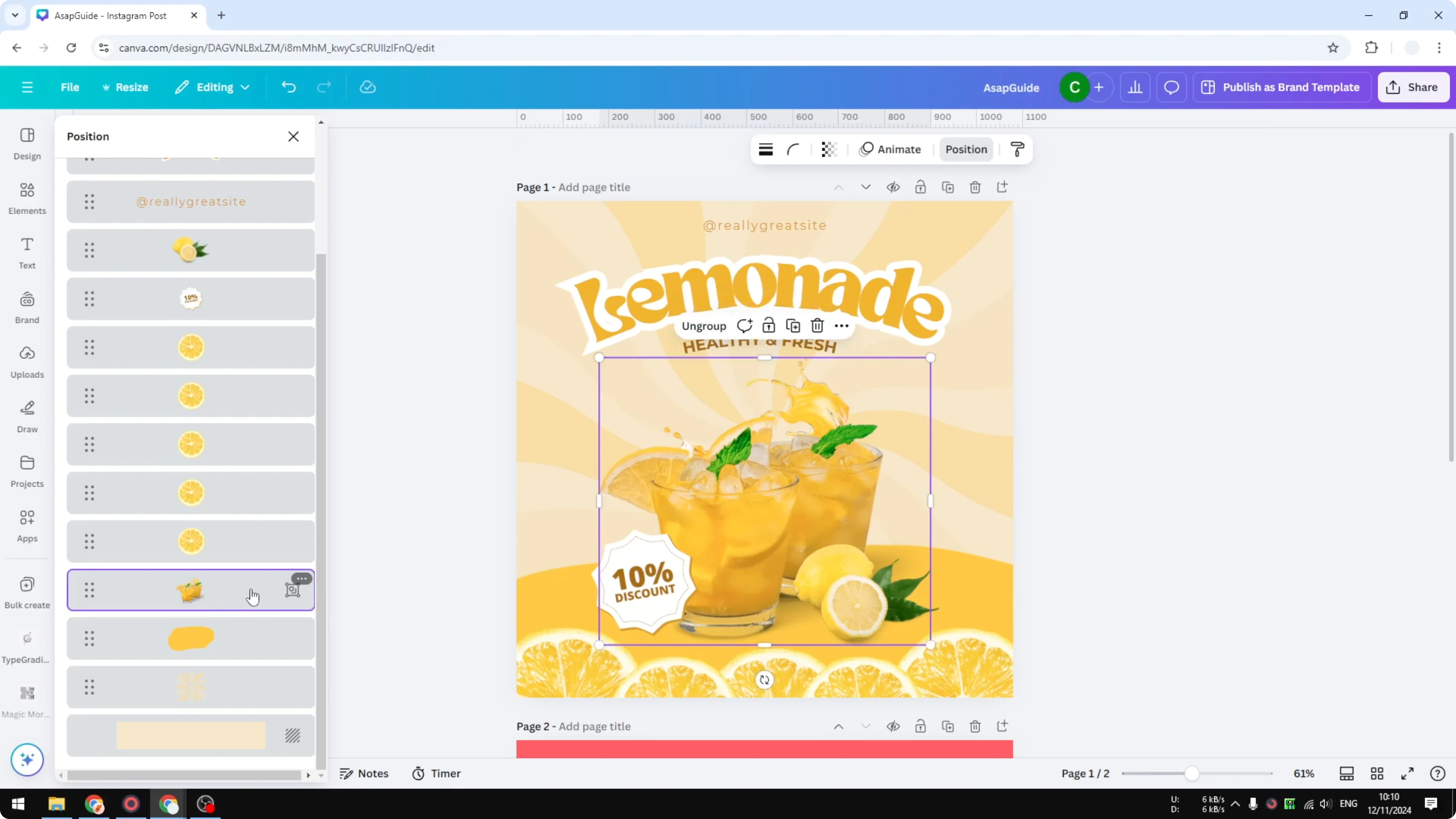
They have to be on the same level. For example, there are five pictures here. If I group them together, they are going to be on the same layer.
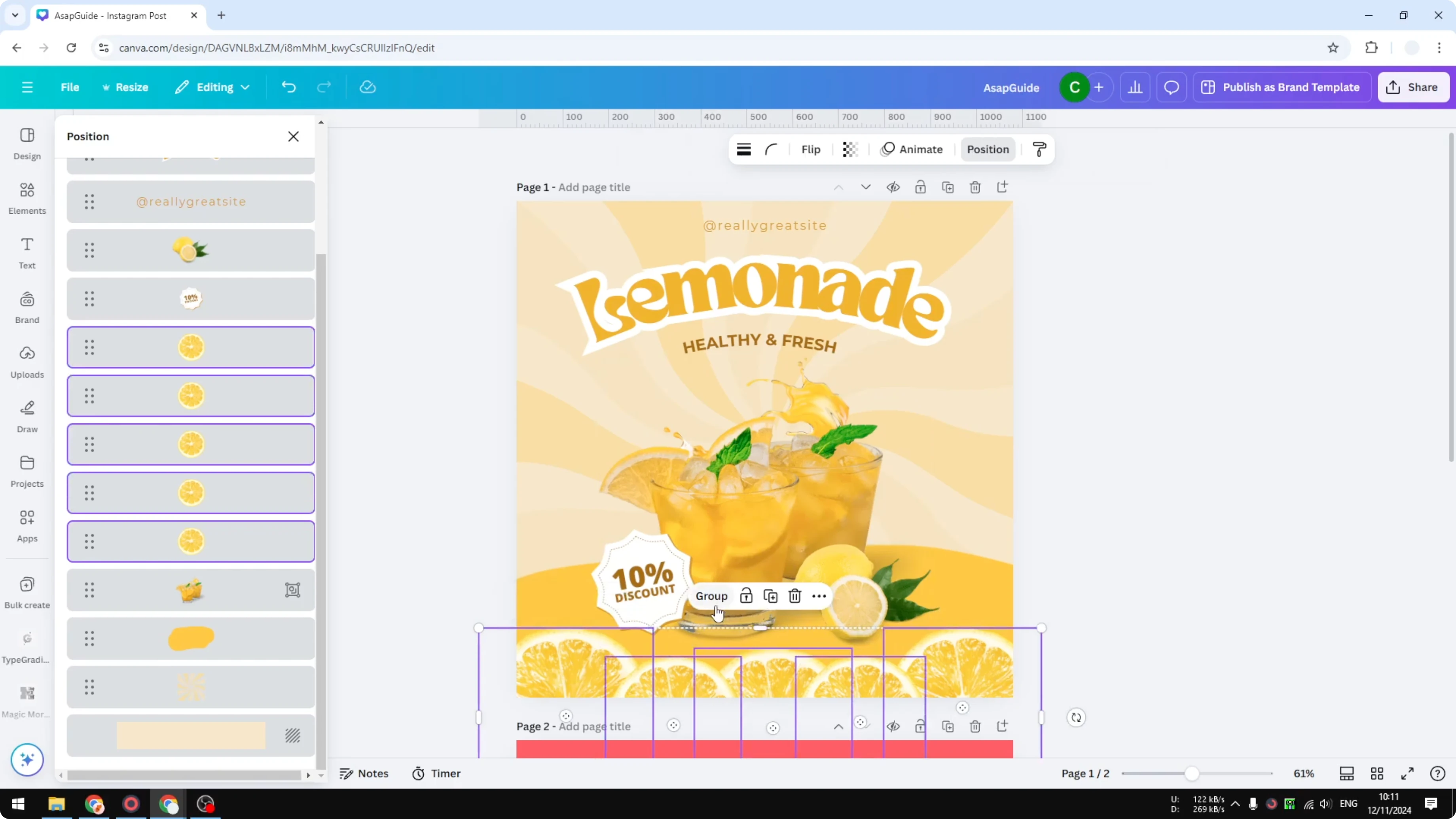
You will see a description that this is a group object. This is very useful if you want to manage or organize a lot of items. For a project with many elements, you can create a 3D book cover in Canva and keep related objects grouped.
See Layers in Canva - manage and select elements
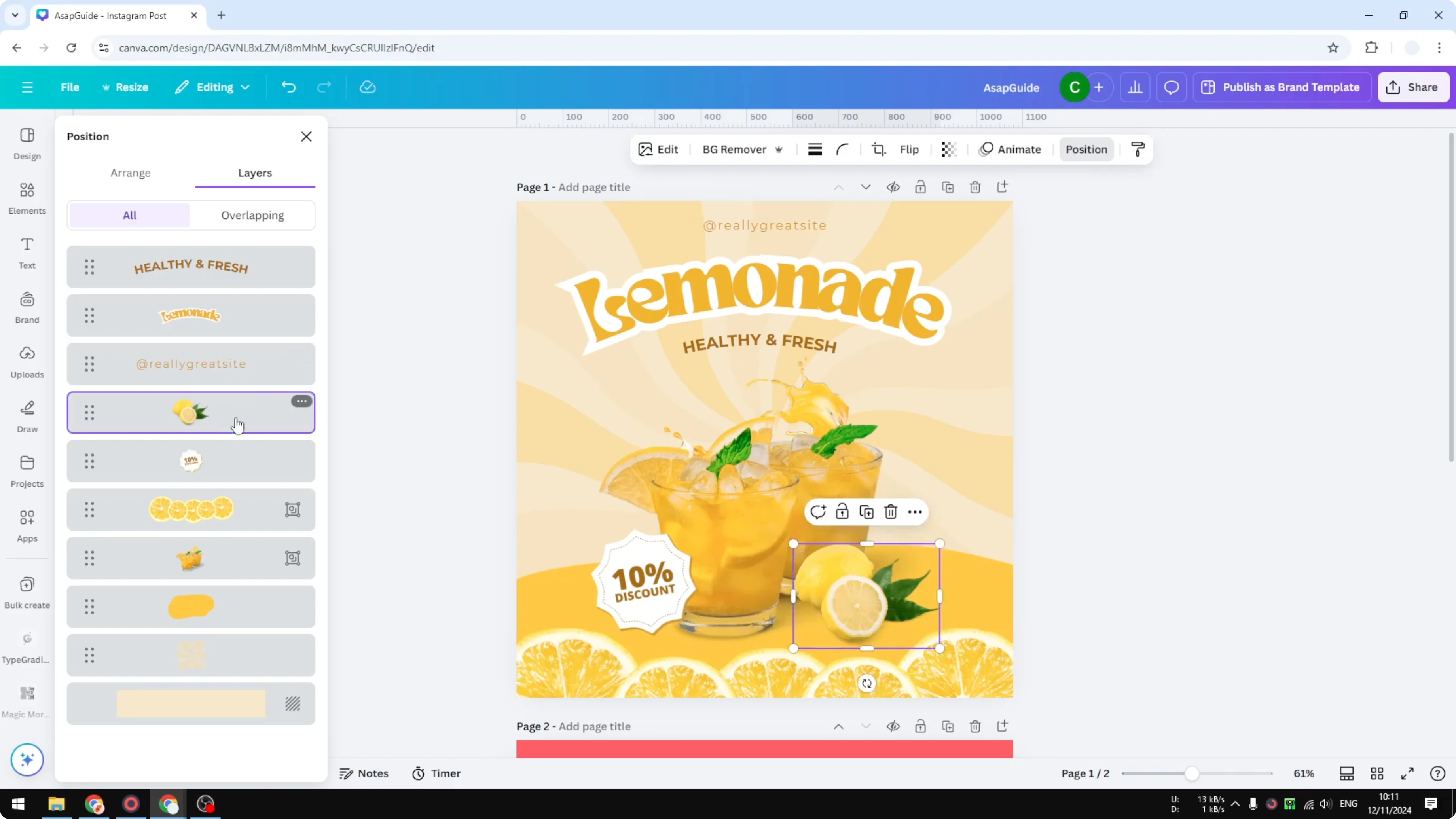
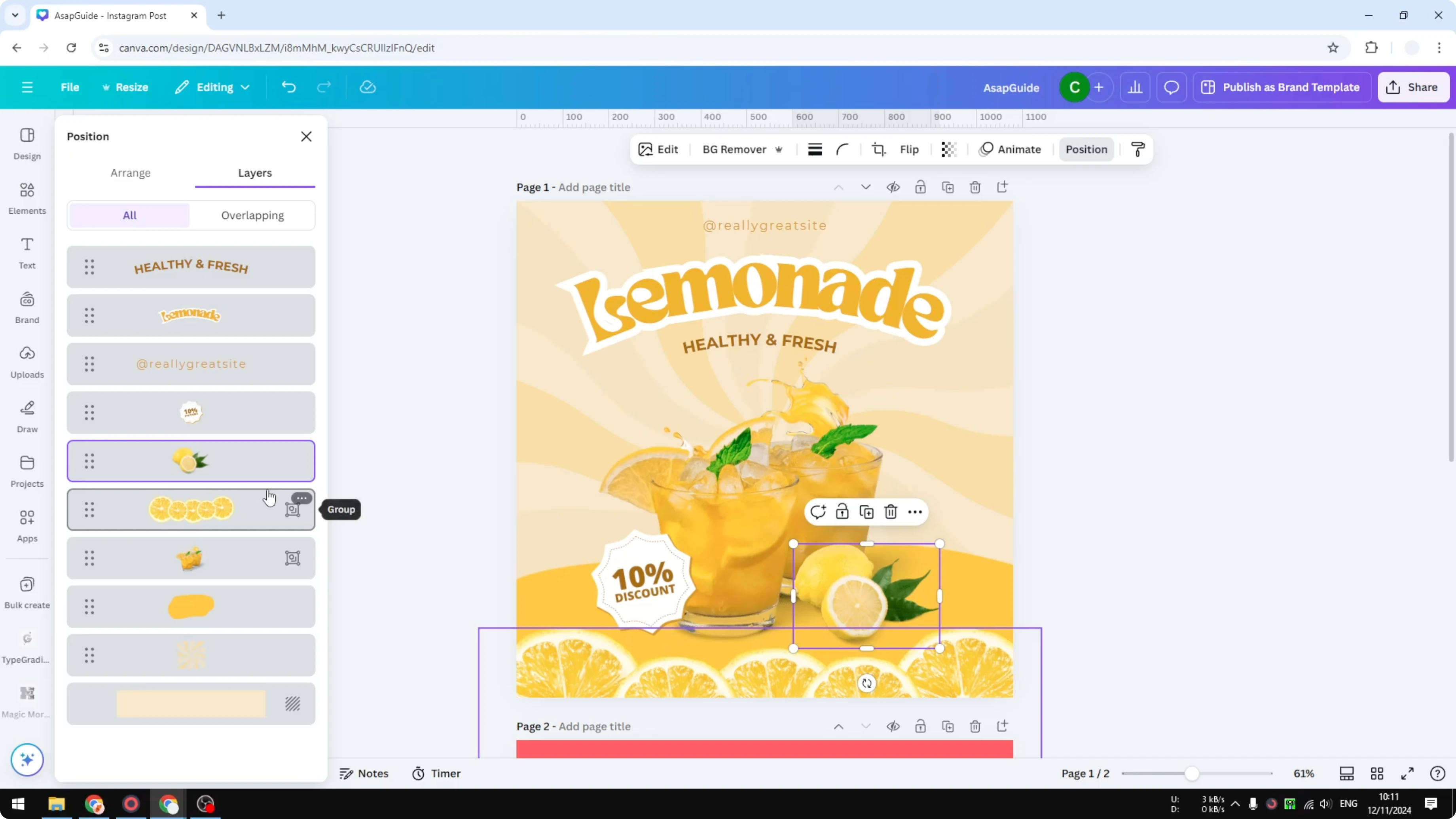
Layers help you move items, hide items, or click an element that is located at the back. This layer option is very helpful when the canvas is crowded. If your design needs large type behind objects, learn how to add background text in Canva and manage its position in the stack.
Remember, click on any object, go to Position, go to Layers, and you will see this menu. This quick path makes it easy to find and control every element in your design.
Final thoughts on See Layers in Canva
Seeing layers in Canva gives you a clear list of everything in your design and their order. Select an object, open Position, then Layers, and manage items, groups, and background with precision. Use the panel to select, move, and organize elements faster when your design gets busy.
Recent Posts

How to Visualize Yourself as a Pixelized Character with AI?
How to Visualize Yourself as a Pixelized Character with AI?

How to Revive Faded Memories and Enhance Image Clarity with AI?
How to Revive Faded Memories and Enhance Image Clarity with AI?

How to Visualize Yourself as an Animal Crossing Character with AI?
How to Visualize Yourself as an Animal Crossing Character with AI?