How to Arrange Layers in Canva with Drag and Drop

Arranging layers in Canva with drag and drop makes it easy to control which elements sit on top or behind others. Designs often have multiple elements, and some will overlap. You may want a section of one element to be covered by another.
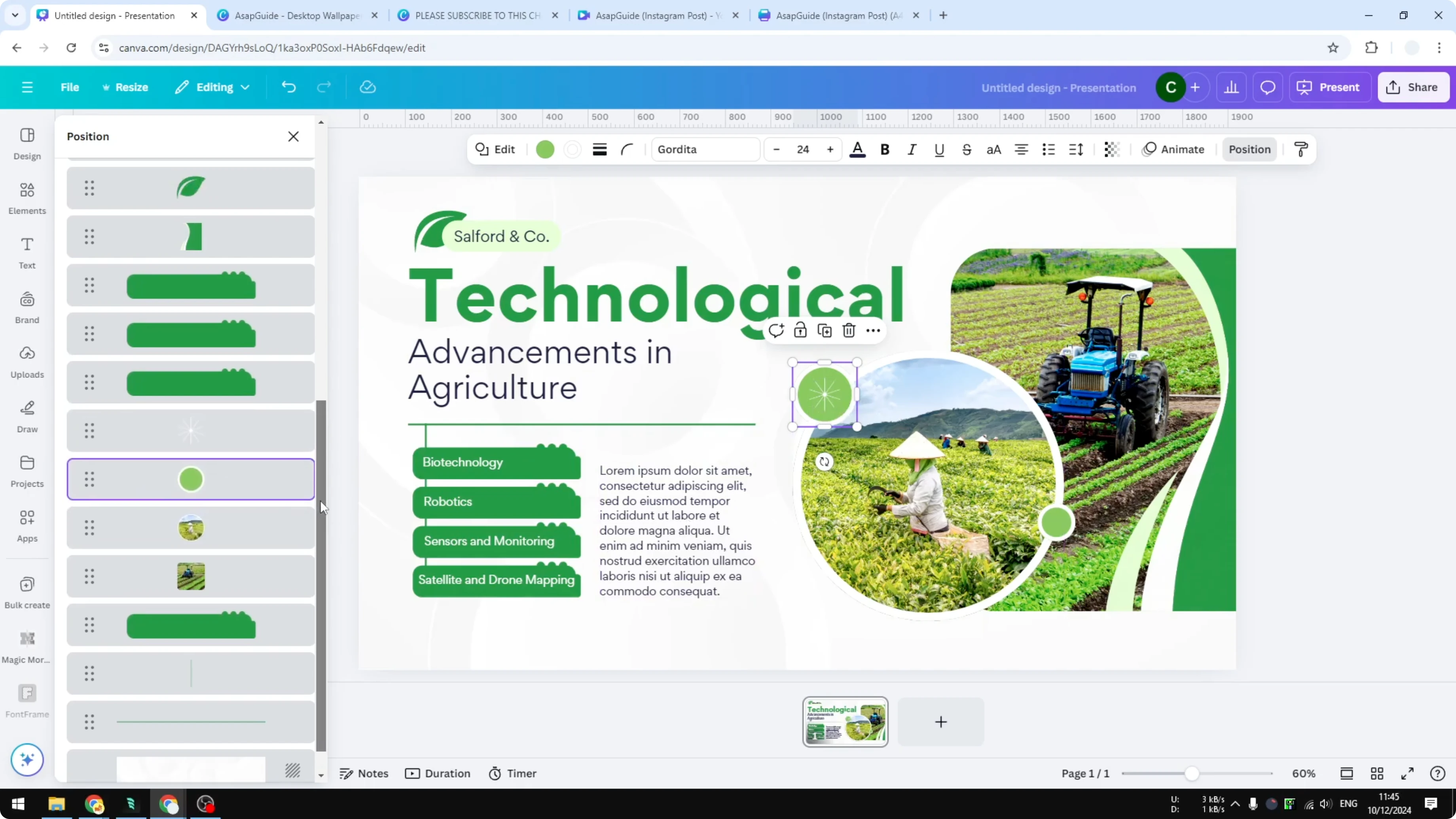
In the example, a circle decoration covers part of an image. This is important in Canva because you want to place each element the right way. You do not want to block items that are supposed to be seen.
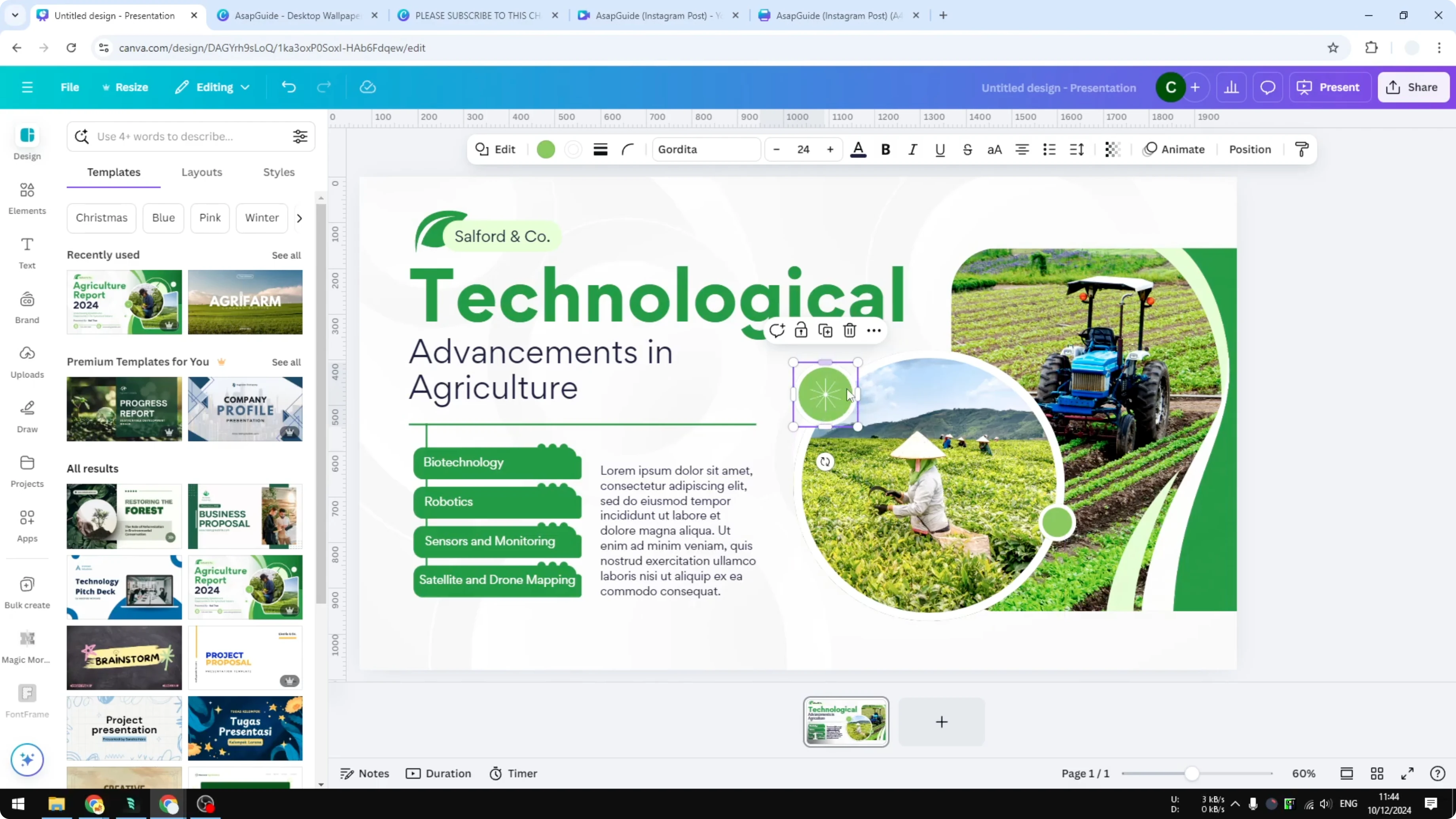
Arrange Layers in Canva with Drag and Drop
The easiest way to play around with this is by using the layers feature. The layers menu lets you see the composition of your design. You can check how elements stack and adjust them quickly.
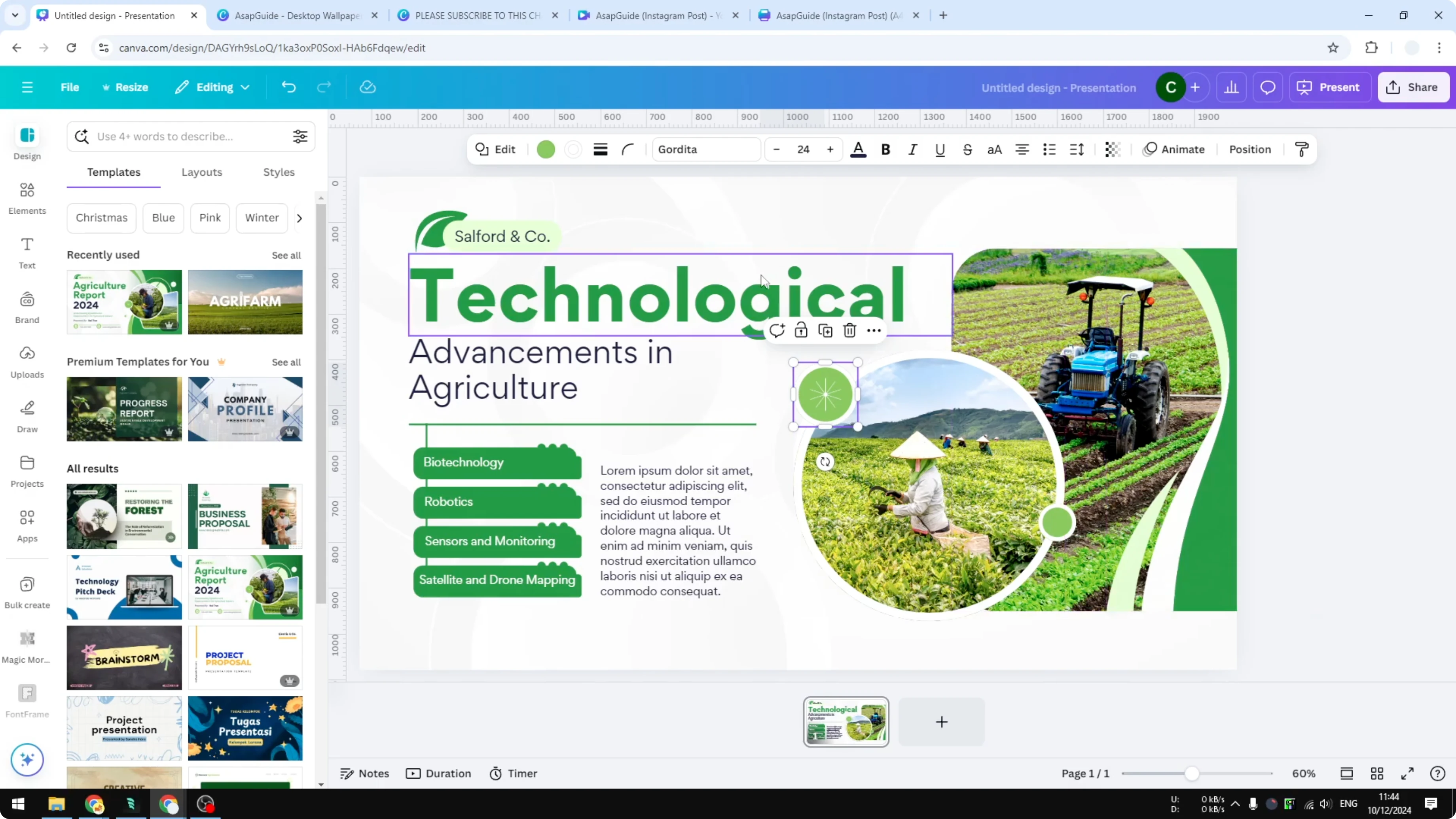
Open the Layers Panel in Canva
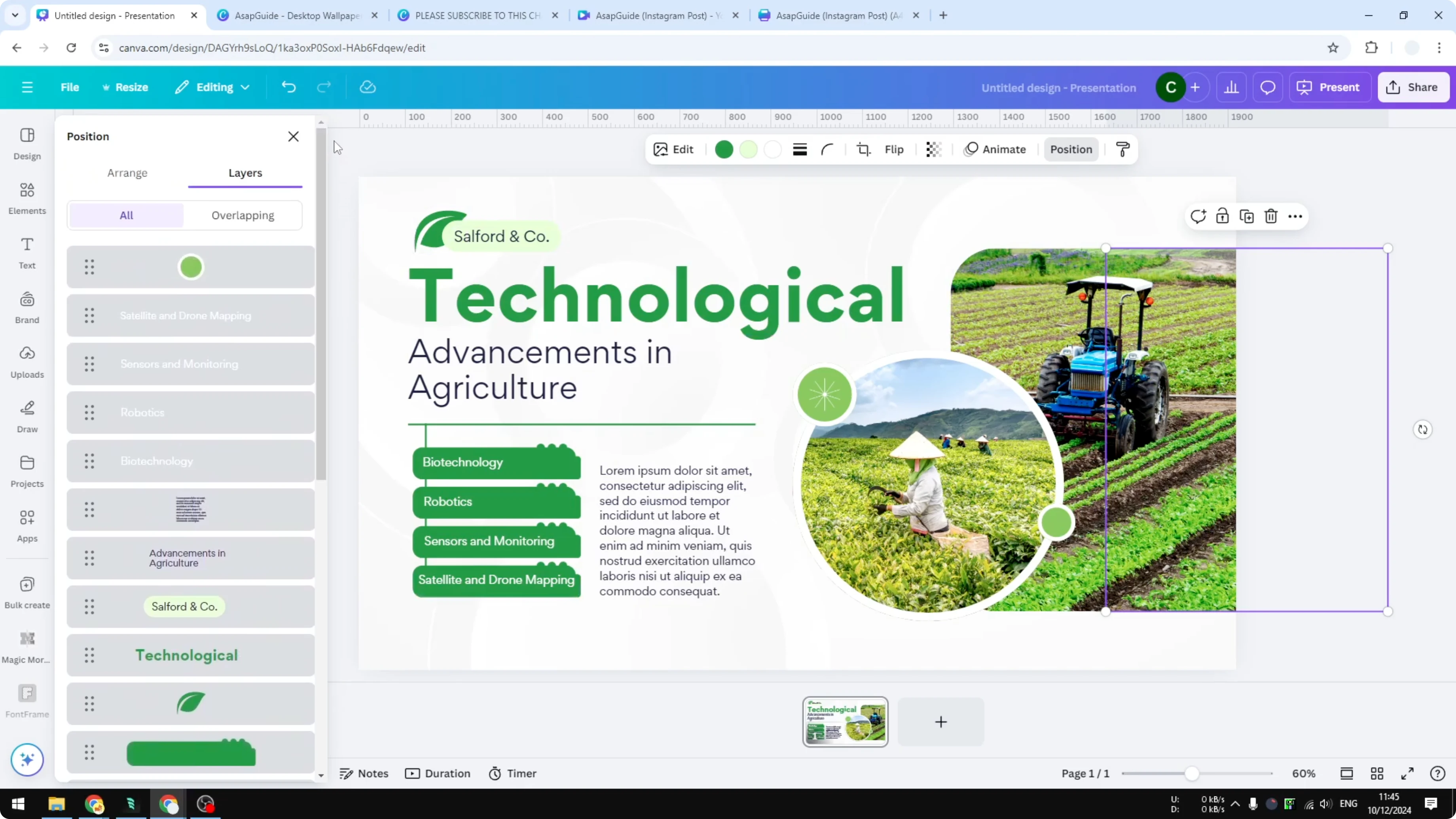
Go to the Position menu and navigate to Layers. You will see a list of elements in your design. This view helps you focus on specific items that need to move above or below others.
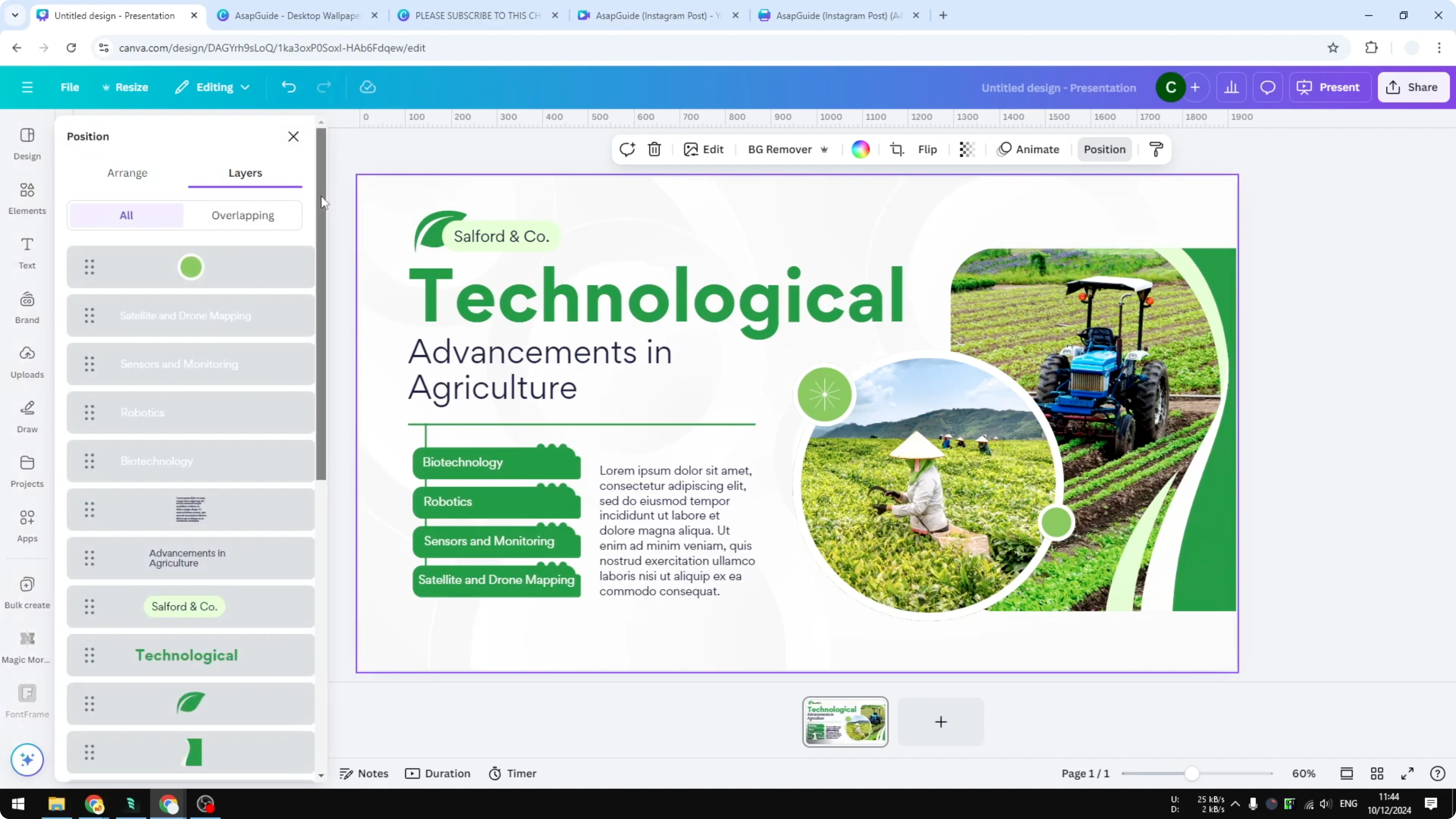
Move Elements Above or Below With Drag and Drop
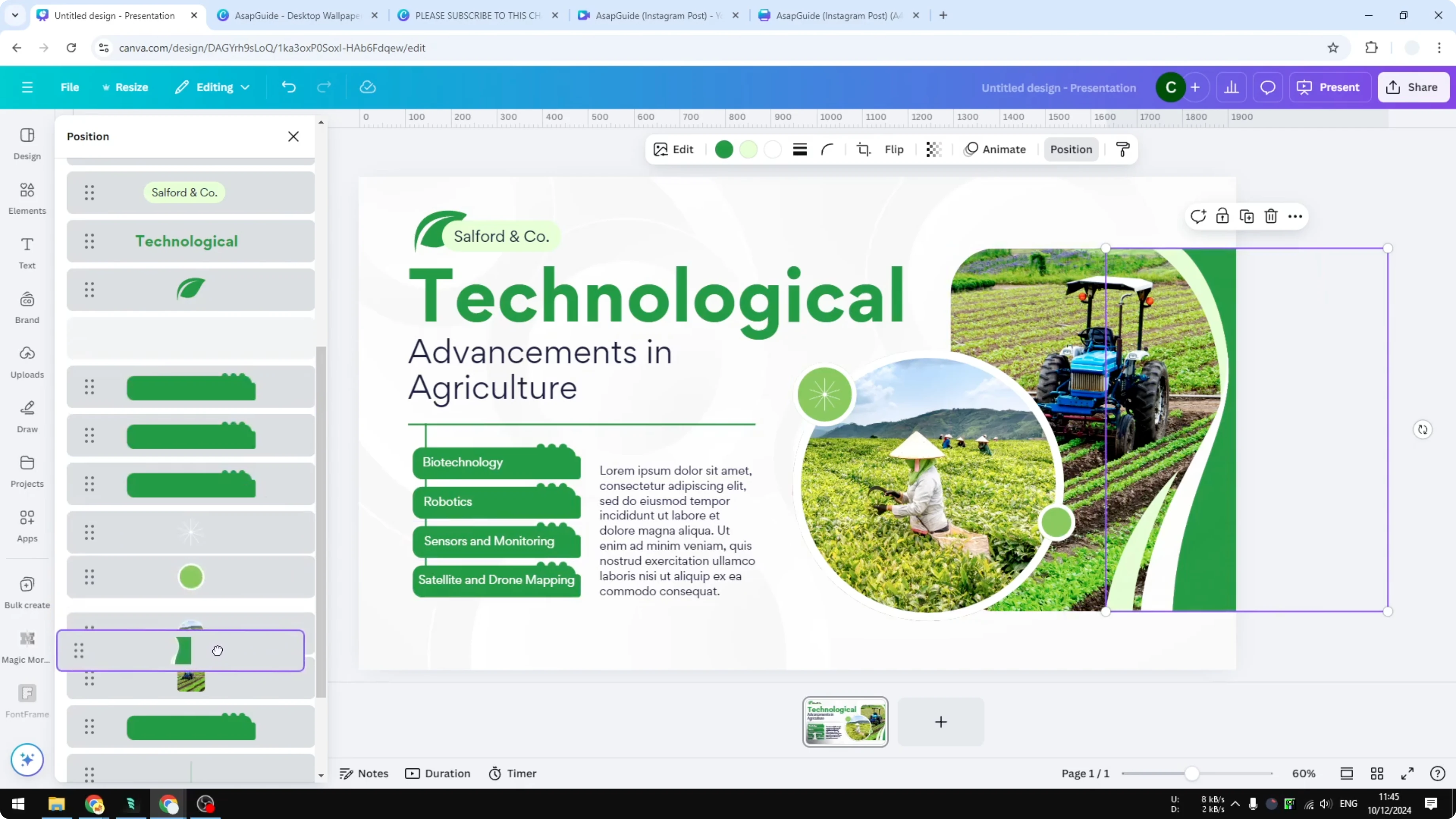
Take the circle element mentioned earlier. It is at the top of the picture, but if you drag and drop it to the bottom in the layers panel, it moves behind the picture. If you put it back again, it returns to the top.
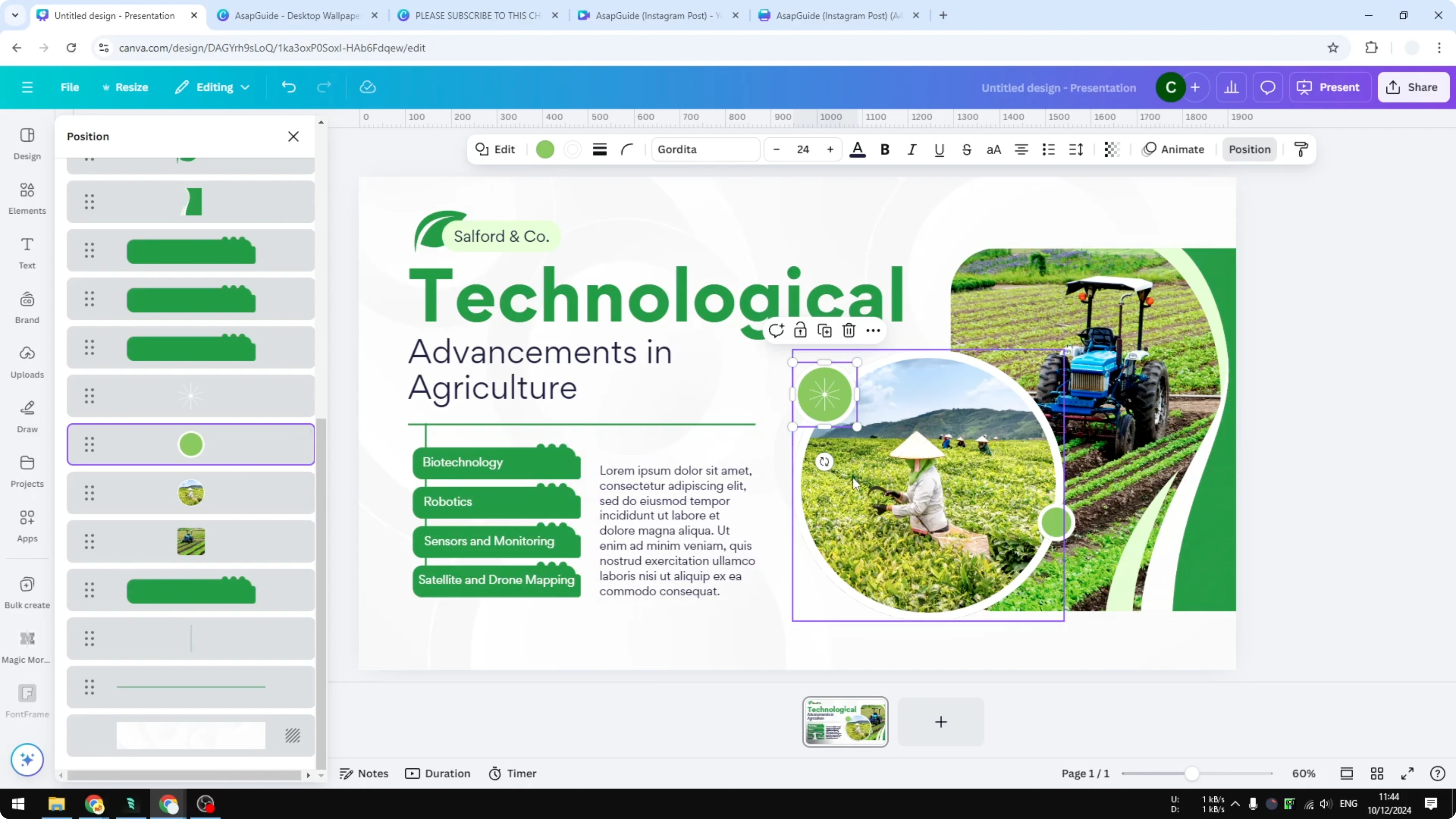
This works for every element and every group in your document. Drag items in the list to change their order. The visual result updates as you move elements.
Keep Elements Visible With Correct Layer Order
If you put an element behind a picture, it can become invisible because it is blocked. Adjust the order until everything you want to be seen is visible. Avoid placing decorative items in a way that hides important content.
Step-by-Step: Arrange Layers in Canva with Drag and Drop
Open your design in Canva.
Go to the Position menu.
Click Layers to view all elements.
Select the element you want to move.
Drag the element up to bring it in front or down to send it behind.
Release to set its new position in the stack.
Check the canvas to confirm nothing important is blocked.
Repeat as needed for other elements and groups.
Final Thoughts
Using the layers feature in Canva gives you precise control over how elements overlap. Drag and drop in the layers panel to place items correctly and keep key content visible. Adjust the order until the design looks the way you want.

Recent Posts

How to Visualize Yourself as a Pixelized Character with AI?
How to Visualize Yourself as a Pixelized Character with AI?

How to Revive Faded Memories and Enhance Image Clarity with AI?
How to Revive Faded Memories and Enhance Image Clarity with AI?

How to Visualize Yourself as an Animal Crossing Character with AI?
How to Visualize Yourself as an Animal Crossing Character with AI?