How to Save a Single Page From a Multi Page Design in Canva
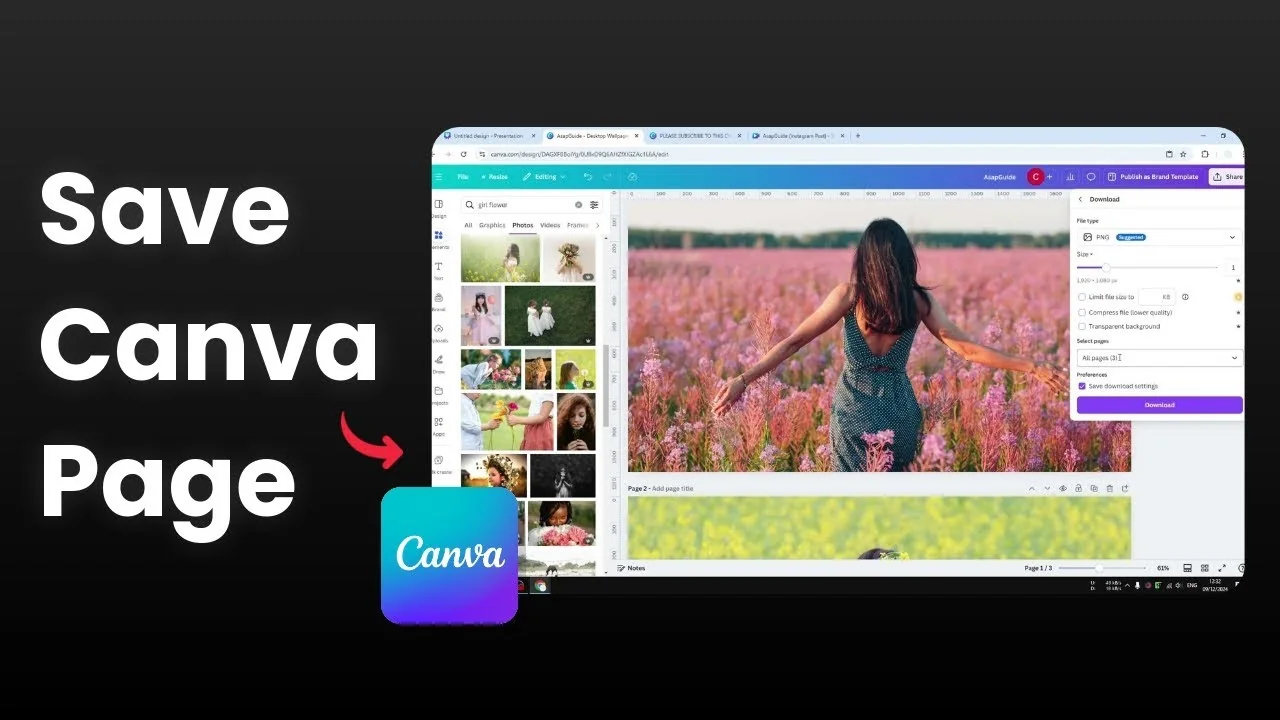
I am going to show you how to download a single page from a multi page design in Canva. I have a document with three pages, and I only need page two. Here is the exact process I use.
Save a Single Page From a Multi Page Design in Canva
Click Share, then click Download.
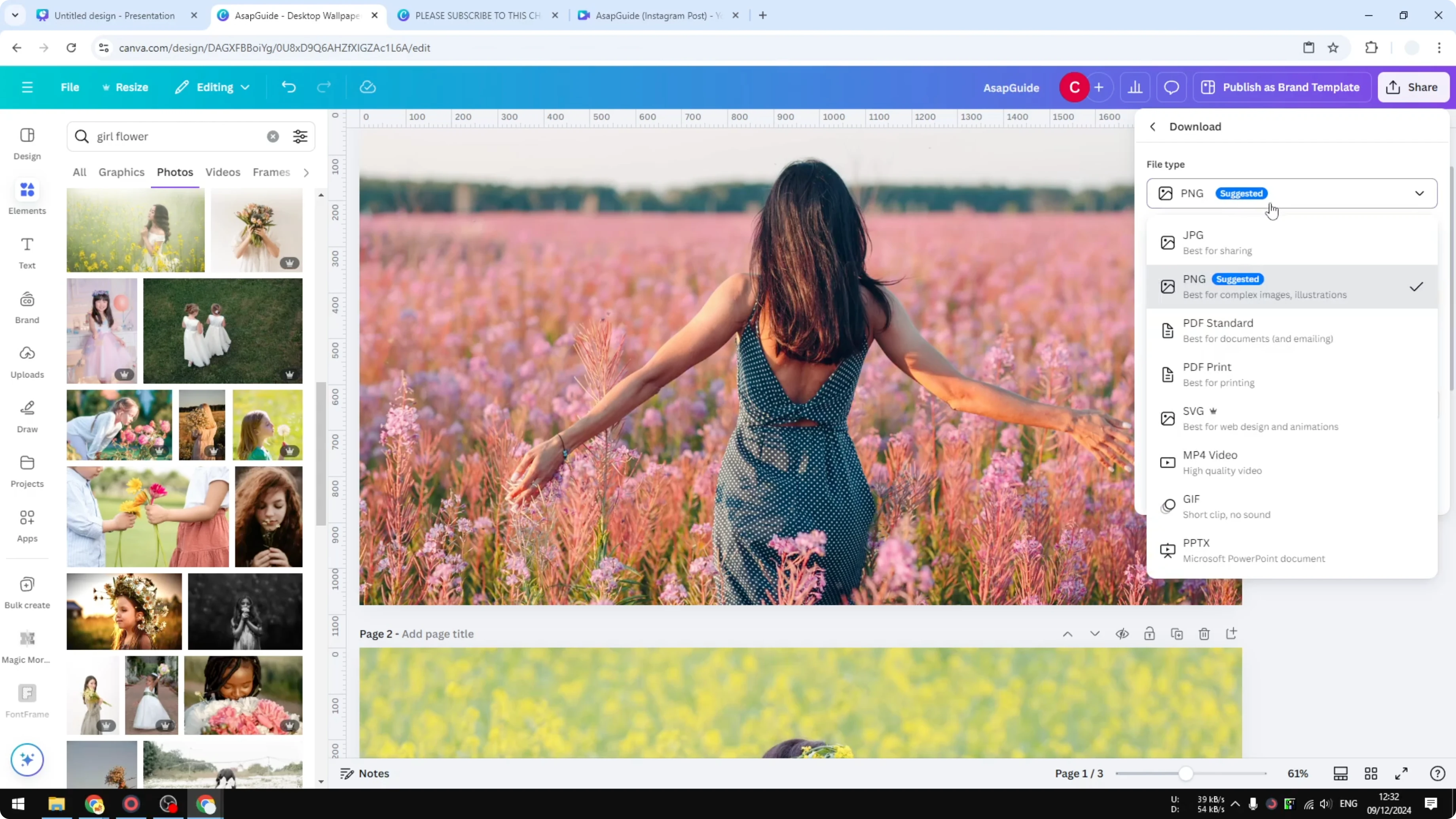
Choose the file format that matches your document type. It depends on what you are working on. For this example, I select PNG.
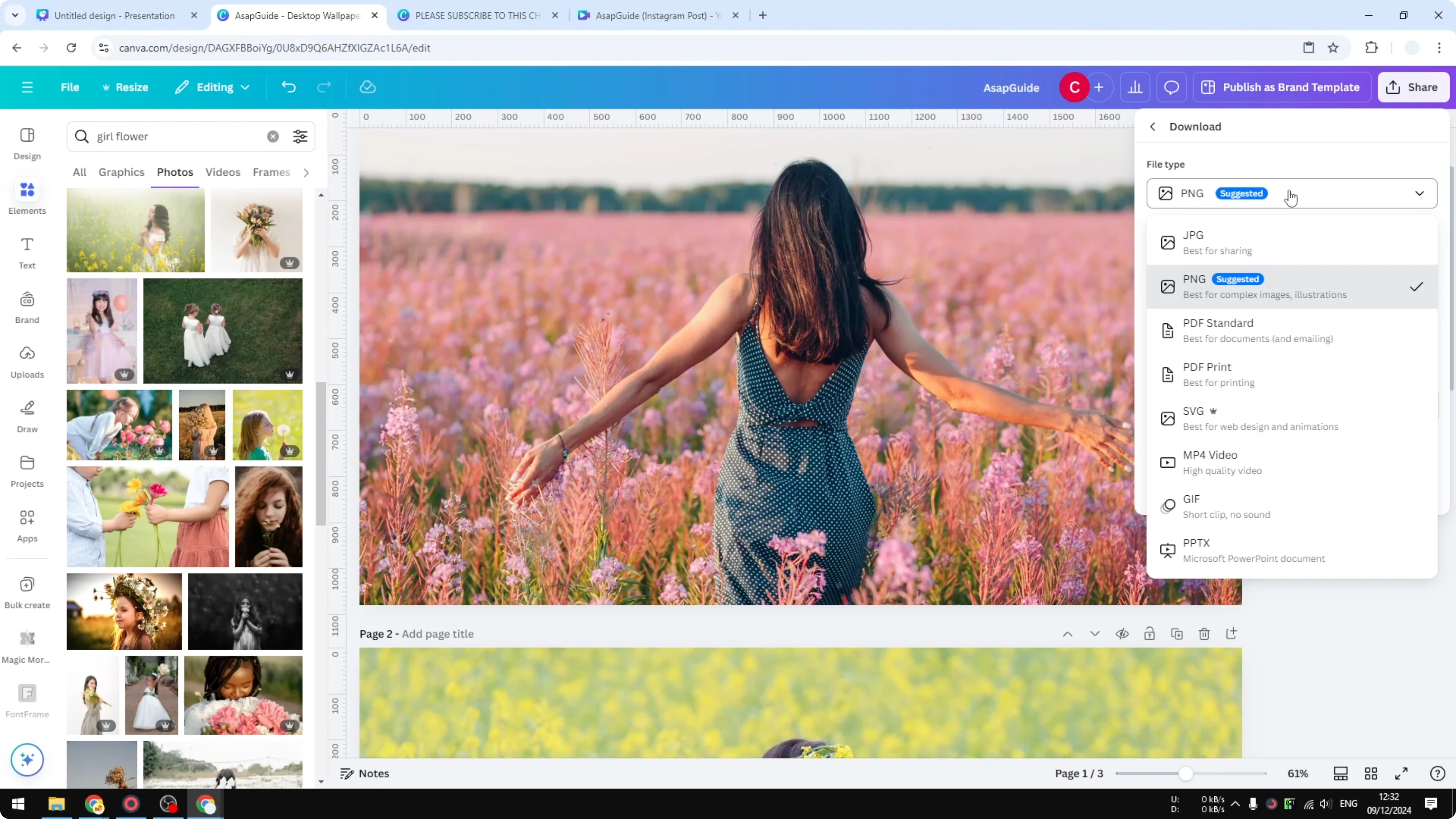
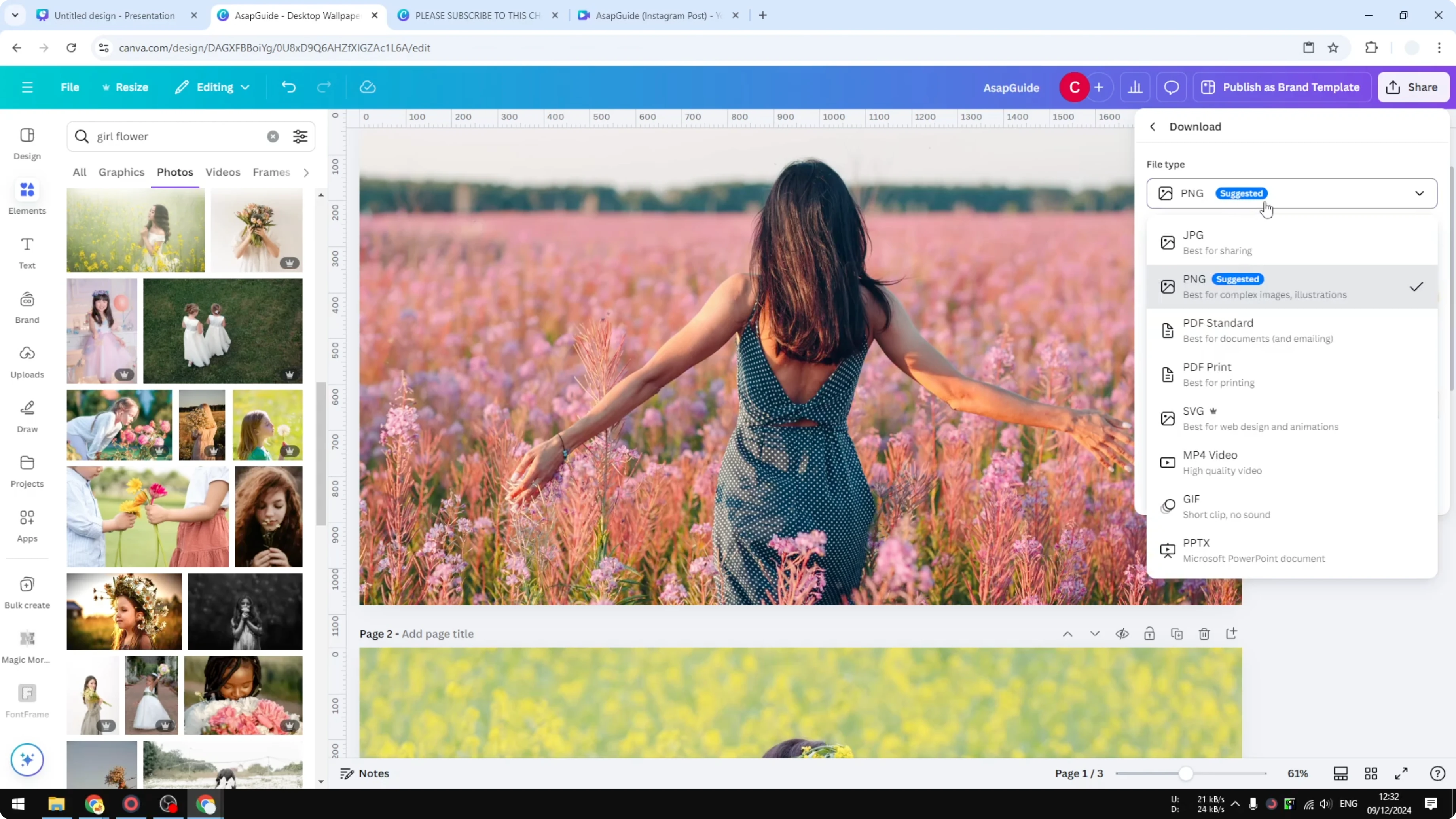
If you are working on a video, choose MP4 Video. If you are exporting a presentation, choose PPTX. If you need to confirm the size before exporting, see how to check your current design dimensions.
Click Select pages. Clear all checkboxes to start fresh. Pick page 2 and click Done.
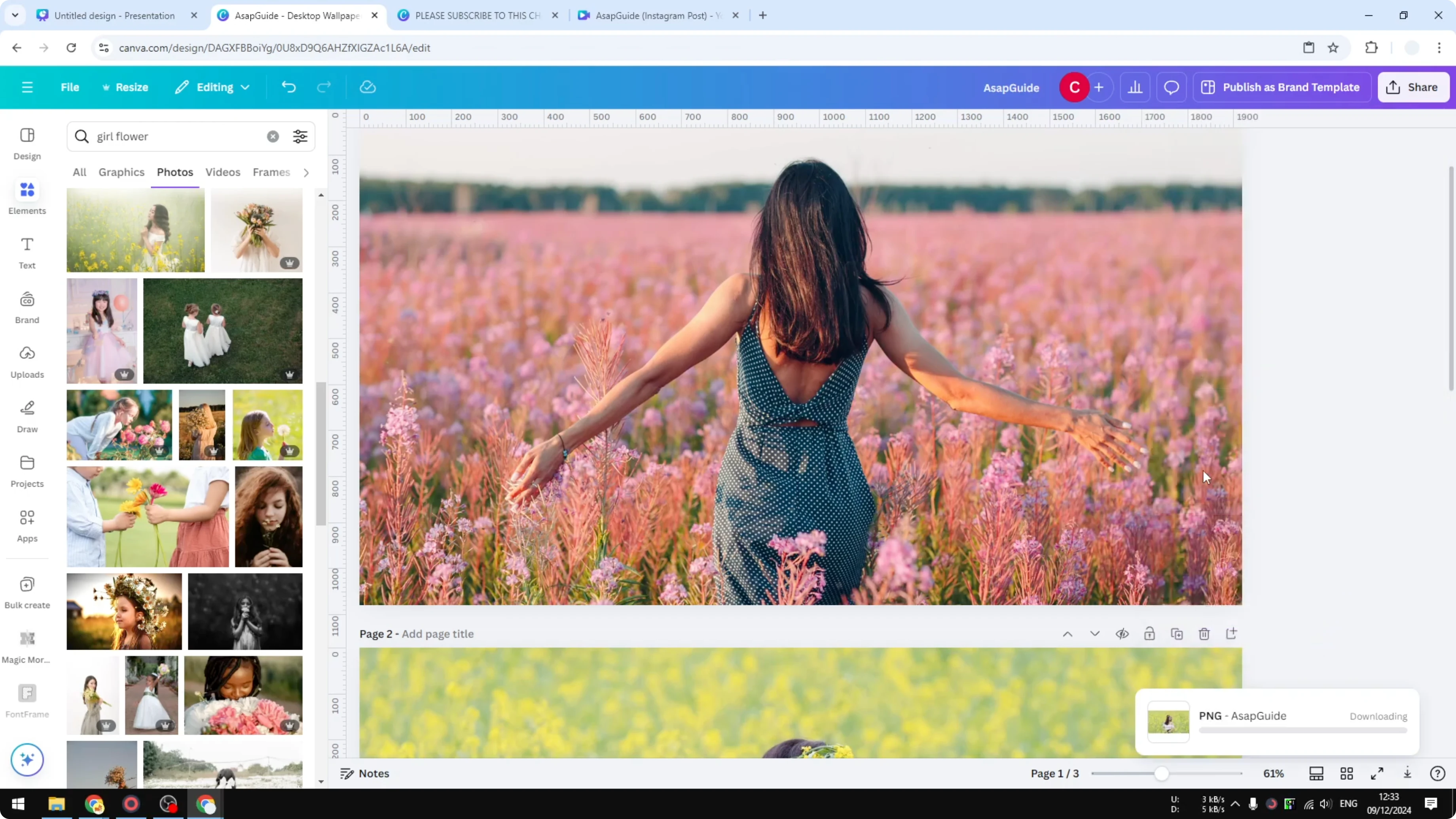
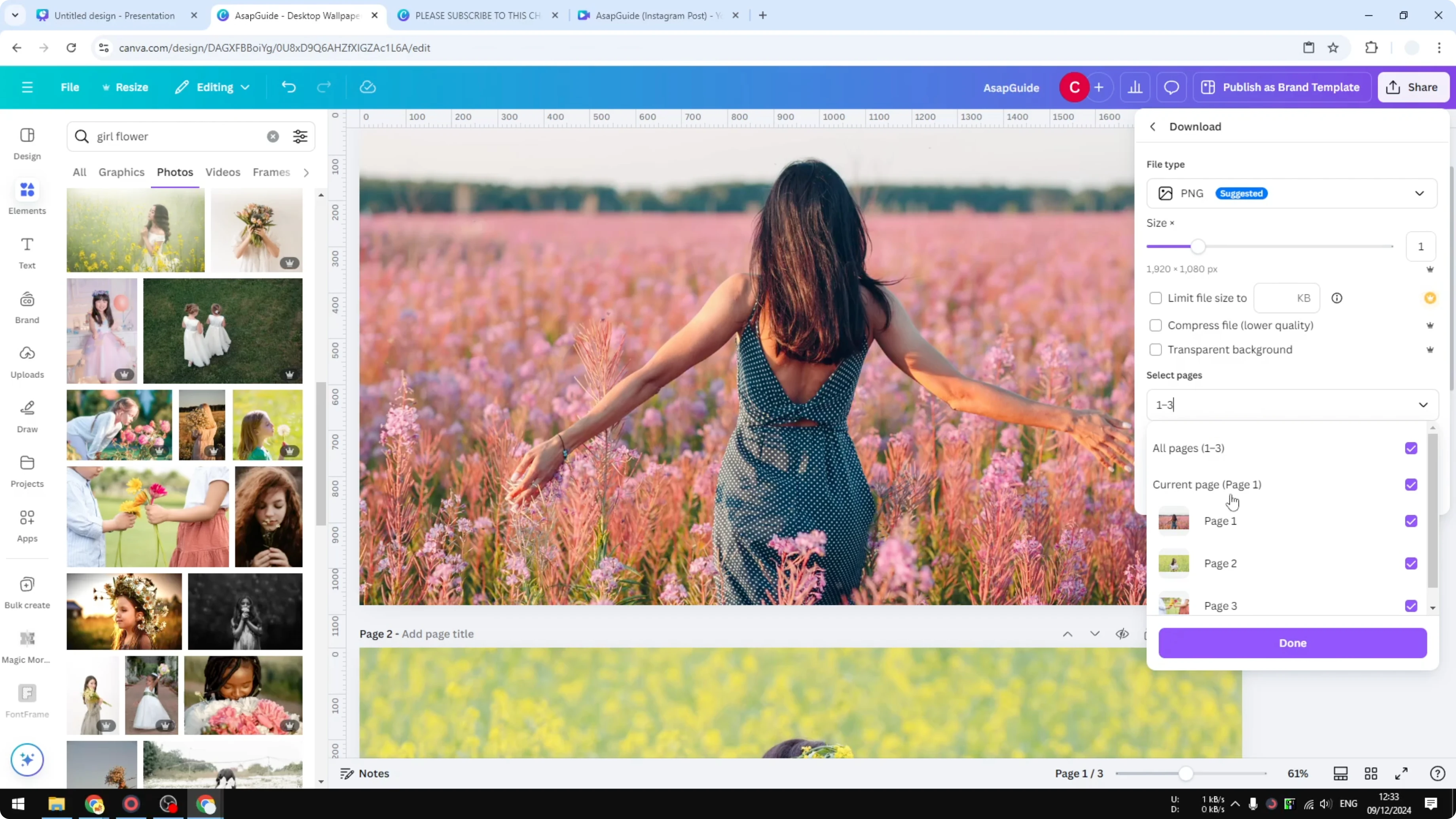
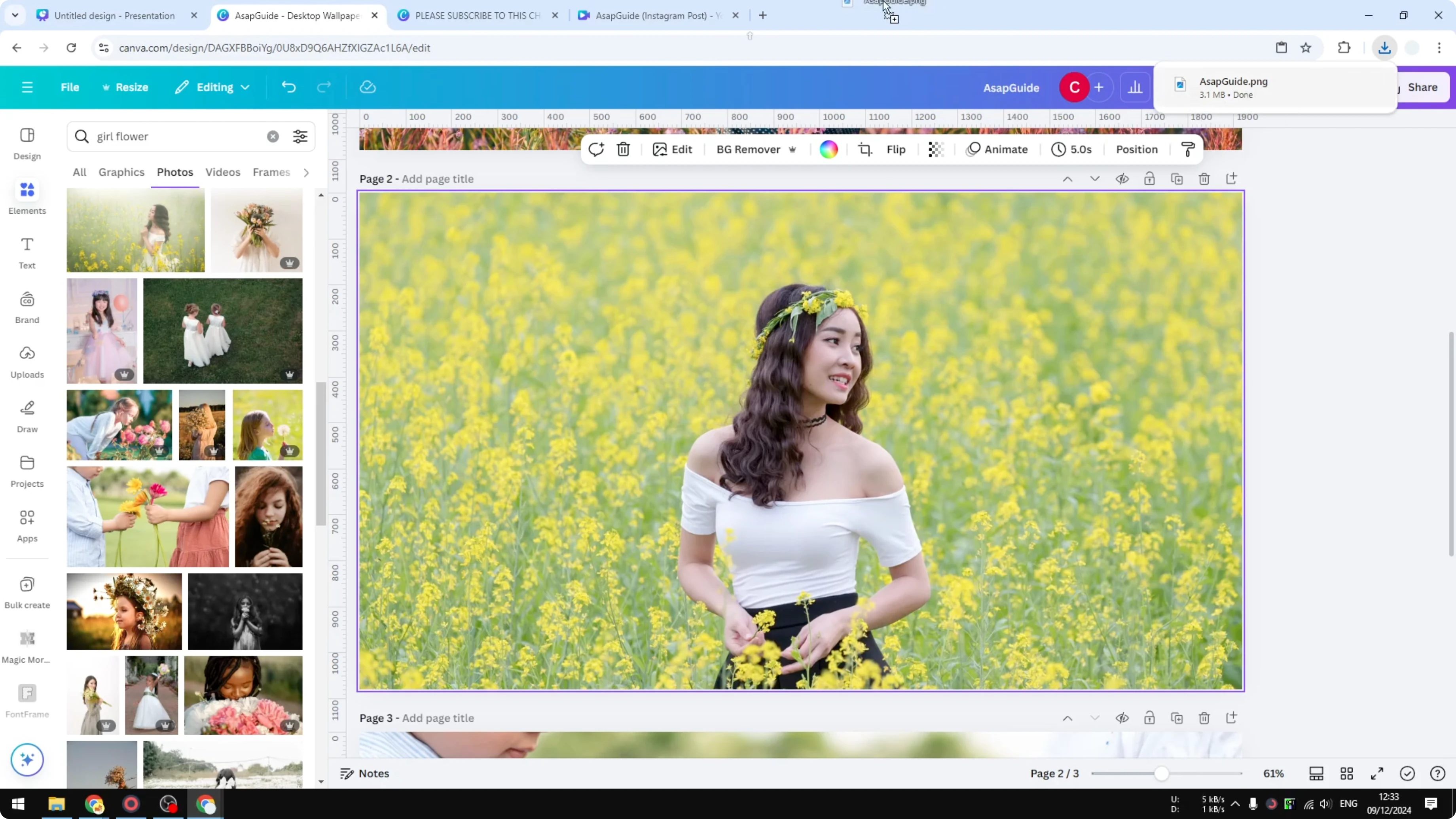
Click Download. Canva will export only the page you selected. Open the file to verify it is the correct page.
If your export is a video and you want to clean on screen text, see how to remove text from a video in Canva.
If you need to move a page into another project instead of exporting, learn how to copy a Canva page to another design.
Final Thoughts
Picking the right format and the exact page gives you a clean export without the rest of the document. Share, Download, choose the format, select the page, and export. This workflow is quick and works across images, presentations, and videos.
Recent Posts

How to Visualize Yourself as a Pixelized Character with AI?
How to Visualize Yourself as a Pixelized Character with AI?

How to Revive Faded Memories and Enhance Image Clarity with AI?
How to Revive Faded Memories and Enhance Image Clarity with AI?

How to Visualize Yourself as an Animal Crossing Character with AI?
How to Visualize Yourself as an Animal Crossing Character with AI?