How to Save Canva Design to Computer
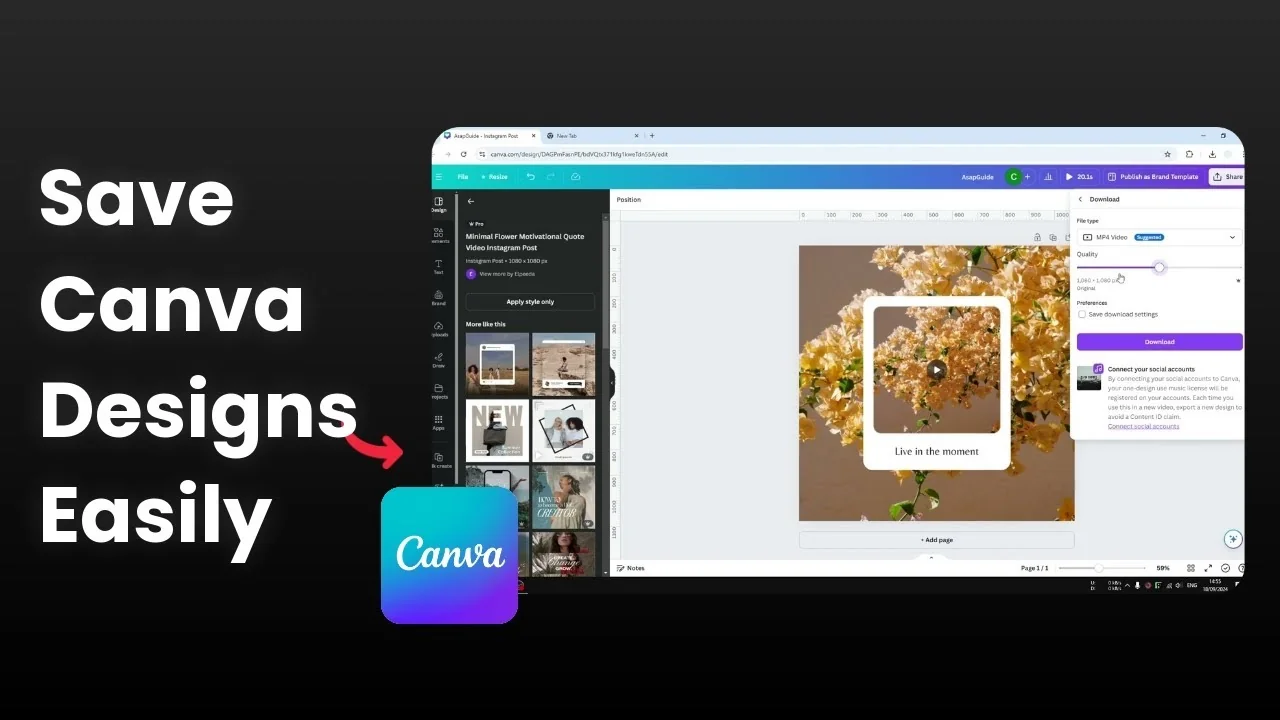
You can download your Canva design or your Canva content to your computer. Canva is running on your browser. If you want to share to social media or send it to a friend or colleague, you have to download the content first.
If you need to reuse a page in another project before exporting, you can copy a Canva page to another design and then come back to download.
Save Canva Design to Computer: Steps
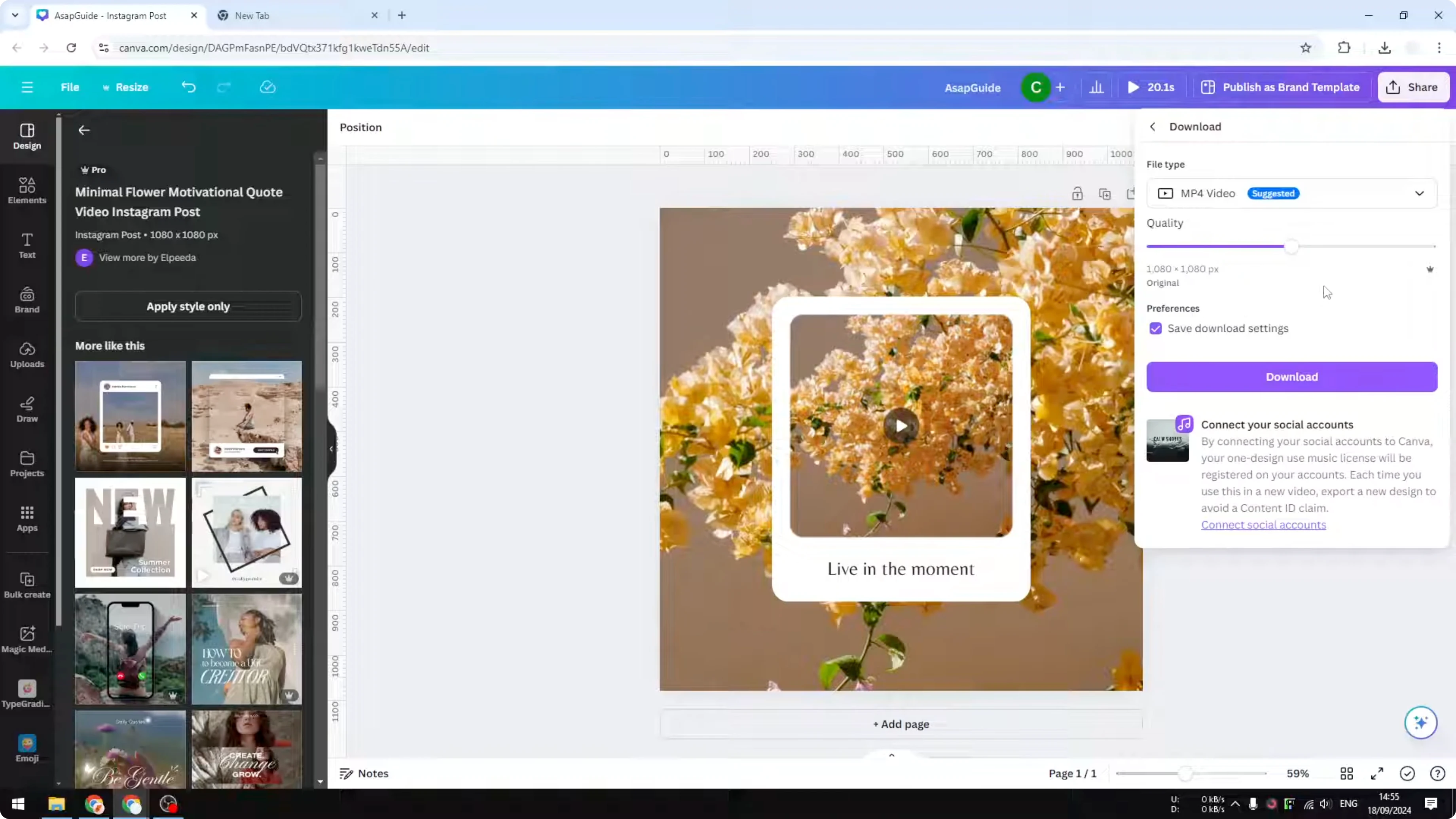
Go to the Share menu.
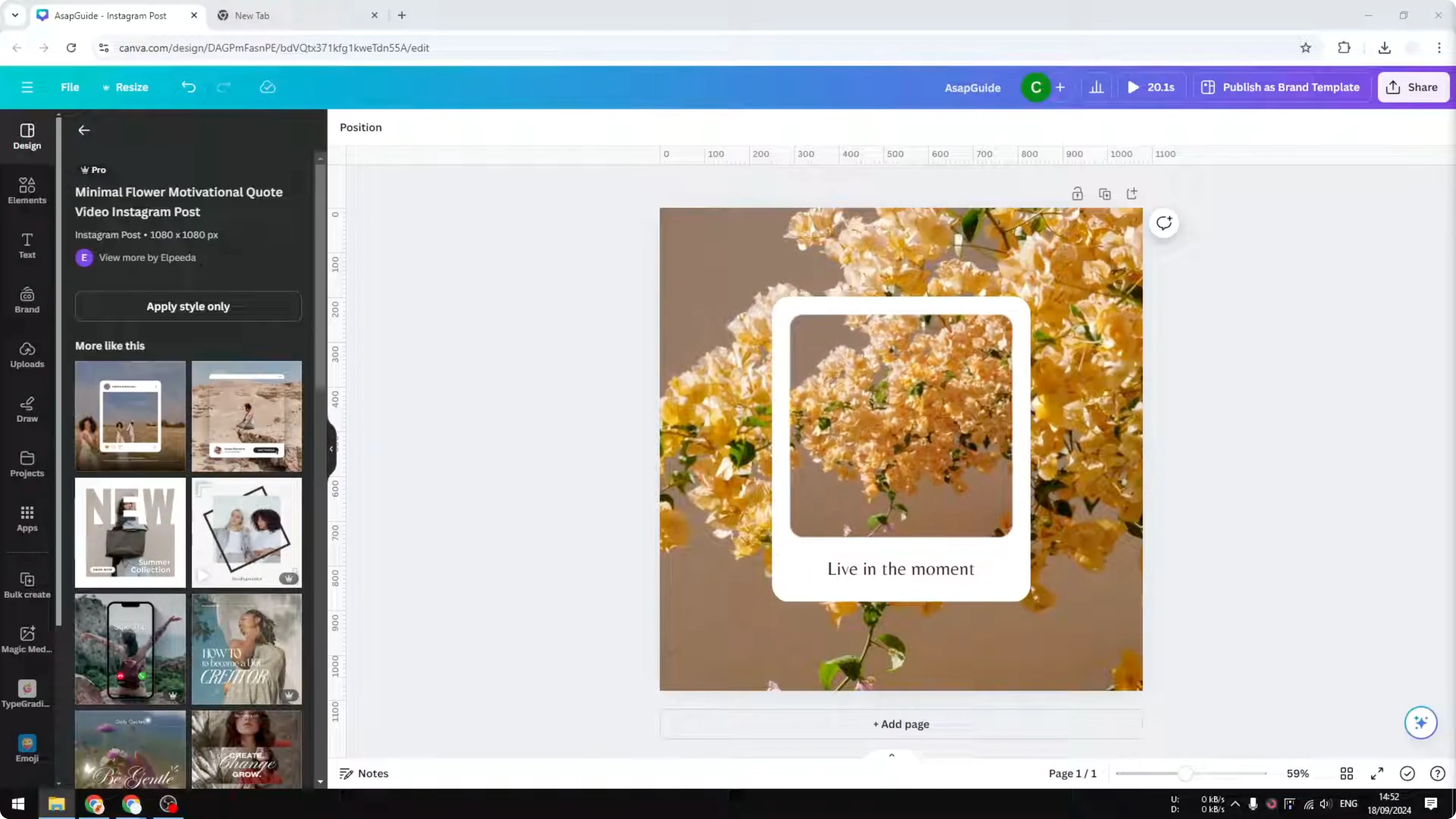
Click Download.
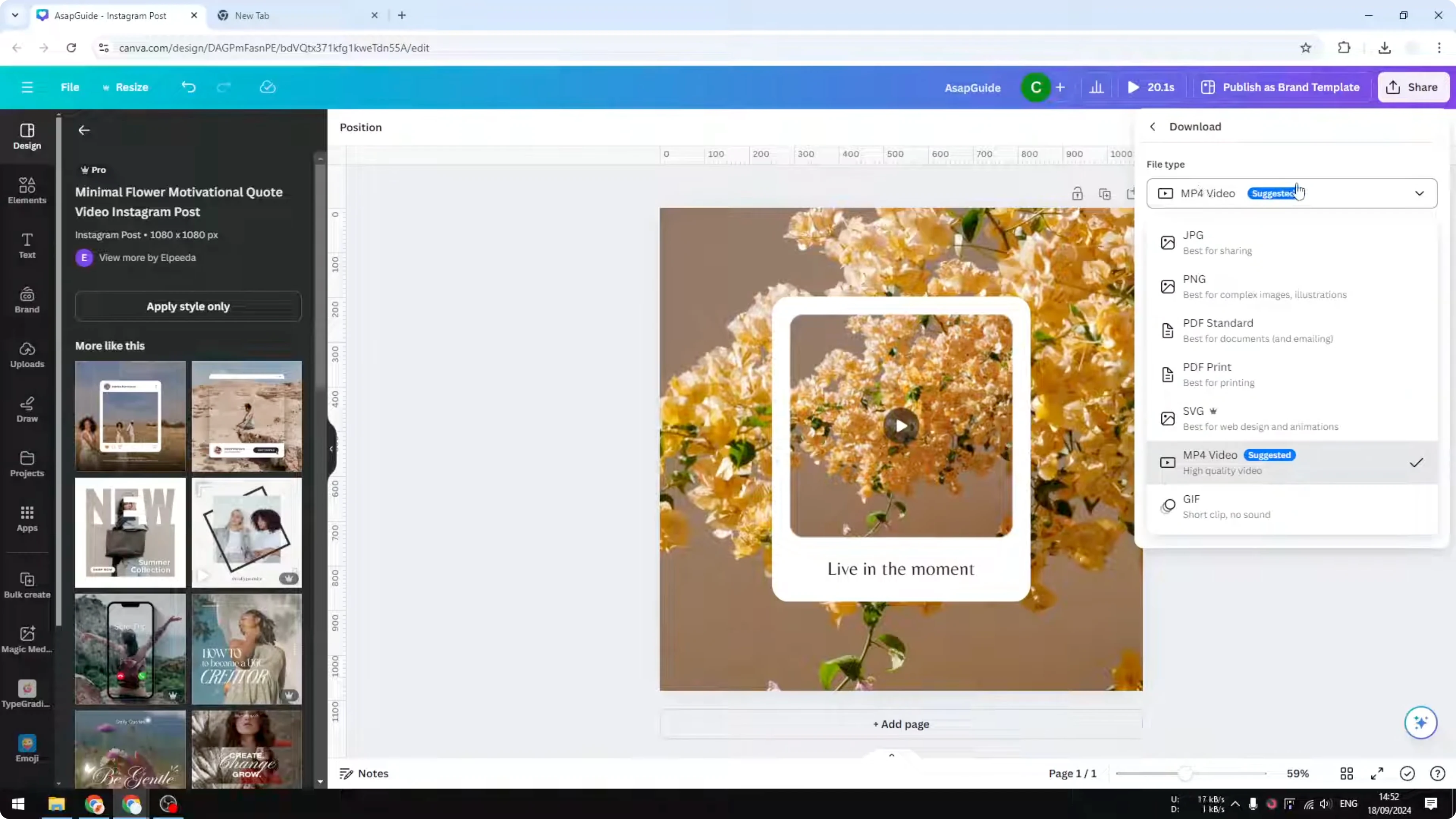
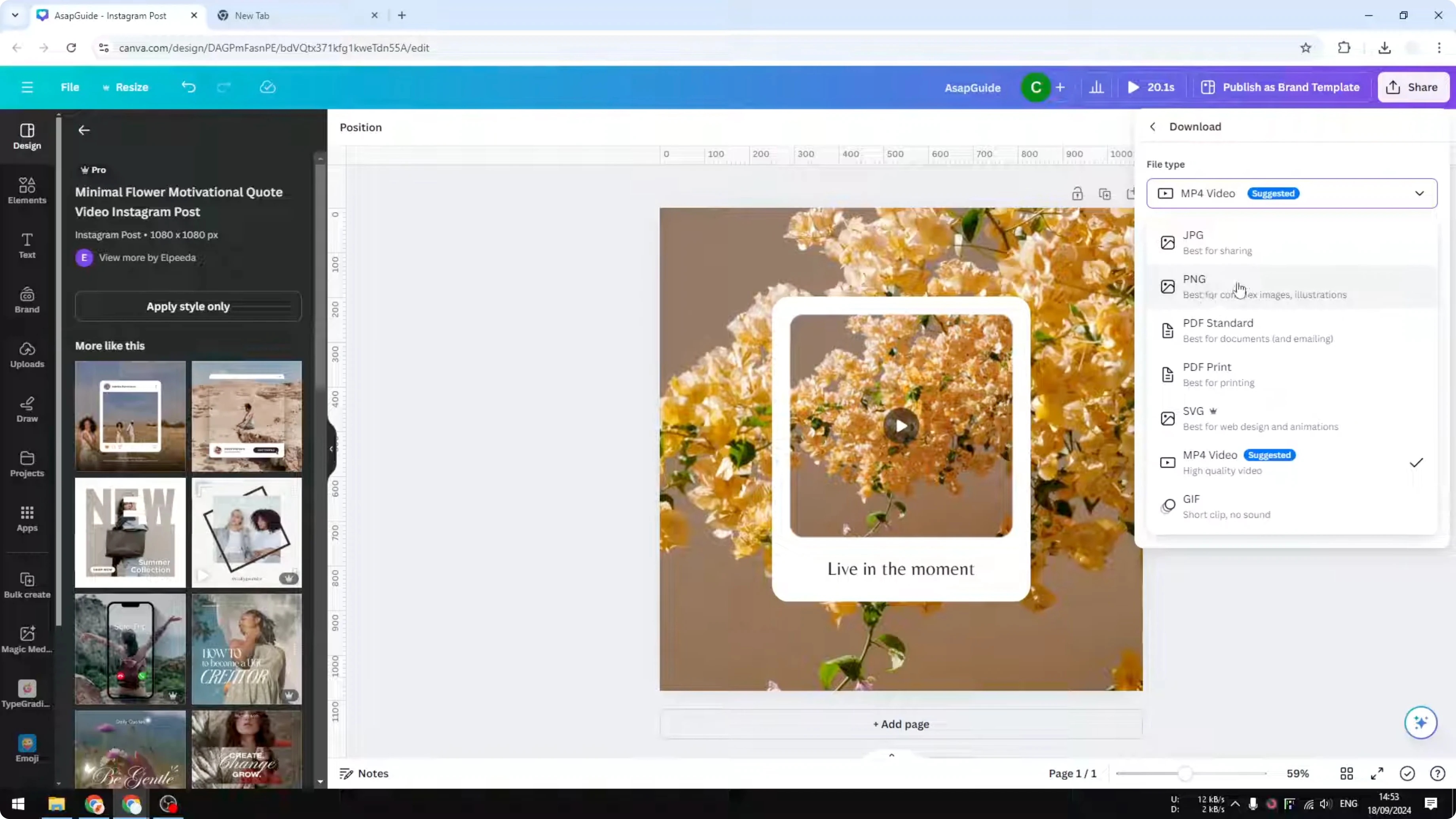
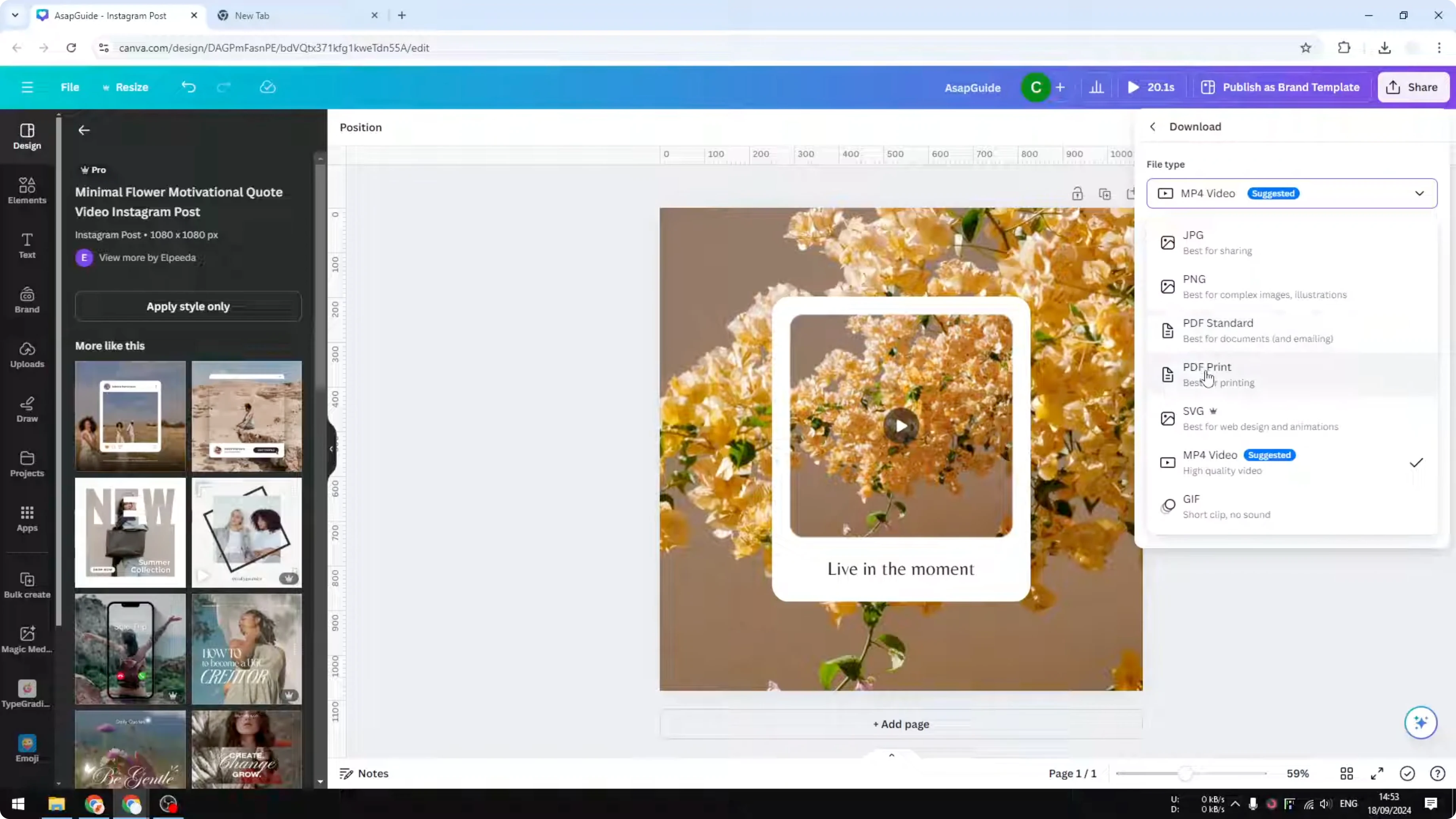
Select the file type. This is the most important part.
Choose the dimensions or quality. Usually the original size is fine, and I often keep the original 1080p for video.
If you need to confirm the exact canvas size before downloading, check your current design dimensions and match them here.
Adjust preferences if they appear for the chosen format. For PNG you can limit the file size, compress the file, and enable a transparent background.
Click Download.
Canva will render the content. Depending on the size and the format, this can take a few seconds to a few minutes, so wait until the file finishes.
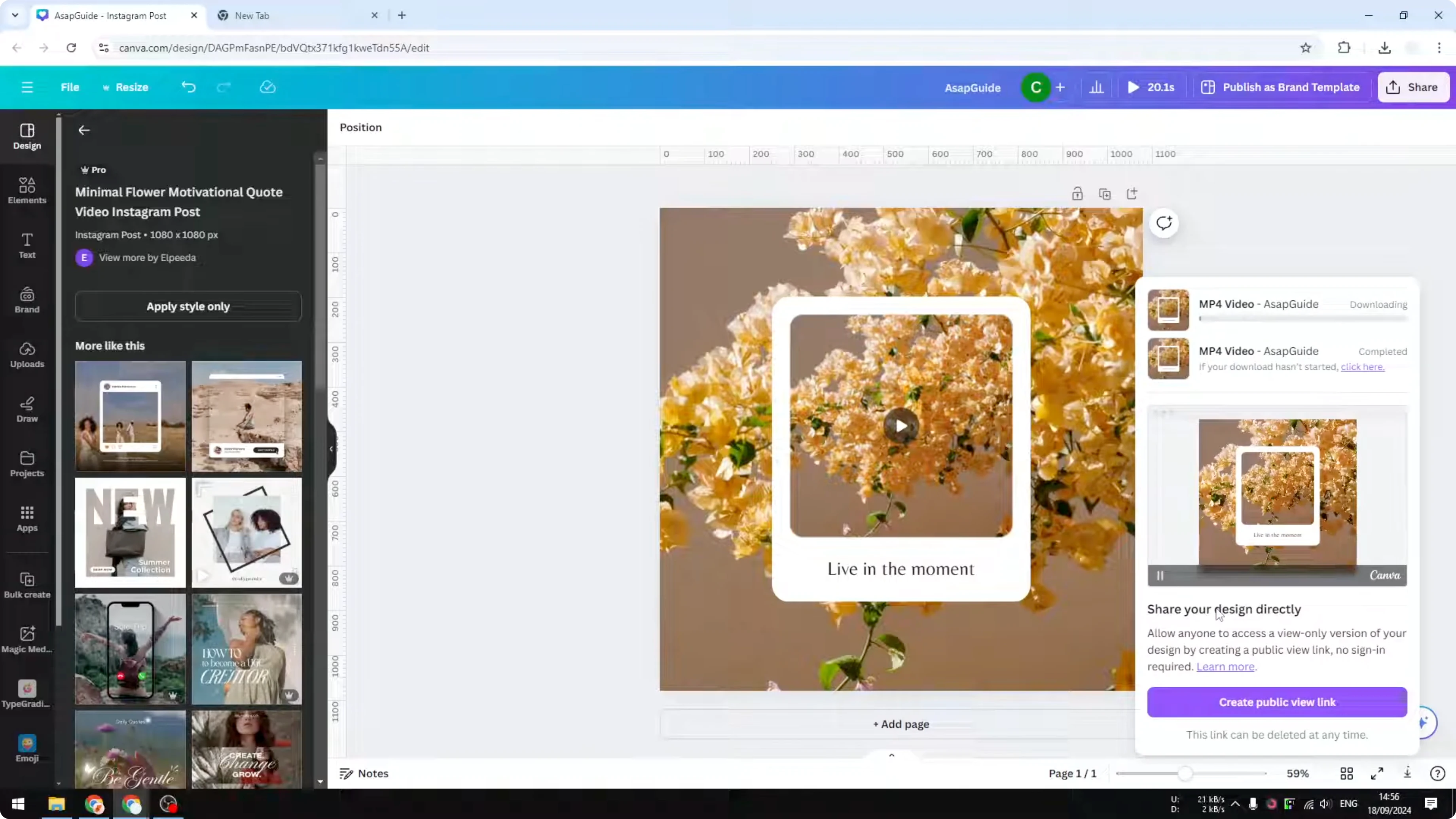
Open the downloaded file. Your browser can load images and videos, so you can drag and drop the file to preview.
Save Canva Design to Computer: Format Choices
There are multiple formats depending on the purpose of the content. Here is a quick breakdown that helps you pick the right option. Choose based on static image, document, vector, or moving picture.
Save Canva Design to Computer: Images
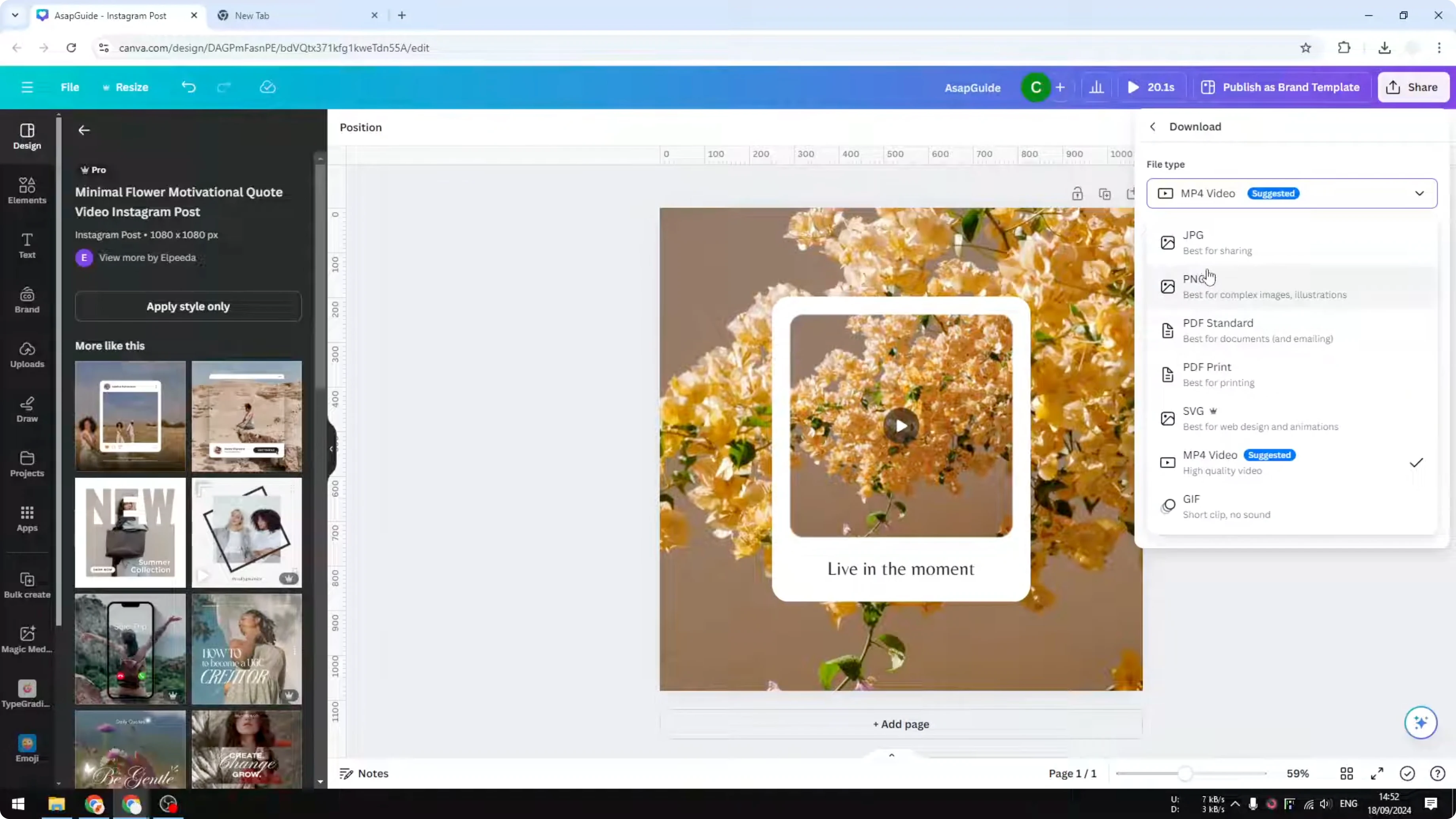
JPG and PNG are for images. If you have static content with no moving picture and no audio, select either JPG or PNG.
PNG is usually a bit better for color and sharpness. The file size might be bigger, but in general it is not a big deal, and I recommend PNG for the best quality.
Save Canva Design to Computer: Documents
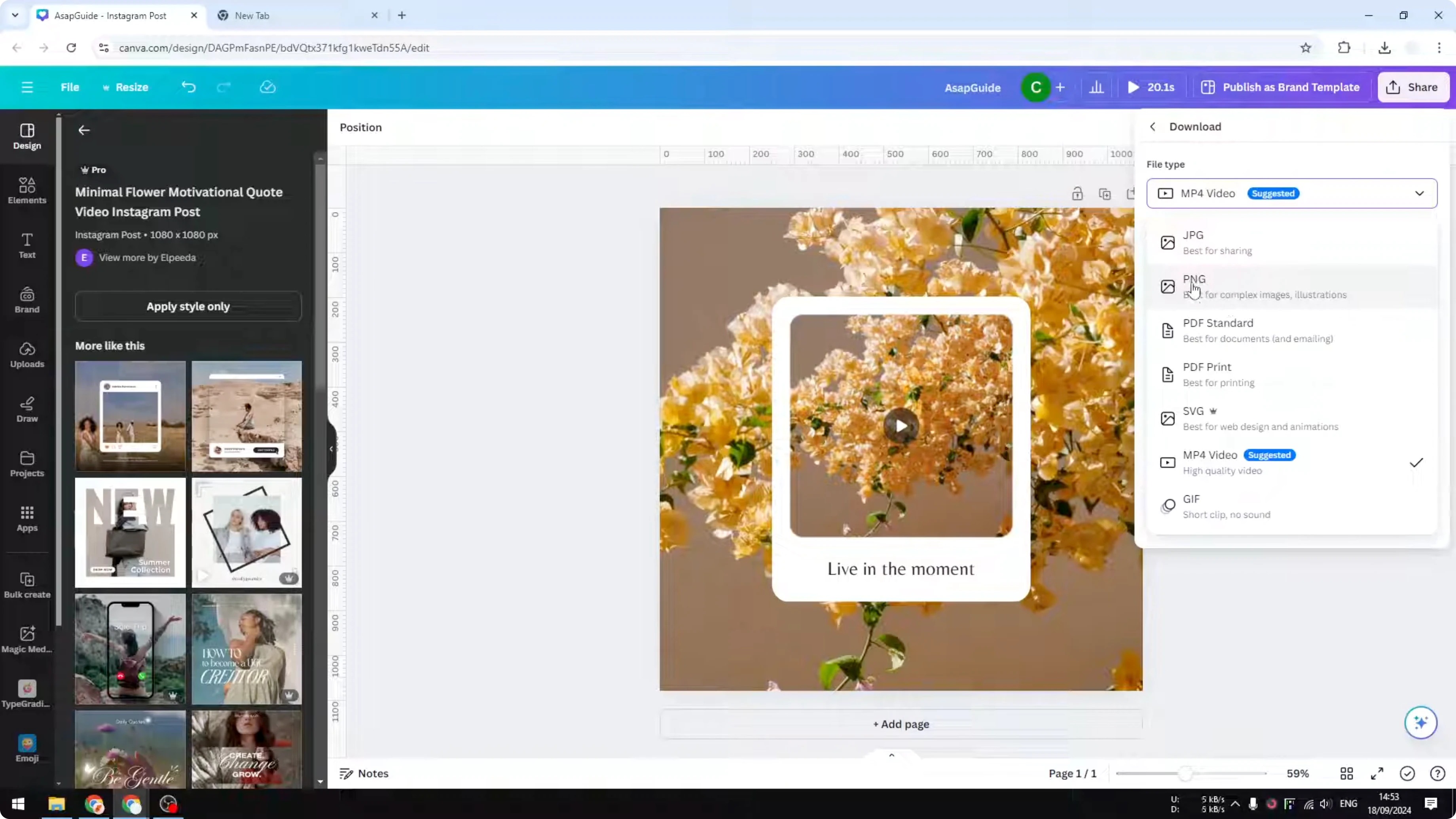
PDF is for documents that contain text and images. PDF Standard is smaller and meant to be shared on the internet.
PDF Print is much bigger and retains the best color accuracy for printing. If you work with text heavy documents and need to review content length before exporting, you can check the word count in a Canva design.
Save Canva Design to Computer: Vector
SVG is used for website design and graphic design. If you are a developer building a website or a graphic designer using tools like Adobe apps, this is the choice.
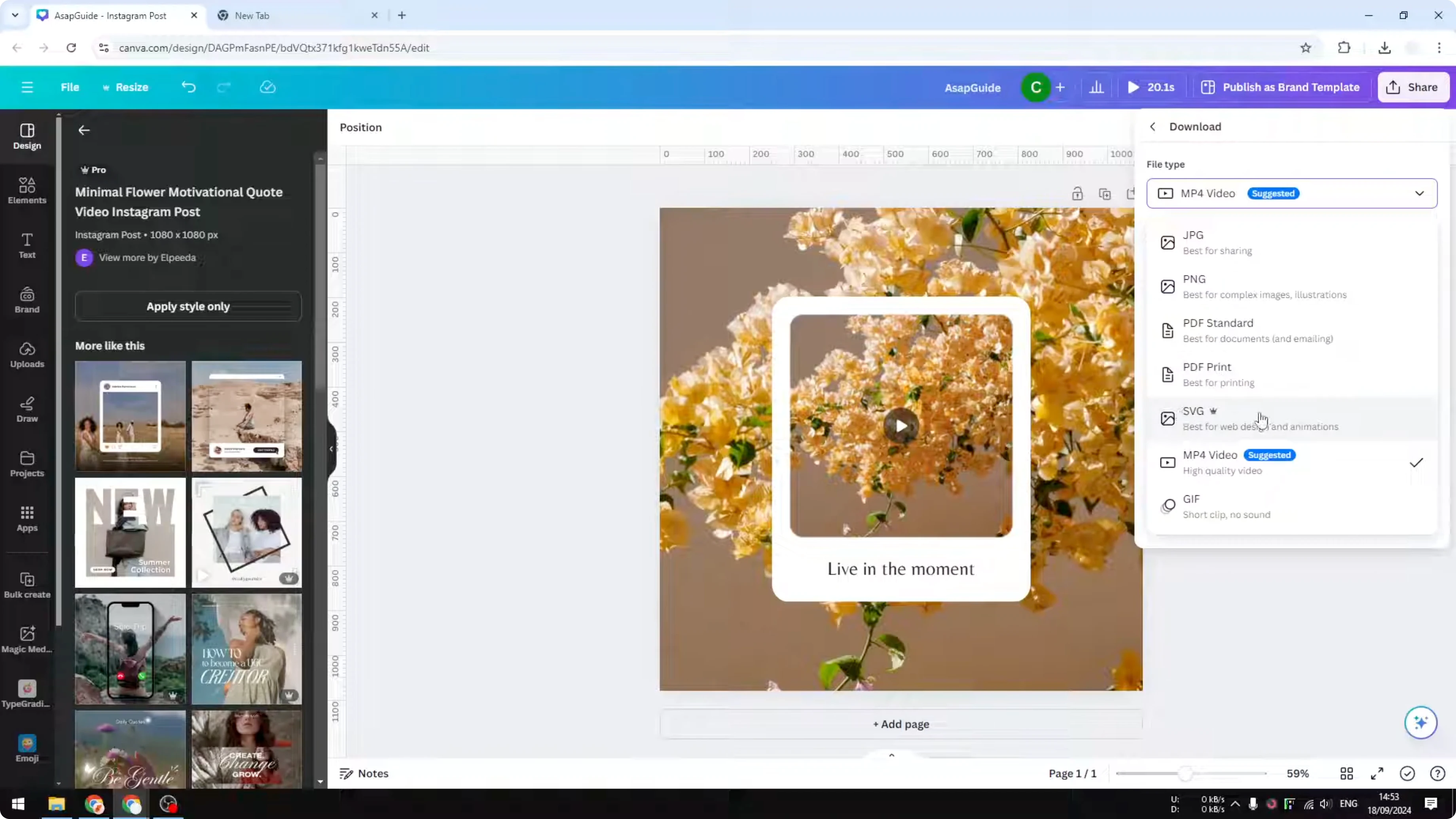
Most Canva users will never need SVG, so if you use it you probably already know what it is.
Save Canva Design to Computer: Video and Animation
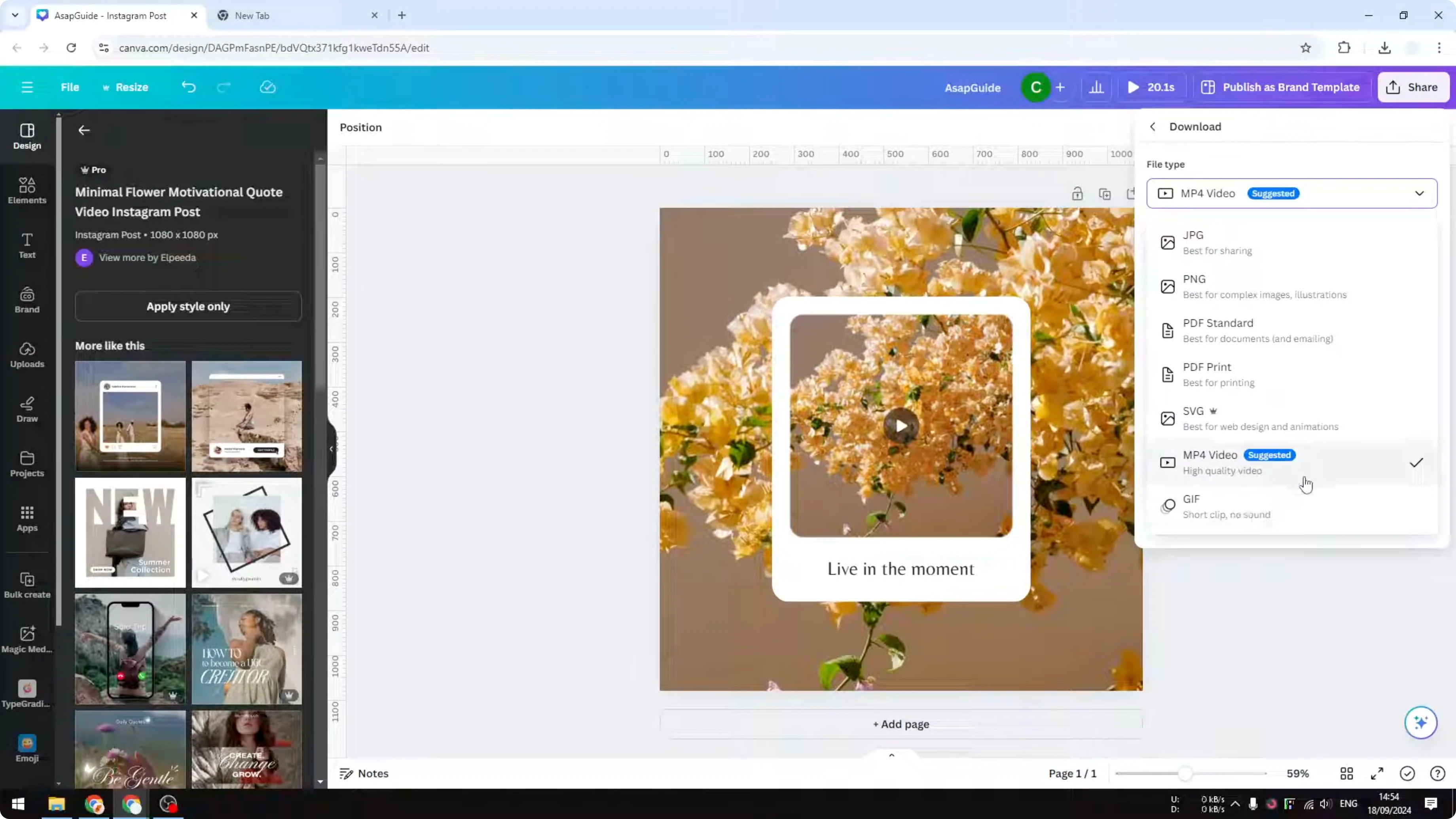
MP4 and GIF are for moving pictures. MP4 is for video, usually has a smaller file size, and it can play audio, so if your video has background music choose MP4.
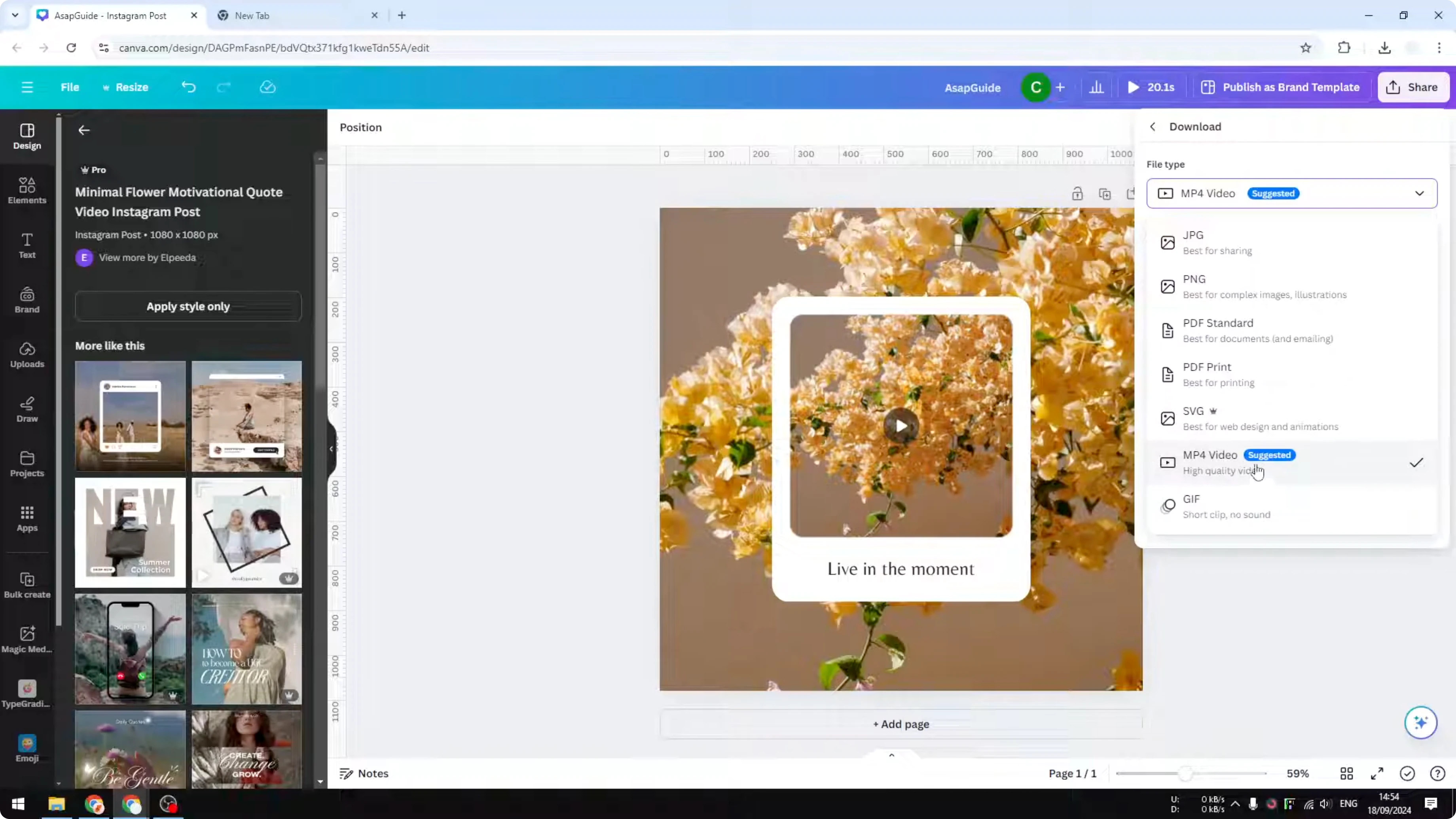
GIF is mostly for short animations under about 10 seconds with simple colors and less complex motion. GIF has no audio and is great for quick shares on the internet.
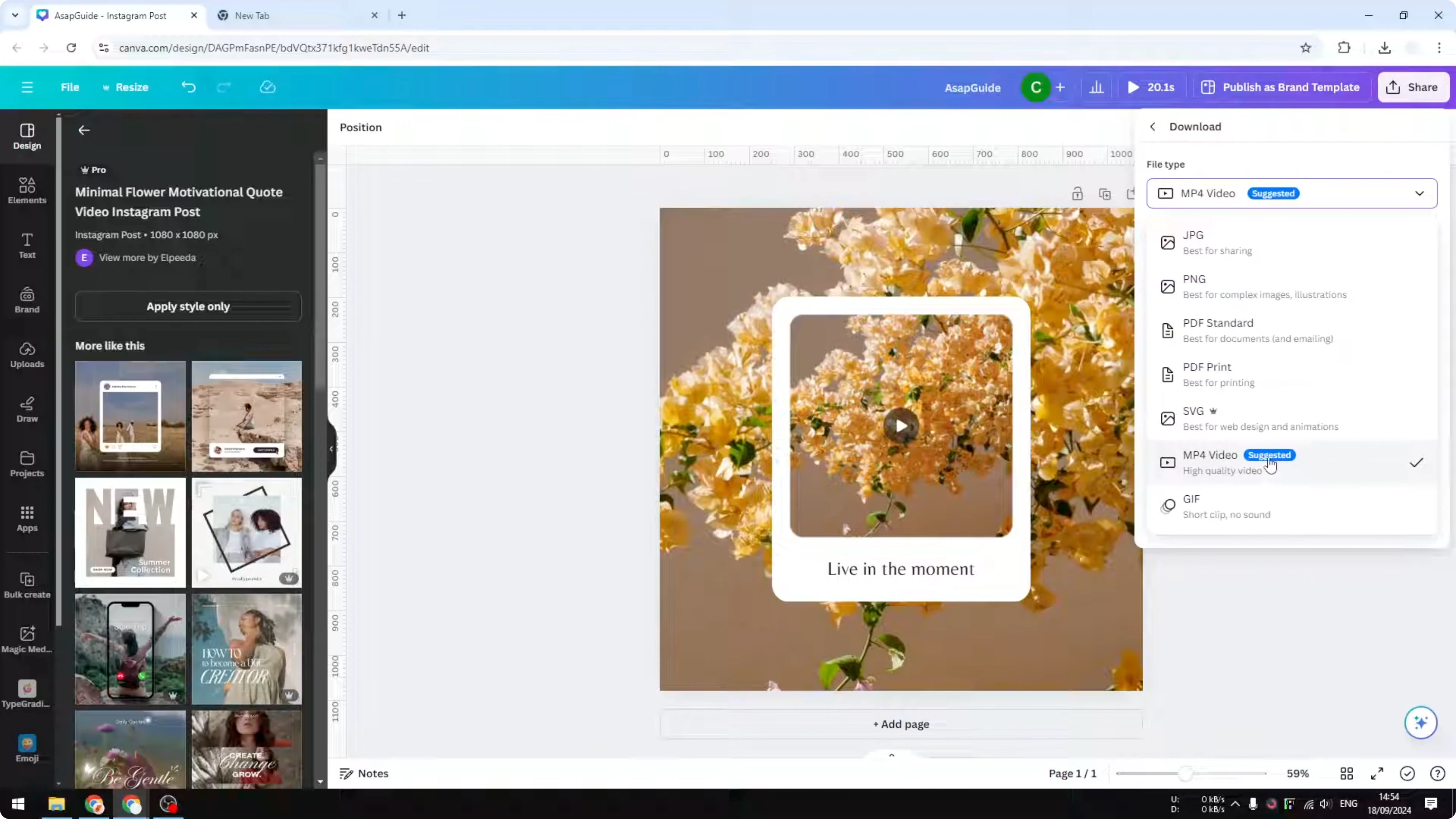
Save Canva Design to Computer: Quality and Size
You can keep the original size, make it bigger, or make it smaller. The original size is usually just fine for most cases.
Each format may show extra customization. The settings are intuitive, so pick the combination that fits your case best.
Final Thoughts
Downloading from Canva is straightforward once you pick the right format. Images go to JPG or PNG, documents to PDF, vectors to SVG, and motion to MP4 or GIF. Choose size and preferences, download, and preview the file on your computer.
Recent Posts
How to Visualize Yourself as a Pixelized Character with AI?
How to Visualize Yourself as a Pixelized Character with AI?
How to Revive Faded Memories and Enhance Image Clarity with AI?
How to Revive Faded Memories and Enhance Image Clarity with AI?
How to Visualize Yourself as an Animal Crossing Character with AI?
How to Visualize Yourself as an Animal Crossing Character with AI?