How to Round Edges of a Photo in Canva

Rounded edges are a modern design used on websites and mobile apps. They give a sense of friendliness and safety, which is why they are popular. You have probably seen many photos online with rounded corners.
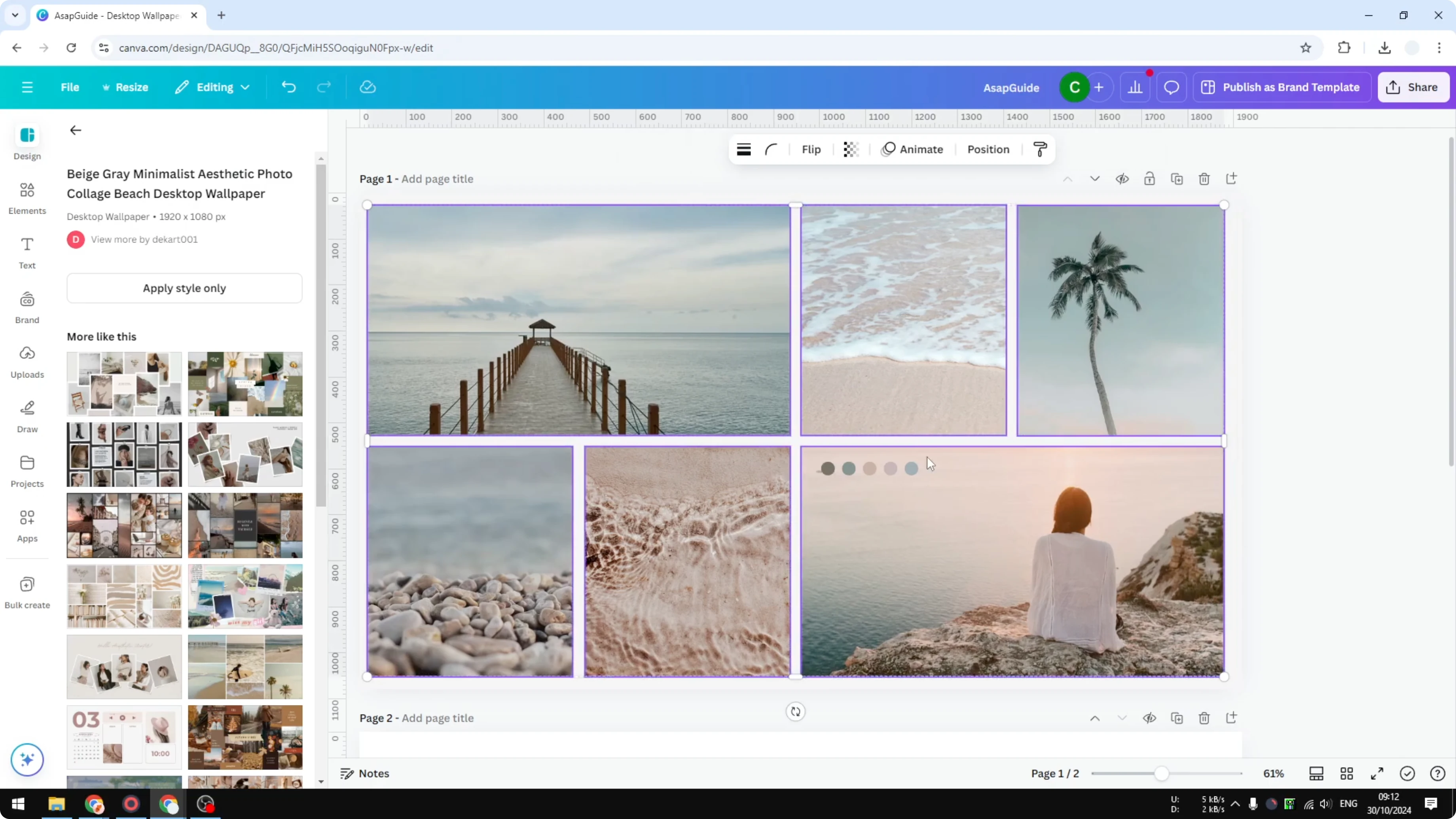
I have a photo with sharp edges. Many photos start with normal sharp edges. Here is how I make them smoother in Canva.
Round Edges of a Photo in Canva: Basics
Click the photo.
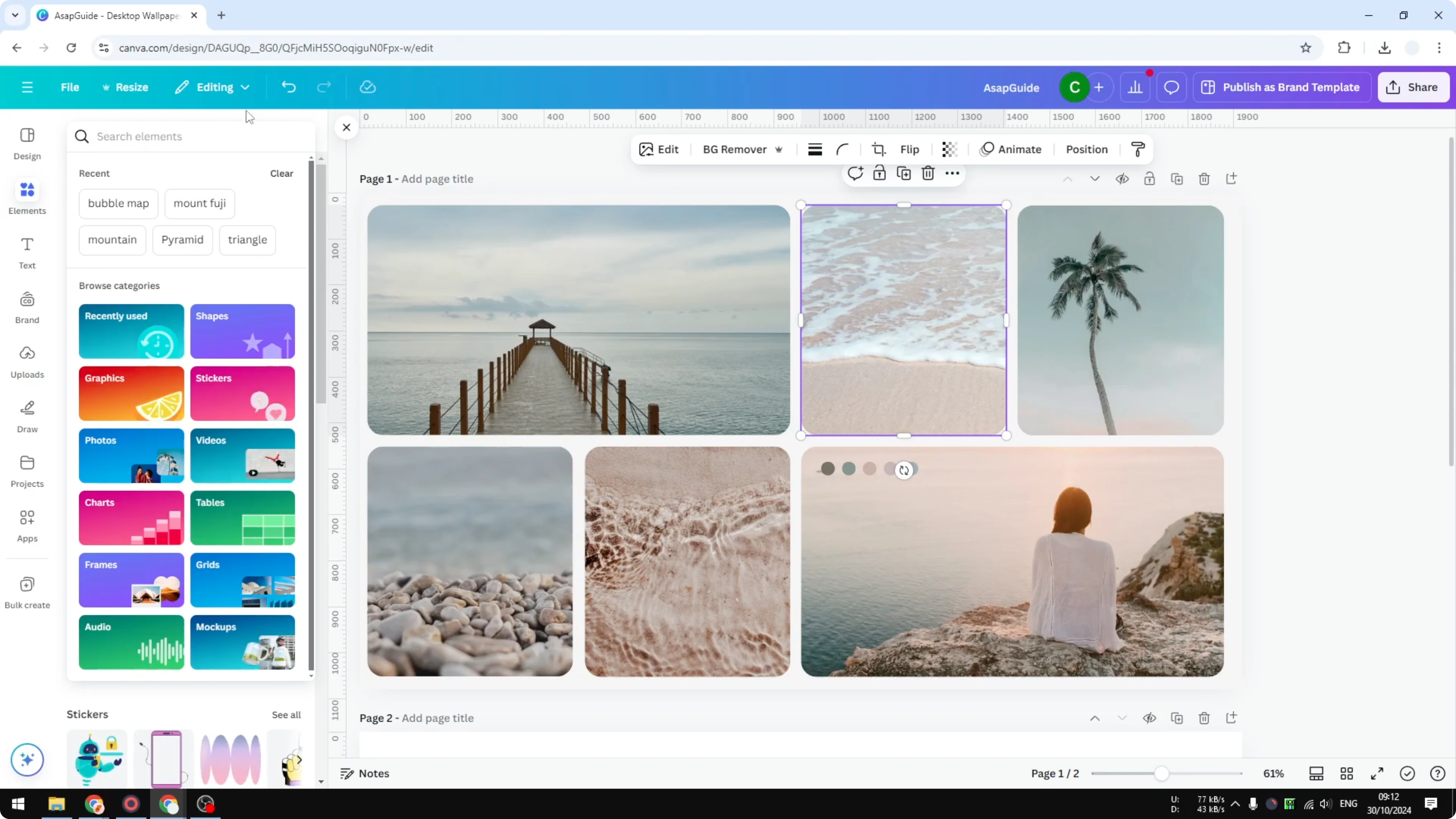
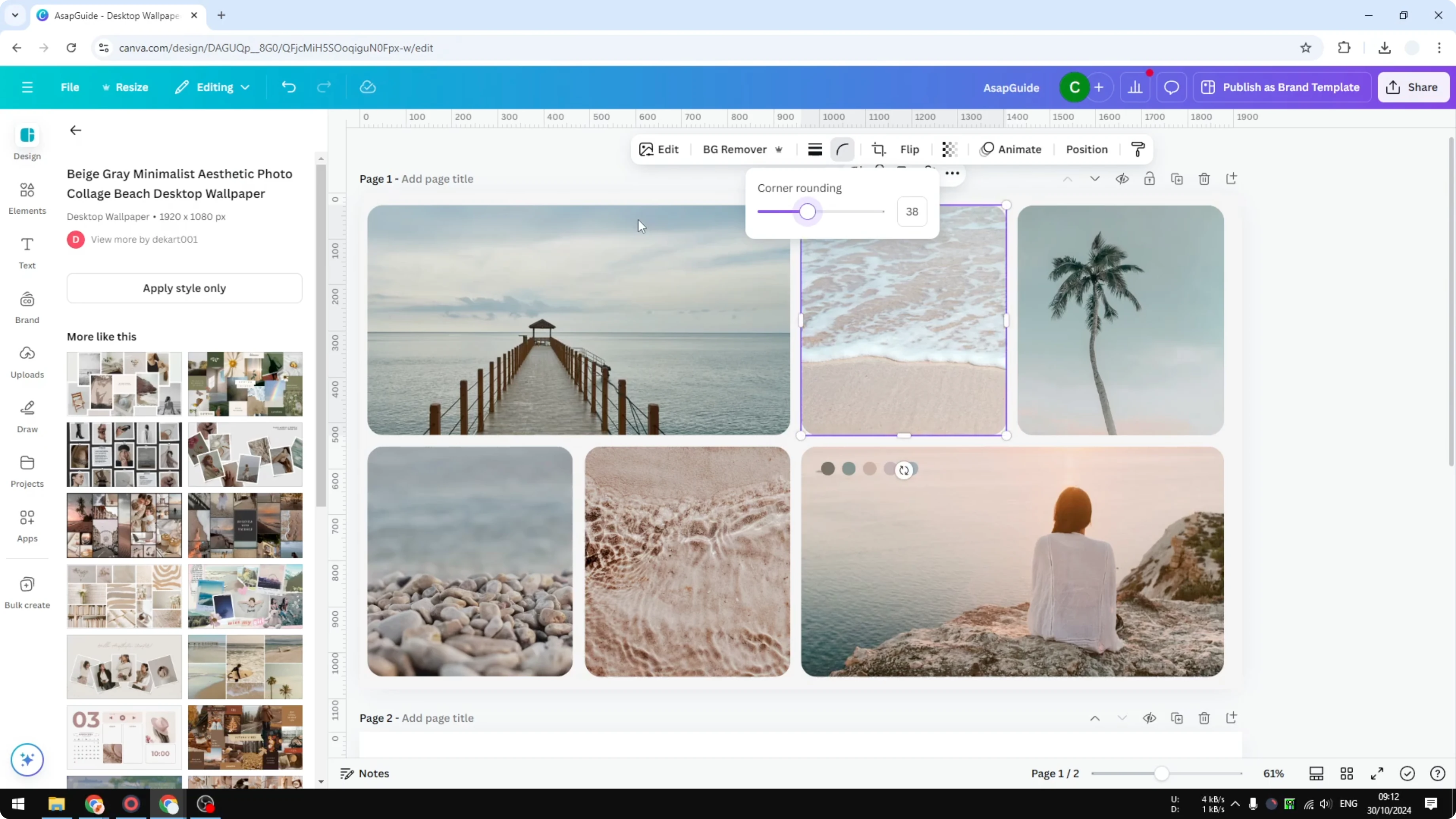
In the top menu, click Rounding.
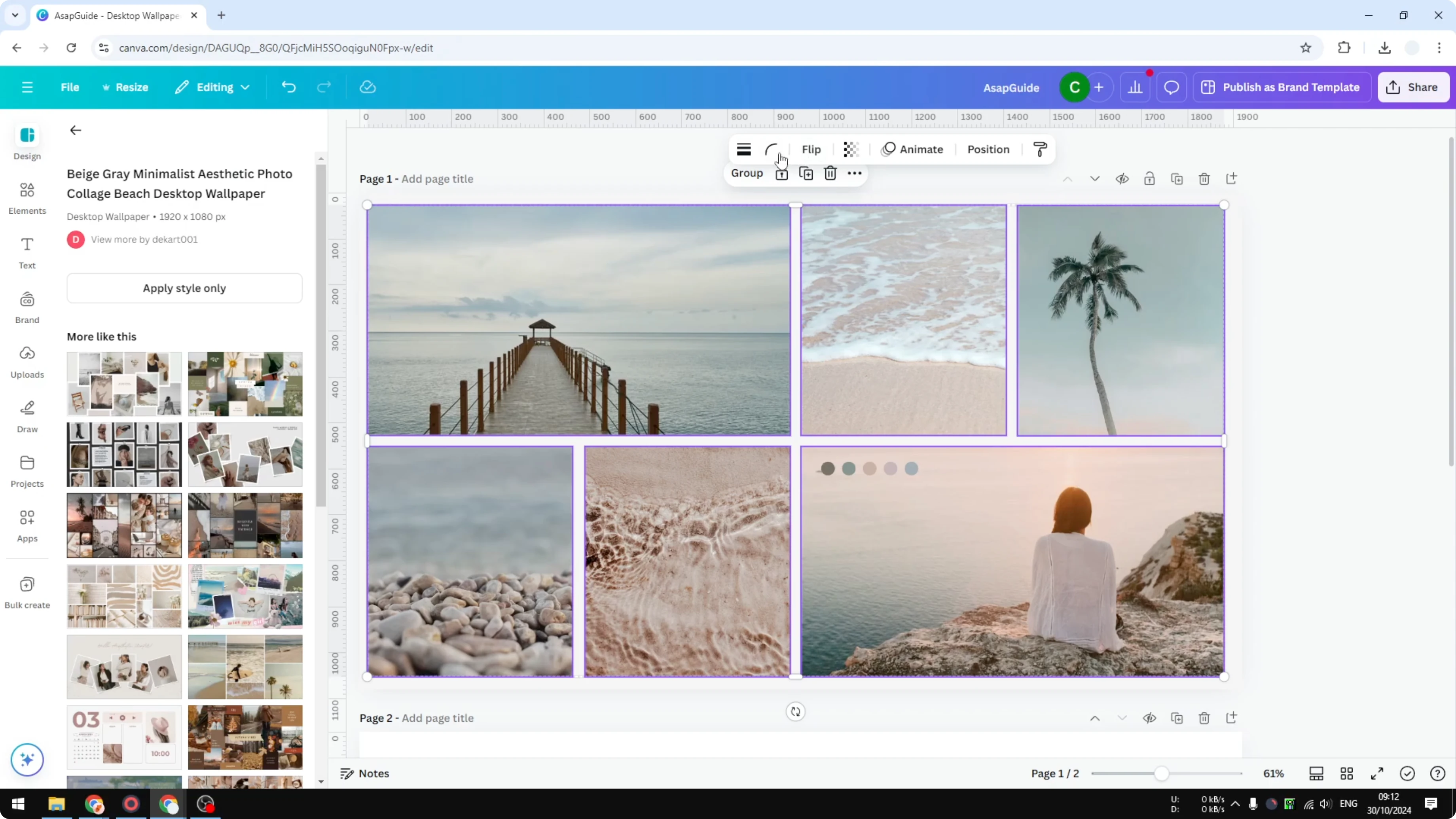
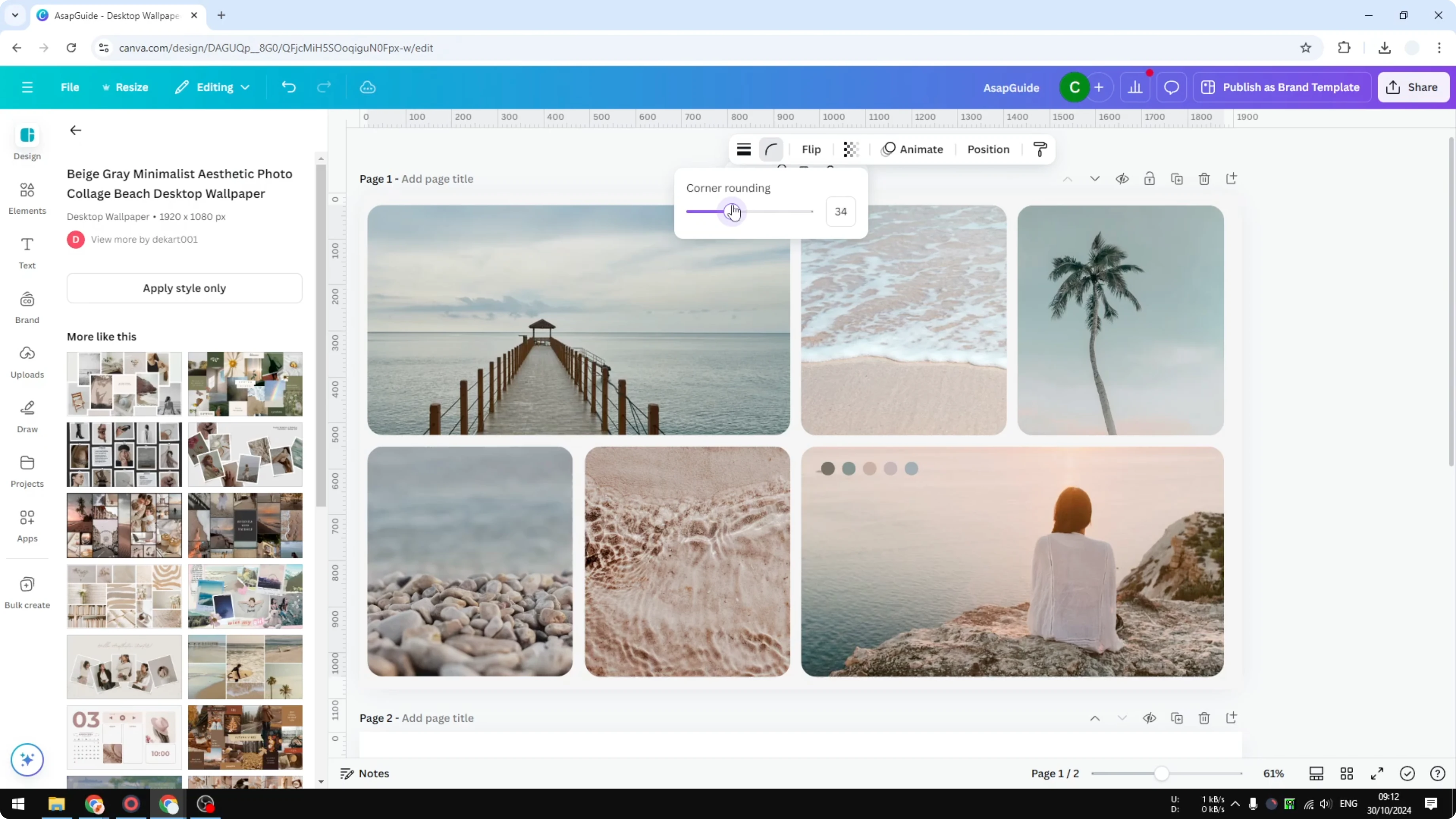
Slide the control to the right to increase the roundness of the photo.

I set it to 35. You can go up to 100, but it will not make the image a circle. That is the maximum level allowed for any given object in Canva.
For a softer, faded border instead of hard rounded corners, see how to add a subtle edge fade with this blending edges effect.
Round Edges of a Photo in Canva: Multiple photos
Press and hold the Shift key on your keyboard.
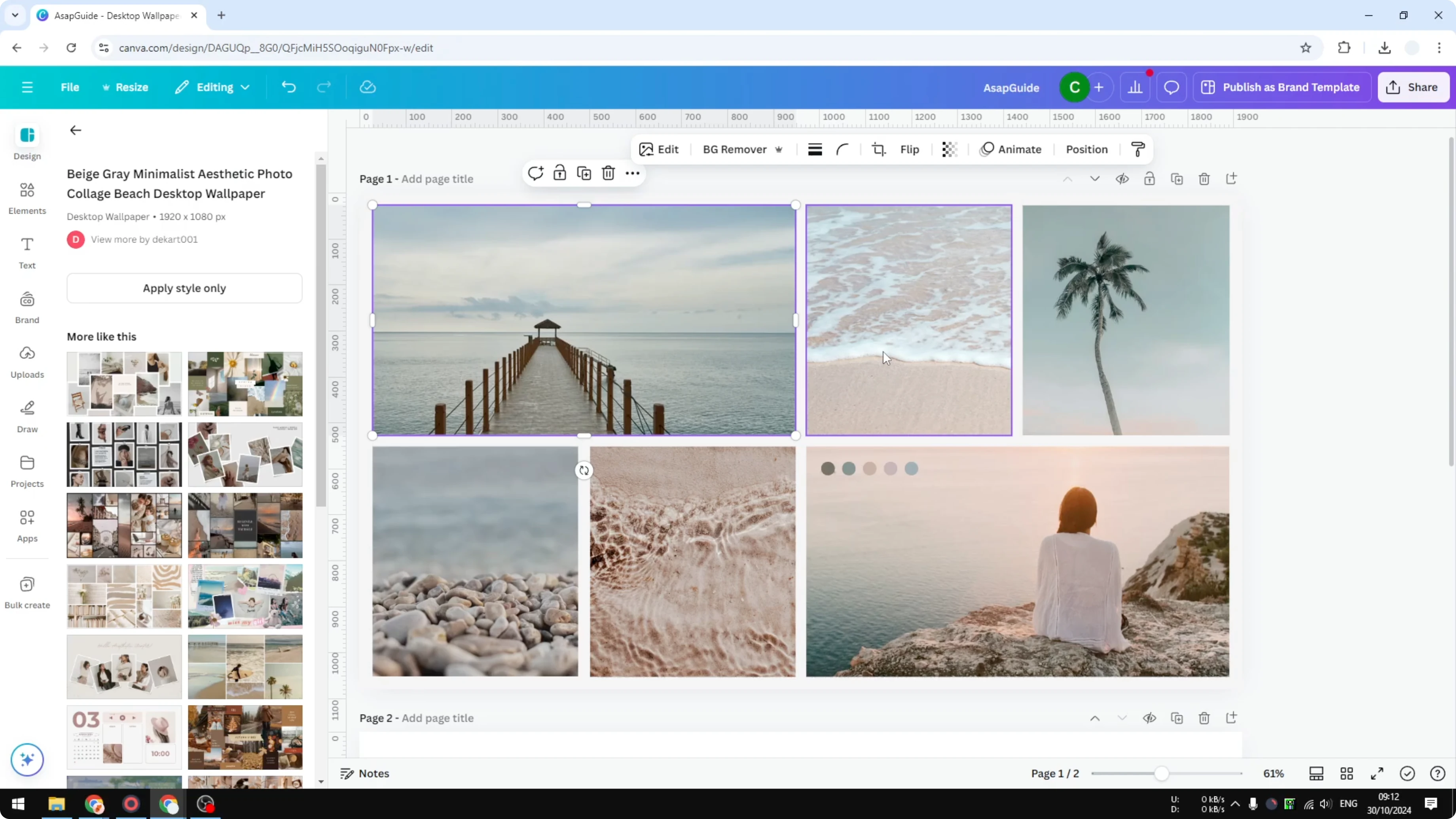
Click every photo you want to round while holding Shift.
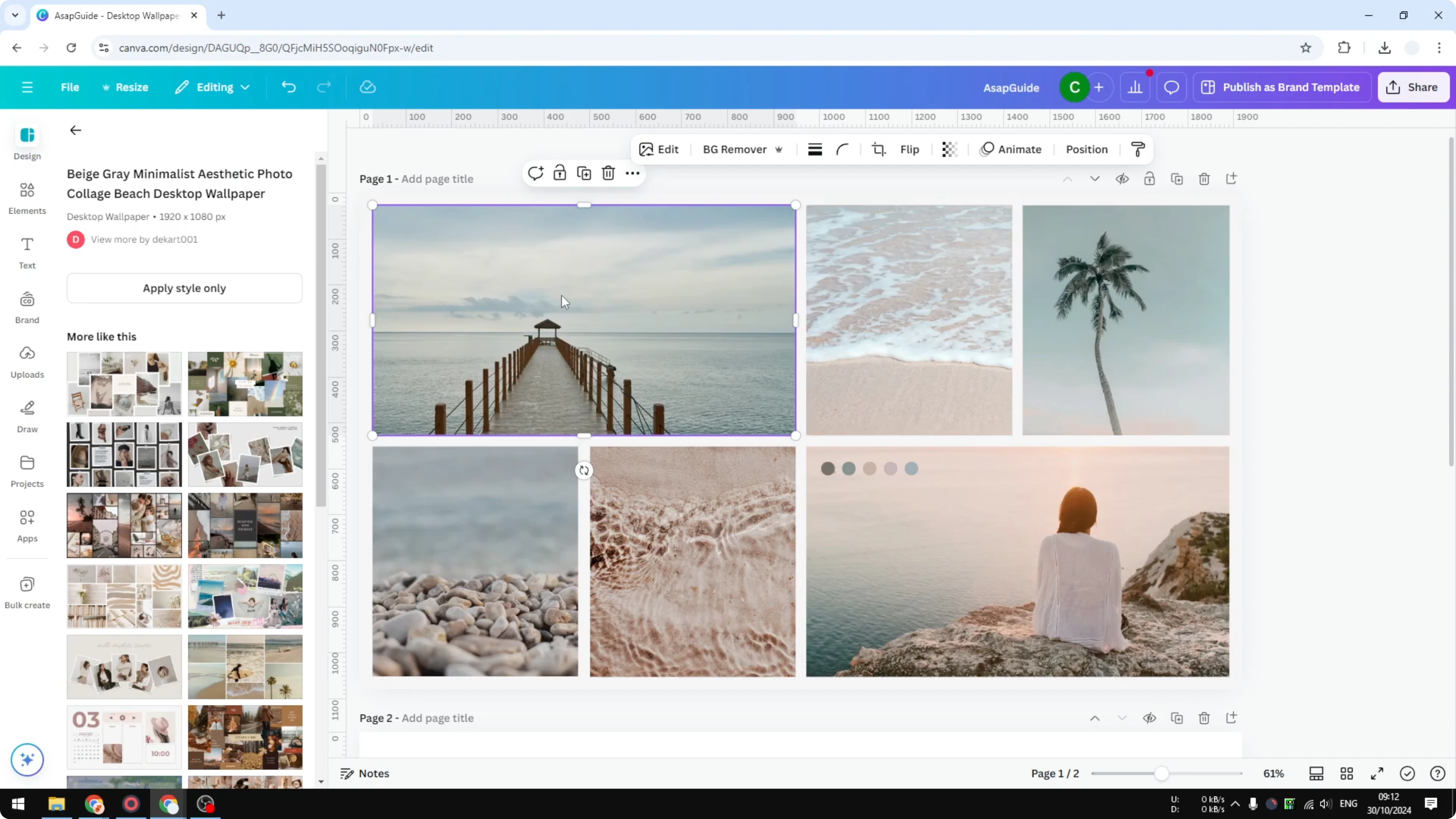
Use the same Rounding control to adjust the corners for your selection.
Round Edges of a Photo in Canva: Perfect circle
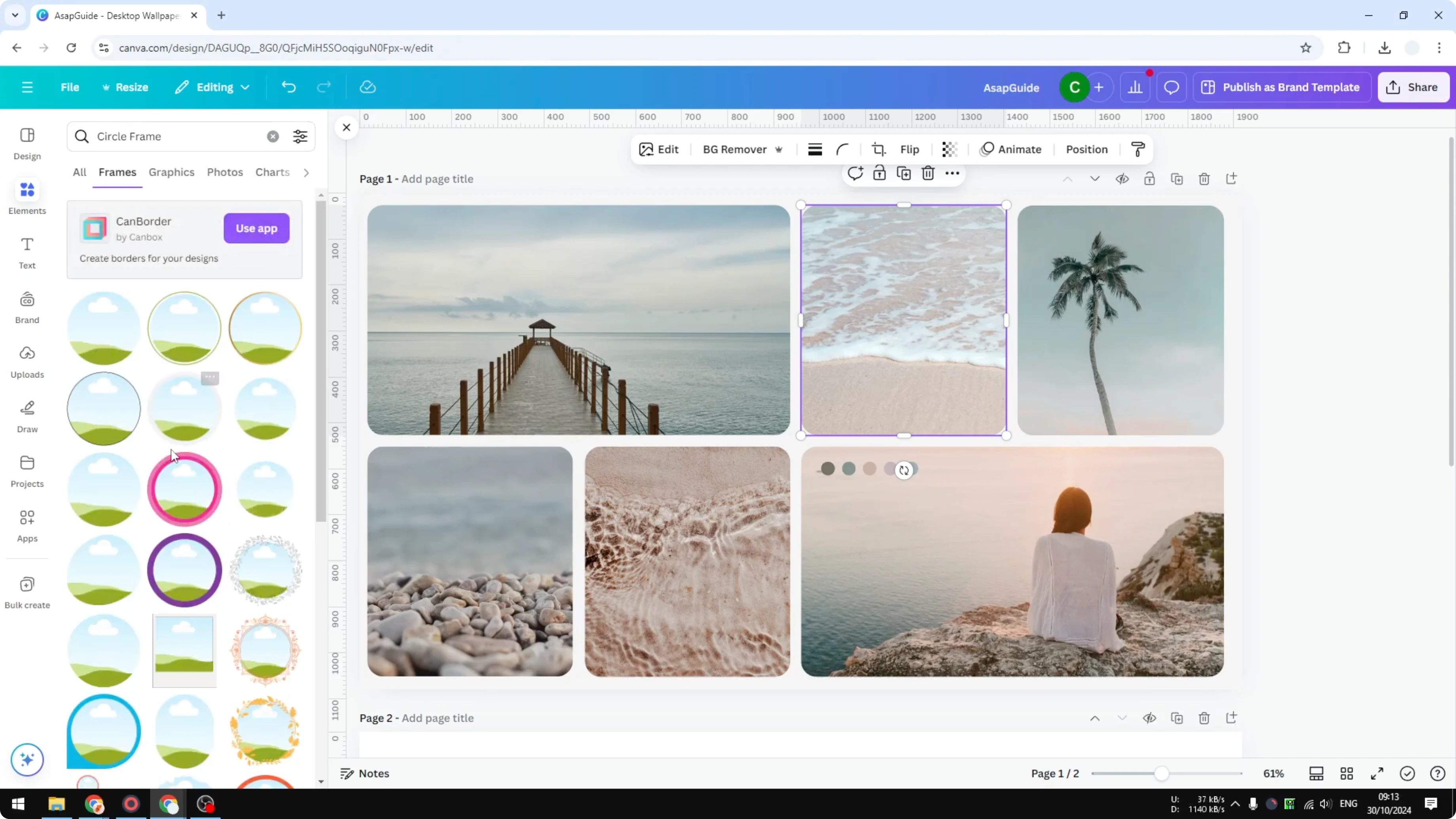
If you want a fully circular image, use a circle frame. Go to Elements and search for Circle frame, and you will find options that are exactly circular. Select that option to get a perfectly circular image.
After shaping your image, you can give it a stylized look with a fun cartoon effect using Canva AI.
Final thoughts
Rounded corners are quick to set up with the Rounding control, and 100 is the cap for corner radius. For a true circle, switch to a circle frame from Elements. If you want extra texture after rounding, you can add a light grain effect for a more polished finish.
Recent Posts

How to Visualize Yourself as a Pixelized Character with AI?
How to Visualize Yourself as a Pixelized Character with AI?

How to Revive Faded Memories and Enhance Image Clarity with AI?
How to Revive Faded Memories and Enhance Image Clarity with AI?

How to Visualize Yourself as an Animal Crossing Character with AI?
How to Visualize Yourself as an Animal Crossing Character with AI?