How to Add Grain Effect to a Photo in Canva

I’m going to show you how to add a grain or noise effect to your photo in Canva. This look has been popular lately because it feels different than a regular HD picture and has an old film vibe. Some people say it looks more cinematic compared to a regular photo.
I created an example in Canva to show the difference. The original had no grain or noise, it looked sharp and bright, taken by a high-end camera. You can add noise to make it feel more cinematic and warmer than the original.
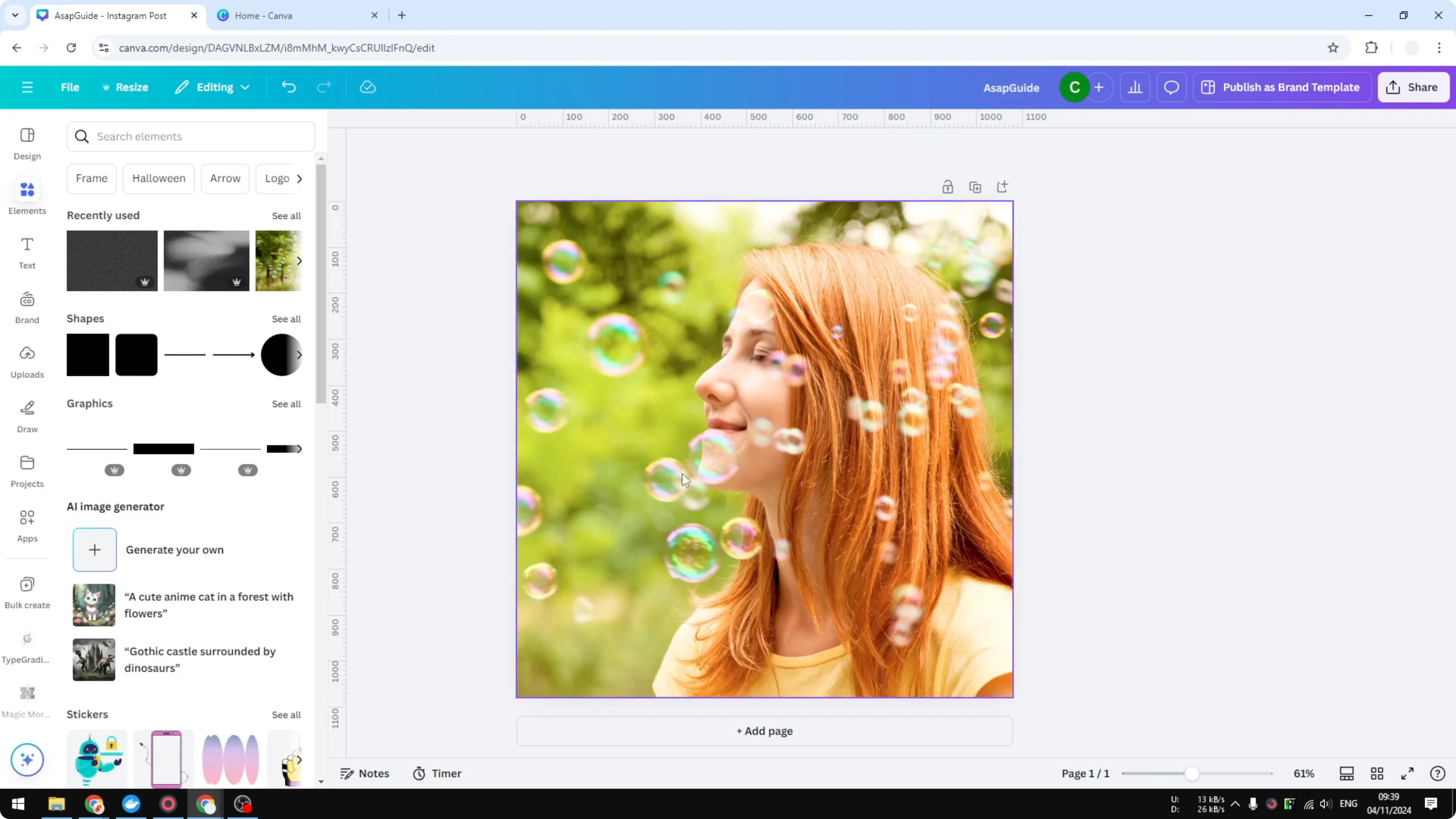
Add Grain Effect to a Photo in Canva
Choose the photo
Add a new page in Canva.
Search for a photo you like. Pick one that looks HD and high quality, then place it on your canvas.
For a related effect that pairs nicely with grain, see this glow effect walkthrough.
Add the texture
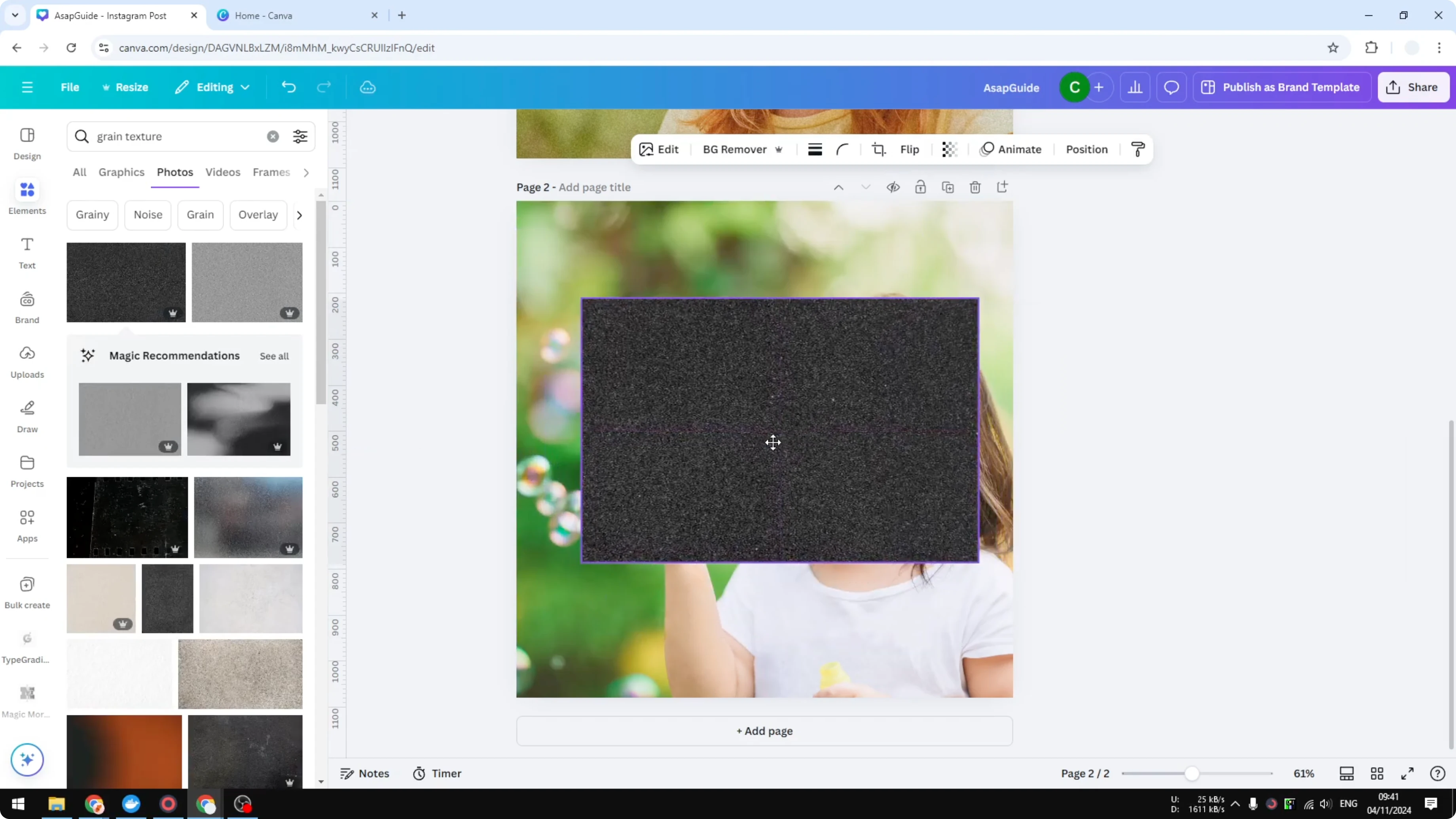
Go to Elements.
Search for “grain texture.” You can also try “noise texture,” “stone texture,” or “paper texture,” but grain or noise usually works best.
Select a texture and place it on top of your photo, then scale it up so it covers the entire image.
Tweak transparency
Reduce the texture’s transparency.
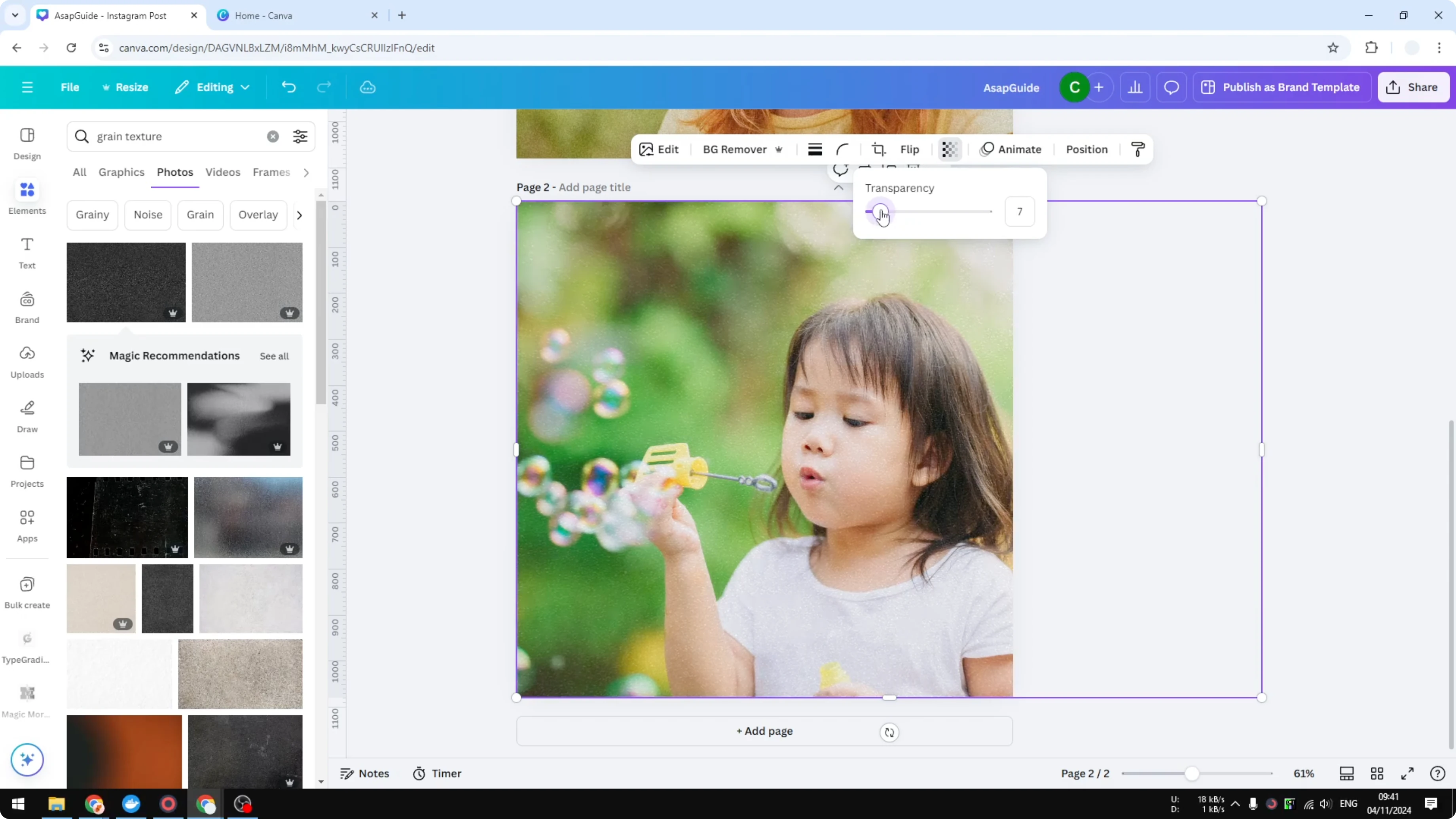
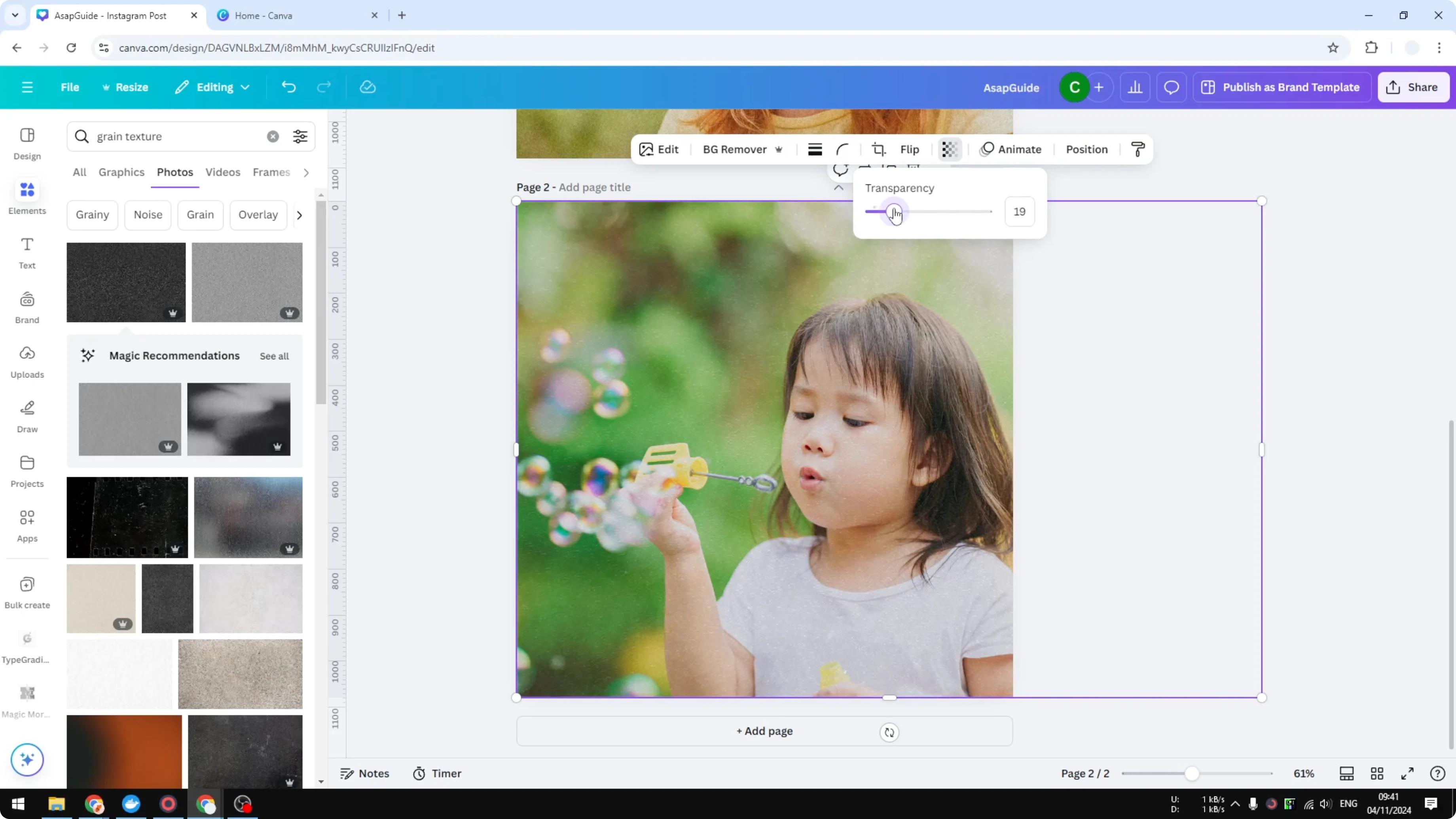
A range between 5 to 20 percent usually works well. Setting it around 15 percent is a good starting point.
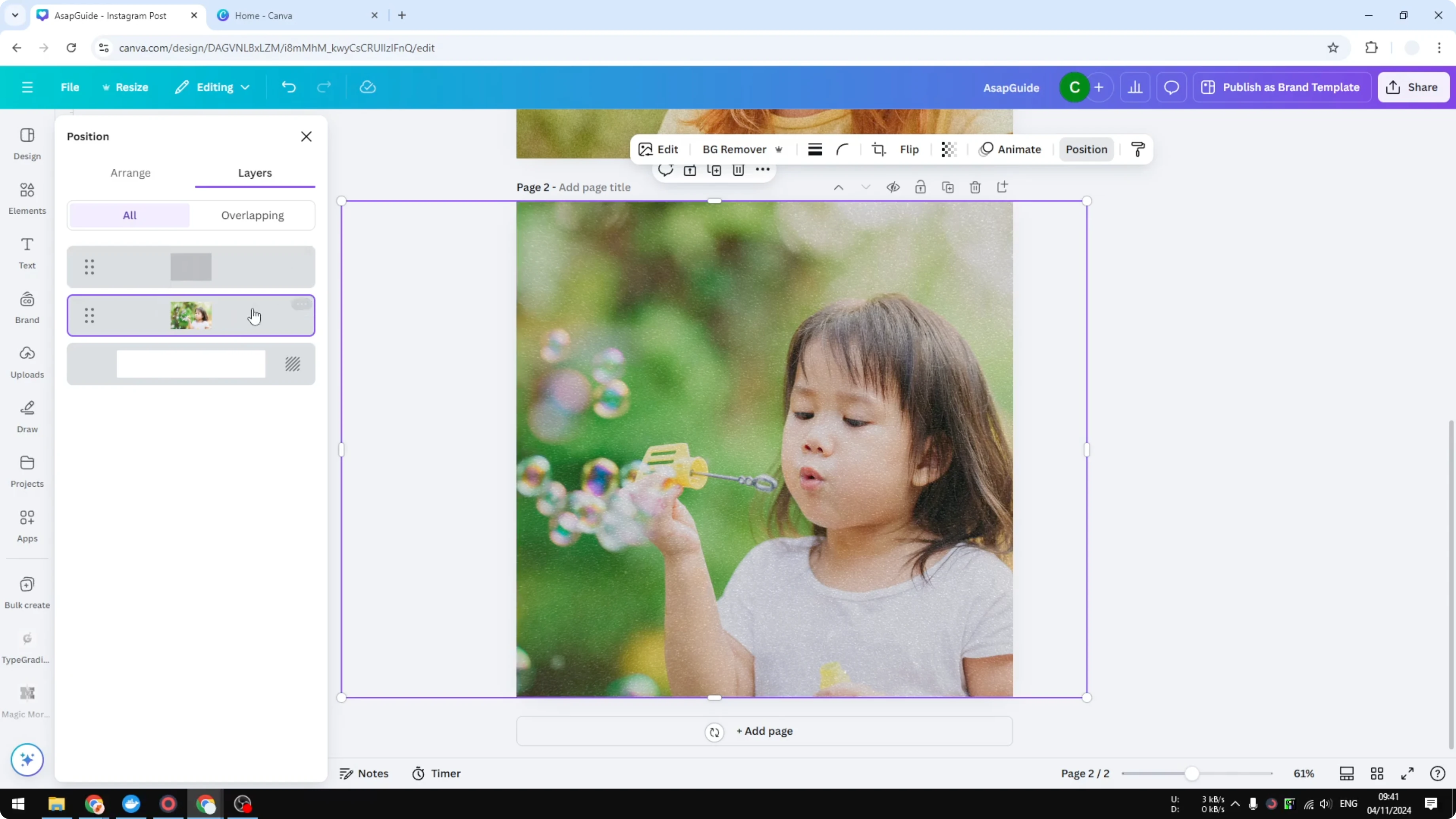
Brighten the base image
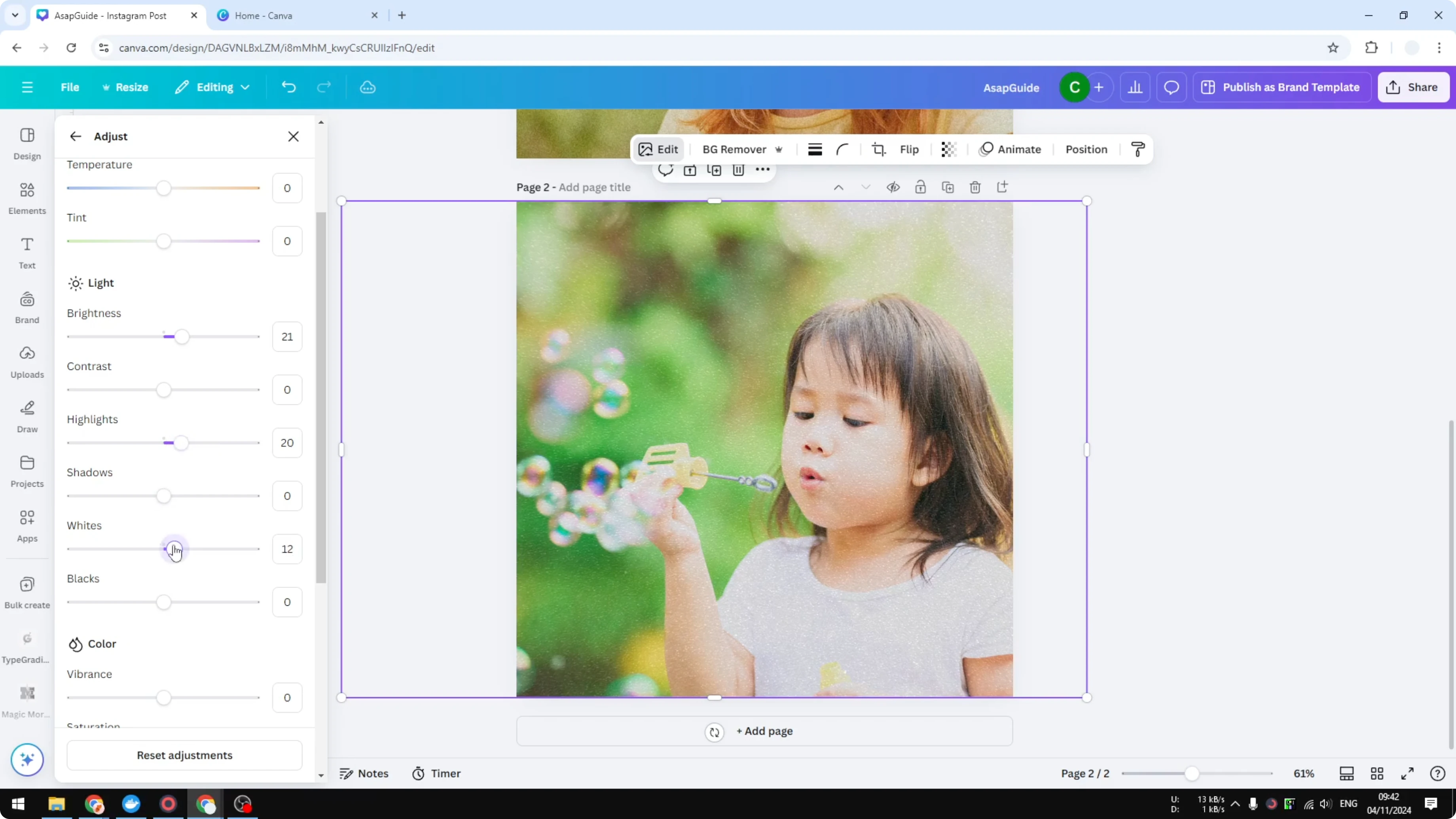
Because many noise textures are darker, brighten the original photo to compensate.
Select the base image under the texture. Click Edit, go to Adjust, and increase Brightness a few points until the balance looks right.
If you want a softer, painterly look instead of grain, read this watercolor effect guide.
Final touches
If the grain makes the image feel too cool or flat, add a touch of Warmth or Contrast in Adjust. Small changes go a long way with this look.
For a stylized AI look, check this cartoon effect tutorial.
Final thoughts
Grain gives a modern HD photo an old film feel, adds texture, and can make the shot feel warmer and more cinematic. Use a subtle texture overlay, keep transparency low, and brighten the base photo to keep the balance. That’s all you need to add a clean, controlled grain effect in Canva.
Recent Posts

How to Visualize Yourself as a Pixelized Character with AI?
How to Visualize Yourself as a Pixelized Character with AI?

How to Revive Faded Memories and Enhance Image Clarity with AI?
How to Revive Faded Memories and Enhance Image Clarity with AI?

How to Visualize Yourself as an Animal Crossing Character with AI?
How to Visualize Yourself as an Animal Crossing Character with AI?