How to Add a Glow Effect in Canva
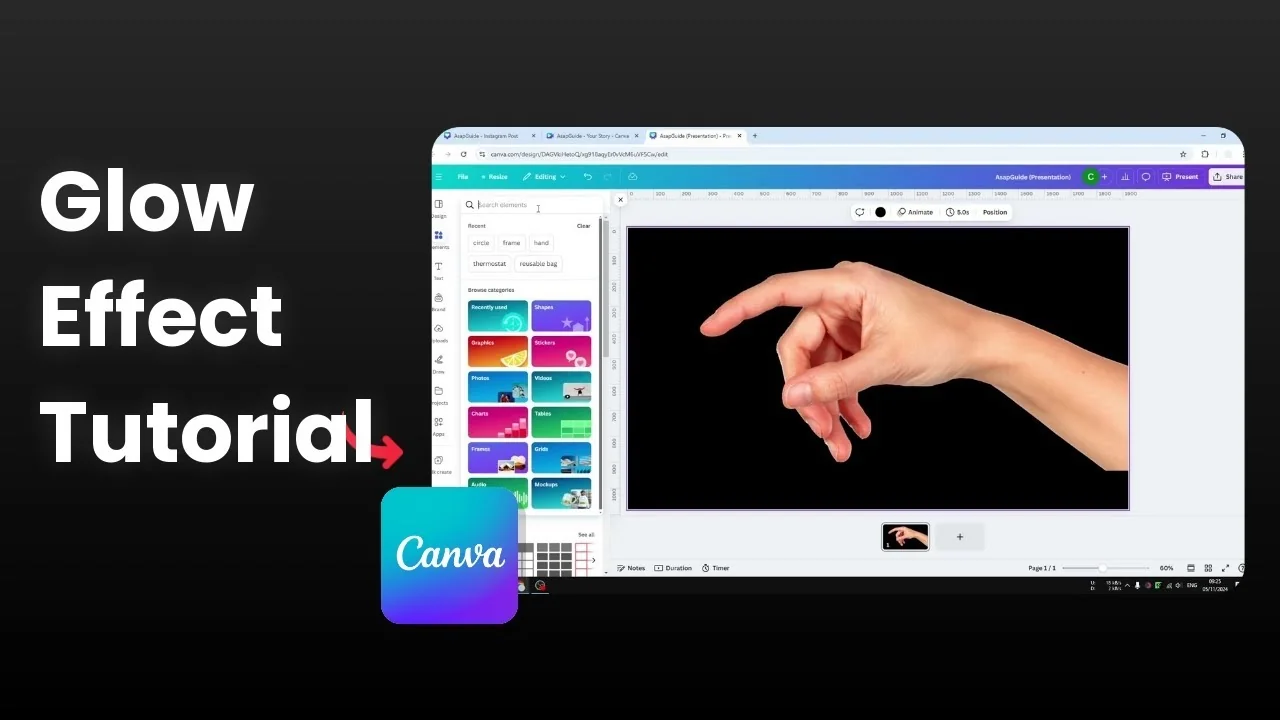
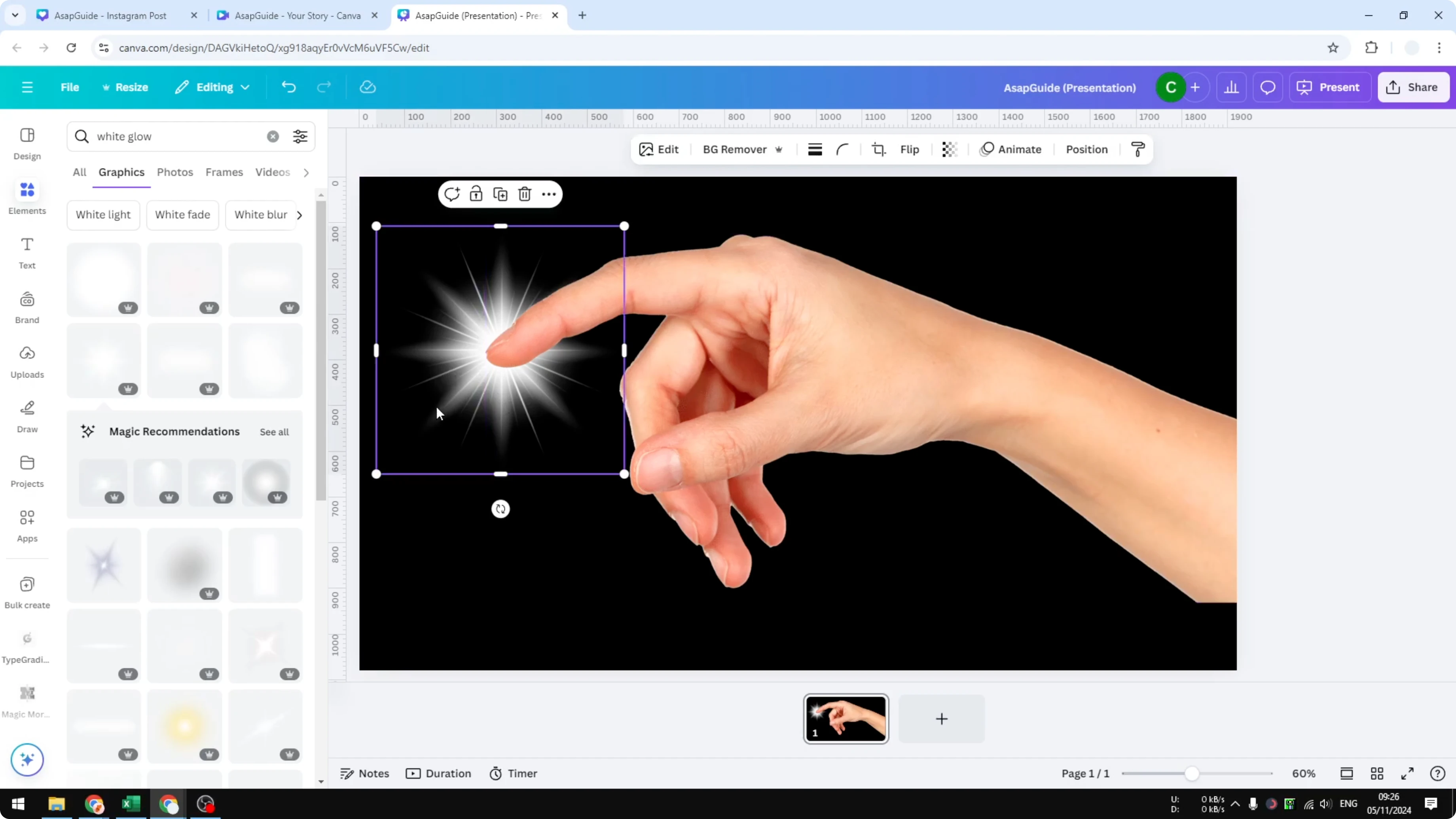
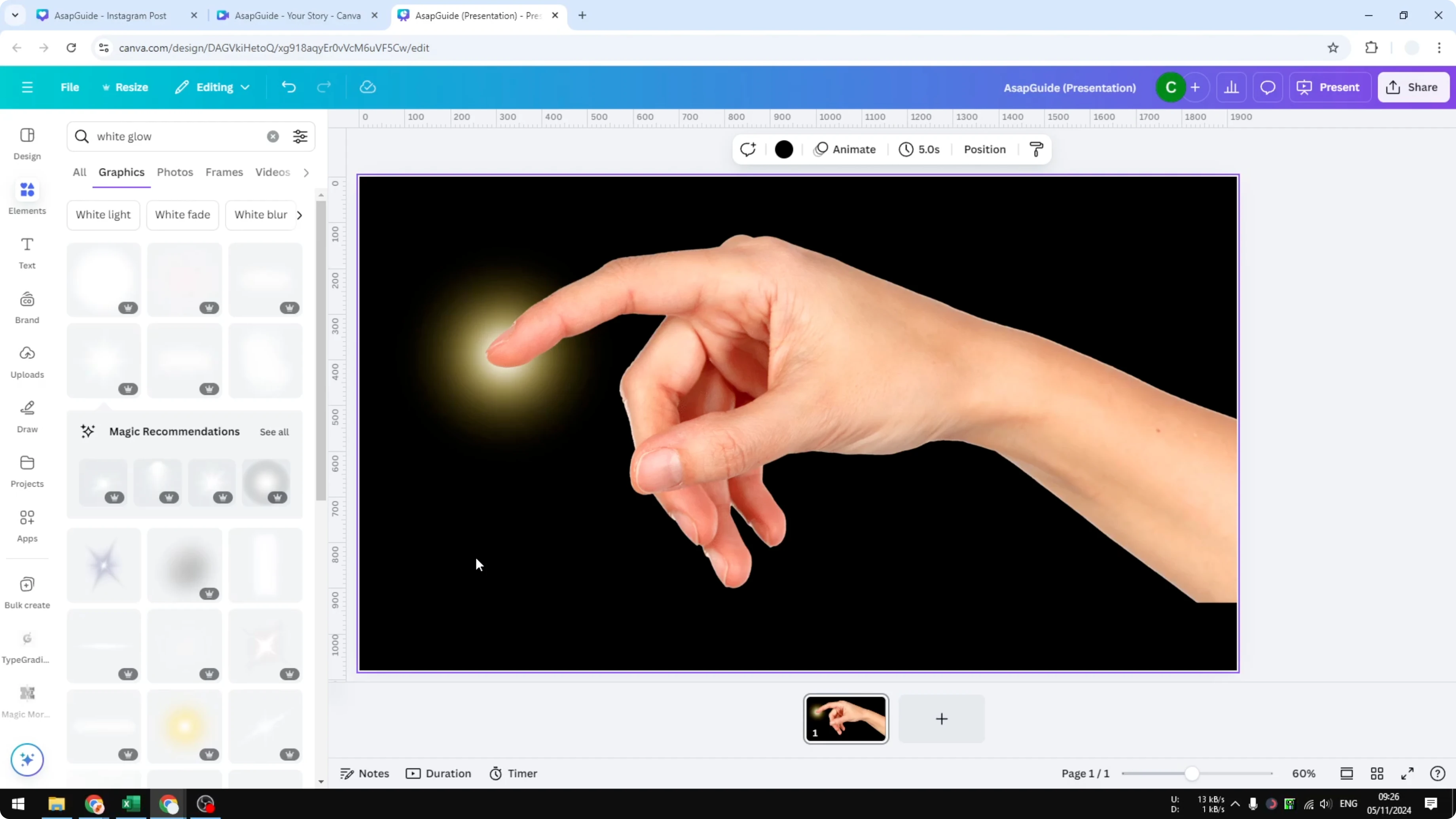
I’m going to show you how you can add a glowing effect to your photo in Canva, and this is very easy. You can do it in less than a minute. I’ll use a picture of a hand and make the edge of the hand glow, with the light sitting behind the subject, not on the hand itself.
I recommend using a dark background because it usually makes the glowing effect much more visible. This simple setup makes the glow pop and keeps the subject clear.
Add a Glow Effect in Canva
Edge glow
Use a dark background to make the glowing effect more visible.
Click the image, click Edit, then go to Effects.
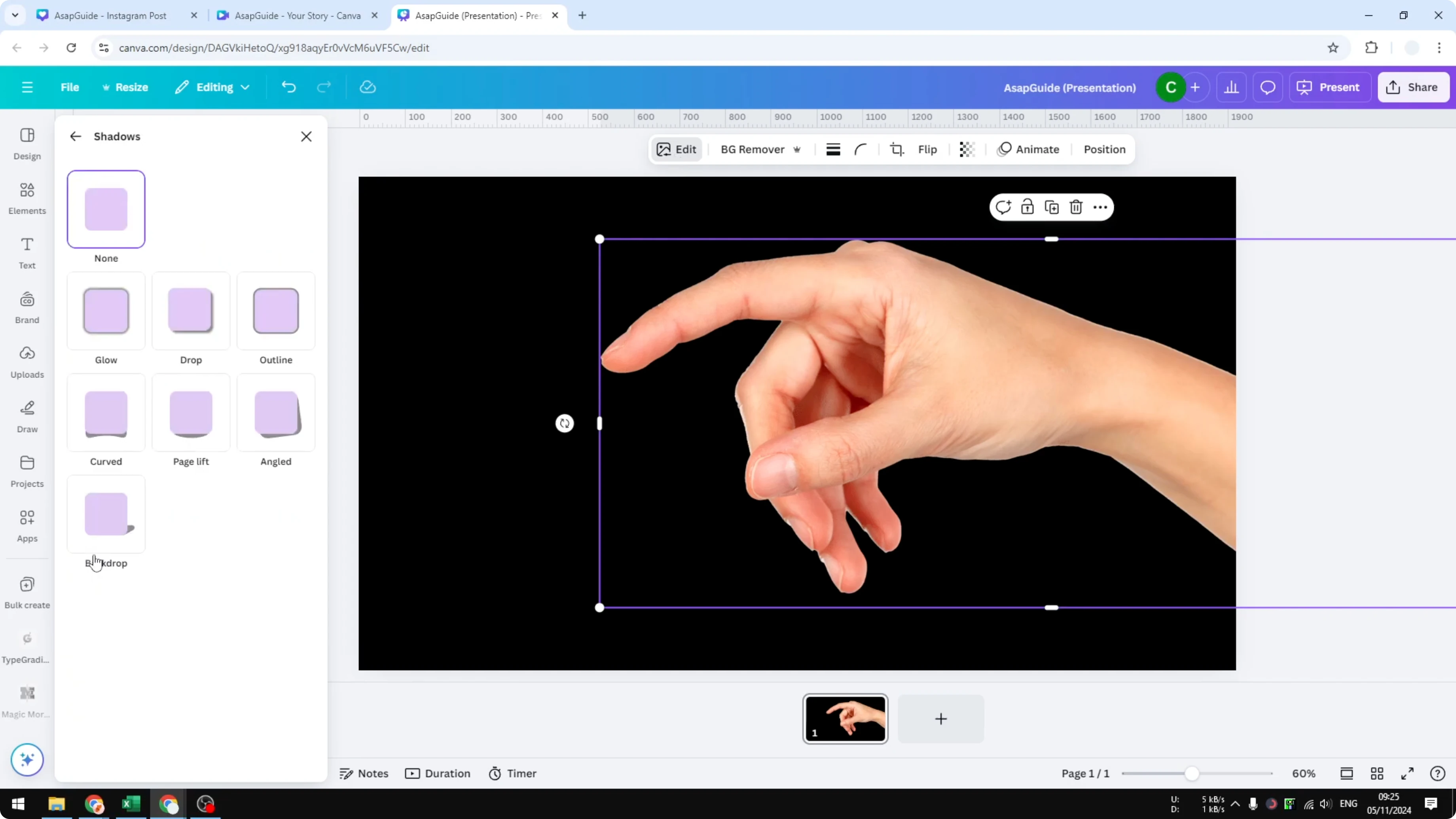
Choose Shadow and navigate to Glow.
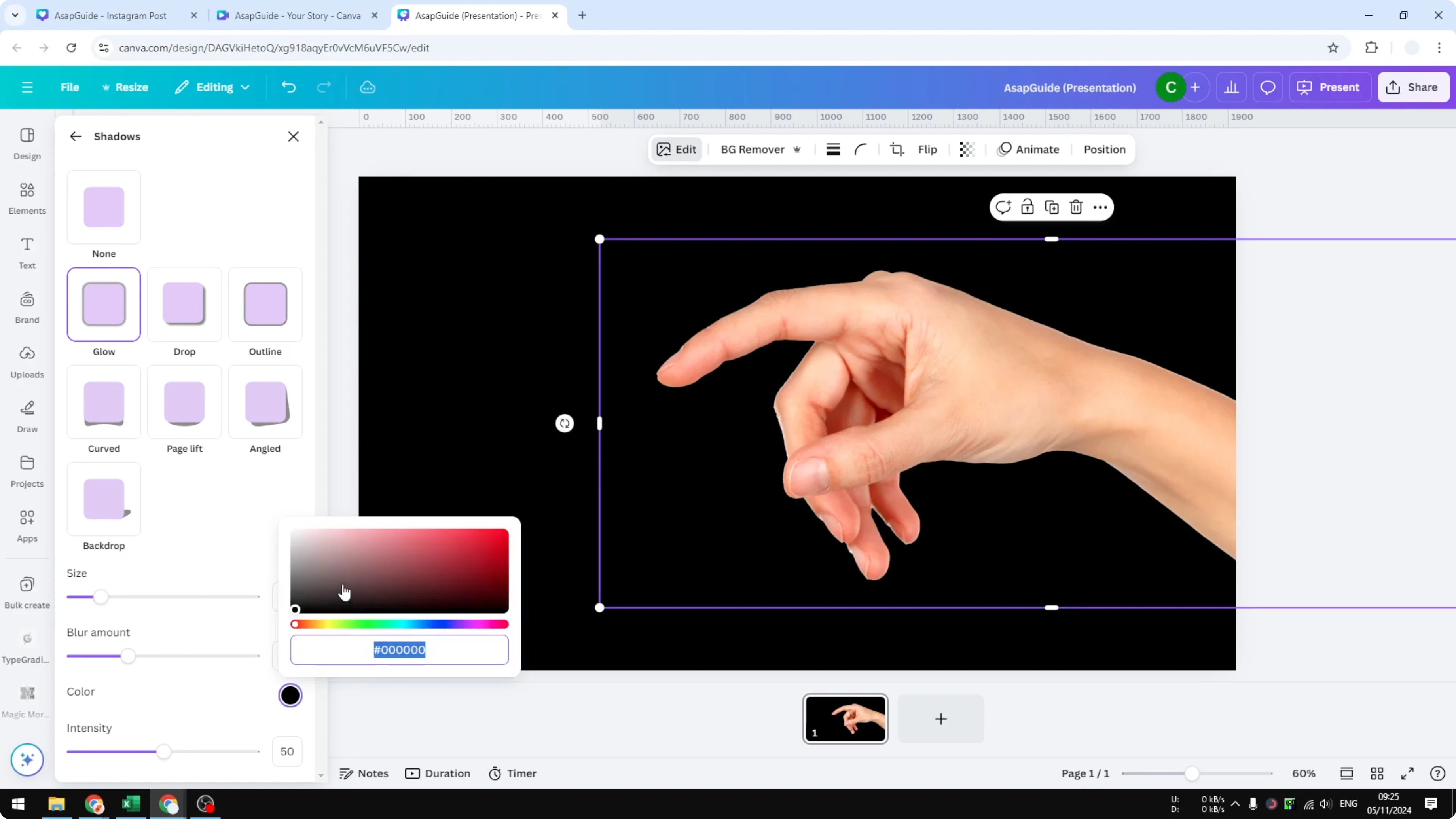
Change the color to whatever looks best for your photo.
Adjust Size, Blur, and Intensity to control how soft or strong the glowing edge appears.
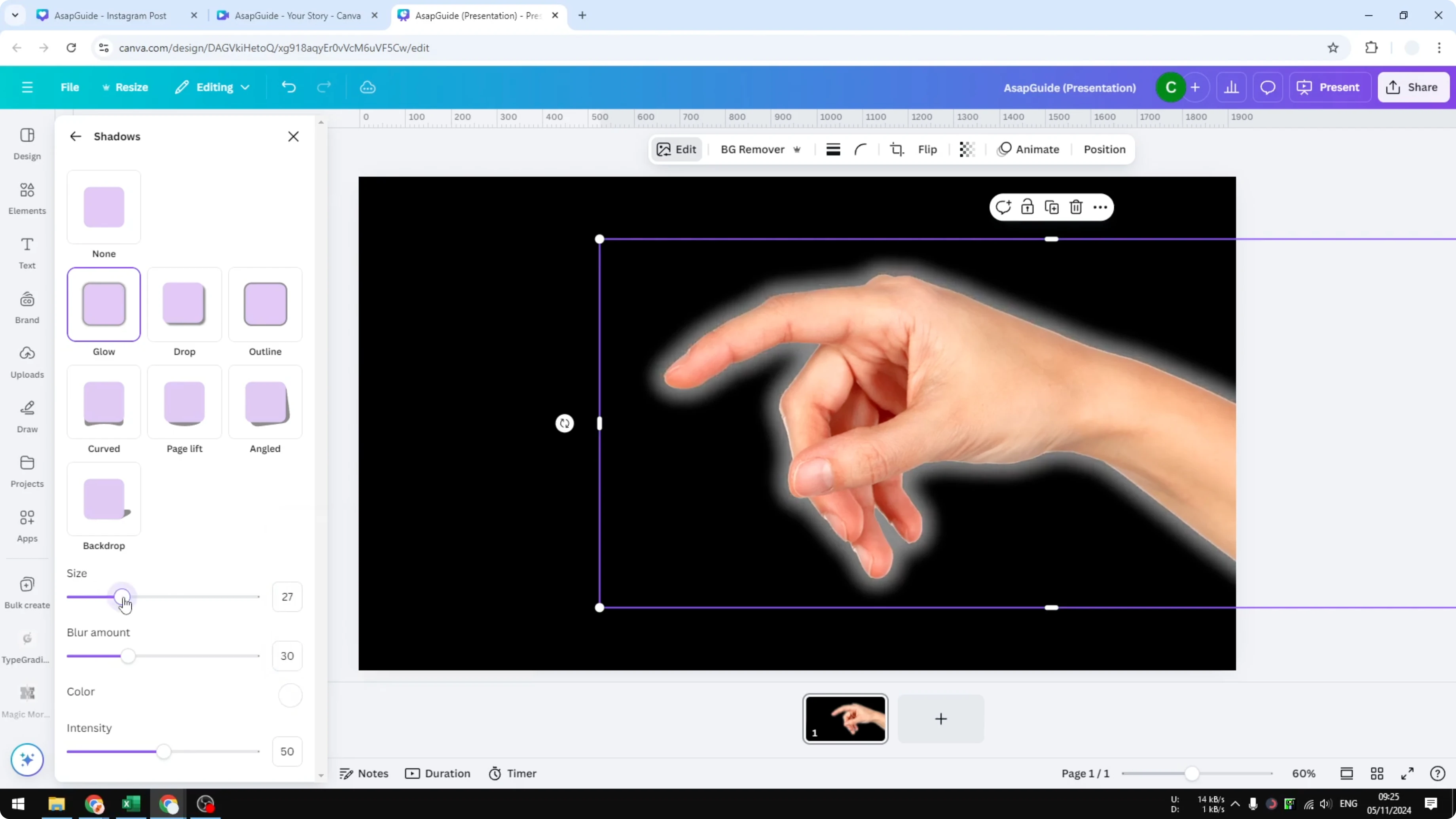
For a full-body subject, see this step-by-step guide to add glow to people: how to add a glowing effect to a person.
Target a specific area
Remove the previous effect if you want to start fresh.
Go to Elements and search for “white glow.”
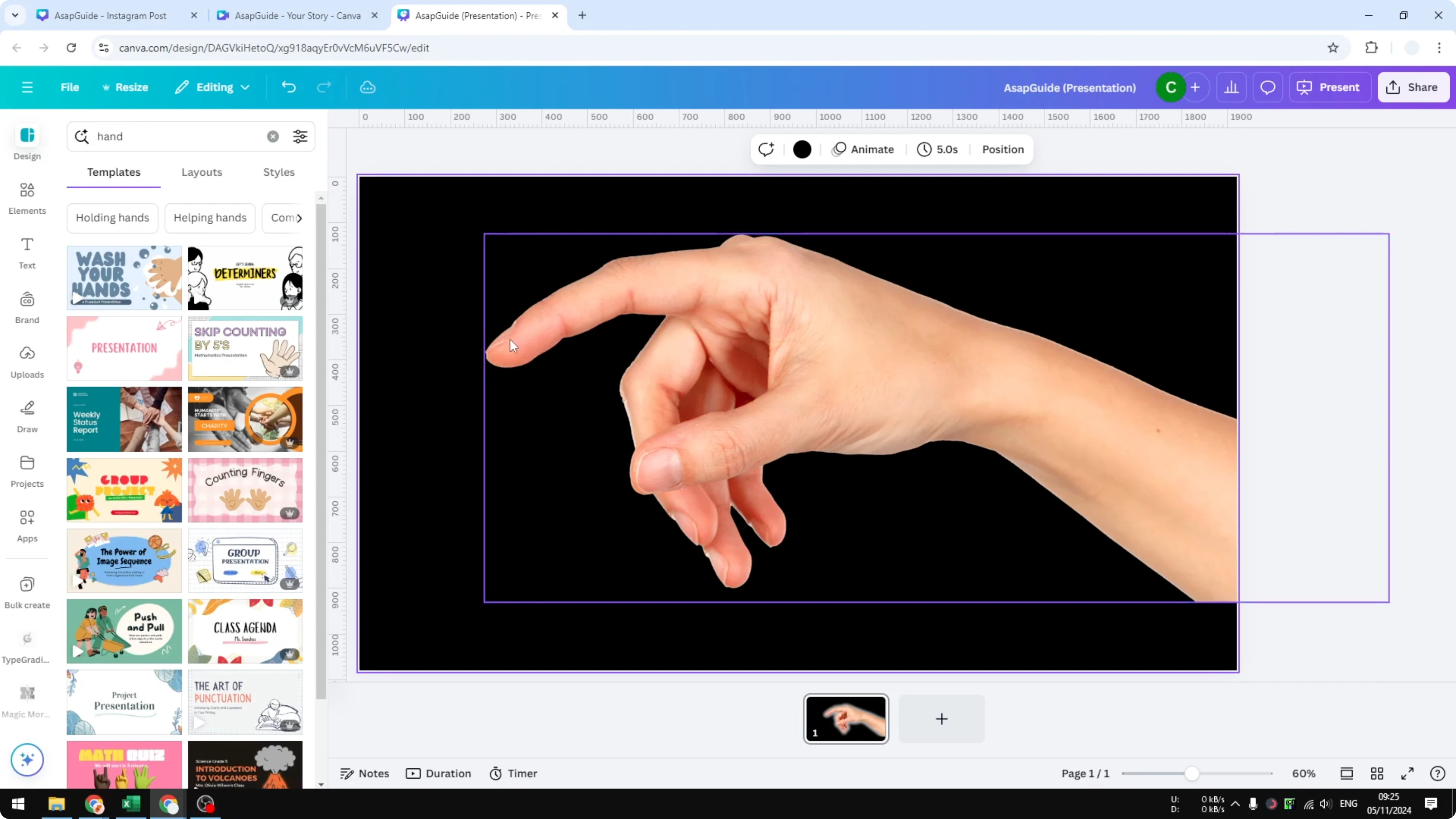
Open Graphics to see the available glow assets.
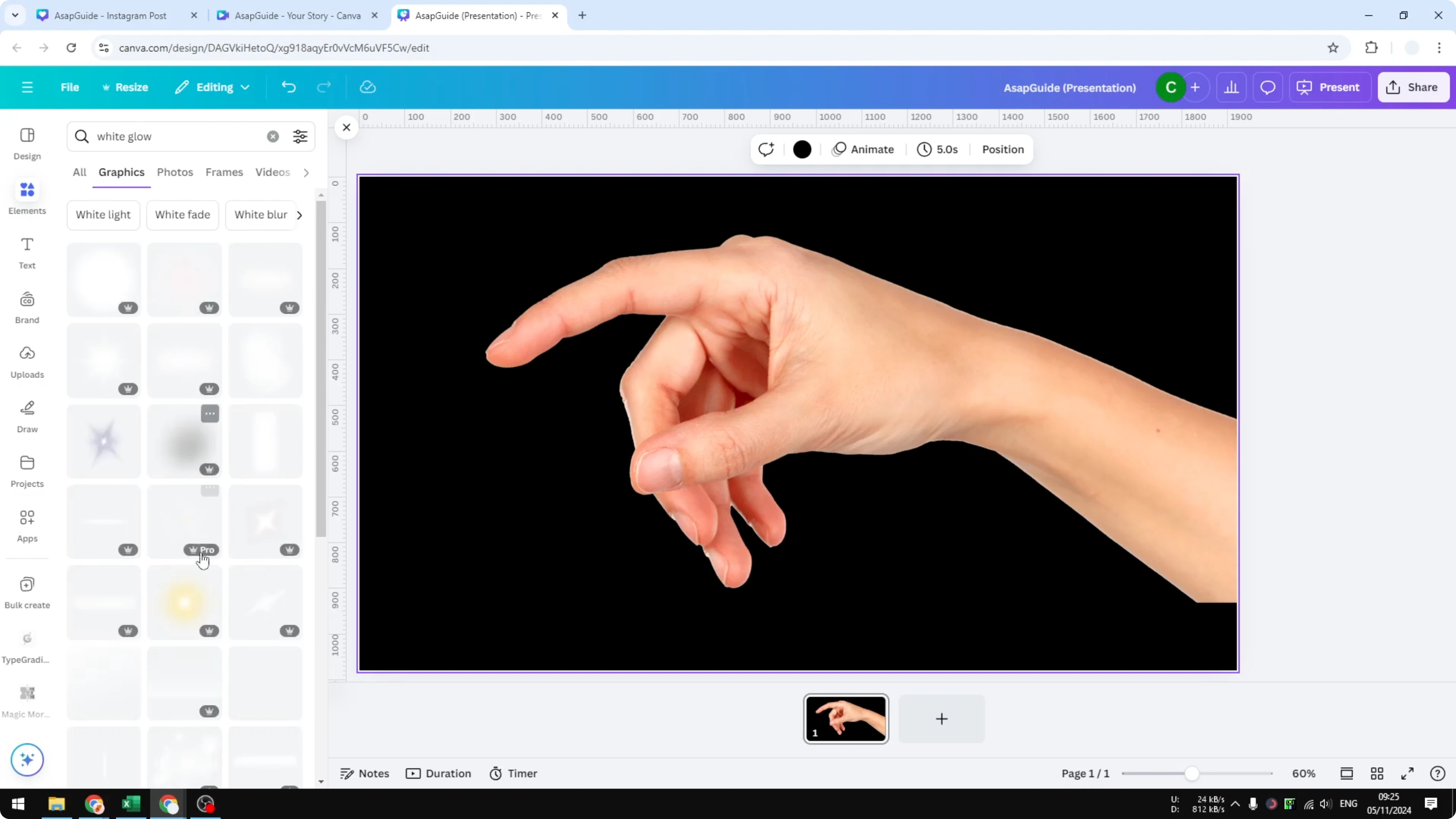
Pick a style you like and place it on the canvas.
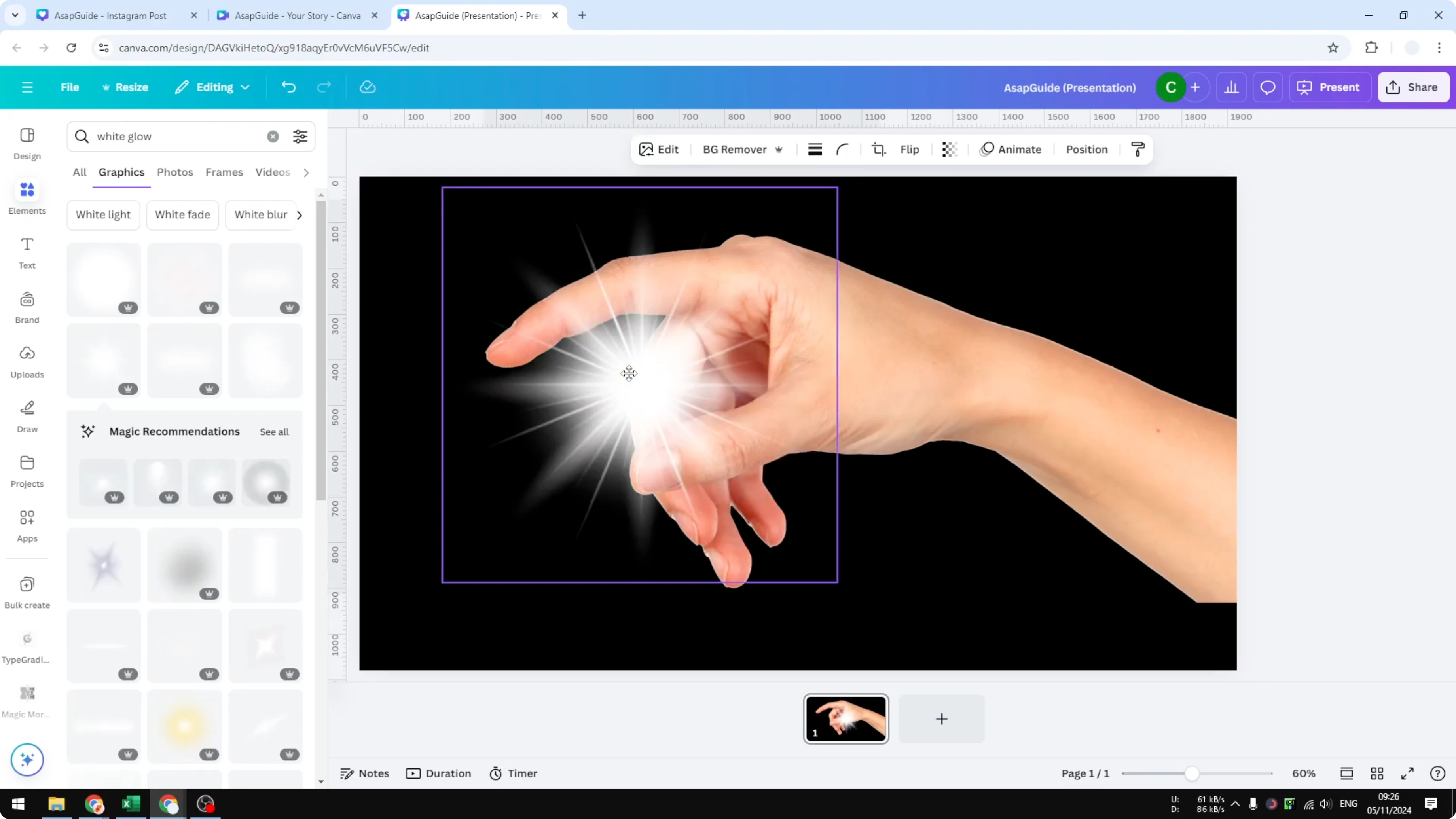
Resize it a bit and put it behind the fingertip or the exact spot you want to light up.
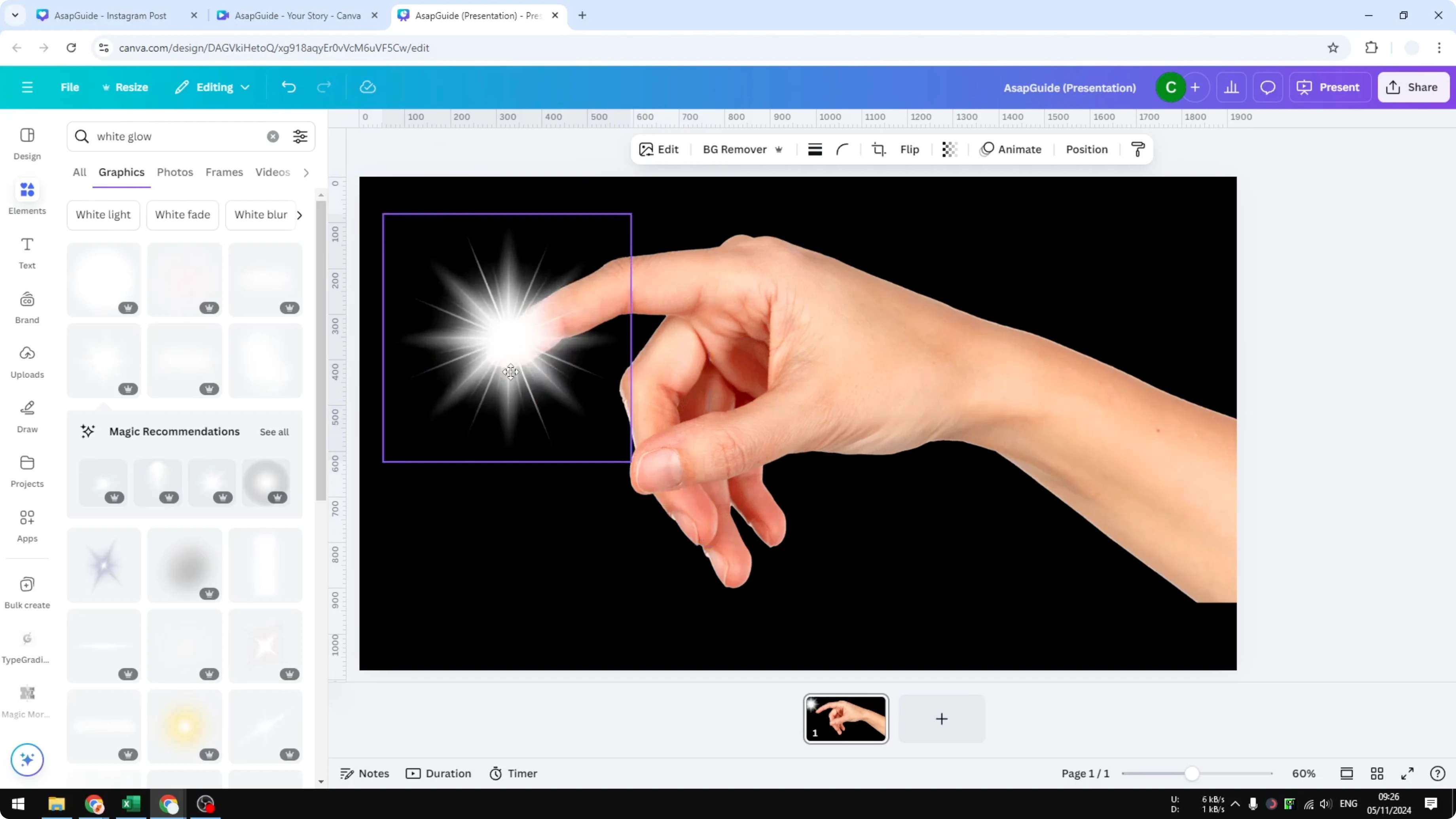
If you don’t like the style, replace it with another glow graphic until it fits your image.
If you want a softer artistic treatment for the same photo, try a painterly look with this guide: add a watercolor effect in Canva.
Final thoughts
These two methods let you add an edge glow quickly or focus the glow on a specific area using graphics. Adjust the color, size, blur, and intensity until it looks right for your image. For a different creative look, you can also turn your photo into a stylized illustration with this walkthrough: add a cartoon effect in Canva.
Recent Posts

How to Visualize Yourself as a Pixelized Character with AI?
How to Visualize Yourself as a Pixelized Character with AI?

How to Revive Faded Memories and Enhance Image Clarity with AI?
How to Revive Faded Memories and Enhance Image Clarity with AI?

How to Visualize Yourself as an Animal Crossing Character with AI?
How to Visualize Yourself as an Animal Crossing Character with AI?