How to Rotate Video in Canva
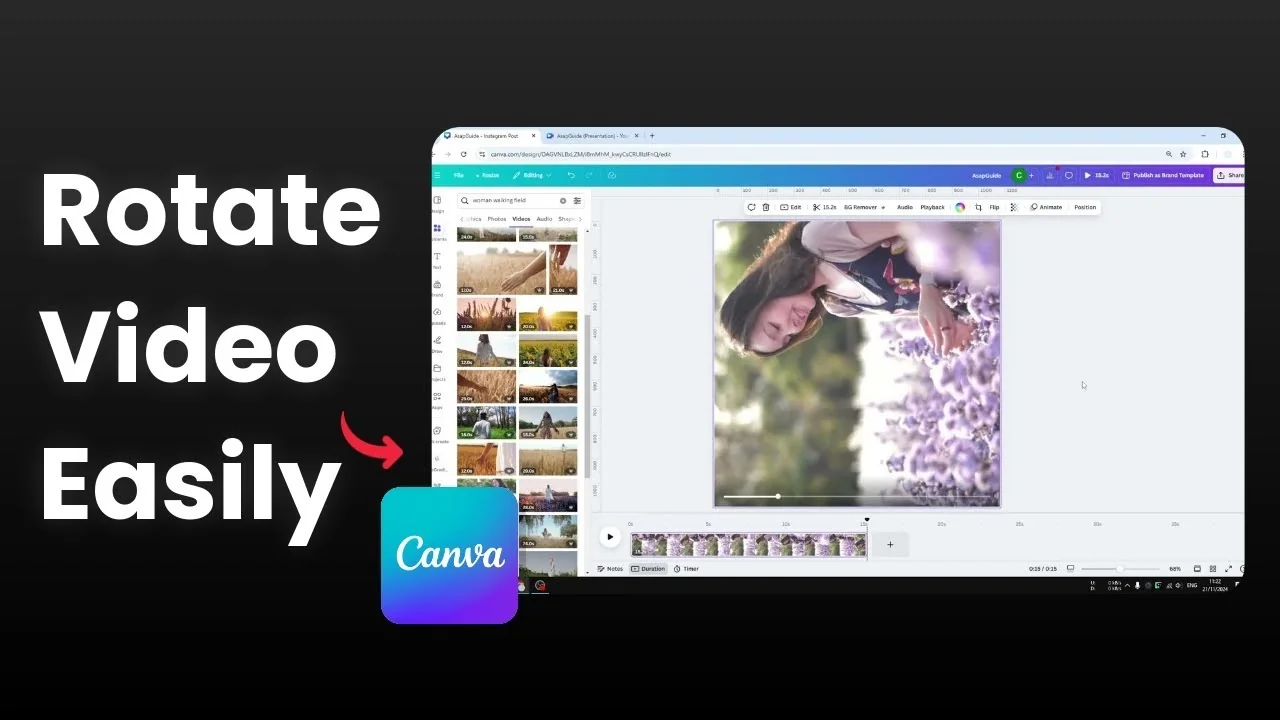
I want to show you how you can rotate a video in Canva. I have a video and I want to rotate it to a different angle. There are two methods to try.
Rotate Video in Canva
Quick flip method
Upload a video or select a video from the Canva library, then put it into the canvas.

Click or select the video and navigate to the Flip section.

Select Flip horizontally or Flip vertically.

Flip vertically is very similar to rotating the video to 180°, so it’s kind of upside down.

This is not a proper rotation. This is pretty much just flipping a video, although the effect is very similar.
If you are also reframing your shot, you can crop a video in Canva to get the composition right.
Proper rotation
You cannot rotate a background video. If you have a background video, you have to remove it first.

Right click the background video and choose Detach video from background.

Now this is the normal form of the video.
As you can see, there is a rotating icon. Click it and rotate to the left or to the right to create a rotation.

After that, right click and set it as a background again if you want it back as the background.

This is the result.
If you need to obscure parts of the frame after rotating, you can blur a video in Canva to hide sensitive details.
Final thoughts
Flip is quick for a 180°-like effect, but it is not a true rotation. For proper rotation, detach the video from the background, use the rotate handle, then set it as the background again if needed. If text is baked into your clip, see how to remove text from a video in Canva for a cleaner result.
Recent Posts

How to Visualize Yourself as a Pixelized Character with AI?
How to Visualize Yourself as a Pixelized Character with AI?

How to Revive Faded Memories and Enhance Image Clarity with AI?
How to Revive Faded Memories and Enhance Image Clarity with AI?

How to Visualize Yourself as an Animal Crossing Character with AI?
How to Visualize Yourself as an Animal Crossing Character with AI?