How to Crop a Video in Canva
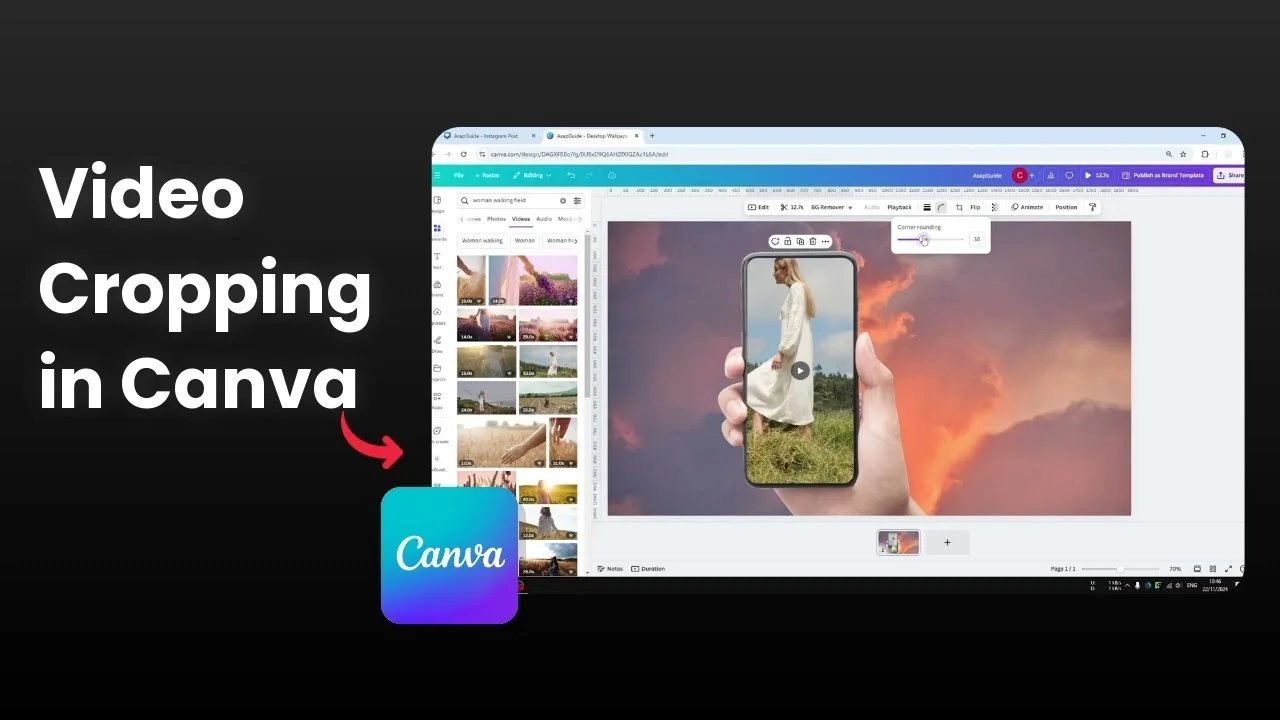
I want to show you how you can crop a video in Canva.
I have a design that is a template for a smartphone screen, and I want to put this video into the screen. The video is 16x9 while the smartphone is 9x6, the opposite of the normal video resolution. One way to deal with that is by cropping the video.
For a deeper walkthrough, see this guide to cropping videos in Canva.
Manual way to Crop a Video in Canva
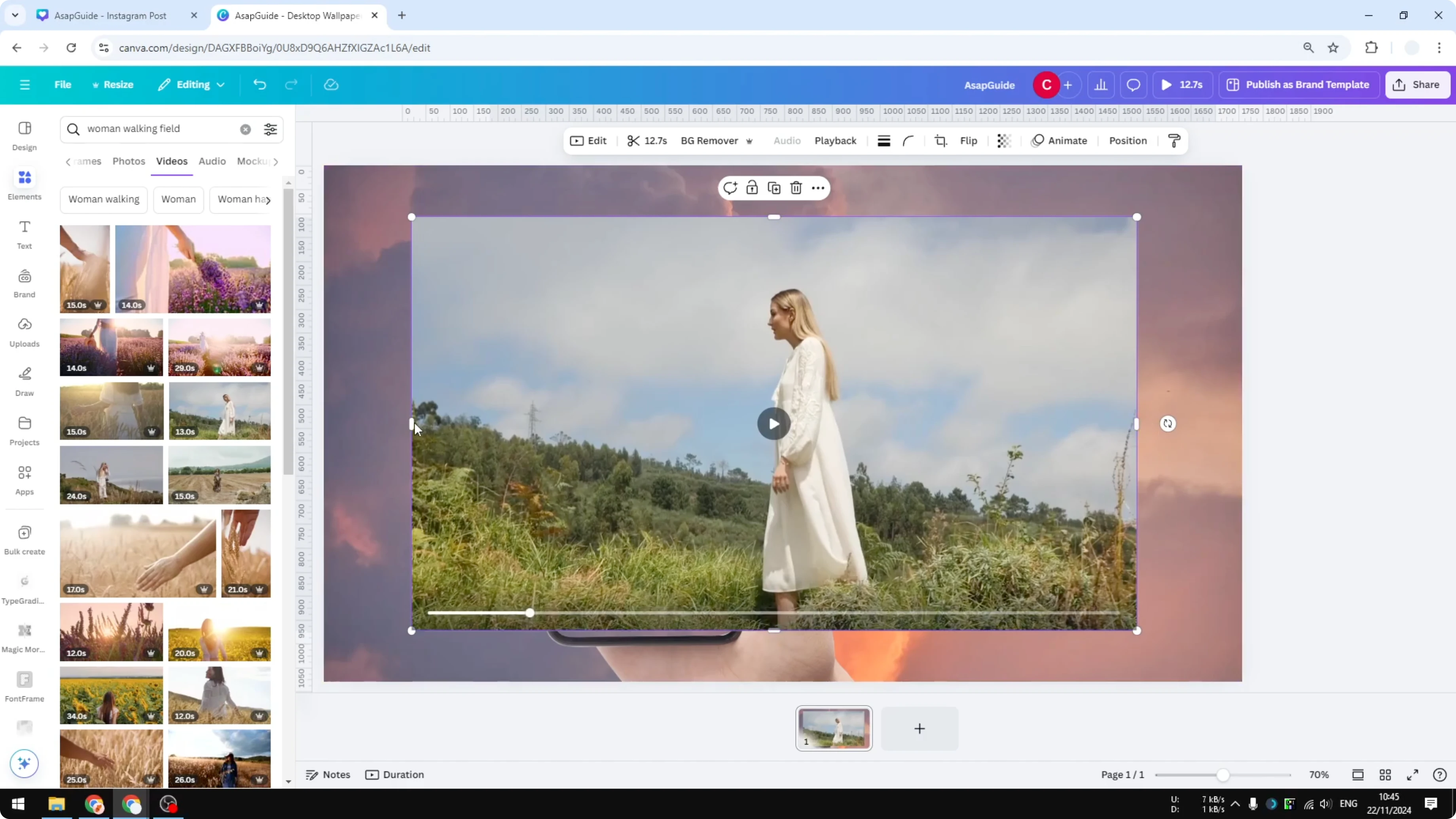
If you look at the video, you'll see there are four points on each side that can be used to crop the video.
I want to put this woman into the frame of this phone, so I'm going to crop a little bit here. I'll do the same for the other side. I will also resize the content a little so it will fit nicely within this boundary within this frame.
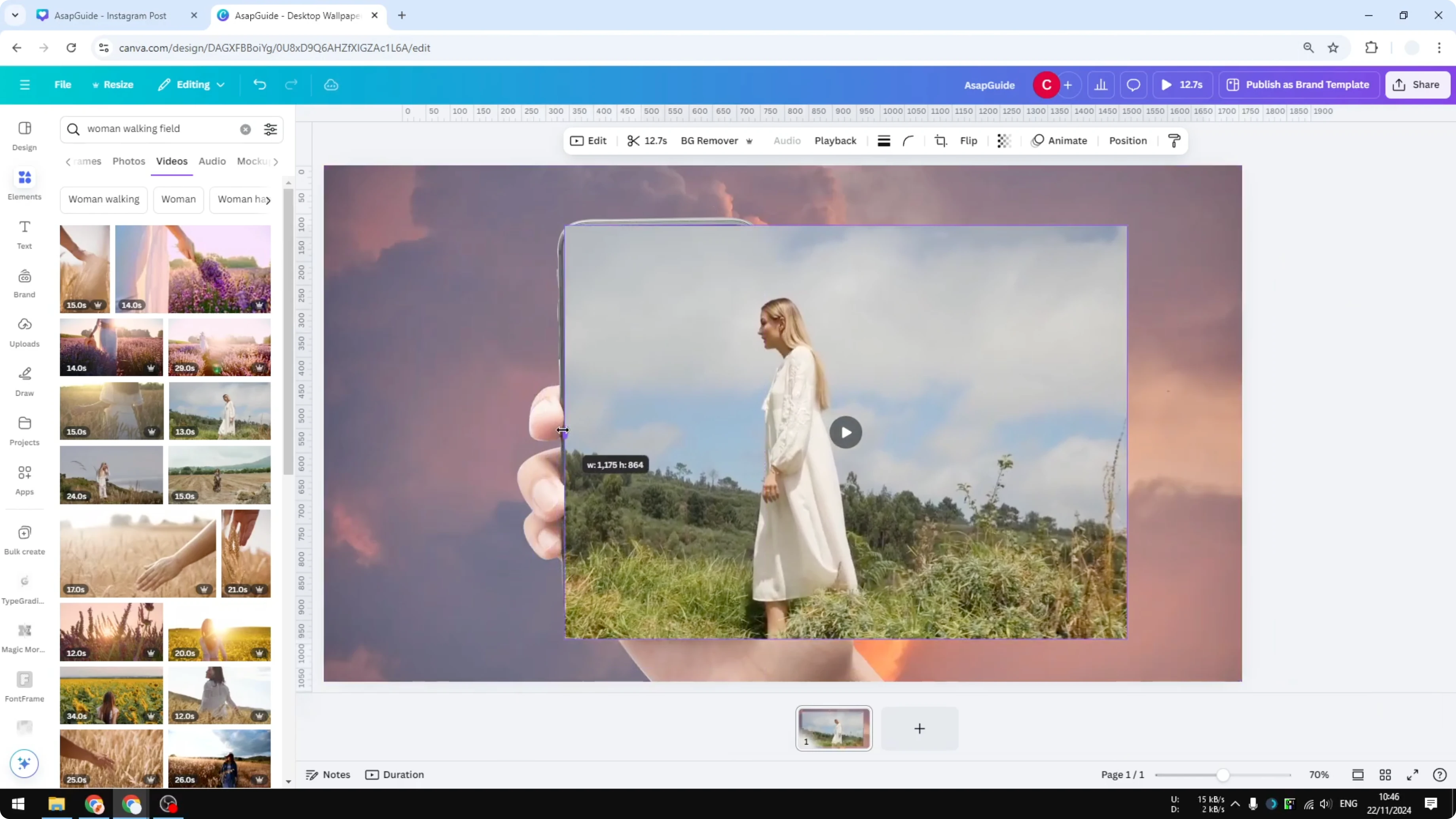
It doesn't have to be perfect, but it has to be just good enough. The woman is here, but I want to make sure she appears on the frame of this phone. I'm going to double click and slide the video to the middle so she will be shown.
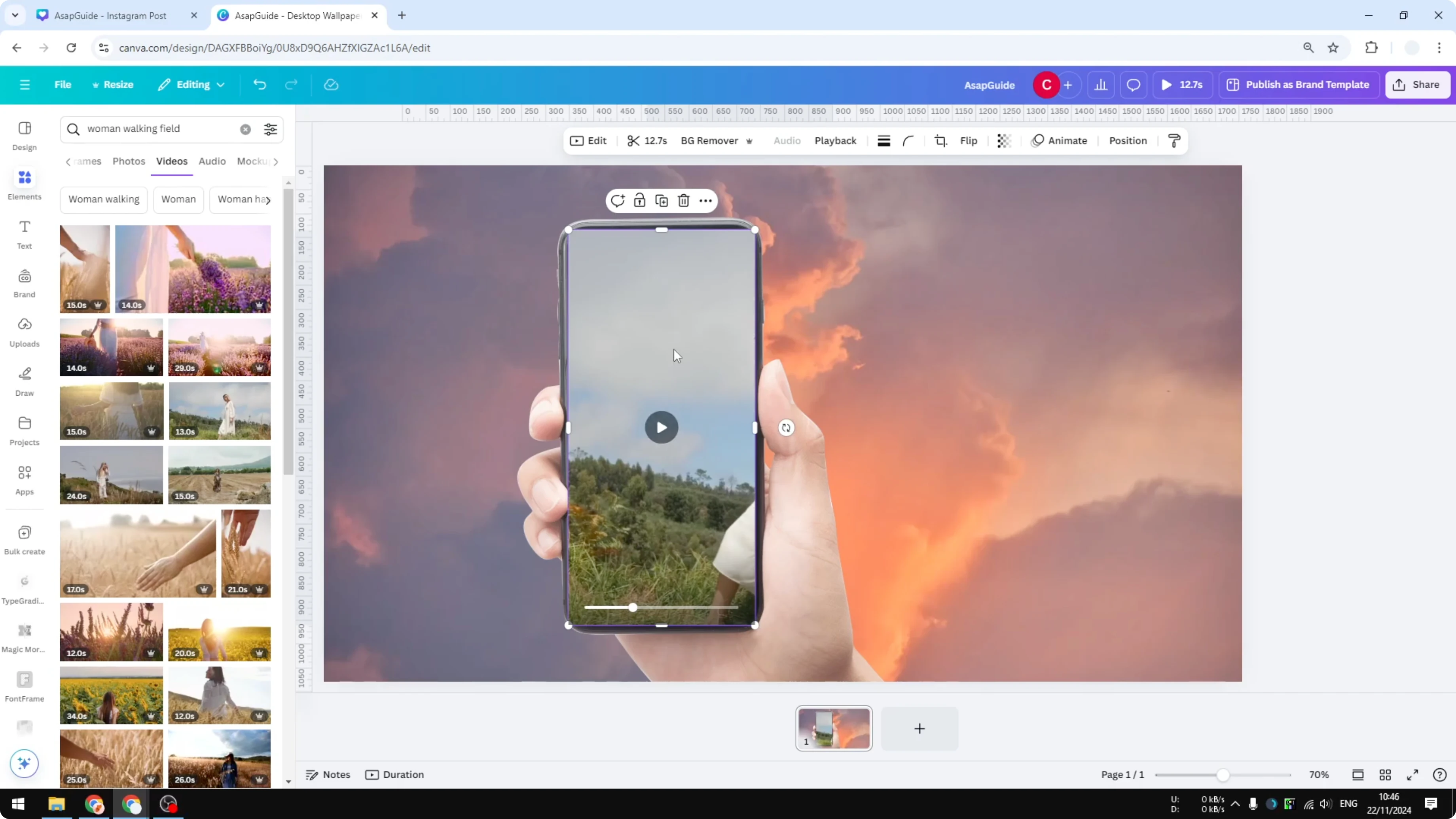
Rounded corners when you Crop a Video in Canva
Click Done. One final touch is the rounded corner on the phone, so we have to adapt that with this video as well. Click on the video, click Corner rounding, and add some rounded corner for this video.

If you need to blur parts of a clip after you crop, see how to blur a video in Canva.
Preset aspect ratios to Crop a Video in Canva
Another method is quicker and is based on a predetermined aspect ratio in Canva. Delete the video and pick another one. I want to crop this into a square.
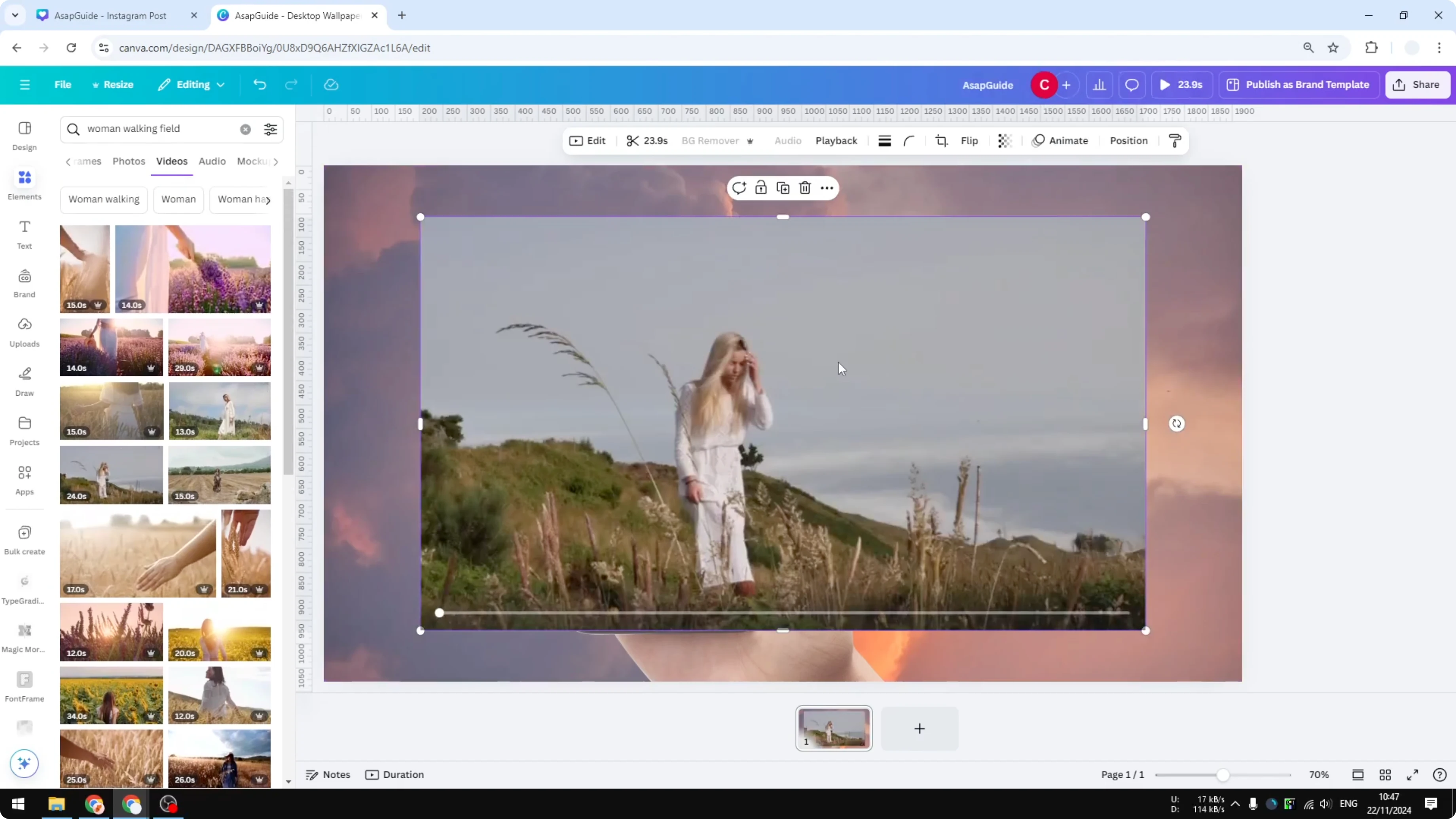
Double click on the video to open the crop menu. You will see some presets you can apply. Select the 1 by 1 aspect ratio and click Done.
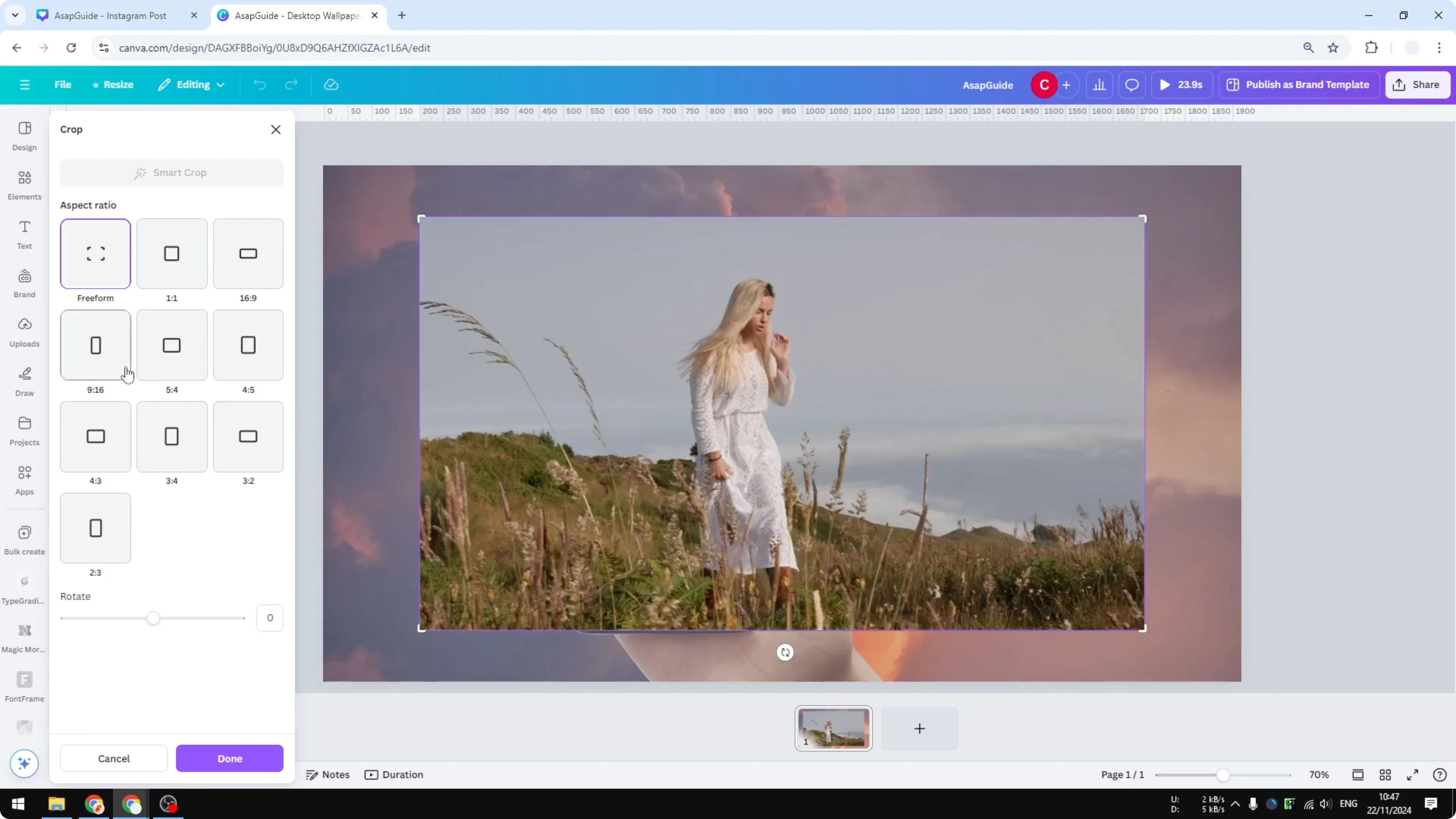
There you go, the result is perfectly 1 by 1. You don't have to manually measure it because we are using a predetermined template.

Final thoughts on Crop a Video in Canva
Cropping solves mismatched aspect ratios when placing a clip into a phone frame or any design. You can crop manually with handles and adjust the position, or use preset aspect ratios for a perfect square. Matching rounded corners helps the video fit the device frame cleanly.
If you also need to remove overlaid words or graphics from a clip, see how to remove text from a video in Canva.
Recent Posts

How to Visualize Yourself as a Pixelized Character with AI?
How to Visualize Yourself as a Pixelized Character with AI?

How to Revive Faded Memories and Enhance Image Clarity with AI?
How to Revive Faded Memories and Enhance Image Clarity with AI?

How to Visualize Yourself as an Animal Crossing Character with AI?
How to Visualize Yourself as an Animal Crossing Character with AI?