How to Crop a Video Using Canva
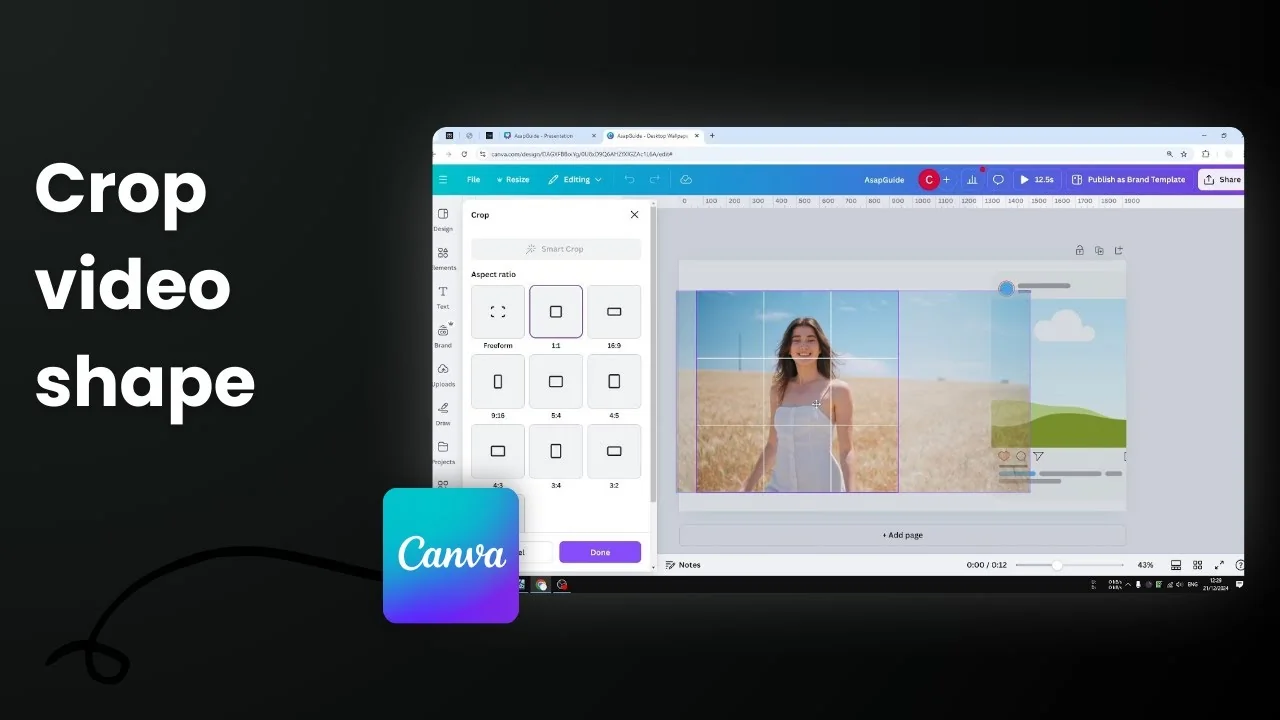
I’m going to show you how to crop a video using Canva. Cropping is not cutting. Cutting makes a video shorter or removes a section. Cropping changes the dimensions or aspect ratio of the video.
I have a video I want to insert into a square area, a square Instagram template. This video is a regular 16x9 video and it’s not going to fit into that area. To make it fit, I’ll crop a section of the video. Fortunately, it’s very easy.
Crop a Video Using Canva: Step-by-Step
Prepare the video
- Add the video to your design and select it.
- I’m working with a square Instagram template, so I want a square crop.

Open the crop menu
- Click the Crop menu. It will reveal options that let you select the size or aspect ratio of the video.
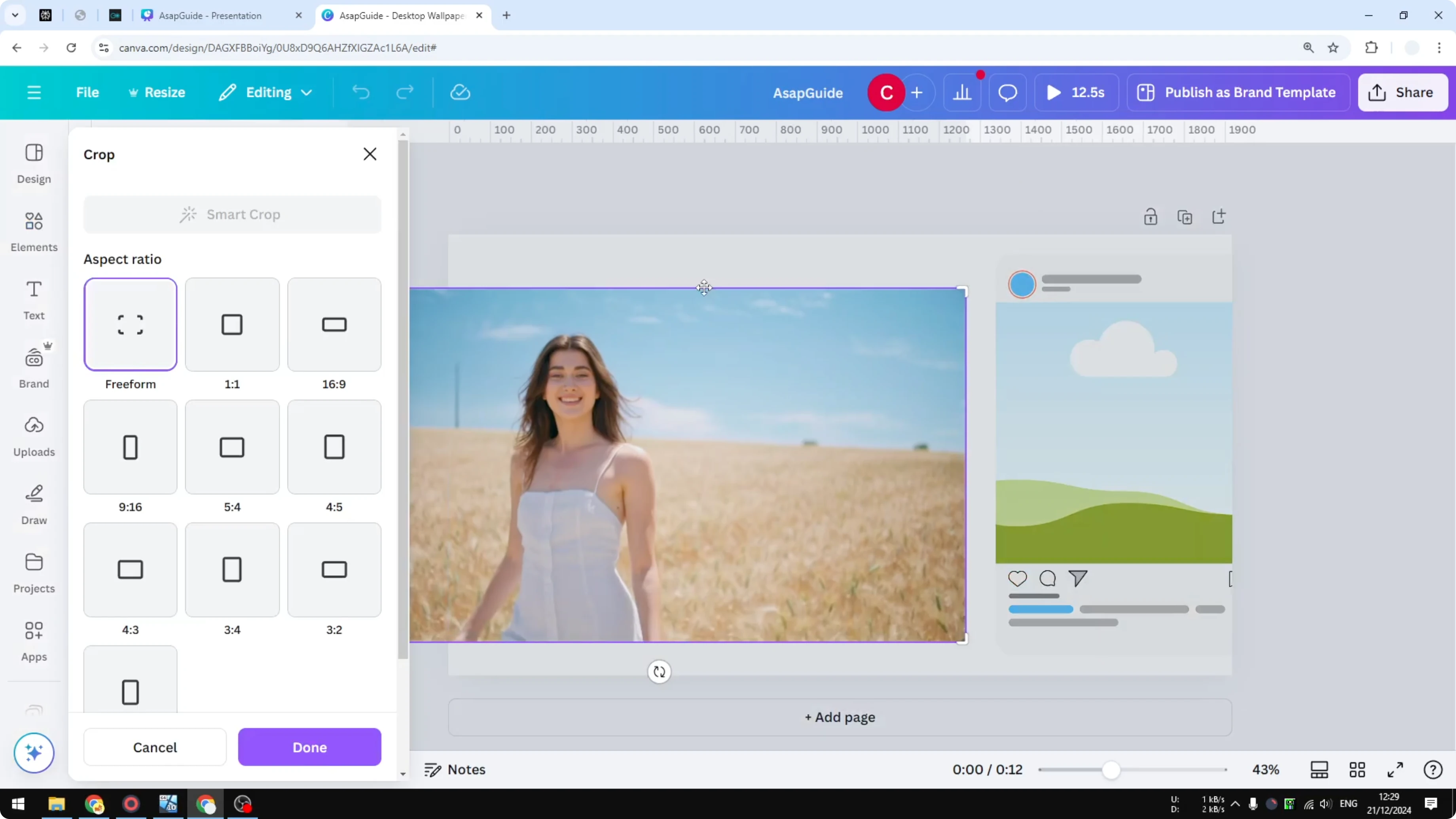
Choose an aspect ratio
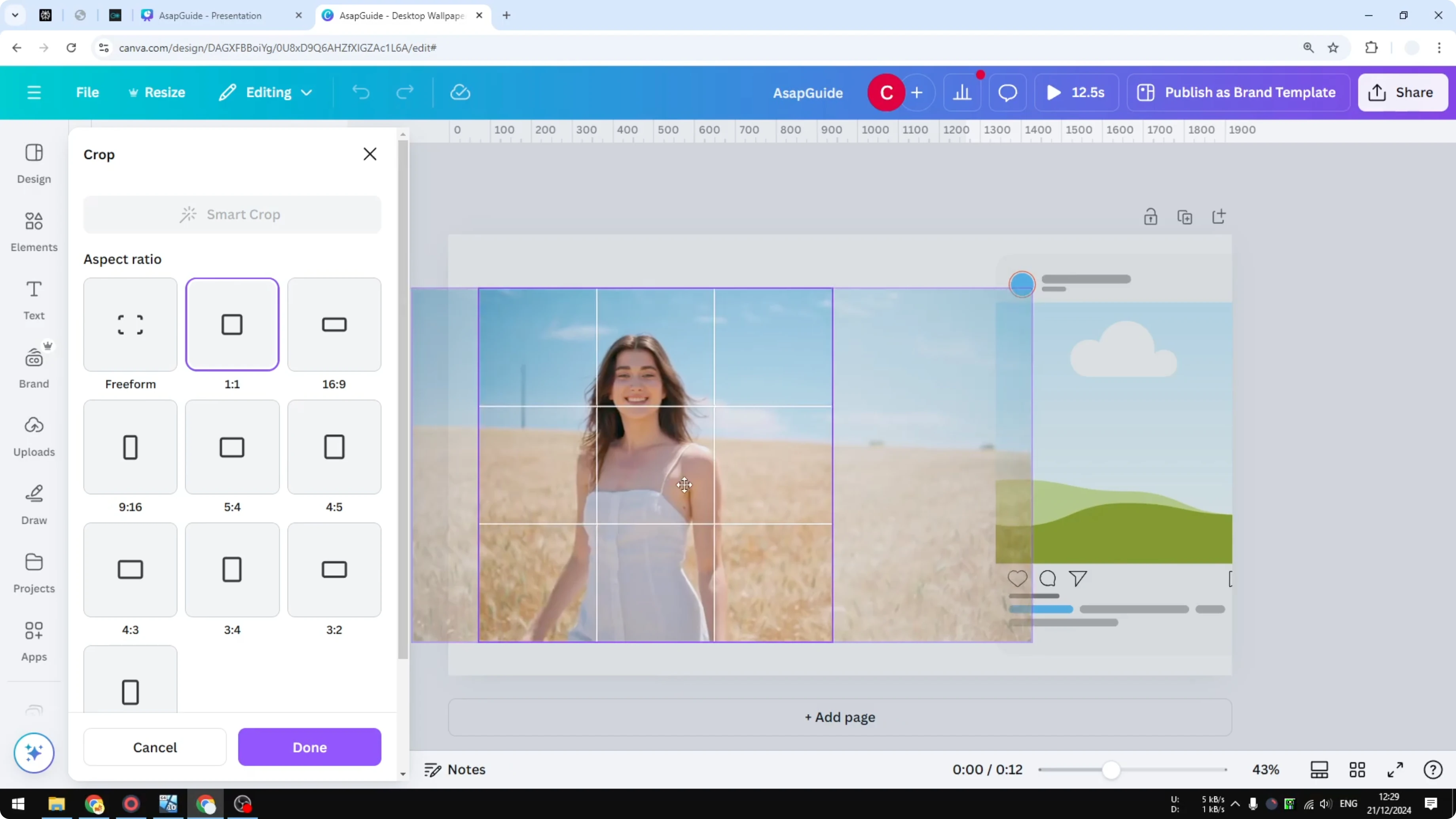
- Select 1 by 1, which is exactly square.

Position the crop
- Choose which part of the video you want to show and which part you want to discard by dragging the video within the crop.
Apply the crop
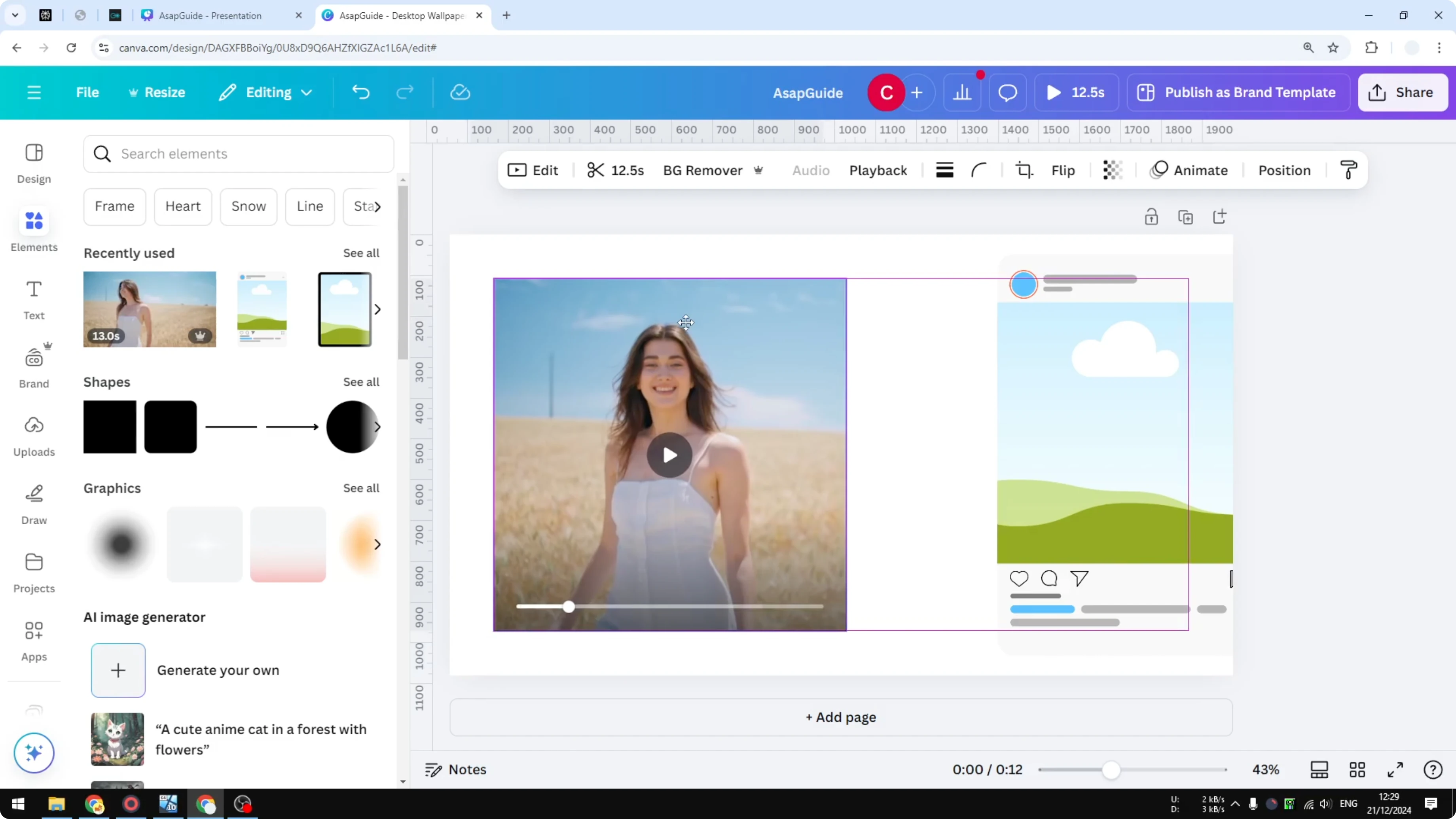
- Click Done. The video is now exactly square.
- You can use it in whatever frame you want. I can put it into the square area of the template and it fits.

Crop a Video Using Canva: Change or Remove the Crop Anytime
It’s not gone forever if you crop a video. You can always go back to the previous state or the previous resolution of the video. If I crop the video to square and then go back to the Crop menu again, you will still see the rest of the video. You can go back and select any size for the video.

Final Thoughts
Cropping in Canva changes the aspect ratio so your video fits the shape you need, like turning a 16x9 clip into a 1x1 square. Use the Crop menu to pick an aspect ratio, position the visible area, and click Done. You can always return to the Crop menu to adjust or remove the crop later.

Recent Posts

How to Visualize Yourself as a Pixelized Character with AI?
How to Visualize Yourself as a Pixelized Character with AI?

How to Revive Faded Memories and Enhance Image Clarity with AI?
How to Revive Faded Memories and Enhance Image Clarity with AI?

How to Visualize Yourself as an Animal Crossing Character with AI?
How to Visualize Yourself as an Animal Crossing Character with AI?