How to Rotate Elements in Canva
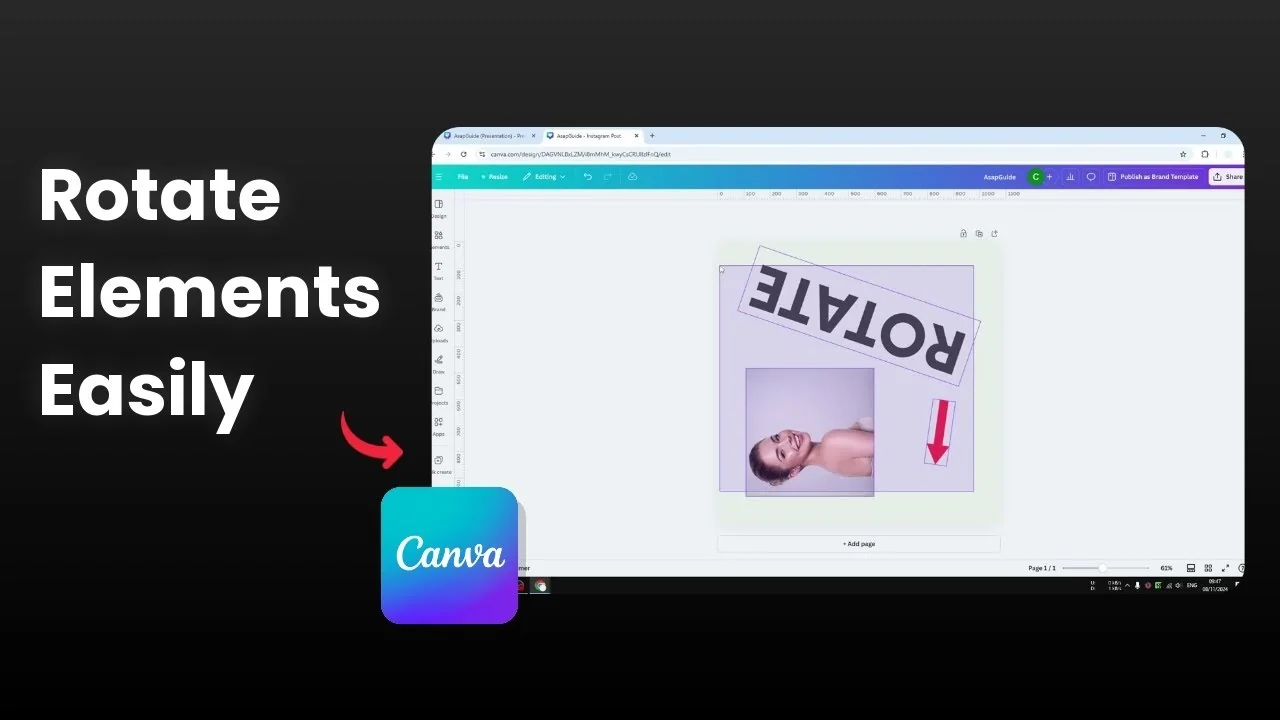
Here is how you can rotate elements in Canva. The process is the same for image, video, shape, text, and vector graphics. For a quick refresher on technique, see rotating elements in Canva.
Rotate Elements in Canva basics
I have this text. If I want to rotate it I click it first. You will see the rotate icon at the bottom of the element.
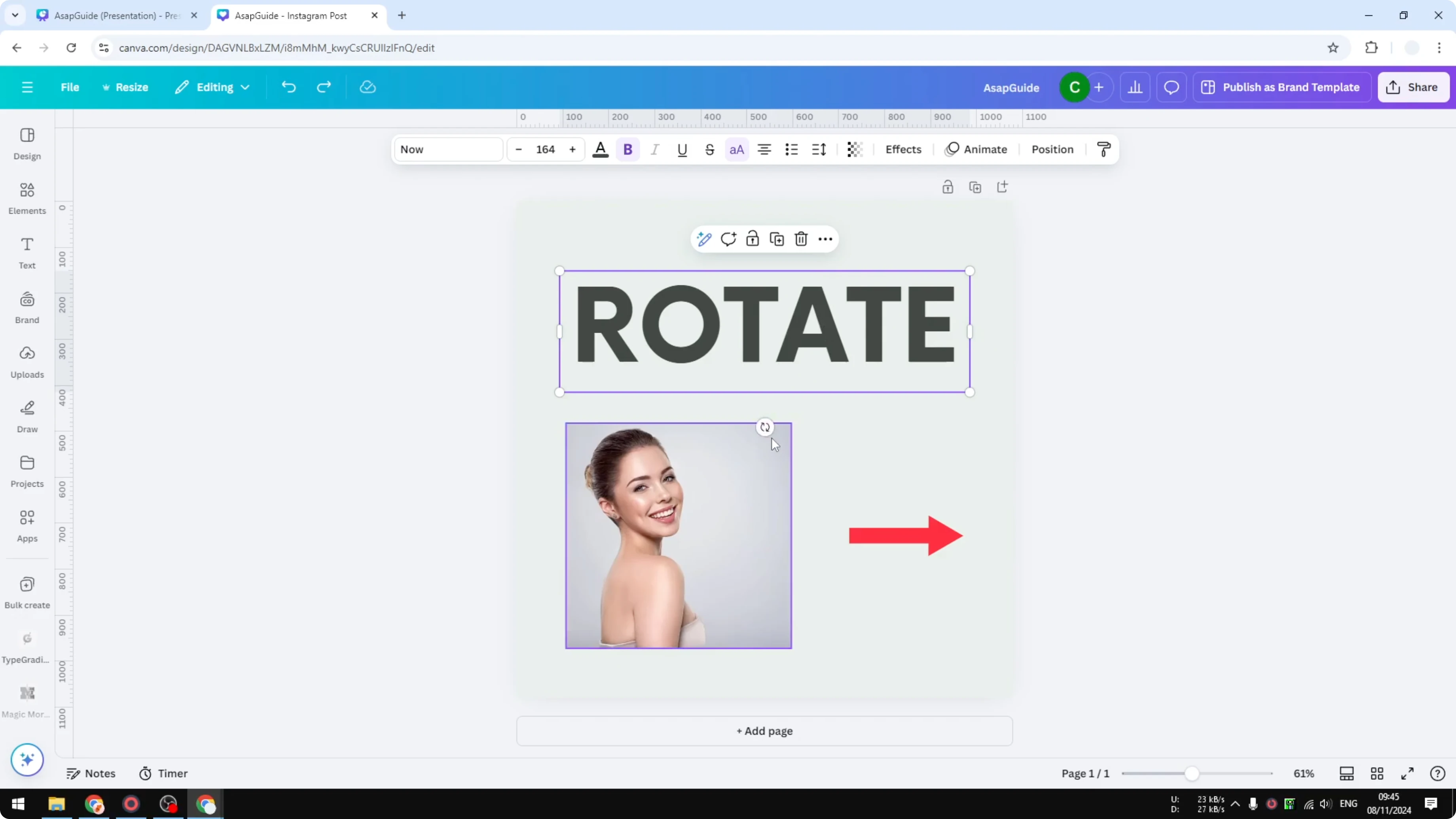
The same is true for image and for shape.
Manual rotation in Rotate Elements in Canva
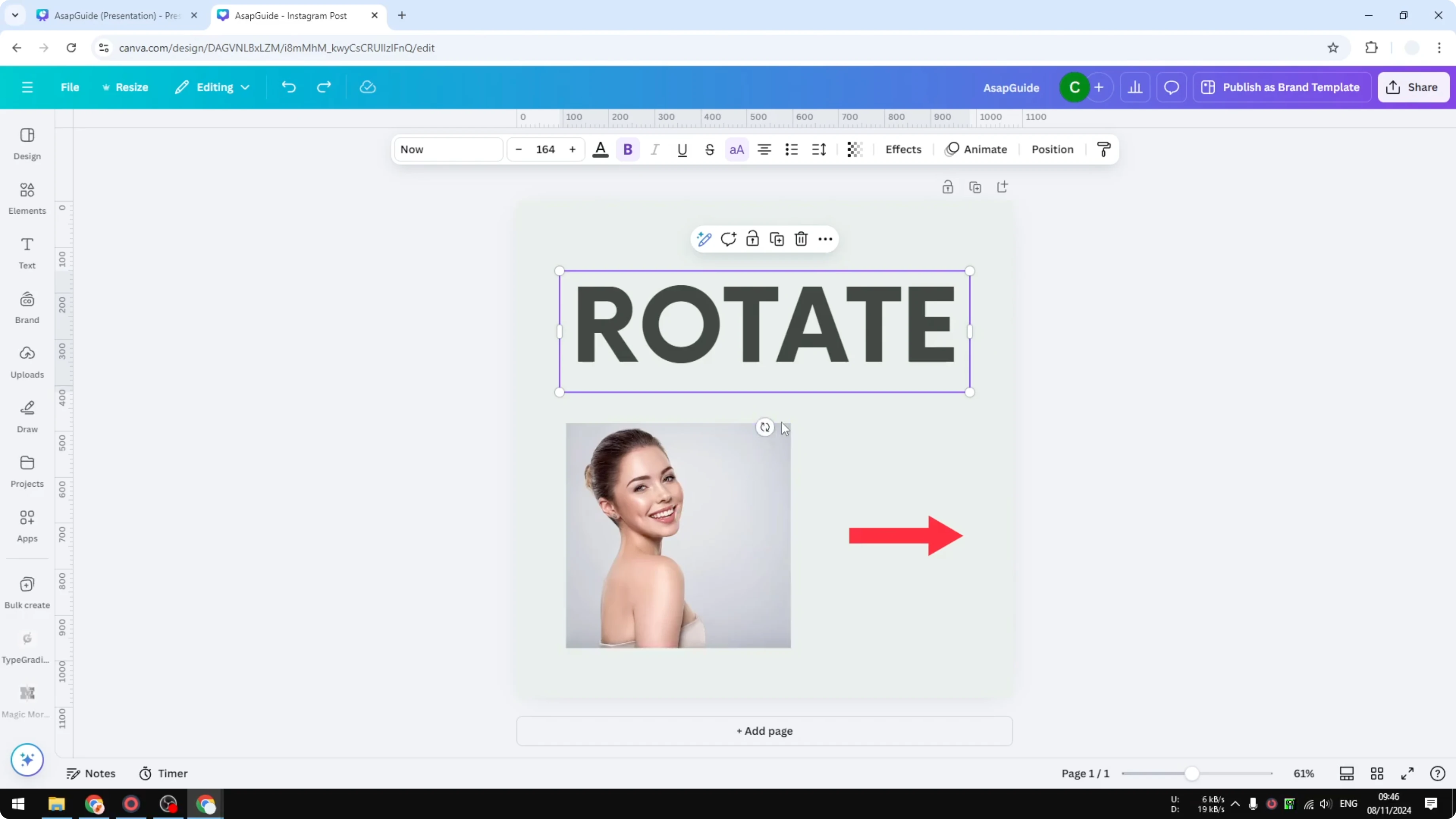
Click the element to select it.
Click and drag the rotate handle to the left or to the right to rotate the object.
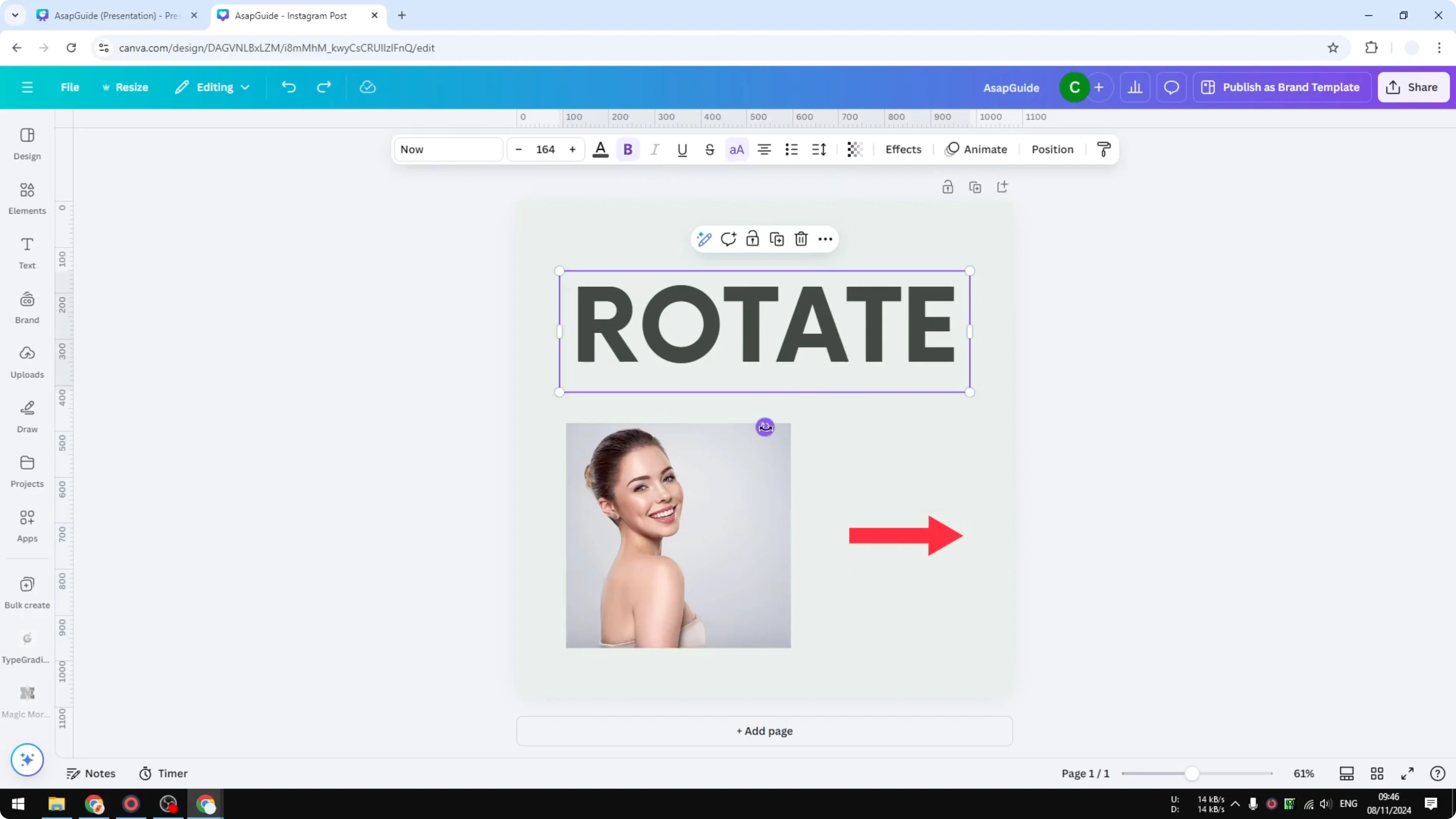
Watch the angle readout such as 90 degrees or 180 degrees.
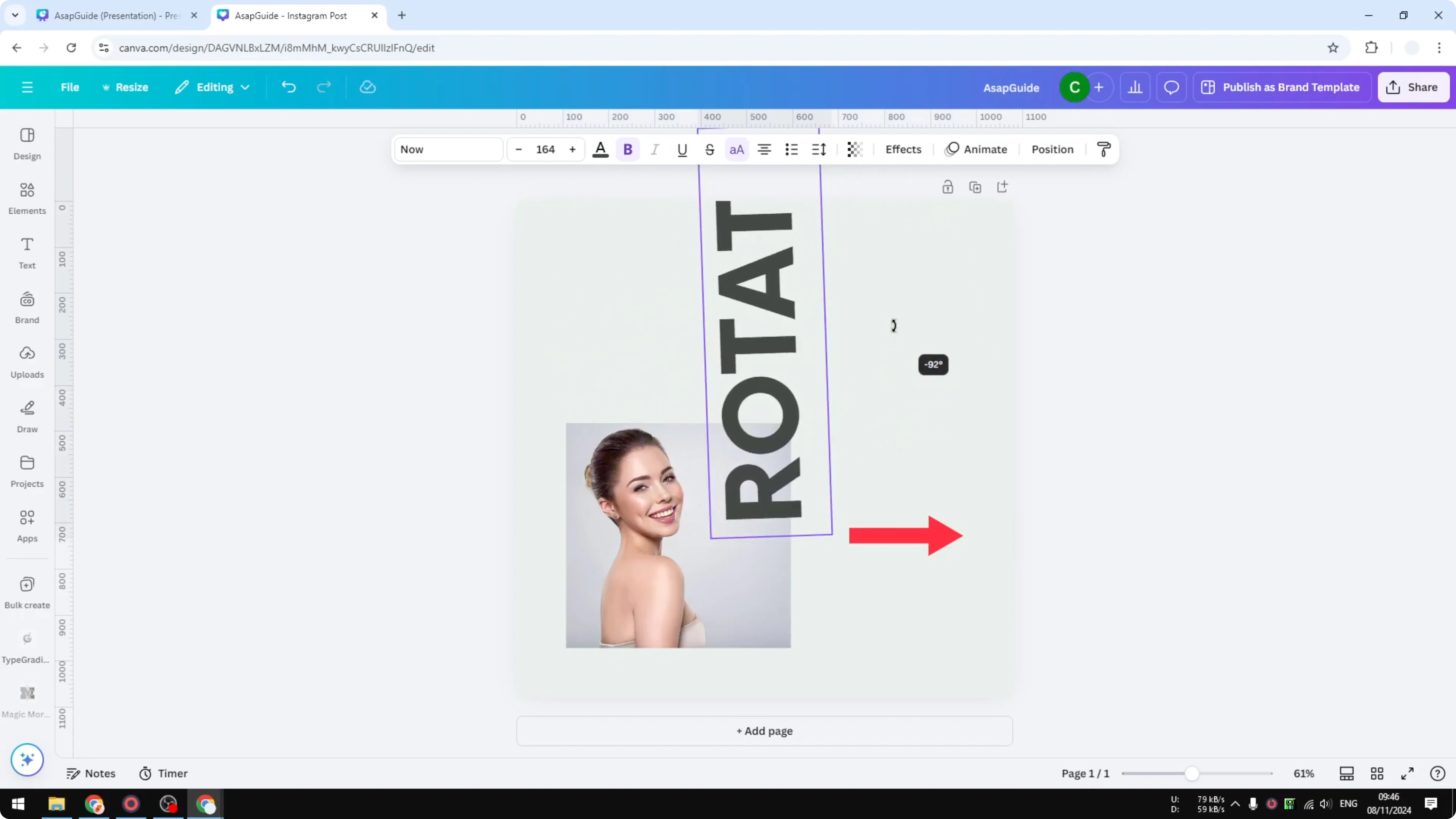
The number shows how much rotation you have made.
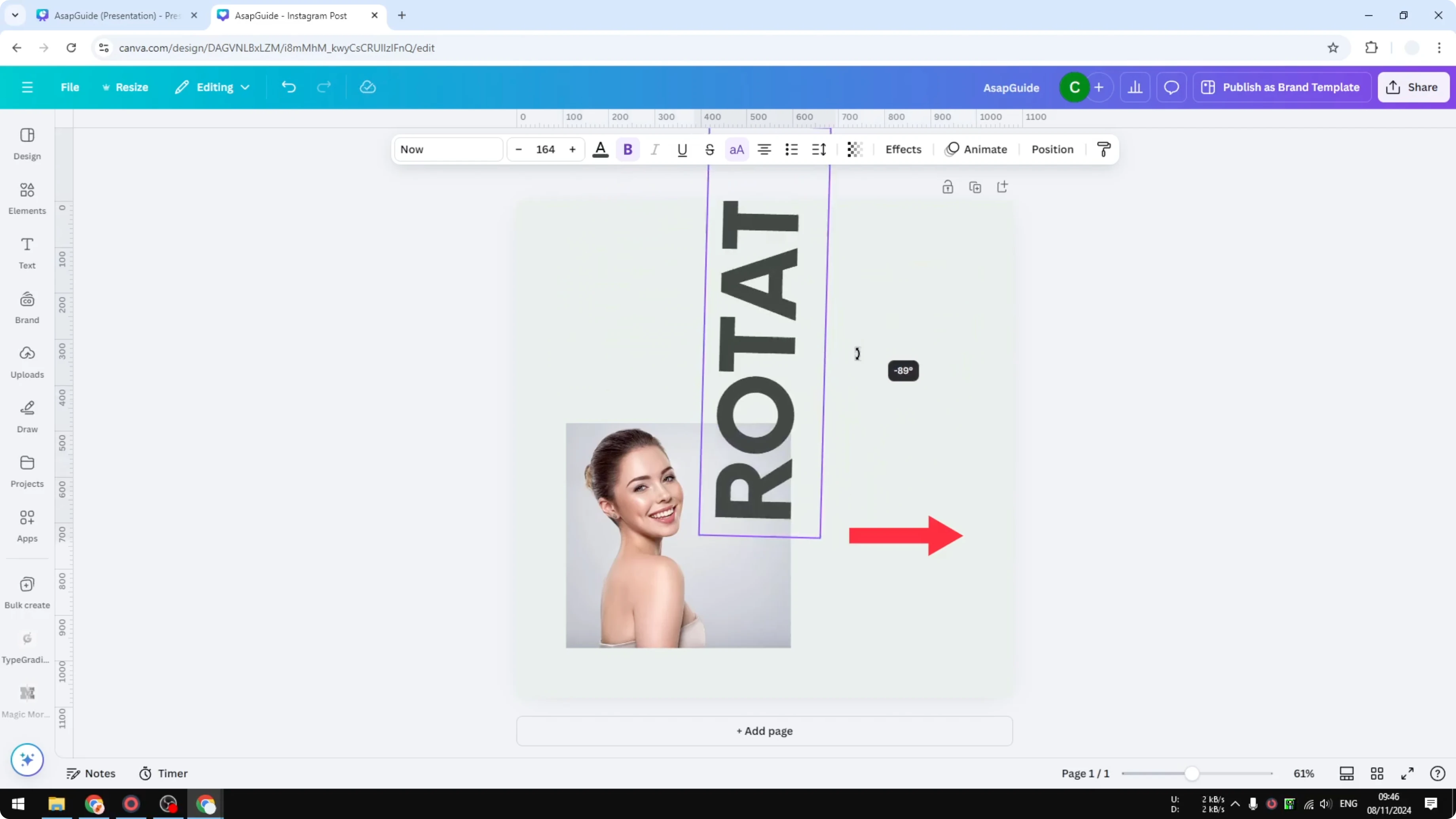
You can also do the same for an image.
If you are arranging elements that need to be linked, see how to connect lines between elements.
Use precise angles in Rotate Elements in Canva
If you want to apply a specific angle like 98 degrees, doing it manually can be difficult.
Click the element.
Click Position.
In the Arrange section, find the Rotate option.
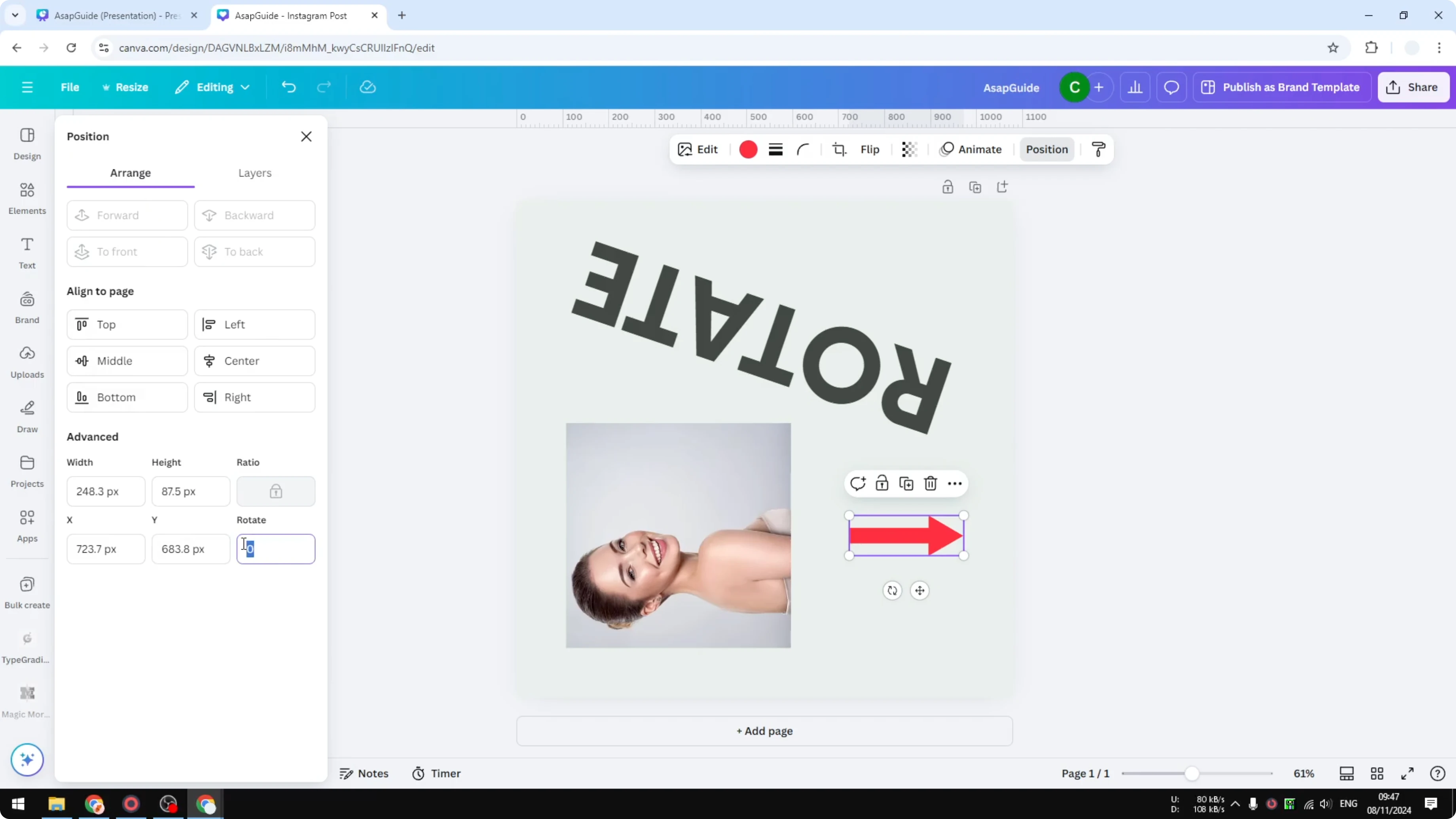
Enter a number between 0 and 360, then press Enter.
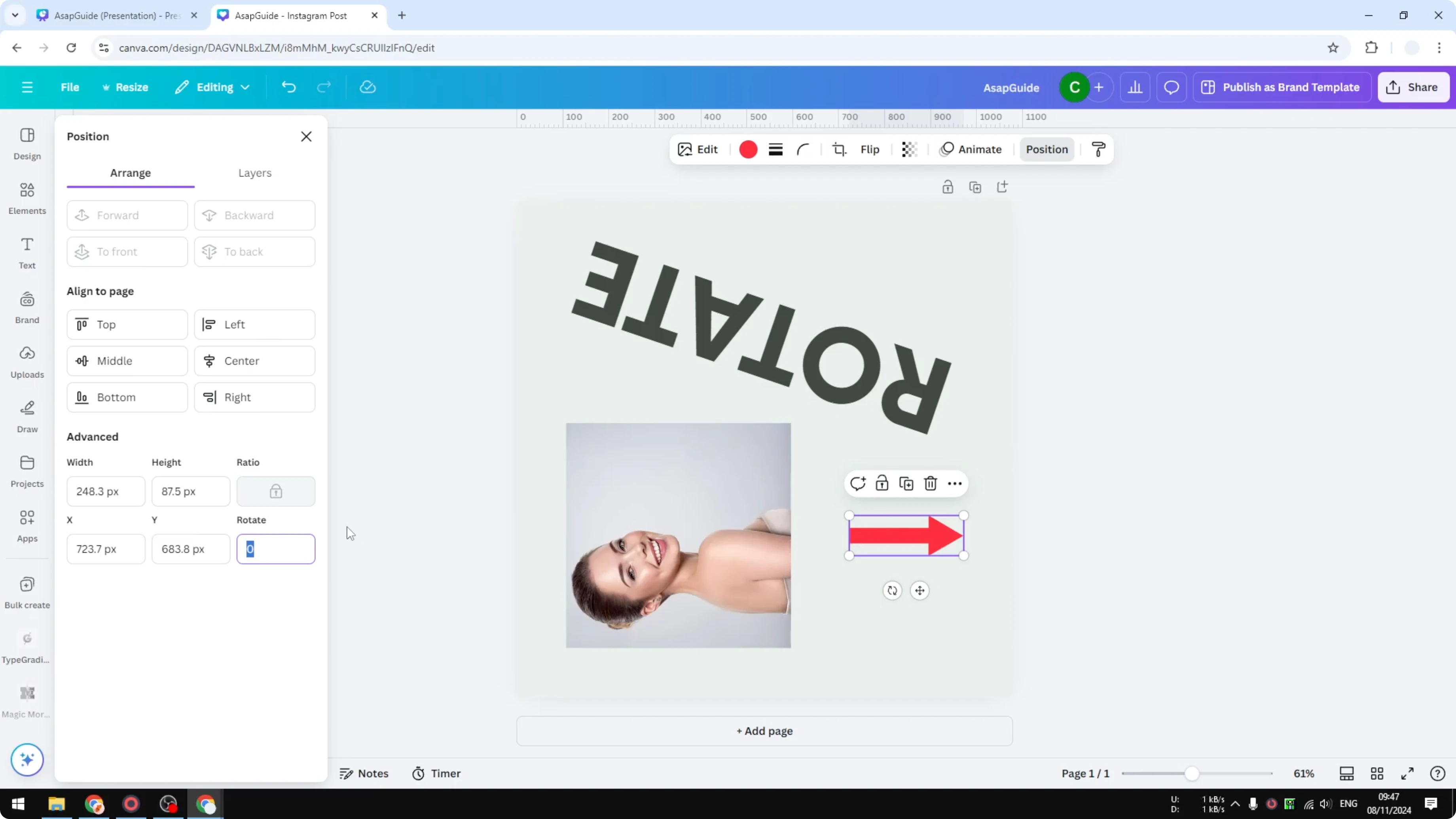
Now the object is rotated to 98 degrees.
Rotate multiple elements in Rotate Elements in Canva
You can rotate multiple objects together.
Select all of them.
Click and drag on an empty area to cover the elements.
Or press and hold the Shift key and click each object you want.
Use the rotate icon to turn them together.
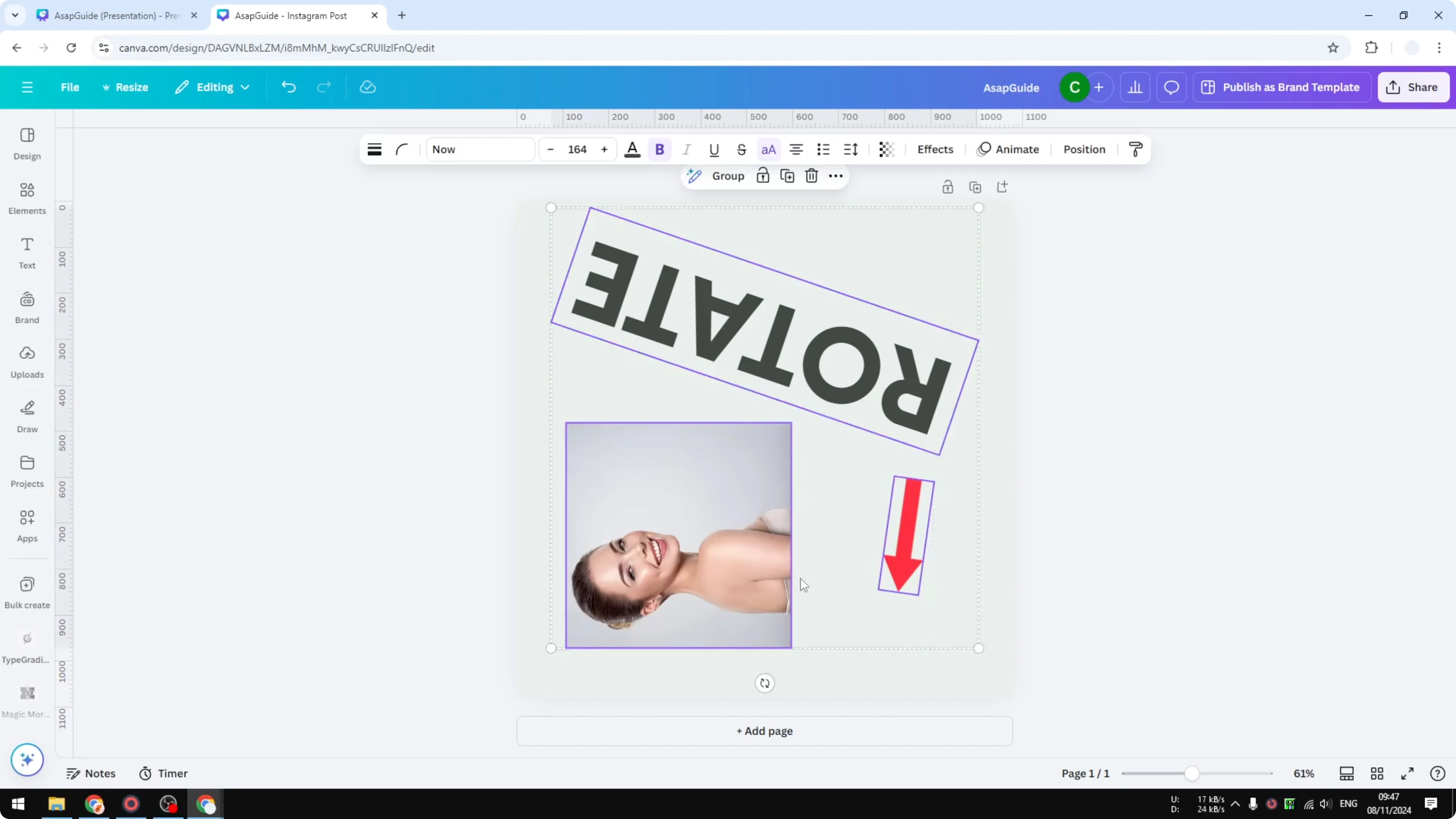
Or go to Position, Arrange, and set the rotation such as 120.
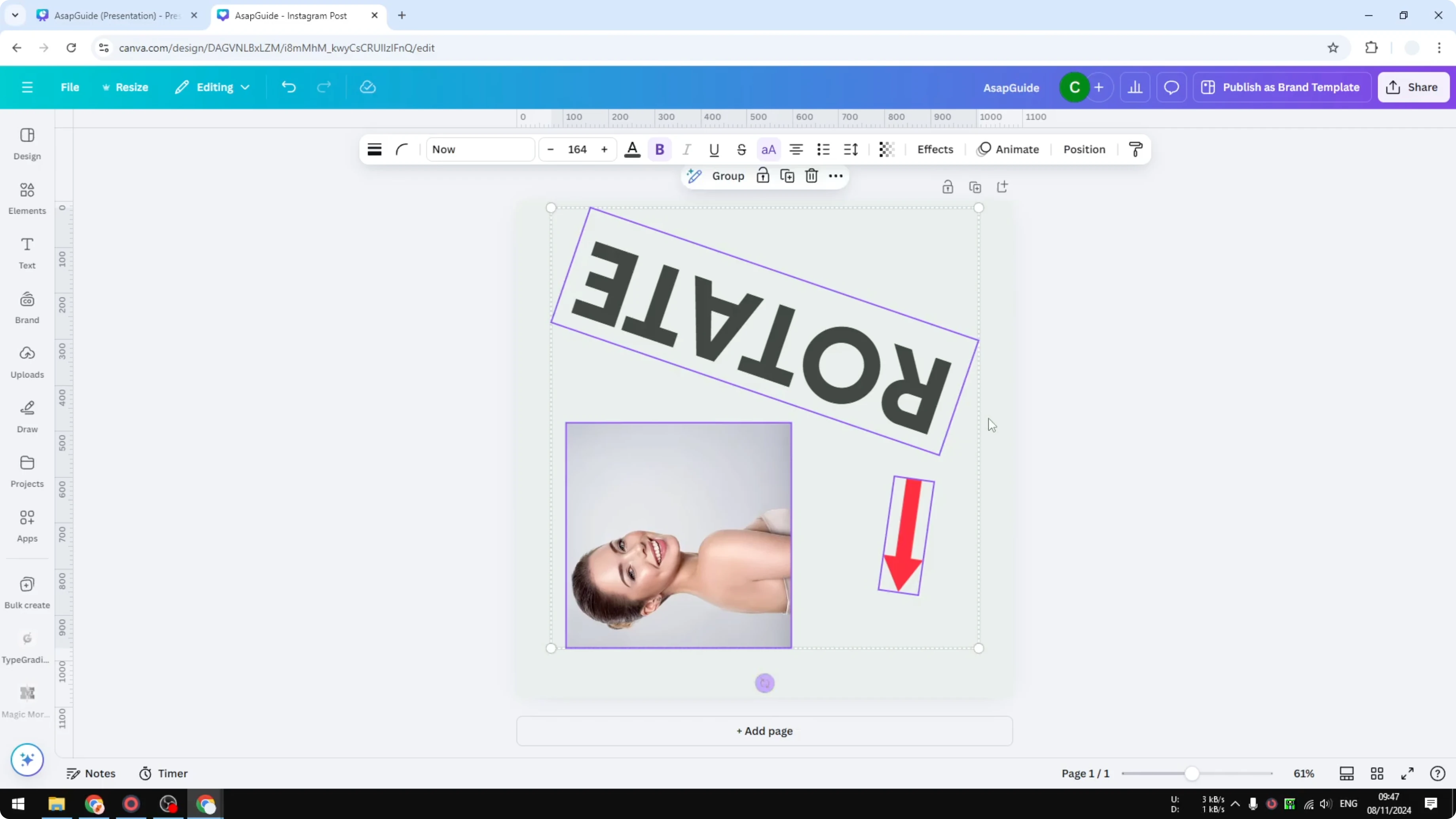
The angle you enter applies to all elements in the group.
If you reuse objects often, you can save favorite elements in Canva for quicker access.
Final thoughts on Rotate Elements in Canva
Click to select, drag the rotate handle for quick adjustments, and watch the angle readout for common values like 90 or 180. For precise control, enter an exact number in Position under Arrange. You can select multiple items and apply the same rotation to all of them.
Recent Posts

How to Visualize Yourself as a Pixelized Character with AI?
How to Visualize Yourself as a Pixelized Character with AI?

How to Revive Faded Memories and Enhance Image Clarity with AI?
How to Revive Faded Memories and Enhance Image Clarity with AI?

How to Visualize Yourself as an Animal Crossing Character with AI?
How to Visualize Yourself as an Animal Crossing Character with AI?