How to Save Your Favorite Elements in Canva
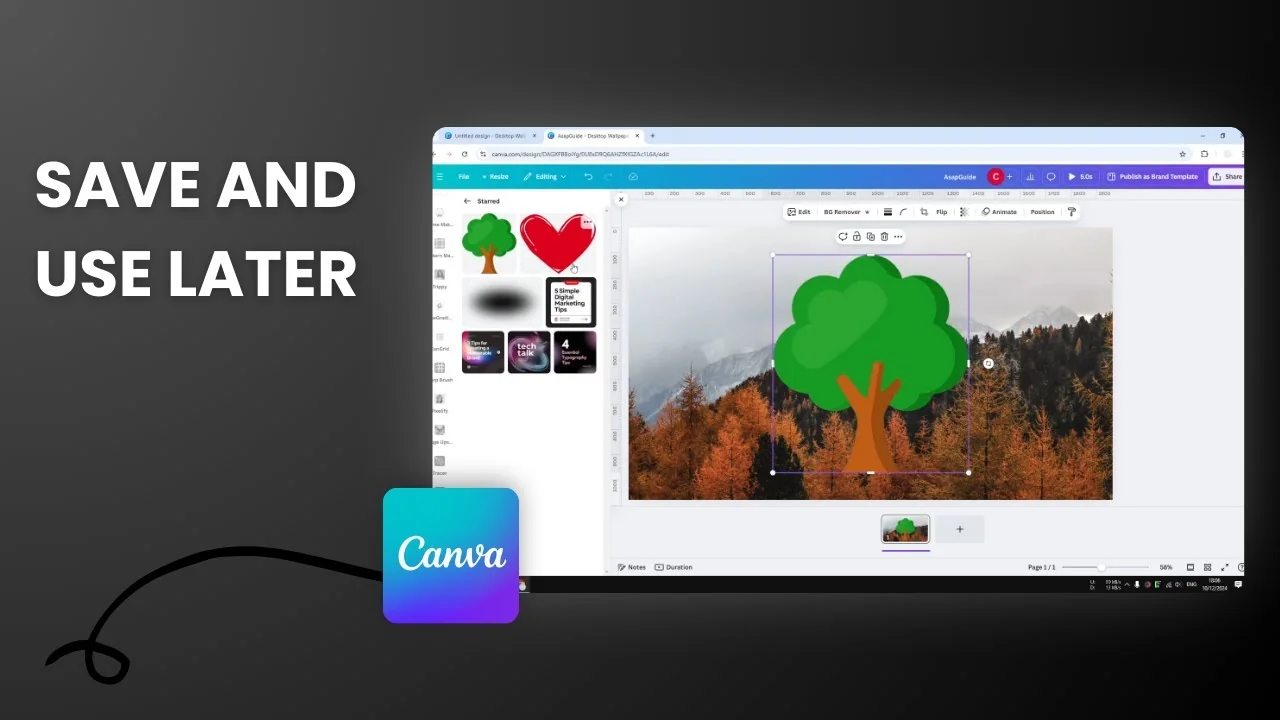
I’m going to show you how you can save your favorite elements in Canva. If you have been using the same element over and over again, it’s a good sign to save that element into a folder. Later you can reach that folder, retrieve the element, and put it into a new design.
This is going to save your time and make the whole designing process a lot quicker. Here’s how you can save or basically bookmark that element.
How to Save Your Favorite Elements in Canva
Find the element
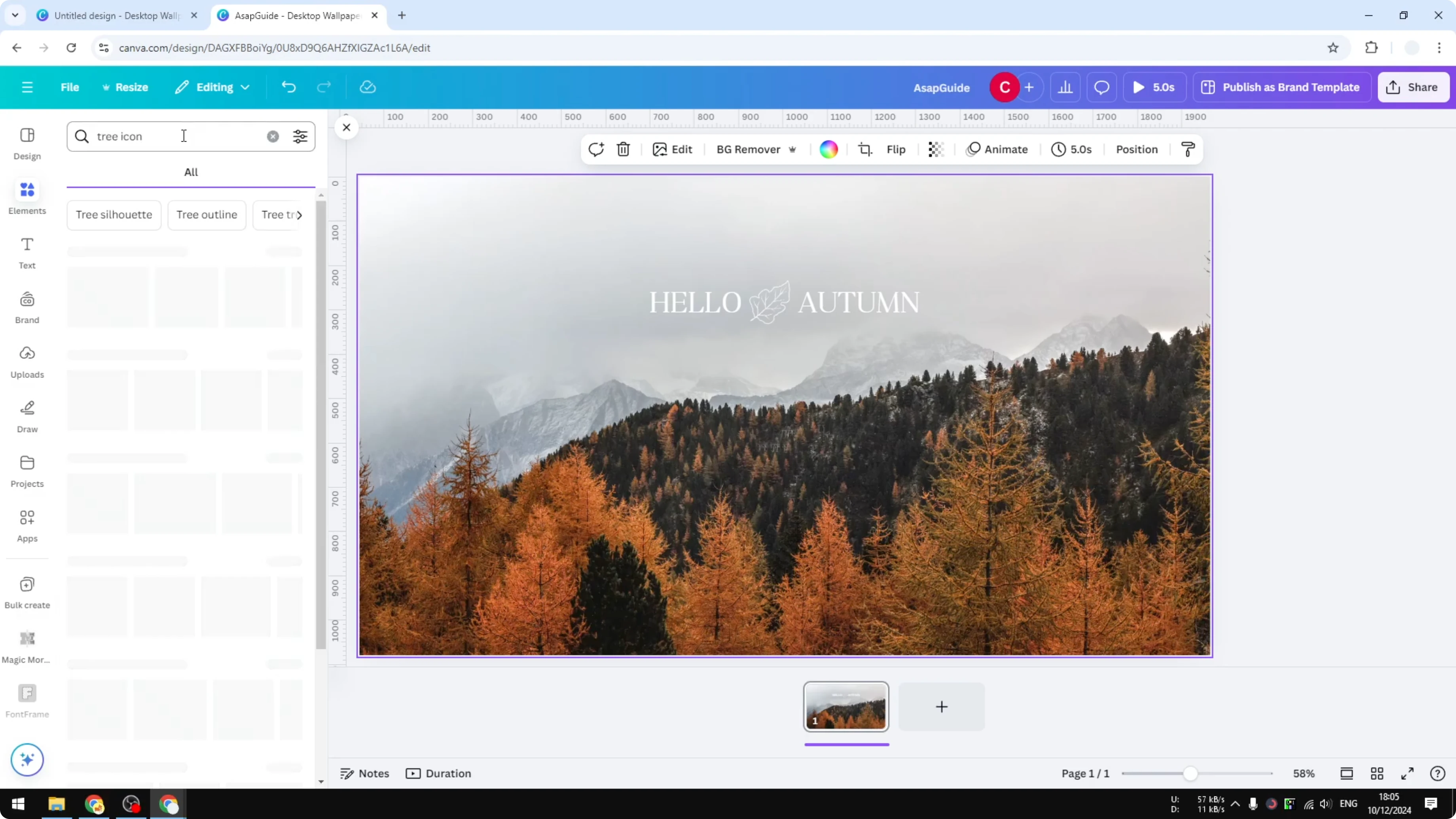
First, find the element that you want to bookmark. I visit Elements and search for a tree icon or tree animation, then navigate to Graphics.
Star the element
Hover the cursor above the icon. Click on the menu and select Star. This saves the item into a Star folder.
Find the Star folder to Save Your Favorite Elements in Canva
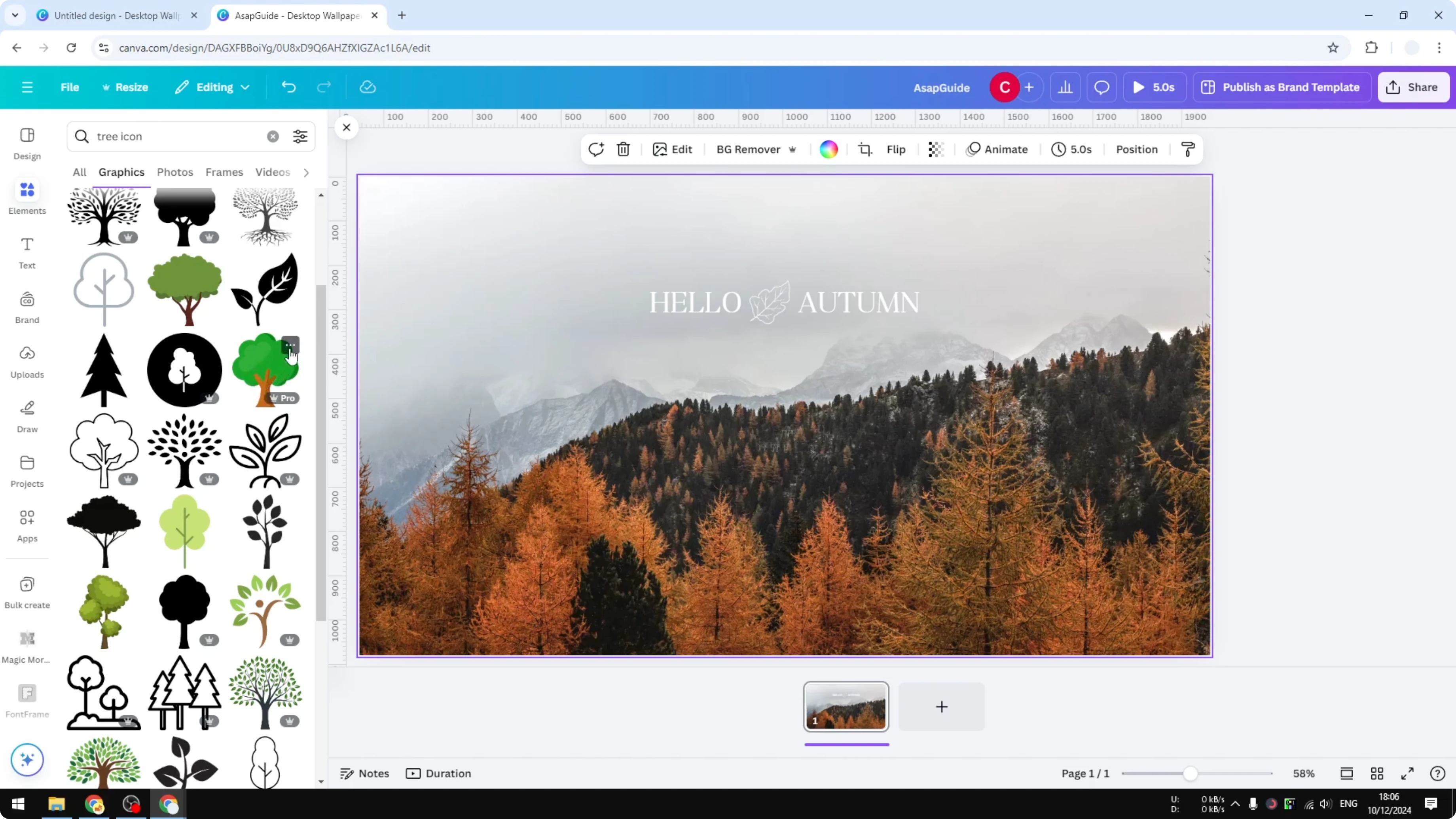
Go to Projects. In the folder section, you can see a folder called Star. Open it to see all the elements and designs that you have starred before.
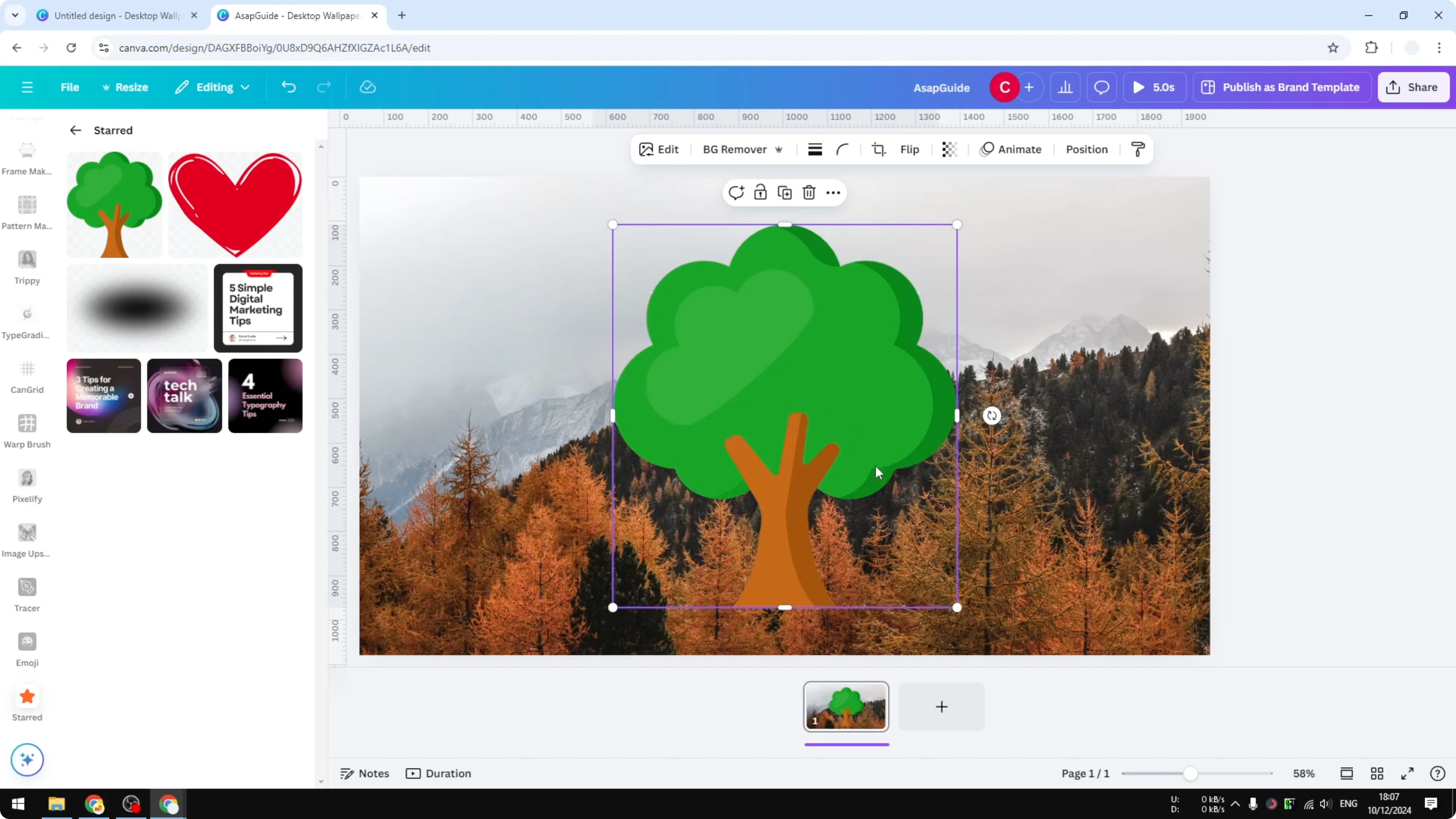
Insert a saved element into your design
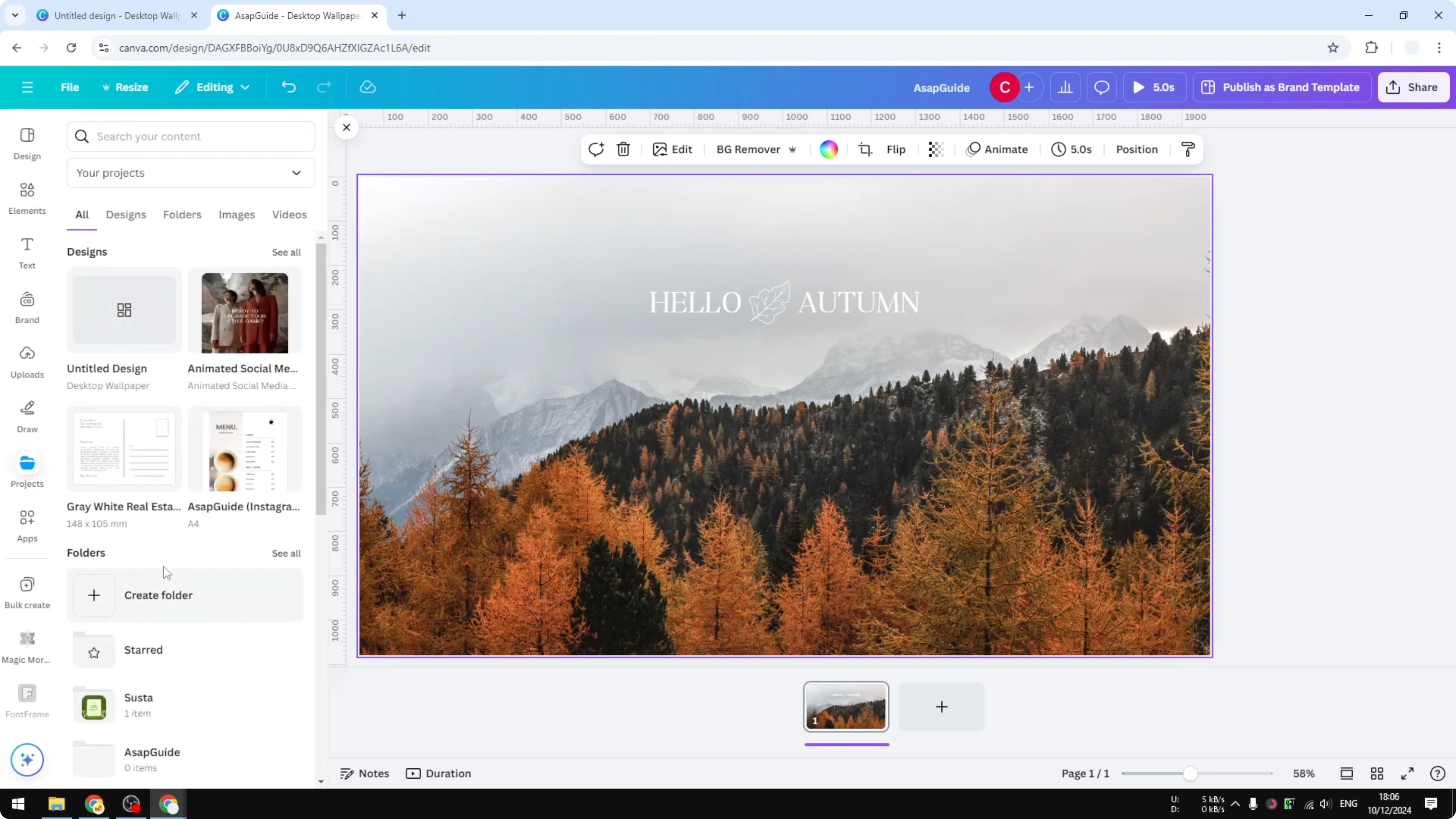
When you need any of them, open the Star folder. Click on an icon or an element, and it will be inserted into your document. This process helps a lot and saves time when designing with Canva.
Final Thoughts on Save Your Favorite Elements in Canva
Saving or bookmarking elements keeps your frequently used graphics in one place. You can quickly retrieve them and drop them into new designs. It’s a simple step that speeds up your workflow in Canva.
Recent Posts

How to Visualize Yourself as a Pixelized Character with AI?
How to Visualize Yourself as a Pixelized Character with AI?

How to Revive Faded Memories and Enhance Image Clarity with AI?
How to Revive Faded Memories and Enhance Image Clarity with AI?

How to Visualize Yourself as an Animal Crossing Character with AI?
How to Visualize Yourself as an Animal Crossing Character with AI?