How to Rotate Canvas Inside Canva
I am going to show you how to rotate canvas inside your design in Canva.
The question is can you rotate a horizontal document into a vertical document. Is it possible.
The short answer is no, it is not possible. You cannot take a vertical document and rotate the entire canvas to become a horizontal document. It is also not possible to apply that to only a specific page.
Rotate Canvas Inside Canva limits
The closest options are resizing a copy of your design or rotating all the elements inside the page. These workarounds get you very close. I will show both.
Resizing a copy
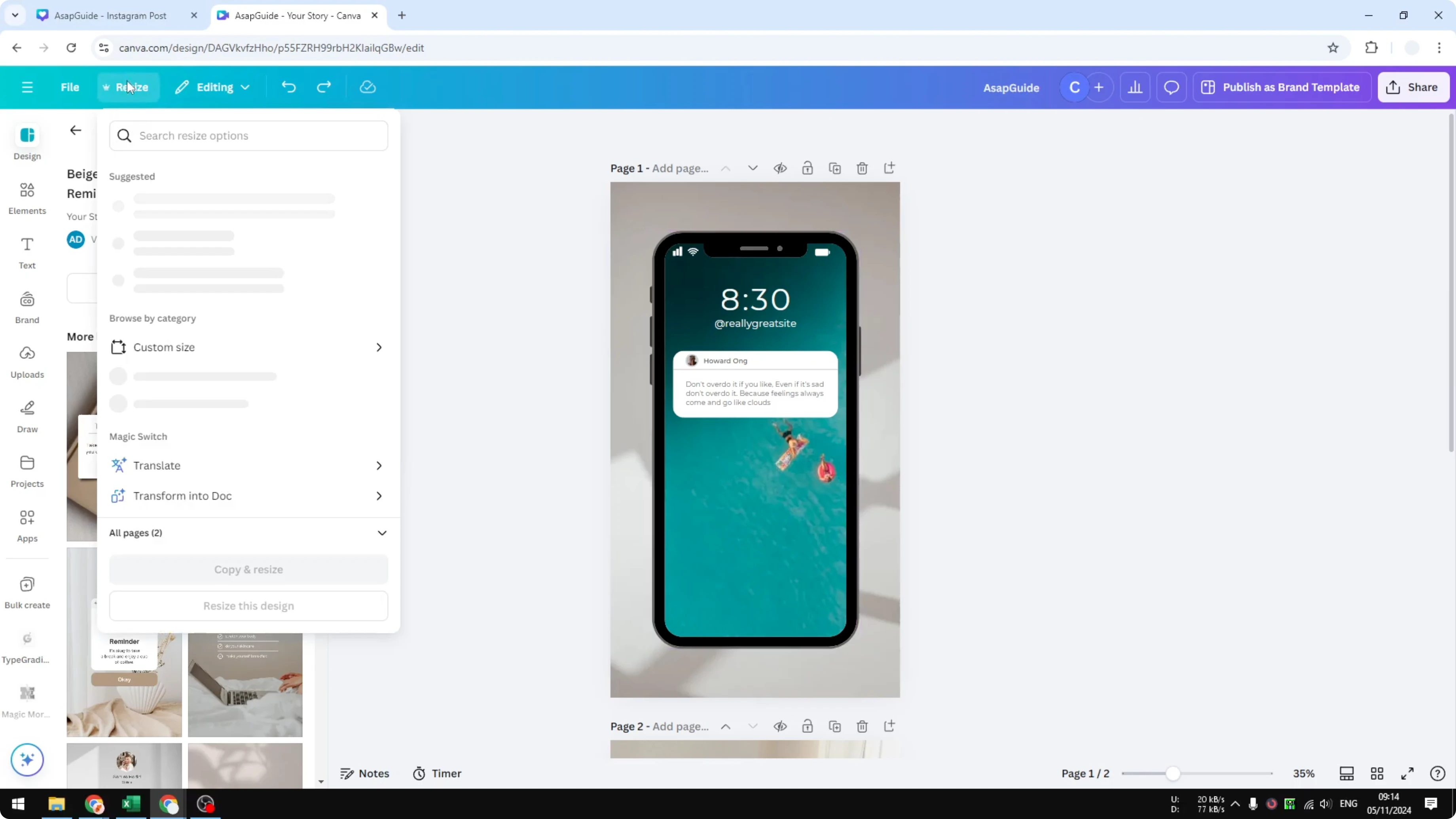
I have a vertical document. I go to Resize and turn it into a horizontal orientation. I select Presentations and choose 1920 by 1080.
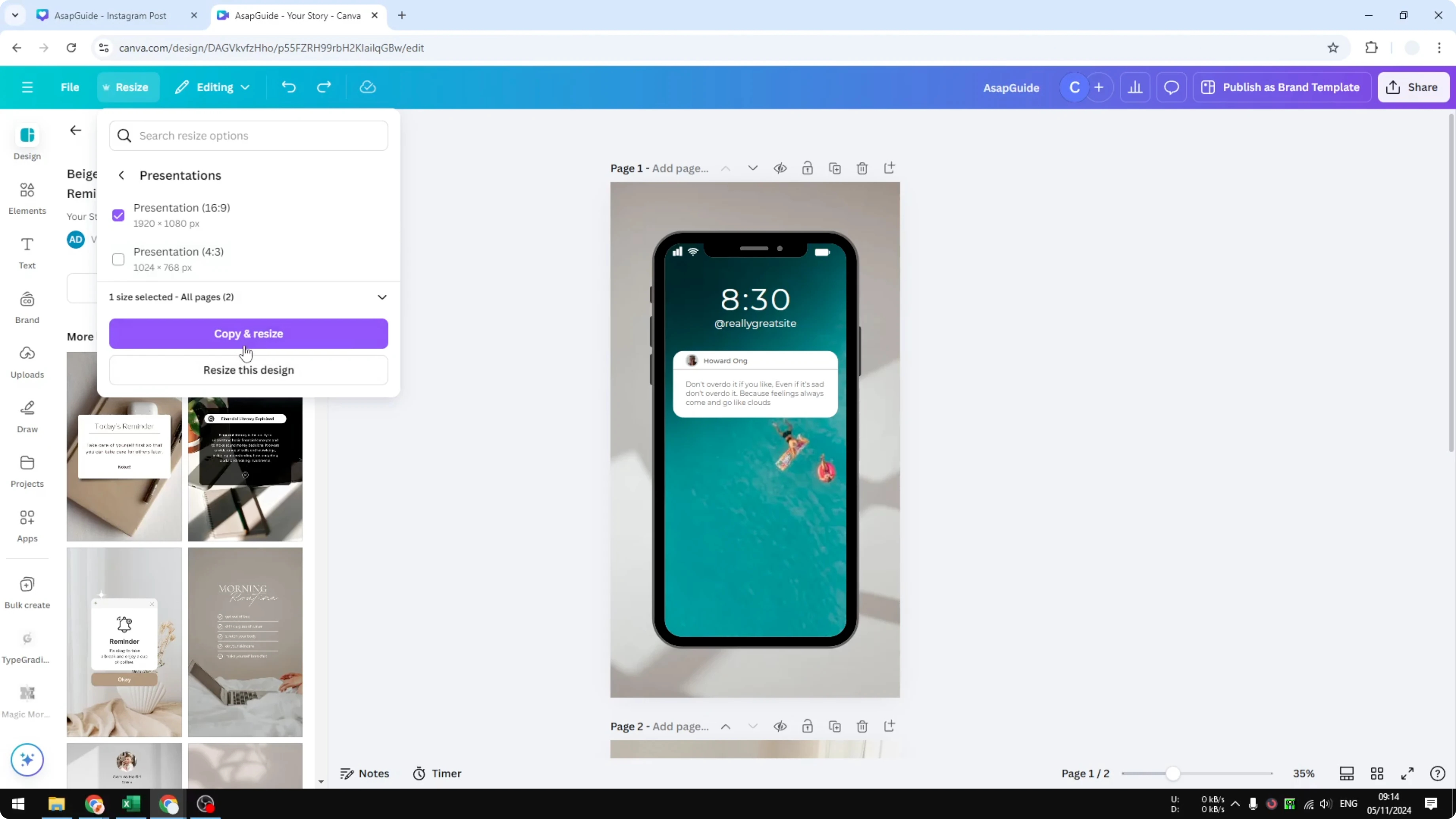
Previously it was 1080 by 1920, but now I choose the opposite ratio. Click Copy and resize. Canva will try to redesign everything into the new format.
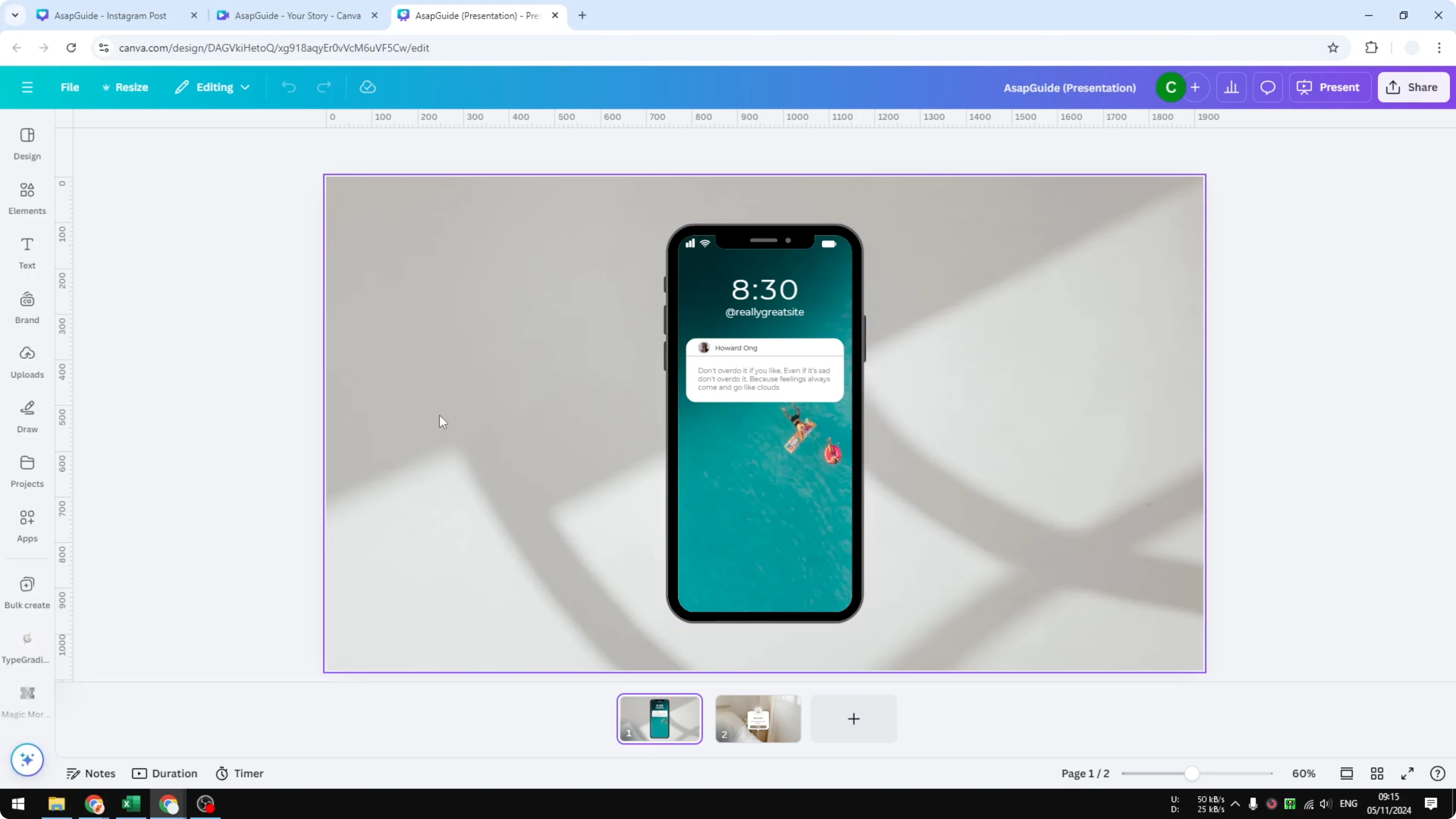
It is not perfect, but sometimes it is good enough. You might see extra space you can still use. Make small adjustments to finish the layout.
If some images sit inside frames, see how to rotate an image frame to fine tune the result.
If your design includes video, you can rotate a video in Canva after the resize to keep the composition consistent.
Steps
Open your original design and click Resize.
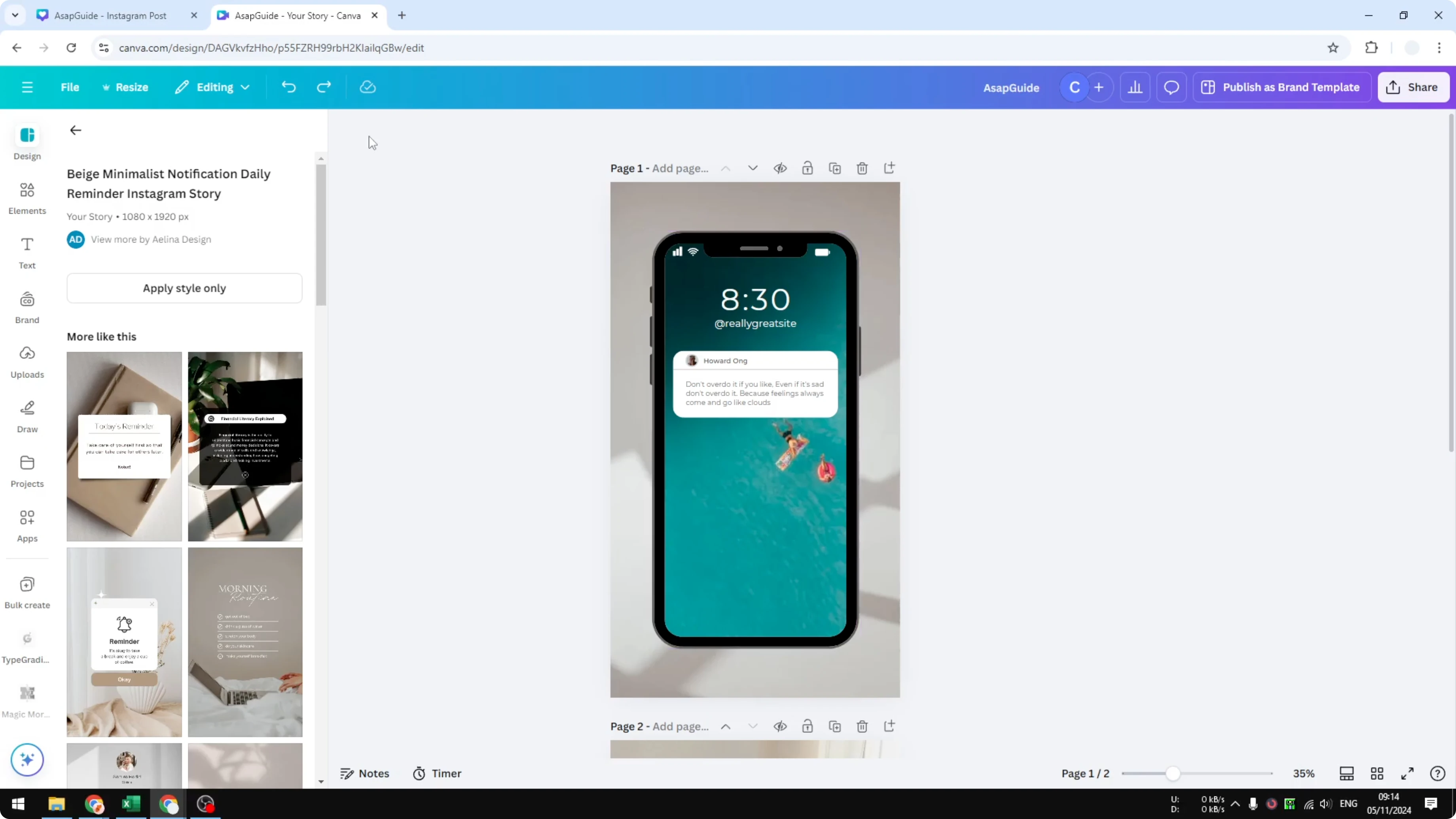
Choose a horizontal preset like Presentations at 1920 by 1080.
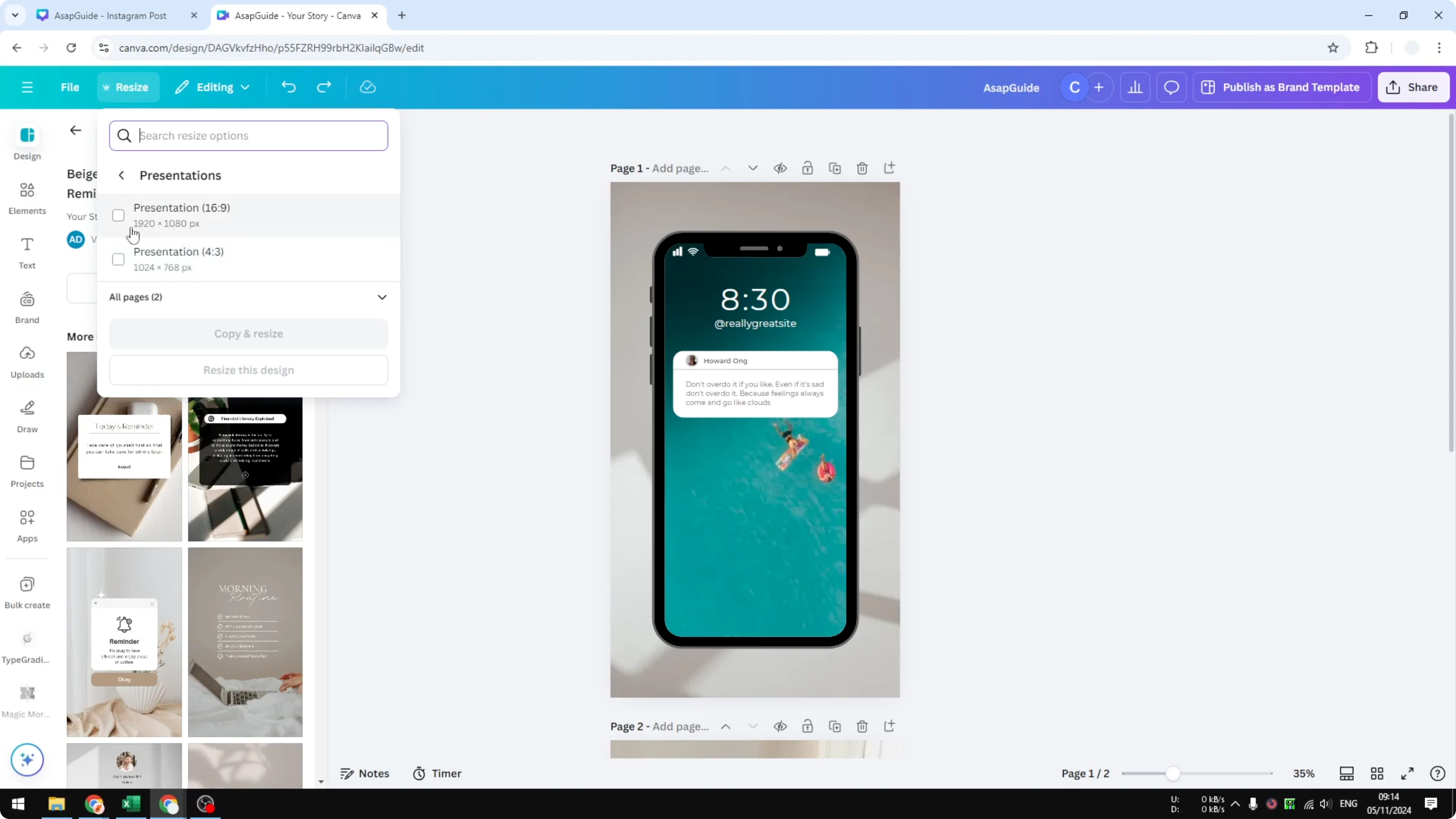
Select Copy and resize to generate a new version.
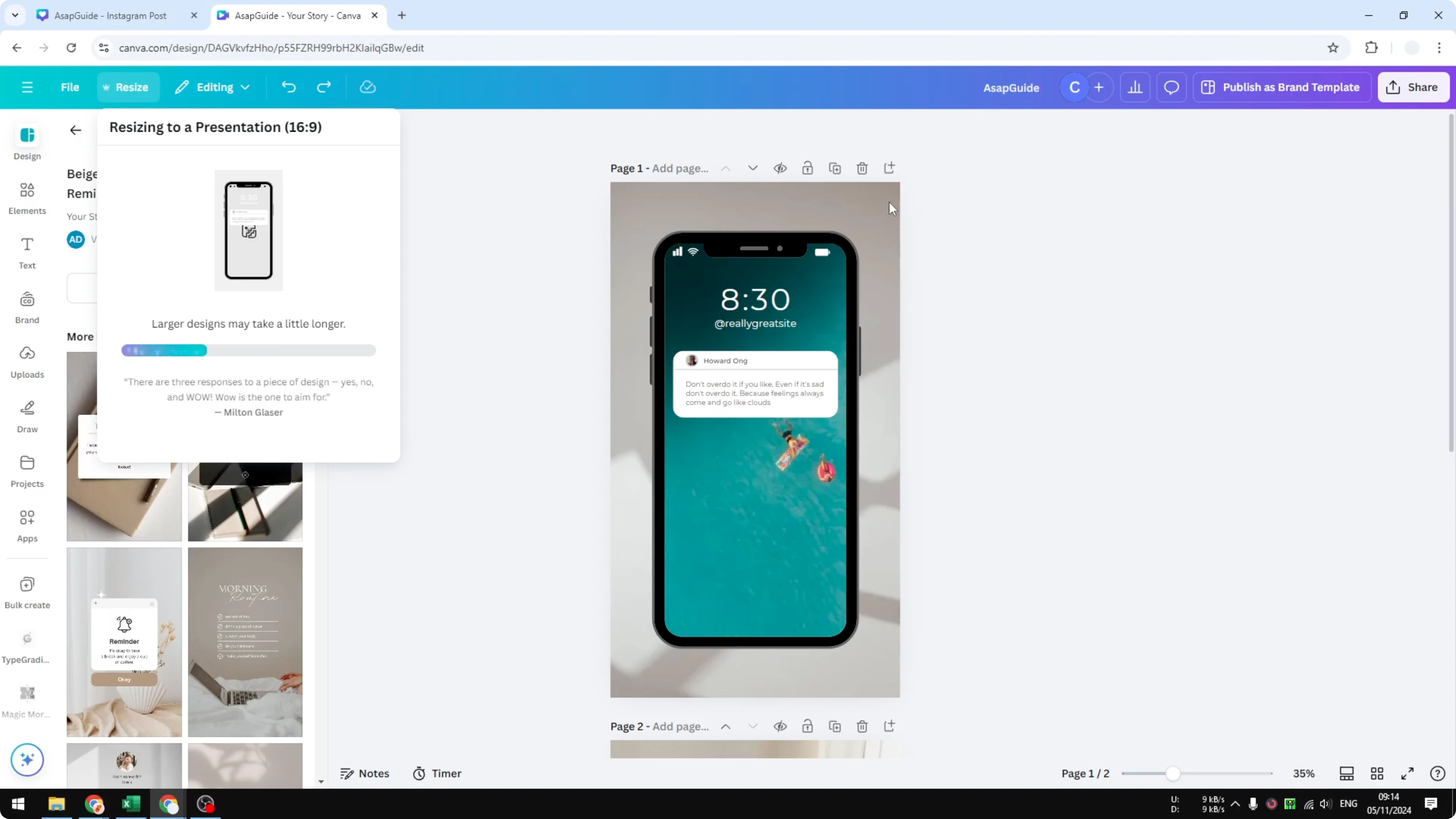
Review the new layout and adjust spacing or alignment.
Replace or resize elements that did not adapt well.
Rotating elements
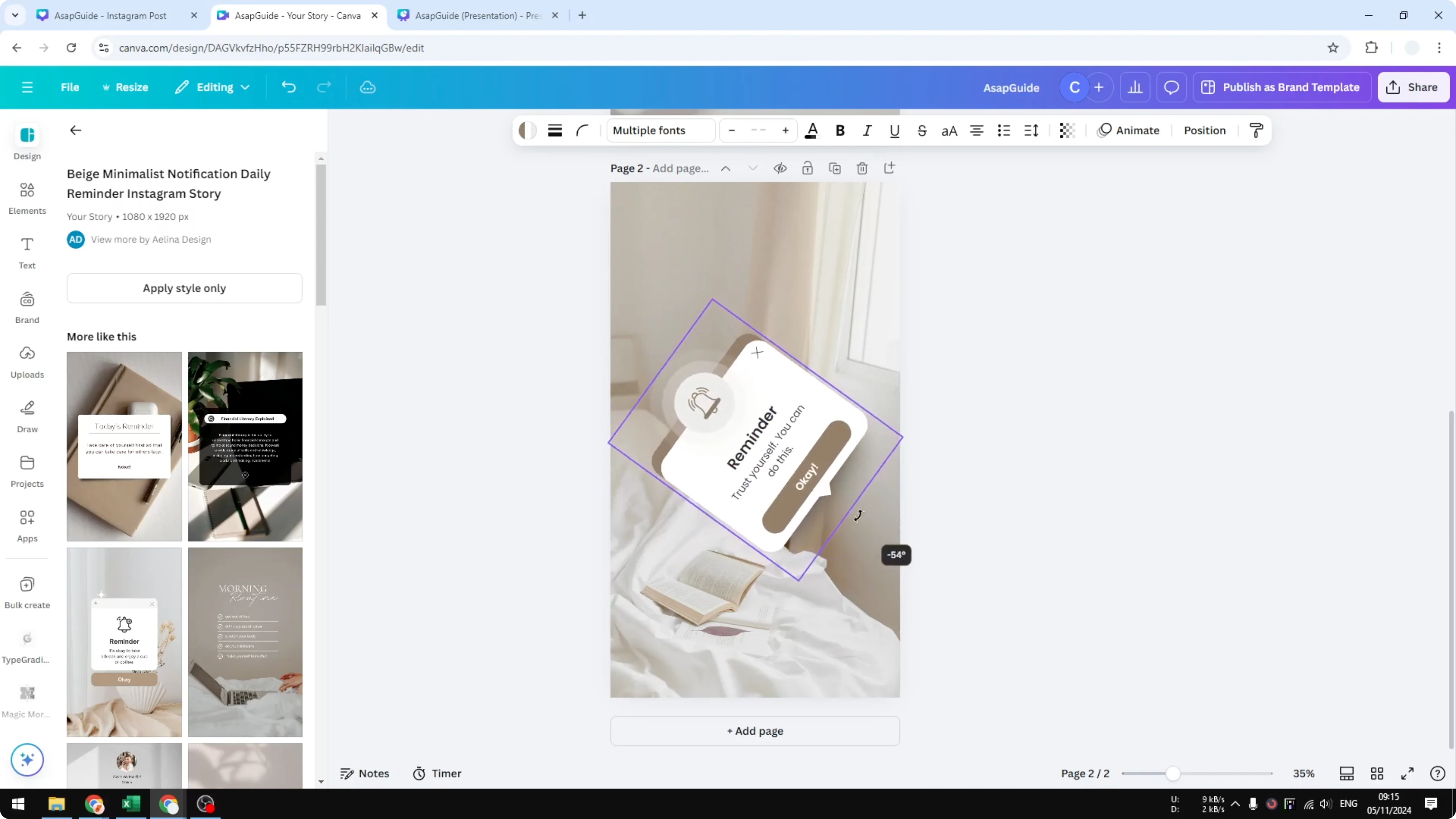
Another method is rotating all the elements inside the existing document. You keep the page orientation, but the elements face a different direction. This is useful when you want a quick change.
For deeper control on single items, see how to rotate elements in Canva while keeping everything aligned.
Group and rotate
Select all elements by clicking and dragging across the page.
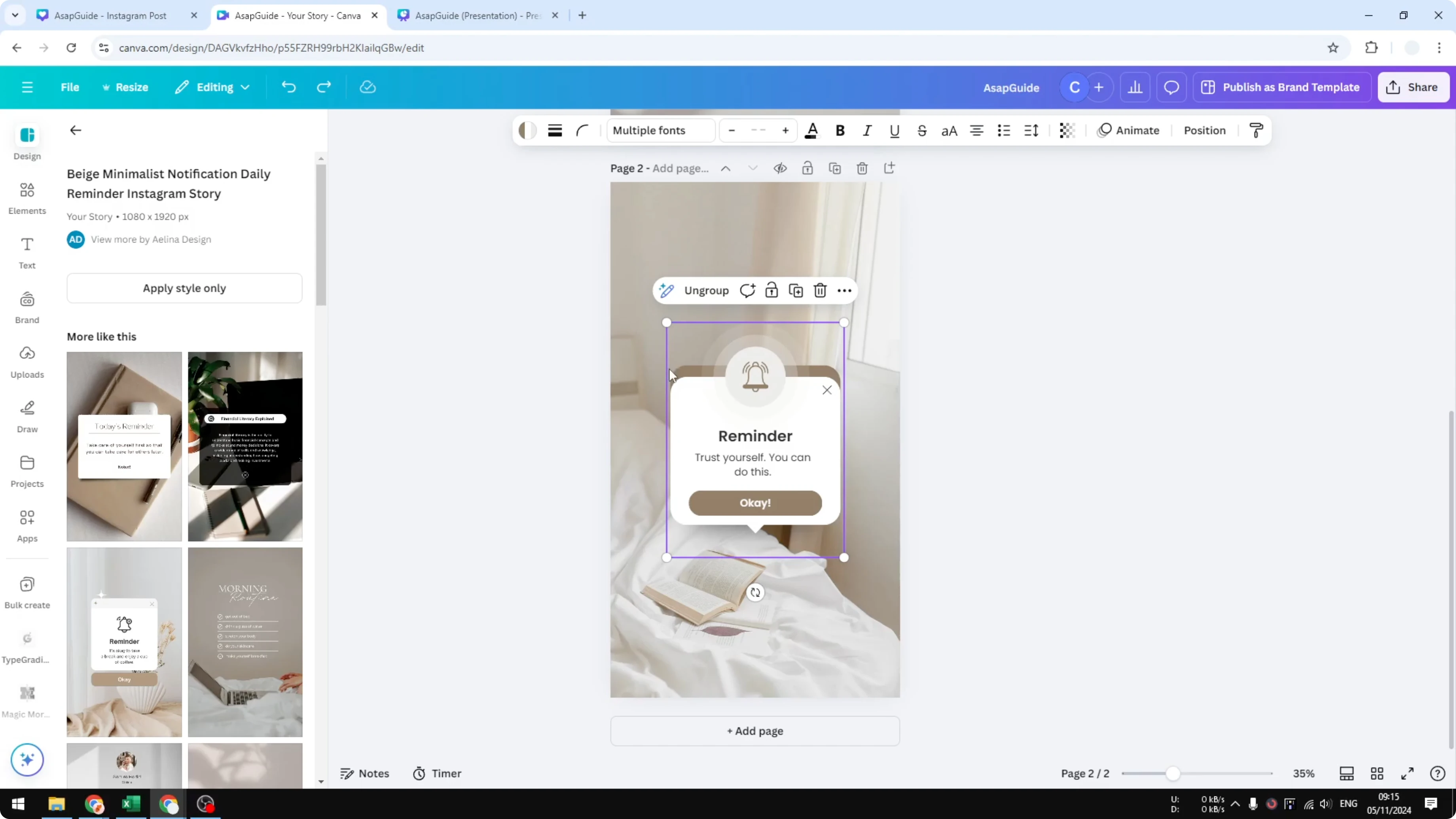
Click Group to merge them into one selection.
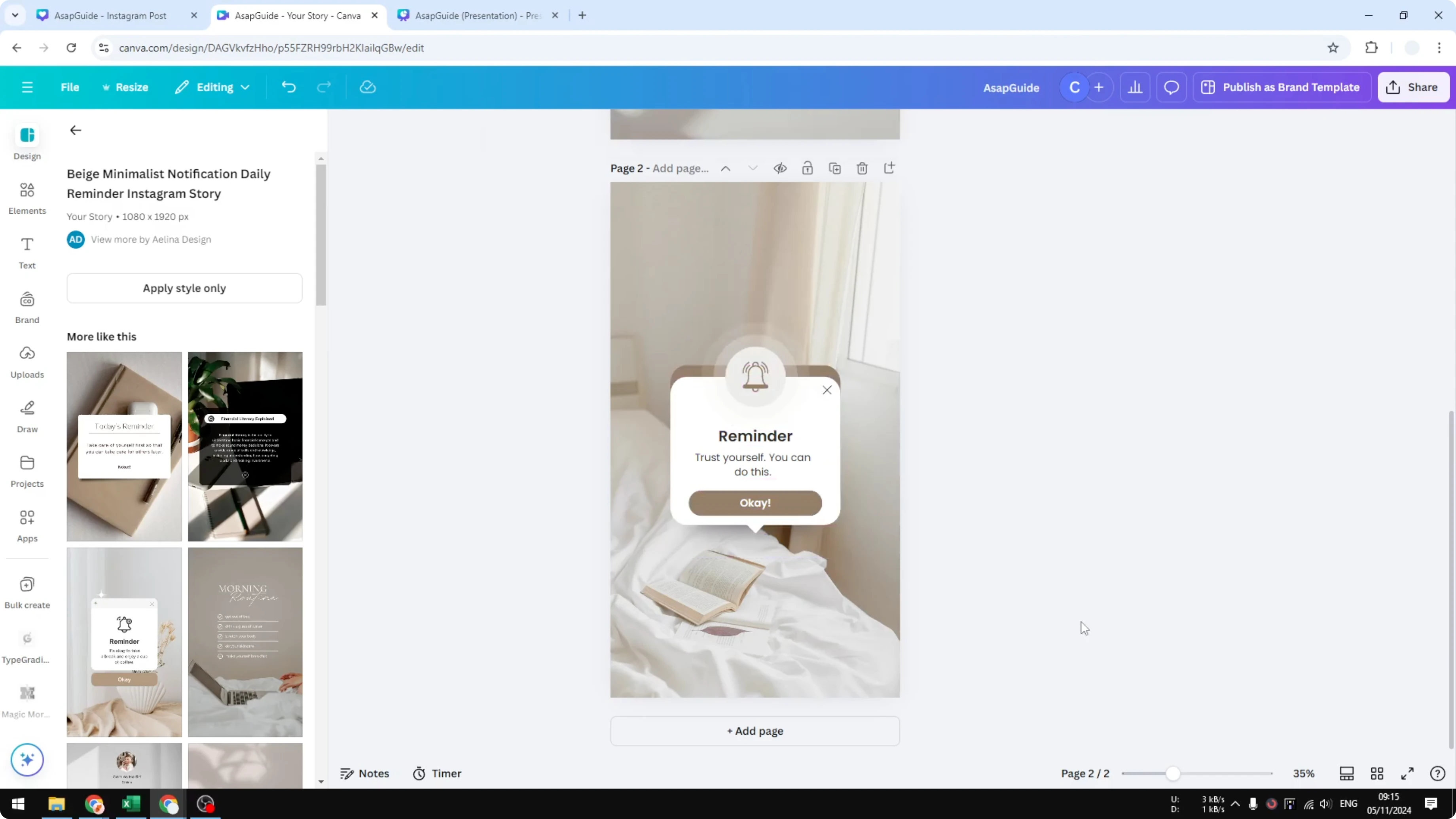
Use the single rotate handle, then drag left or right to rotate the grouped content.
Background fix
Usually the background is not included. If you want to rotate it, right click the background and choose Detach image from background.
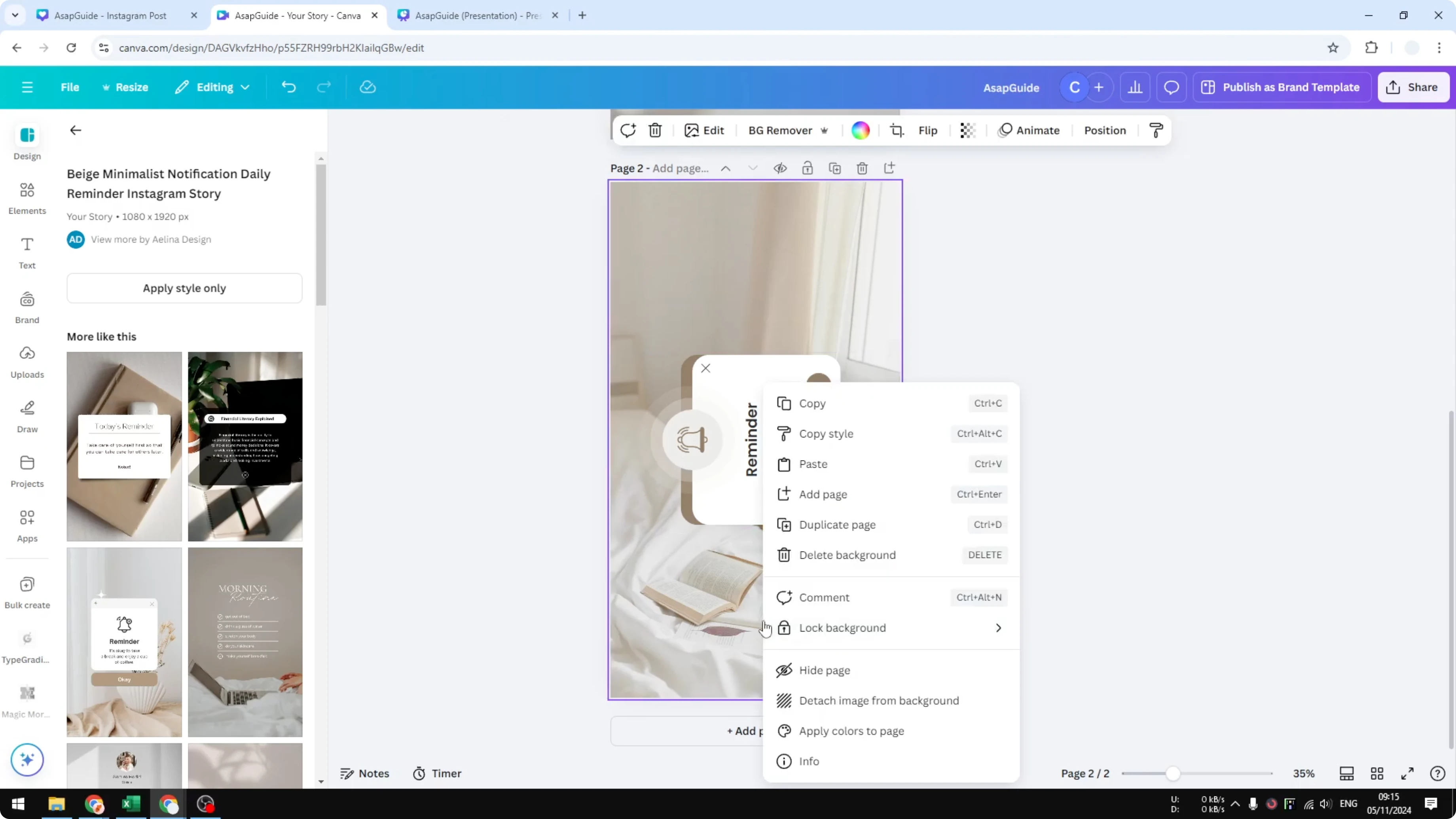
Rotate the detached background. Send it to back to place it behind the grouped content.
I often make it bigger and align the edges. It is close, but not perfect. This works best if your document is square.
Final thoughts on Rotate Canvas Inside Canva
You cannot rotate the actual canvas. Your best options are resizing a copy or rotating grouped elements.
Resizing gives you a fast new orientation with minor fixes. Group and rotate is great for a quick shift, especially on square pages.
Recent Posts
How to Visualize Yourself as a Pixelized Character with AI?
How to Visualize Yourself as a Pixelized Character with AI?
How to Revive Faded Memories and Enhance Image Clarity with AI?
How to Revive Faded Memories and Enhance Image Clarity with AI?
How to Visualize Yourself as an Animal Crossing Character with AI?
How to Visualize Yourself as an Animal Crossing Character with AI?