How to Resize Shapes in Canva
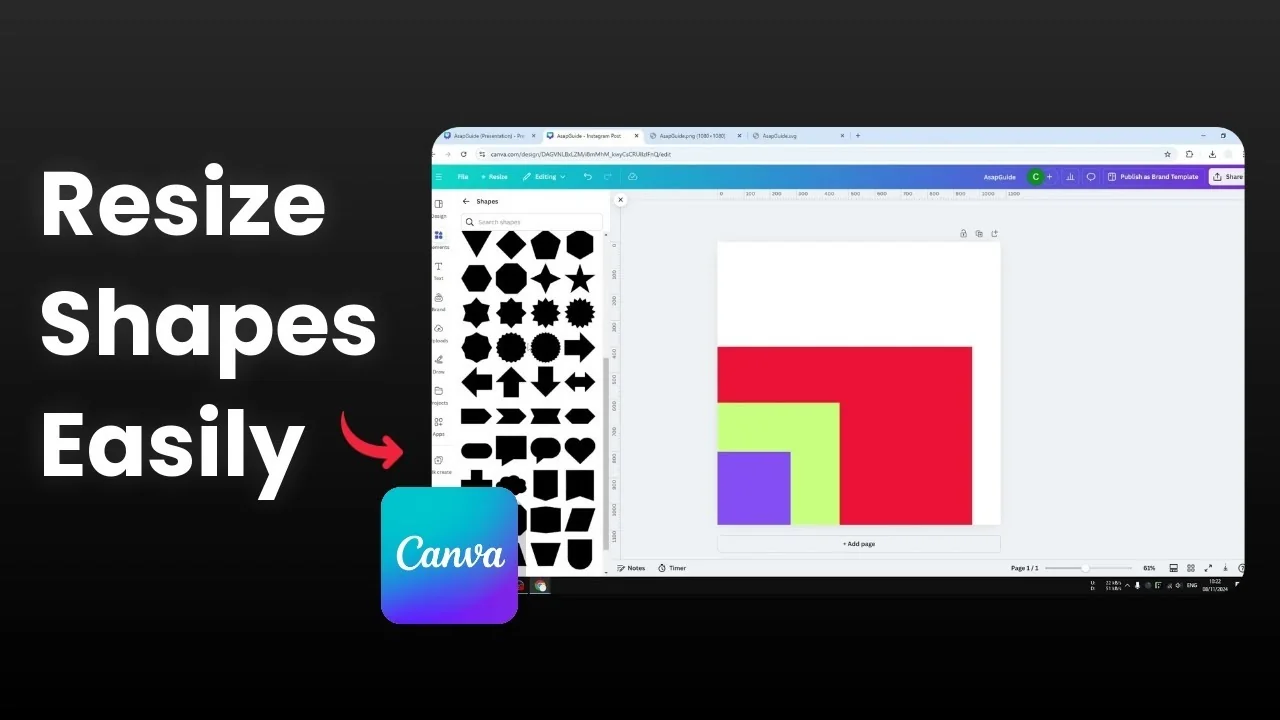
I am going to show you how to resize shapes in Canva. This is for elements in the Shapes section like circle, triangle, rectangle, and square. I will use a square as the example.
The default square is around 300 pixels while my canvas is 1000 pixels. There is plenty of room to make this shape bigger than the default.
Resize Shapes in Canva with control points
Click the shape to reveal the four control points. Drag any point to make it bigger, smaller, or to turn the square into a rectangle.
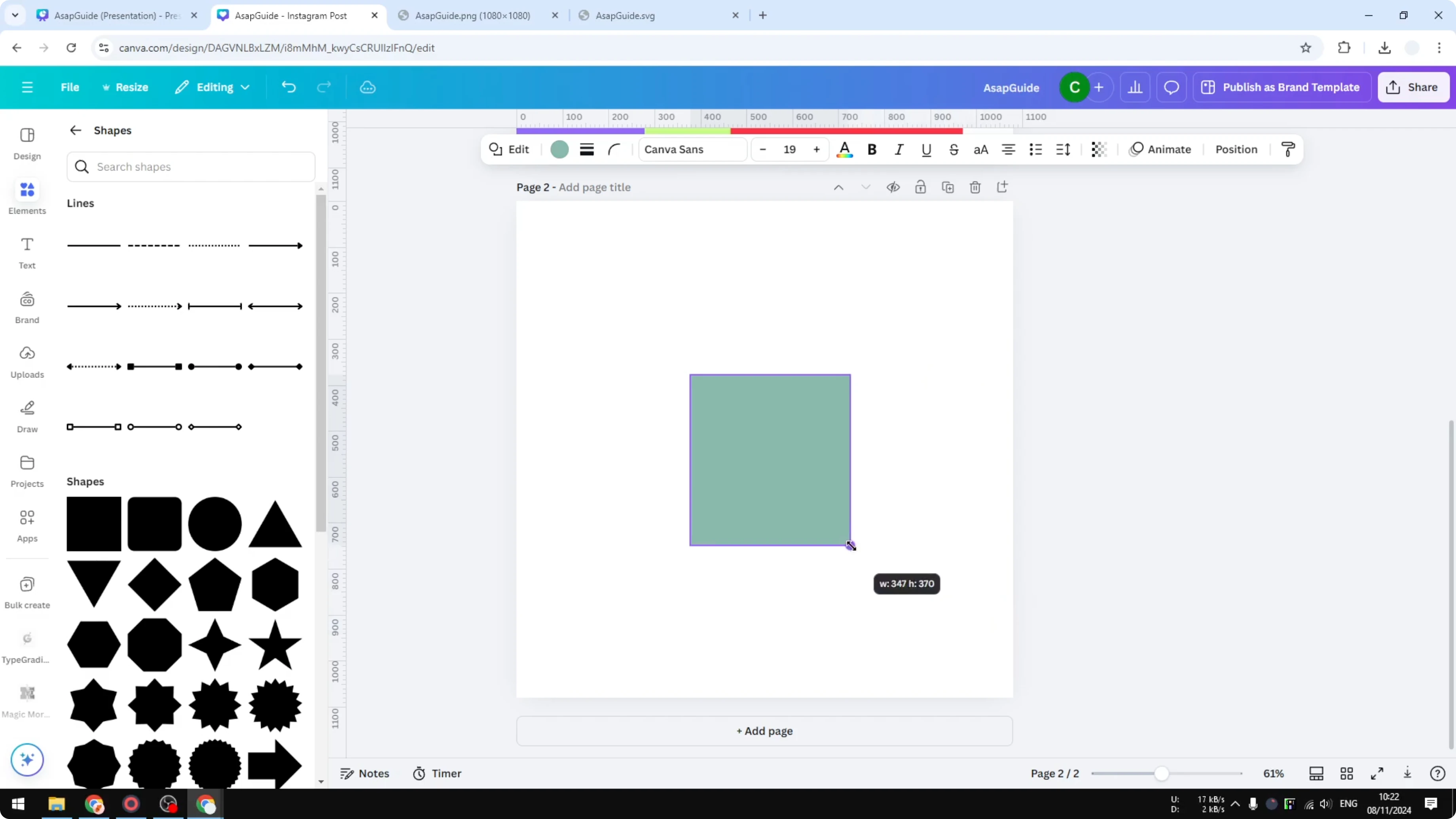
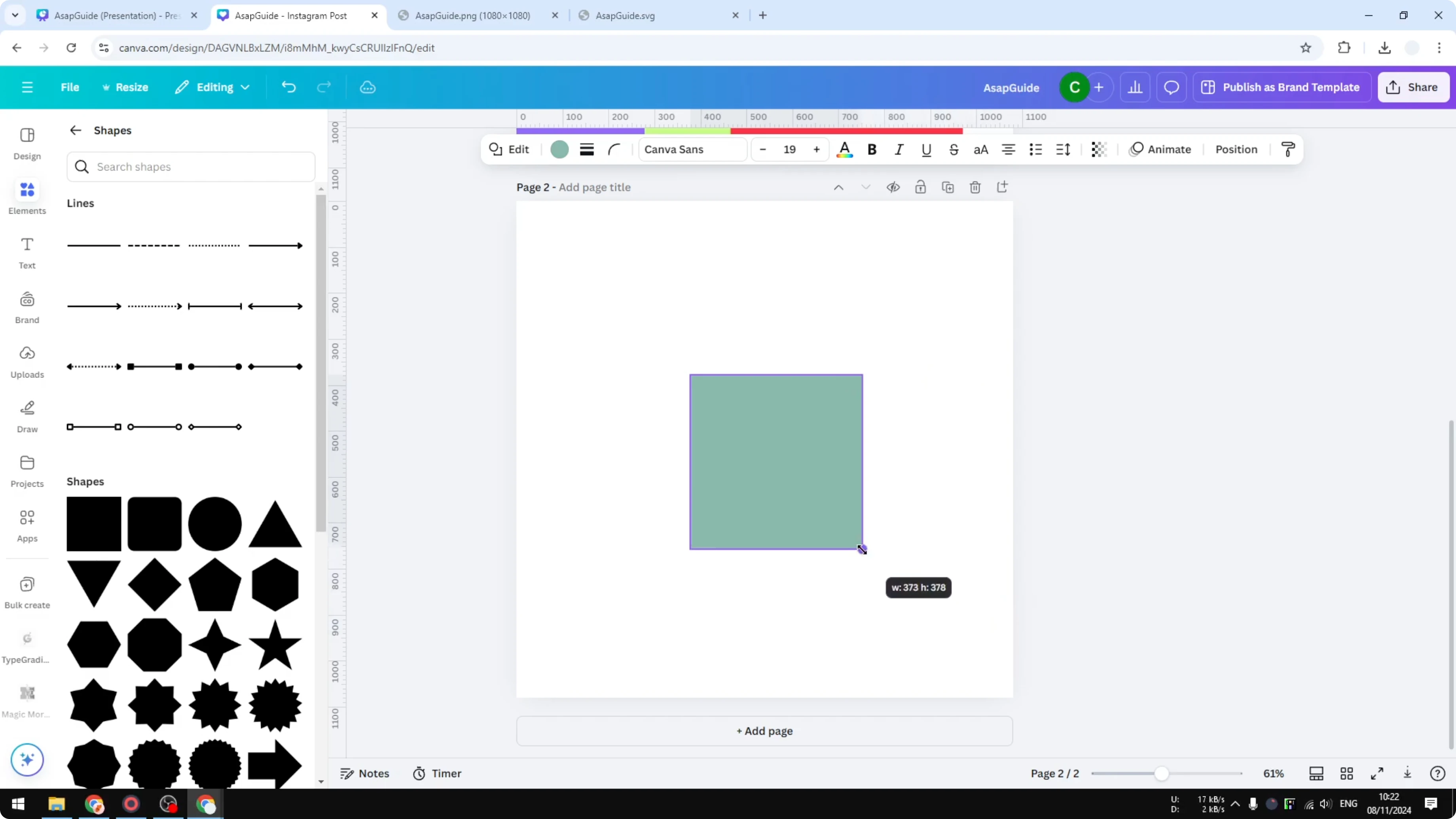
To keep it a square and maintain the aspect ratio, press and hold Shift while you drag. No matter what you do while holding Shift, it keeps the original 1 by 1 ratio. For more on this, see maintain aspect ratio in Canva.
Resize Shapes in Canva to exact dimensions
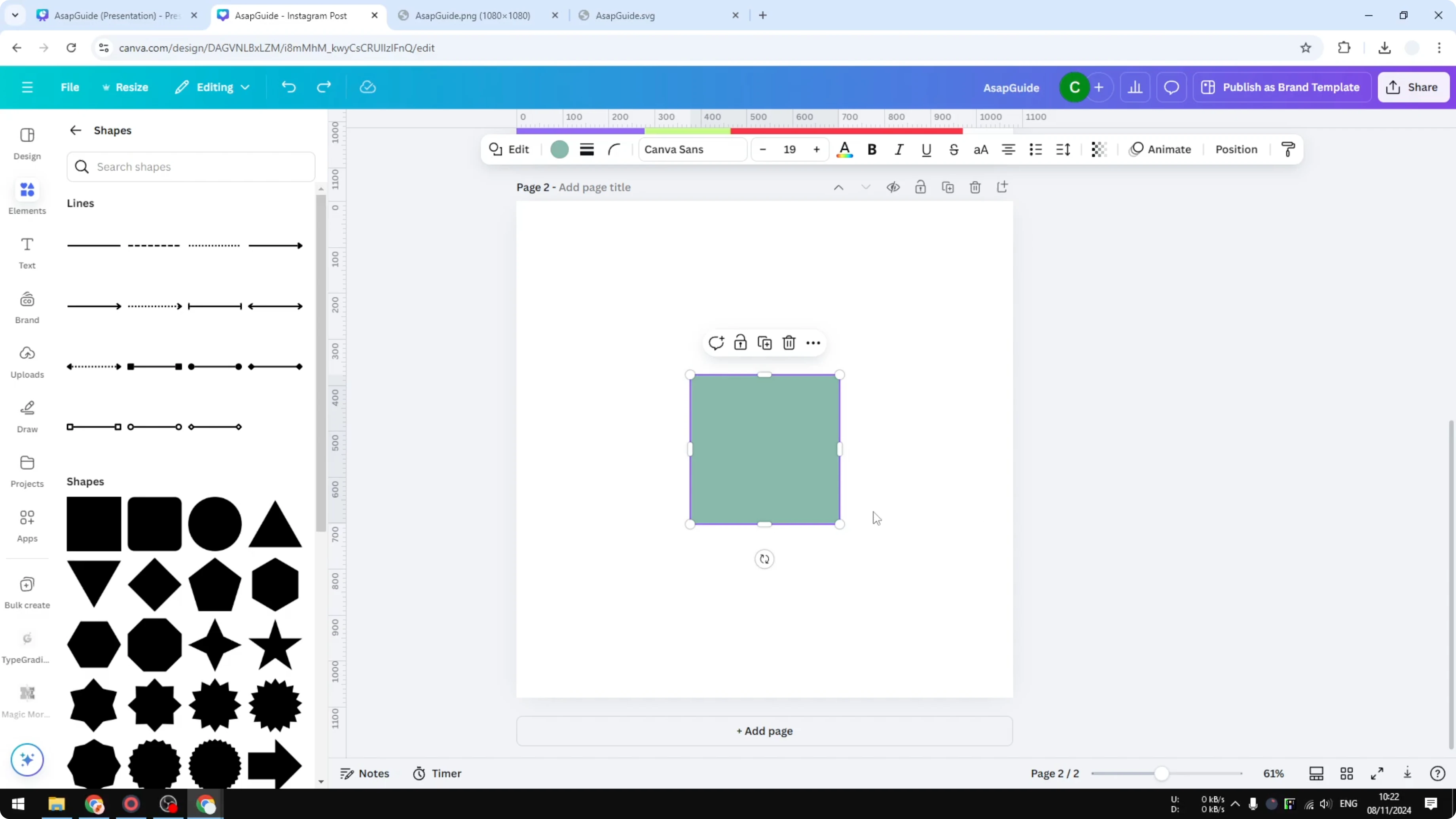
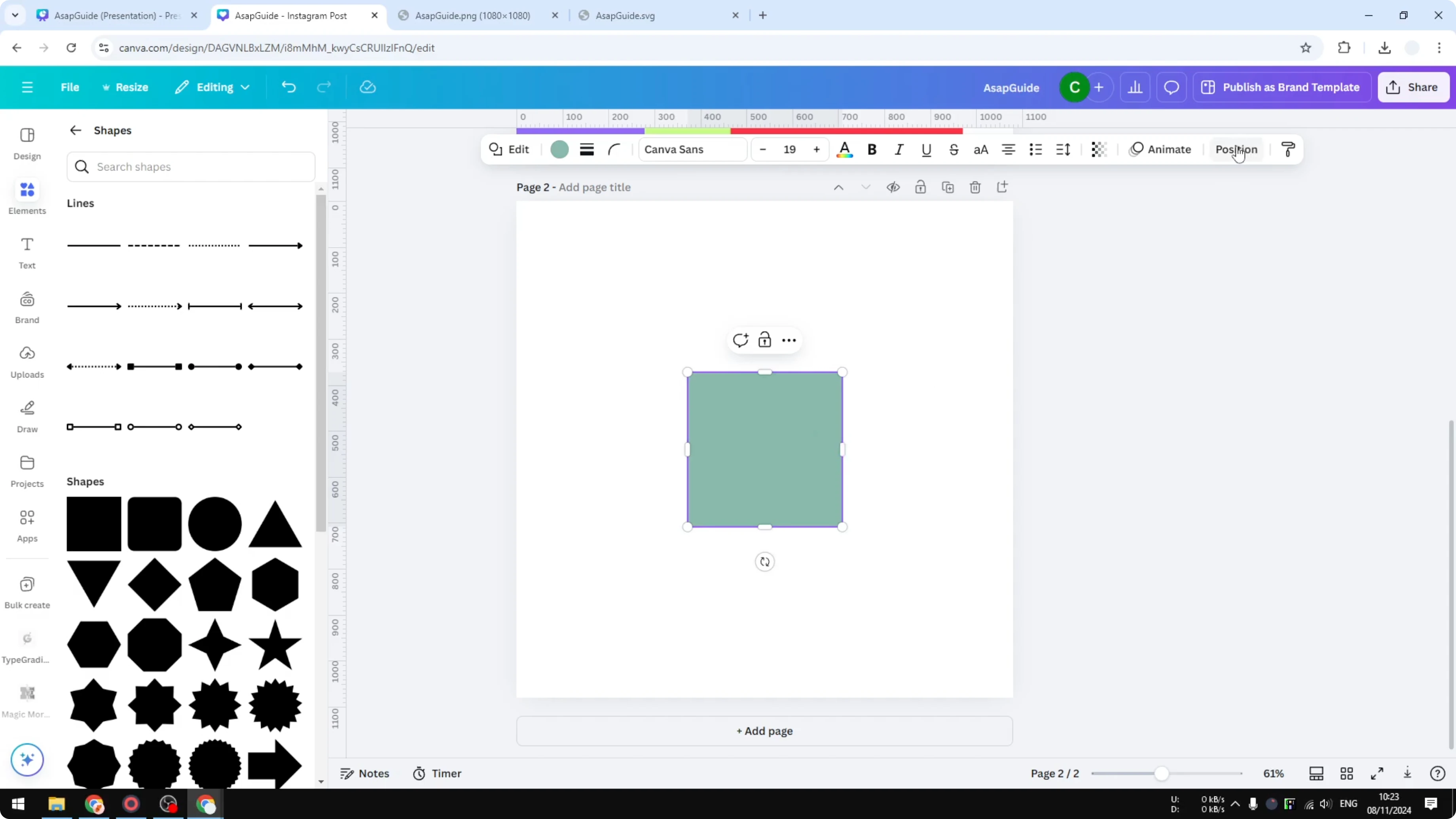
Click the object, then click Position. Open Arrange, and in the Advanced section you will see Width, Height, and Ratio.
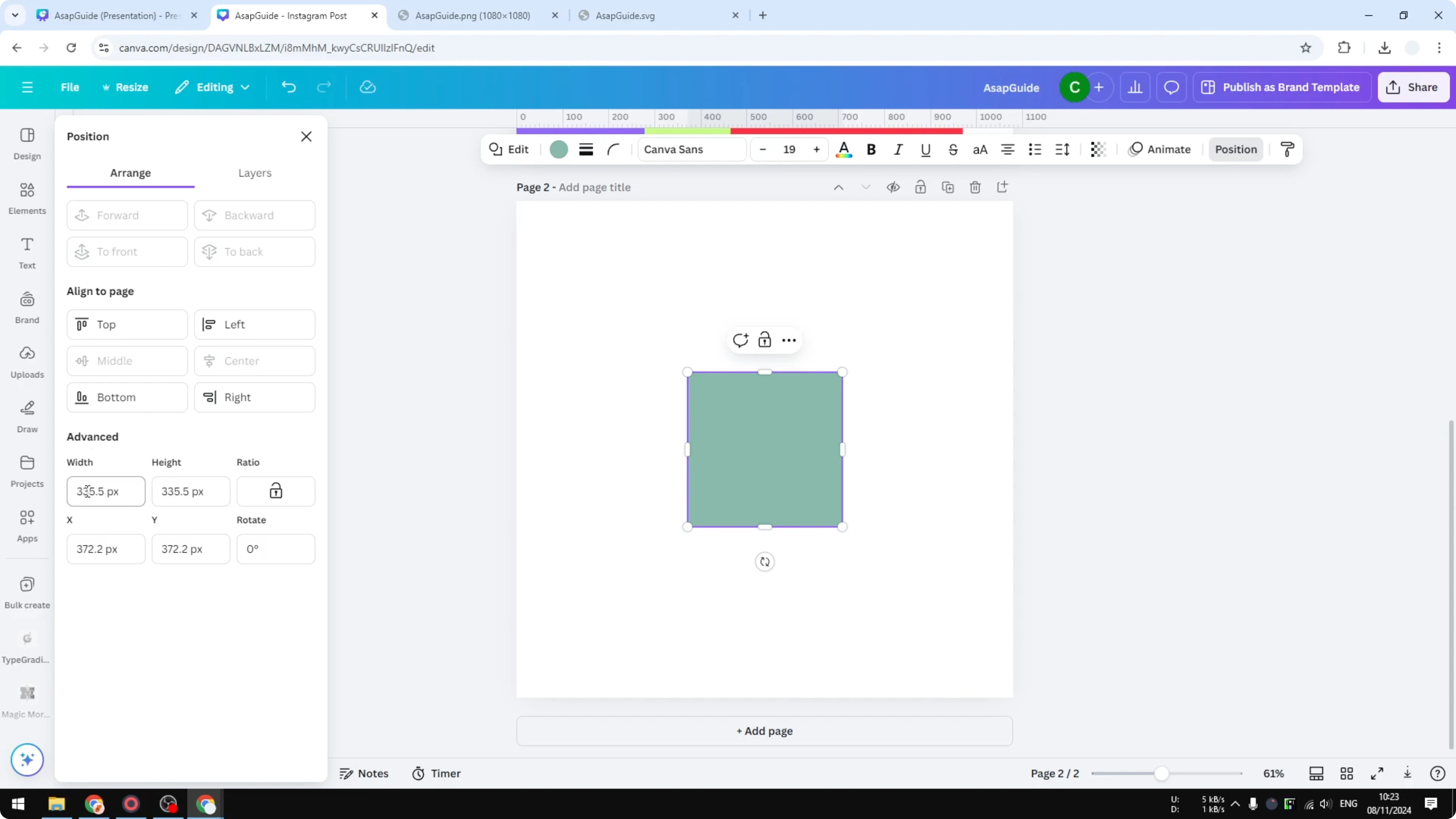
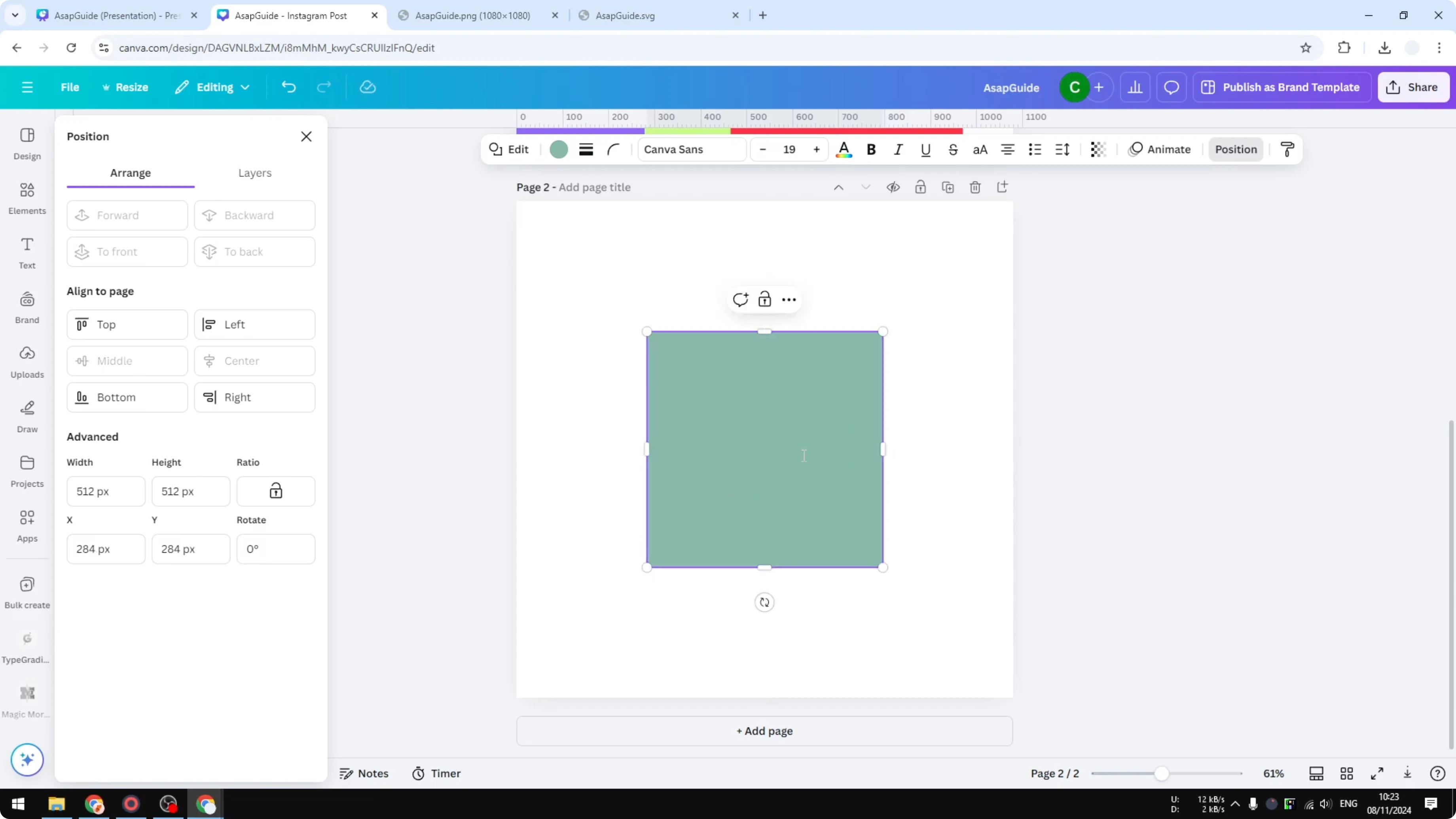
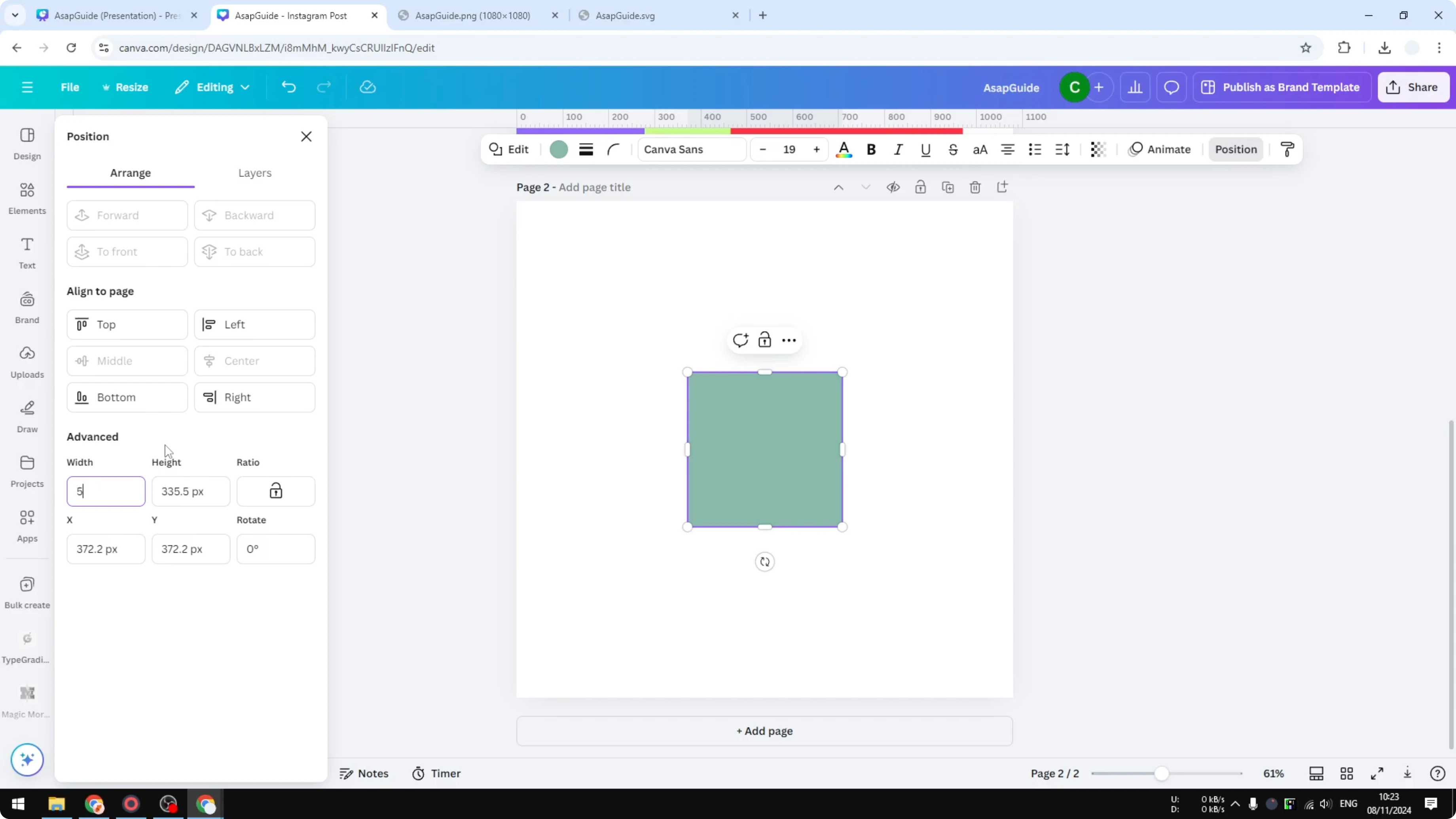
Enter your exact values in Width and Height. For example, set both Width and Height to 512 to get a square that is exactly 512 pixels, with a perfect 1 by 1 ratio.
Read More: 3D Book Cover Canva
Final thoughts on Resize Shapes in Canva
That is how to resize a shape in Canva. Use the control points for quick changes, hold Shift to keep the 1 by 1 shape, or type exact numbers in the Width and Height fields. To build on this, see add background text in Canva.
Recent Posts

How to Visualize Yourself as a Pixelized Character with AI?
How to Visualize Yourself as a Pixelized Character with AI?

How to Revive Faded Memories and Enhance Image Clarity with AI?
How to Revive Faded Memories and Enhance Image Clarity with AI?

How to Visualize Yourself as an Animal Crossing Character with AI?
How to Visualize Yourself as an Animal Crossing Character with AI?