How to Resize Elements in Canva Without Adjusting Aspect Ratio
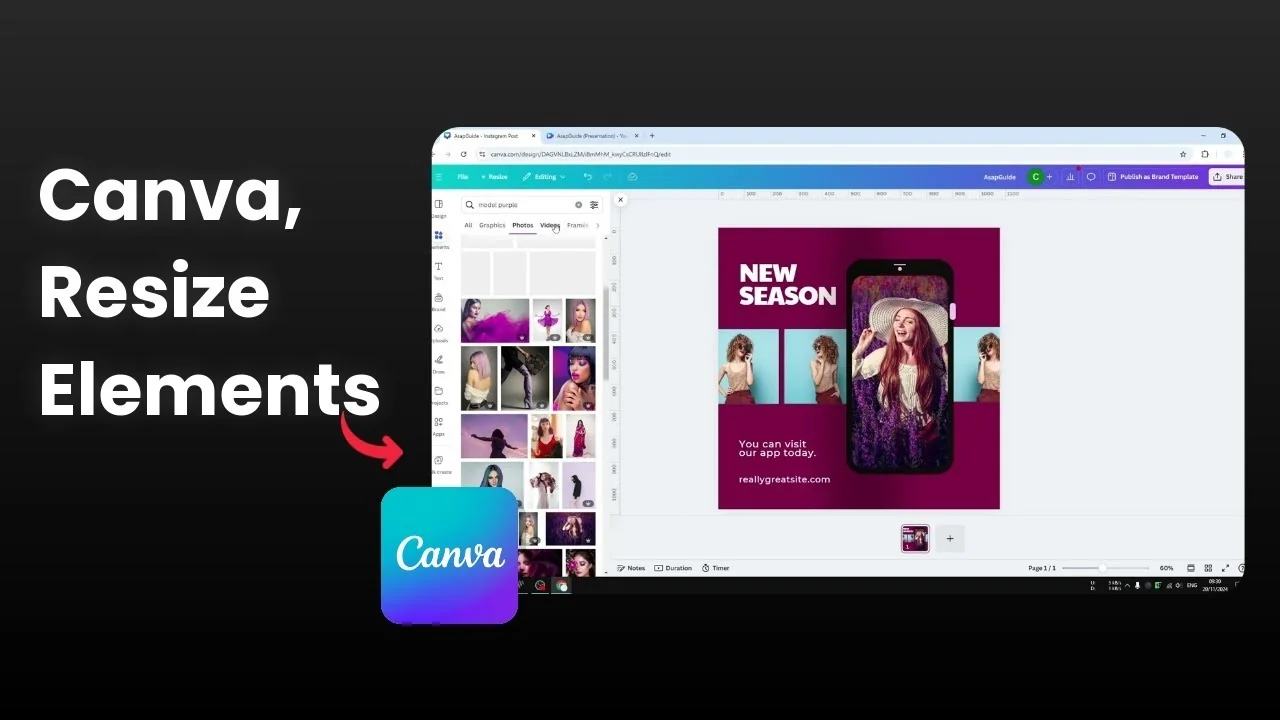
I’m going to show you how to resize an element in Canva without adjusting the aspect ratio. I have a square template with a phone mockup. I want to place a screen image, but many stock library photos are horizontal, not vertical like you see on Instagram, TikTok, or WhatsApp.
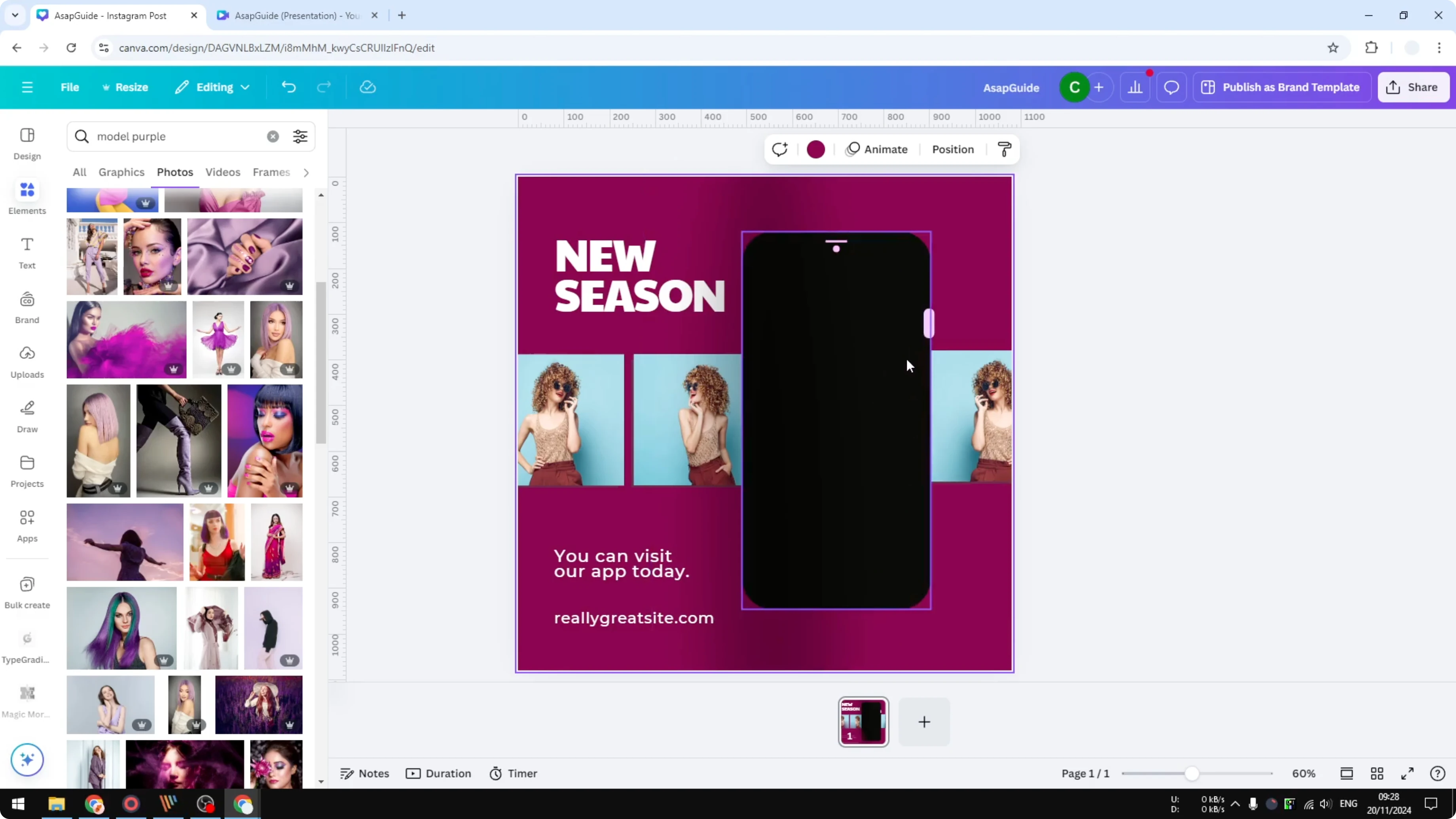
If I insert a horizontal picture, its dimensions won’t fit the phone frame. The simple way to make it fit is to resize and then crop the image. This lets you keep the original aspect ratio while fitting a different shape.
If you need more free media to try this with, learn how to search free elements in Canva. You can combine those with cropping to fit mockups and layouts. It works the same for photos and videos.
Why Resize Elements in Canva Without Adjusting Aspect Ratio
I want the content to fit a different shape without stretching or squashing it. Horizontal photos can look off inside a tall frame, so cropping is the clean fix. Resizing first gives enough area to crop without losing important parts.
Images - Resize Elements in Canva Without Adjusting Aspect Ratio
Insert the picture you want to use.
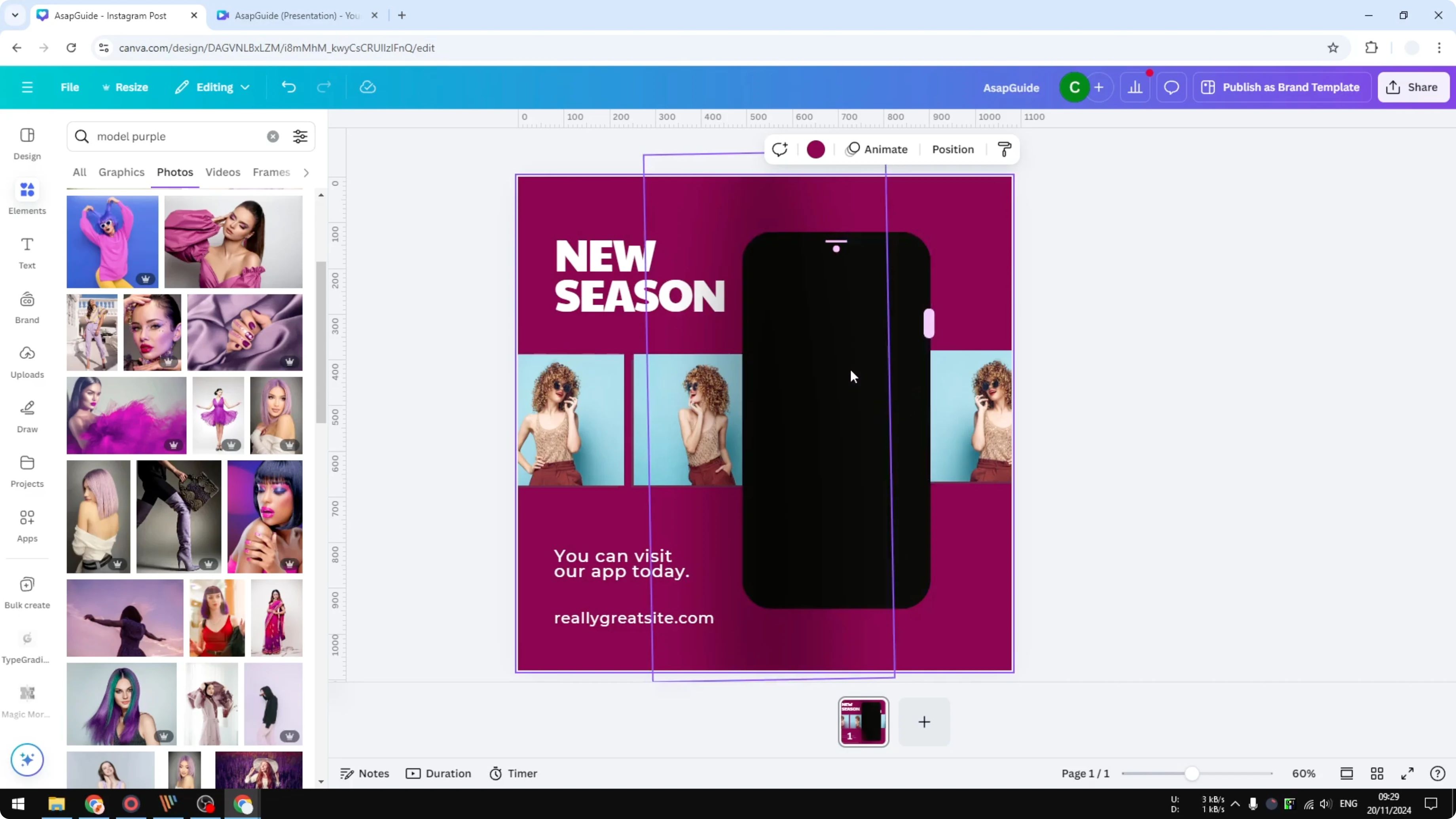
Make the image slightly bigger by dragging any corner handle.
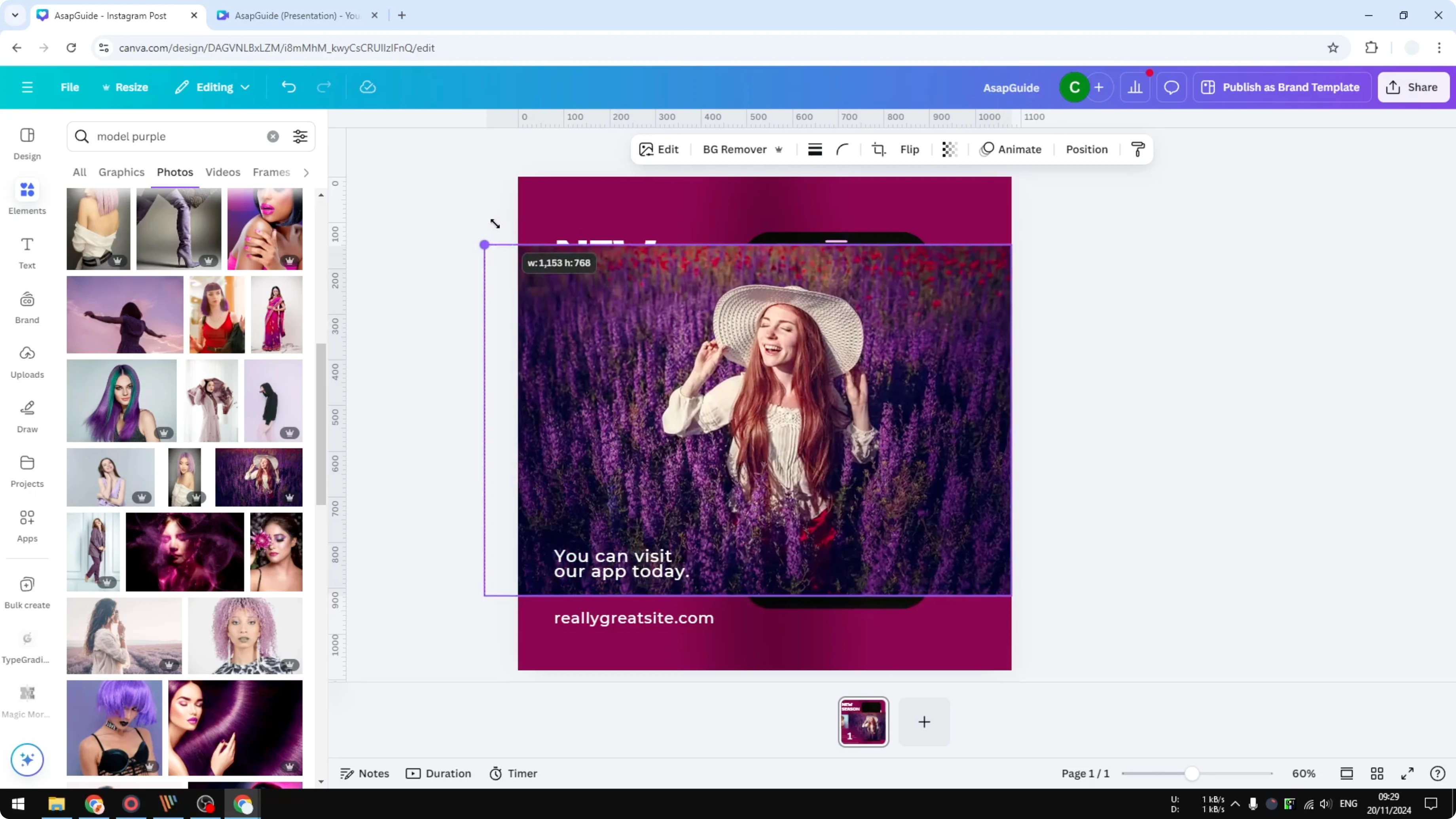
Use the side handle to crop the image by dragging left or right.
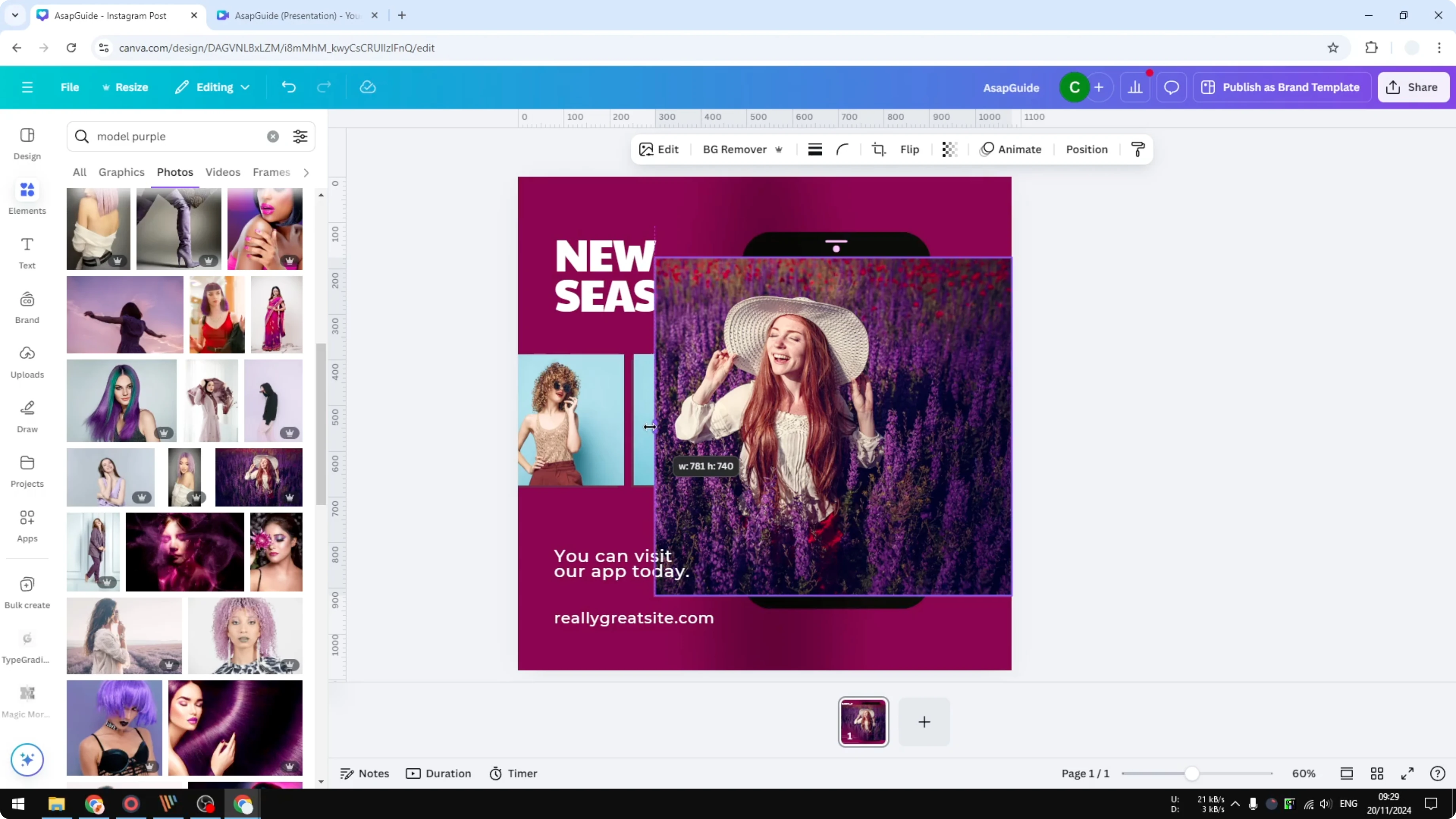
Adjust both sides until the content fits the frame you’re aiming for.
Apply a little corner rounding so it matches the look of the phone.
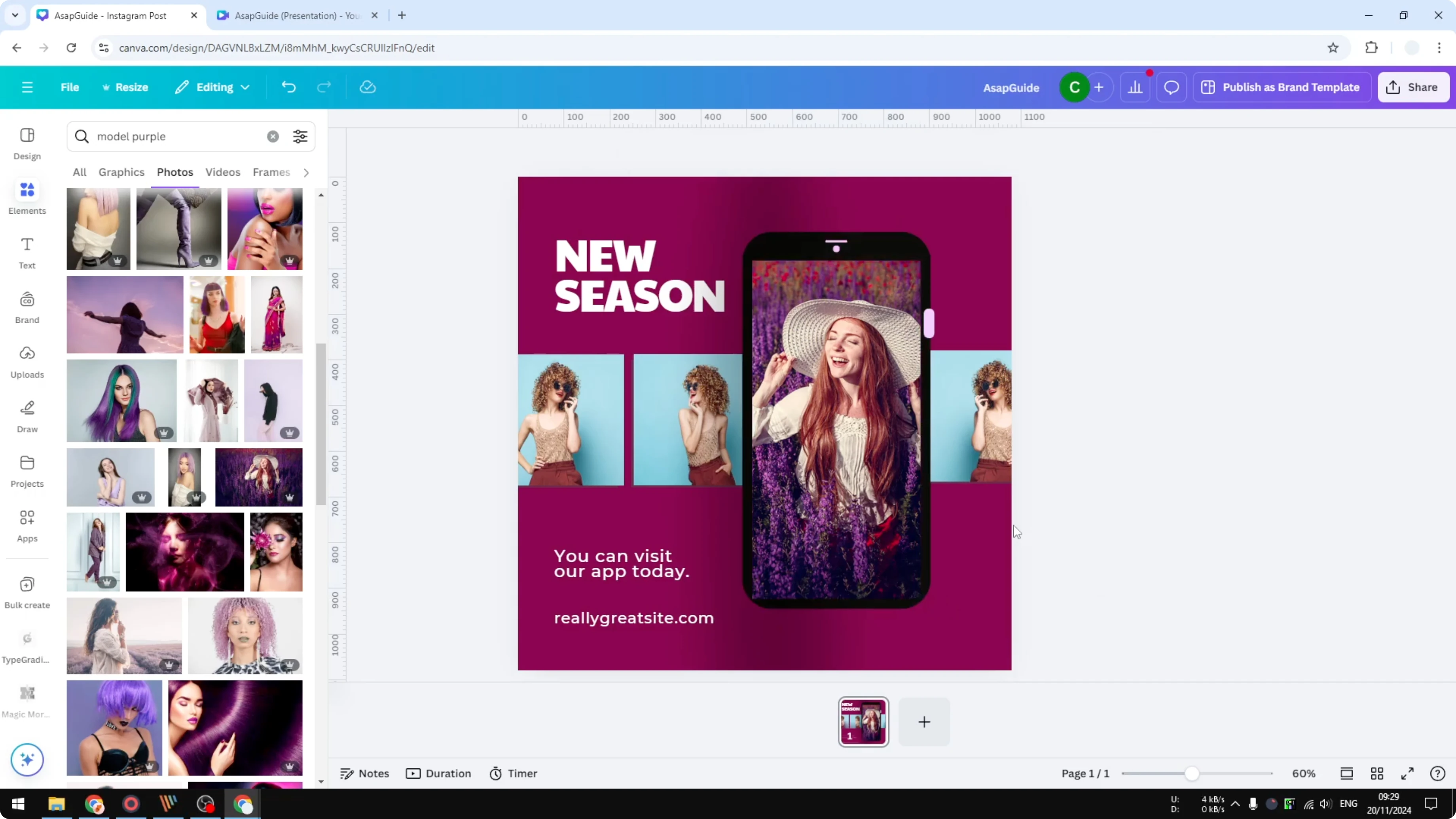
The result looks clean and keeps the original proportions.
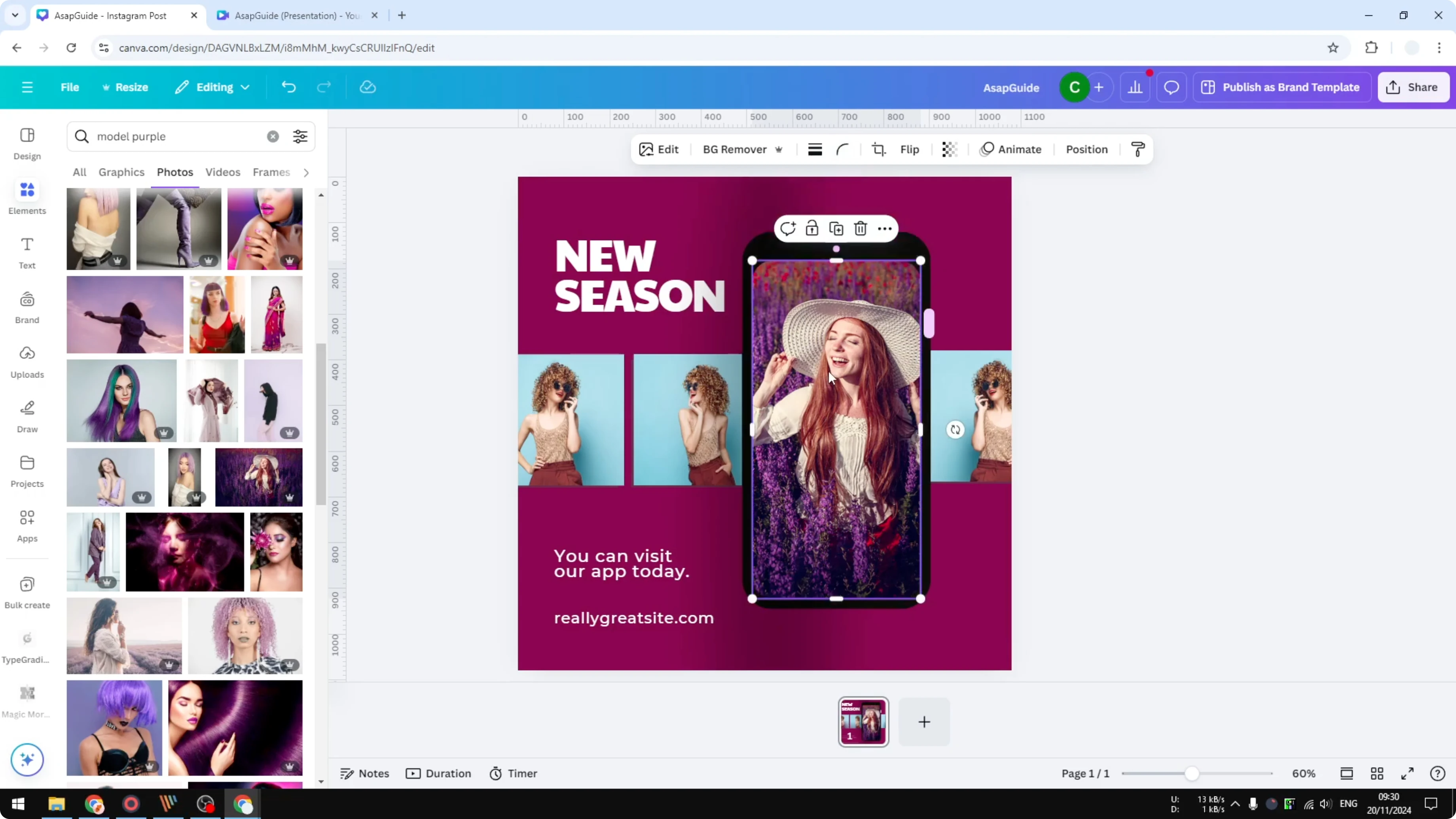
If the issue is your canvas size and not the element, you can change your Canva slide aspect ratio. That way, the overall design matches your target format while individual elements keep their proportions. It’s a quick fix before you start placing images.
Videos - Resize Elements in Canva Without Adjusting Aspect Ratio
You can do this on videos too. The process is the same. The corner points resize, and the side points crop.
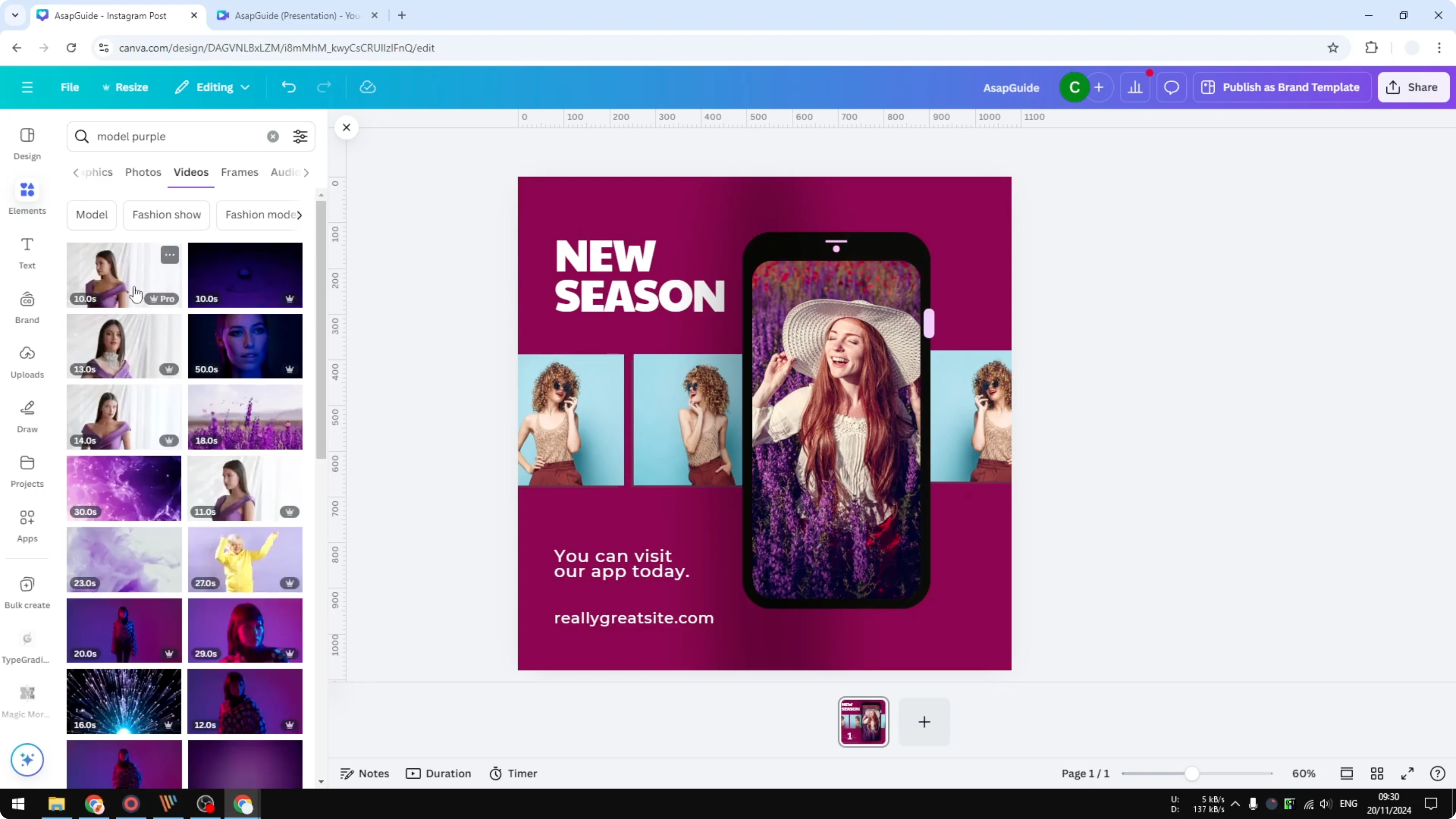
Insert the video.
Resize with any corner handle to make it larger or smaller.
Crop with the side handles to control what shows inside a different shape.
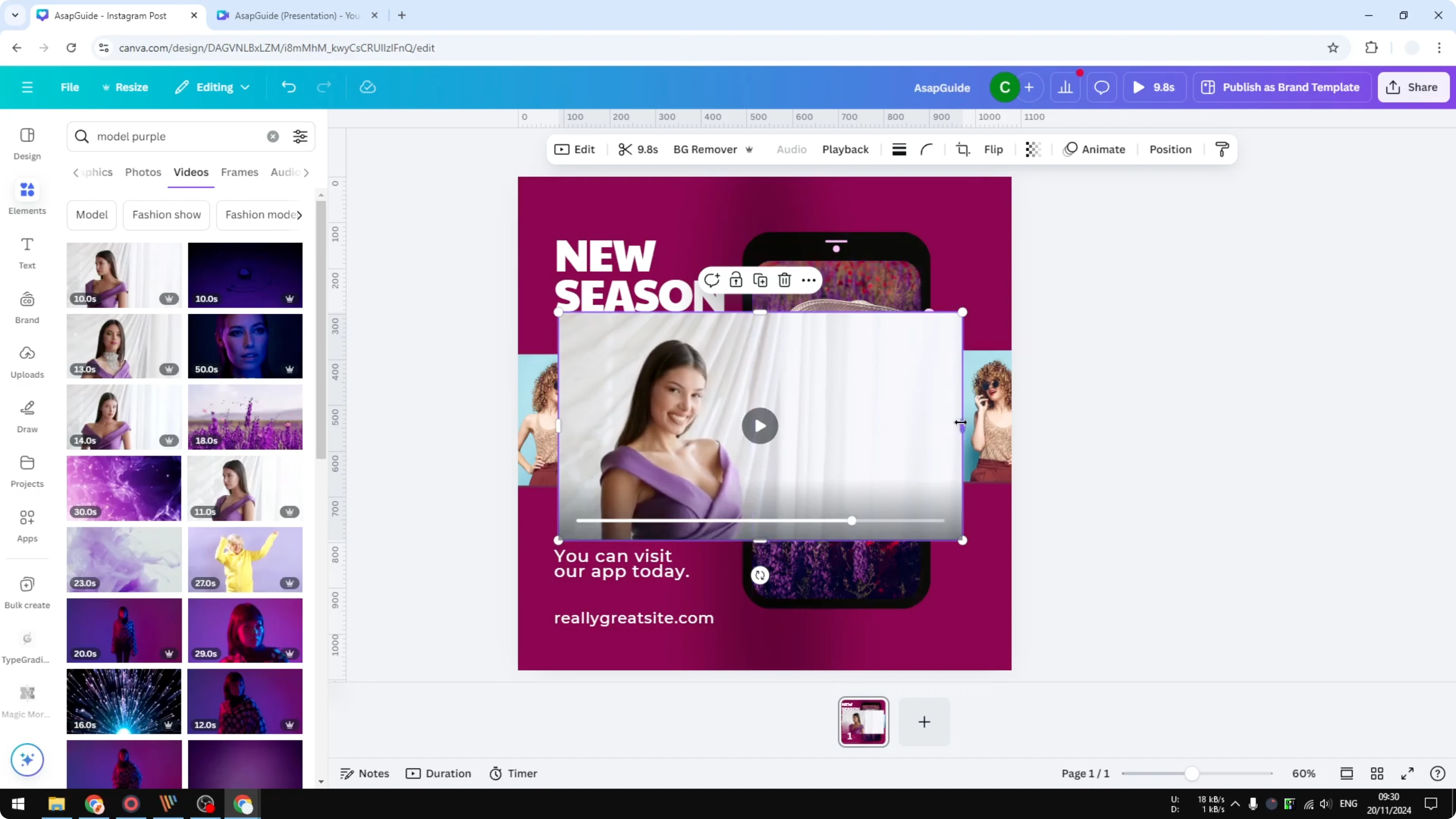
Frames, Shapes, and Graphics - Resize Elements in Canva Without Adjusting Aspect Ratio
Frames and shapes can be resized and cropped using the same handles. Insert a shape, resize it, and crop it just like a photo. It gives you tight control when aligning to mockups or custom layouts.
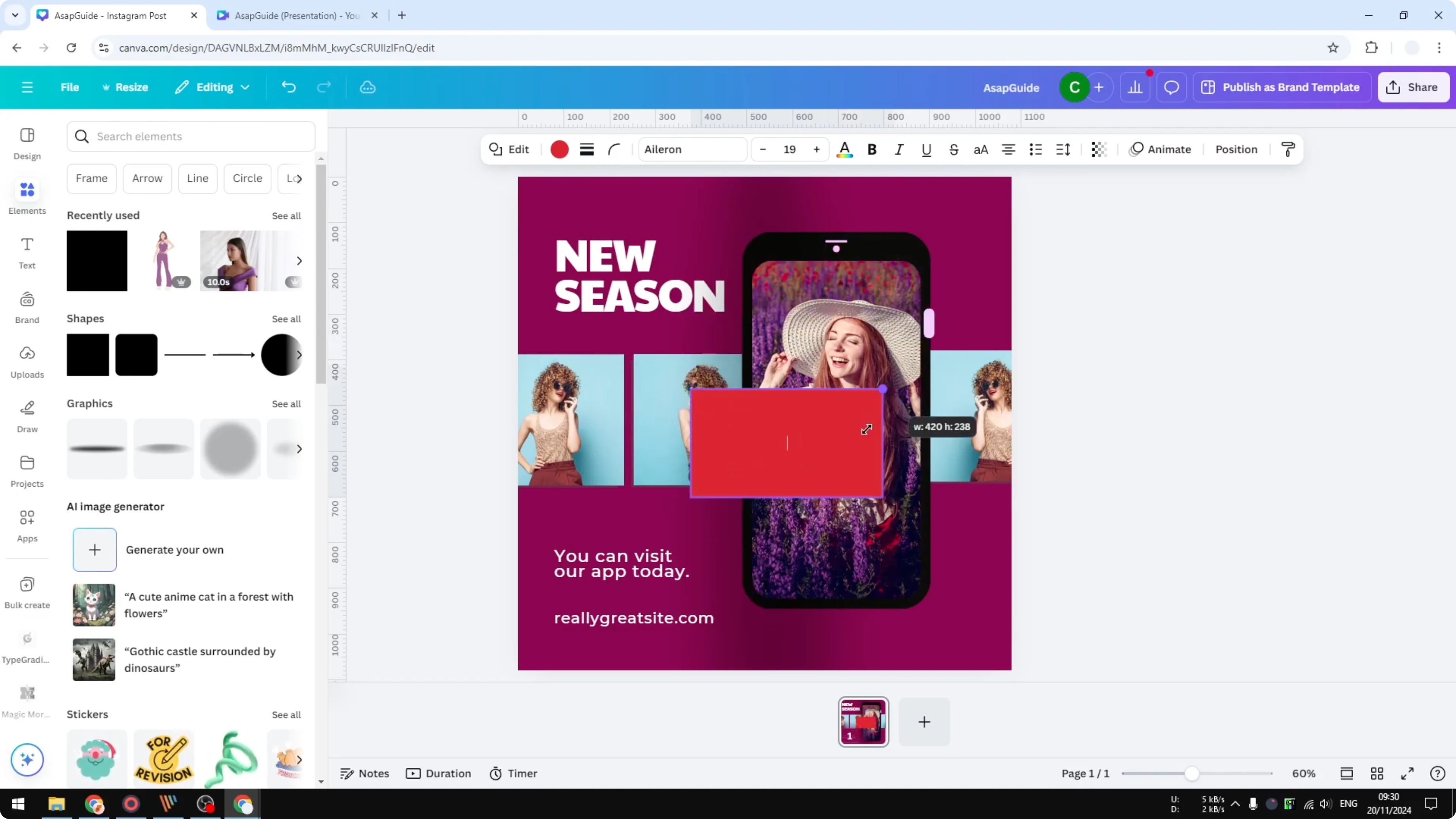
Graphics are different. Graphics cannot be cropped, only resized. Keep that in mind if you need precise cropping inside a shape.
If you use certain elements often, it helps to save favorite elements for quick access. It speeds up this workflow when you repeat the same steps across projects. You can keep your go-to frames, shapes, and mockups ready to drop in.
Final Thoughts
Resize with the corner points, and crop with the side points. This method works for photos, videos, frames, and shapes, and it keeps the original proportions intact. Graphics can only be resized, so use frames or shapes when you need precise cropping.
Recent Posts

How to Visualize Yourself as a Pixelized Character with AI?
How to Visualize Yourself as a Pixelized Character with AI?

How to Revive Faded Memories and Enhance Image Clarity with AI?
How to Revive Faded Memories and Enhance Image Clarity with AI?

How to Visualize Yourself as an Animal Crossing Character with AI?
How to Visualize Yourself as an Animal Crossing Character with AI?