How to Search Free Elements in Canva

If you're using the free version of Canva, it can be really challenging to find elements or assets like photos, videos, or icons you want to use on your design because a lot of them are premium. When you insert a premium asset into your document, you'll see a watermark, and it just doesn't look pretty. Here's how to filter your search to only the ones that are free to use.
Search Free Elements in Canva
Why Search Free Elements in Canva matters
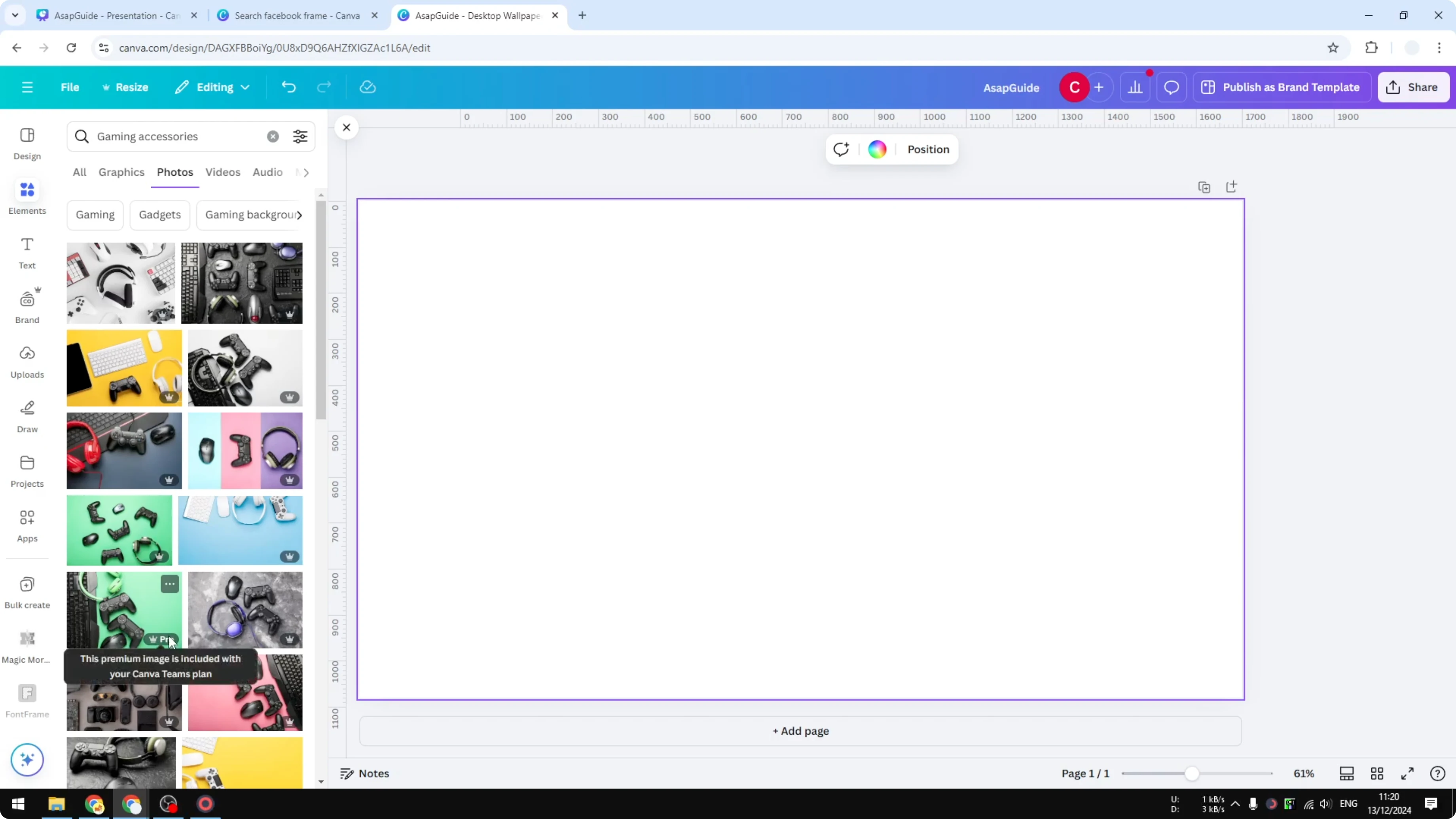
Premium assets show a watermark or a premium label. If you are a free user, it's better not to use them. Filtering by price lets you see only elements that are free to use, so you don't have to worry about a watermark.
Step-by-Step: Search Free Elements in Canva
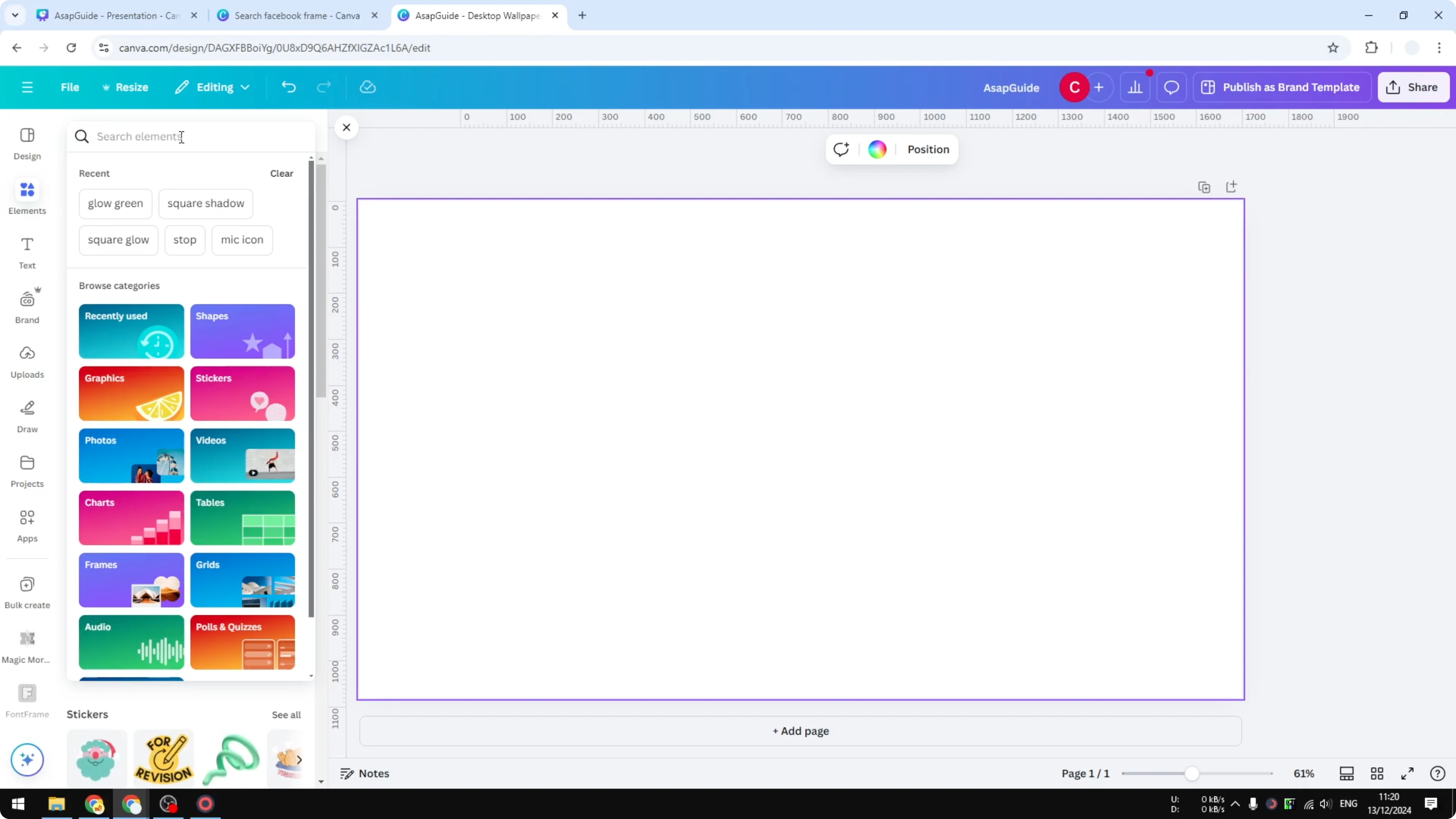
- Go to Elements.
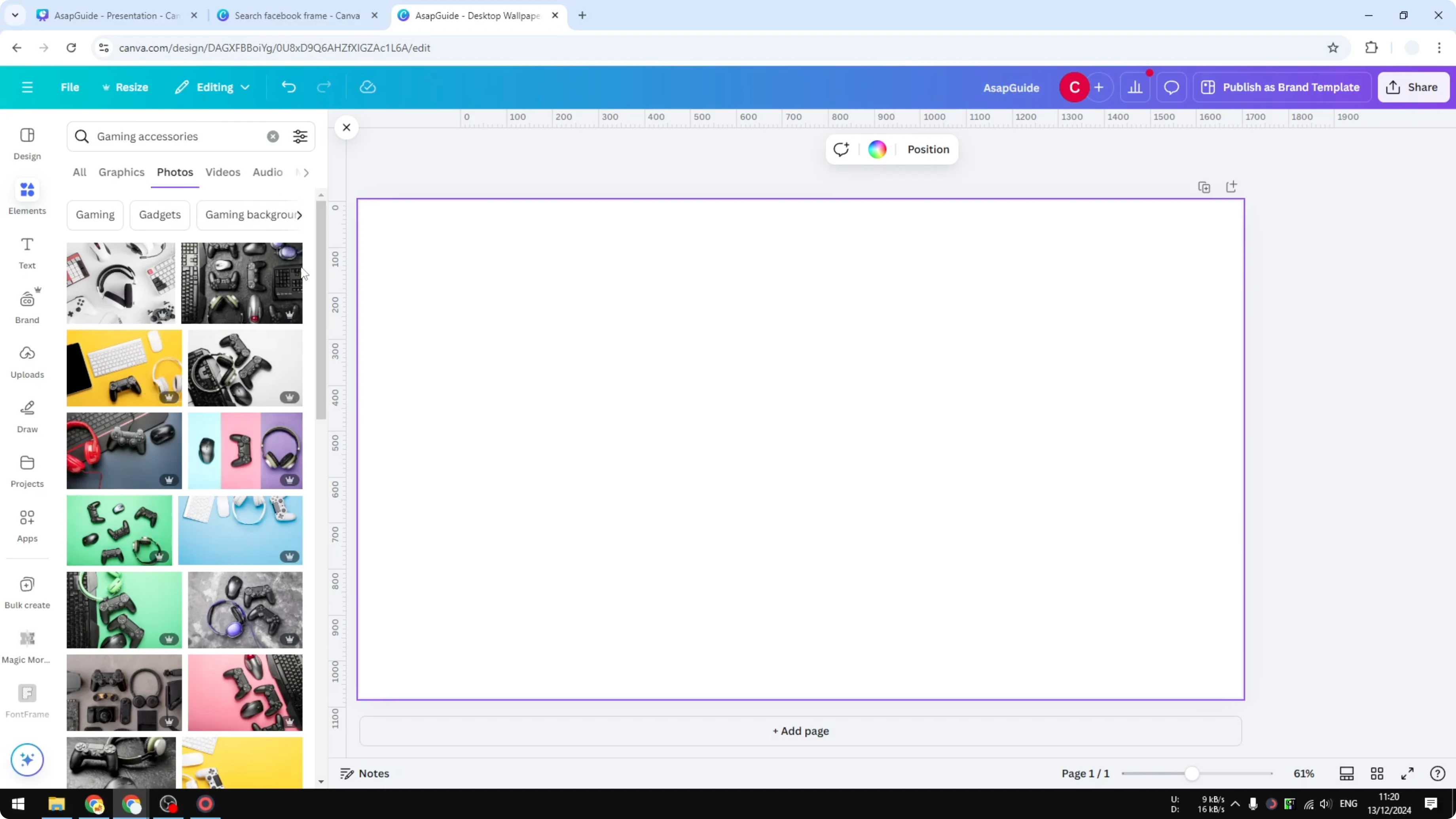
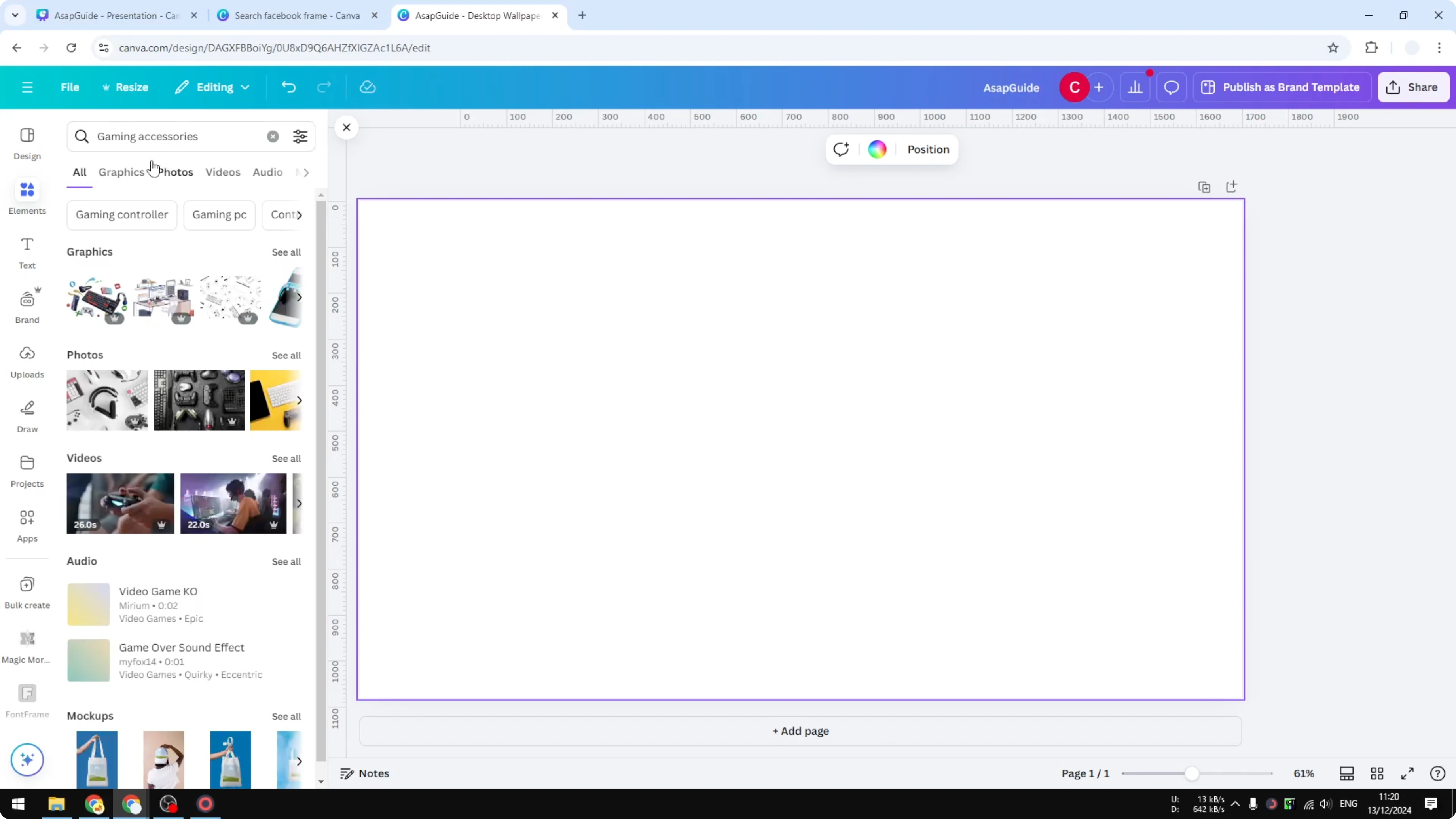
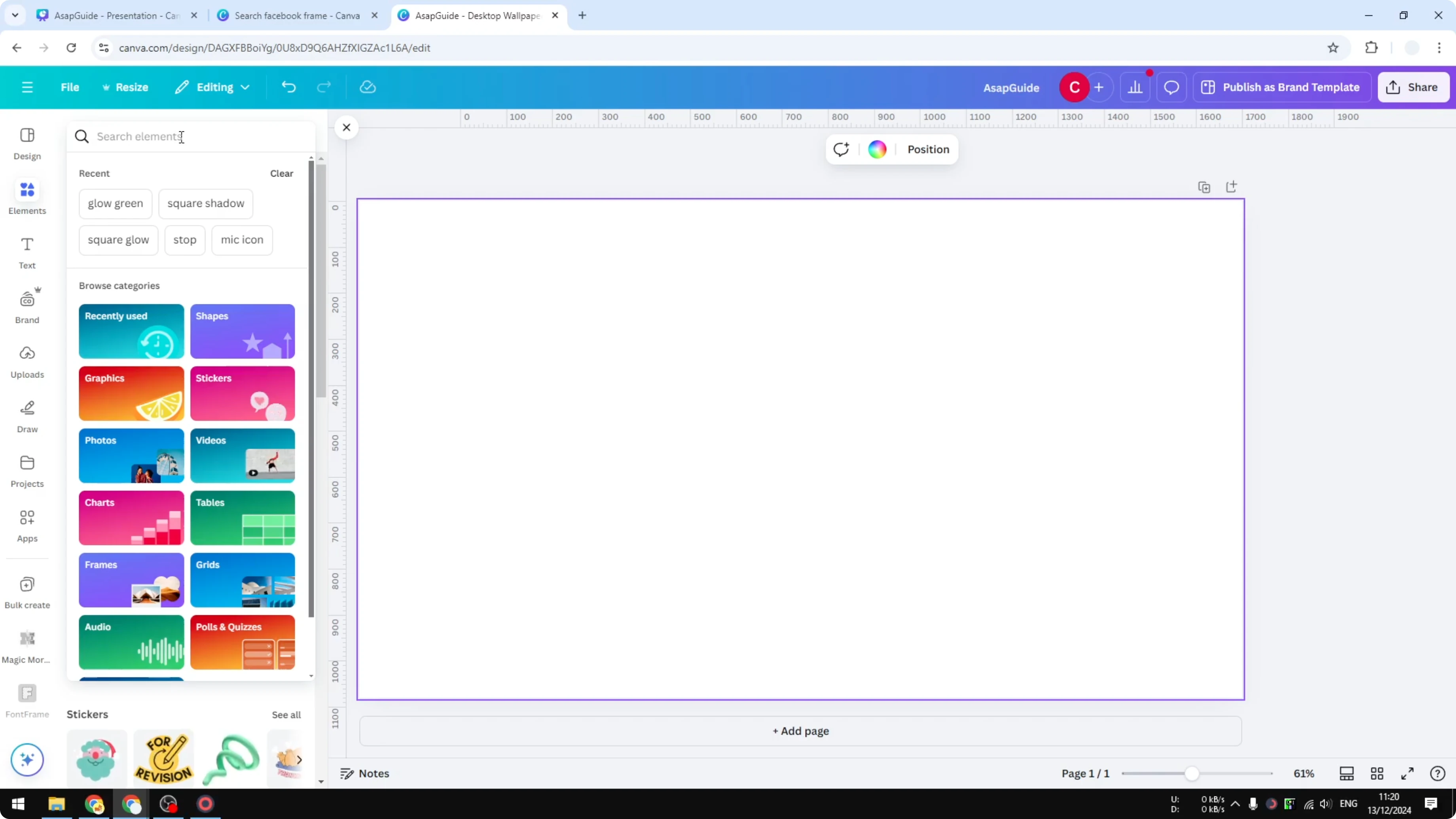
- Search for the element you want to insert into your design. I search for a term like gaming accessories.
- Choose a category such as Photos.
- Identify premium items by the watermark or premium sign.
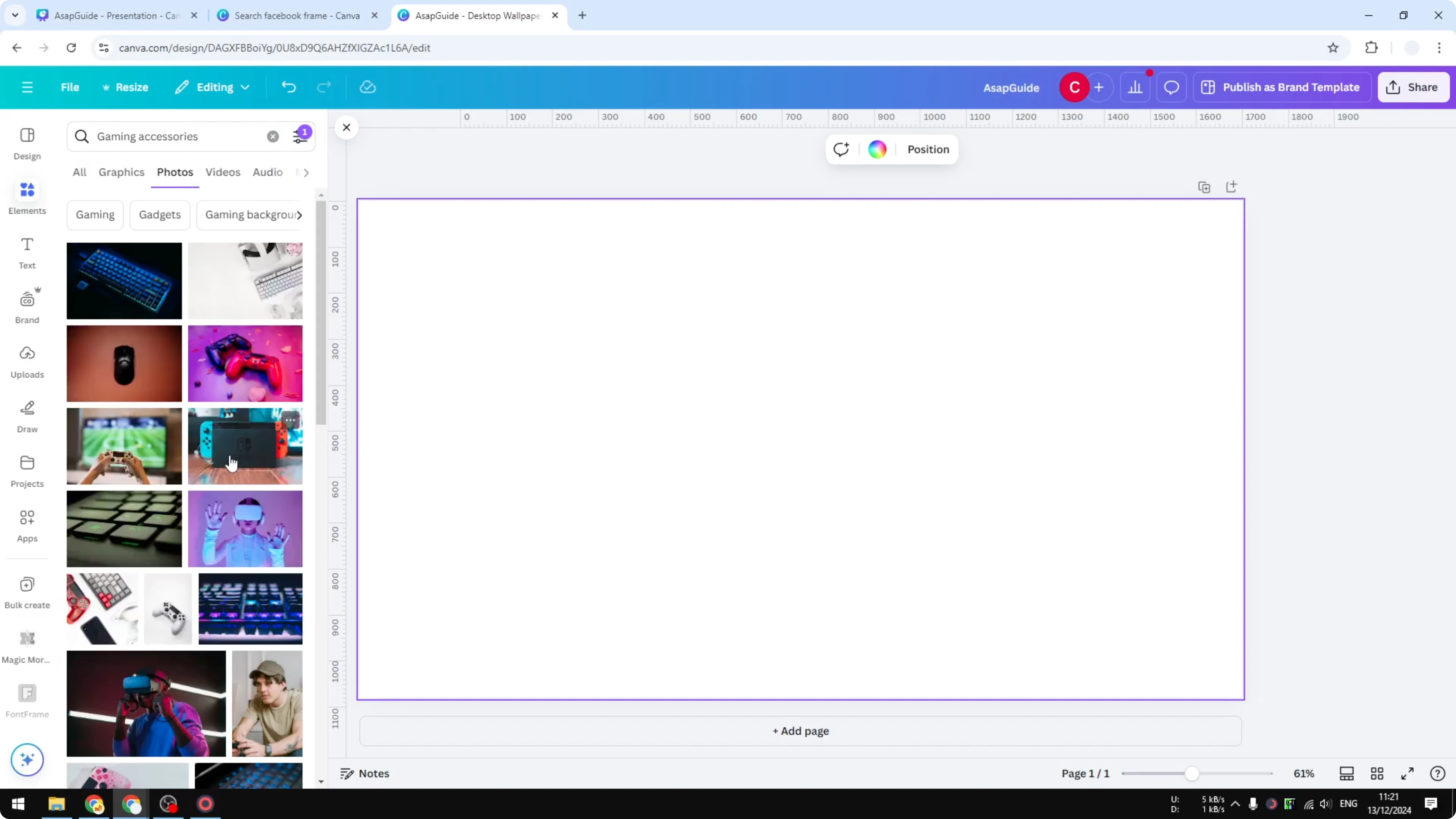
- Click the settings icon.
- Under Price, enable Free.
- Close the filter panel.
- Browse and insert the photos or elements that are free to use. You won't see a watermark.
- Download to your computer to use, or upload to social media or a website.
Final Thoughts on Search Free Elements in Canva
Filtering by price in the Elements search shows only free assets, avoids watermarks, and keeps your design ready to download and share. This quick filter makes it easy to find photos, videos, and icons you can use at no cost.
Recent Posts

How to Visualize Yourself as a Pixelized Character with AI?
How to Visualize Yourself as a Pixelized Character with AI?

How to Revive Faded Memories and Enhance Image Clarity with AI?
How to Revive Faded Memories and Enhance Image Clarity with AI?

How to Visualize Yourself as an Animal Crossing Character with AI?
How to Visualize Yourself as an Animal Crossing Character with AI?