How to Change Canva Slide Aspect Ratio

I am going to show you how to change the Canva presentation slide size. By default a new Canva presentation follows the 16:9 aspect ratio, which looks rectangular and is the standard format for many presentation tools. If you want a different ratio like the traditional 4:3 or a vertical portrait 9:16, you can switch in a few steps.
Change Canva Slide Aspect Ratio
Default 16:9
When you create a new presentation, Canva uses 16:9 automatically. This is the standard format for most presentation software, and it looks like a wide rectangle.
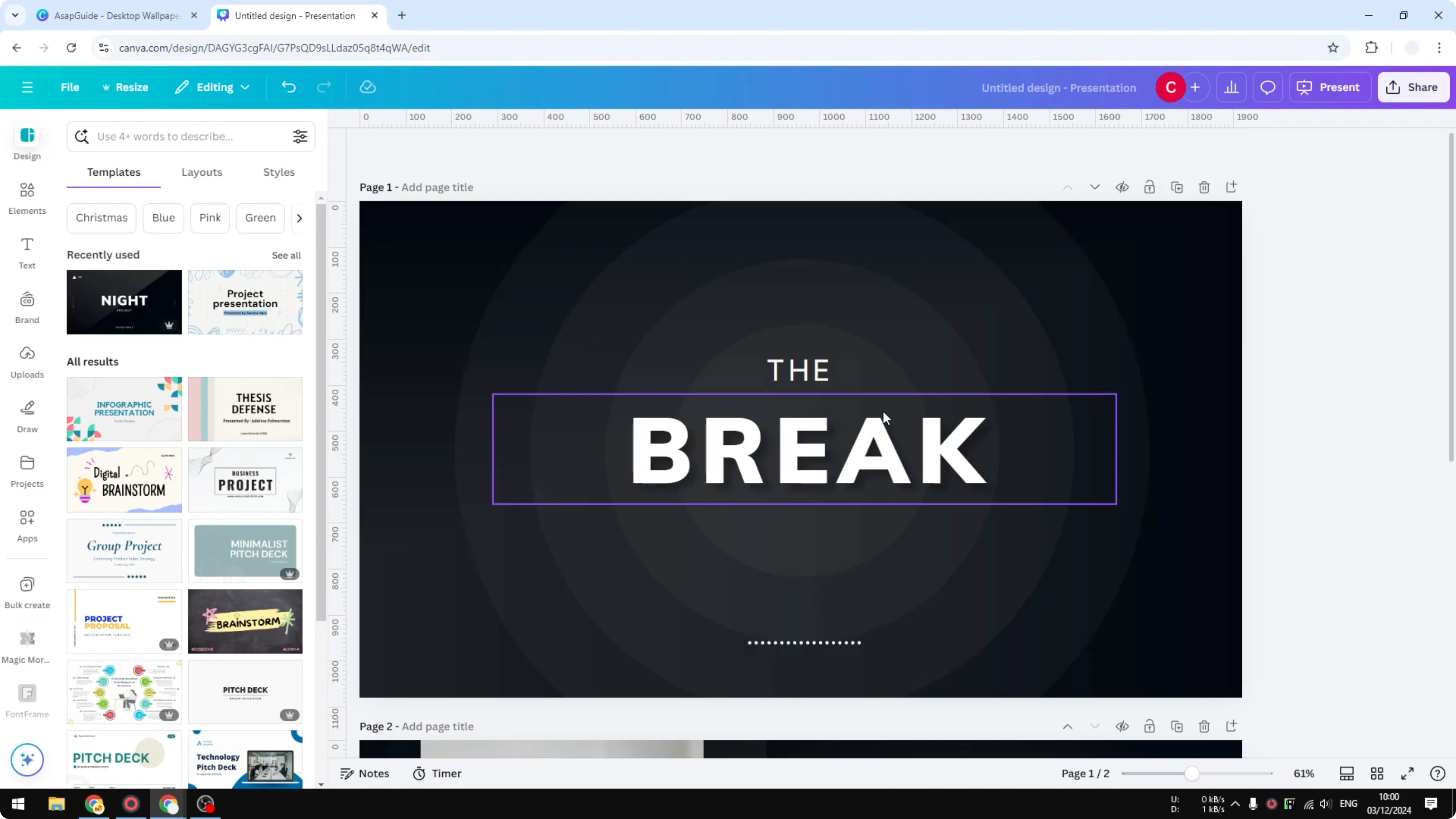
Switch to 4:3
Go to Resize.

Click Presentations.
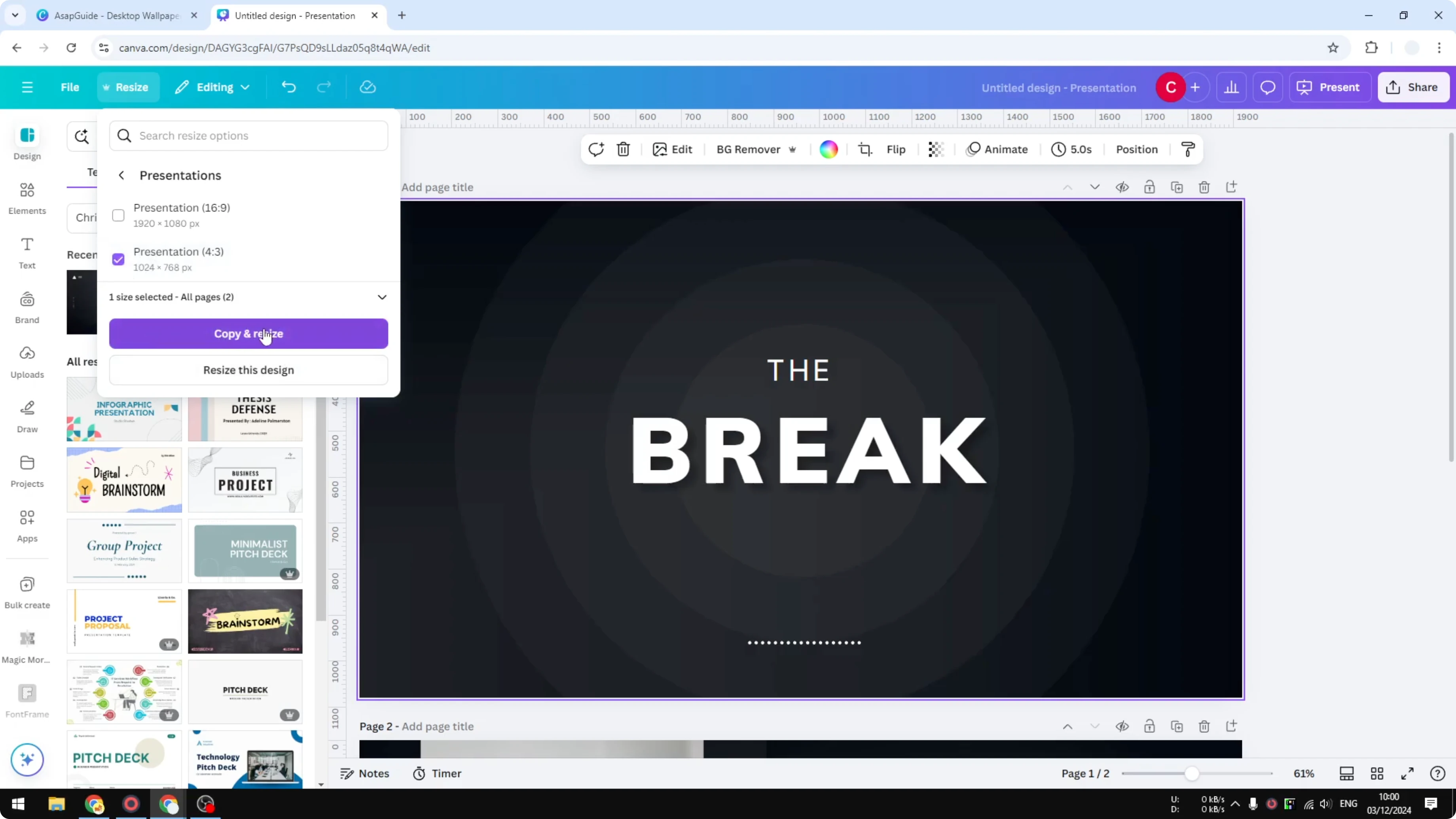
Select Presentation 4:3.
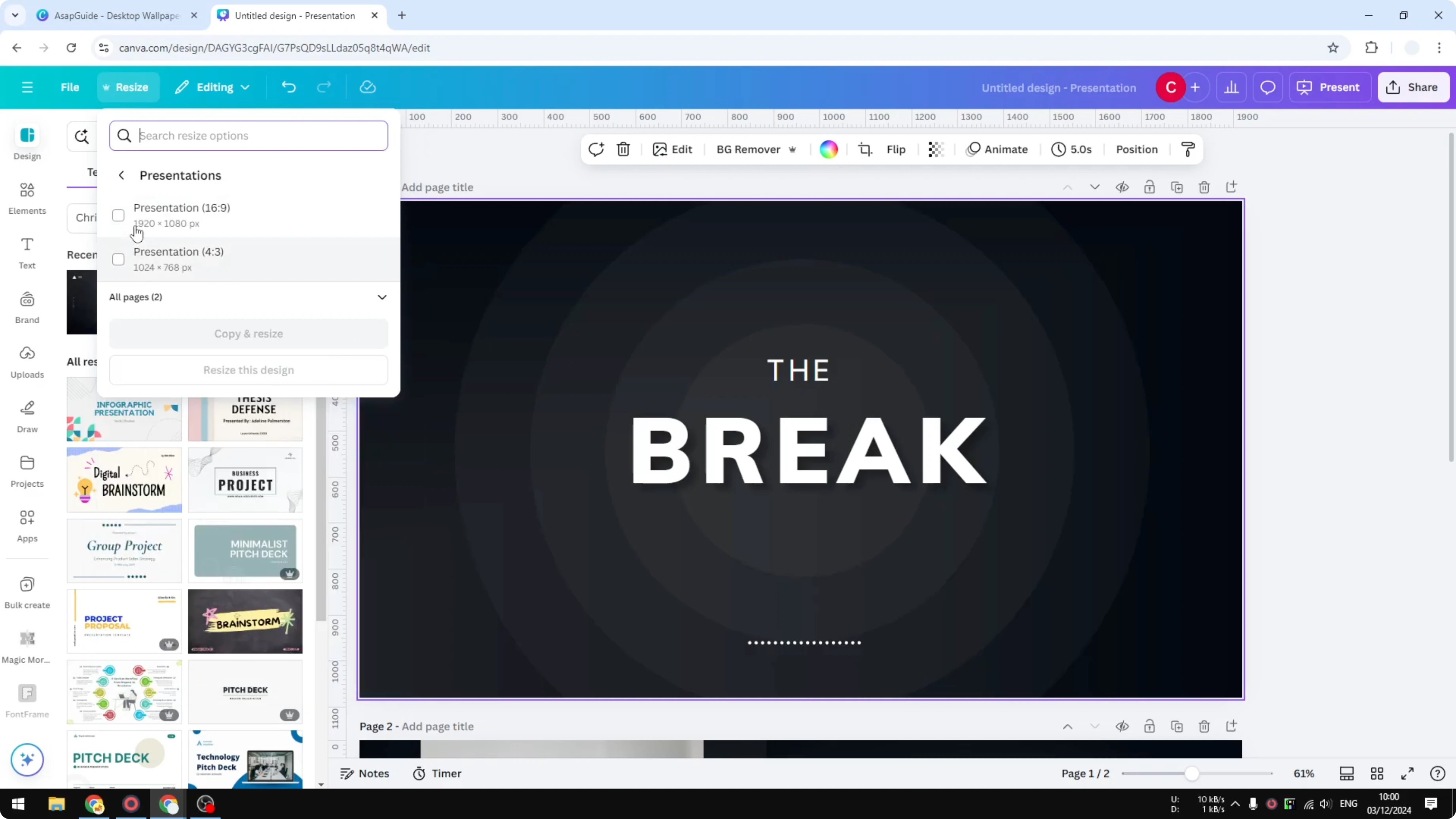
Choose Copy and resize to create a new document with a different aspect ratio, or choose Resize this design to change the current file.
Review the preview to see what will happen to your content.
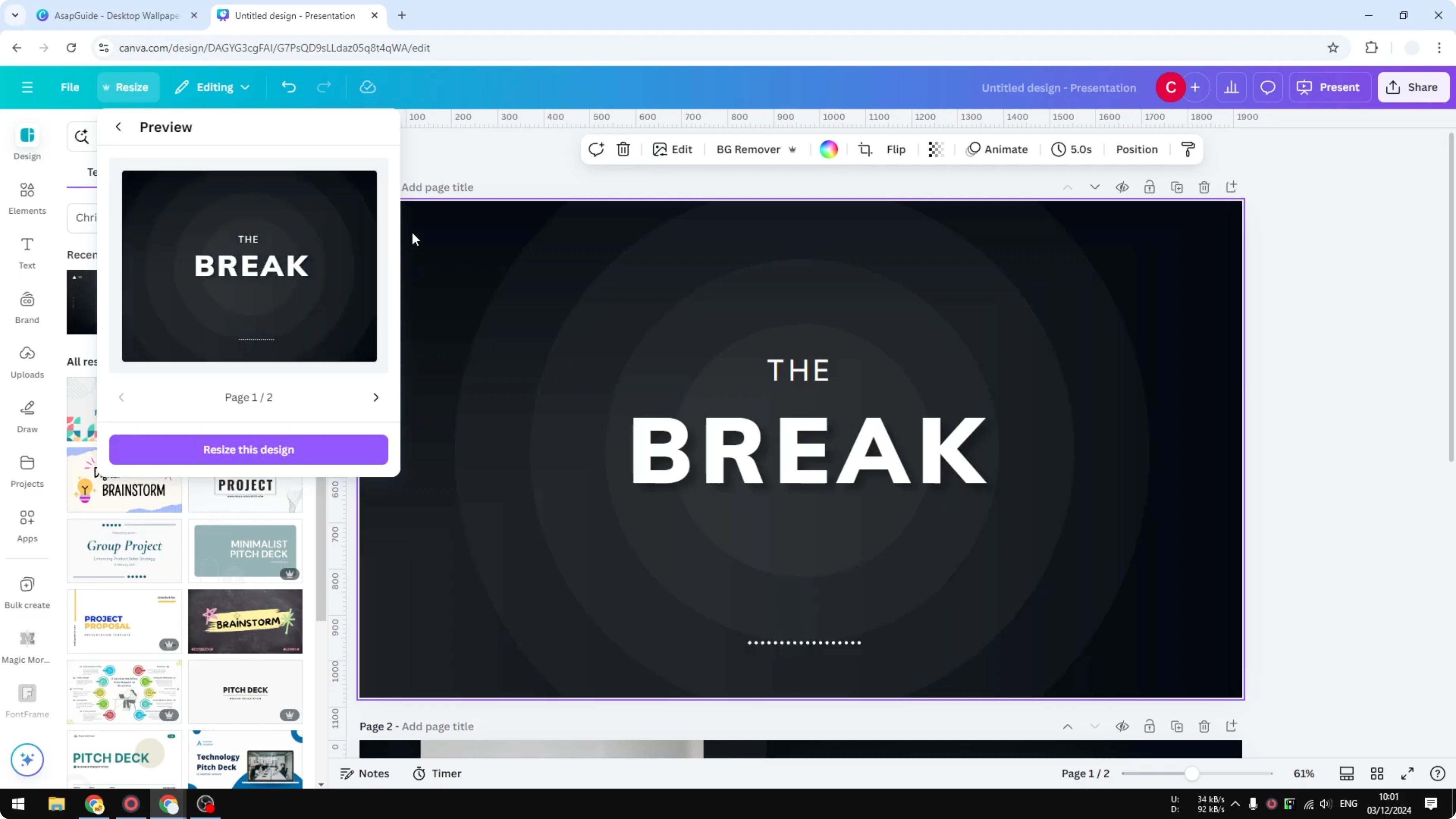
Click Resize this design and wait while Canva rearranges the elements.
In my experience the transition from 16:9 to 4:3 is generally good enough. Usually there is minimal modification needed after you change the dimension. If you want to tweak visuals, you can change color to fit the new ratio.
Portrait 9:16
Switching to a vertical format like 9:16, similar to Instagram Story or WhatsApp Status, is more challenging. You can still do it with the right steps.
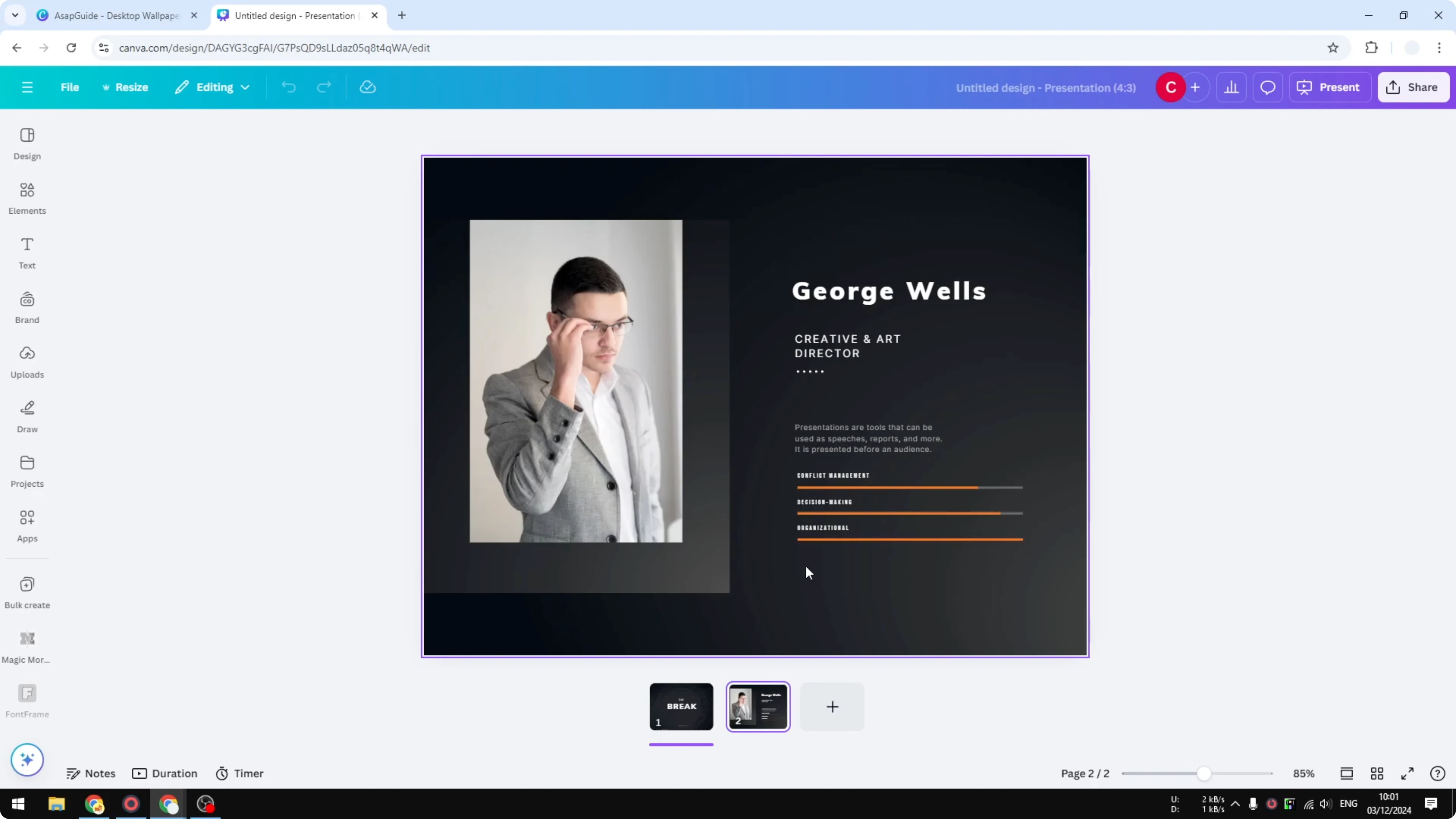
Go to Resize.
Click Custom size, because the Presentations tab does not offer custom dimensions.

Select Portrait.
Enter 720 by 1280.
Click Resize, then choose Resize this design.
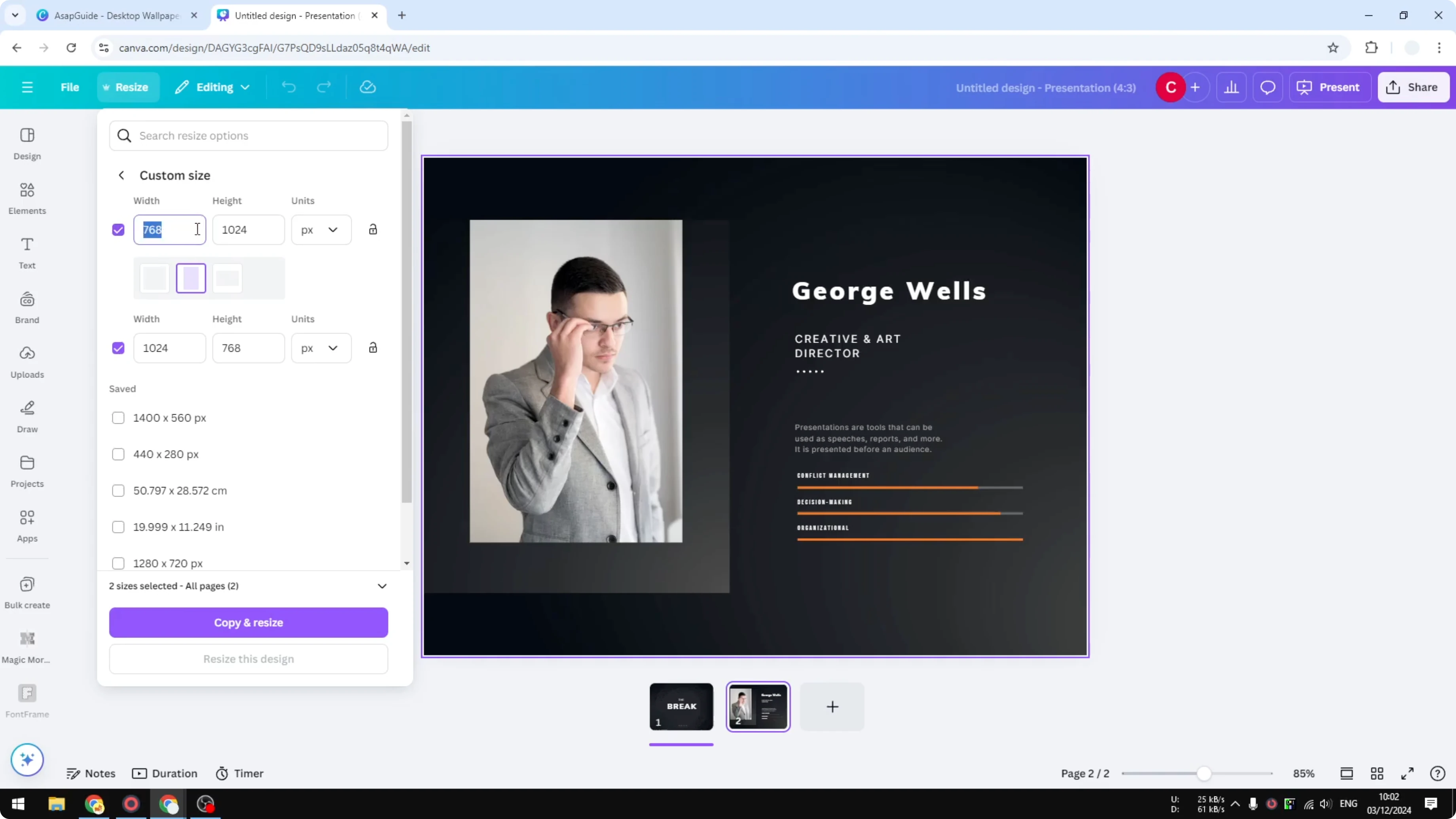
Wait for Canva to rearrange the elements and review the result.
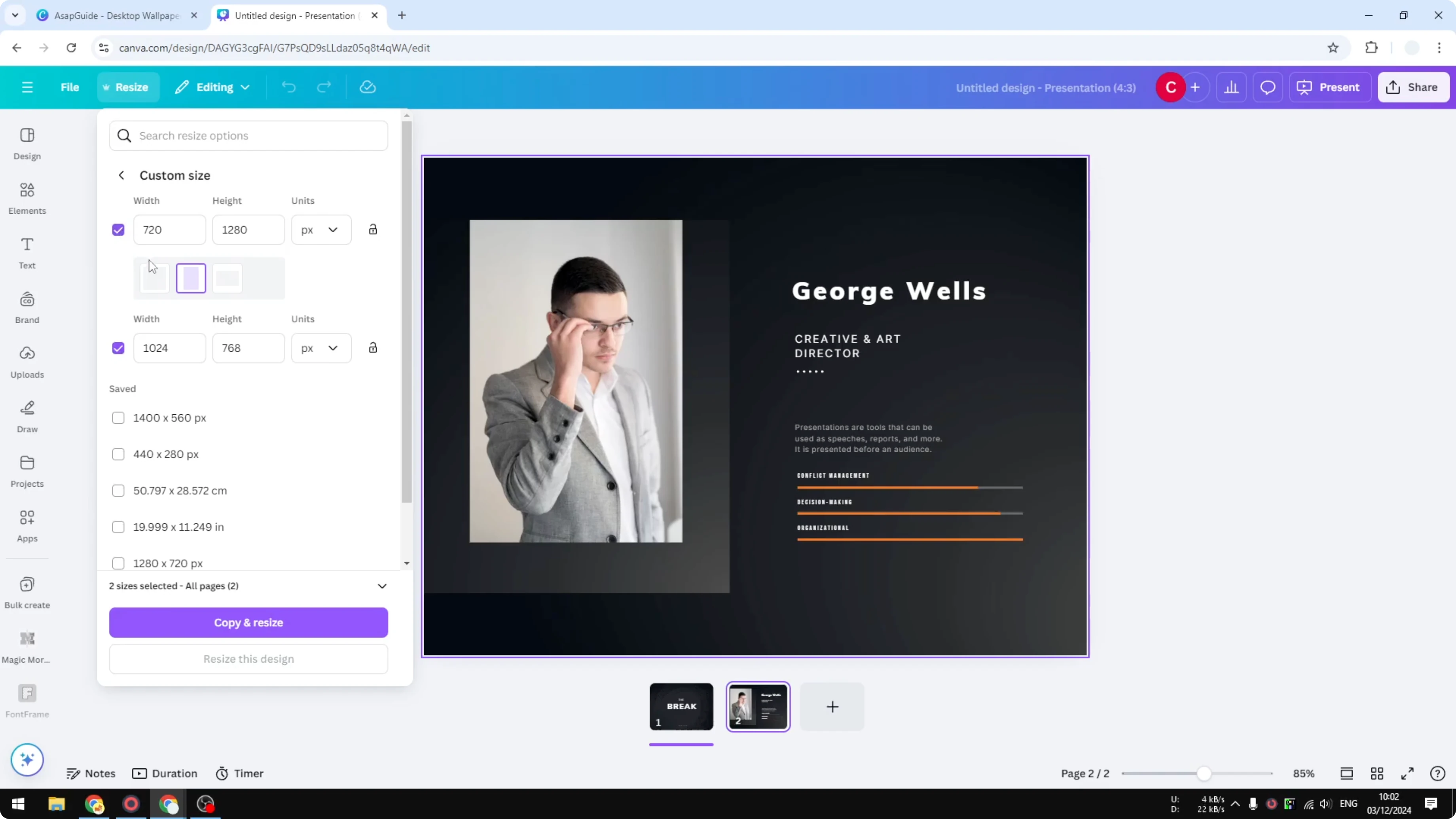
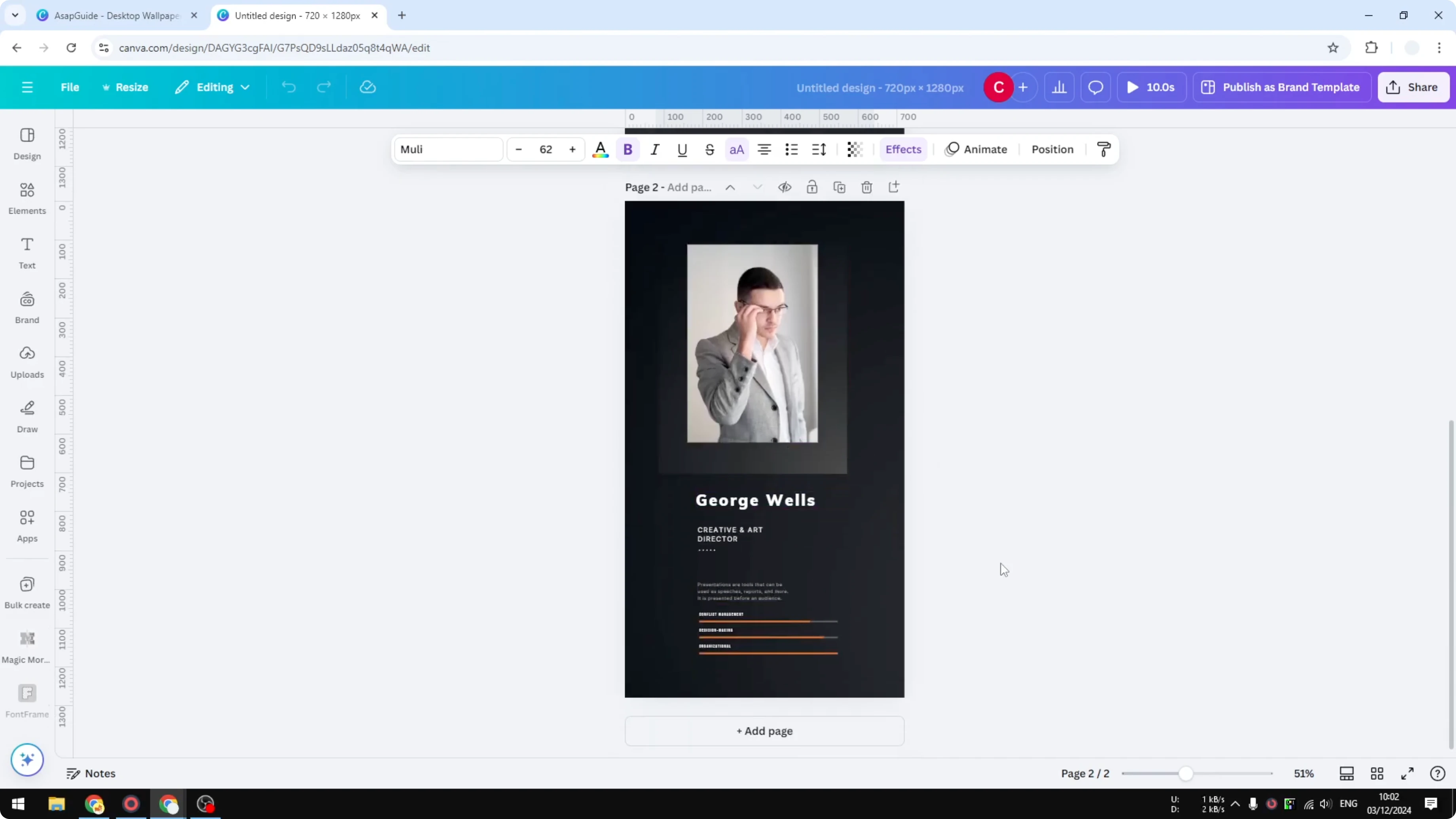
It can look okay right away, but you might need to remove or add elements to make the layout look great in a completely different aspect ratio. For images, you can adjust the photo background to better match the new composition.
After resizing
Scan each slide for cropped text, misaligned groups, or overflowing images. Nudge items into place and increase or decrease font sizes to restore balance. If your slides include motion, you can change the video background to match the new layout.
Final Thoughts
That is how you change the aspect ratio of your Canva presentation slides. 4:3 usually needs only light adjustments, while a portrait 9:16 layout may require more editing. Take a moment to refine each slide so the design still looks great after the switch.
Recent Posts

How to Visualize Yourself as a Pixelized Character with AI?
How to Visualize Yourself as a Pixelized Character with AI?

How to Revive Faded Memories and Enhance Image Clarity with AI?
How to Revive Faded Memories and Enhance Image Clarity with AI?

How to Visualize Yourself as an Animal Crossing Character with AI?
How to Visualize Yourself as an Animal Crossing Character with AI?