How to Change the Color of an Image in Canva
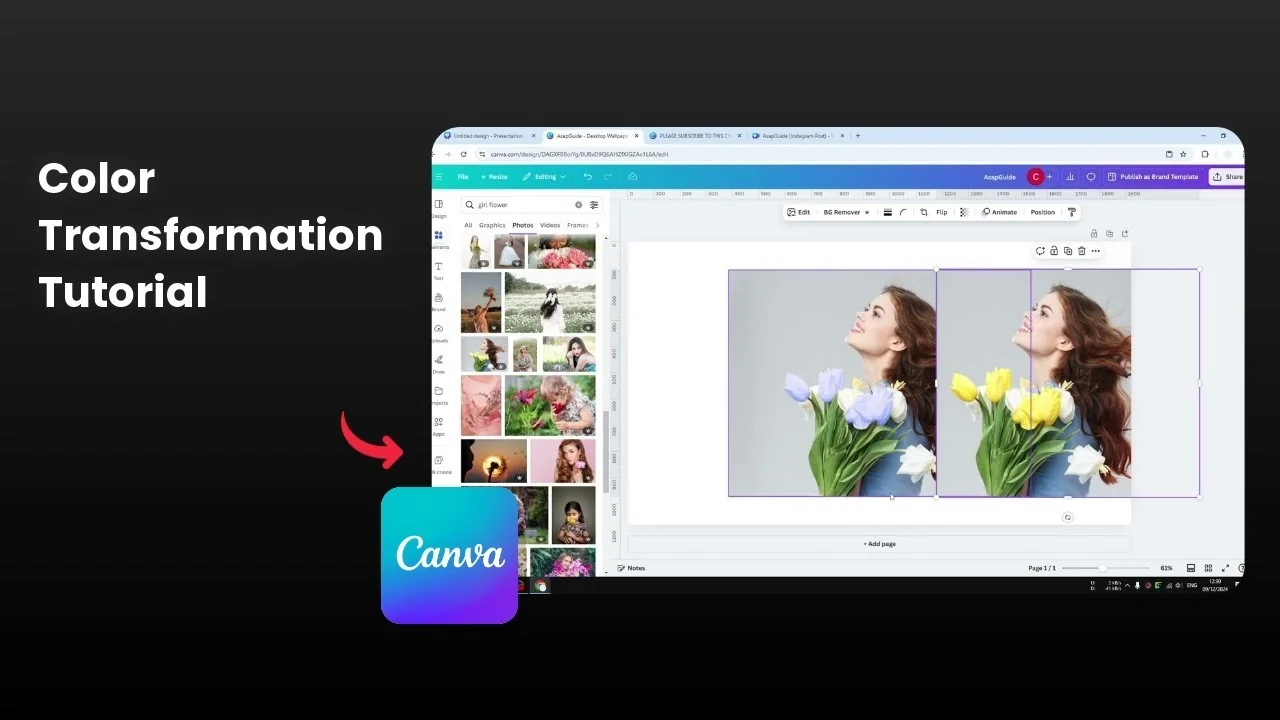
I’m going to show you how to change the color of an object in a photo using Canva. I’ll use a flower as an example and switch it from yellow to something like purple or red. You can follow the same steps for any object.
Quick way to Change the Color of an Image in Canva
Insert your photo into your Canva document. Click Edit, then open Adjust.

Canva often detects prominent colors from the picture. Select the color you want to target, for example Yellow, and move the Hue slider to shift it.
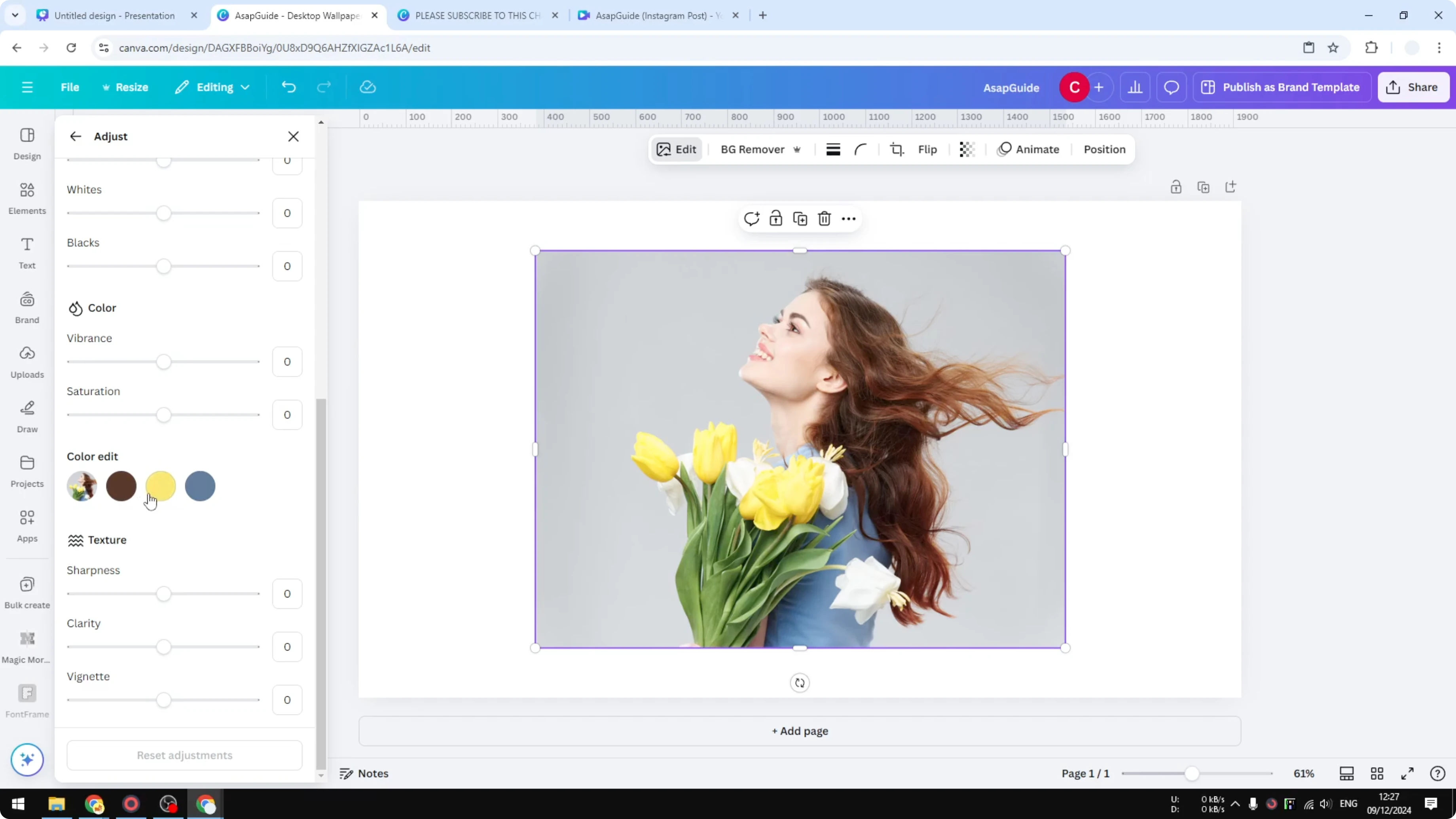
You’ll see the color change right away, and it can look great. There is a caveat though, because other elements that share similar tones can shift too. On a flower photo, the leaves that were green may start changing when you push Hue on yellow.
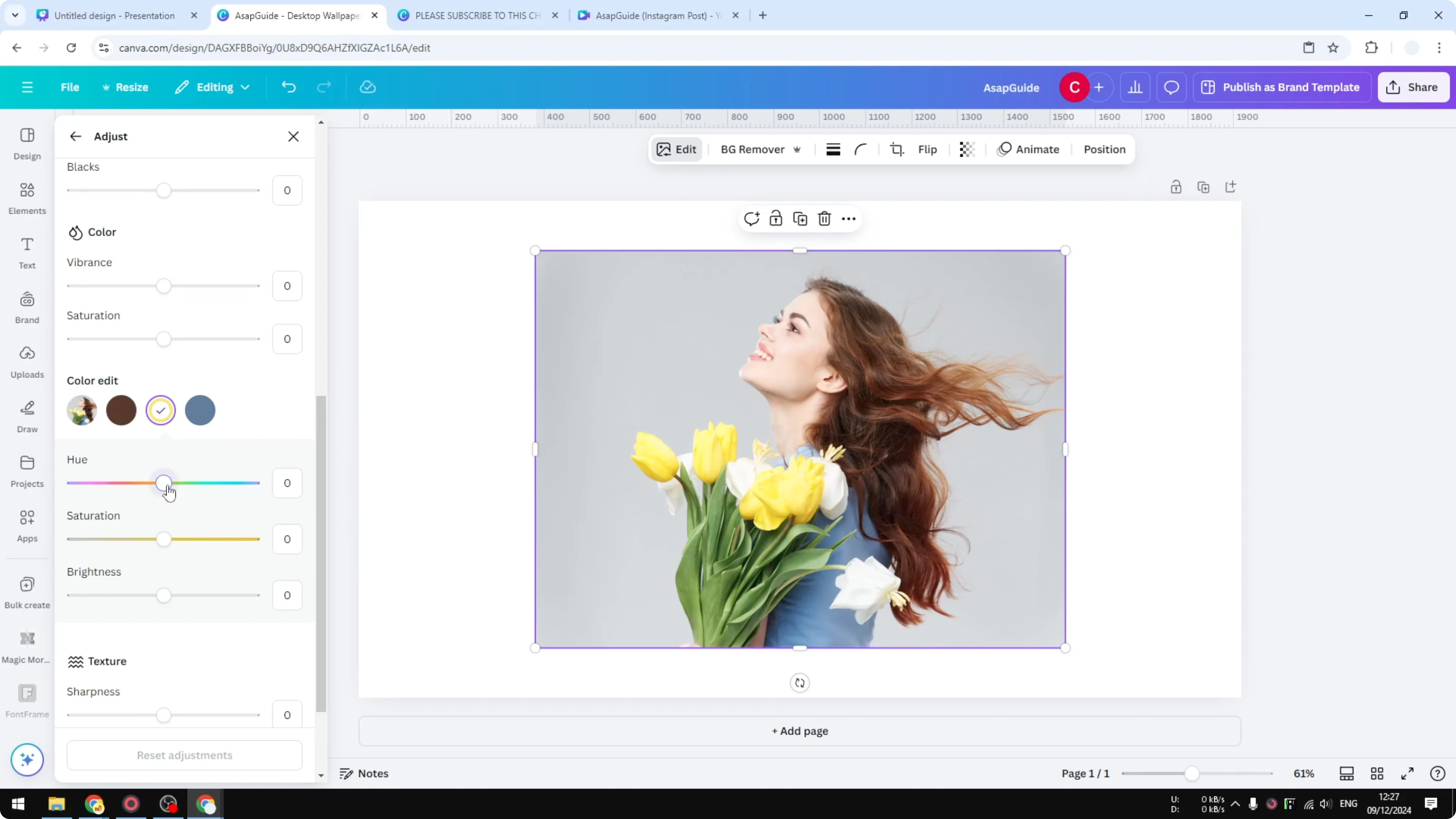
This quick method is very easy and works in many cases. If you want to be very specific, use the isolation method below.
Isolate an object to Change the Color of an Image in Canva
Prepare the duplicate
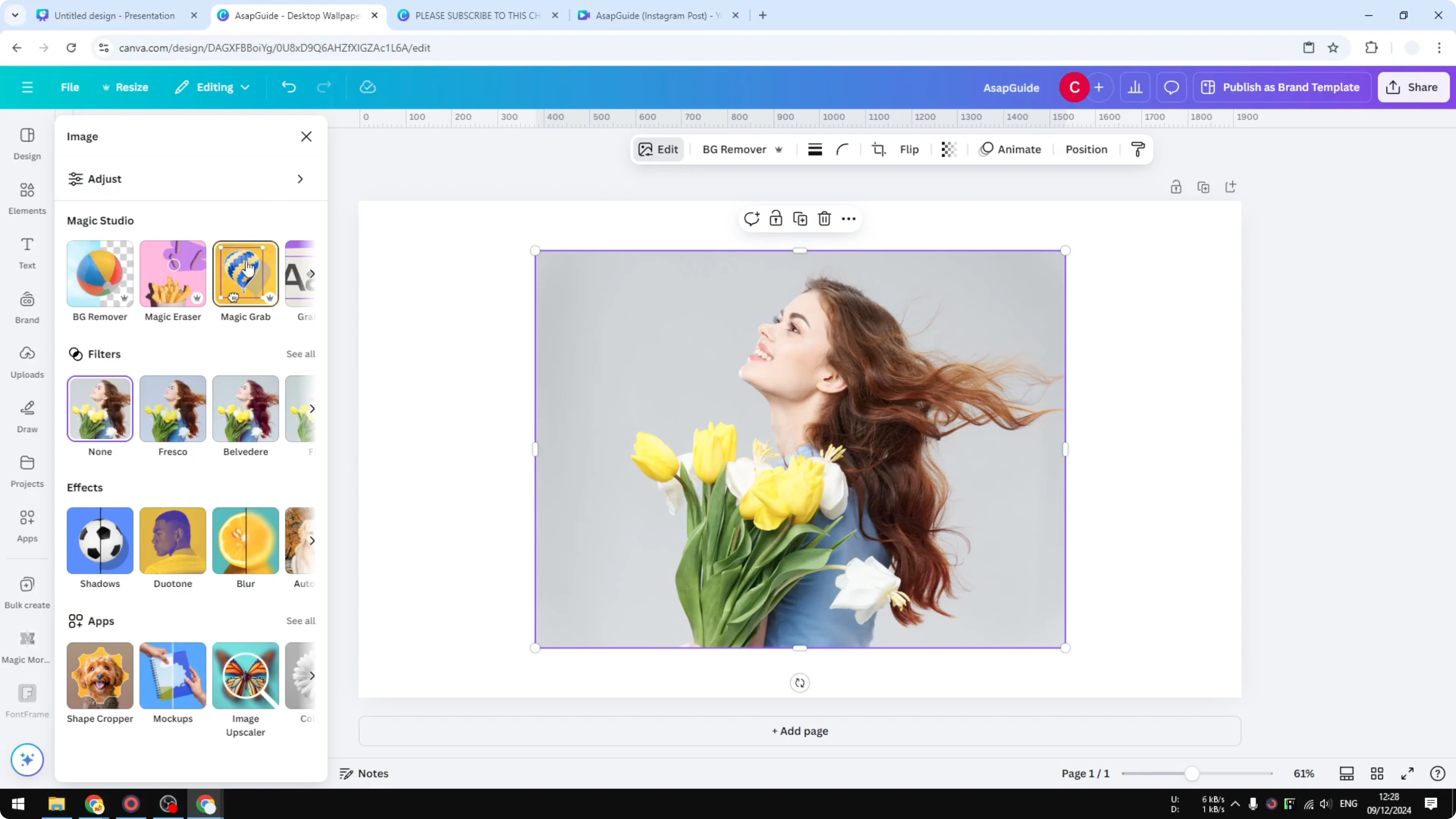
Create a duplicate of your photo and place the duplicate on top of the original. With the top copy selected, click Edit and choose Magic Grab.
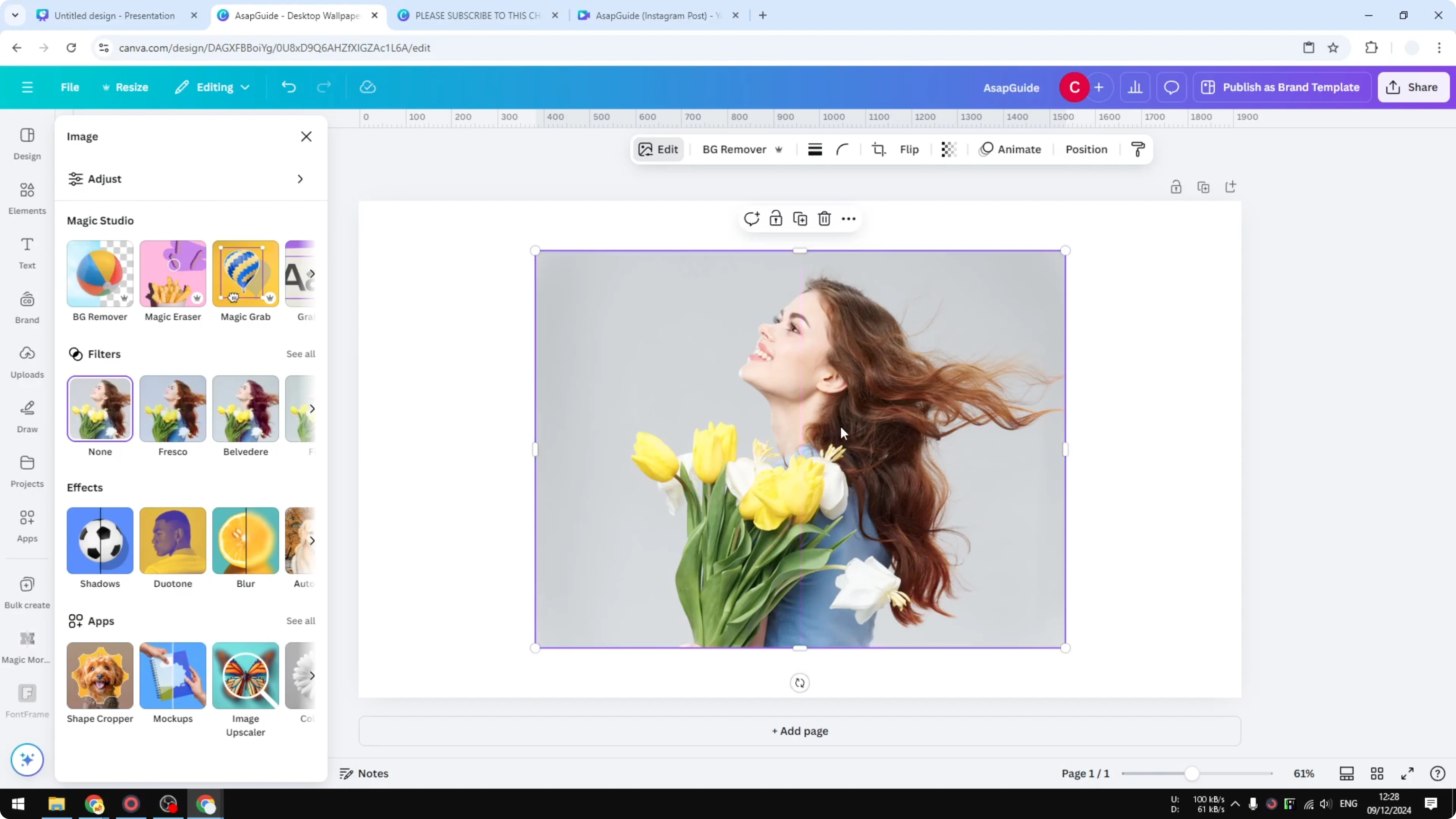
This setup makes the result a lot better by letting you edit just the object you pick.
Select the object
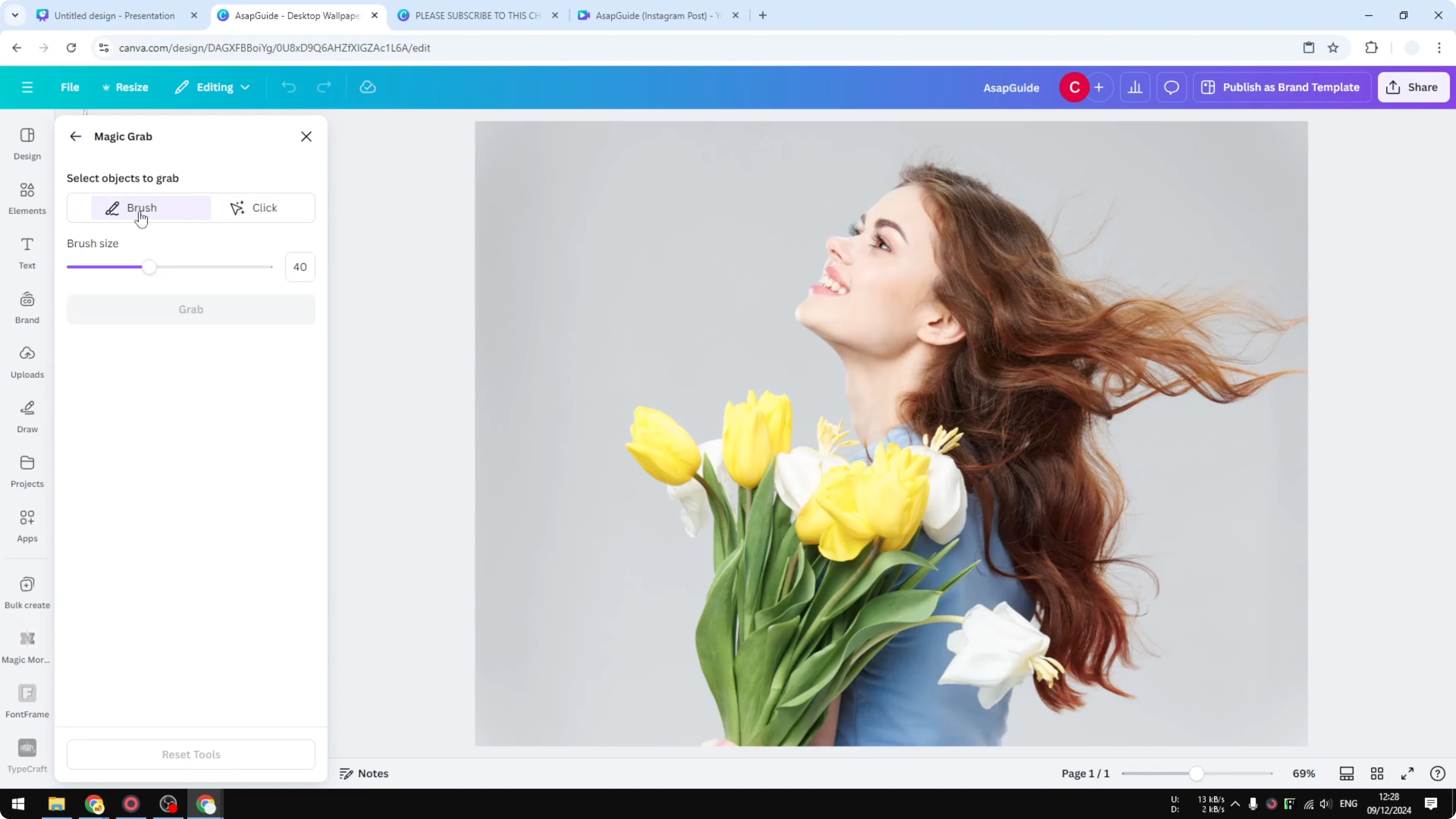
You have two ways to isolate the object. Use the Brush method to manually paint over the object, or try the Click method to let the tool find it automatically.
In my example it didn’t isolate the yellow flowers automatically, so I used the Brush to select the yellow flowers. Click Grab to confirm the selection.
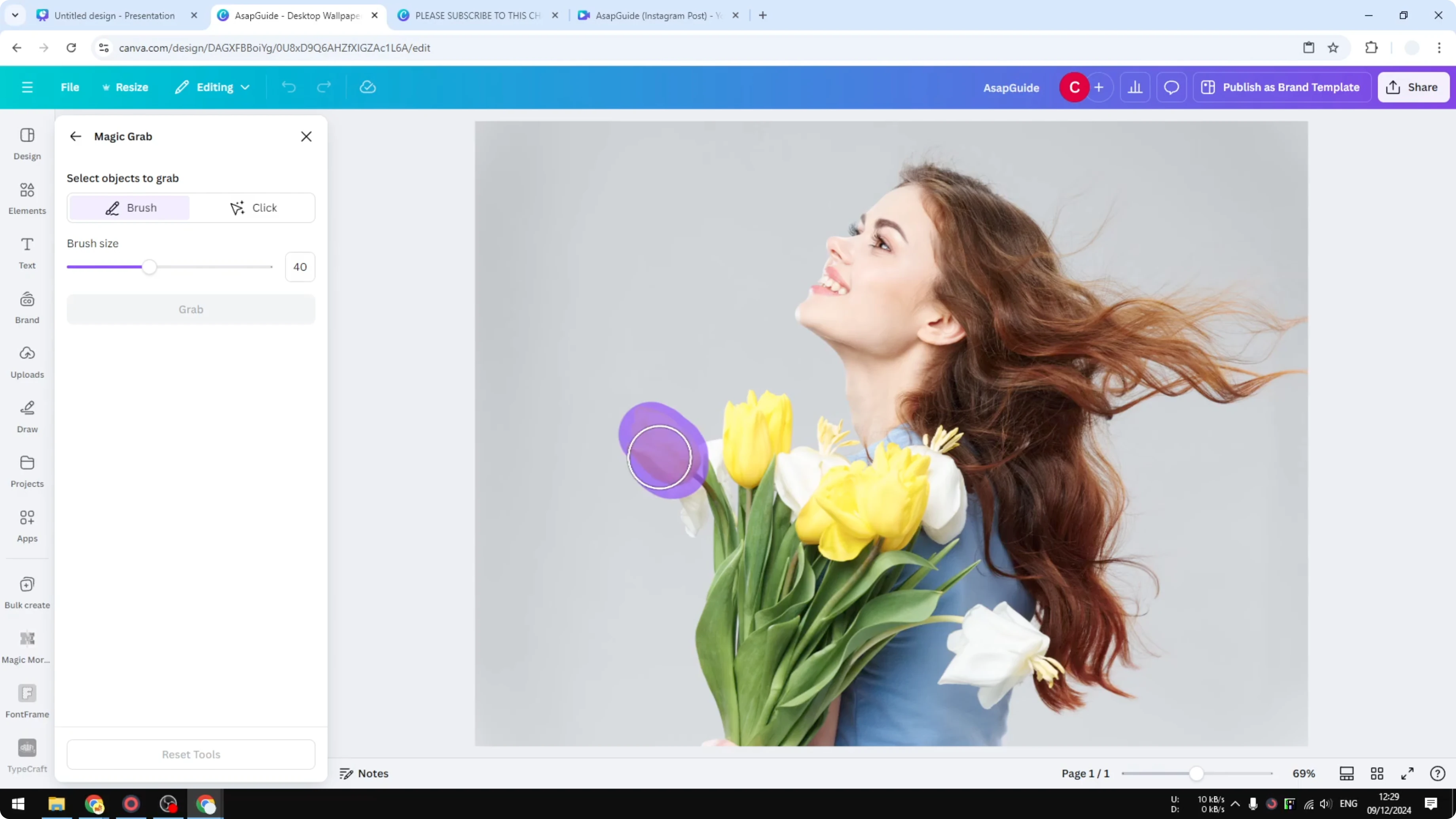
You don’t have to be perfect. The tool understands what’s happening in the picture and corrects small mistakes in your brush strokes.
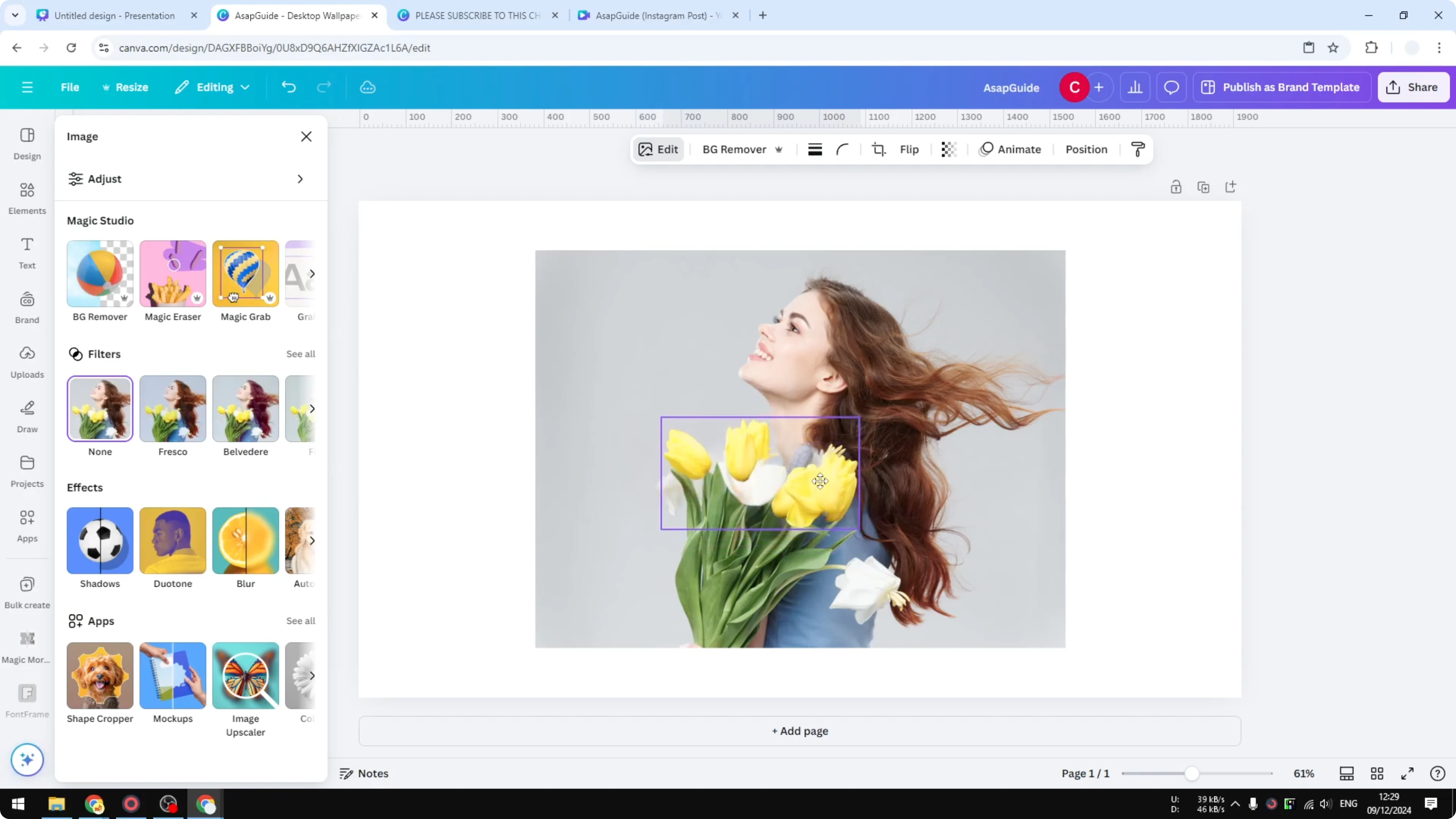
After that, the selected area is isolated from the actual picture. I remove the extra picture so I keep the isolated object and the background.
Edit the isolated color
Select the isolated object layer. Click Edit and open Adjust.
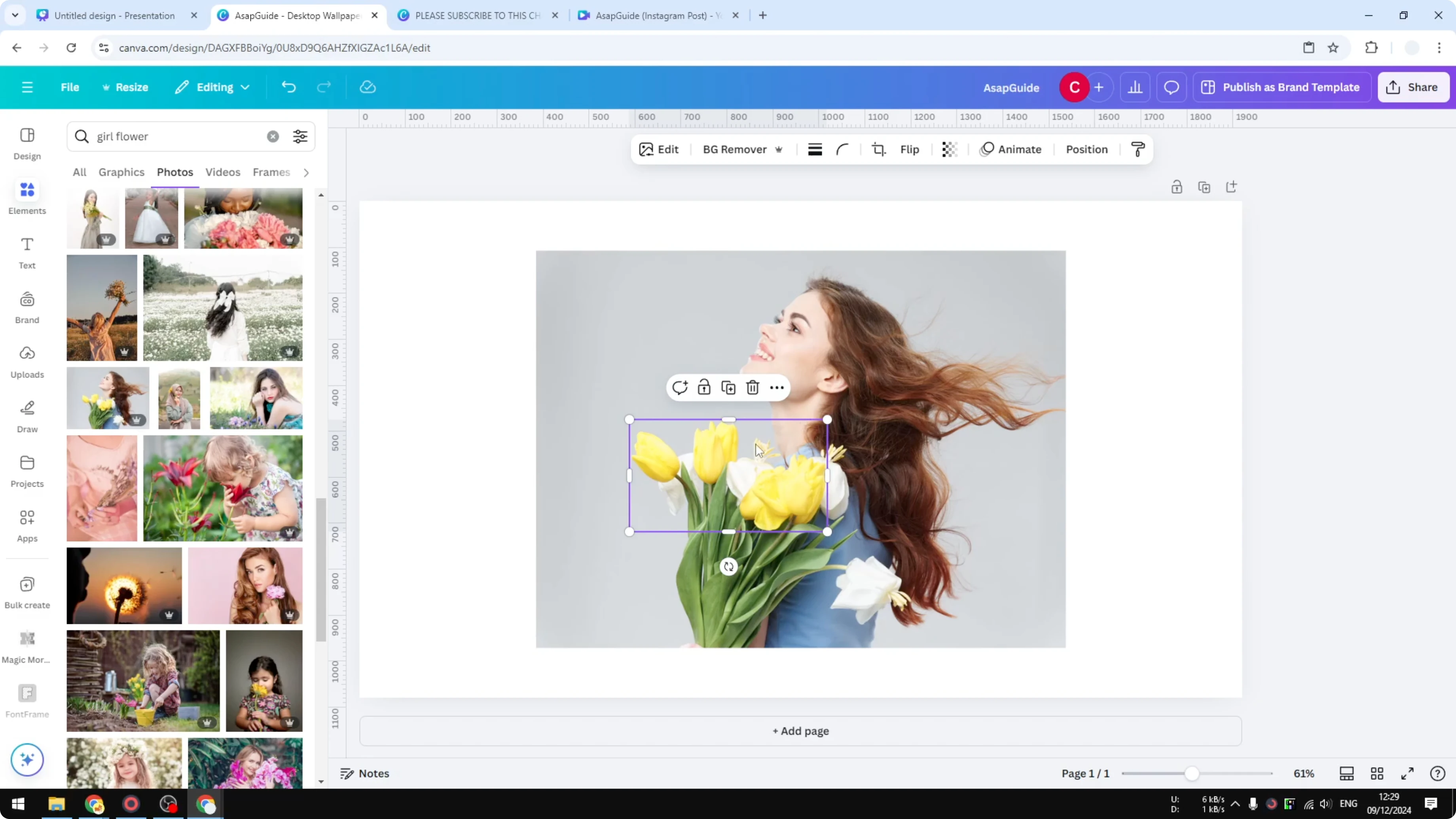
Move the Hue slider to shift the flower’s color, or pick a detected color and adjust it. The change stays on the isolated object and does not affect the rest of the image.
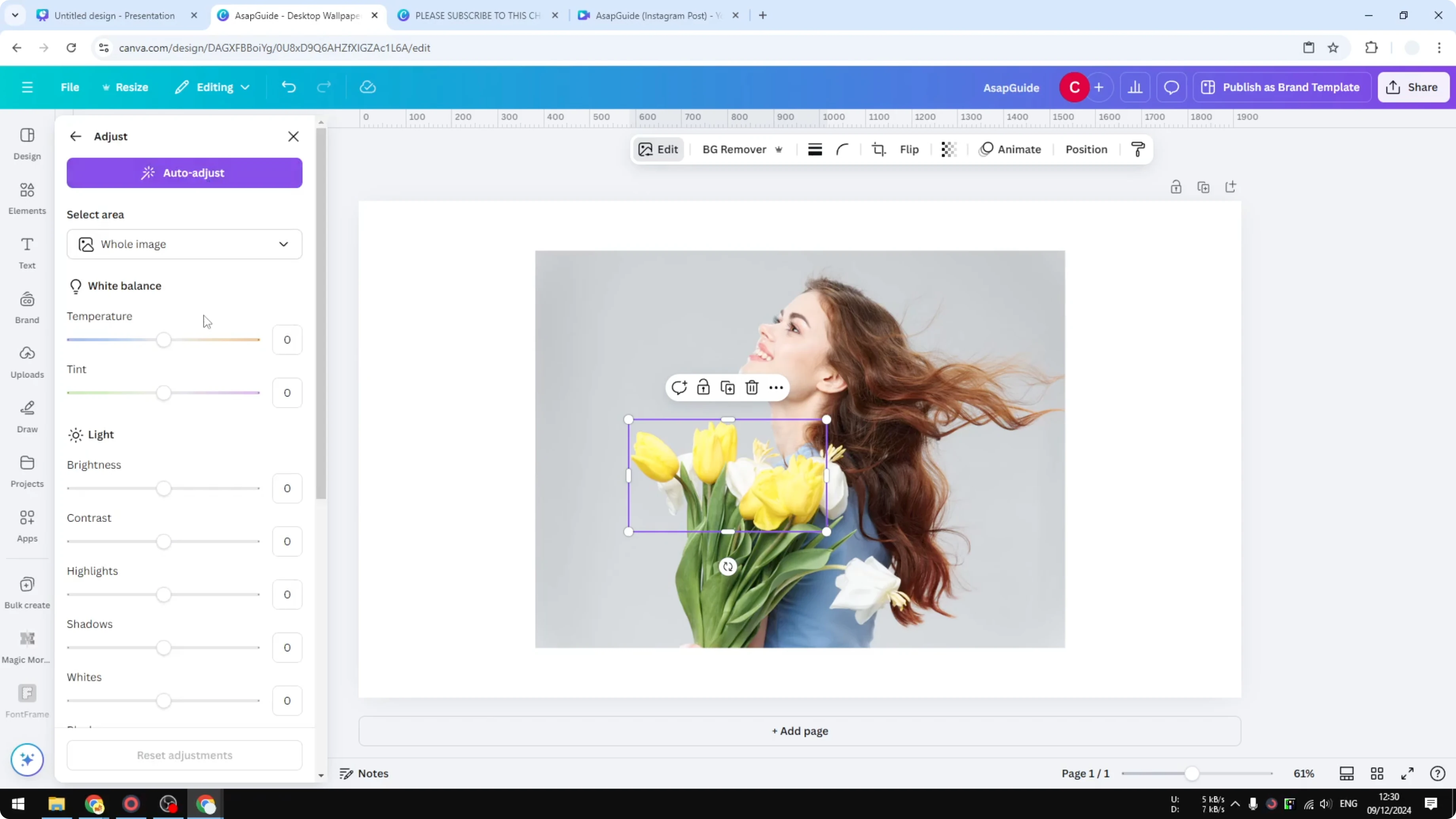
Increase Saturation to make the color pop. Boost Sharpness and Clarity a bit if you want more definition. Now the flower looks completely different while the background stays accurate.
Final thoughts on Change the Color of an Image in Canva
The Adjust panel is the fastest way to shift colors, but it can affect nearby tones. For precise edits, isolate the object with Magic Grab and then tune Hue, Saturation, and detail. This keeps the rest of the image intact and gives you a clean, targeted color change.
Recent Posts

How to Visualize Yourself as a Pixelized Character with AI?
How to Visualize Yourself as a Pixelized Character with AI?

How to Revive Faded Memories and Enhance Image Clarity with AI?
How to Revive Faded Memories and Enhance Image Clarity with AI?

How to Visualize Yourself as an Animal Crossing Character with AI?
How to Visualize Yourself as an Animal Crossing Character with AI?