How to Resize Design in Canva
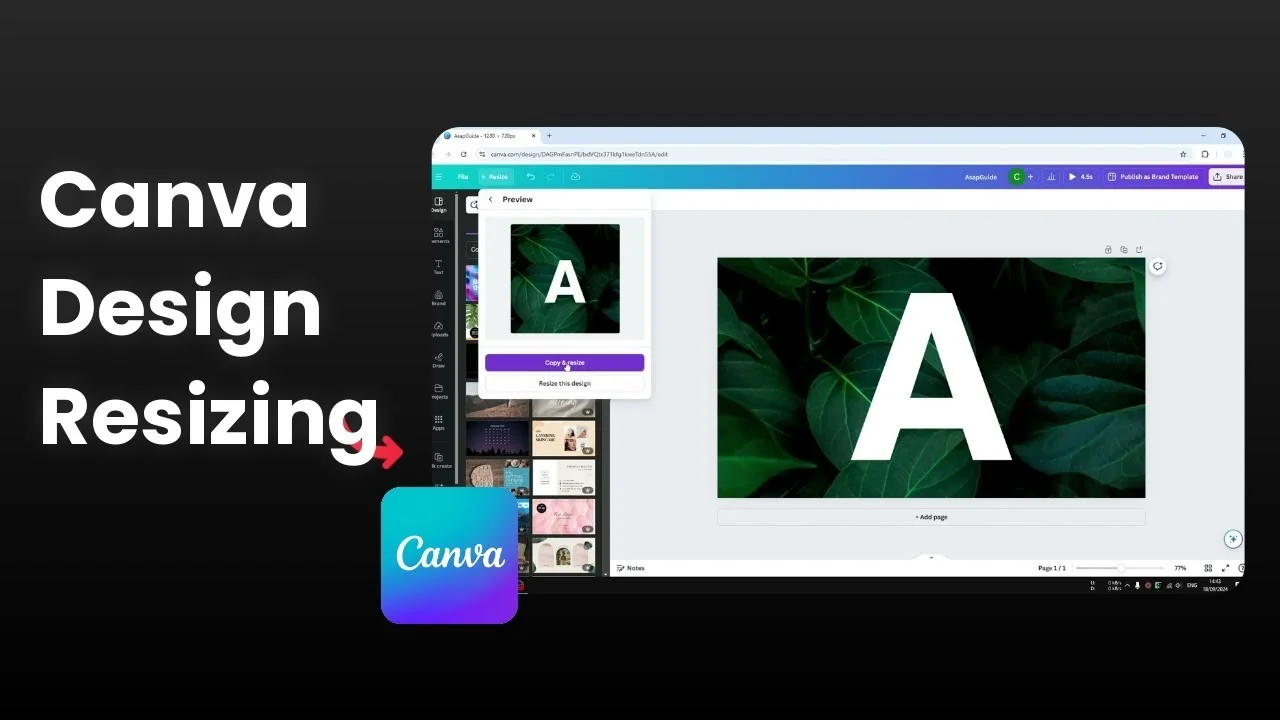
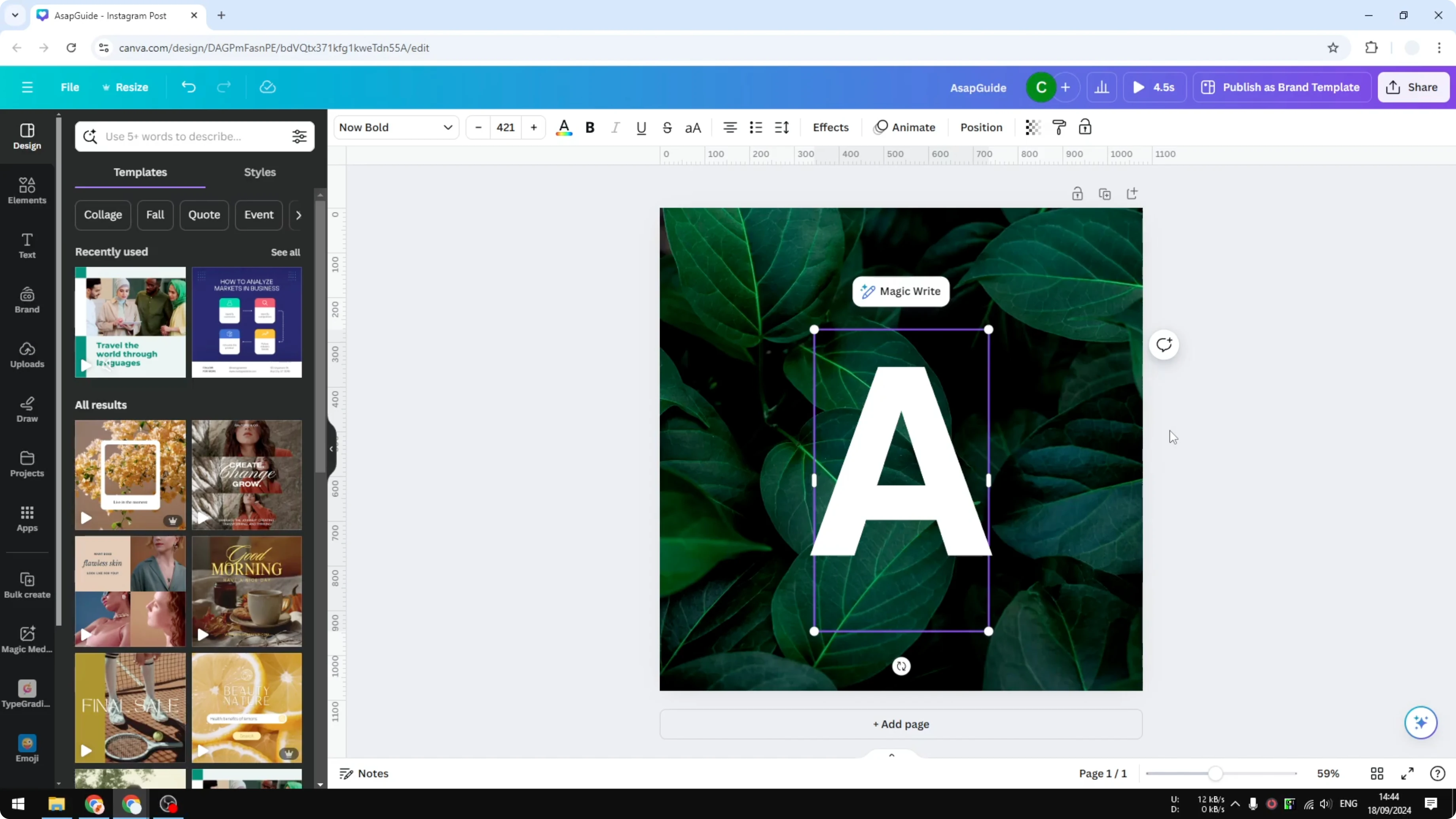
I show how to resize a Canva design to a different dimension or aspect ratio. I started with a document that has a 16 by 9 aspect ratio, a horizontal format. The background image is closer to a square, so parts are not visible because the document dimension does not fit the image.
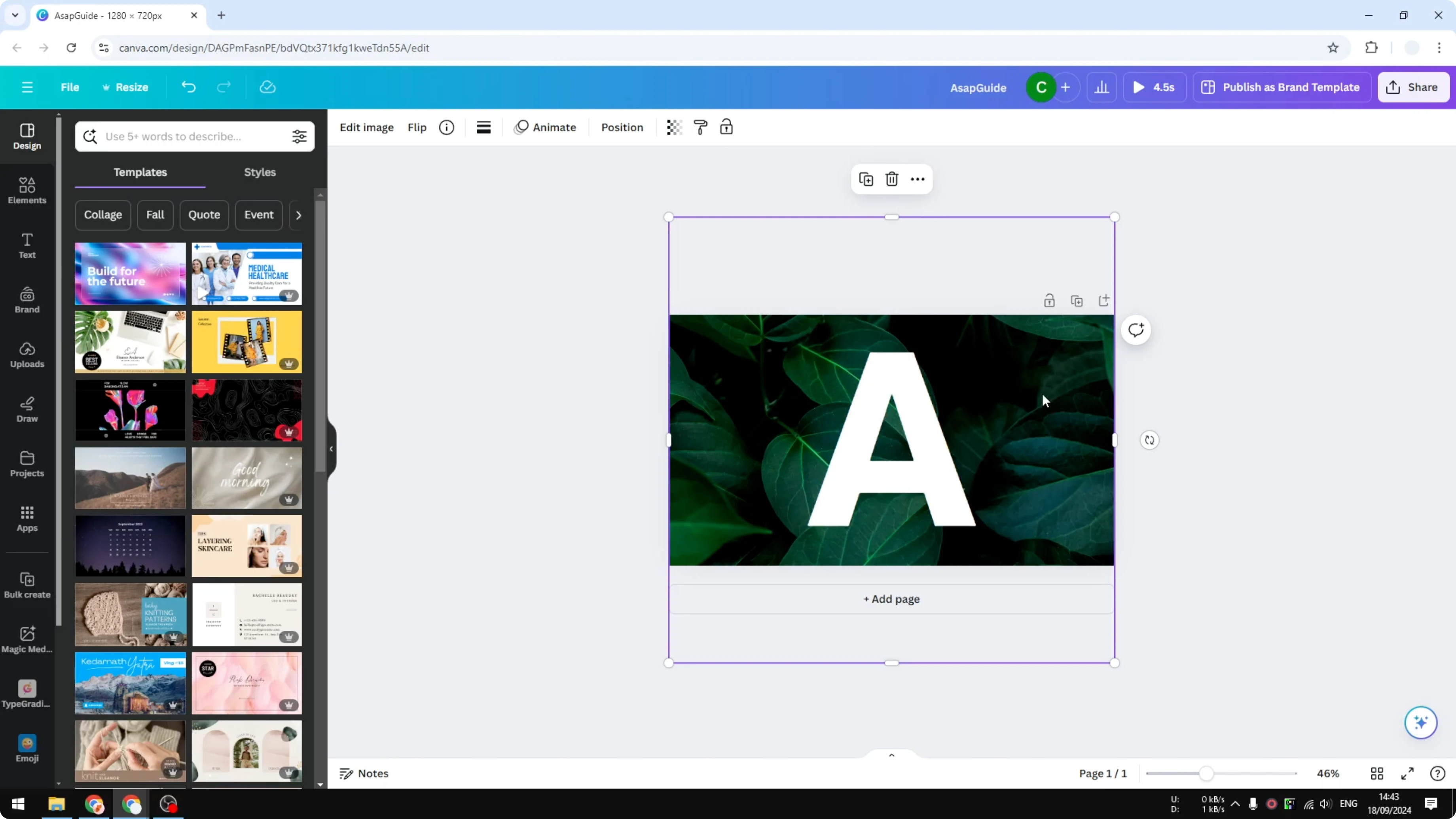
I want to maximize the canvas for that image. It helps to confirm your current size before changing it. You can quickly check your current design dimensions.
Resize Design in Canva: presets and custom
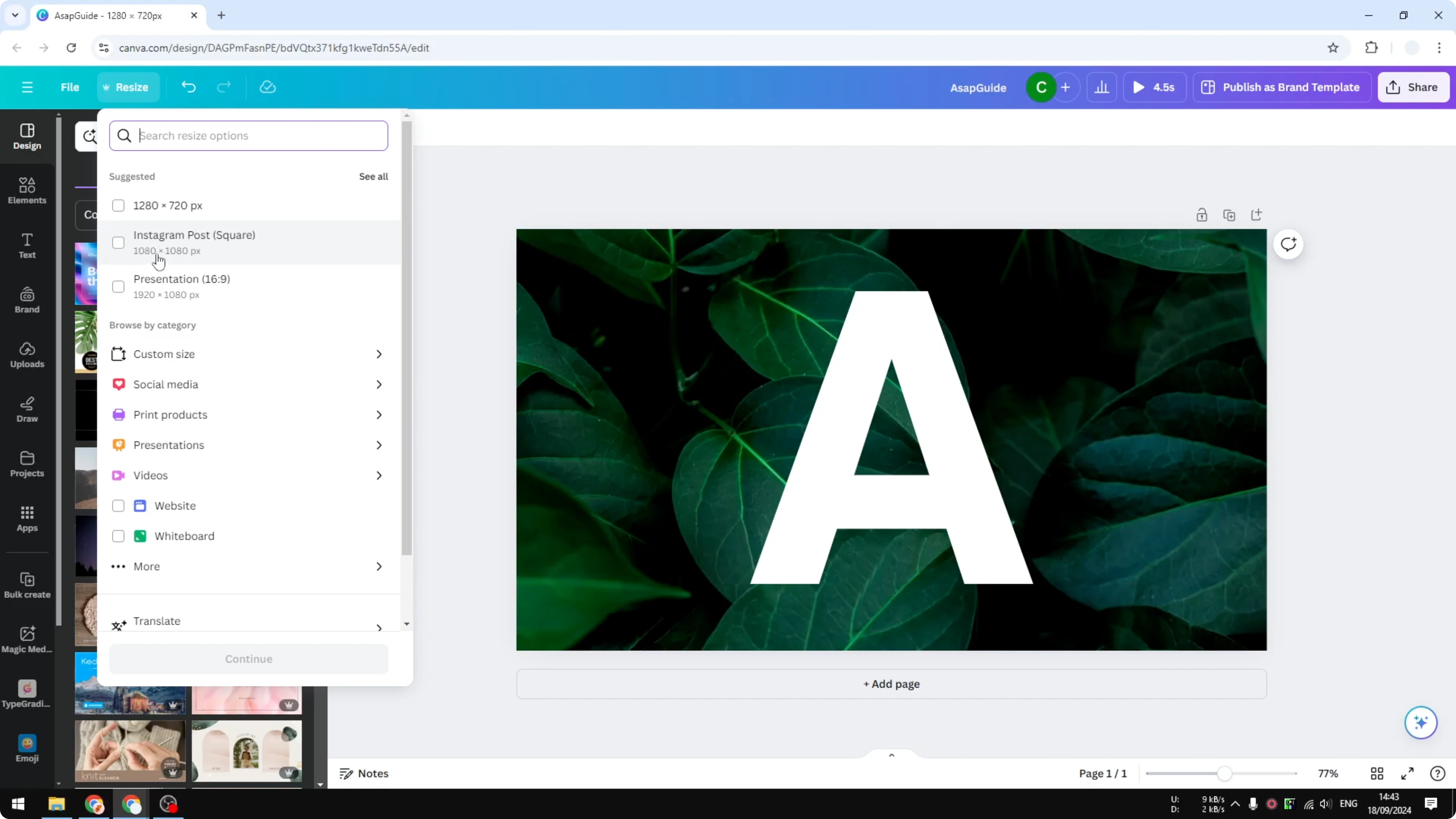
I change the canvas through the Resize menu. You will see presets you can select instantly, or you can enter a custom size. I picked Instagram Post at 1080 by 1080 pixels and clicked Continue.
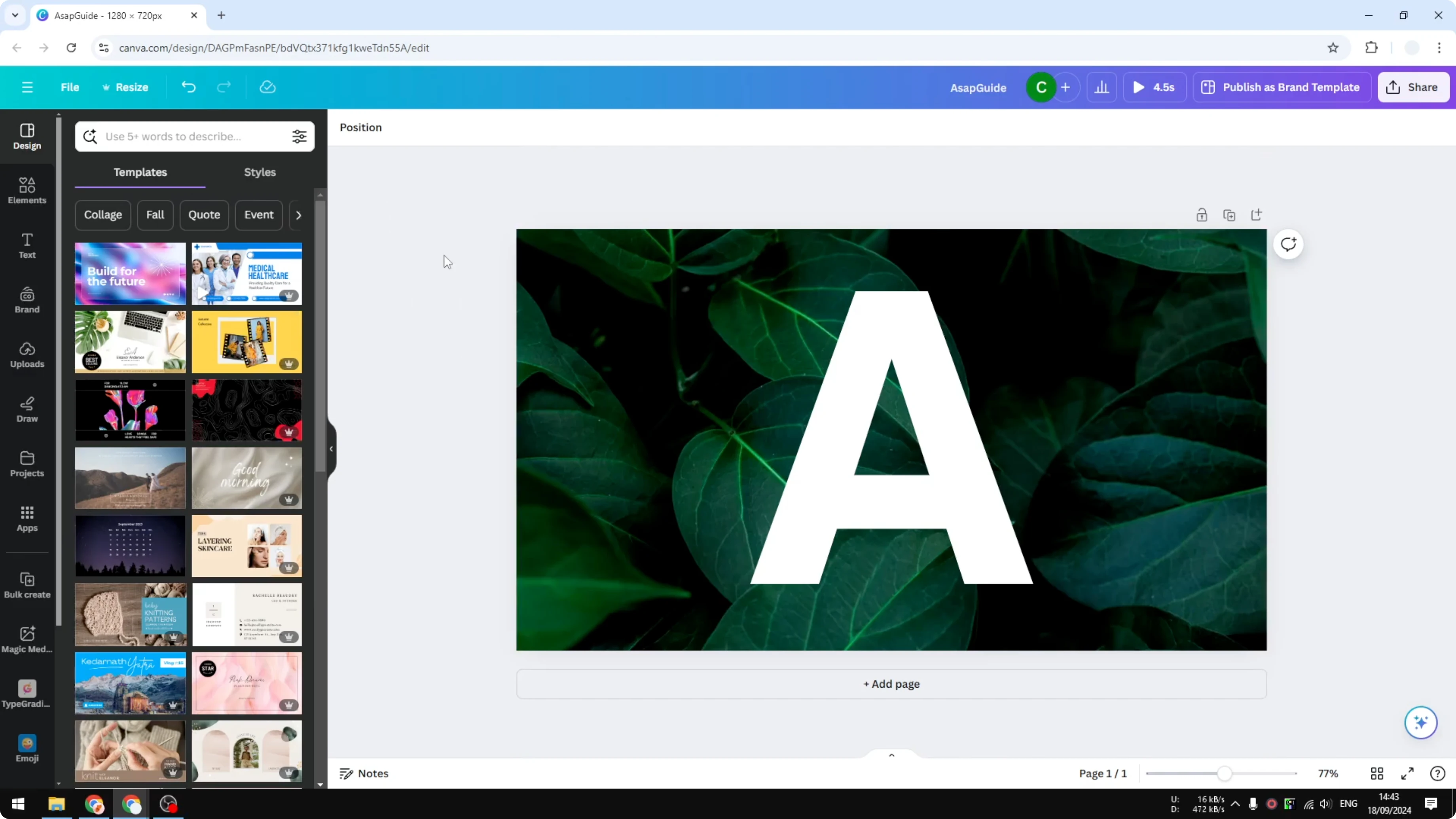
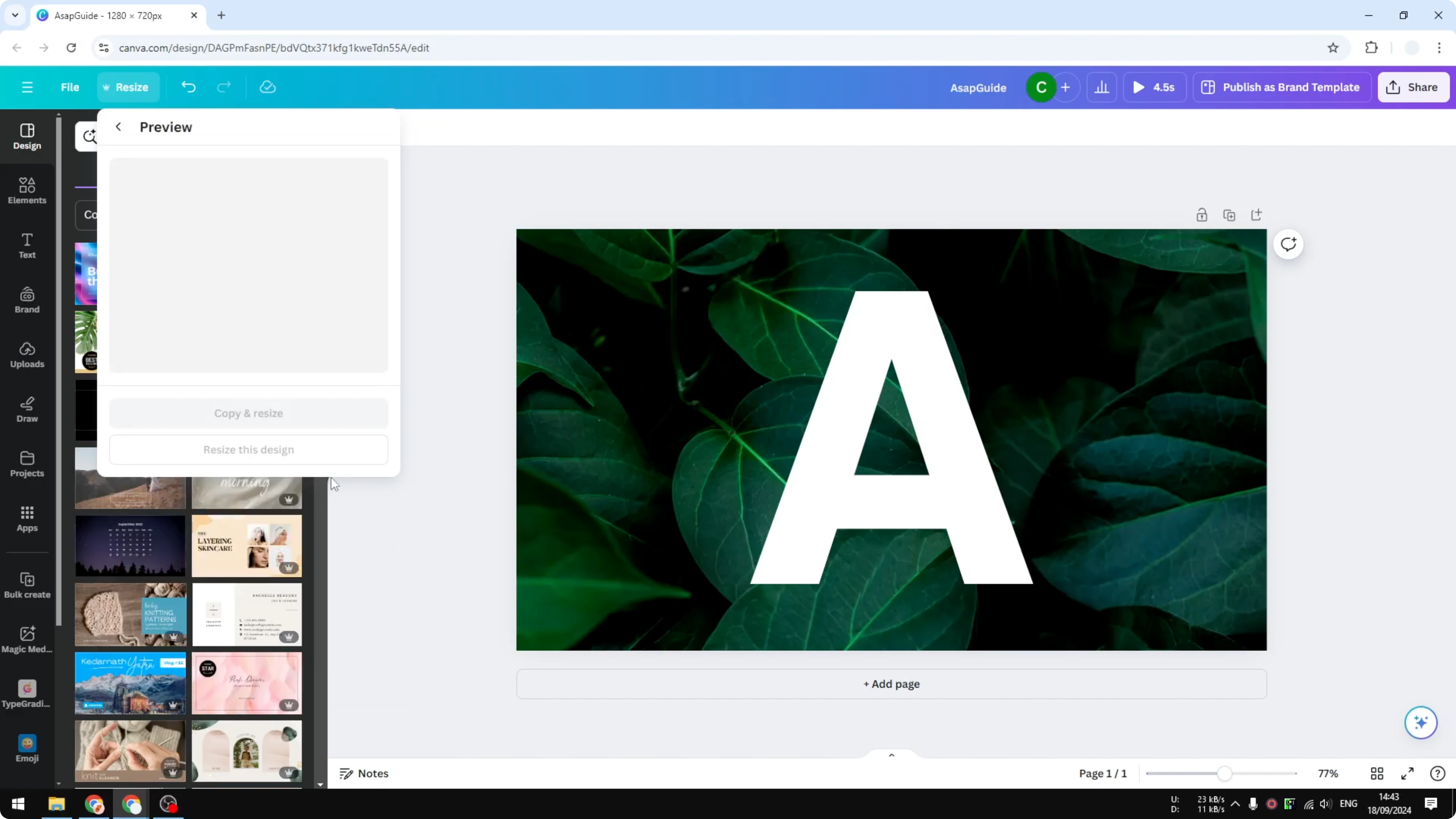
You will see a preview of what happens to your design when the aspect ratio changes. Two options appear on screen. One creates a new document, and the other updates the current file.
Resize Design in Canva: copy or resize
Choose Copy and Resize to create a brand new document with the new dimension. Choose Resize to replace the exact document you are working on. I recommend Copy and Resize for complex layouts because you may need to readjust elements.
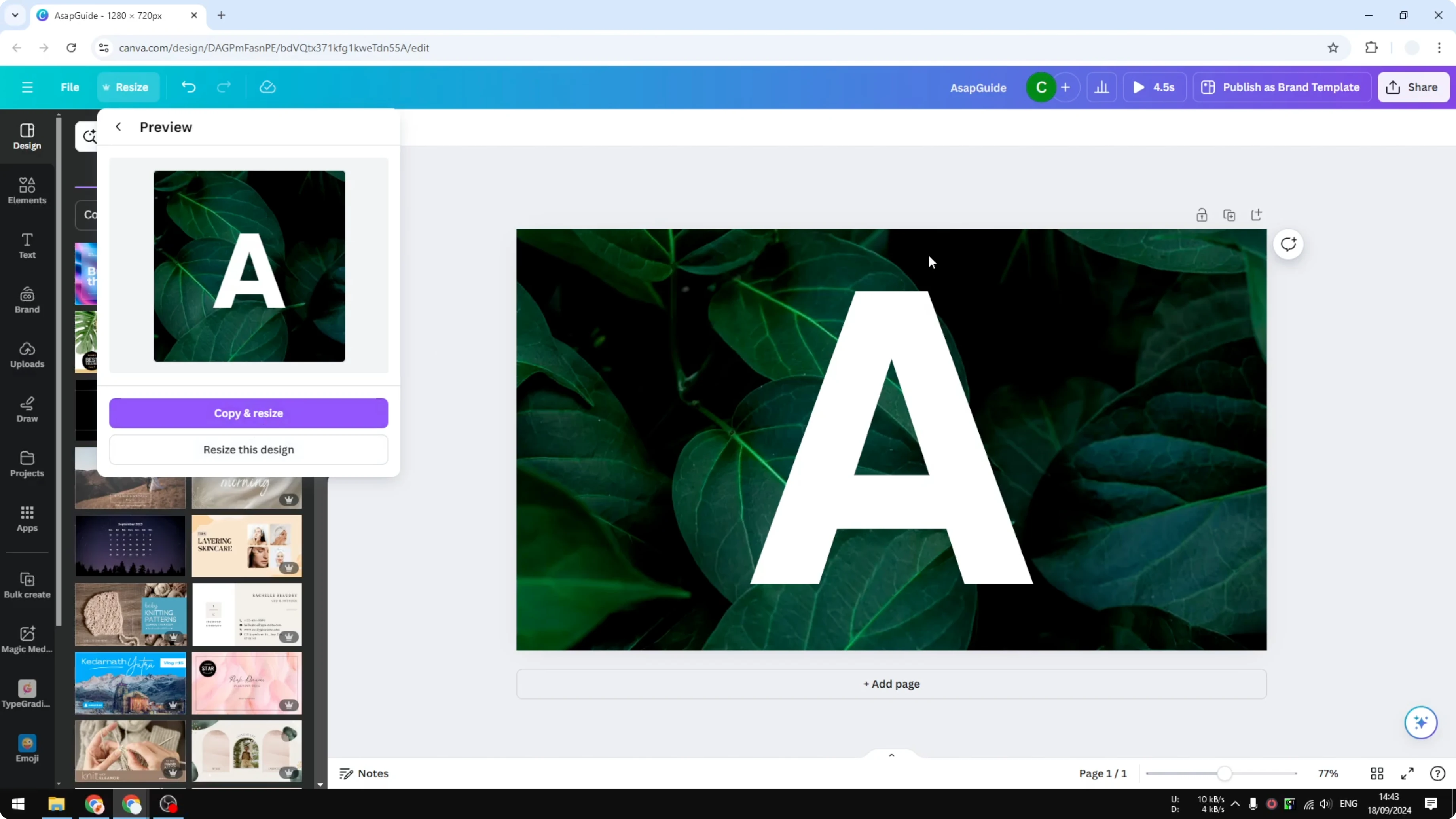
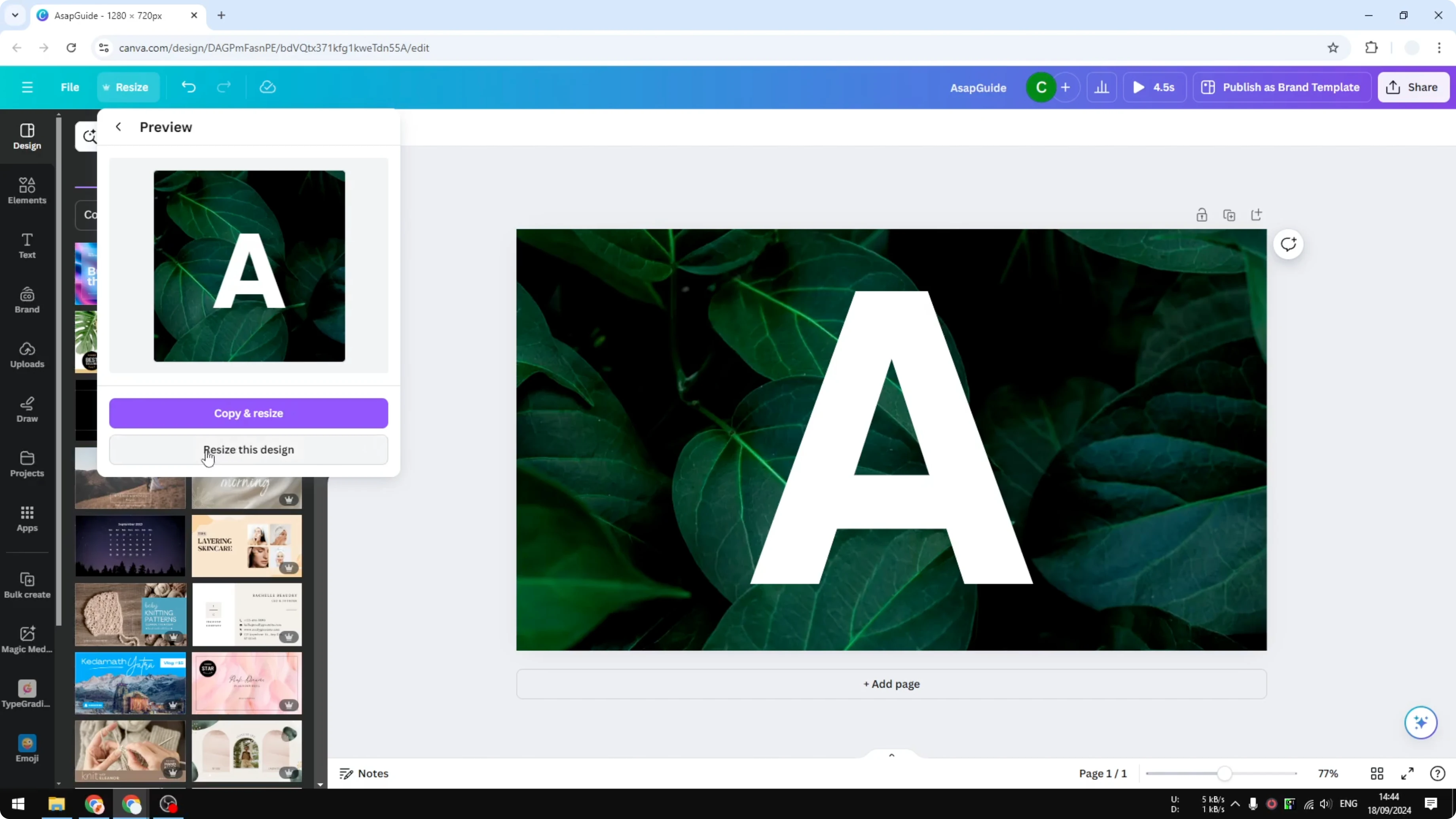
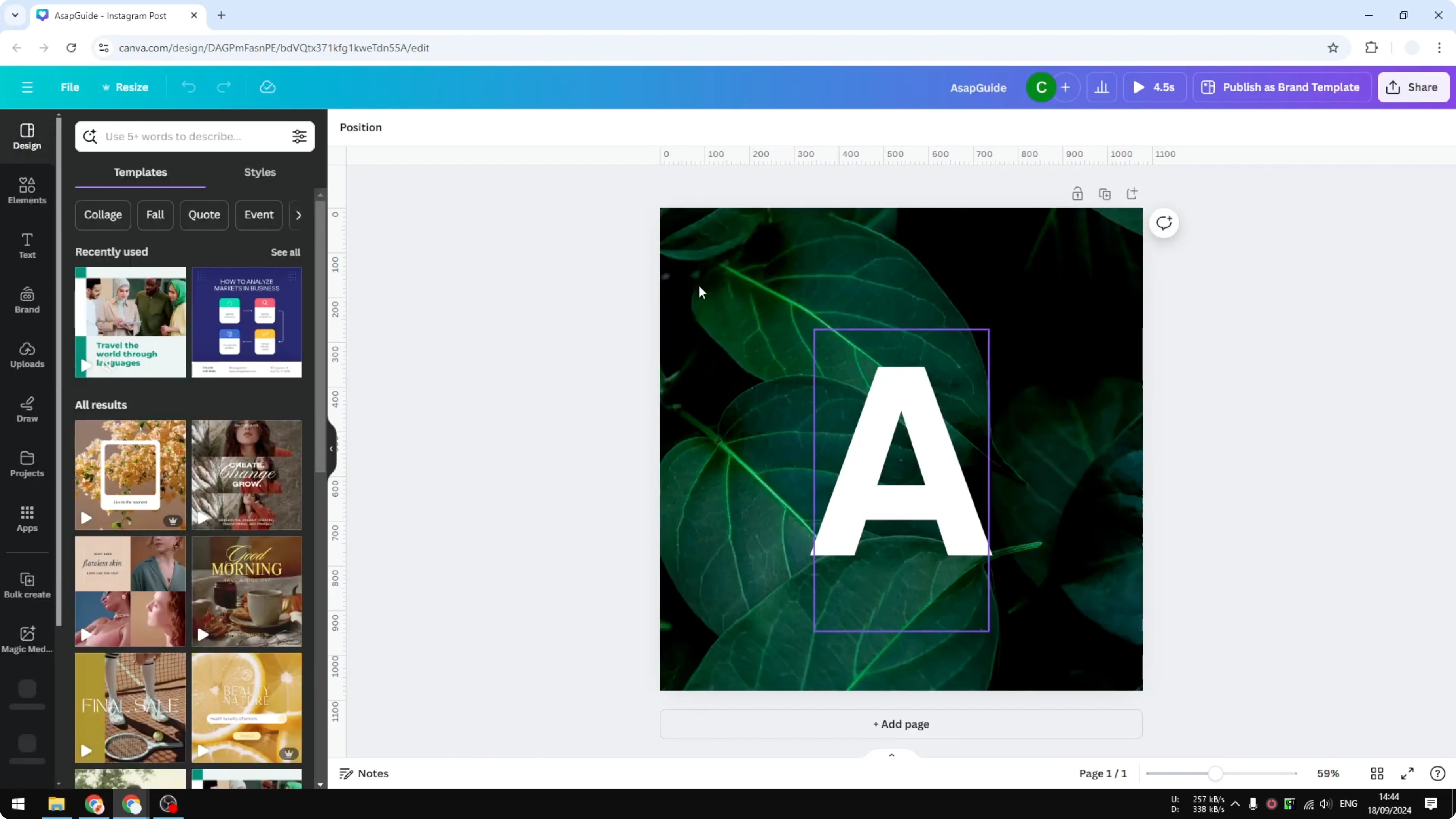
My design was simple with a single element, so I selected Resize to update the current file. It finished in a moment and opened the square canvas. Now I have a bigger area and a larger background that I can adjust to fill the square.
If you want to move content between files after resizing, you can also copy a Canva page to another design. This helps when you keep both versions and send pages across. It keeps your original safe.
Resize Design in Canva: preview and adjust
A preview helps you catch issues before applying changes. With many elements, you may need to manually adjust spacing or alignment after resizing. Expect some tweaks on complex pages.
If text density shifts in the new size, it is useful to check word count in your design. That keeps captions, headings, and paragraphs balanced. It also helps avoid overflow.
Result
After switching to a square format, the background fits better. I resized the image to fill the frame. The design looks cleaner and more consistent.
Final thoughts
Use the Resize menu to switch aspect ratios with presets or a custom size. Copy and Resize keeps your original intact, which is safer for multi element layouts. For quick changes on simple designs, Resize works well.
Recent Posts
How to Visualize Yourself as a Pixelized Character with AI?
How to Visualize Yourself as a Pixelized Character with AI?
How to Revive Faded Memories and Enhance Image Clarity with AI?
How to Revive Faded Memories and Enhance Image Clarity with AI?
How to Visualize Yourself as an Animal Crossing Character with AI?
How to Visualize Yourself as an Animal Crossing Character with AI?