How To Remove Video Backgrounds In Canva
Removing the background of a video in Canva is possible, and yes, it is video not photo. This is a new feature available on Canva Pro that allows you to remove a background from a video. I have a simple gradient background, and I am going to insert a video on top of it.
This feature is available regardless of the mode you are using, from an Instagram post to a desktop presentation or another format. It does not matter, you will still have access to this feature to remove the background of a video.
Read More: Can You Remove Text From A Video In Canva
Remove Video Backgrounds In Canva: setup
Search for a clip. I searched for woman walking and went to the Videos section.
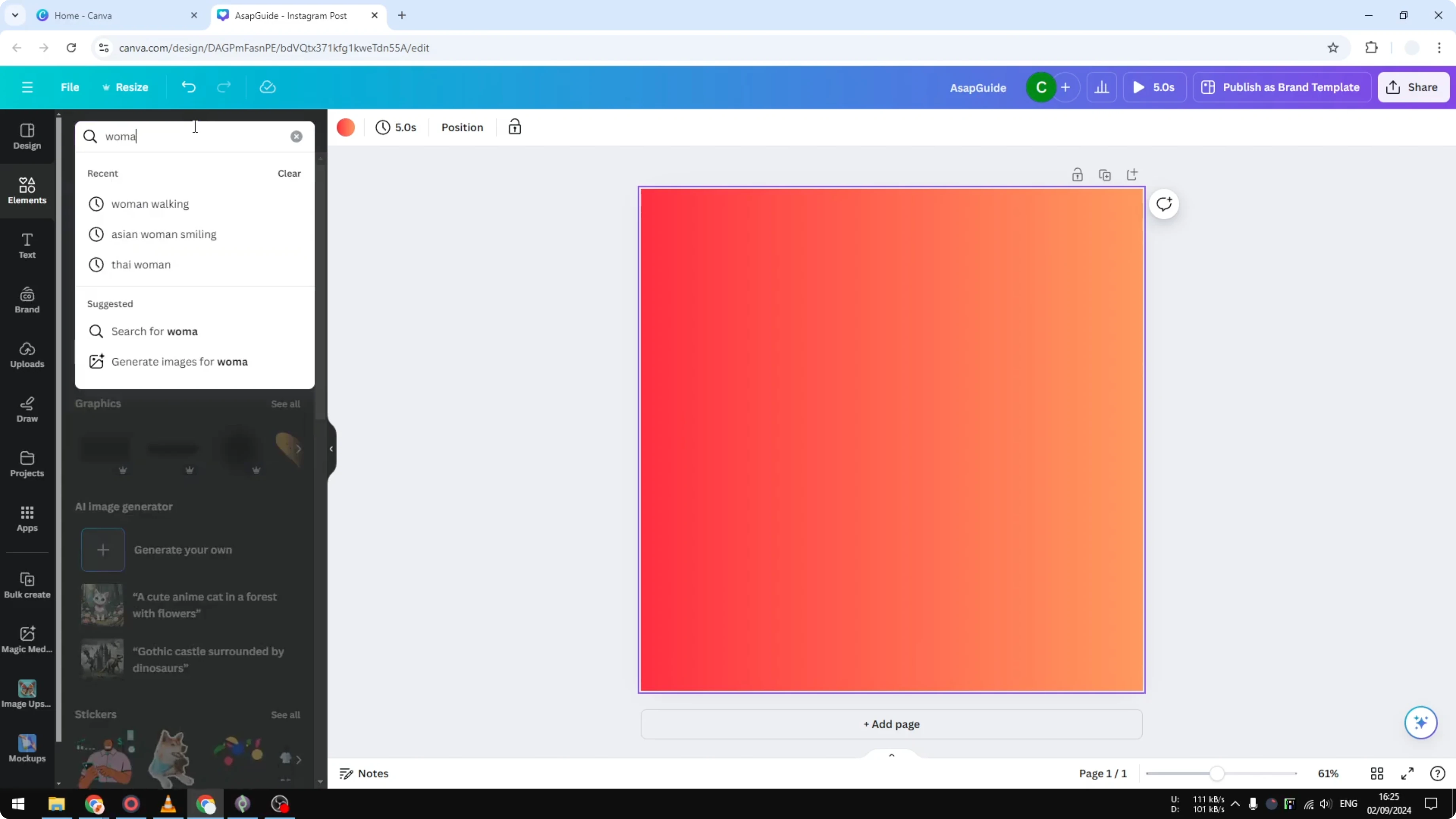
Select a video and place it in the middle of the document.
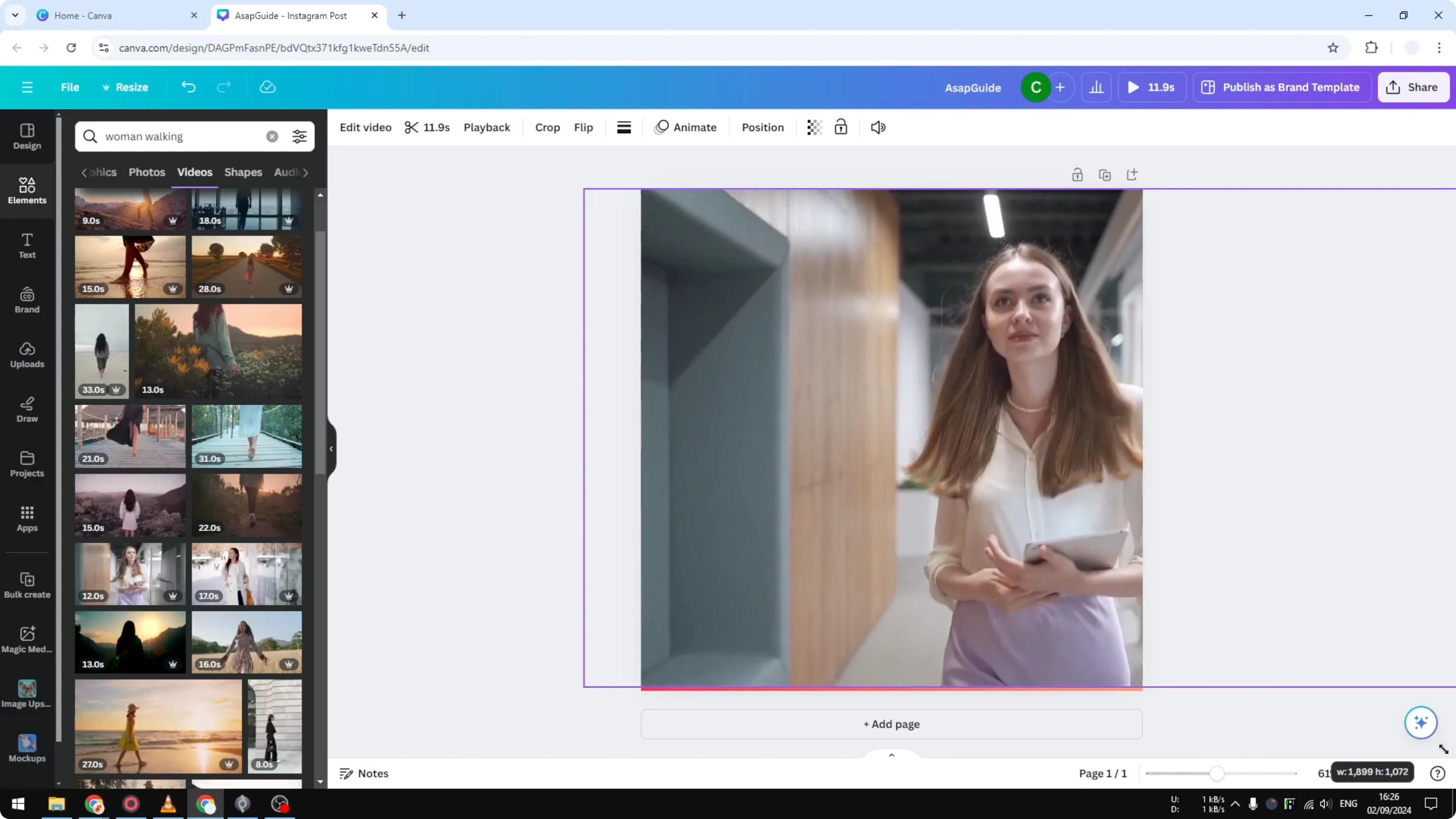
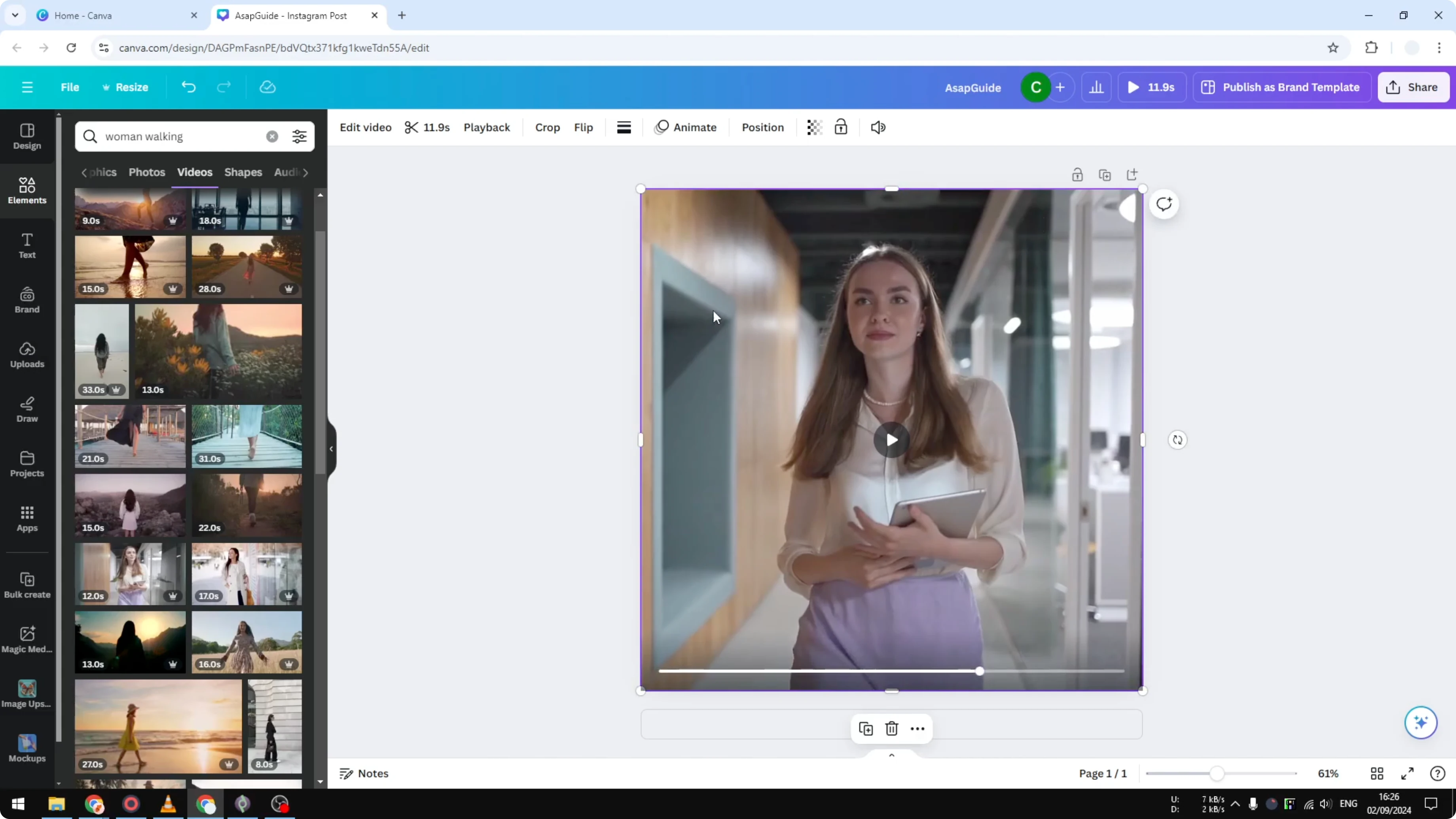
At first the background is not visible because it is blocked by the video. Click the video to select it.
Read More: Remove Audio Canva Video
Remove Video Backgrounds In Canva: apply remover
Click Edit video.
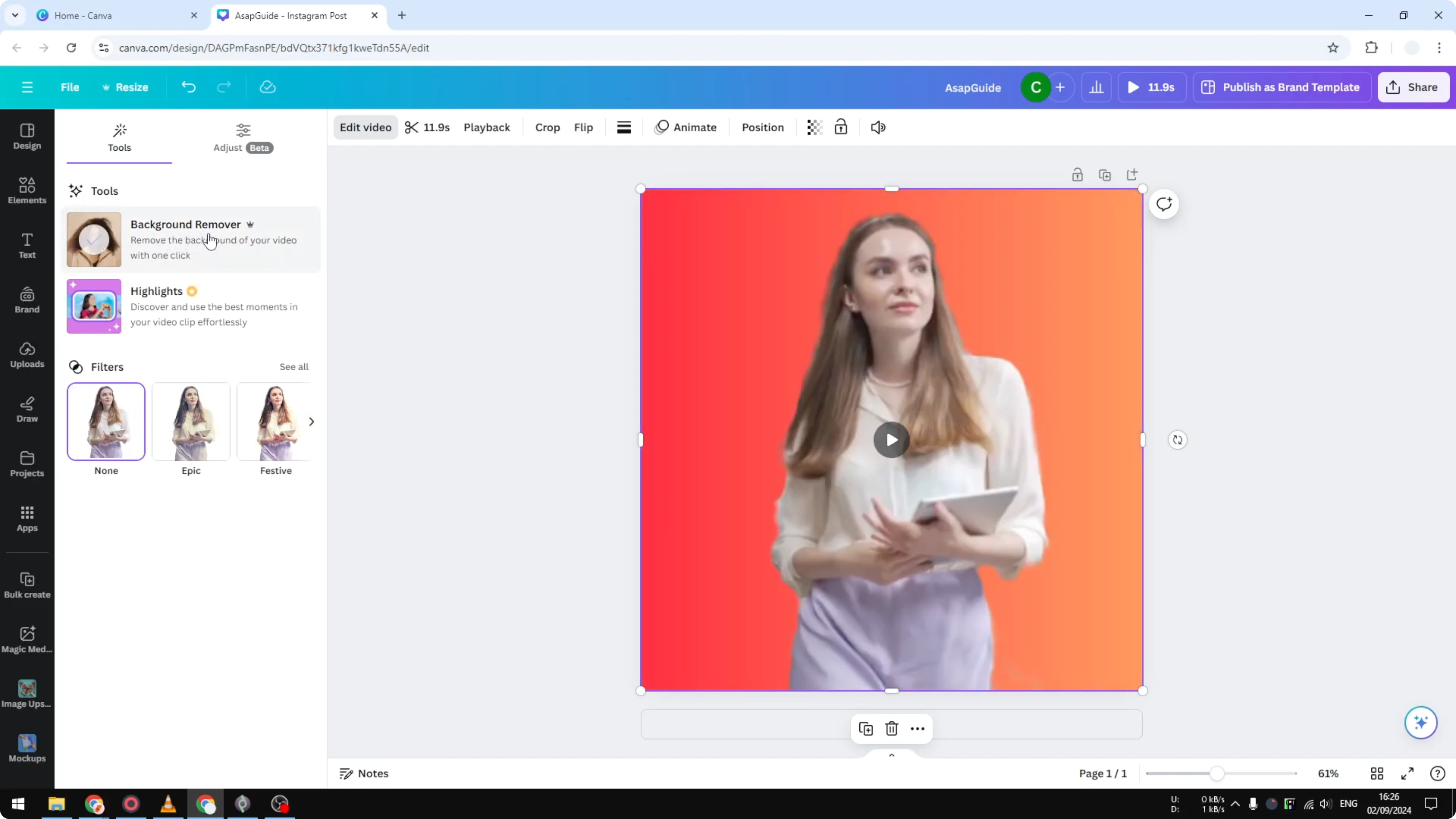
Choose Background Remover.
Now I can see the background, which is the orange red gradient background.
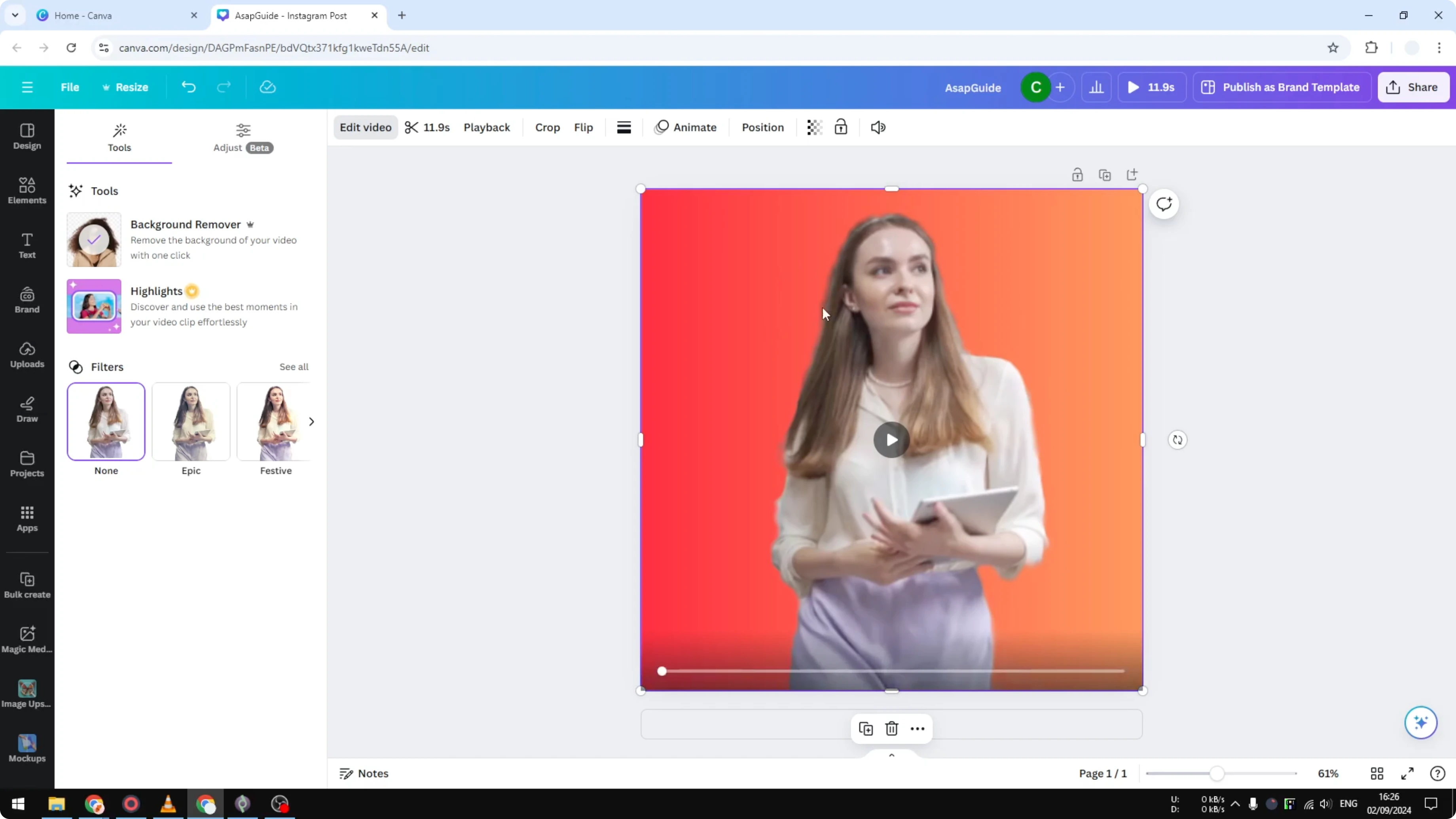
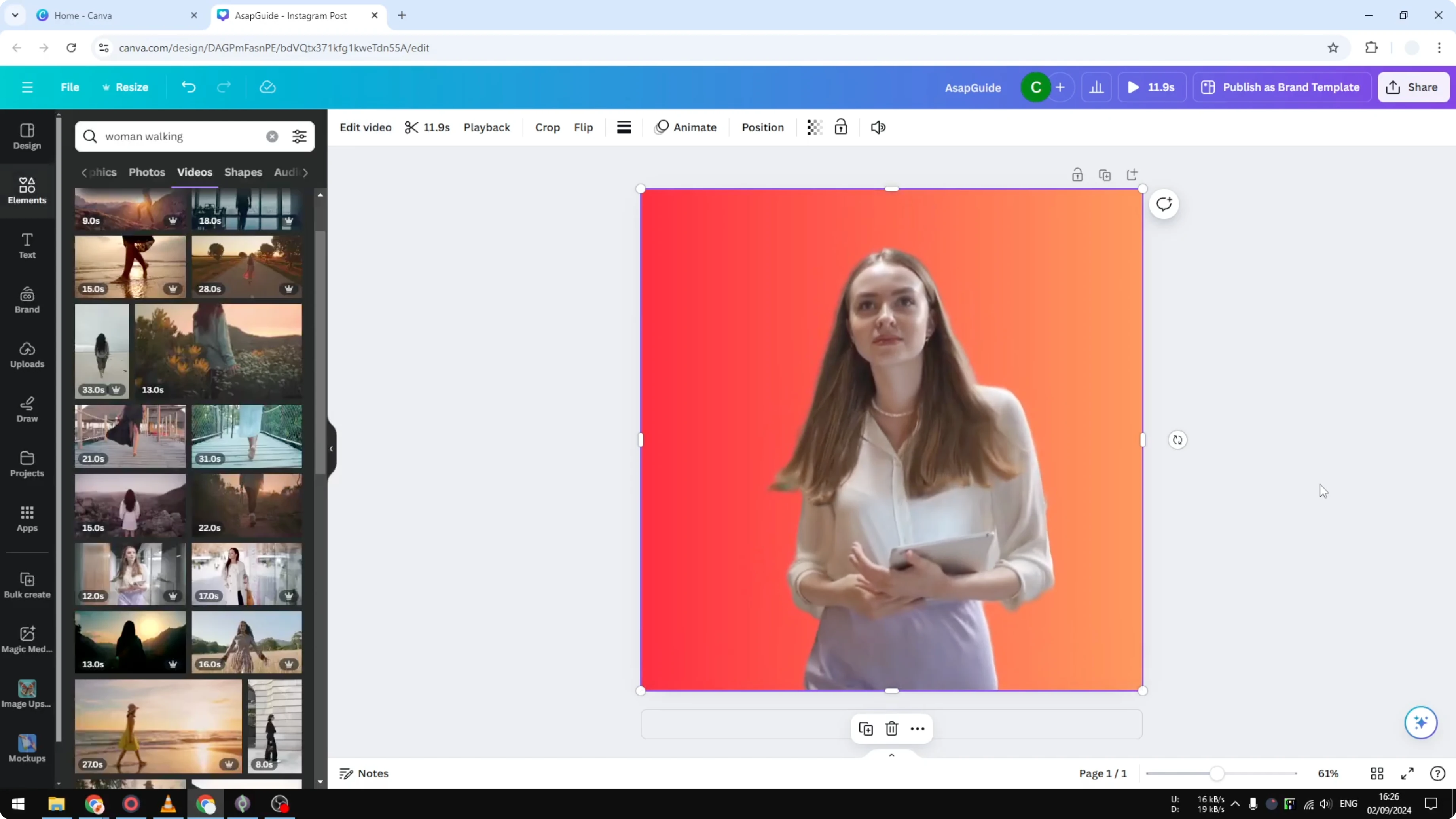
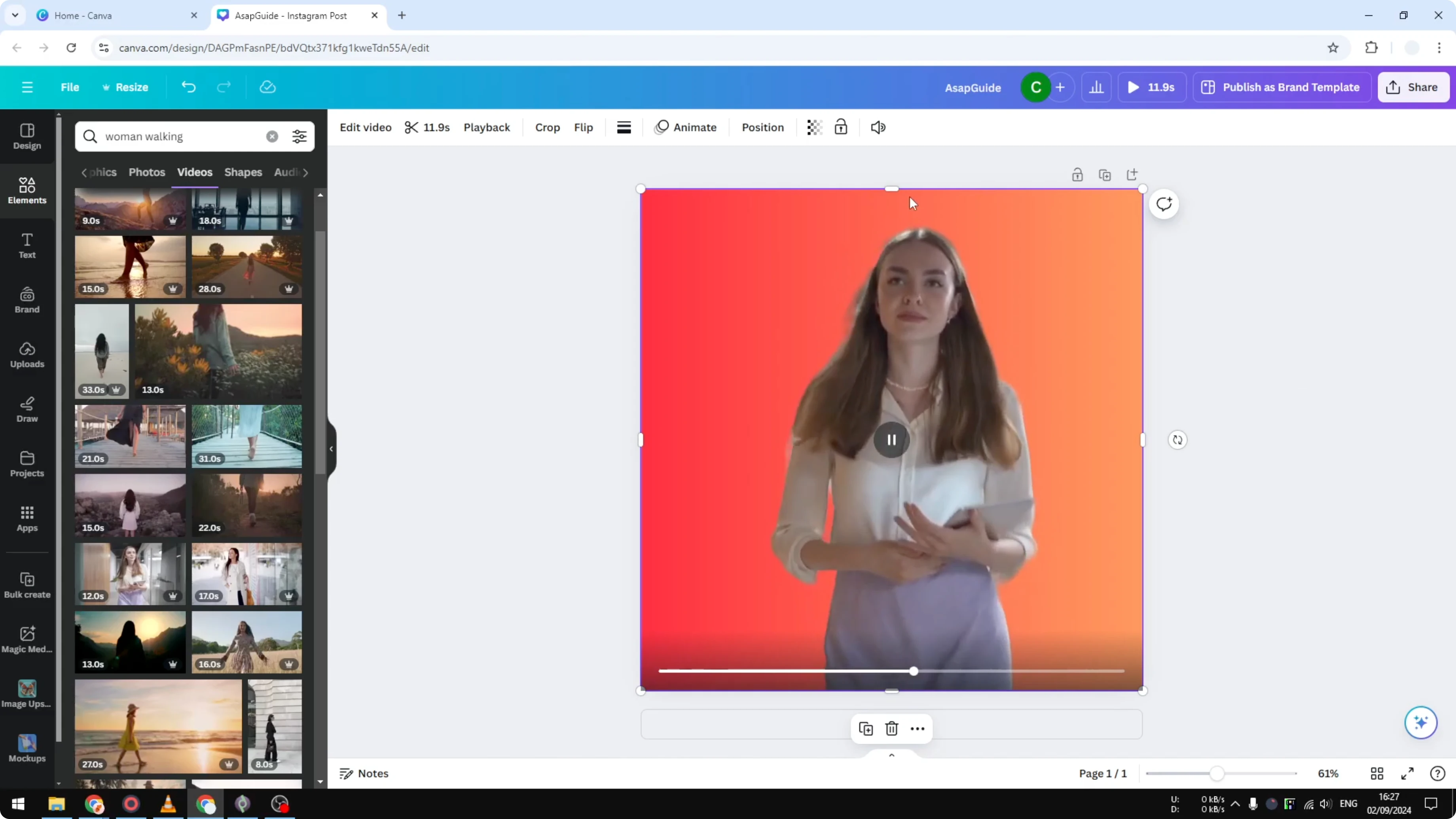
The result is good enough, though not perfect. The hair is not preserved, and some areas are still visible. If the background is simple or you do not have hair hanging everywhere, it gives a decent result.
Read More: Add Filter Video Canva
Remove Video Backgrounds In Canva: final thoughts
This is a quick way to change the background of a video in Canva. It works across design types and gives a decent result with simple backgrounds. For complex edges like hair, expect some imperfections.
Recent Posts

How to Visualize Yourself as a Pixelized Character with AI?
How to Visualize Yourself as a Pixelized Character with AI?

How to Revive Faded Memories and Enhance Image Clarity with AI?
How to Revive Faded Memories and Enhance Image Clarity with AI?

How to Visualize Yourself as an Animal Crossing Character with AI?
How to Visualize Yourself as an Animal Crossing Character with AI?