How to Remove Shadow in Canva
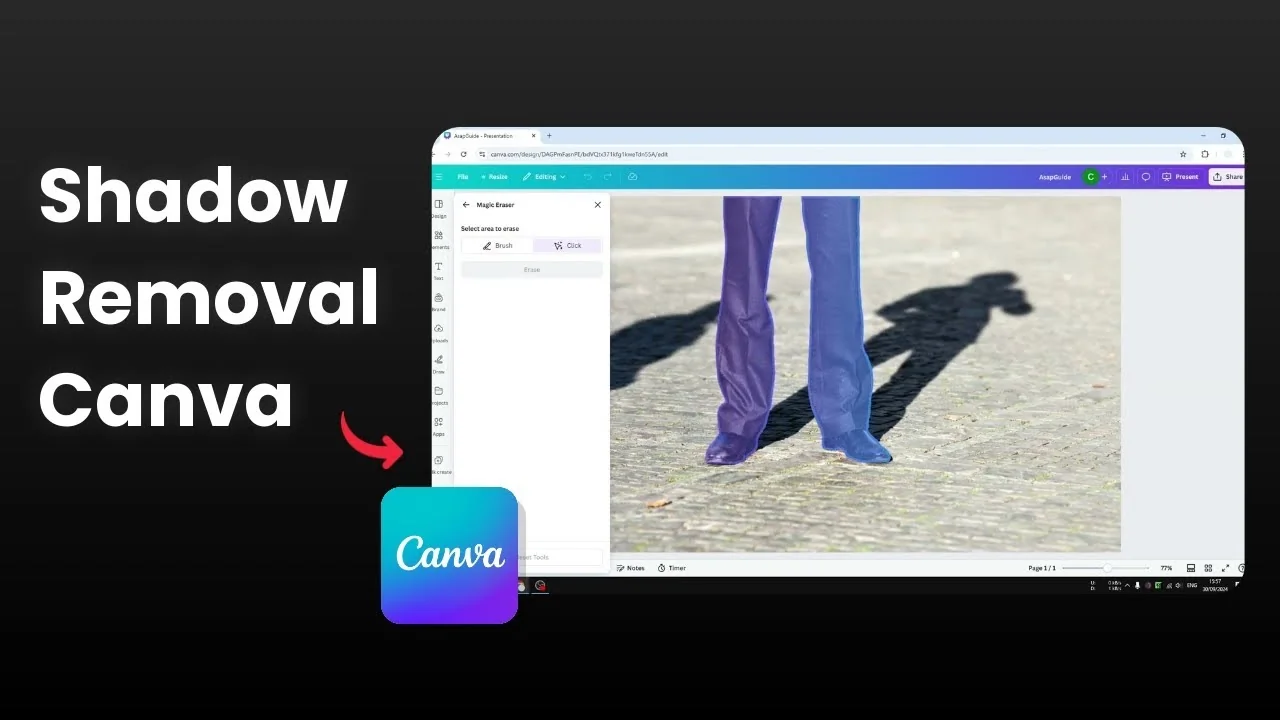
I will show you how you can remove shadow from a photo in Canva. Canva has an AI tool that removes objects like shadow that you do not want to appear on the photo. I have a picture of a man standing with a nice long shadow, but there is also a shadow of another person that is not in the frame and it destroys the aesthetic.
If you want a controlled look instead of removing it, you can add shadow to product images in Canva. That gives you full control over the style of the shadow.
Remove Shadow in Canva overview
You can remove the shadow with Magic Eraser or Magic Grab in Magic Studio. Magic Eraser tries to figure out the element to remove, but shadows are usually part of the picture, so it often will not select them. That is why the brush approach is more reliable here.
Remove Shadow in Canva with Magic Eraser
Click the image and open Edit.
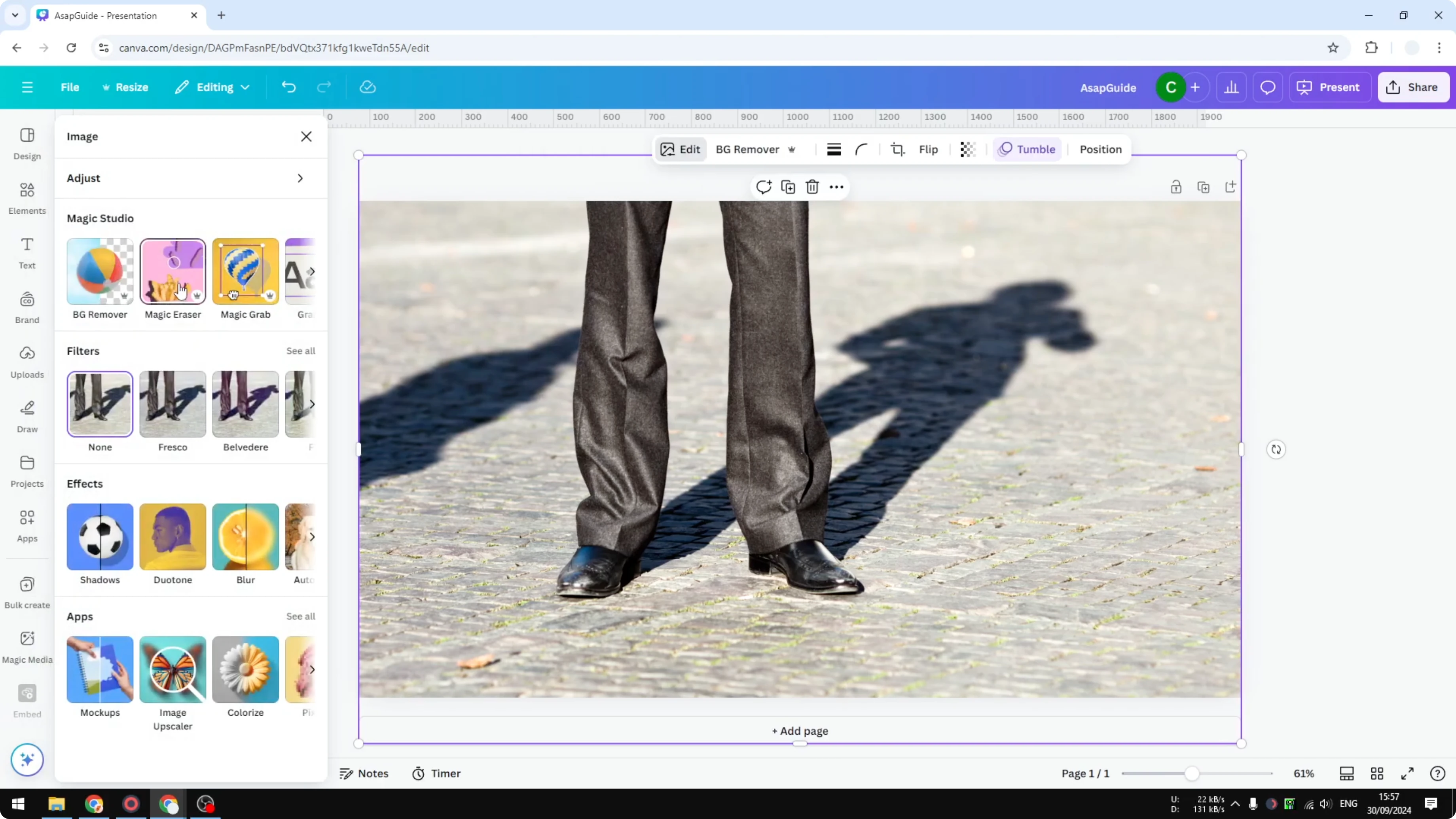
In Magic Studio, select Magic Eraser.
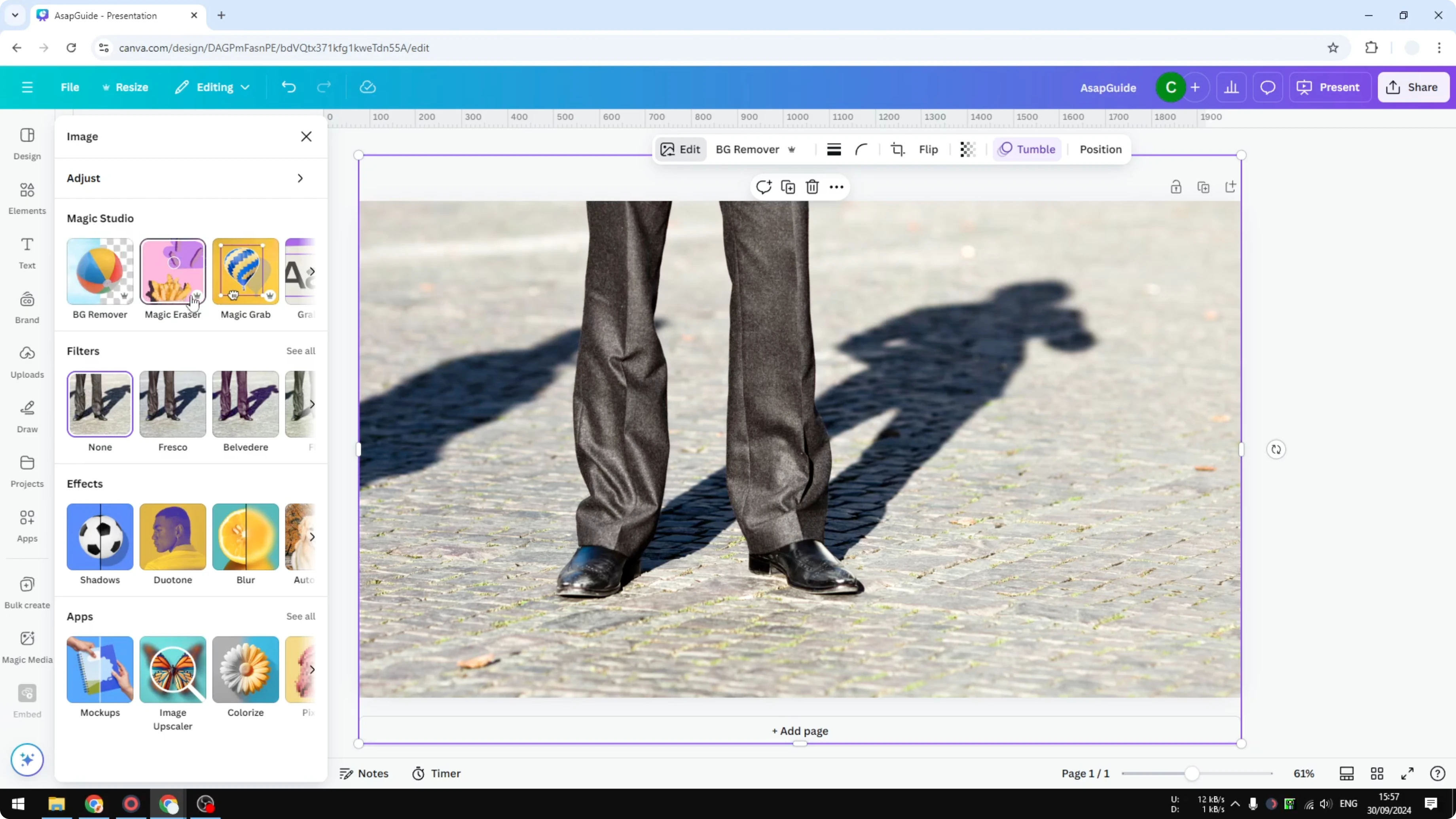
Switch to Brush mode.
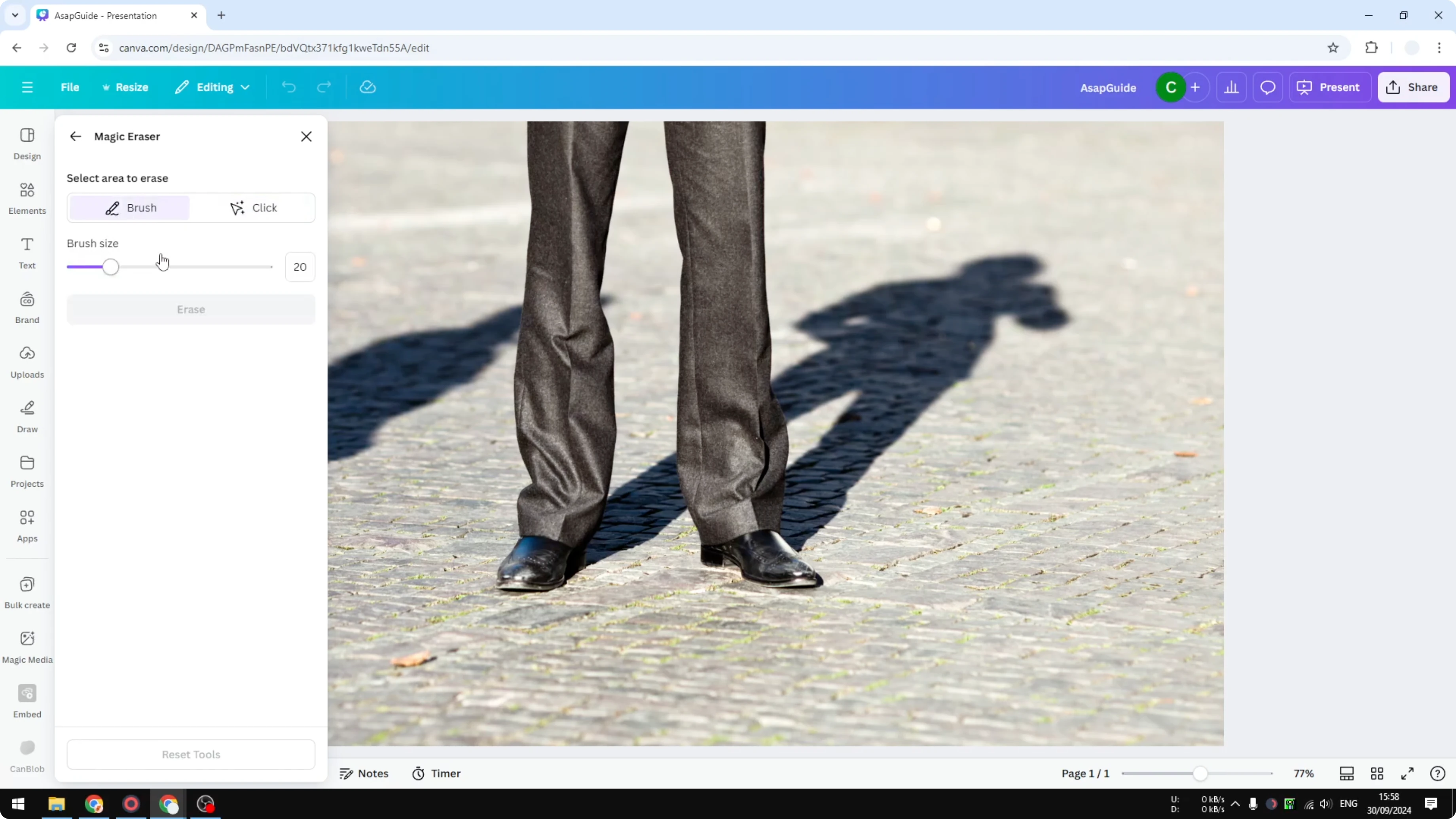
Adjust the brush size. I found 20 works well for this kind of photo.
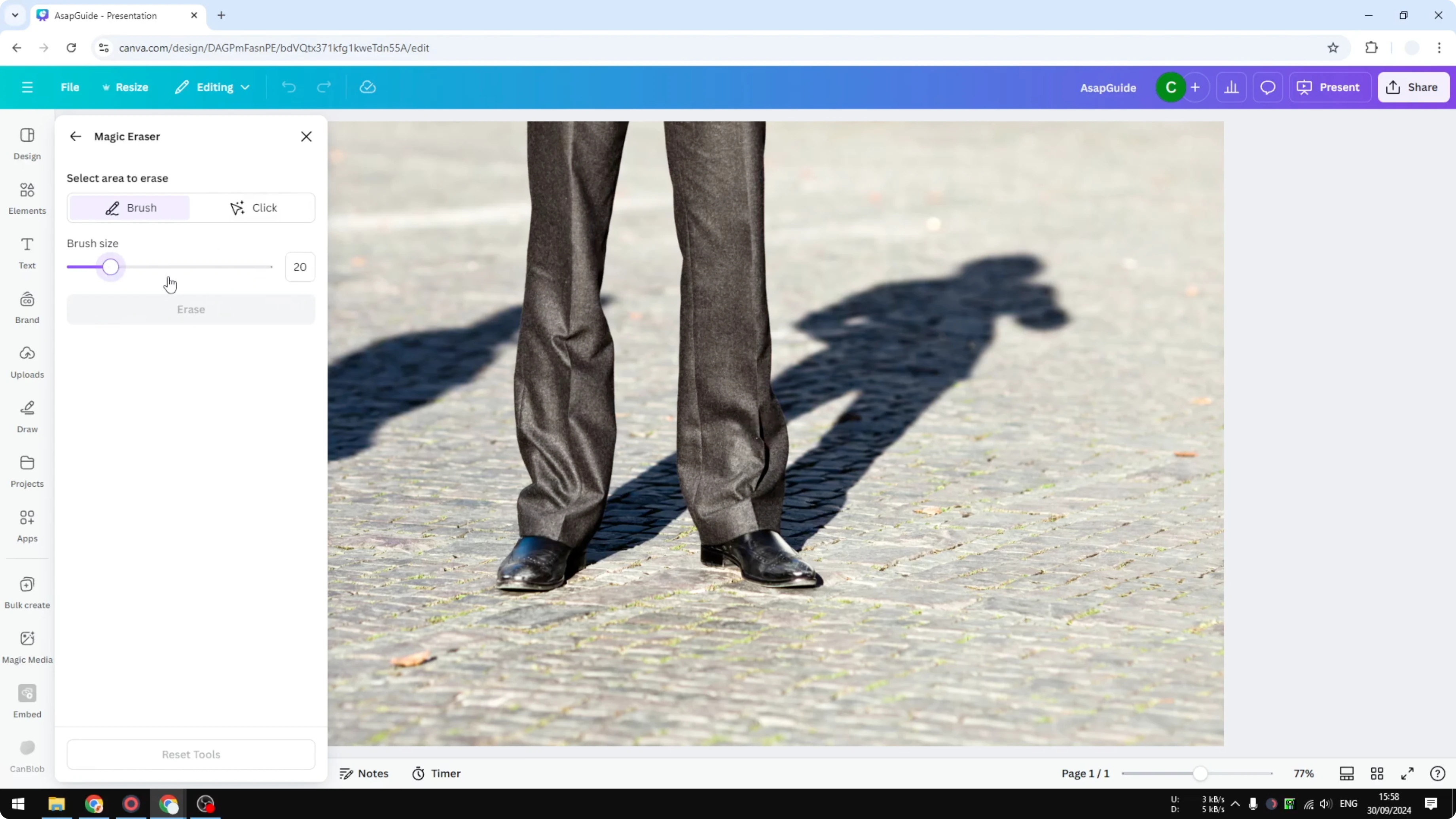
Paint over the unwanted shadow with a rough pass. You do not have to be perfect, the AI will take care of the rest.
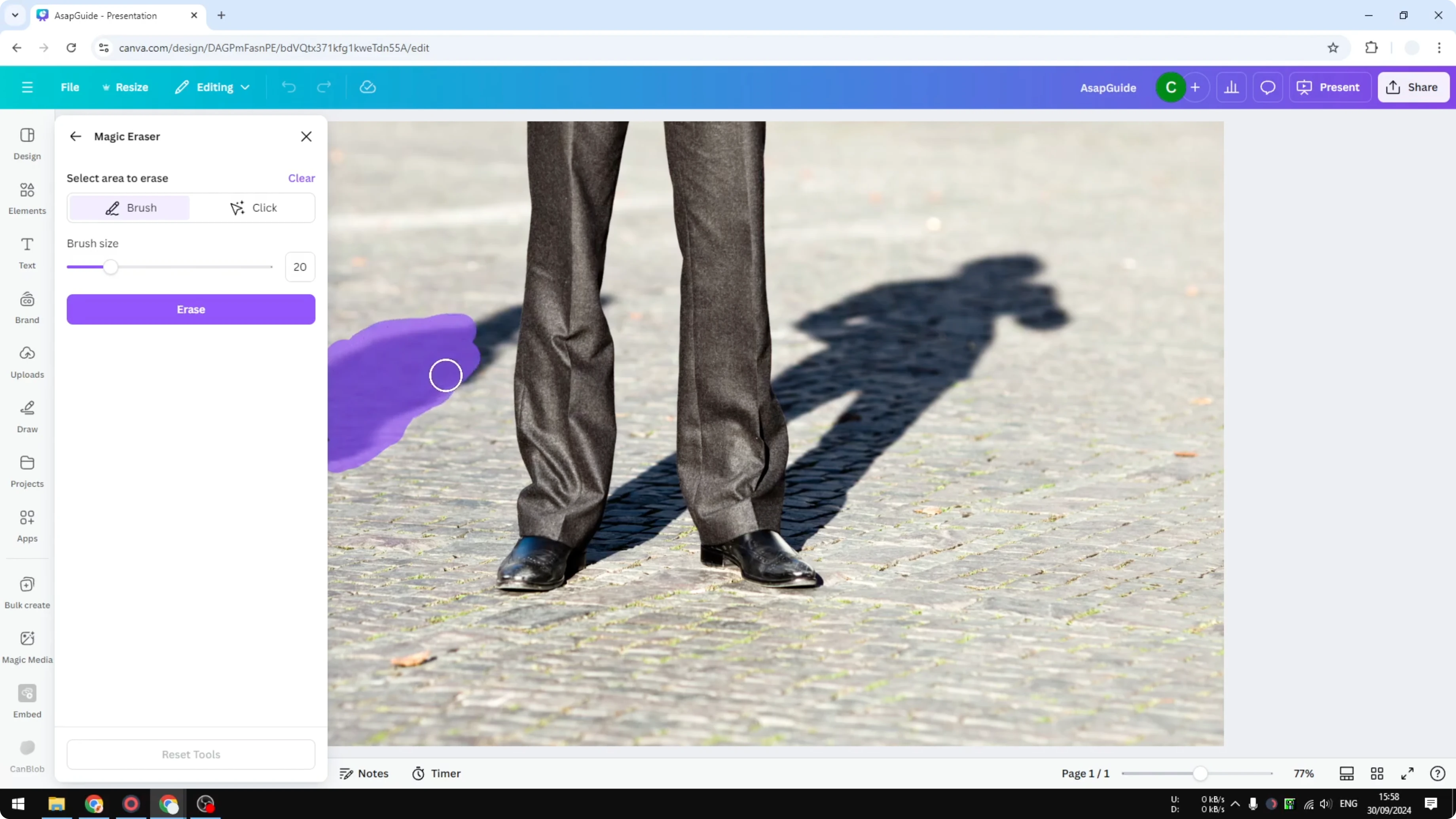
Click Erase and wait. It usually takes 10 to 30 seconds.
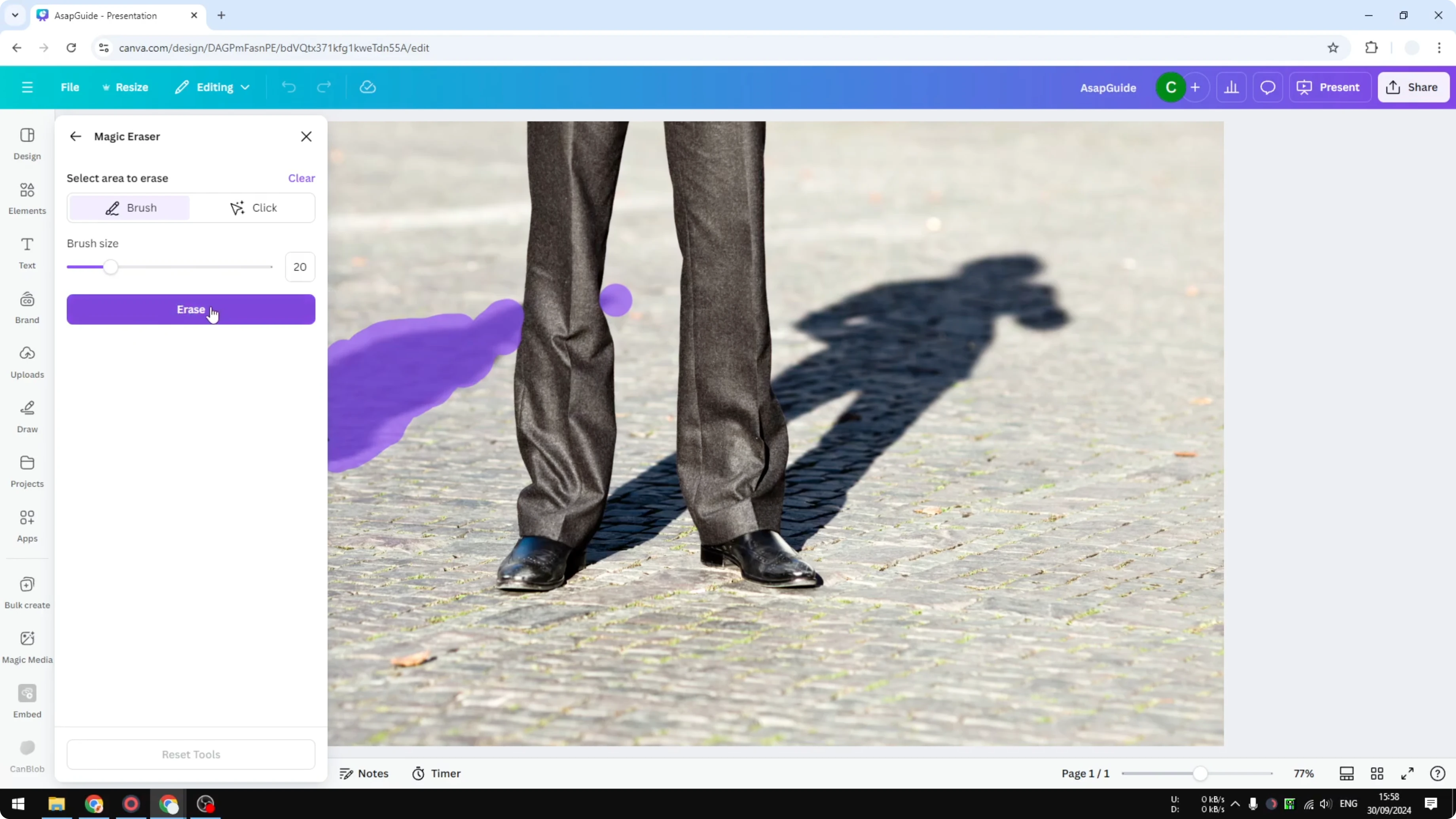
Review the result. In my case, the result was not something I was happy with.
If you are working on motion content, you can also remove text from a video in Canva using related tools.
Remove Shadow in Canva with Magic Grab
Go back and switch to Magic Grab.
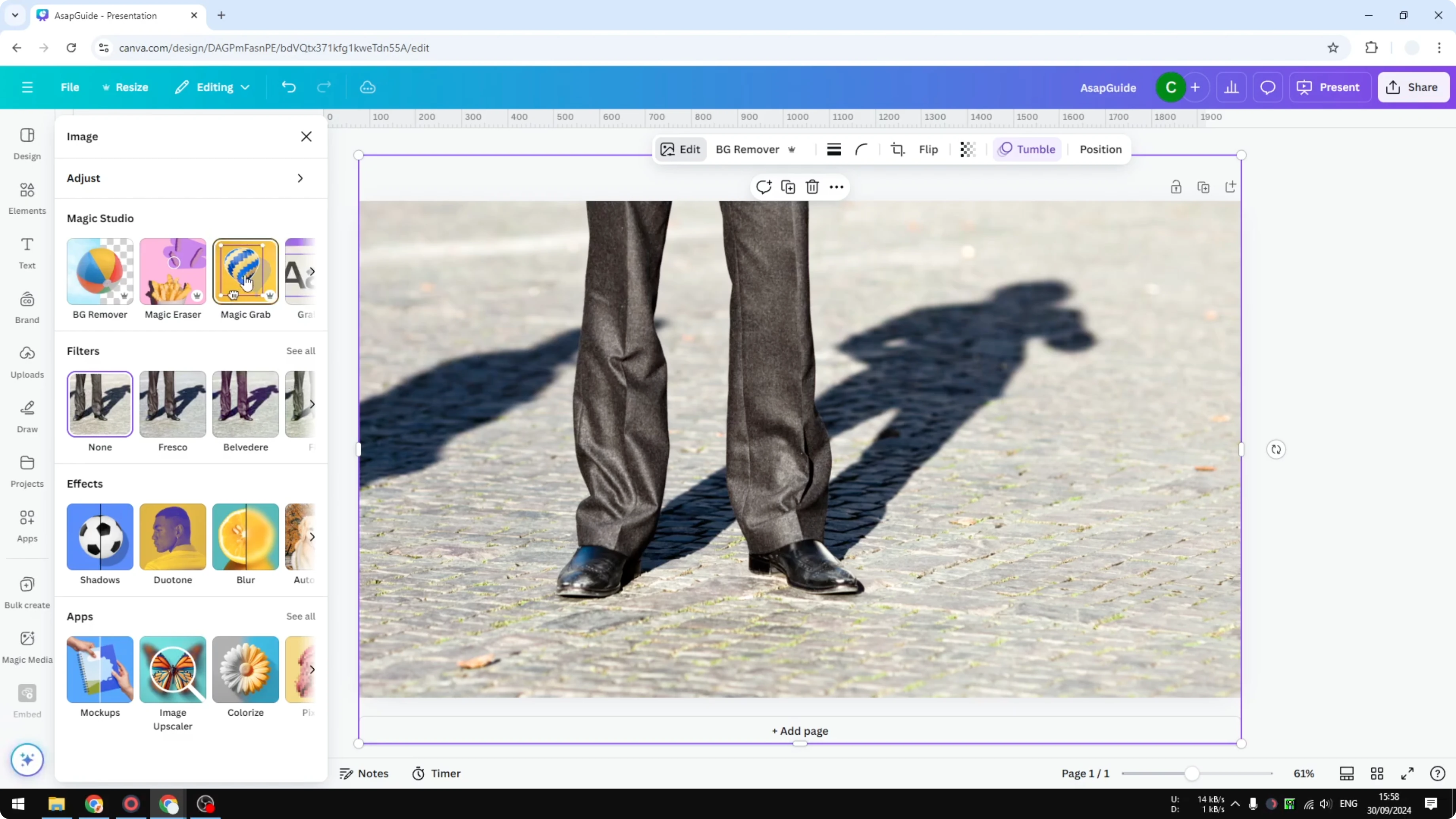
Roughly select the same shadow area. Precision is not required.
Click Grab and wait a little longer. The tool isolates the object so you can move it or delete it.
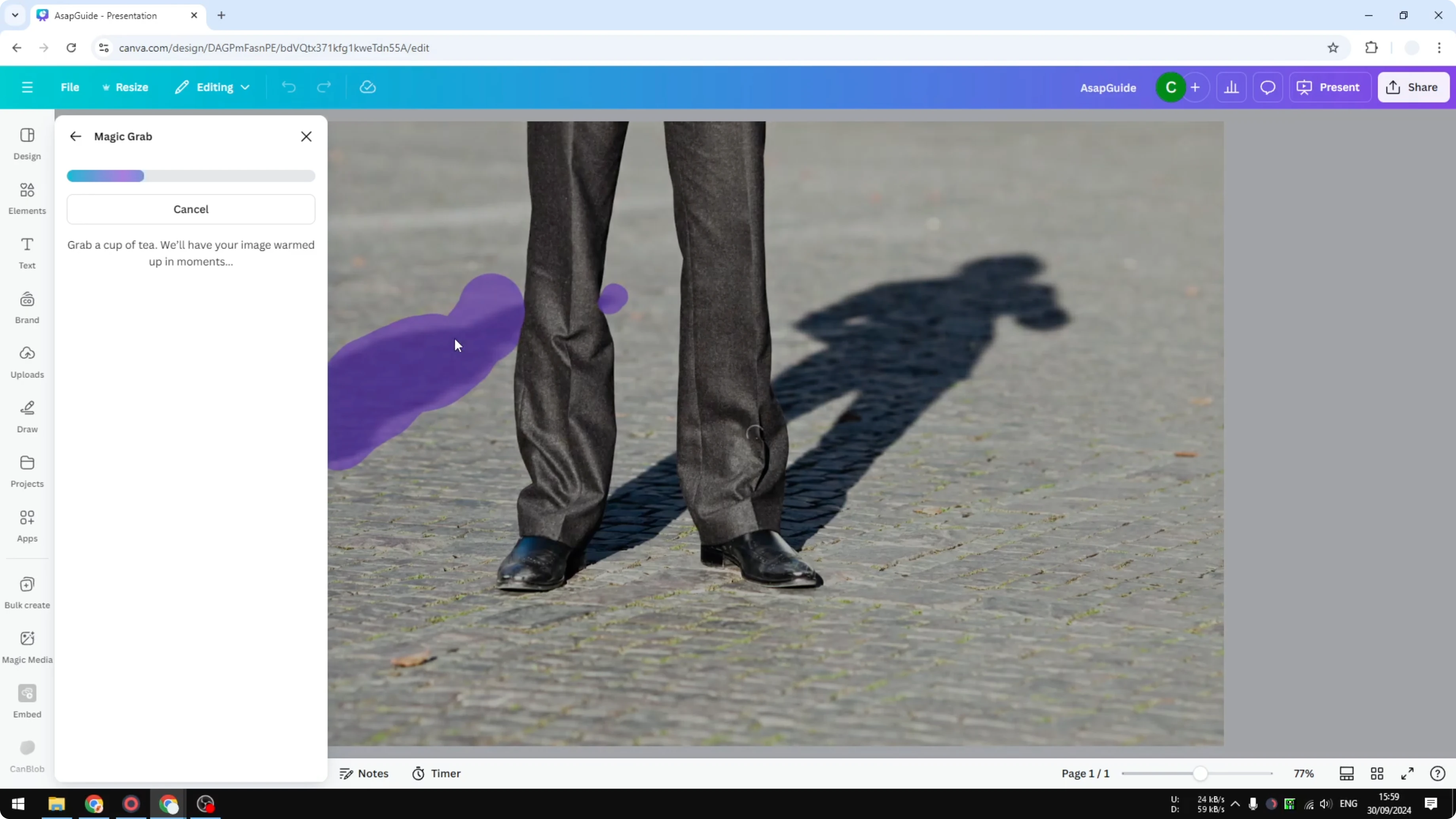
When the shadow becomes a separate object, press Delete to remove it.
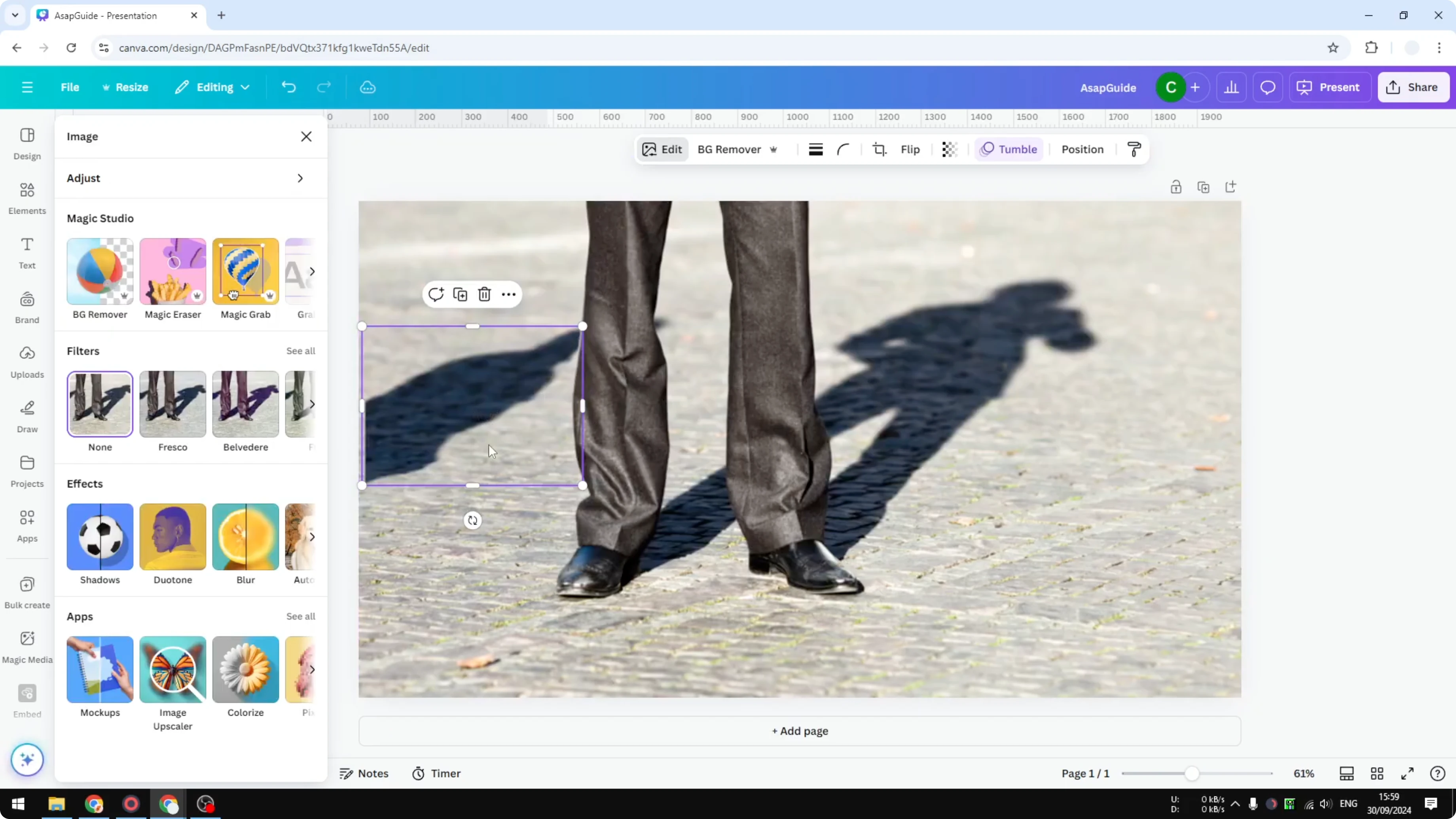
That produced a near perfect result for this image.
Clean up small remnants
If there is a small bit of shadow left, open Magic Eraser again.
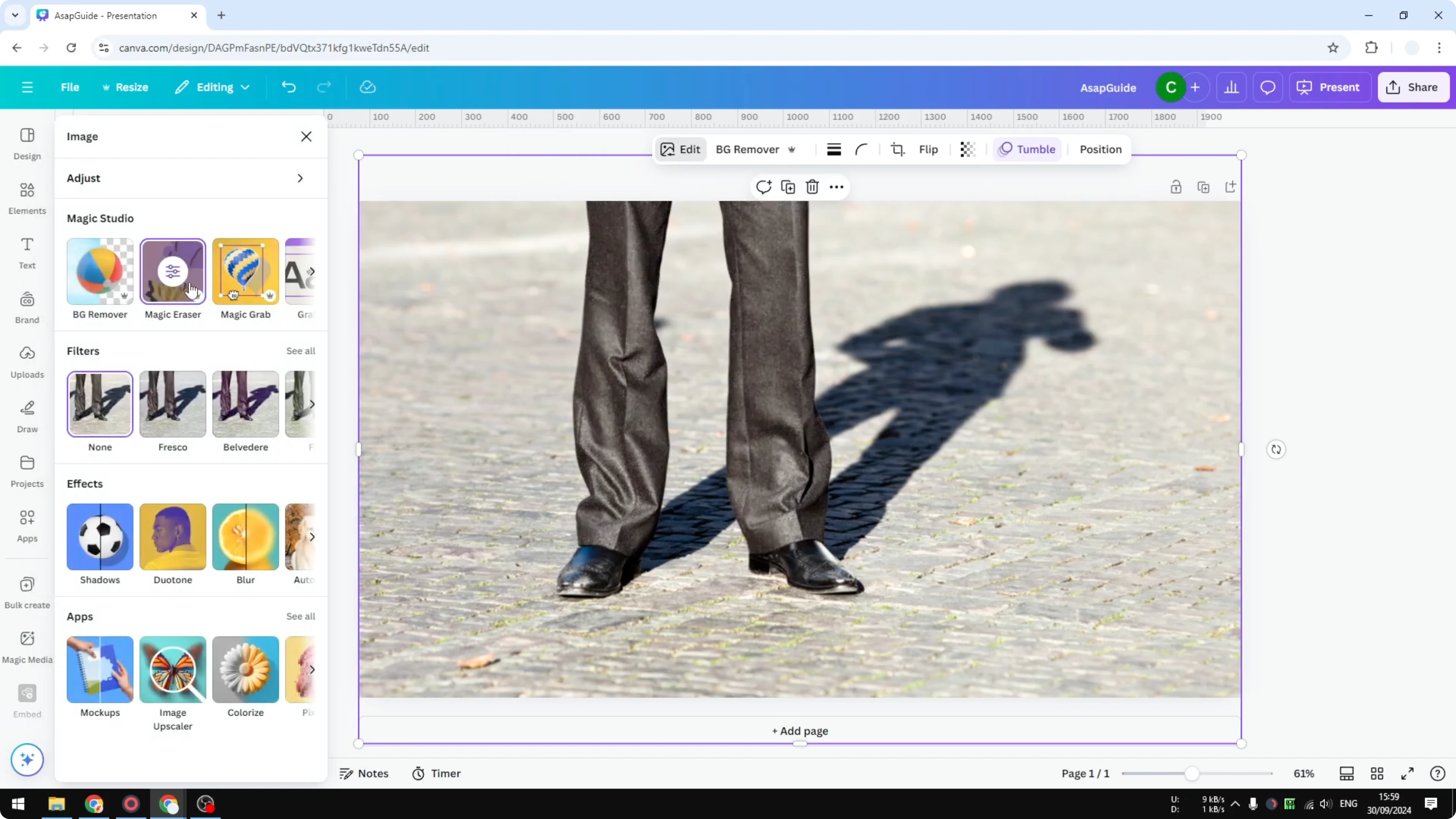
Brush over that small area and run Erase to finish the cleanup.
You can continue refining until the photo looks right. While you are tidying up a design, you might also want to remove animations in Canva for a static export.
Final thoughts on Remove Shadow in Canva
Both tools can remove shadow, but Magic Grab gave me a cleaner result on this photo. Start with Magic Eraser for quick fixes, and switch to Magic Grab if the shadow is not recognized or the cleanup looks messy.
This approach keeps the aesthetic of the photo intact by removing the unwanted cast from a person who is not in frame. I hope this helps you edit your images with confidence.
Recent Posts

How to Visualize Yourself as a Pixelized Character with AI?
How to Visualize Yourself as a Pixelized Character with AI?

How to Revive Faded Memories and Enhance Image Clarity with AI?
How to Revive Faded Memories and Enhance Image Clarity with AI?

How to Visualize Yourself as an Animal Crossing Character with AI?
How to Visualize Yourself as an Animal Crossing Character with AI?