How to Remove a Person from a Photo in Canva
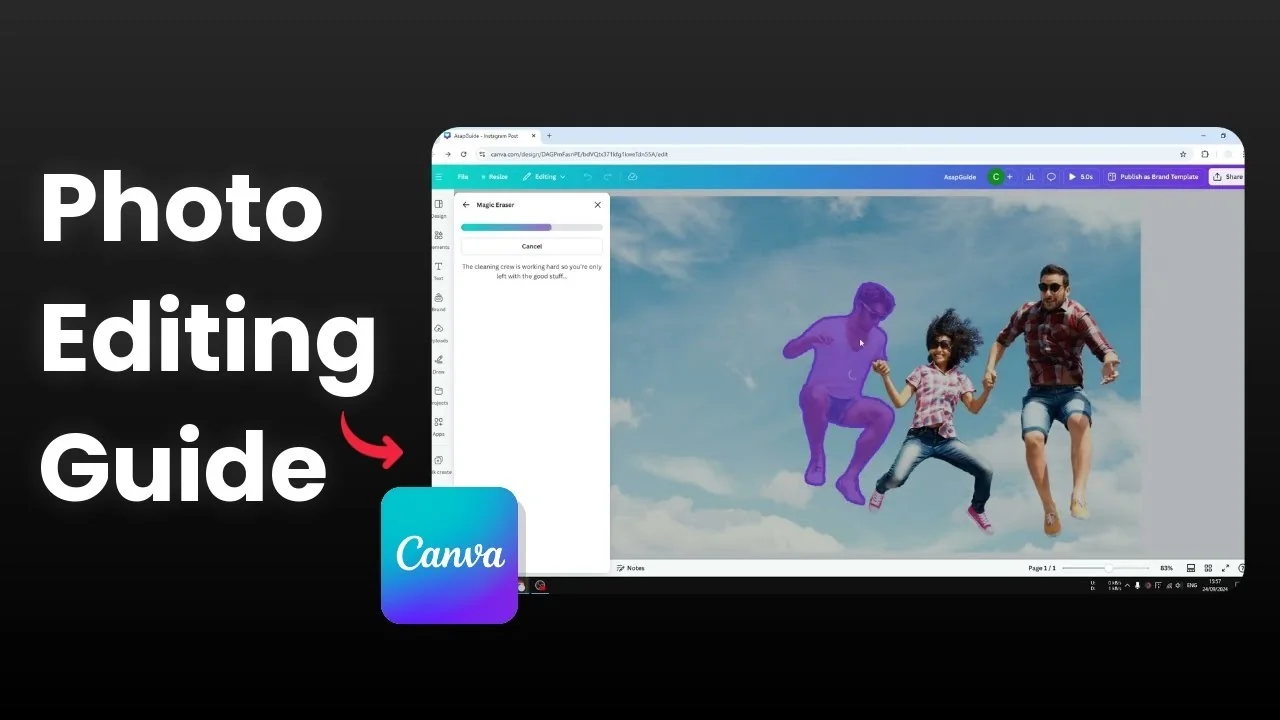
Here is how I remove a person from a photo in Canva using an AI tool. I started with a stock photo from the Canva library that had three people, and I wanted to remove one while keeping the rest. The steps below show the quick click method and the brush method.
If you need the opposite, you can add a person to a photo in Canva.
Quick click option to Remove a Person from a Photo in Canva
I find the Click option easier in many cases because Canva will do its best to find objects in the photo. Once it detects objects you can click one of them and Canva is able to erase it. This process is much faster compared to the brush method.
Click the image.
Click Edit to open the menu on the left.
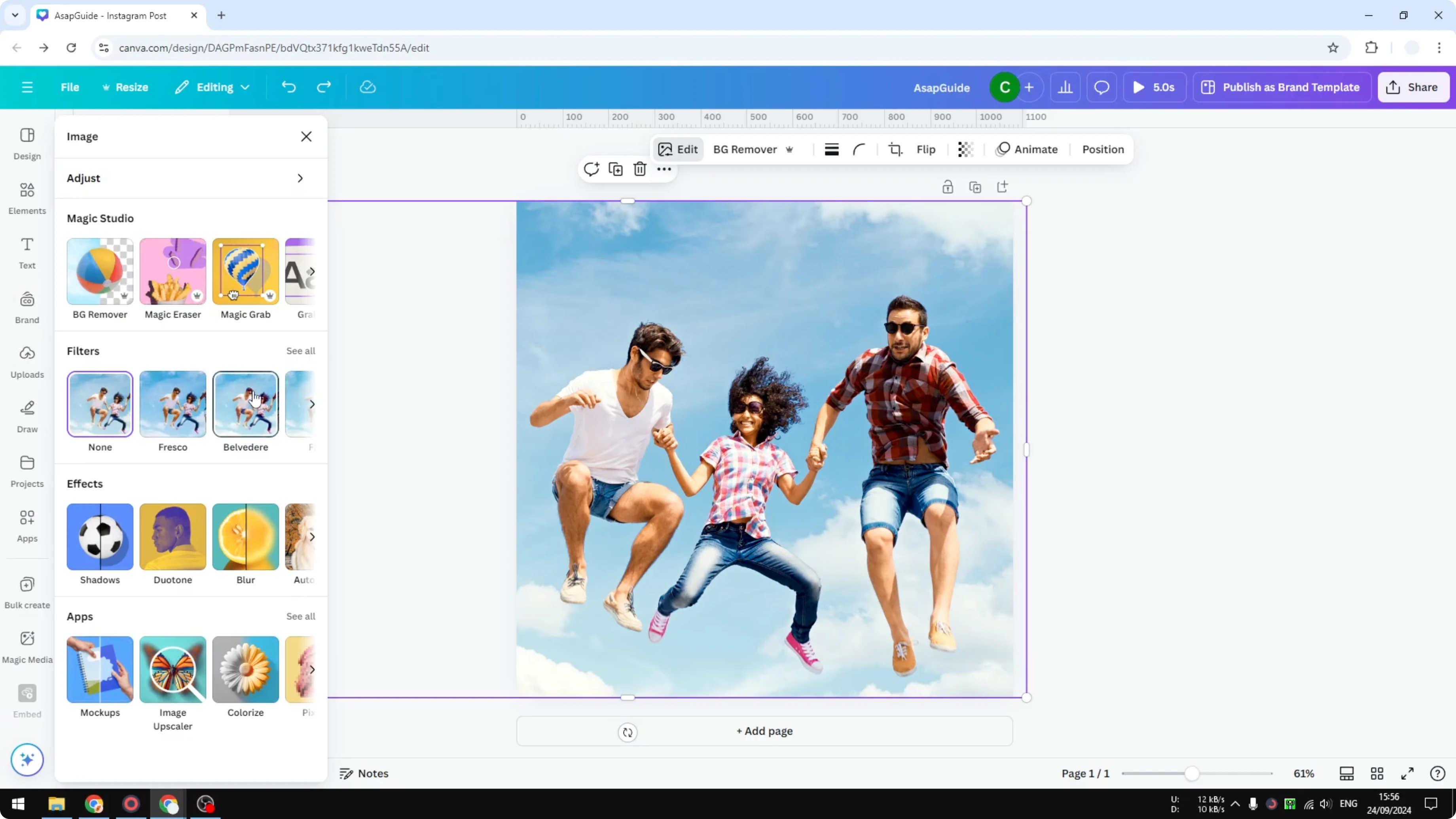
Select Magic Eraser.
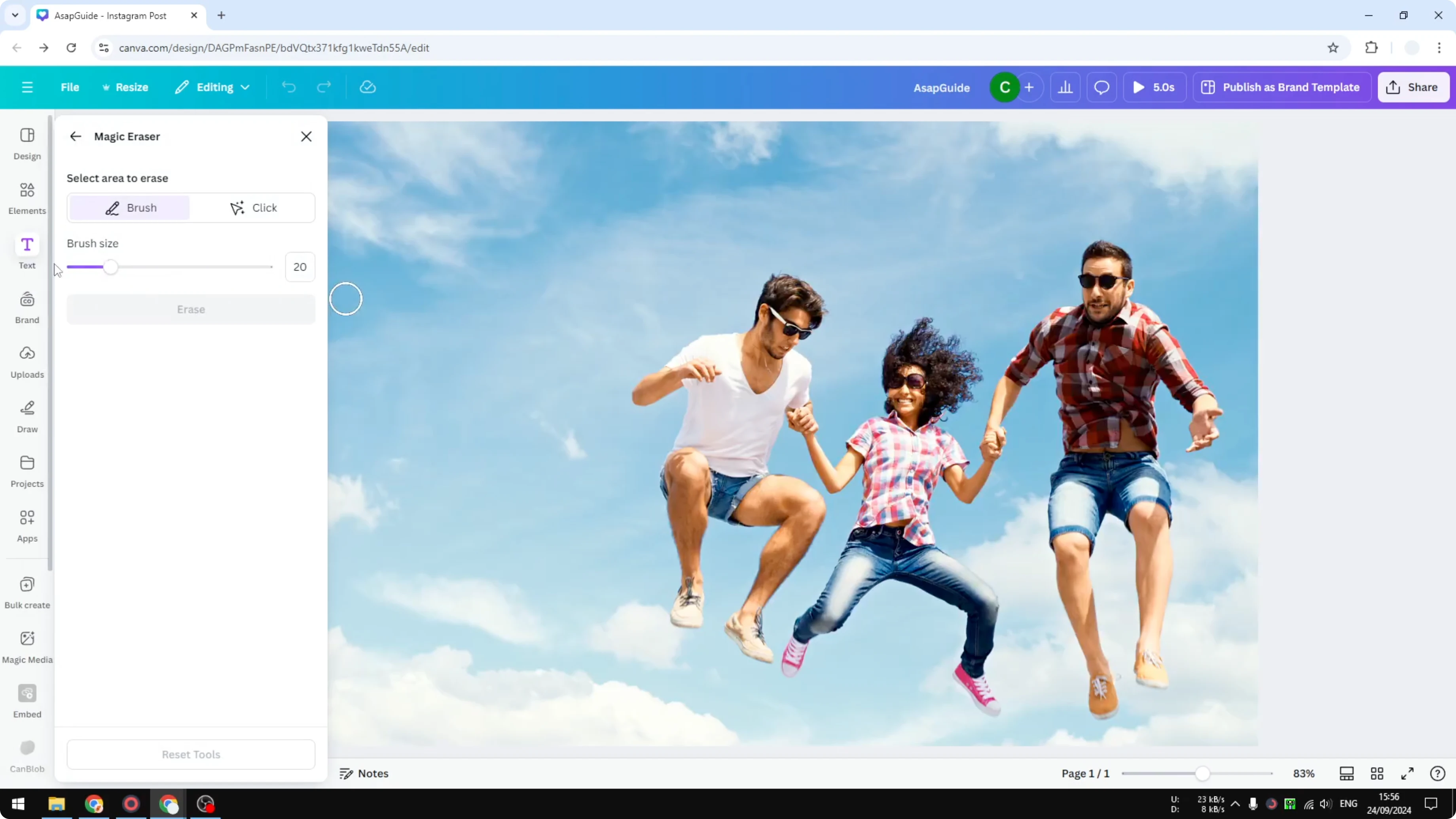
Choose the Click option.
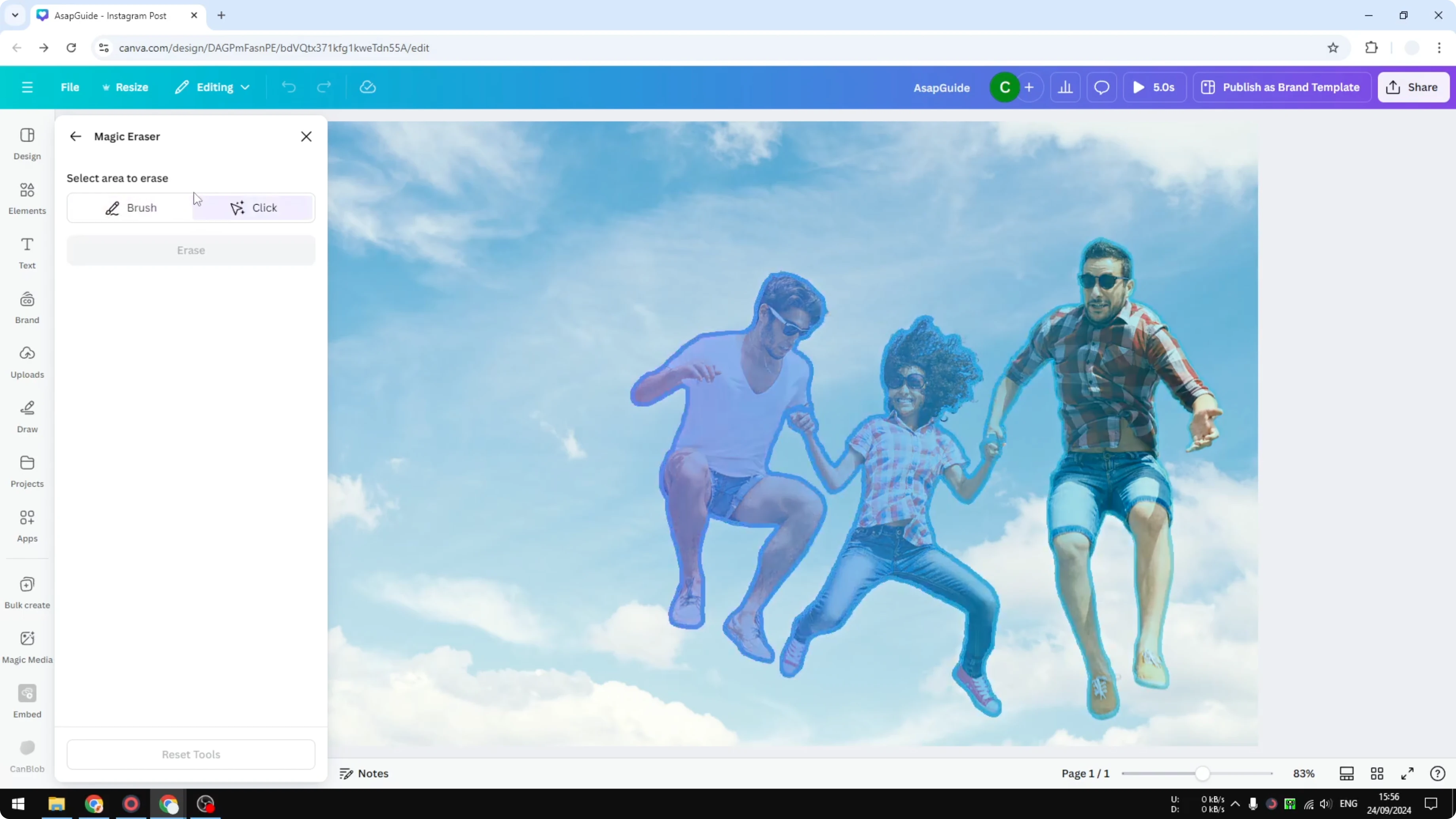
Click the person you want to remove, then click Erase.
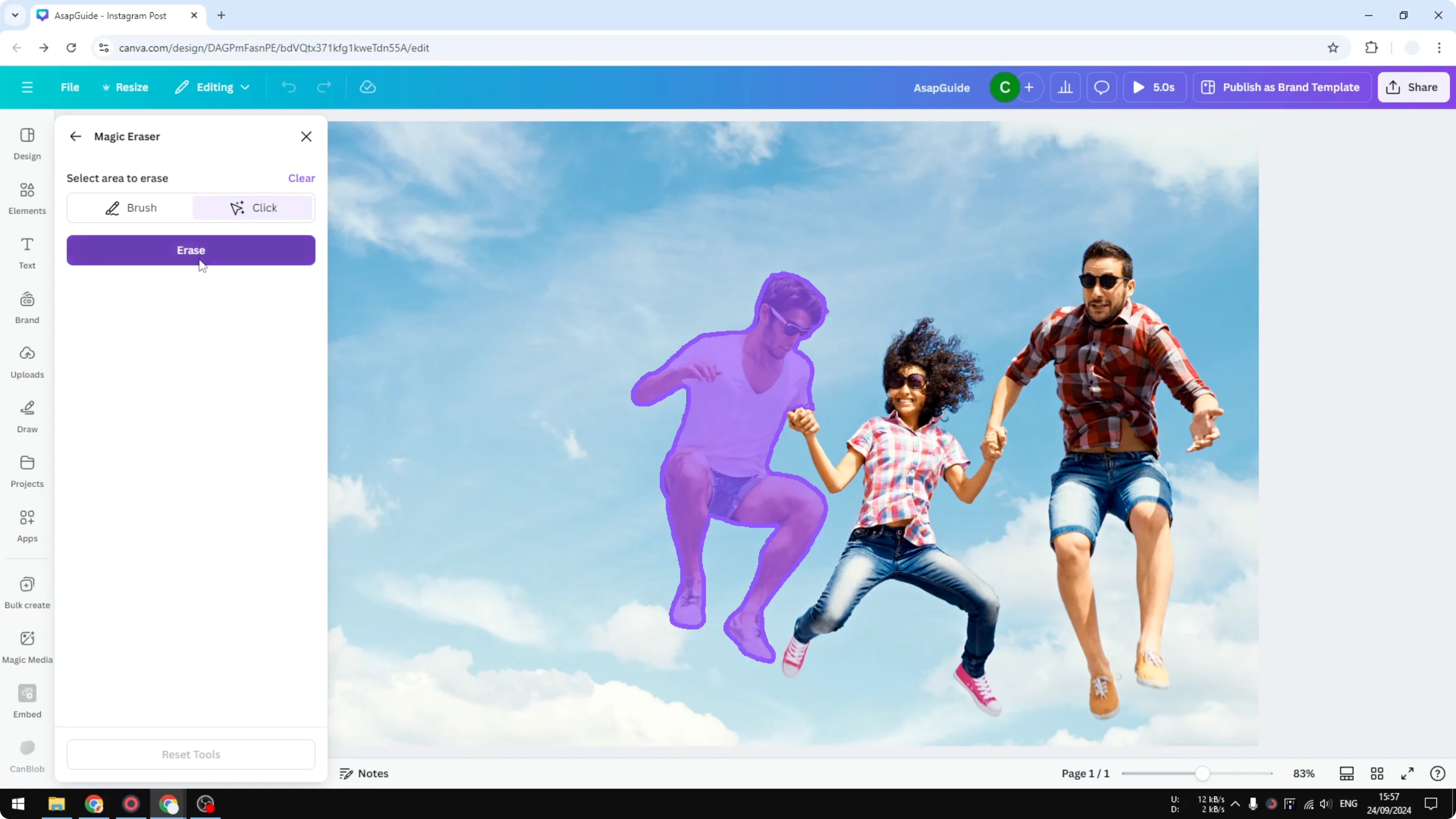
It is not perfect, and sometimes it removes nearby parts you wanted to keep. In my example the hand is missing, and that is awful. Switch to the brush option if that happens.
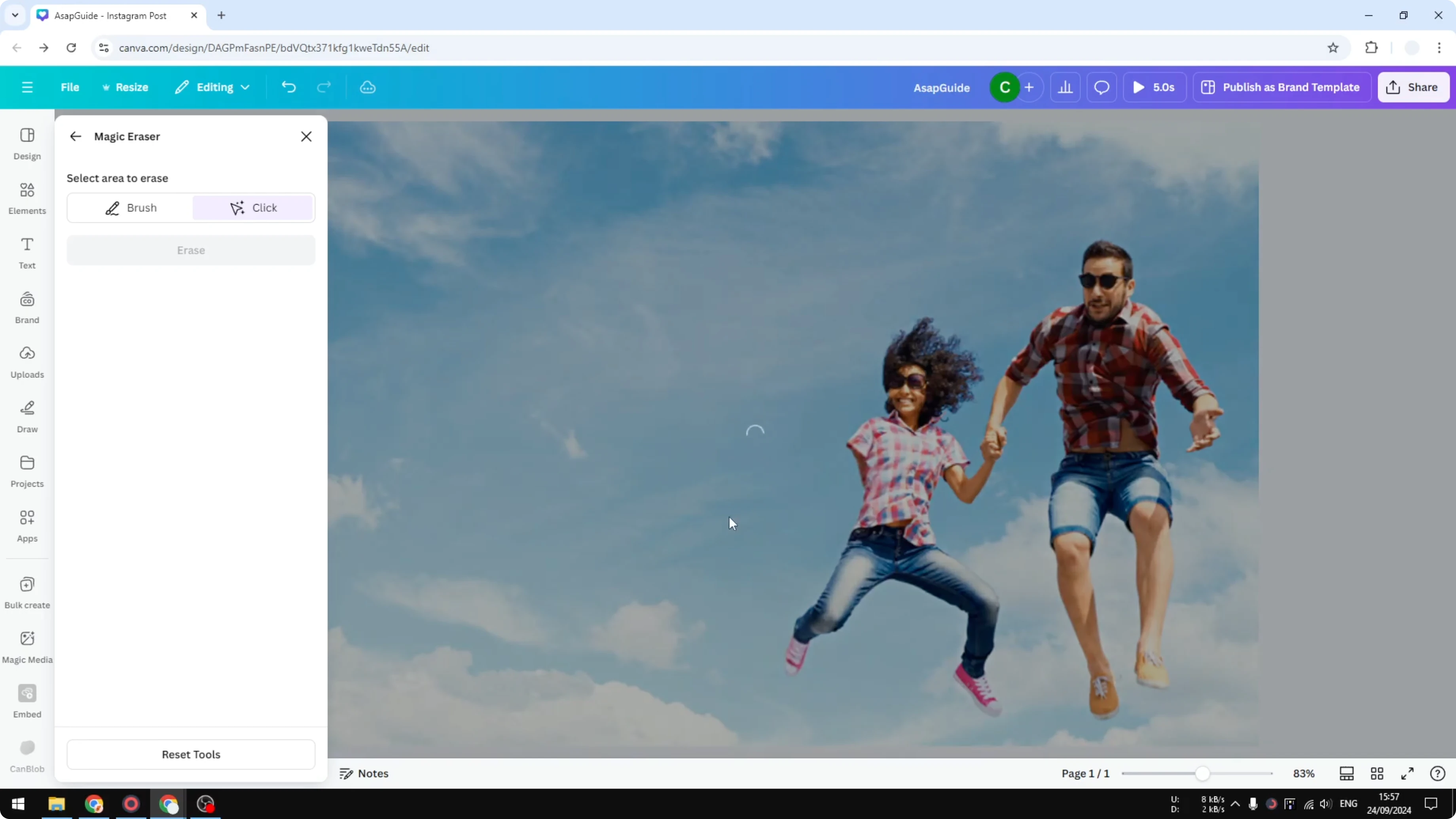
When the click option fails to Remove a Person from a Photo in Canva
This method is using AI, and we cannot always get it consistently. In most cases it should be fine. For another removal task, see how to remove text from a video in Canva.
Brush method to Remove a Person from a Photo in Canva
Select the Brush option in Magic Eraser. Paint over the object you want to remove. It does not have to be perfect, but cover all the area you want to remove.
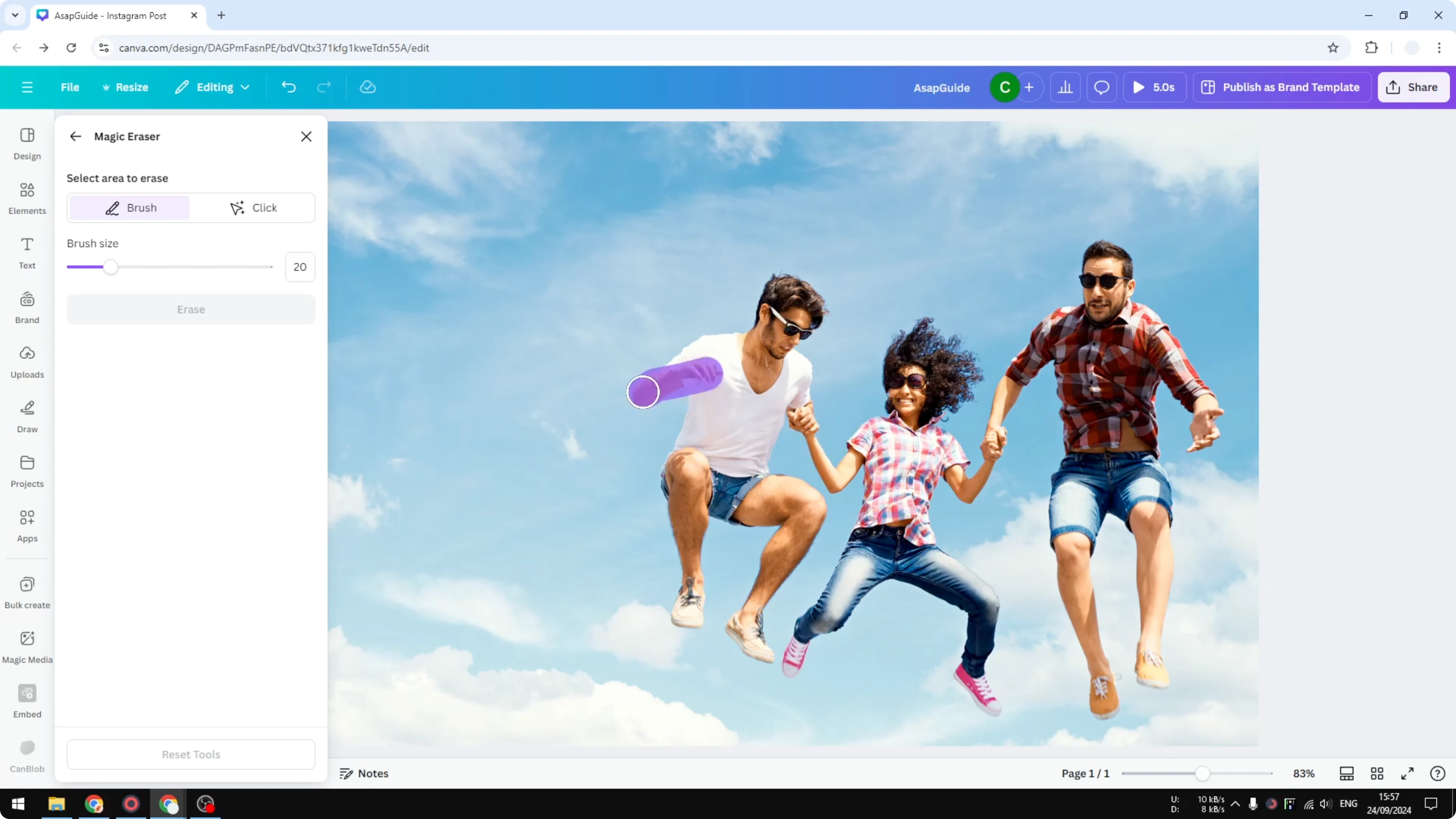
I tried my best to leave the hand so the woman would have her hand intact after erasing. Click Erase and wait. This process can take several seconds to minutes depending on the complexity of the object.
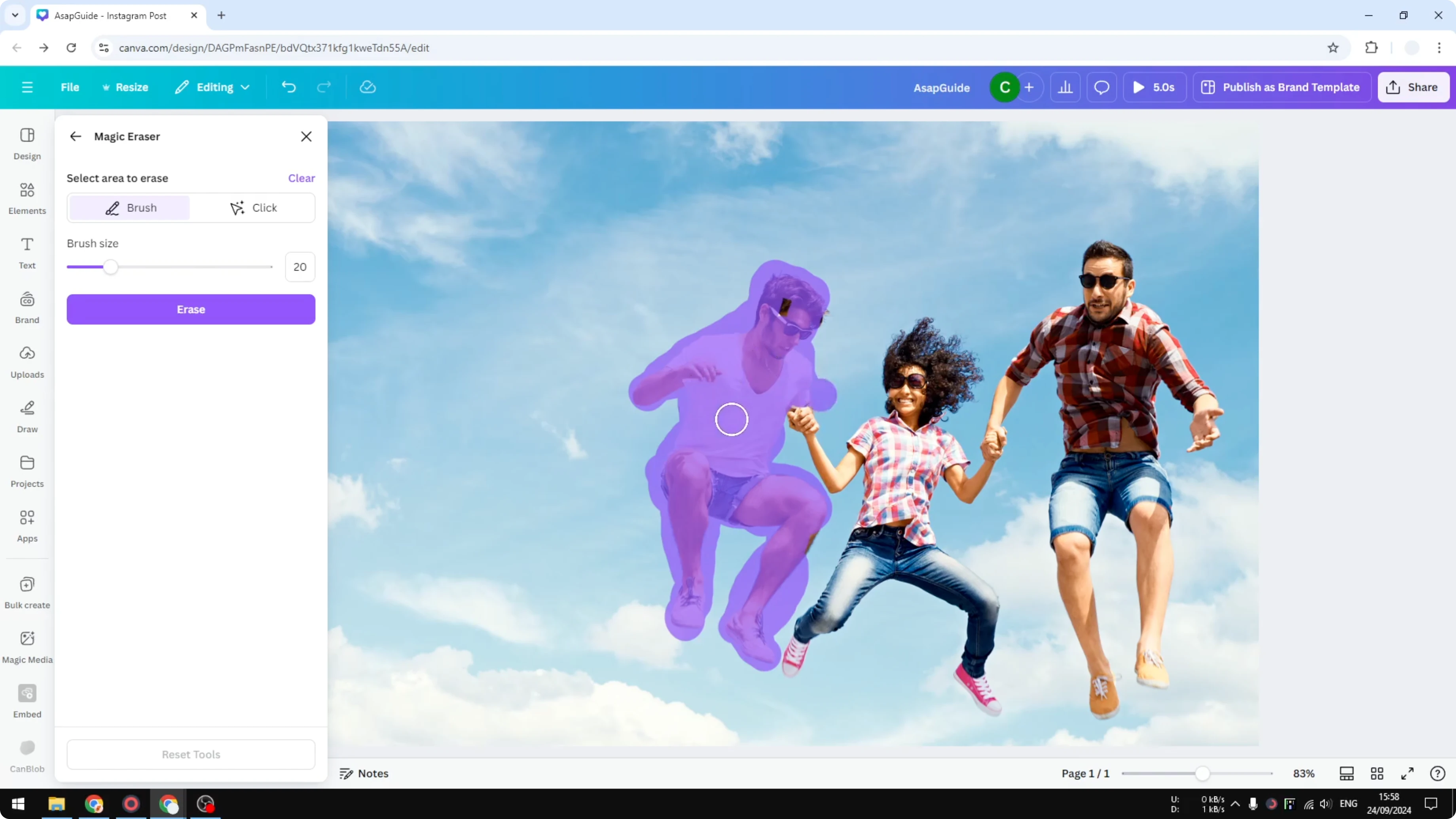
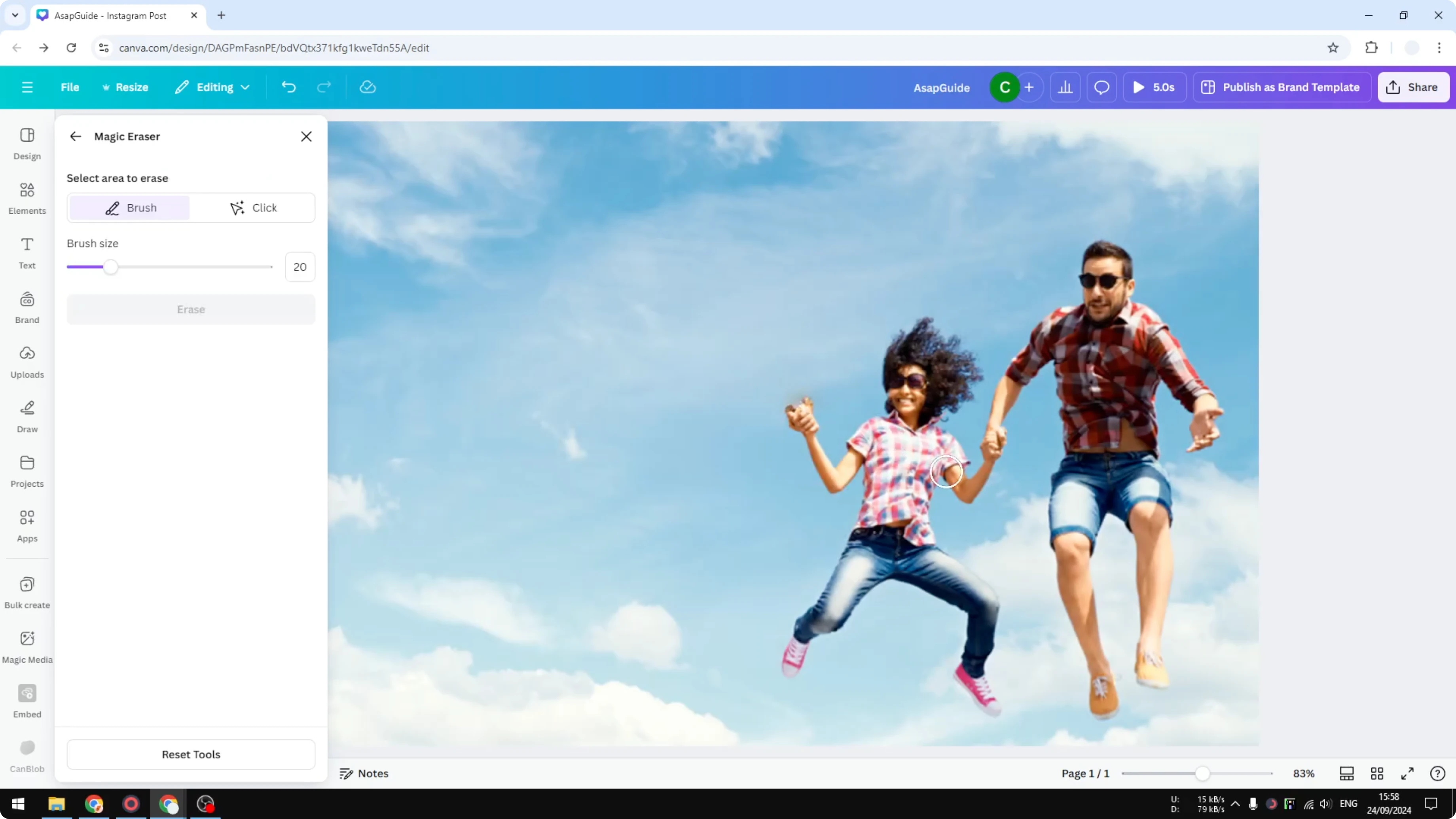
I had not tried this exact picture before, so I did not know if it was going to work on this picture. From my previous testing on different pictures, the result is much more predictable. It is not perfect, but it was better here and the hand is still here.
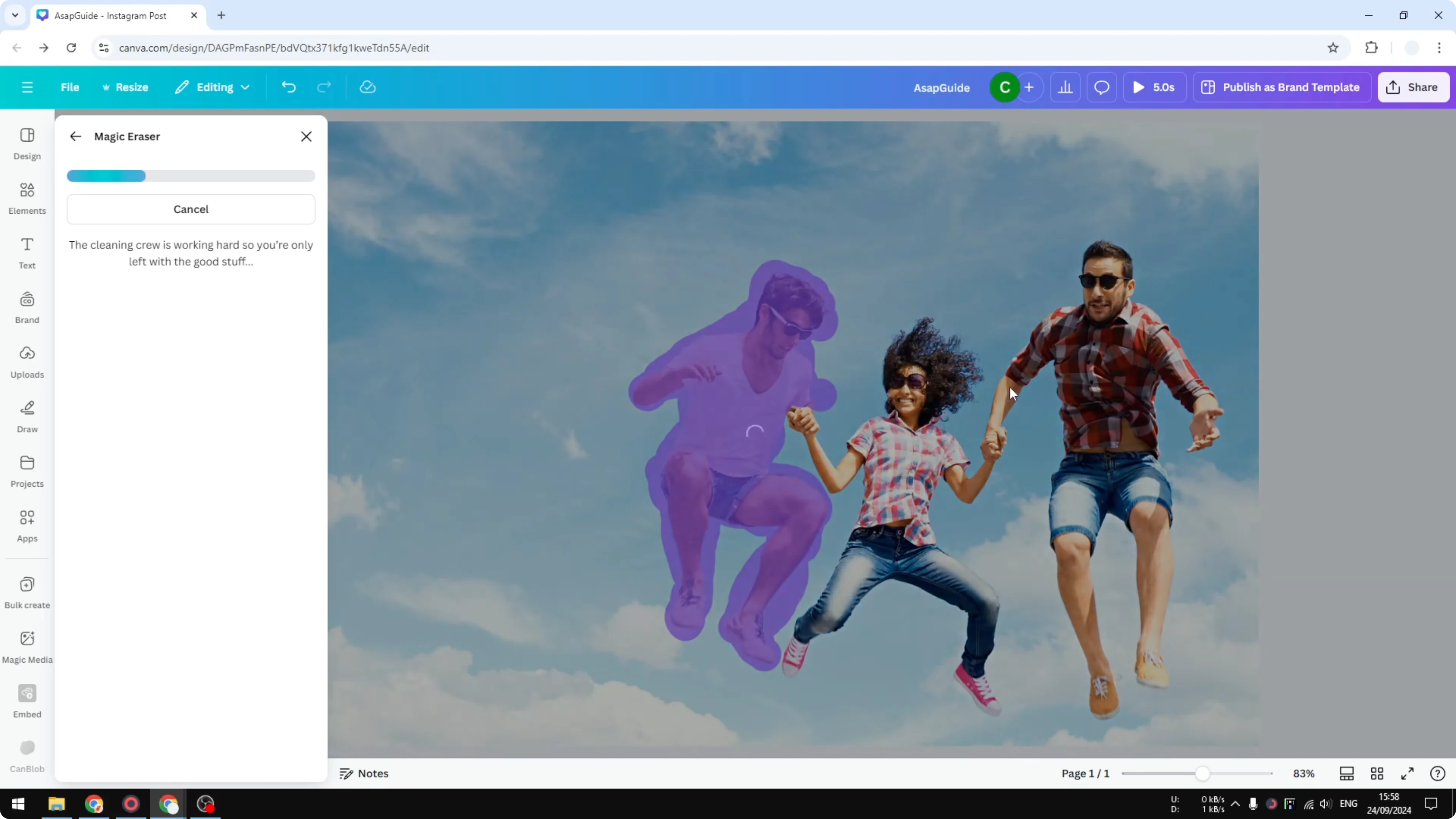
Clean up after you Remove a Person from a Photo in Canva
If you see an artifact, click on it again and clean it until it looks better. Just do it again and wait. That small touch up often fixes the area.
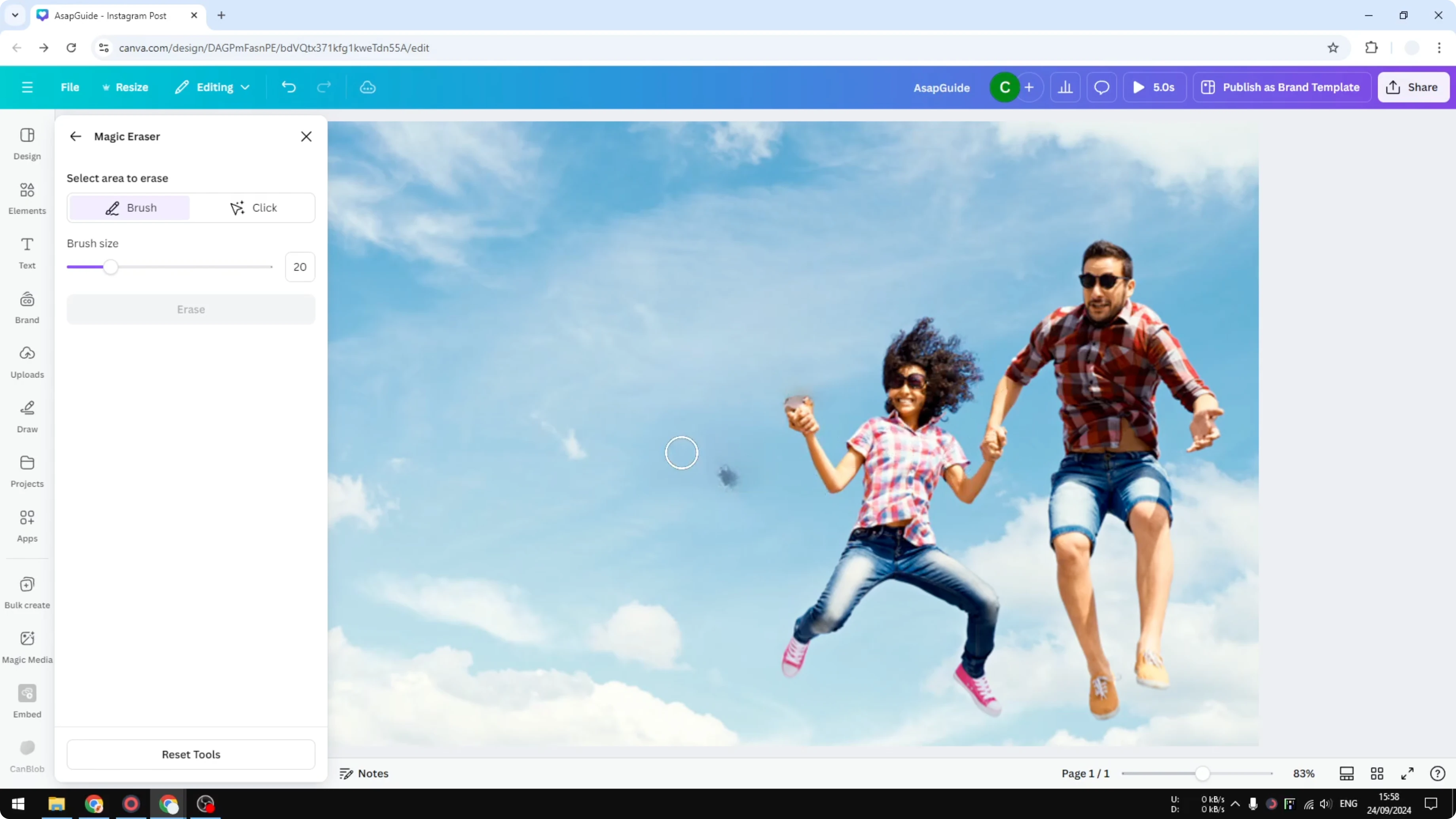
This is AI, so results can vary from image to image. In most cases it should be fine. That is basically it.
If you also need to remove motion effects, you can remove animations in Canva.
Final thoughts on Remove a Person from a Photo in Canva
The Click option is faster, and the Brush option gives you more control. Use the Brush method when auto detection breaks important parts like hands. Keep an eye out for artifacts and clean them with another pass.
Recent Posts

How to Visualize Yourself as a Pixelized Character with AI?
How to Visualize Yourself as a Pixelized Character with AI?

How to Revive Faded Memories and Enhance Image Clarity with AI?
How to Revive Faded Memories and Enhance Image Clarity with AI?

How to Visualize Yourself as an Animal Crossing Character with AI?
How to Visualize Yourself as an Animal Crossing Character with AI?