How to Remove Background from Logo in Canva

I’m going to show you how to remove background from logo in Canva. You might have a logo image with a solid background like white, black, yellow, green, or blue. You want to remove just the background, not the logo.
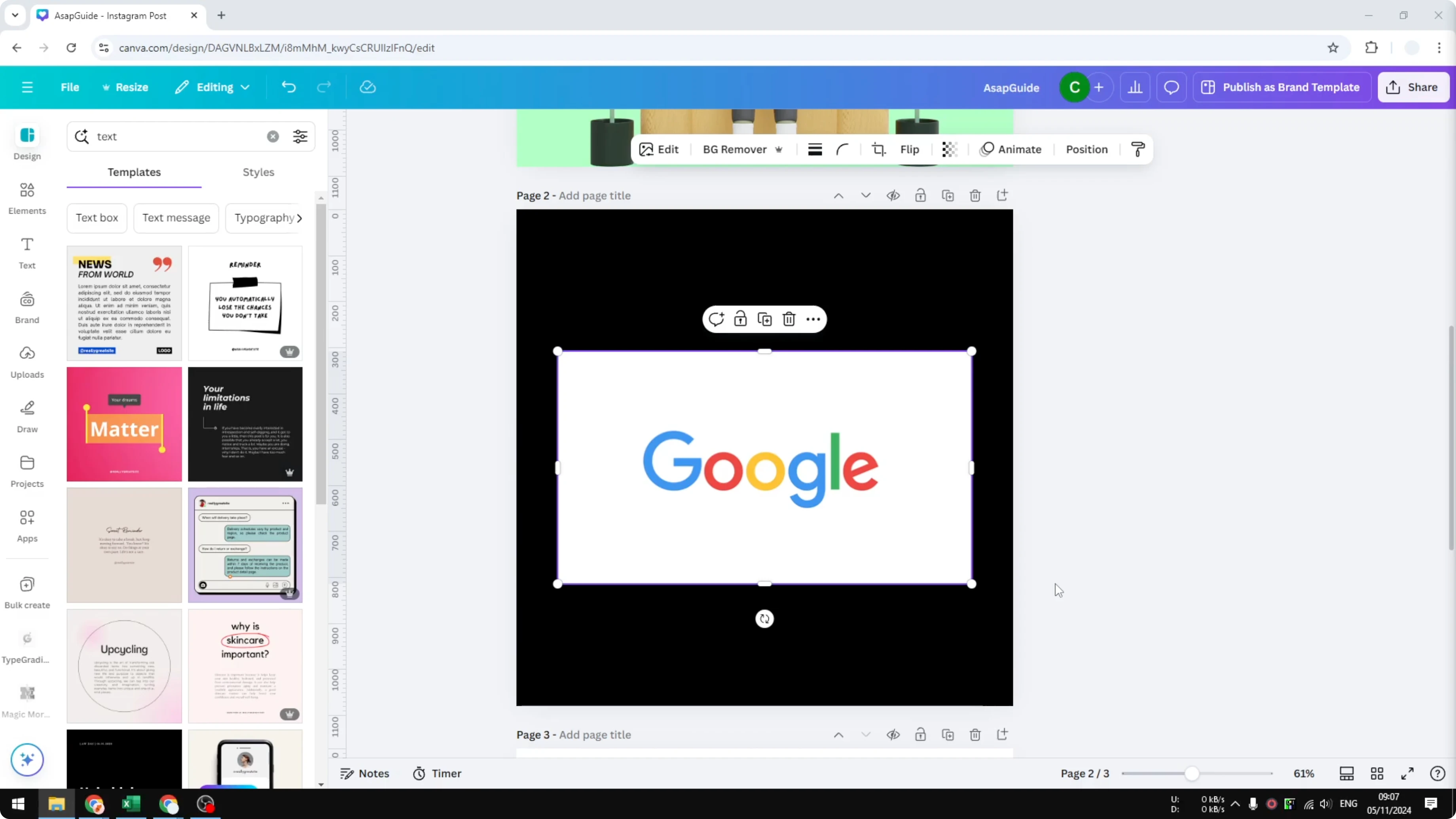
Canva has a one-click feature that does this well. It recognizes the content and removes only the area that is not part of the logo. Here is how I do it.
Quick steps to Remove Background from Logo in Canva
Open your logo image in Canva.
Click the image to select it.
Click Background Remover.
Wait a moment while AI runs an algorithm that detects the subject and removes the background.
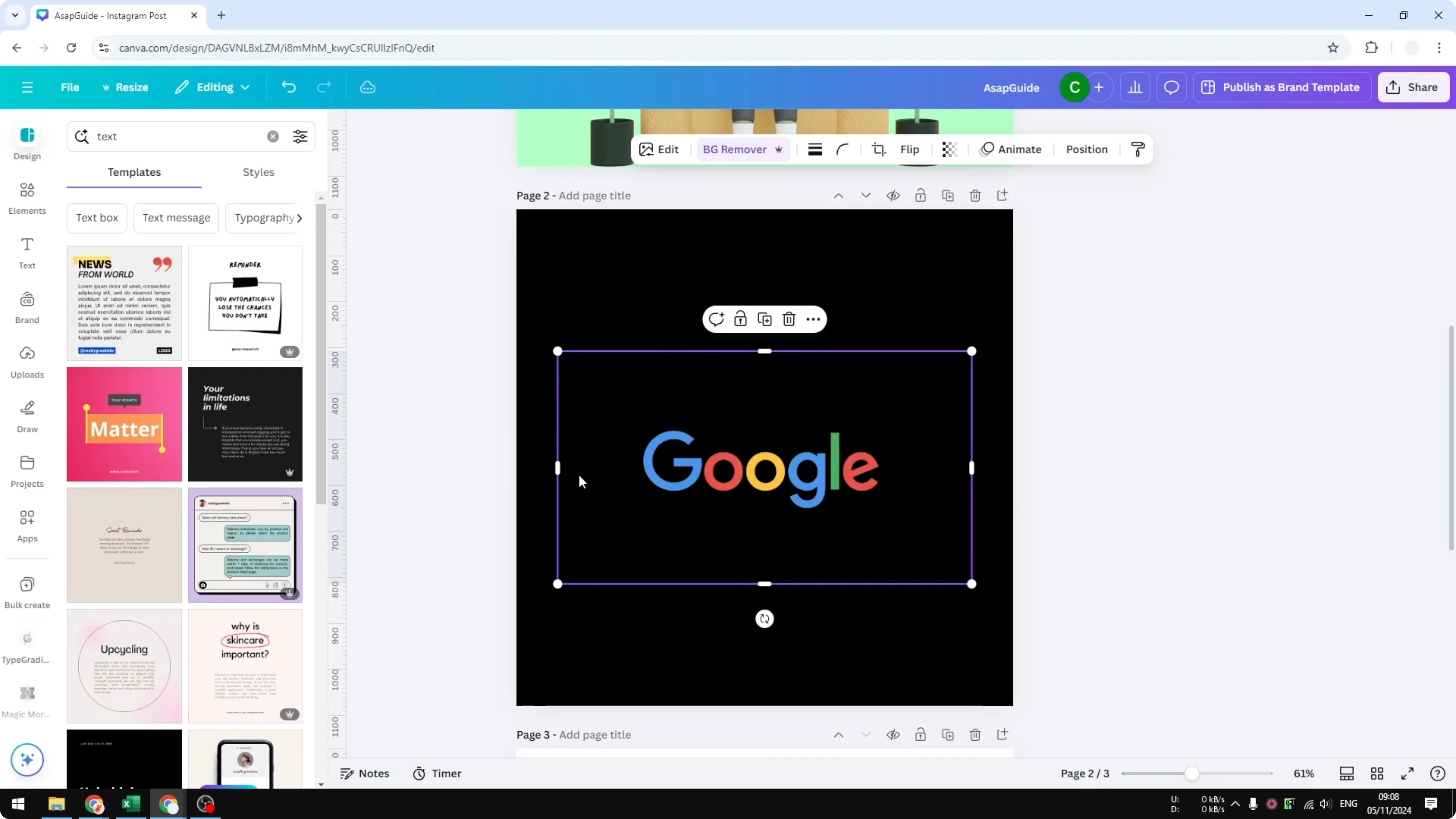
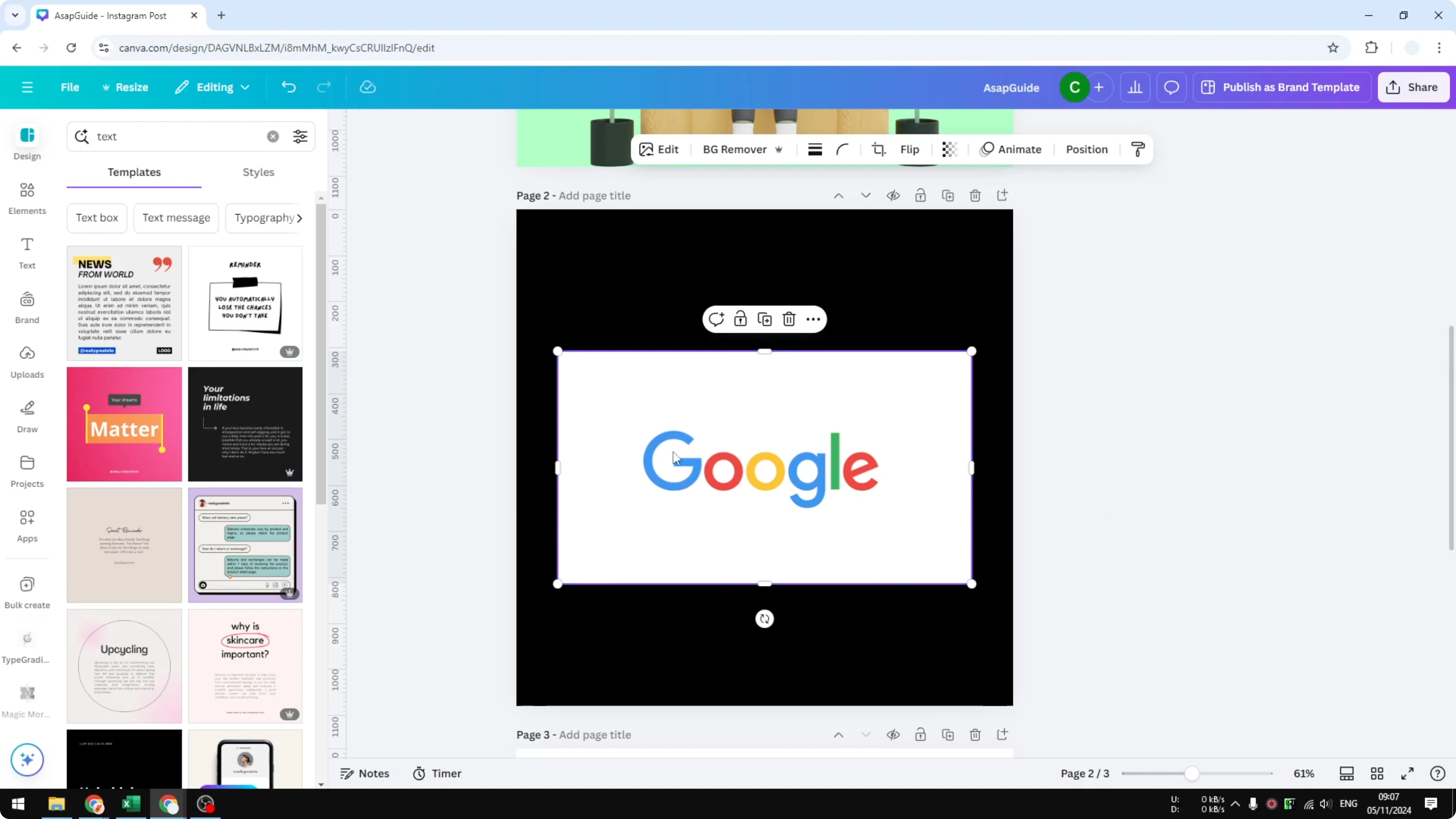
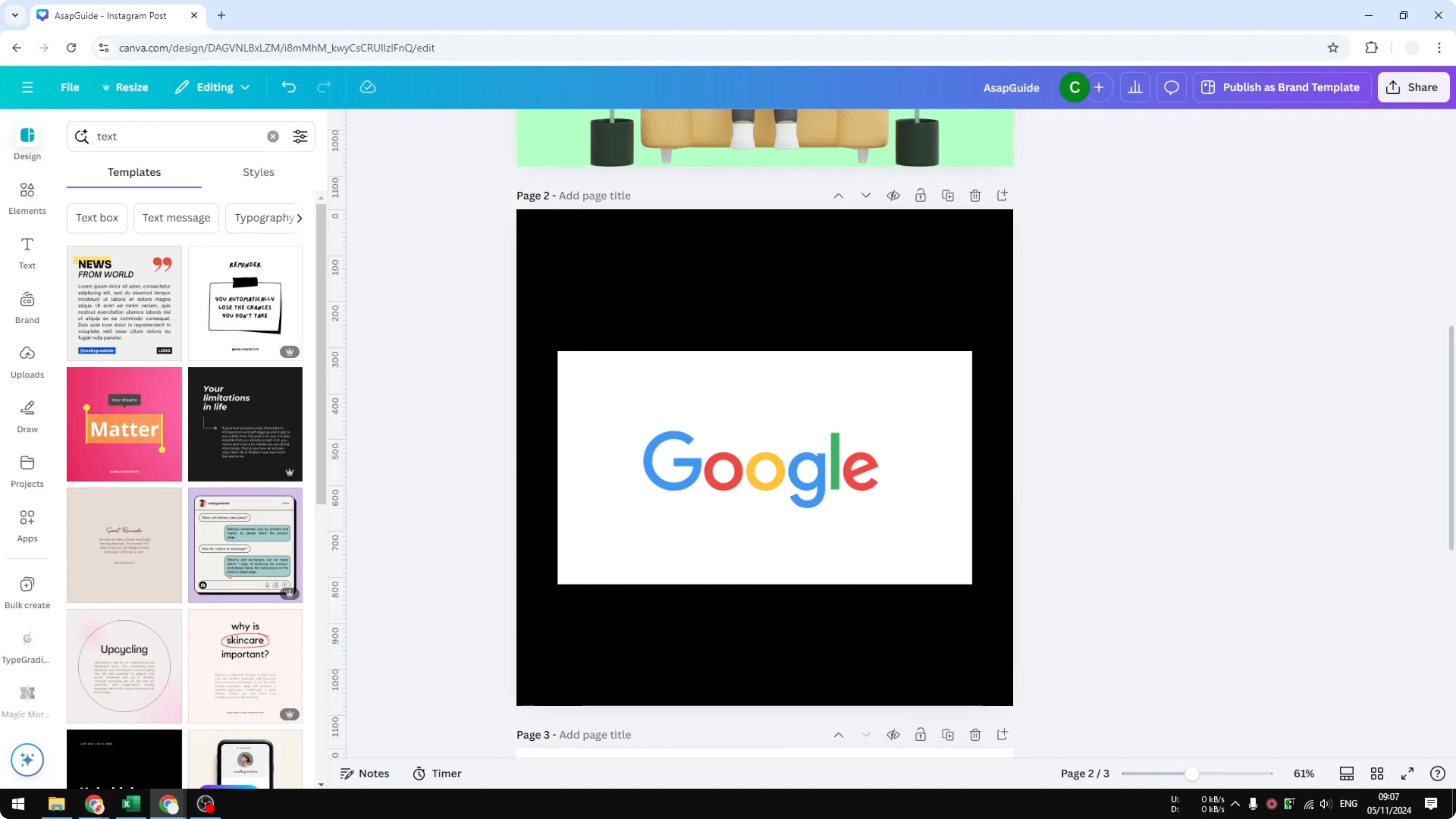
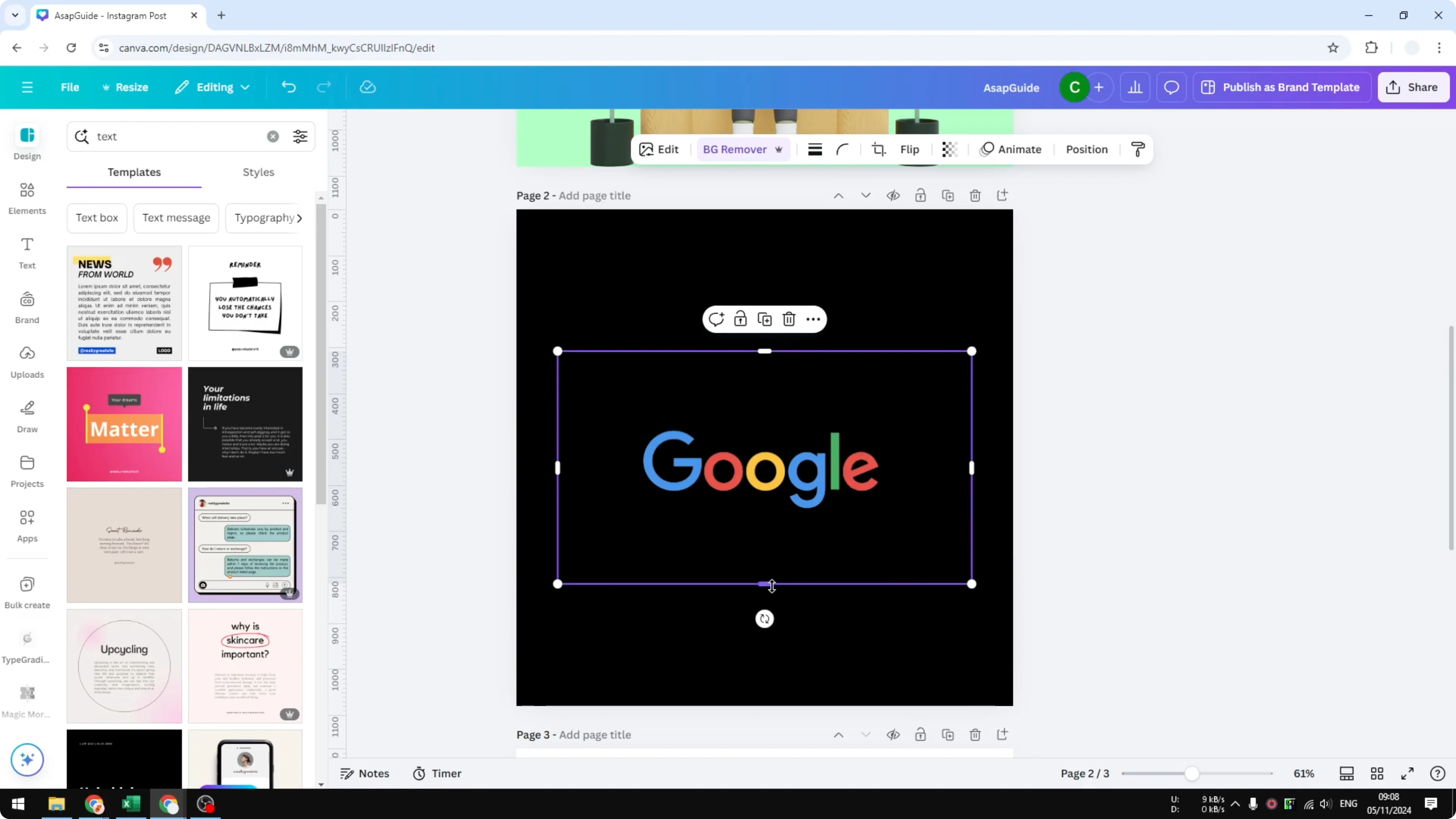
I tested this with a Google logo on a white background. It recognized the content and removed only the white area around the logo. This looks really great.
Read More: How To Remove Animations From Canva
Color after you Remove Background from Logo in Canva
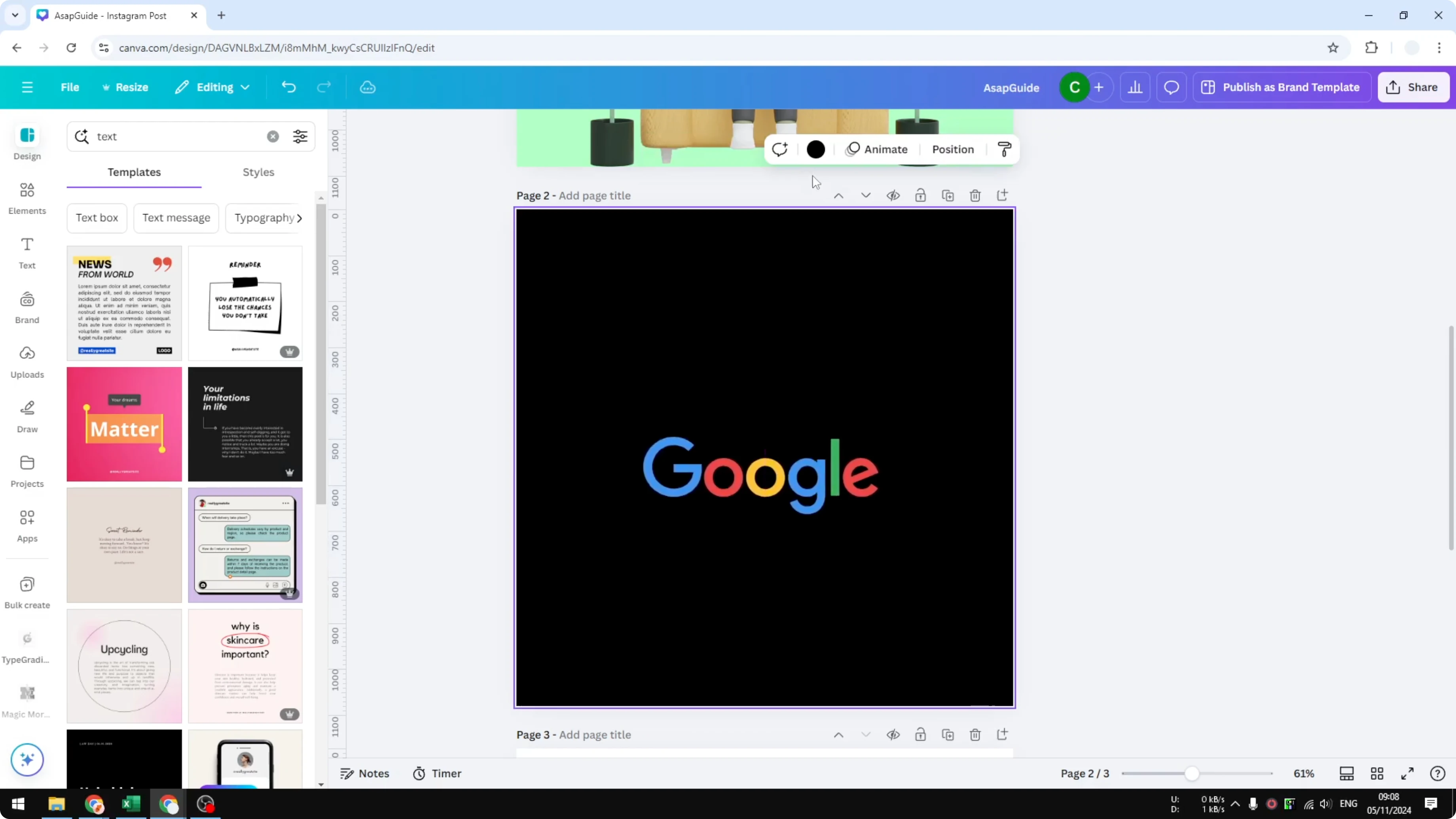
After removing the background, I can apply any color to my page. The logo stays clean and visible on the new color. It is easy to match your design without the old background getting in the way.
Read More: Can You Remove Text From A Video In Canva
When not to Remove Background from Logo in Canva
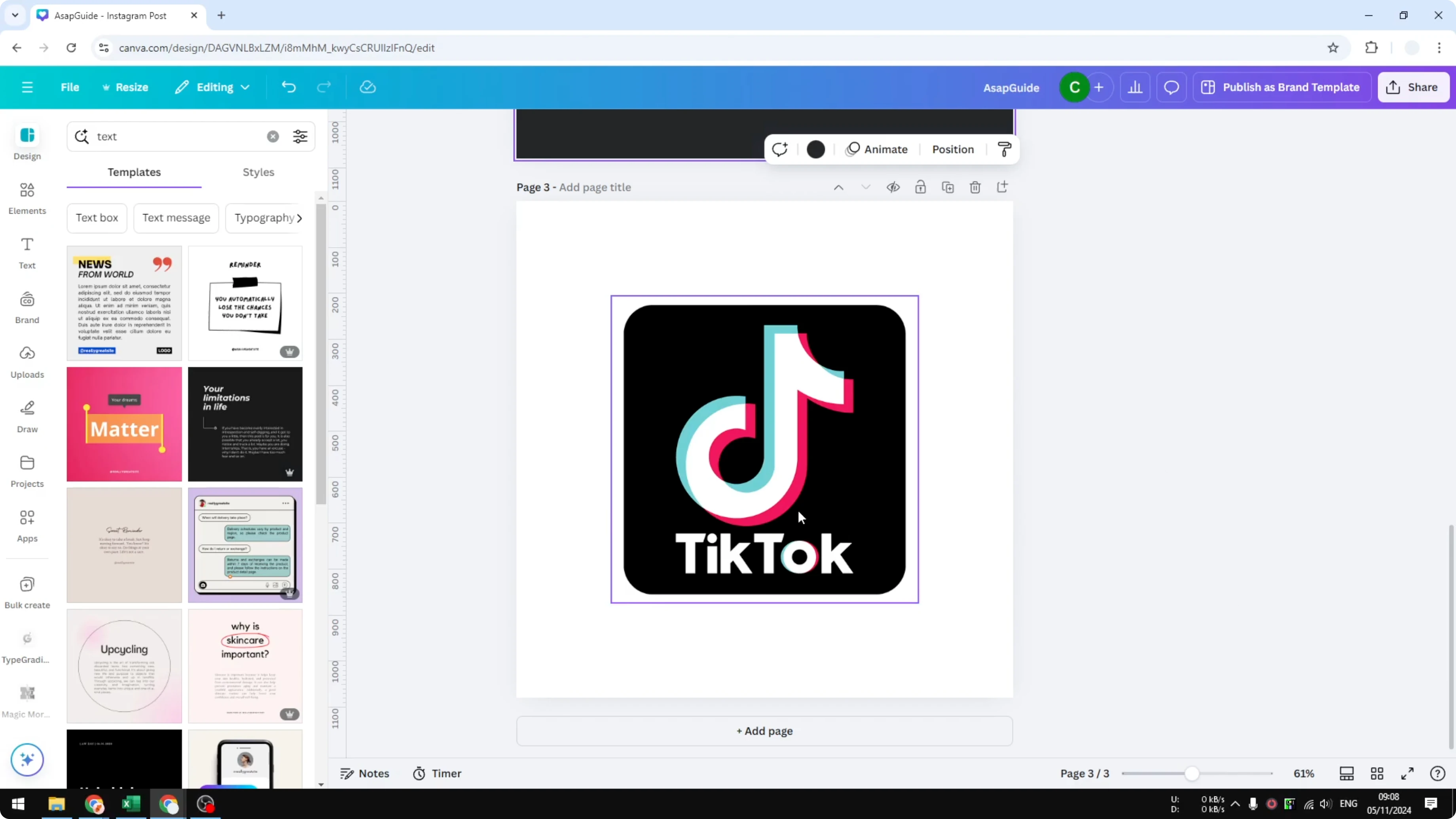
Some logos are designed to sit on their own background. A good example is TikTok, which usually uses a dark background that is not meant to be removed.
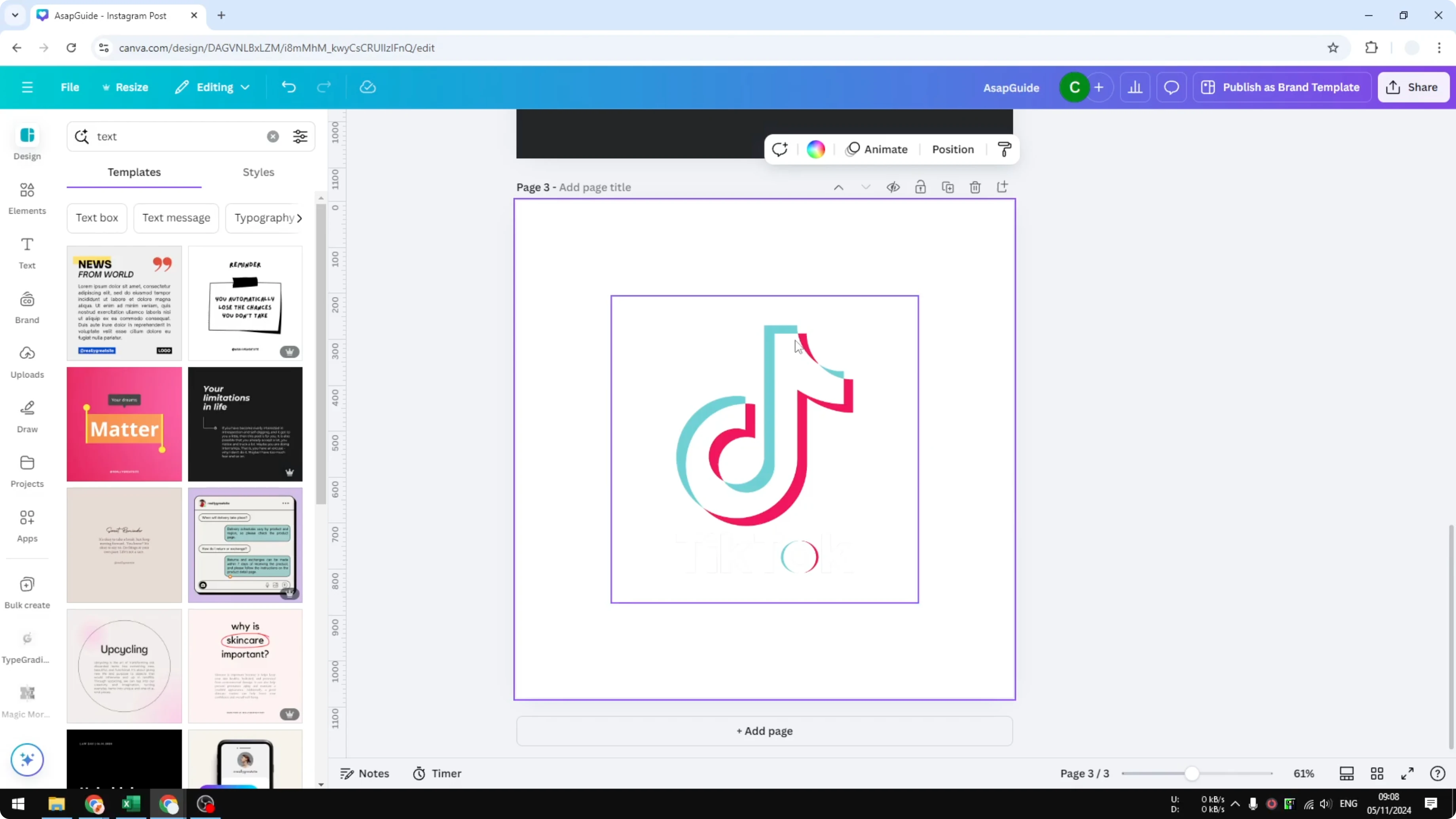
If you remove that background and put the logo on white, it will not look great. Keep in mind that some logos are better in a certain color, so consider this when planning your design.
Read More: How To Remove Background Audio Noise In Canva
Final thoughts on Remove Background from Logo in Canva
Click Background Remover to delete a solid logo background quickly. The tool recognizes the subject and keeps the logo clean while removing what is not part of it. Just remember that some brand marks work best with their intended background color.
Recent Posts

How to Visualize Yourself as a Pixelized Character with AI?
How to Visualize Yourself as a Pixelized Character with AI?

How to Revive Faded Memories and Enhance Image Clarity with AI?
How to Revive Faded Memories and Enhance Image Clarity with AI?

How to Visualize Yourself as an Animal Crossing Character with AI?
How to Visualize Yourself as an Animal Crossing Character with AI?