How to Recolor Image in Canva
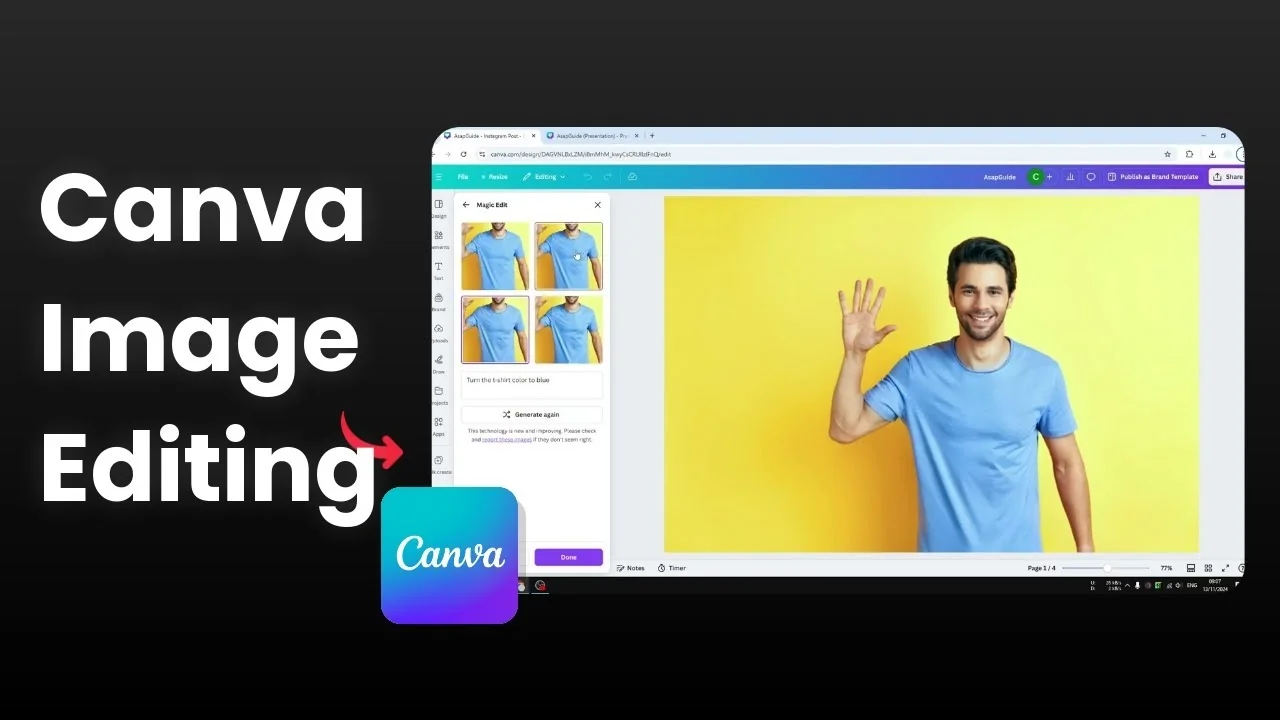
Can you recolor an image in Canva? It depends, because Canva doesn't have native tools that let you select a specific area and change its color the same way you can in Adobe Photoshop. There are workarounds with AI that can change the color of certain objects, and they are good enough for a lot of cases.
If you need broader options beyond this workflow, see how to change color in Canva.
Why Recolor Image in Canva is different
You won't get precise area selection like lasso or hue targeting. You will rely on AI to identify objects and apply a prompt to modify color in the selected region. It is not perfect, but it is often close.
Recolor Image in Canva with Magic Edit
I have a photo of a man with a yellow background, and the T-shirt is light pink. I want to change the T-shirt color to blue.
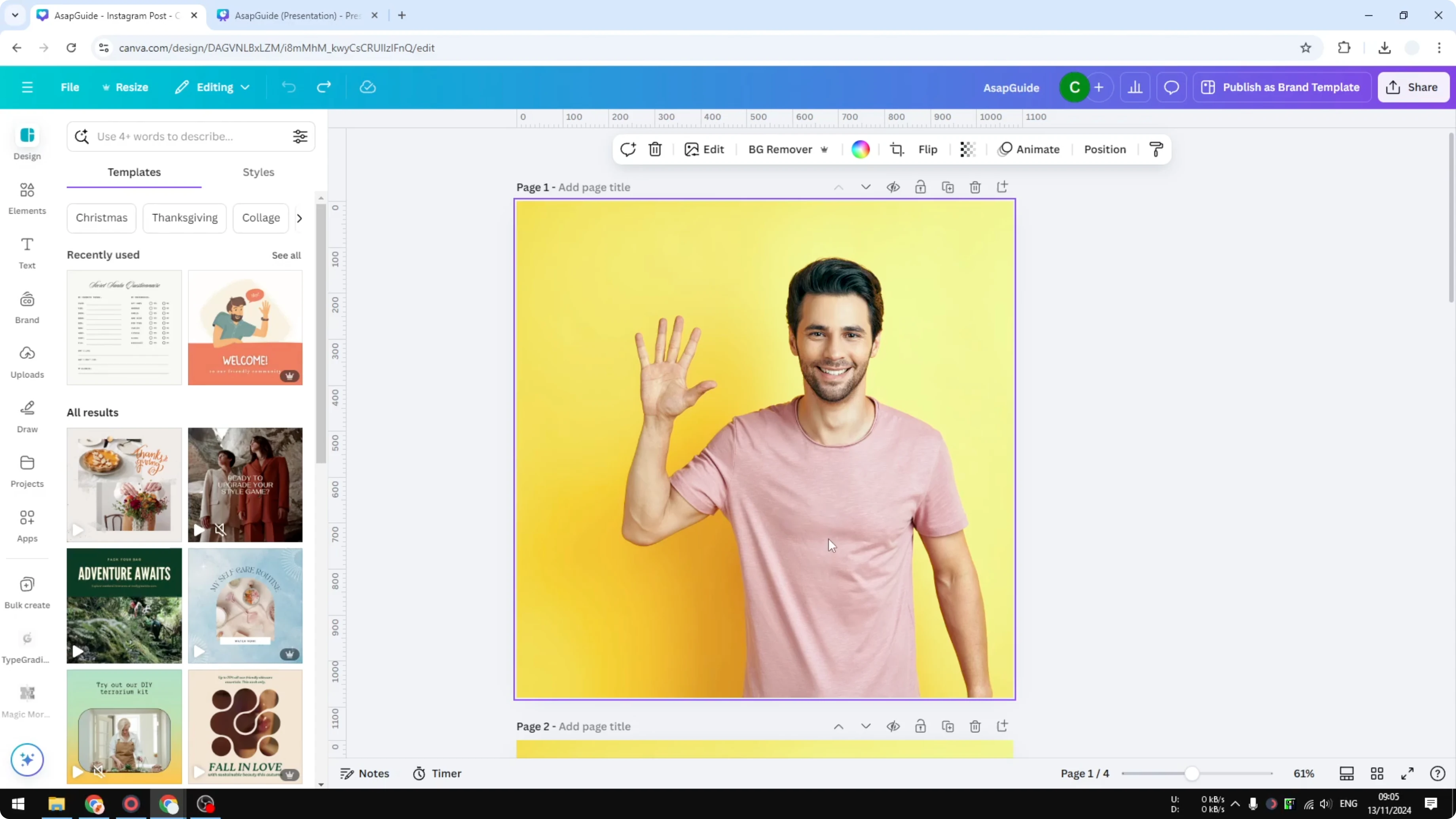
Click the image.
Go to Edit.
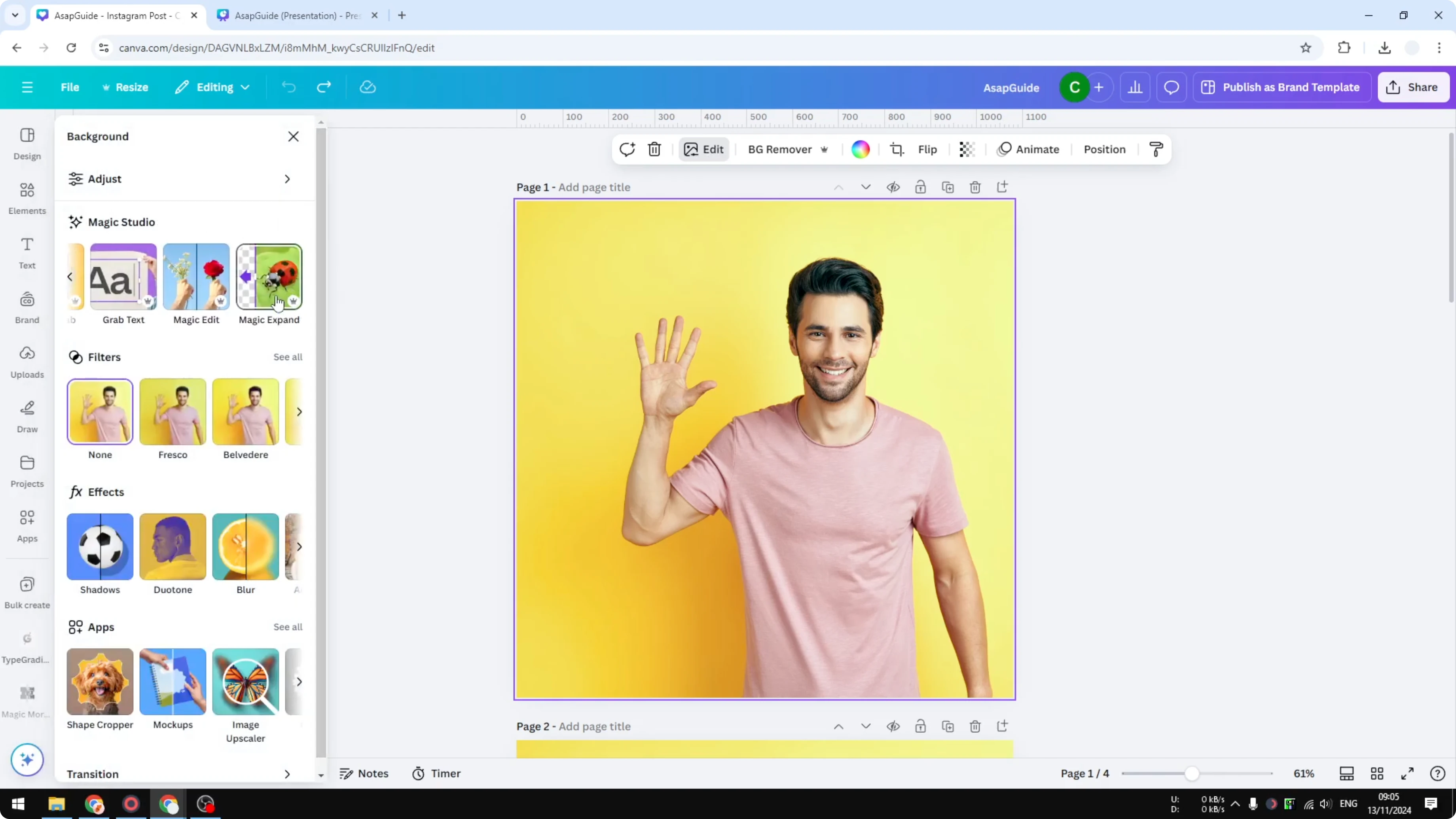
Open Magic Studio and choose Magic Edit.
Click method
You can use the click method to let the AI figure out the objects in the photo. Click the object to modify it. In my case, it detects the person entirely, but I only need the T-shirt.
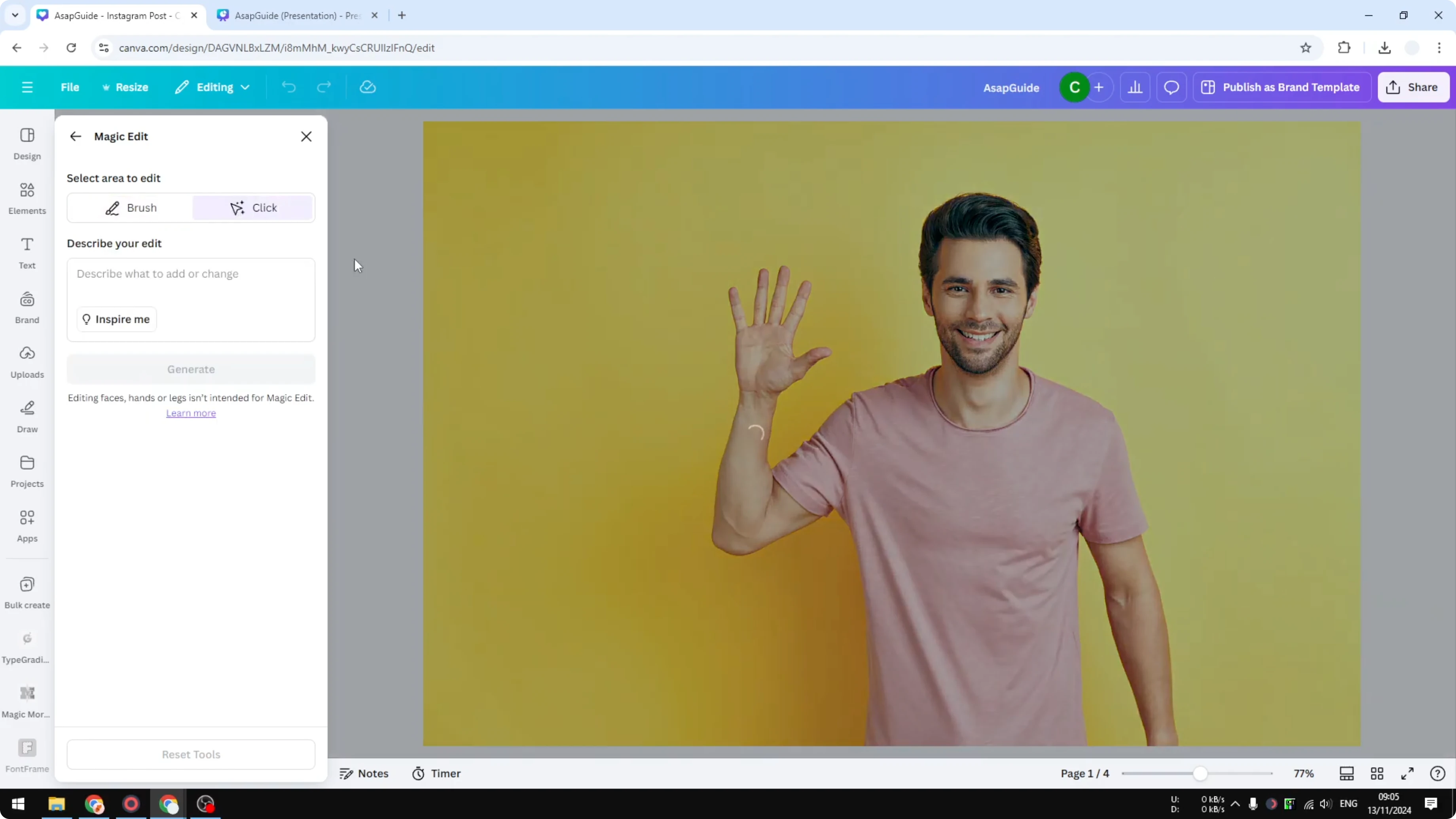
Brush method
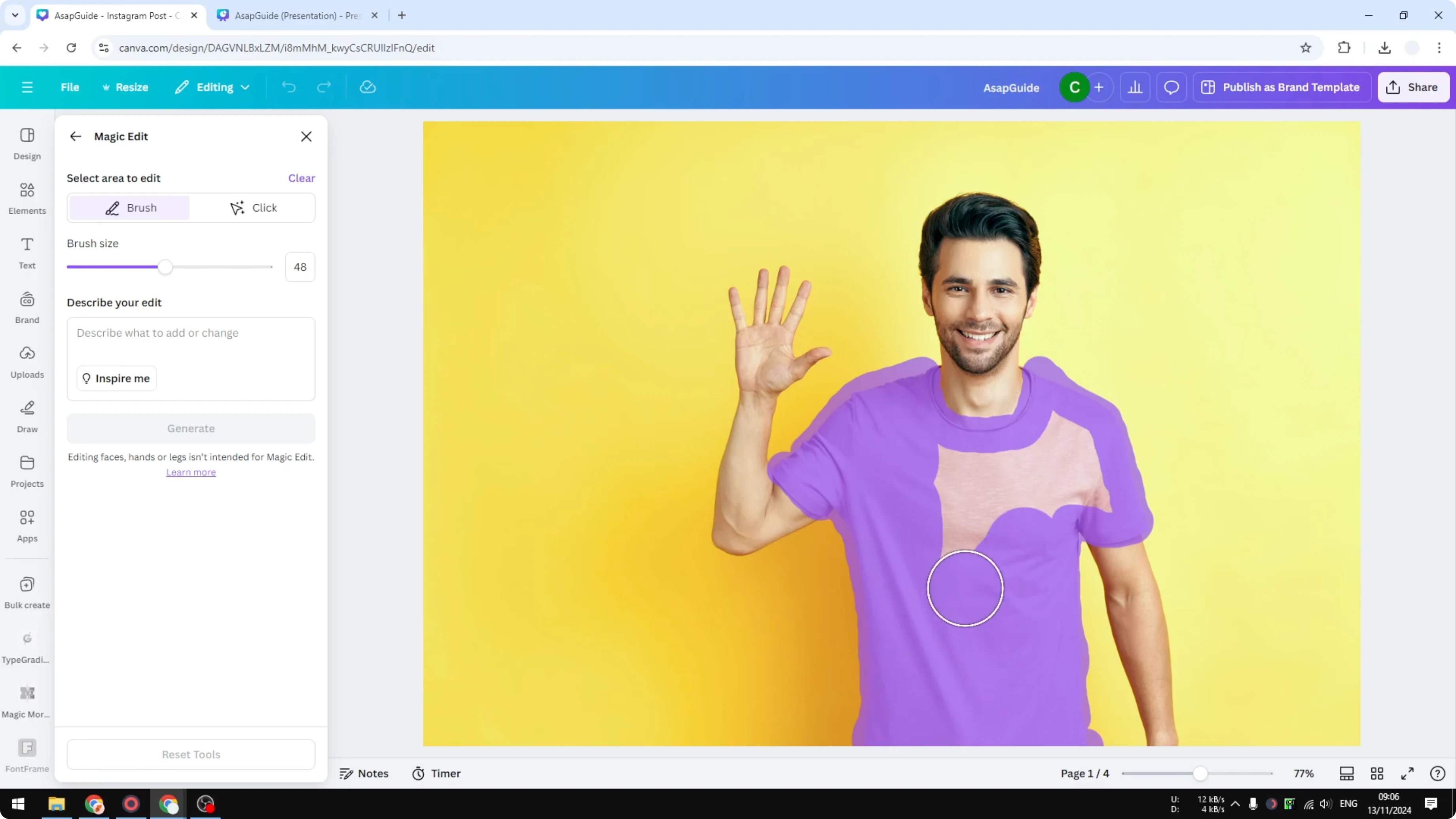
Switch to the brush method to manually select the area you want to modify. This can take some time depending on the size and complexity of the object, but it does not have to be perfect. It just helps the AI understand which part to work with.
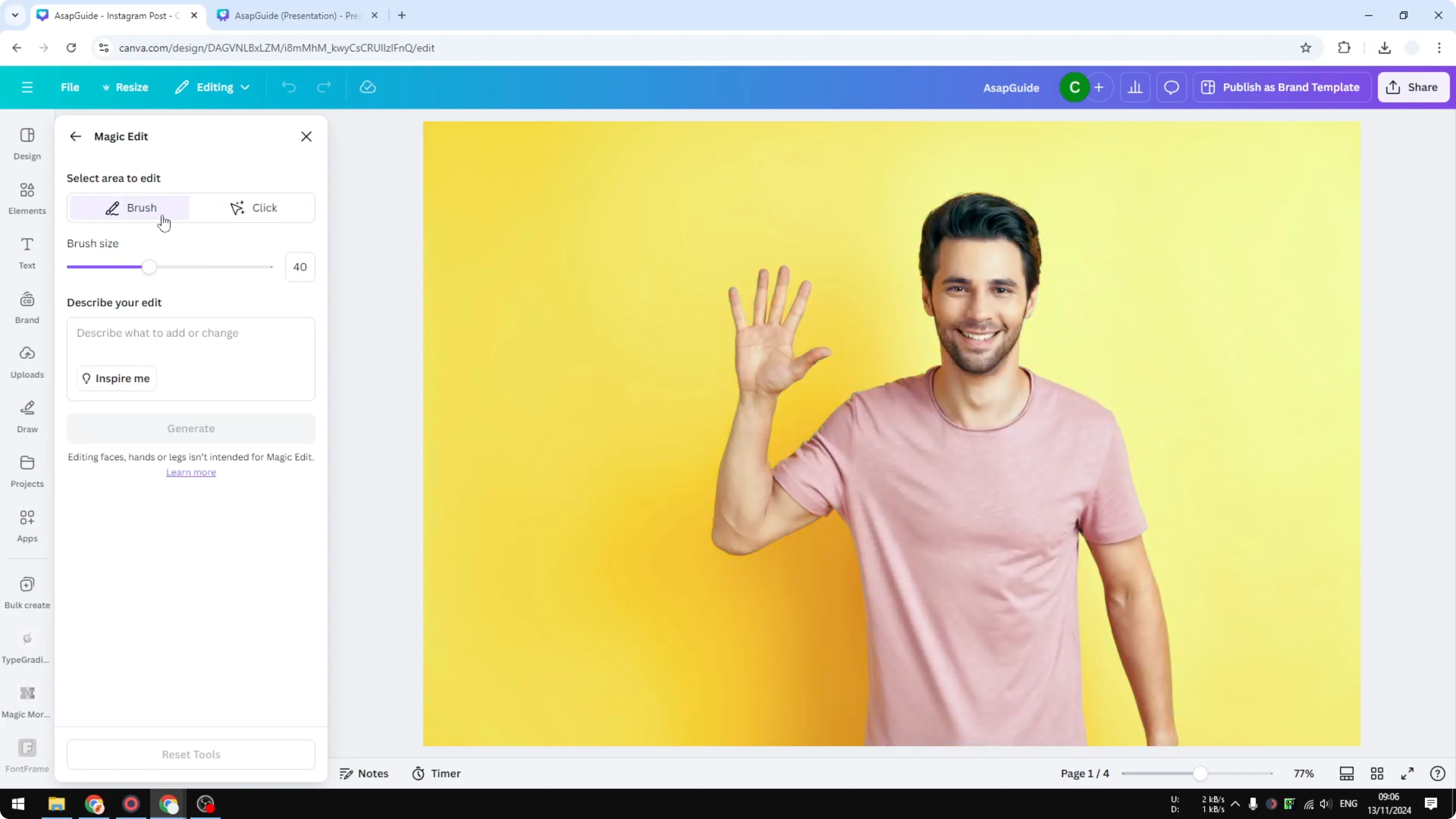
If the object is complex, manually adjust the brush size based on the elements you need to cover. Be patient with edges and folds. A rough selection usually works.
Generate and apply
Tell the AI what to change in the selected area. I tell it to turn the T-shirt color to blue.
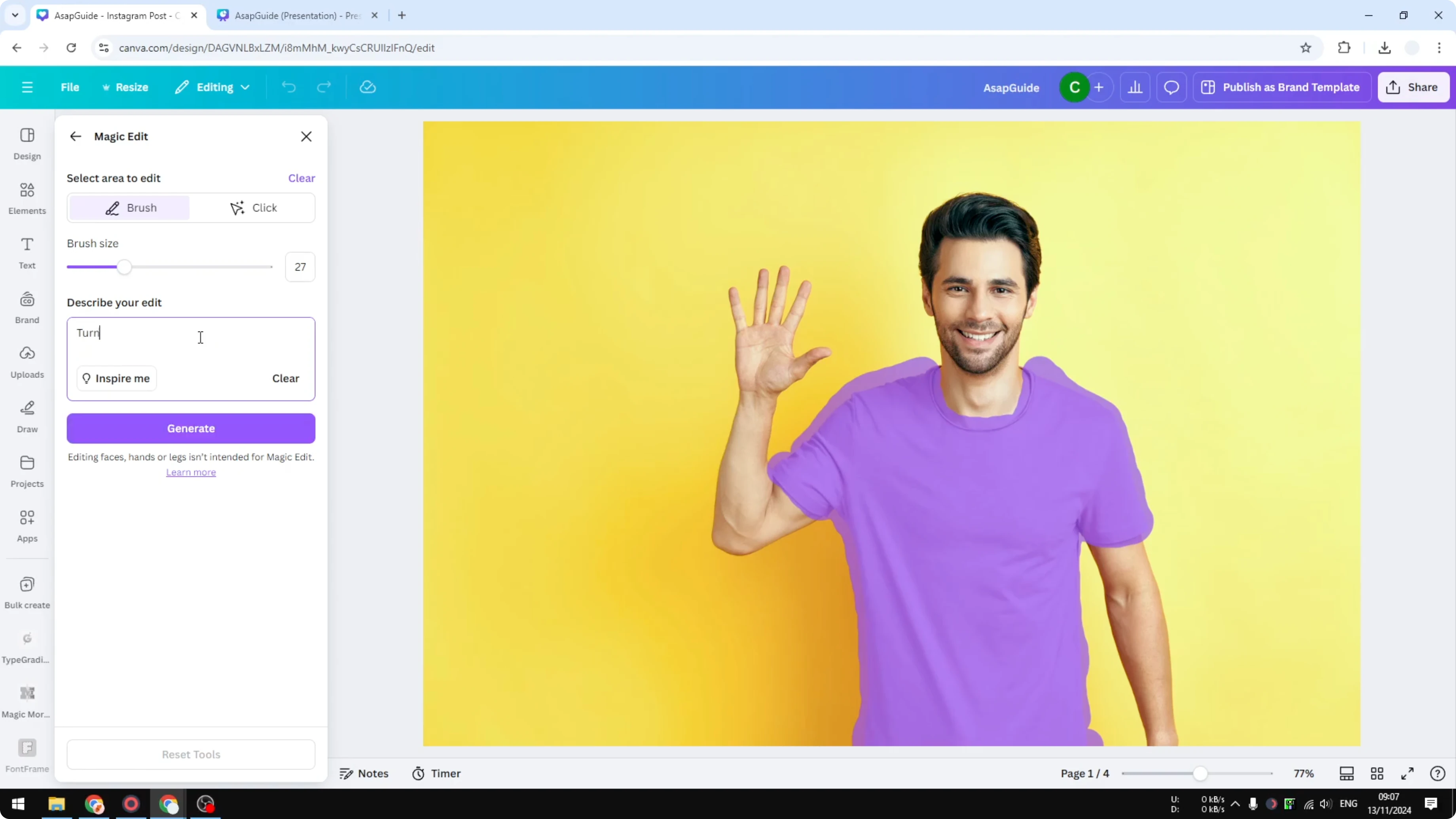
Click Generate.
Canva will give four options. Click any of them to preview and decide which one looks the best. I pick the one that looks sharp with a nice color.
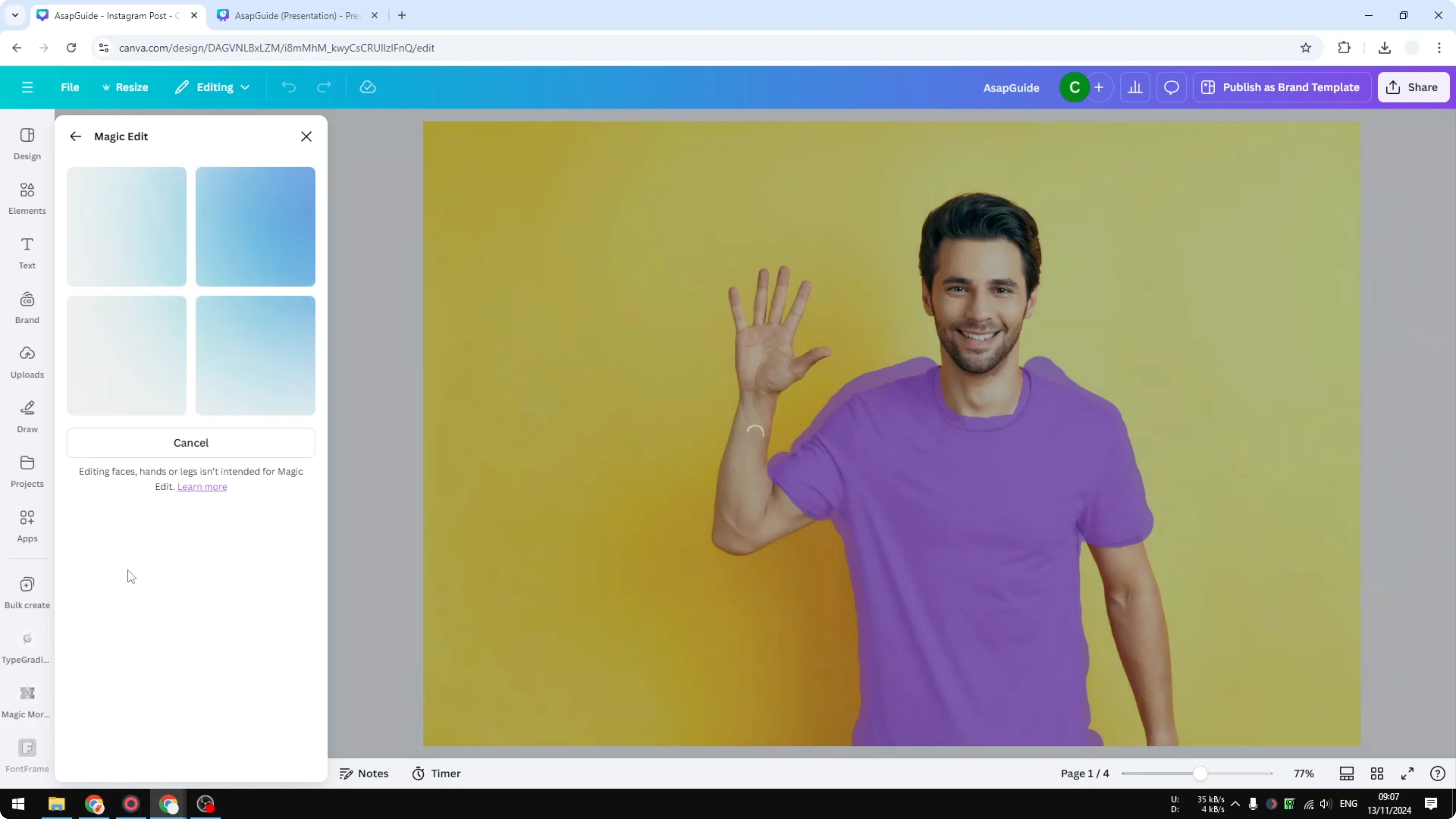
Click Done to apply the change to the photo. You will see the updated picture on your canvas.
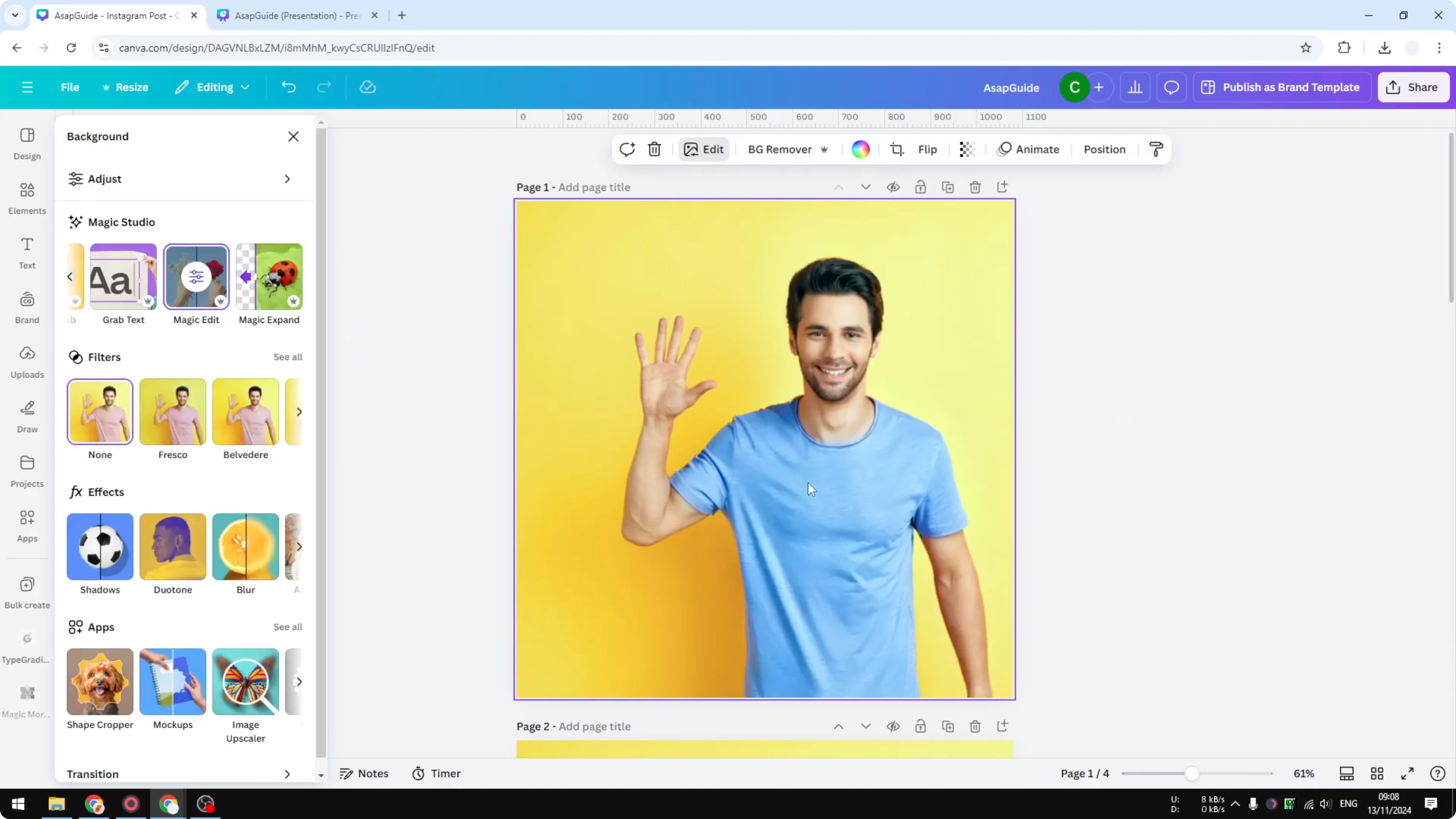
If the result looks a bit dull after recoloring, you can brighten an image to add some punch.
Results and quality
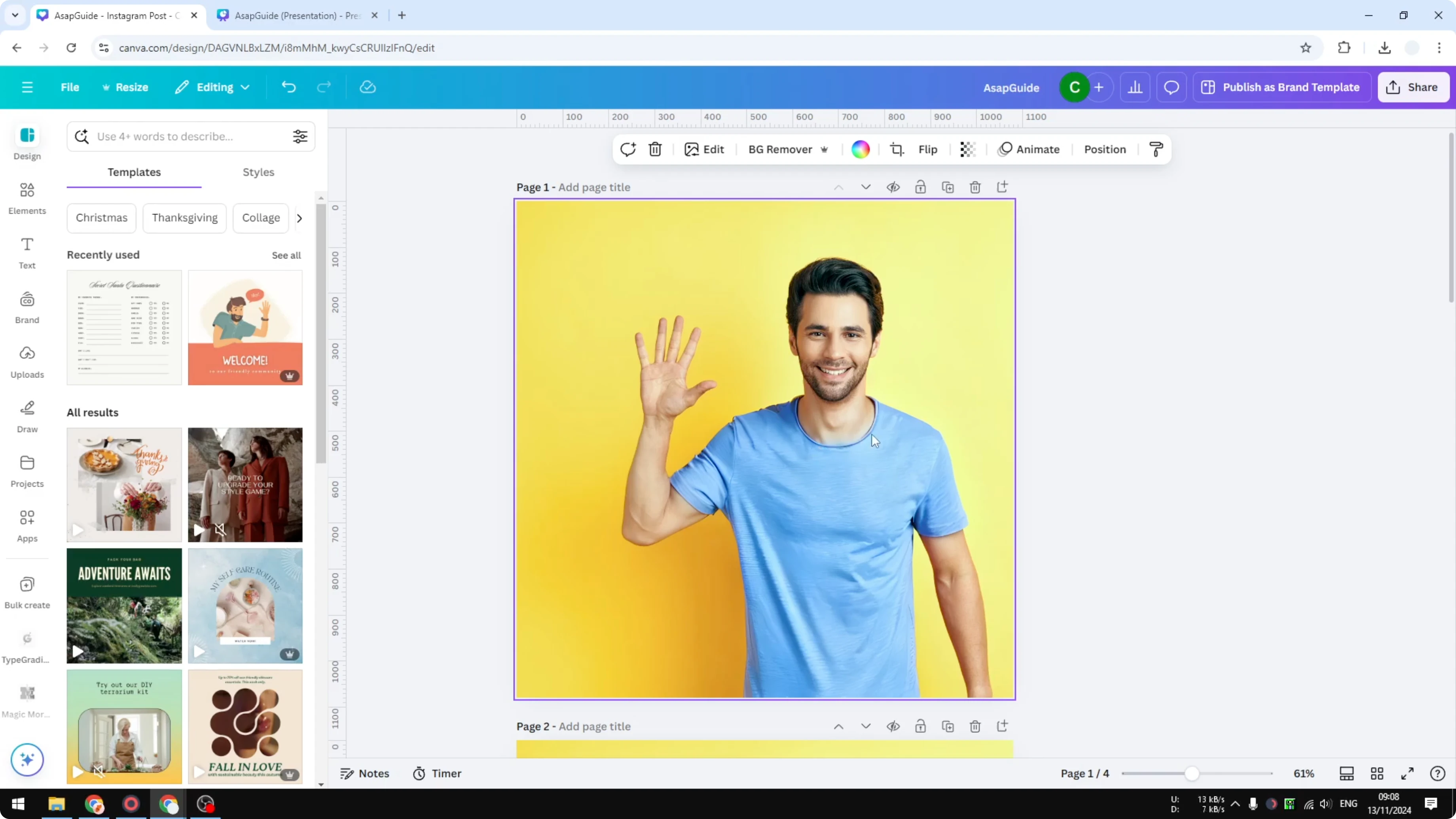
The before and after show a clear color change, and the edit can look almost perfect at first glance. If you look closely, you might see slight bleeding on edges where the new color leaks onto the skin. It is very close, and the result is pretty good for most uses.
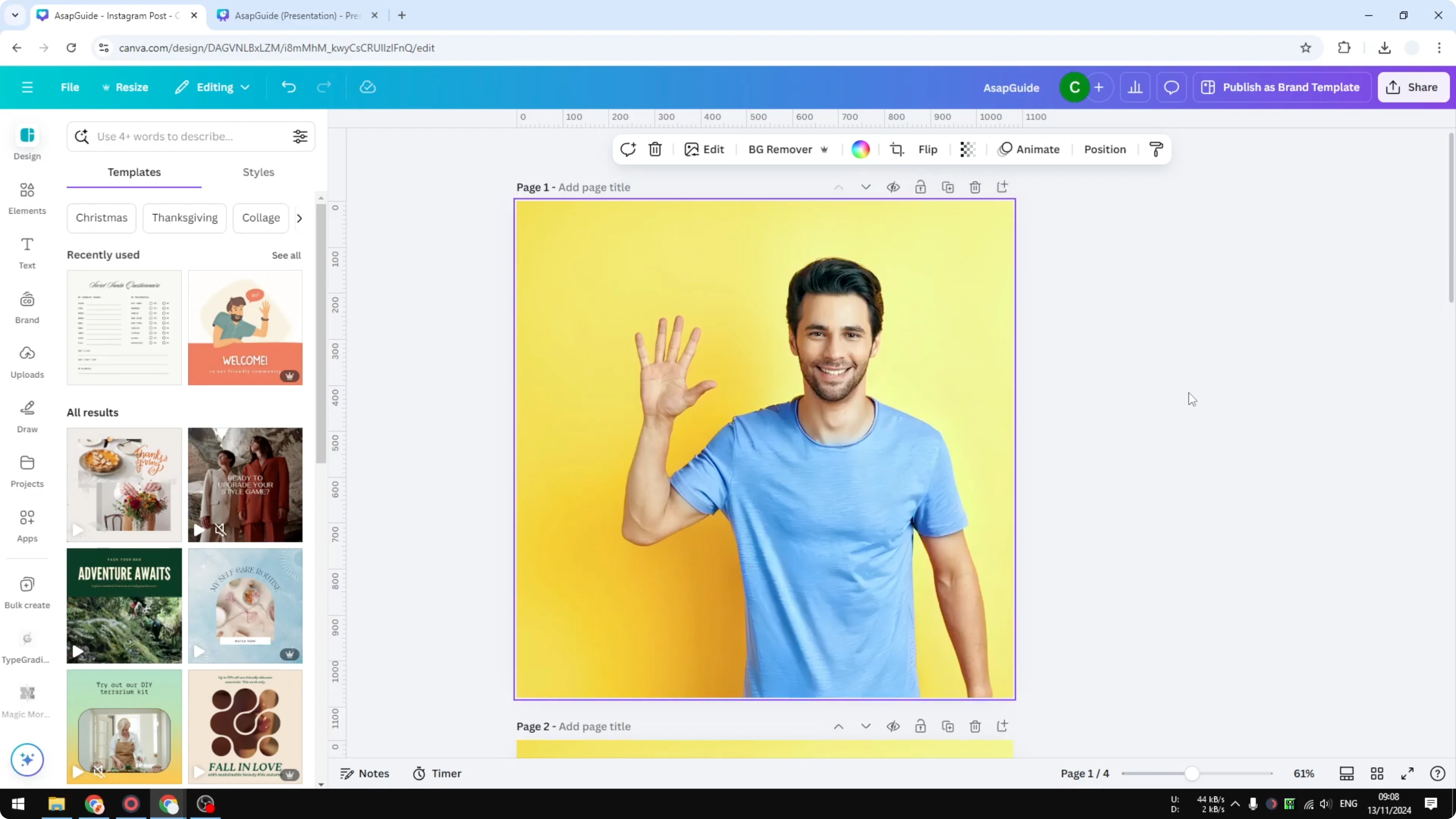
If the new color feels too intense, you can darken an image to pull it back.
Final thoughts
Recoloring an image in Canva works best with Magic Edit and a careful brush selection. It may not be pixel perfect, but it is fast and effective for many photos. Test a few generated options and pick the one that looks the most natural.
Recent Posts

How to Visualize Yourself as a Pixelized Character with AI?
How to Visualize Yourself as a Pixelized Character with AI?

How to Revive Faded Memories and Enhance Image Clarity with AI?
How to Revive Faded Memories and Enhance Image Clarity with AI?

How to Visualize Yourself as an Animal Crossing Character with AI?
How to Visualize Yourself as an Animal Crossing Character with AI?