How to Darken Image in Canva
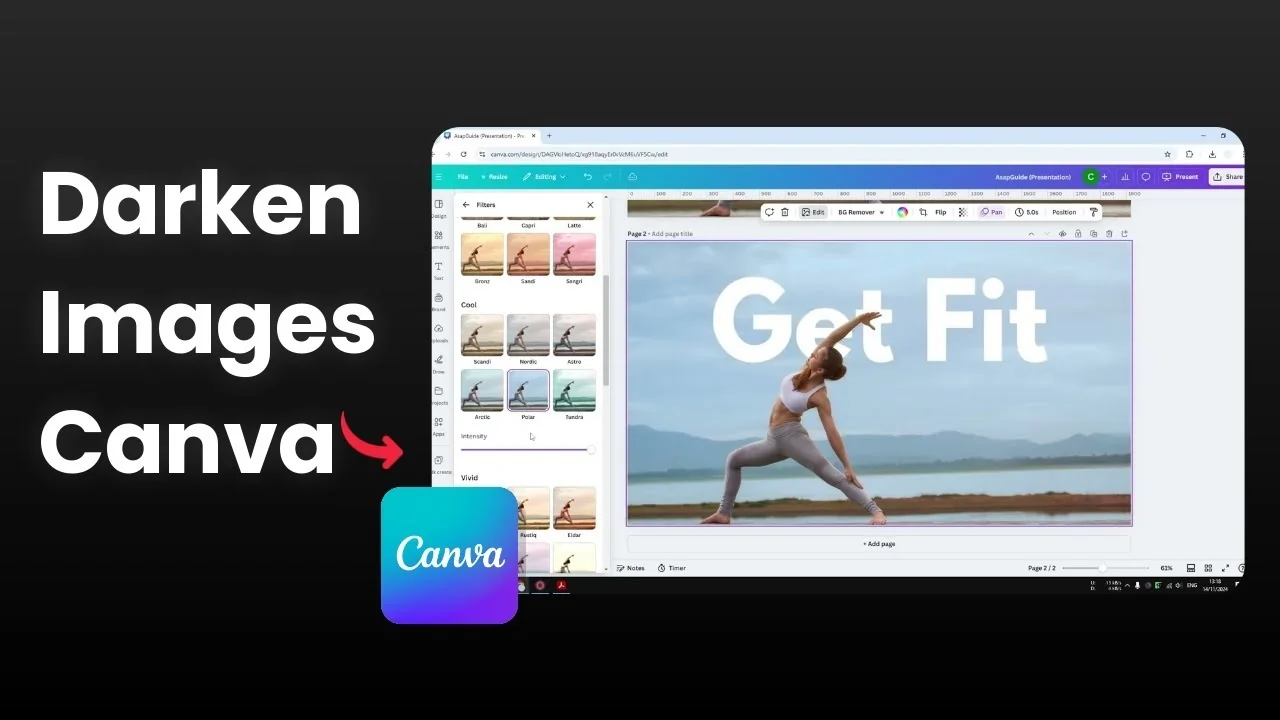
I'm going to show you how to make an image slightly darker in Canva. This darkening effect is very useful if you're working with multiple elements and you have text on top of the image in white. A bright background can make the text really difficult to read.
That is the case for this design. The text is white, but the background is bright, which makes the text difficult to see, and that's not a good design. I want to make the background slightly darker.
There are multiple methods you can try, and I'll show methods that make an image darker. If you want the opposite effect, see how to brighten an image in Canva. I like to duplicate the page first so I can compare the before and after.
Methods to Darken Image in Canva
Filters for Darken Image in Canva
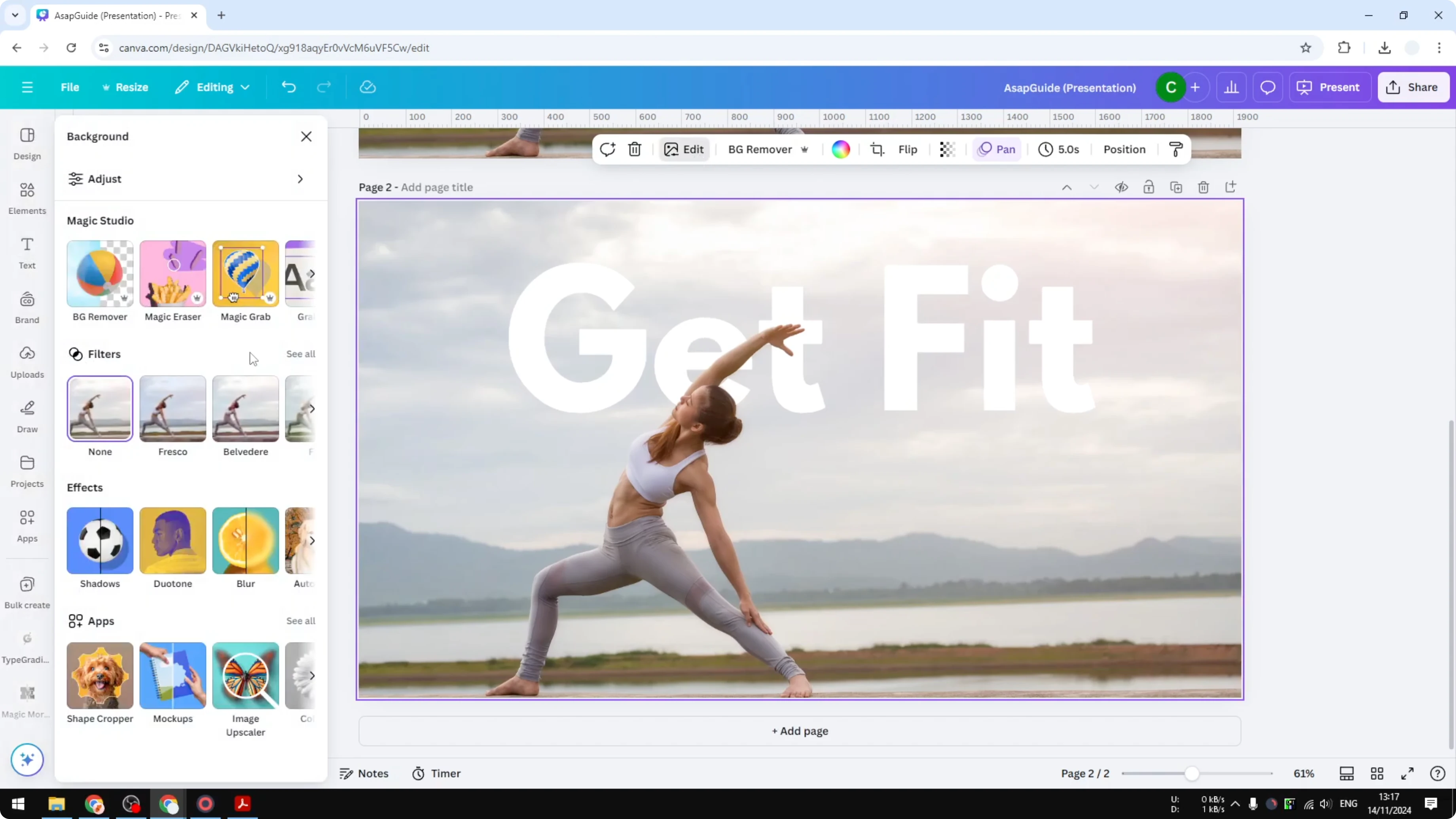
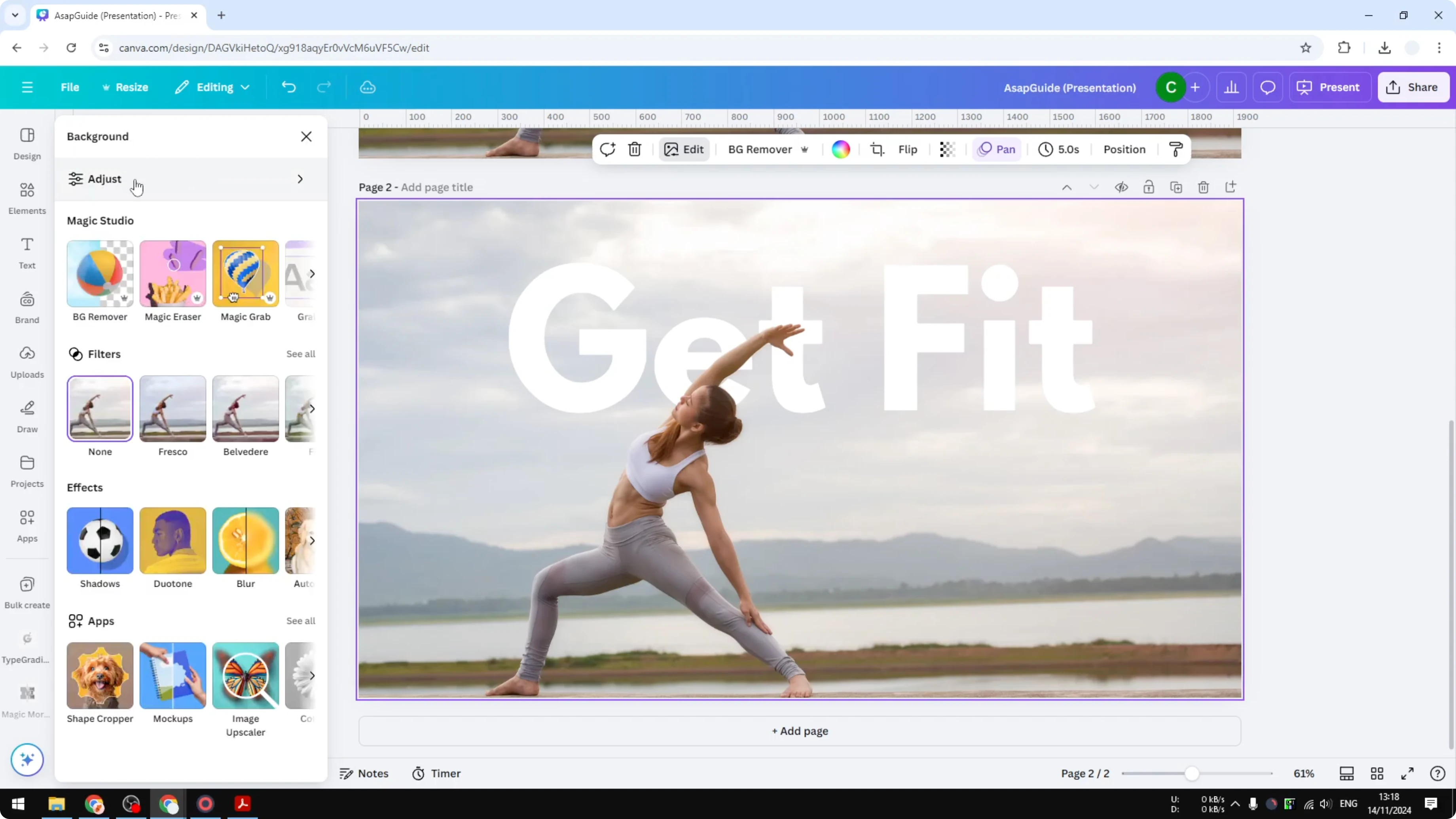
Click the image. Click Edit. In Filters, click See all.
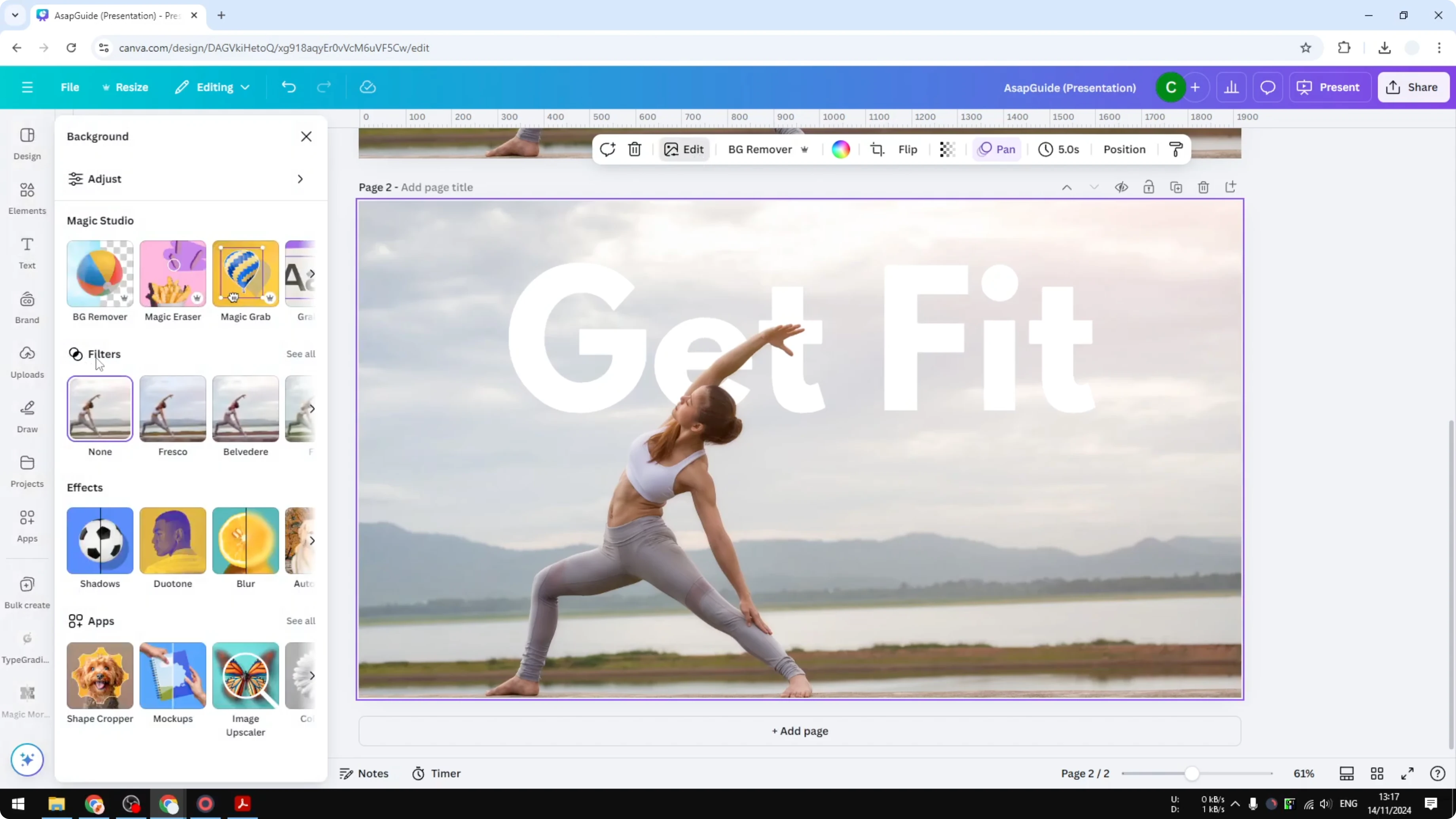
Try different options until you find a darker look. You will likely see the text become much more visible. I personally don't like this filter technique because it is applied to the entire image.
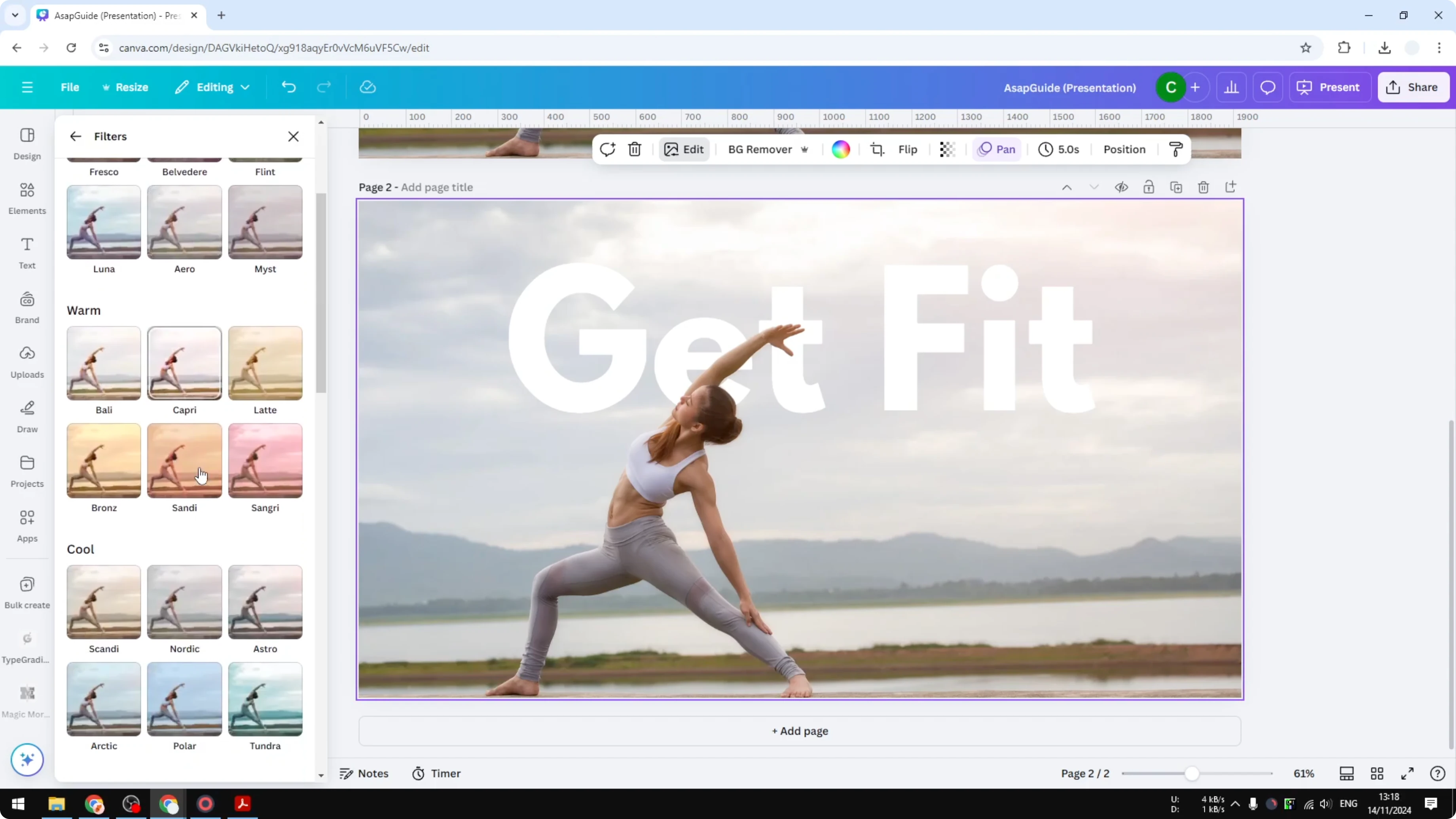
Sometimes I just want to adjust the brightness of the background without changing other colors. If your goal is to tweak a specific color range instead of overall darkness, see this guide to changing image color in Canva.
Adjustments for Darken Image in Canva
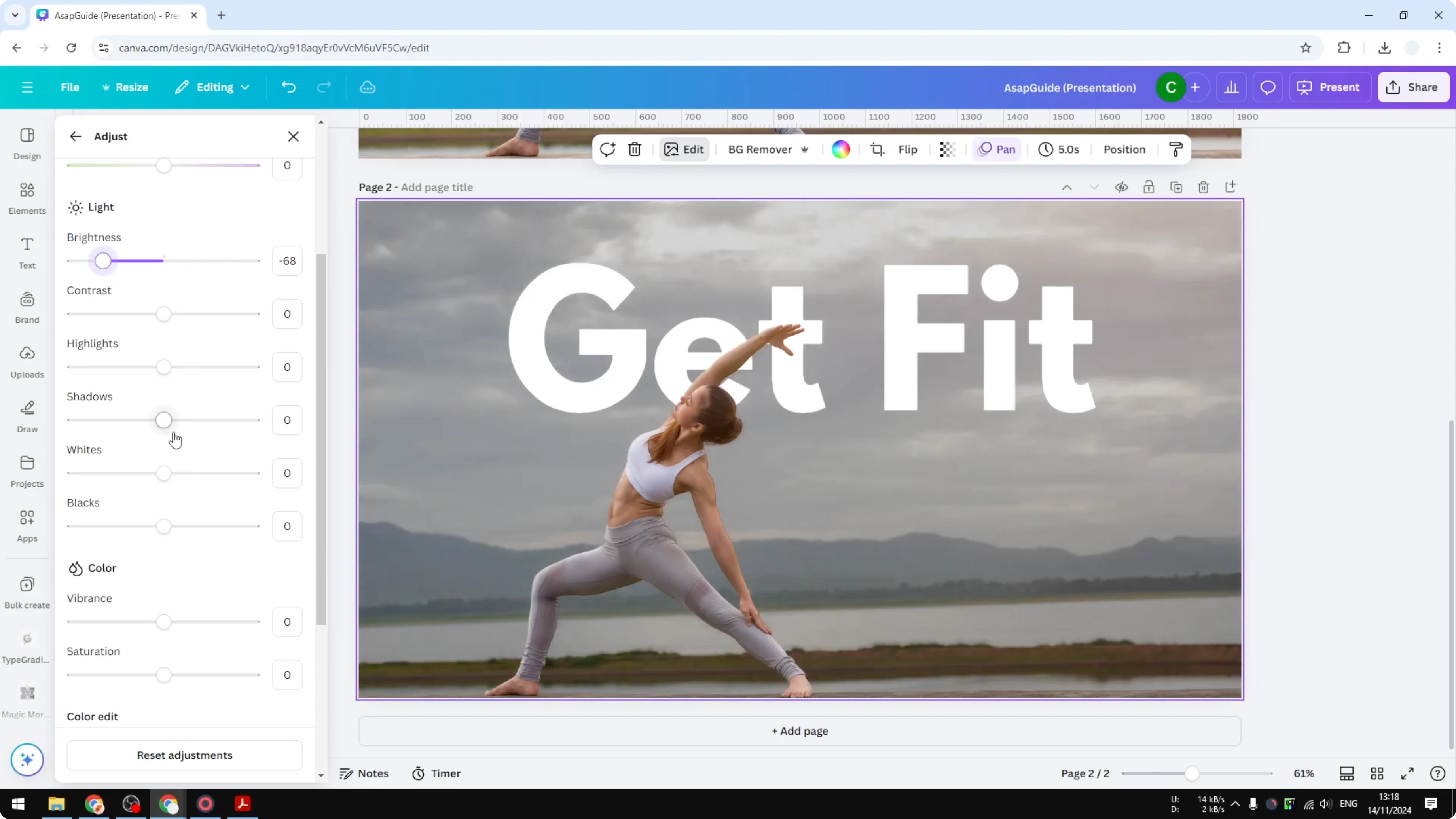
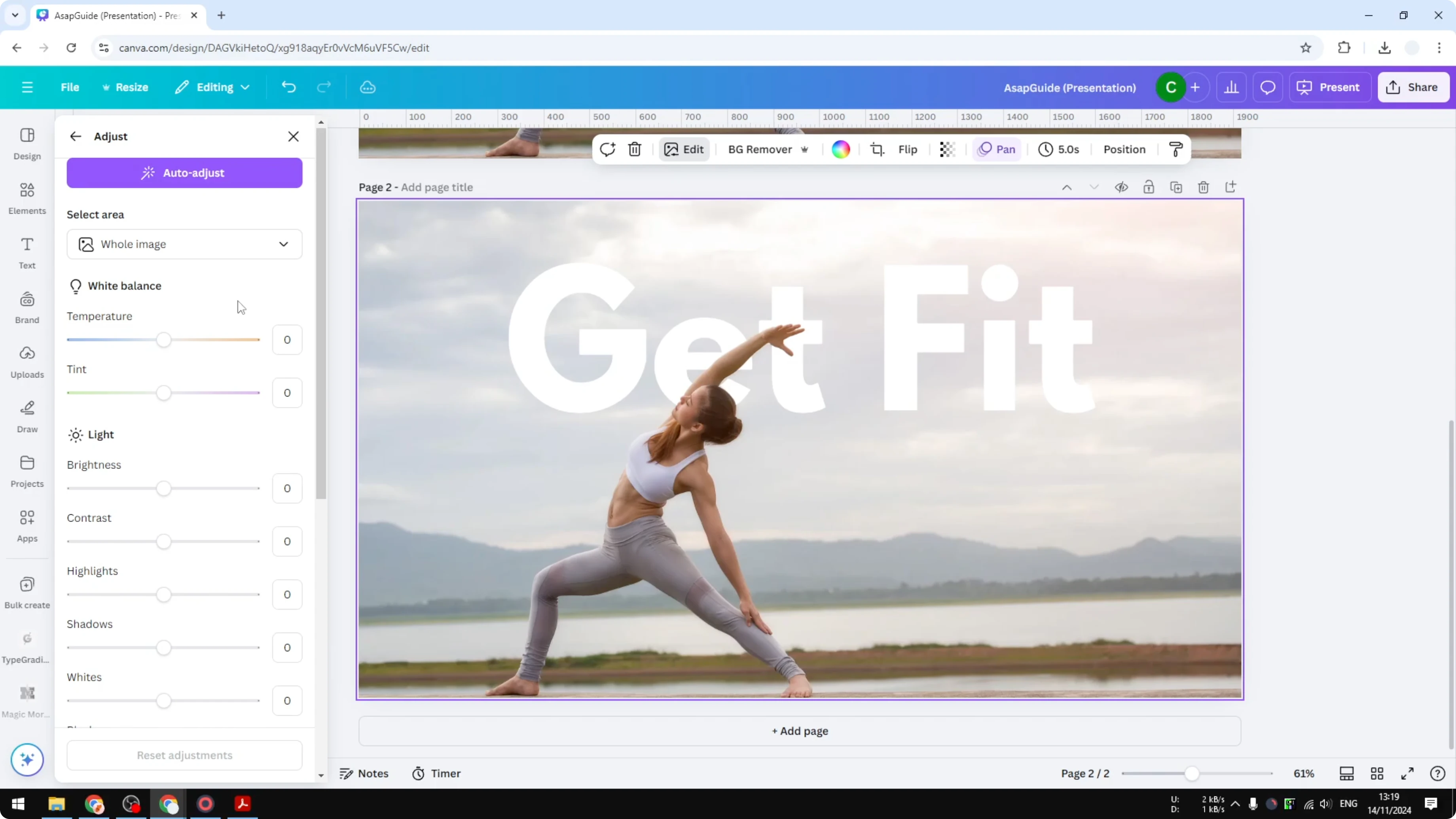
Click the image. Open Adjust. Reduce Brightness to make the text more visible.
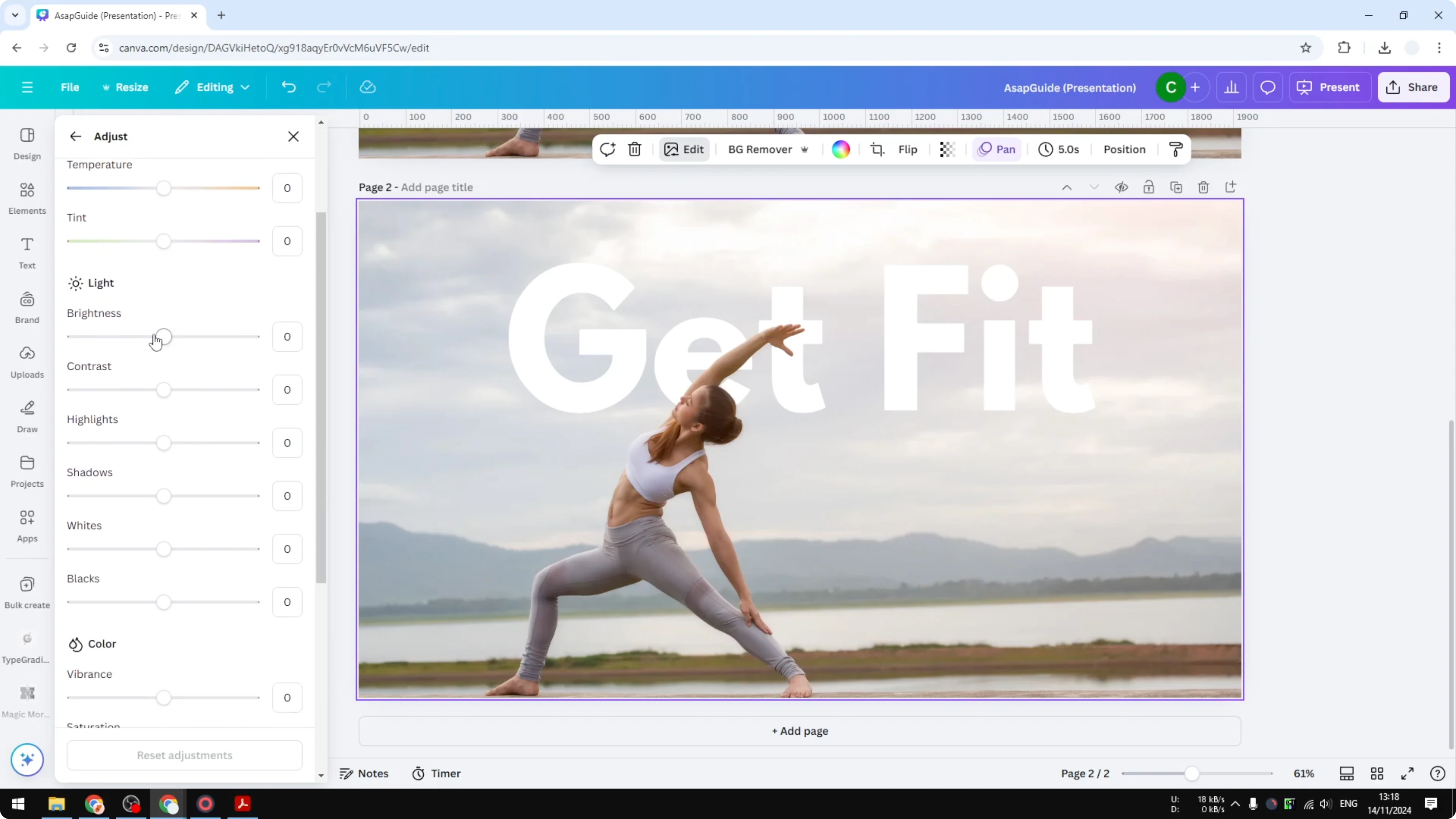
Experiment with Shadow, Blacks, and Whites. There are a lot of sliders to play with here. I'm not going to tell you all of them because they can be complicated, but you can see which ones work best.
Overlay shape for Darken Image in Canva
Open Elements. Add a square shape. Change it to black.
Resize the square so it covers the entire design. Click Position and open Layers. Place the shape just on top of the image.
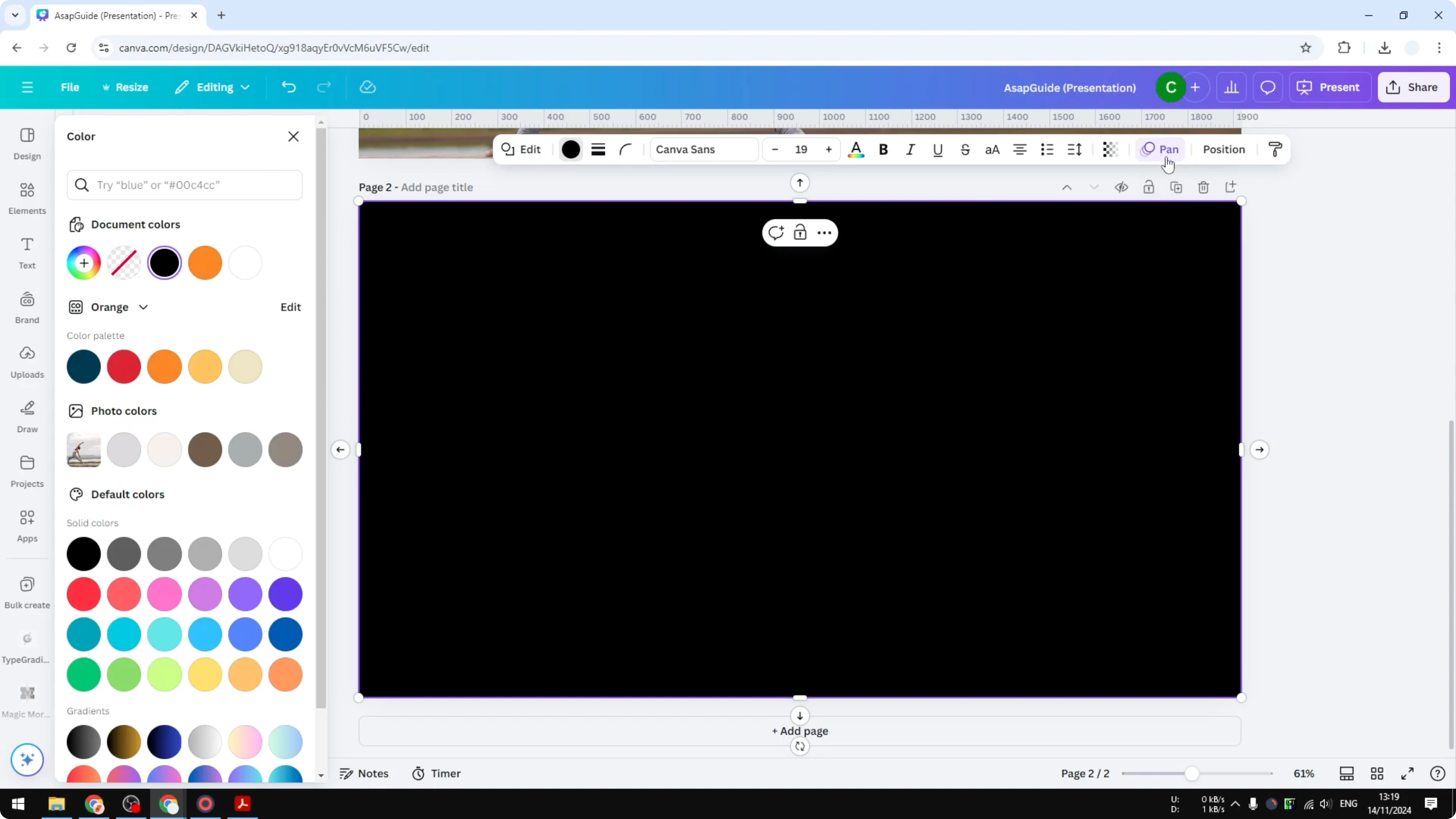
Click Transparency and adjust until the text reads clearly. That is slightly better for this layout. By the way, this woman is isolated from the background, so there are two photos of the woman.
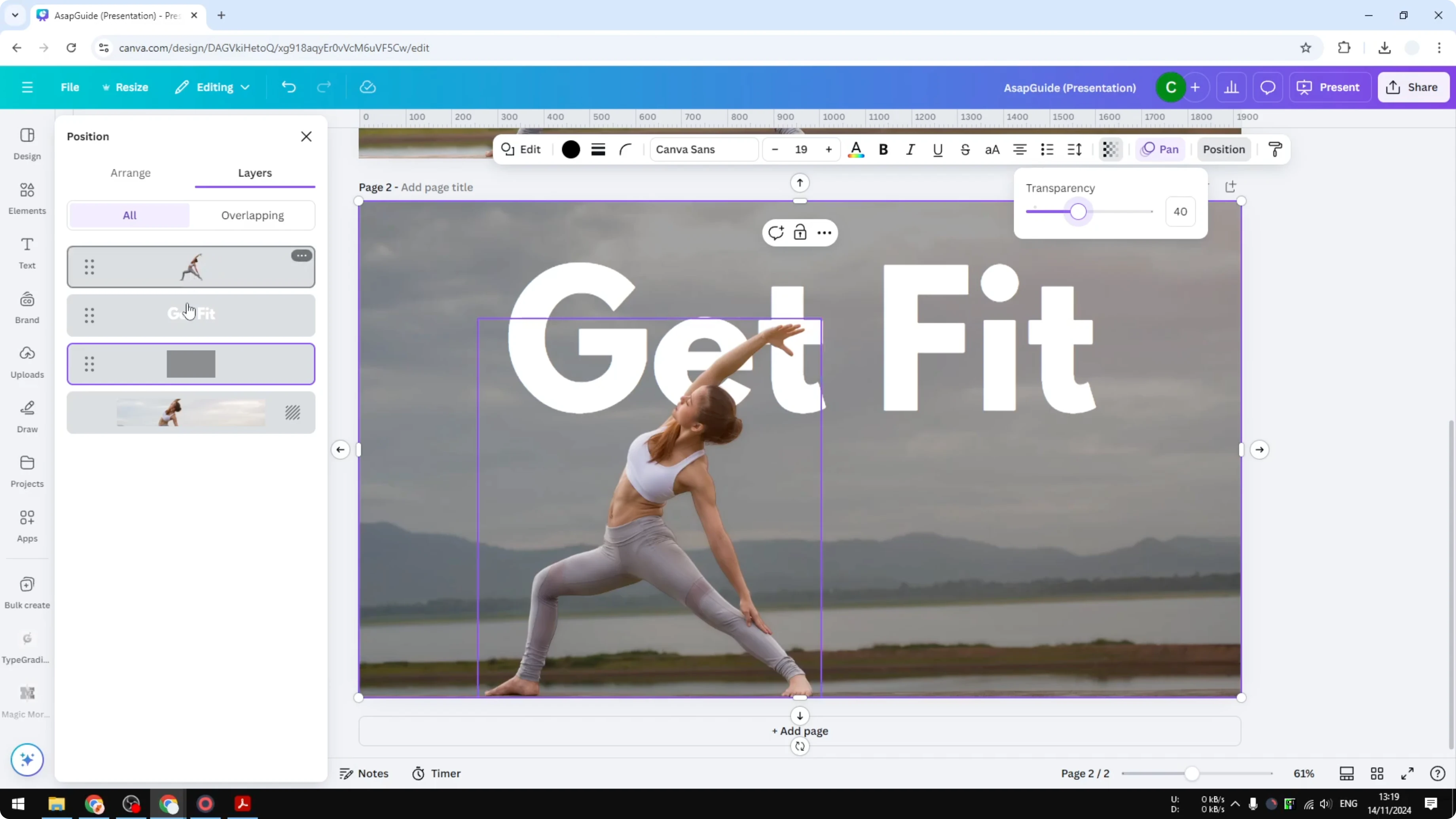
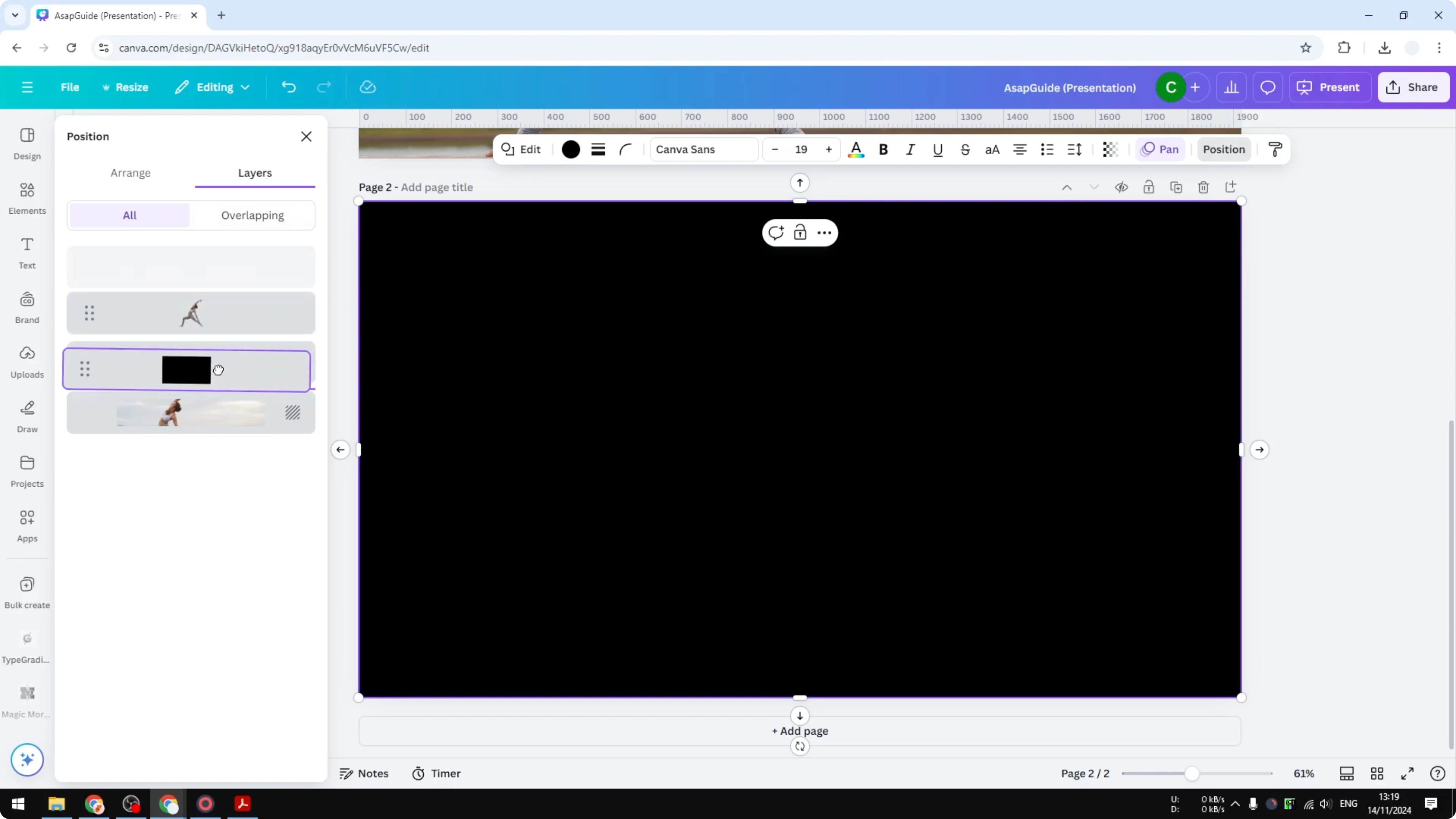
One is in the background and the other is on top of everything, which is why it overlaps the text. I think that overlapping is a really cool design. The downside of this overlay technique is that a big object can block things while you're still working.
I do see the merit because it makes the image consistently darker across all colors and elements, not just some parts. Compare the before and after and decide which method fits your design. If you prefer a softer wash instead, learn how to fade an image in Canva.
Final thoughts on Darken Image in Canva
That's how you can make an image darker in Canva. Use filters for quick global changes, Adjust for tonal control, or overlays for consistent darkening across the entire image. I hope you find this helpful.
Recent Posts

How to Visualize Yourself as a Pixelized Character with AI?
How to Visualize Yourself as a Pixelized Character with AI?

How to Revive Faded Memories and Enhance Image Clarity with AI?
How to Revive Faded Memories and Enhance Image Clarity with AI?

How to Visualize Yourself as an Animal Crossing Character with AI?
How to Visualize Yourself as an Animal Crossing Character with AI?