How to Put Border Around Text in Canva
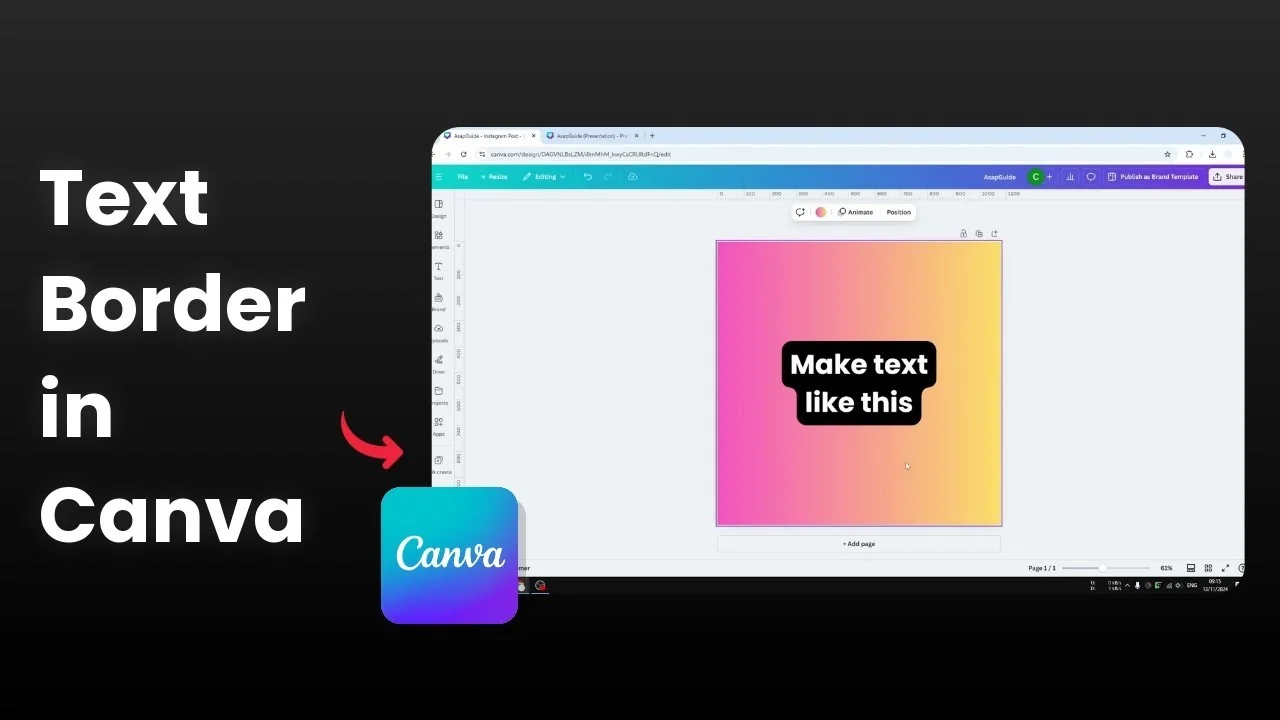
I am going to show you how you can put border around text in Canva. This style is popular on TikTok, Instagram, and Facebook. It helps viewers identify the content fast because the text is visible, high contrast, and it does not block the photo or image too much.
Here is how you can create this effect in Canva. I will start from a blank page and add text, then apply the Background effect. After that, I will show you how to stack multiple effects by duplicating the text box.
Put Border Around Text in Canva
Create the base text
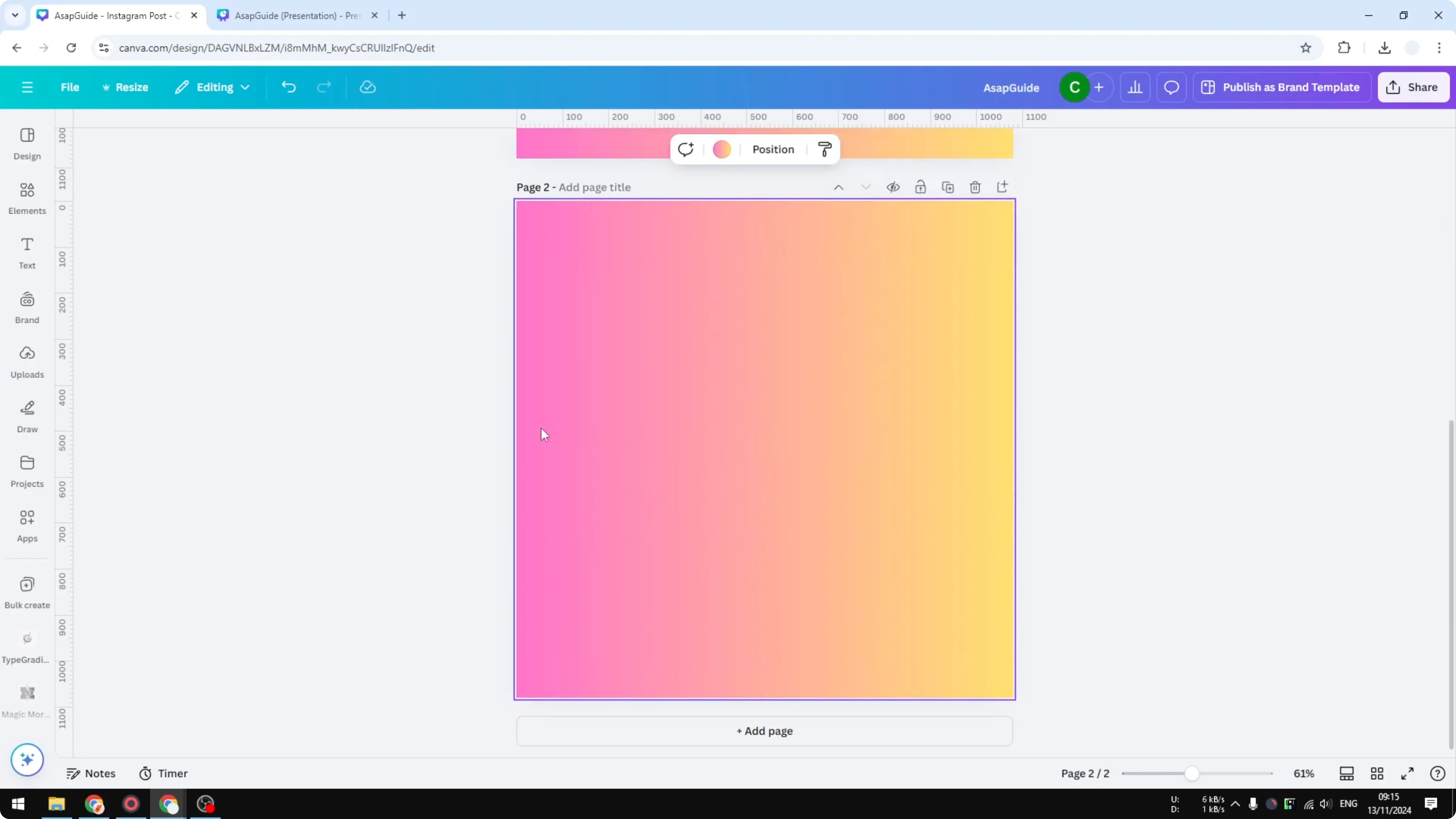
Step 1: Add a new page.
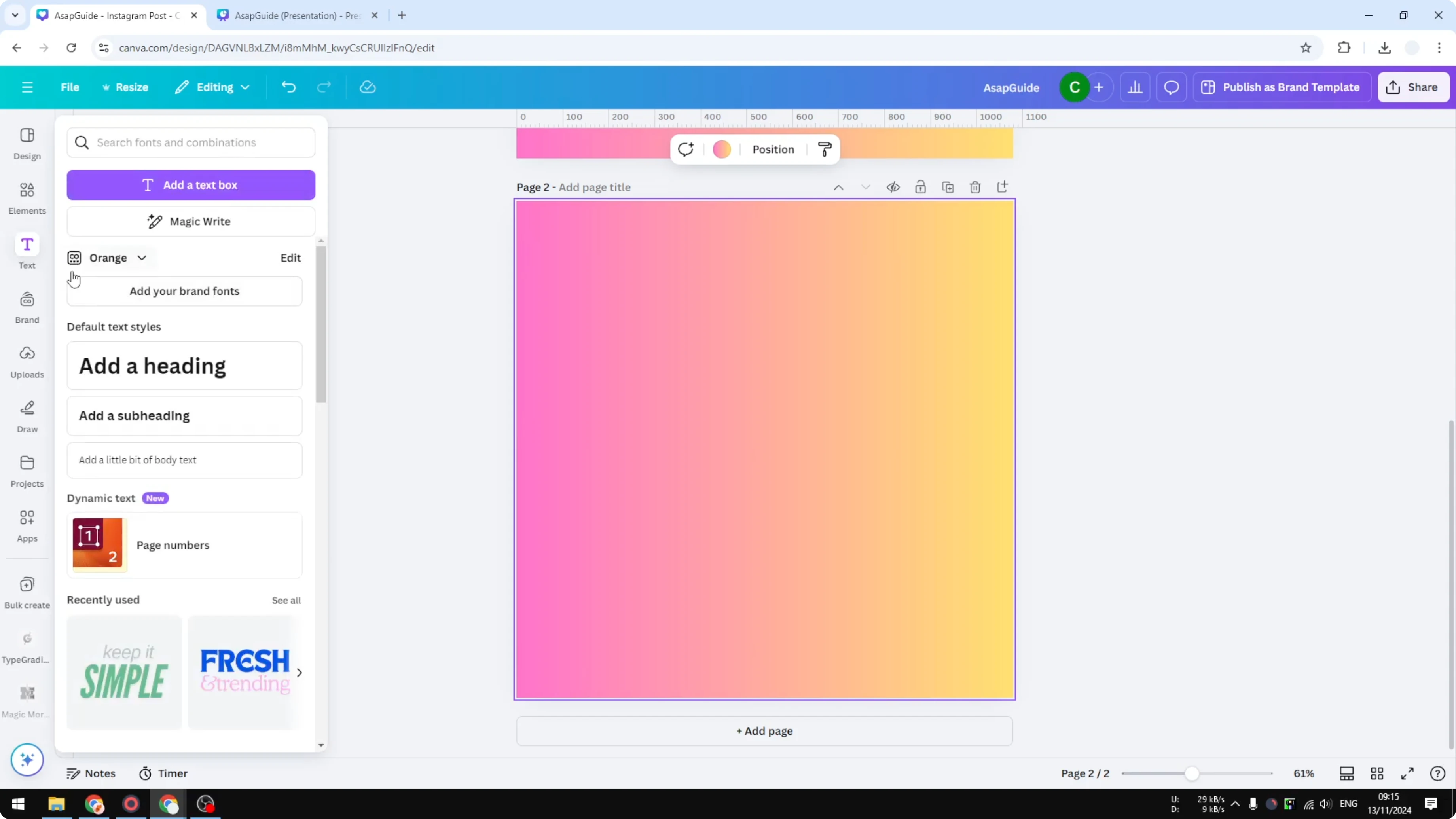
Step 2: Go to Text and insert some text. For example, enter “Subscribe to this channel please.”
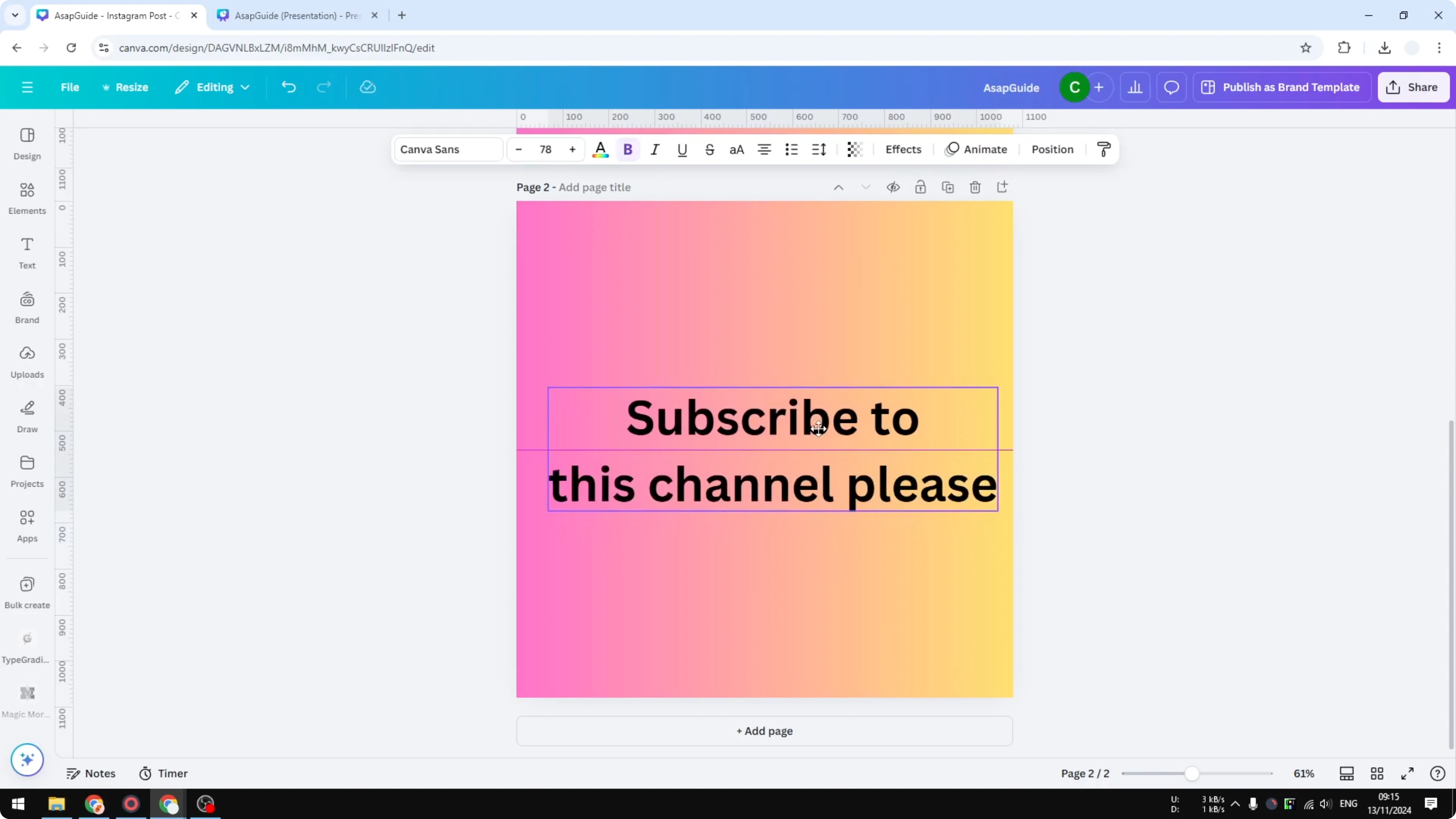
Step 3: Select the text box.
Add the background effect
Step 4: Click Effects.
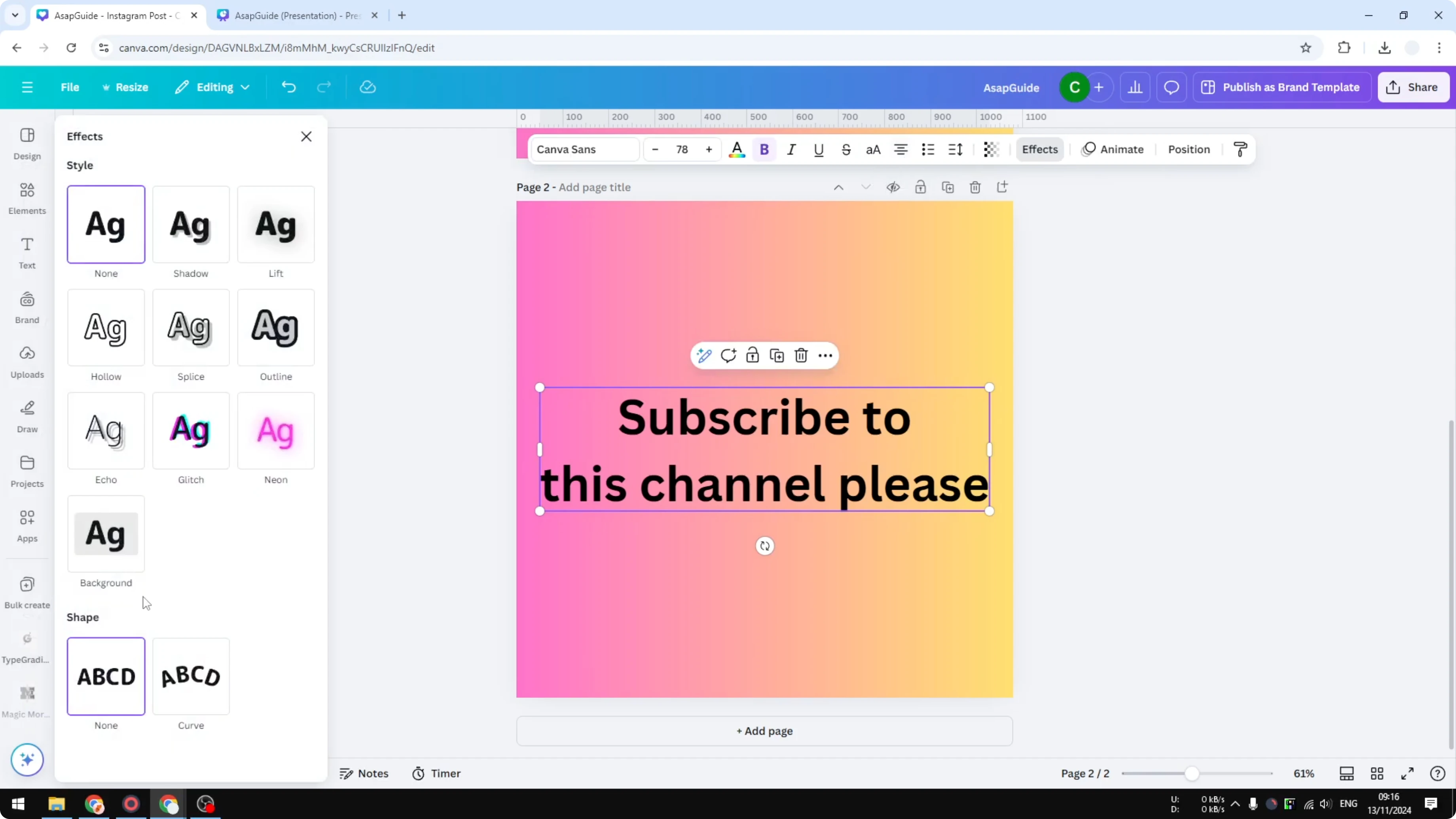
Step 5: Click Background to apply the effect to your text.
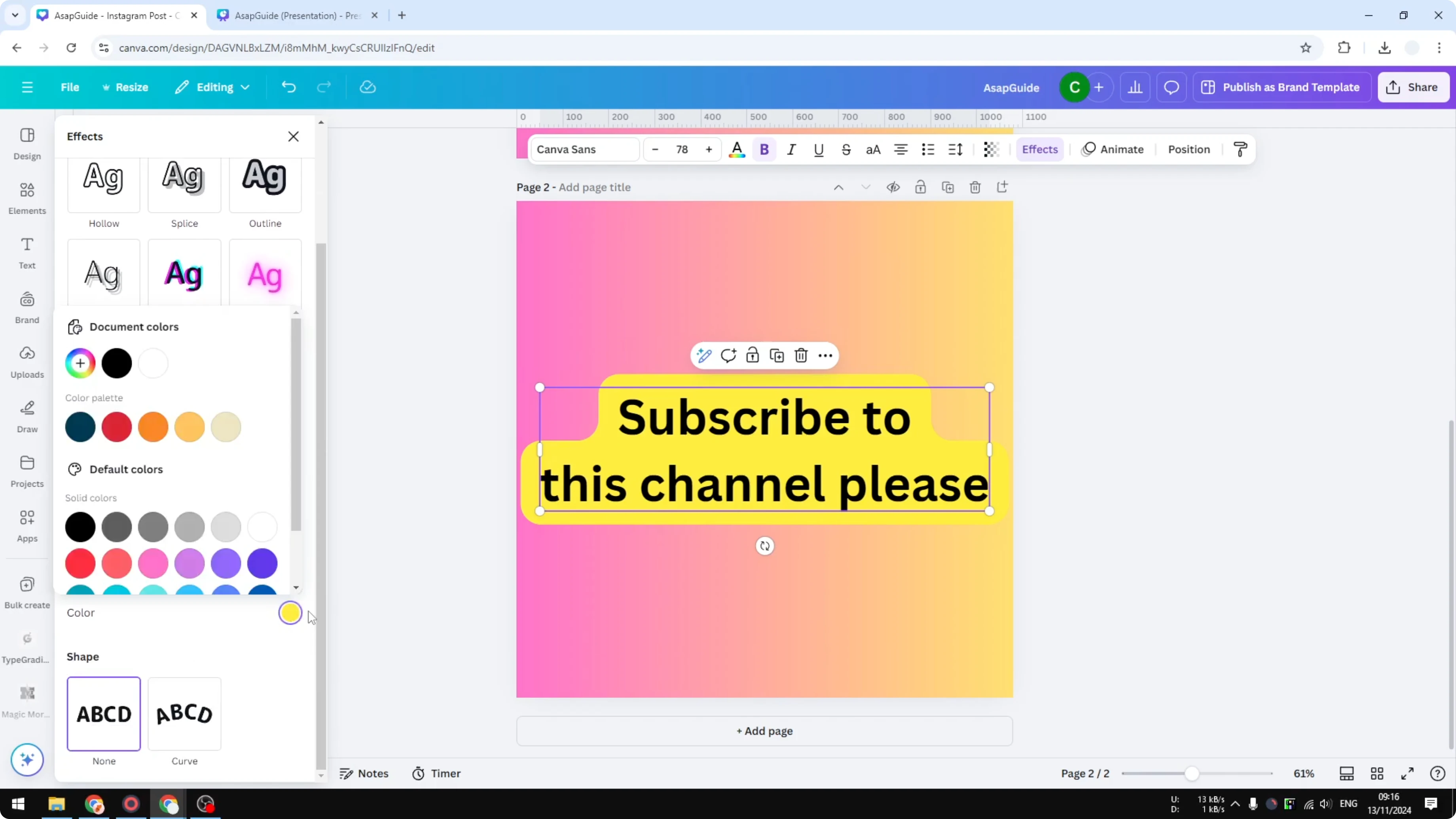
Step 6: Change the color to white to get a clean, high-contrast look.
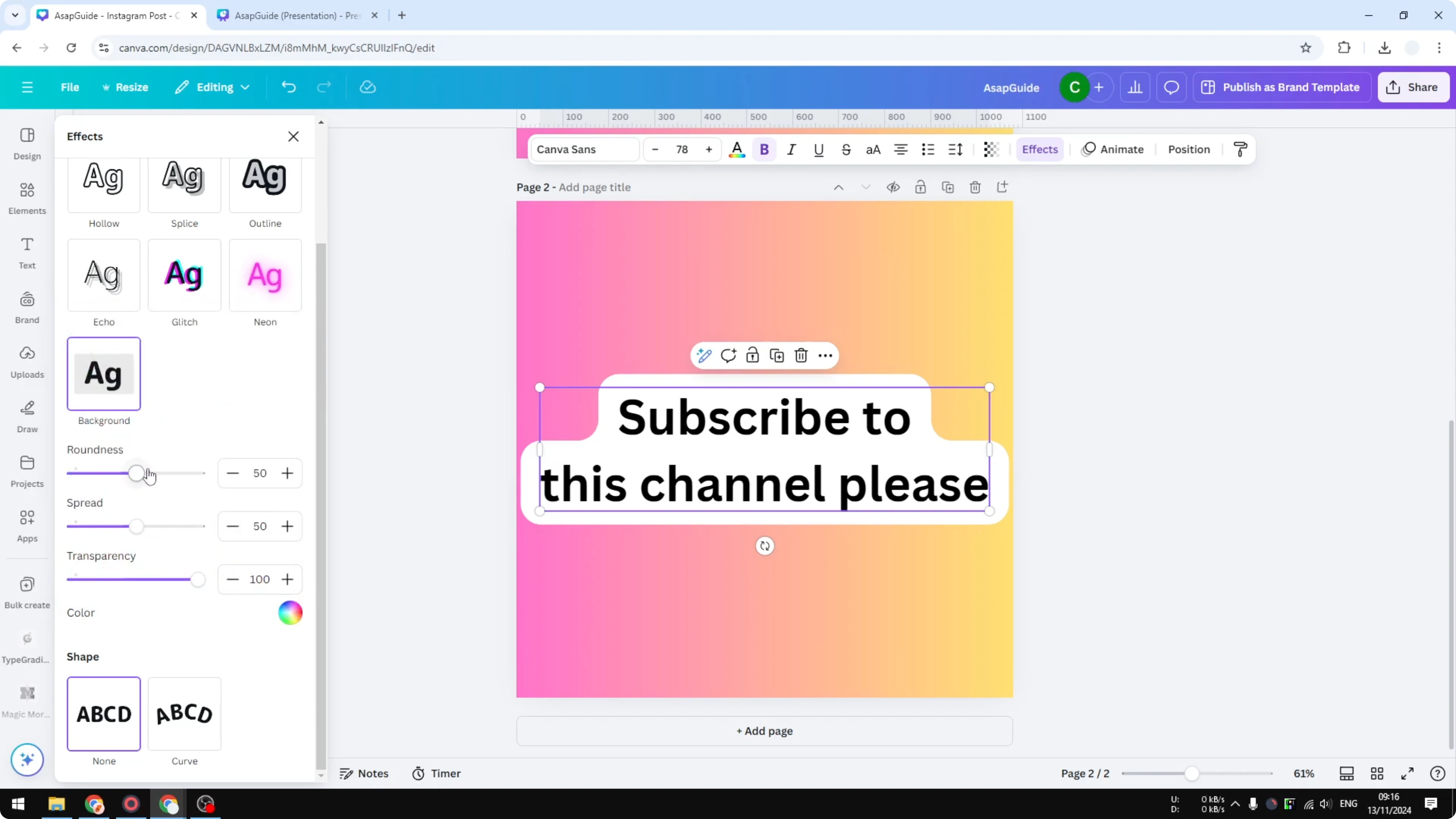
Step 7: Adjust Roundness and Spread to control how tight or far the background sits around the text.
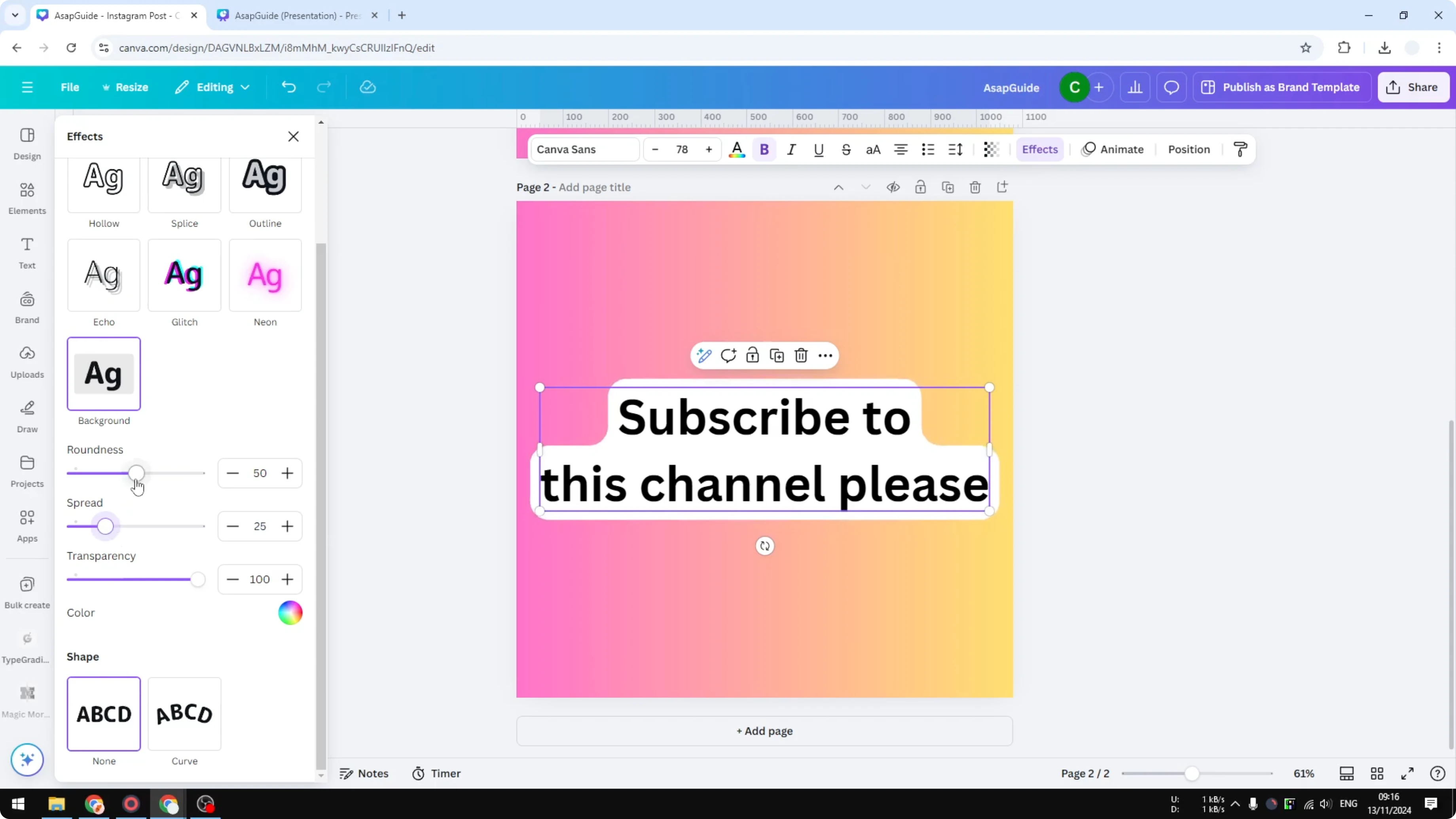
Step 8: Fine-tune Spacing between lines. I like it a bit closer for this particular font.
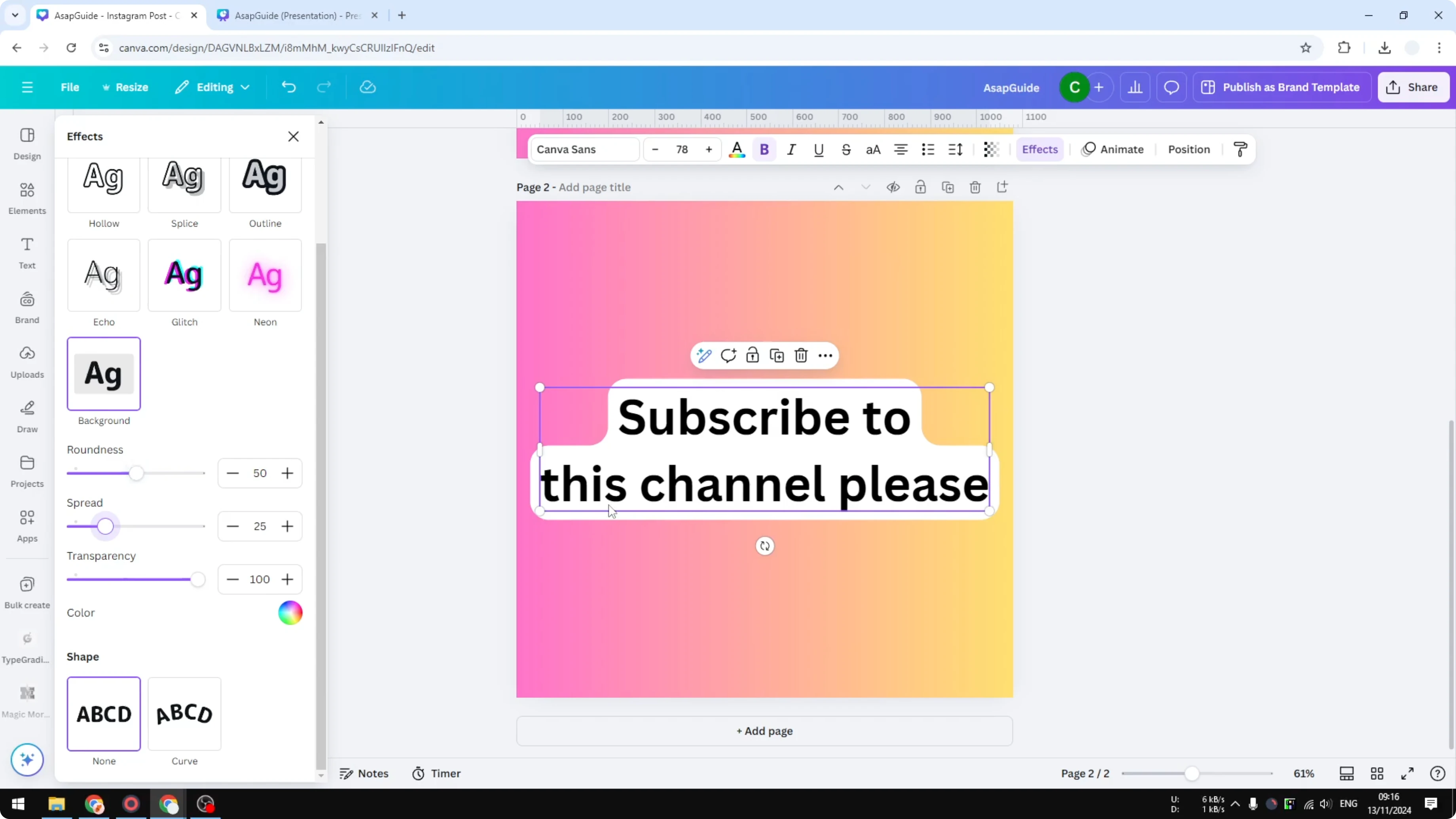
For more options on background styling, see how to add background to text in Canva.
Stack multiple effects
Canva gives you one effect per text box, but nothing stops you from duplicating the text box and adding a different style.
Step 1: Click More and choose Duplicate.
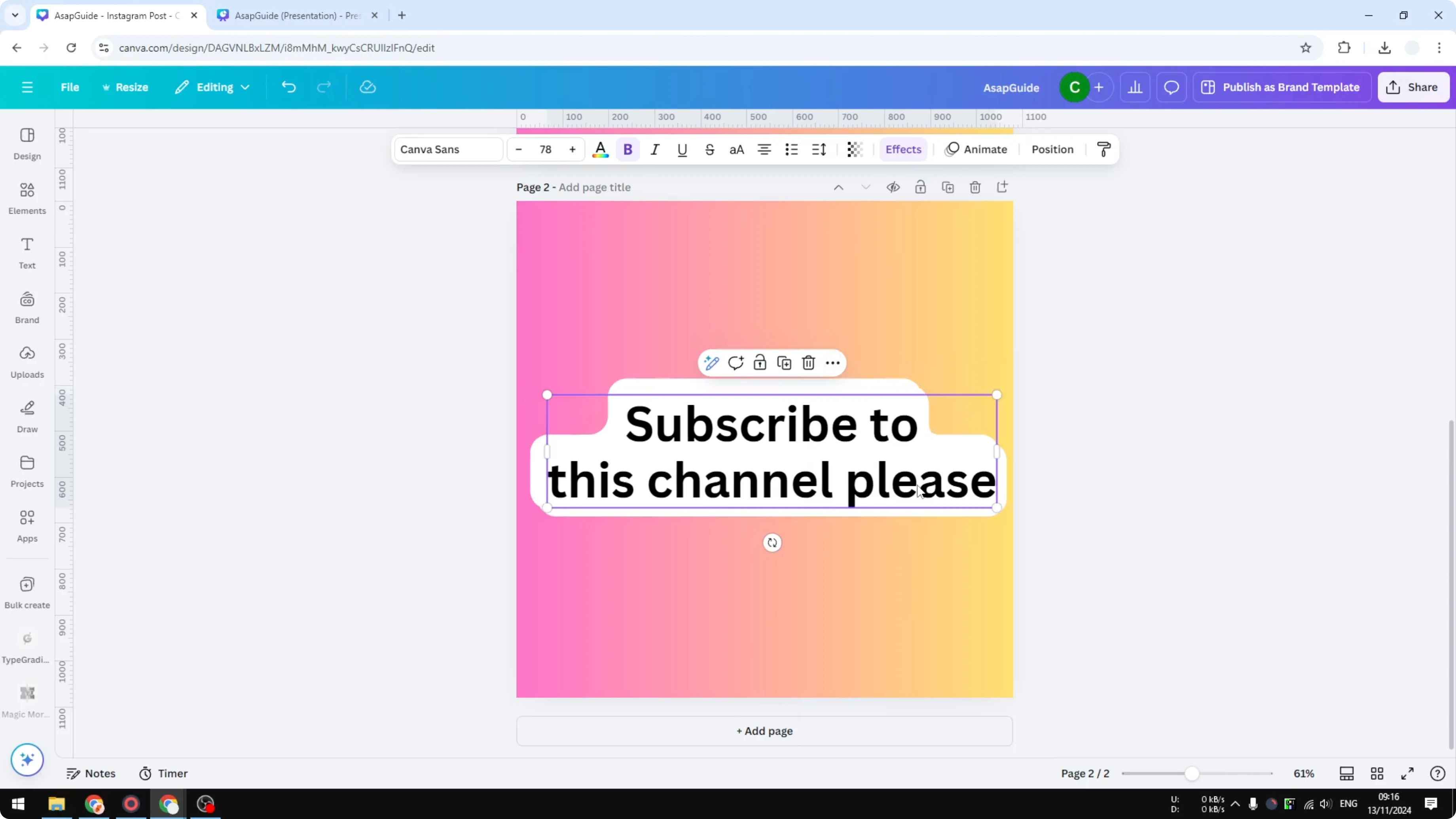
Step 2: On the duplicate, change the effect to Outline.
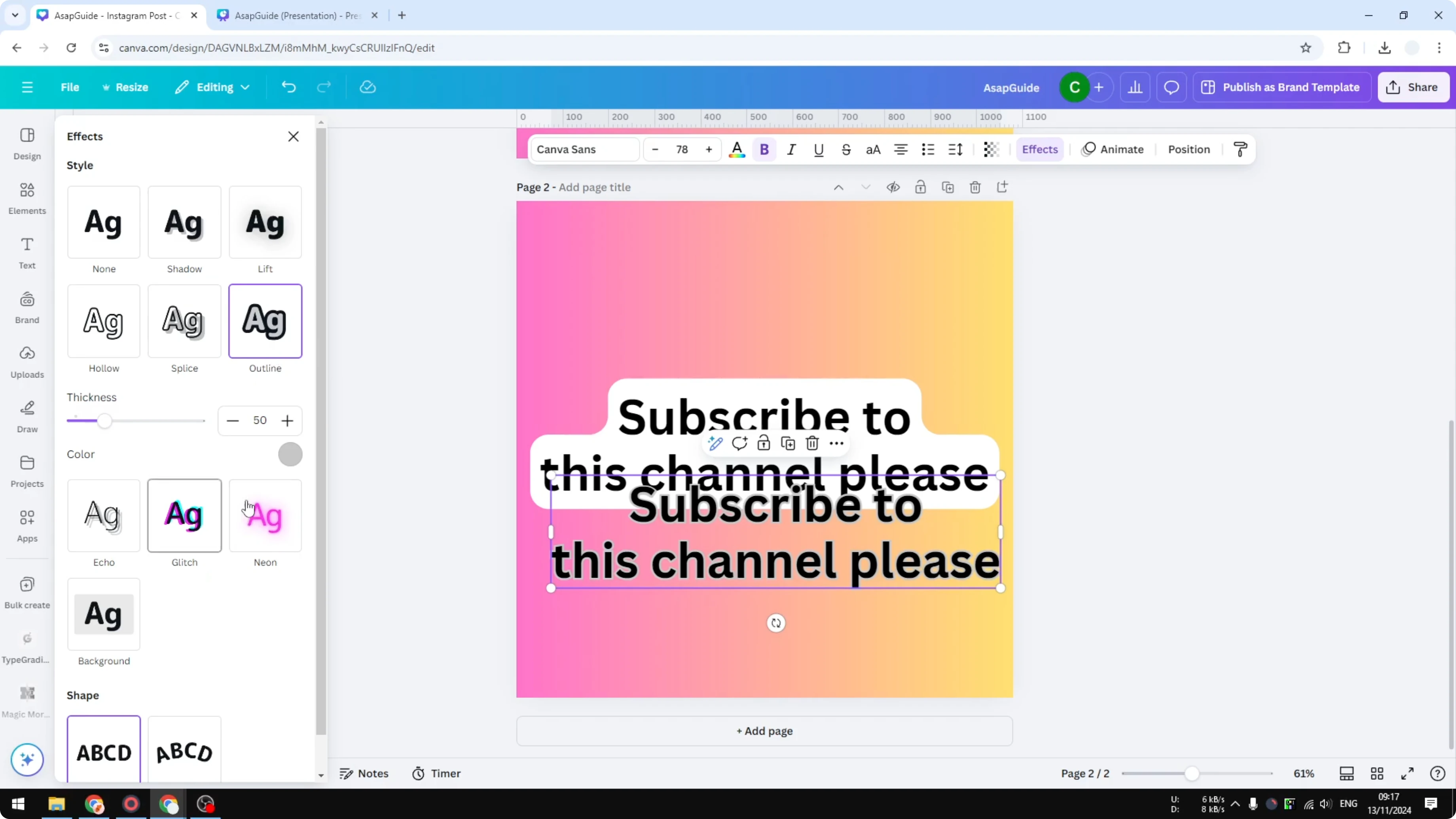
Step 3: Set the Outline color, for example to red.
Step 4: Overlap the duplicate on top of the original so both effects read as one.
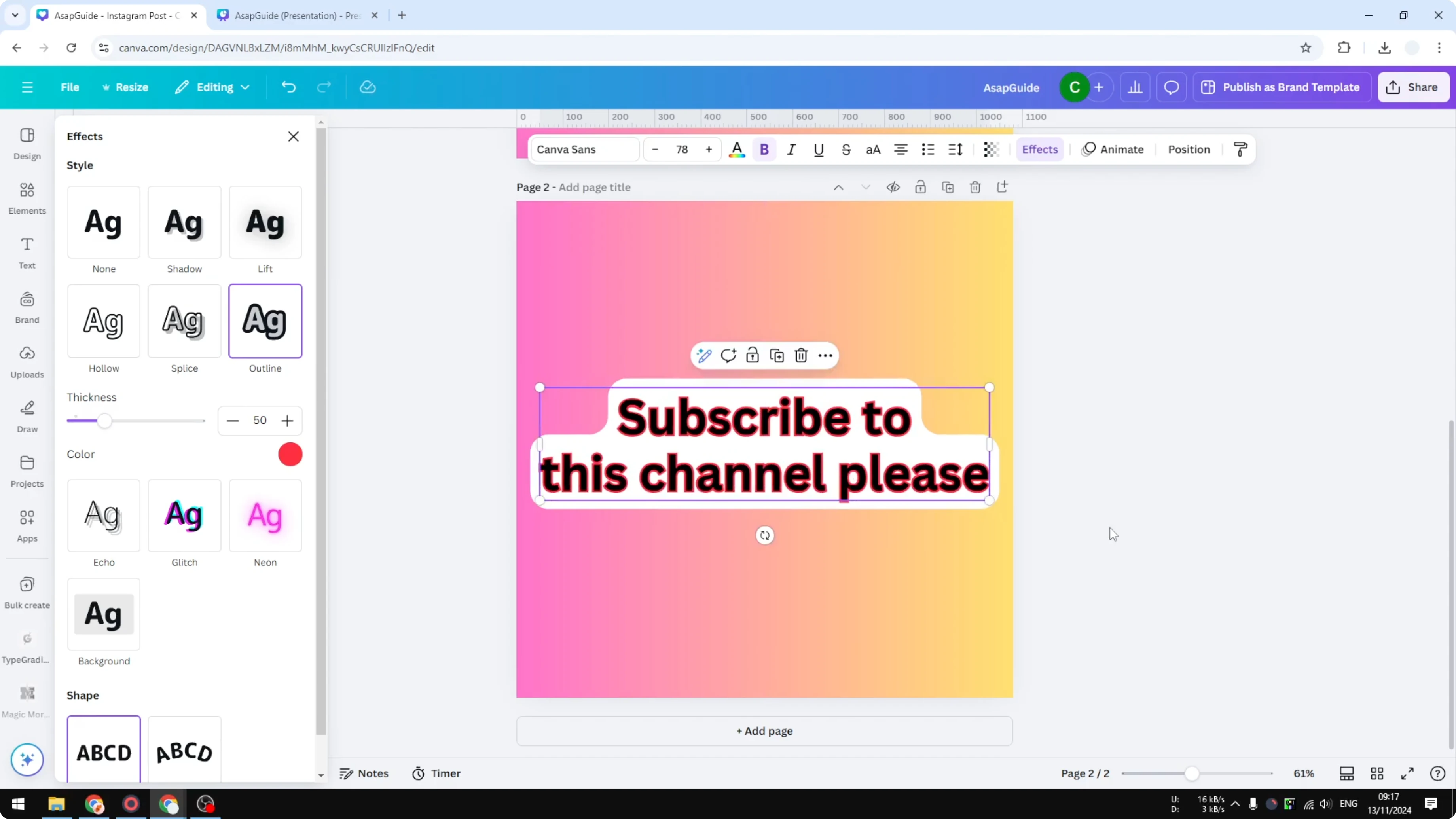
You now have multiple effects showing on what appears to be one text box. If you want a visible container around the text instead, learn how to add a border to a text box in Canva.
Final tweaks
Adjust Roundness, Spread, and Spacing until the text is clear and the effect does not obstruct your photo or video. Aim for strong contrast so the message is easy to read at a glance.
Read More: Attach Text Shape Canva
Put Border Around Text in Canva - final thoughts
Use the Background effect for a quick, clean border around text. Duplicate the text box and apply Outline if you want multiple effects stacked together. With a few spacing tweaks, you get a bold, readable style that stands out without covering your content.
Recent Posts

How to Visualize Yourself as a Pixelized Character with AI?
How to Visualize Yourself as a Pixelized Character with AI?

How to Revive Faded Memories and Enhance Image Clarity with AI?
How to Revive Faded Memories and Enhance Image Clarity with AI?

How to Visualize Yourself as an Animal Crossing Character with AI?
How to Visualize Yourself as an Animal Crossing Character with AI?