How to Print Canva Presentation with Notes
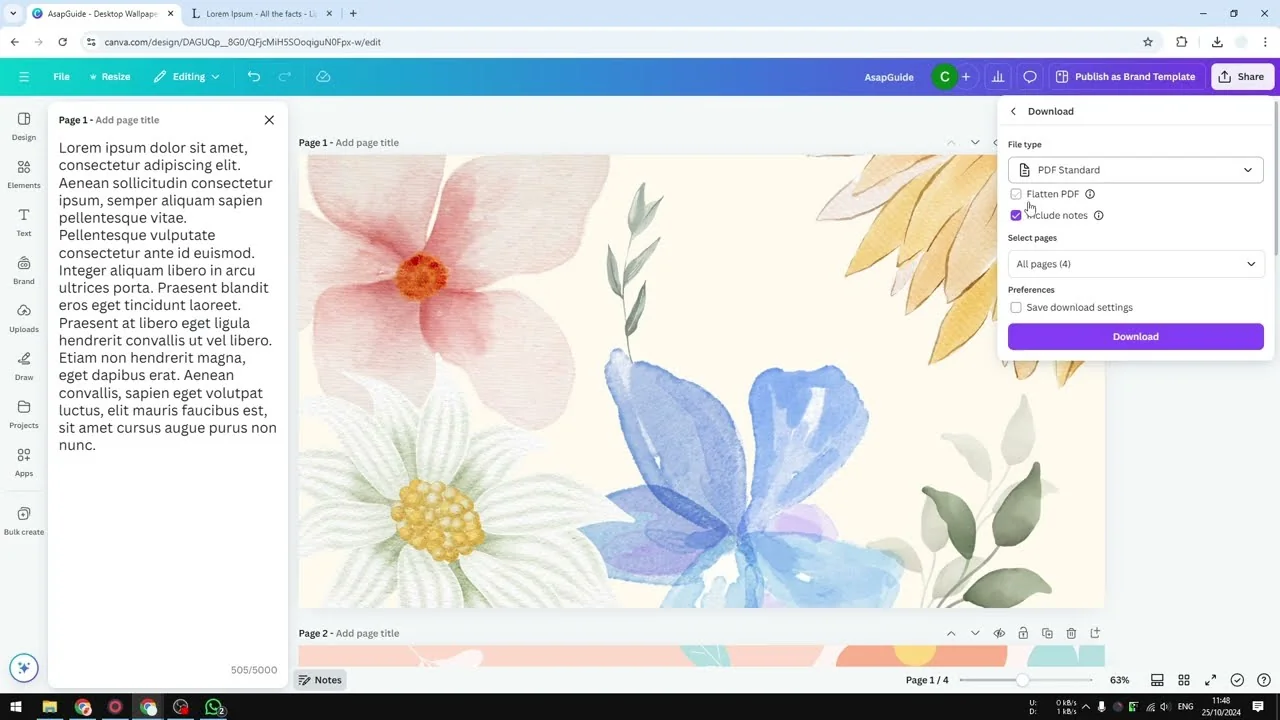
Here is how to print your Canva presentation with the notes included. Follow these steps to export a clean PDF and set up your printer so you do not waste paper.
Prepare for Print Canva Presentation with Notes
Open your presentation in Canva and make sure your speaker notes are ready. Click the Notes button to reveal the notes panel for each slide, and add your content.
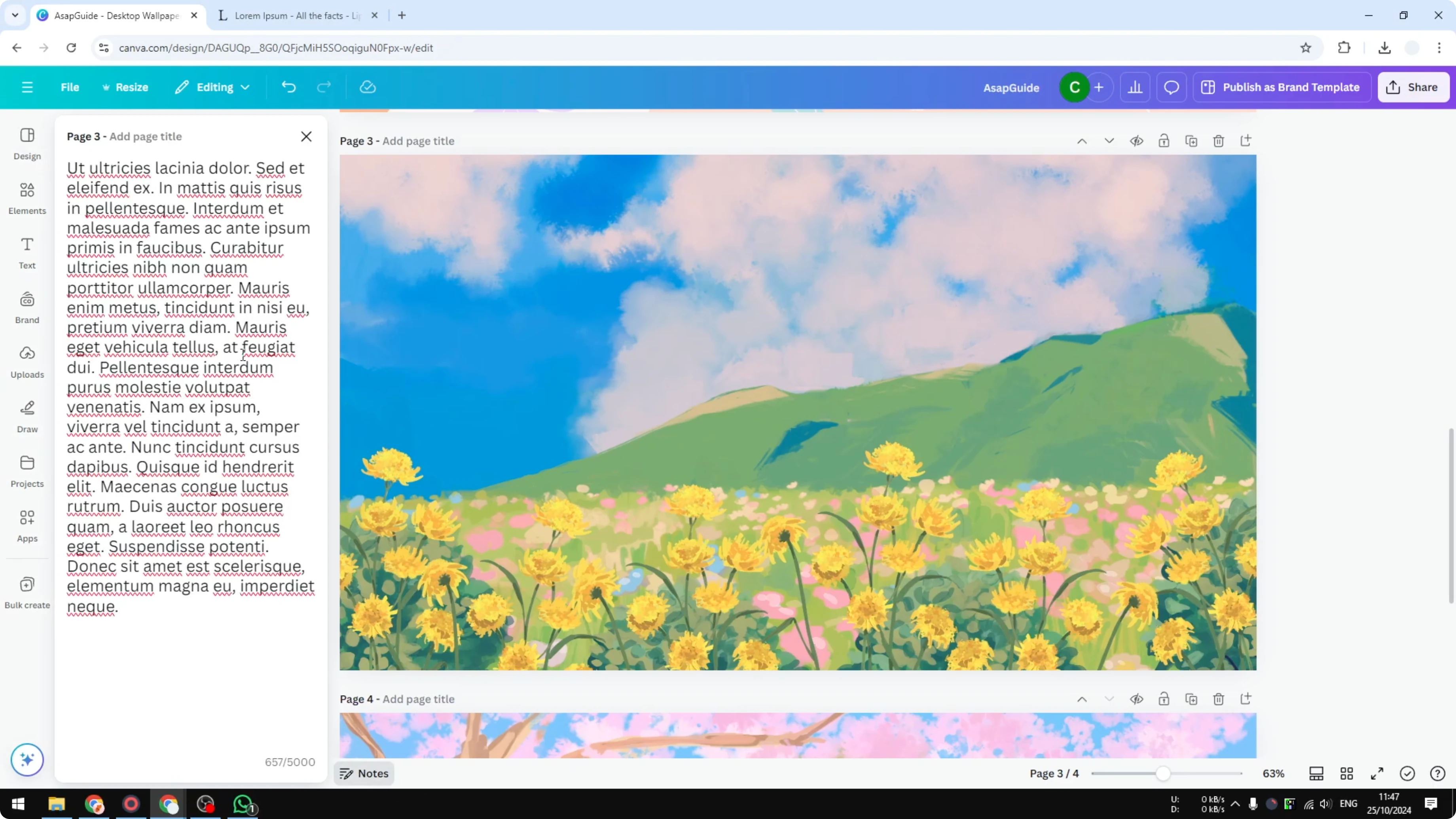
You can add up to 5,000 characters per slide note, which is plenty for detailed talking points. Keep your notes concise so they fit nicely under each slide when printed.
If your slides include names or terms with accents, you can add accent marks in Canva to keep everything accurate.
Export to PDF with notes for Print Canva Presentation with Notes
Go to Share, then Download. Under File type, choose either PDF Standard or PDF Print.
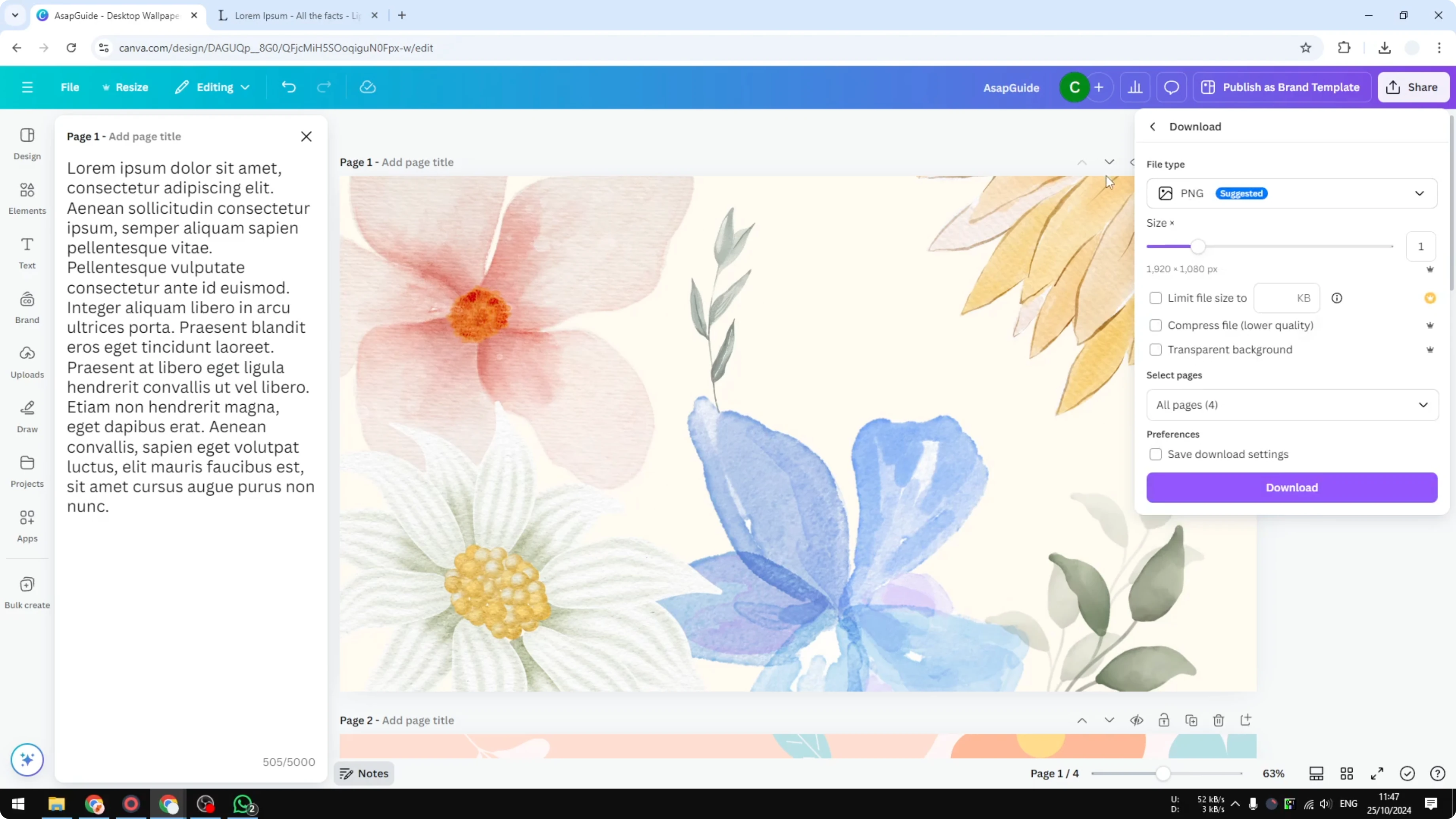
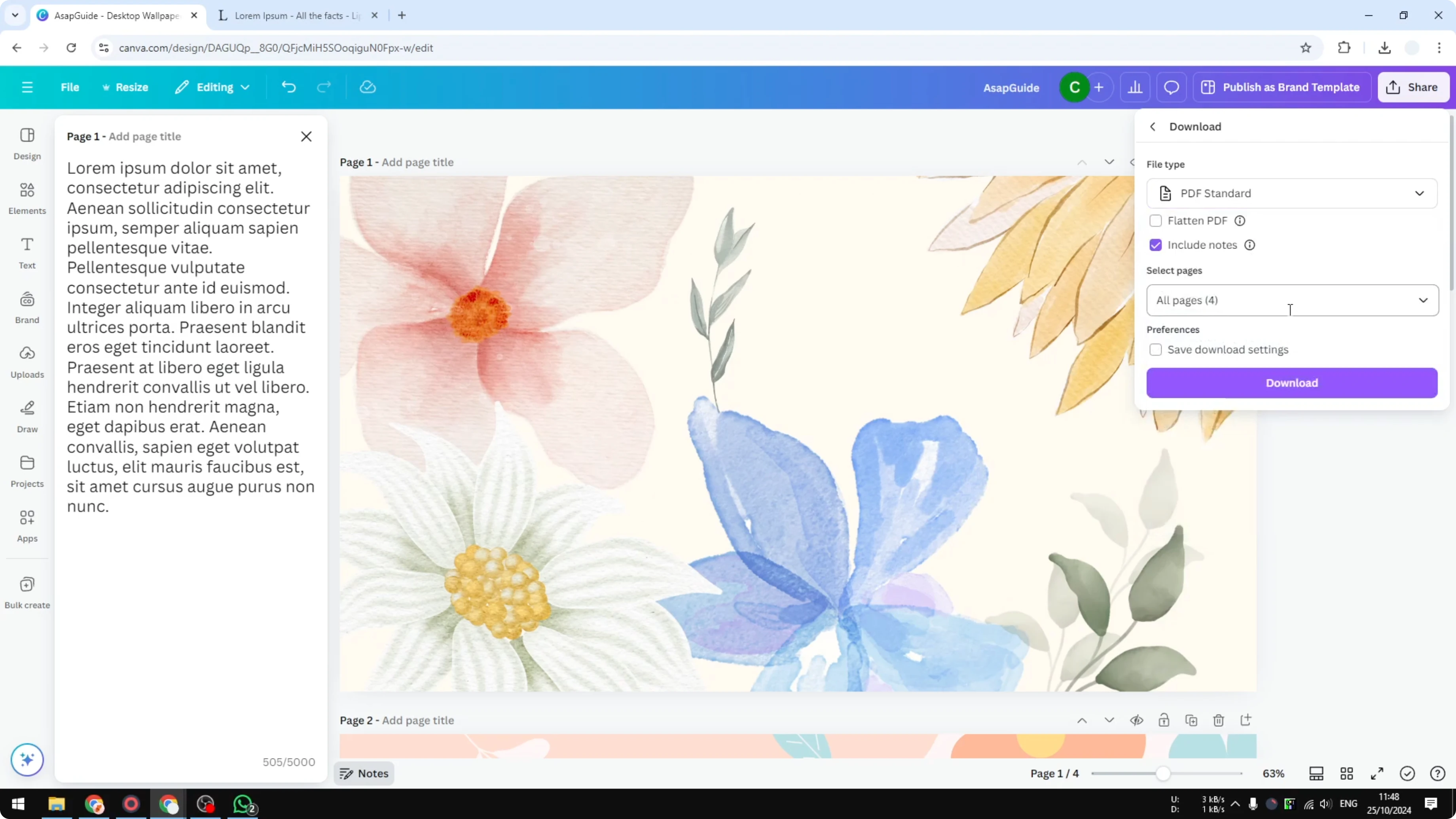
PDF Standard is a good default. If you want the best color accuracy, select PDF Print, but note that it will make the file a lot bigger.
Enable Include notes so your speaker notes are printed below each slide. Click Download to export.
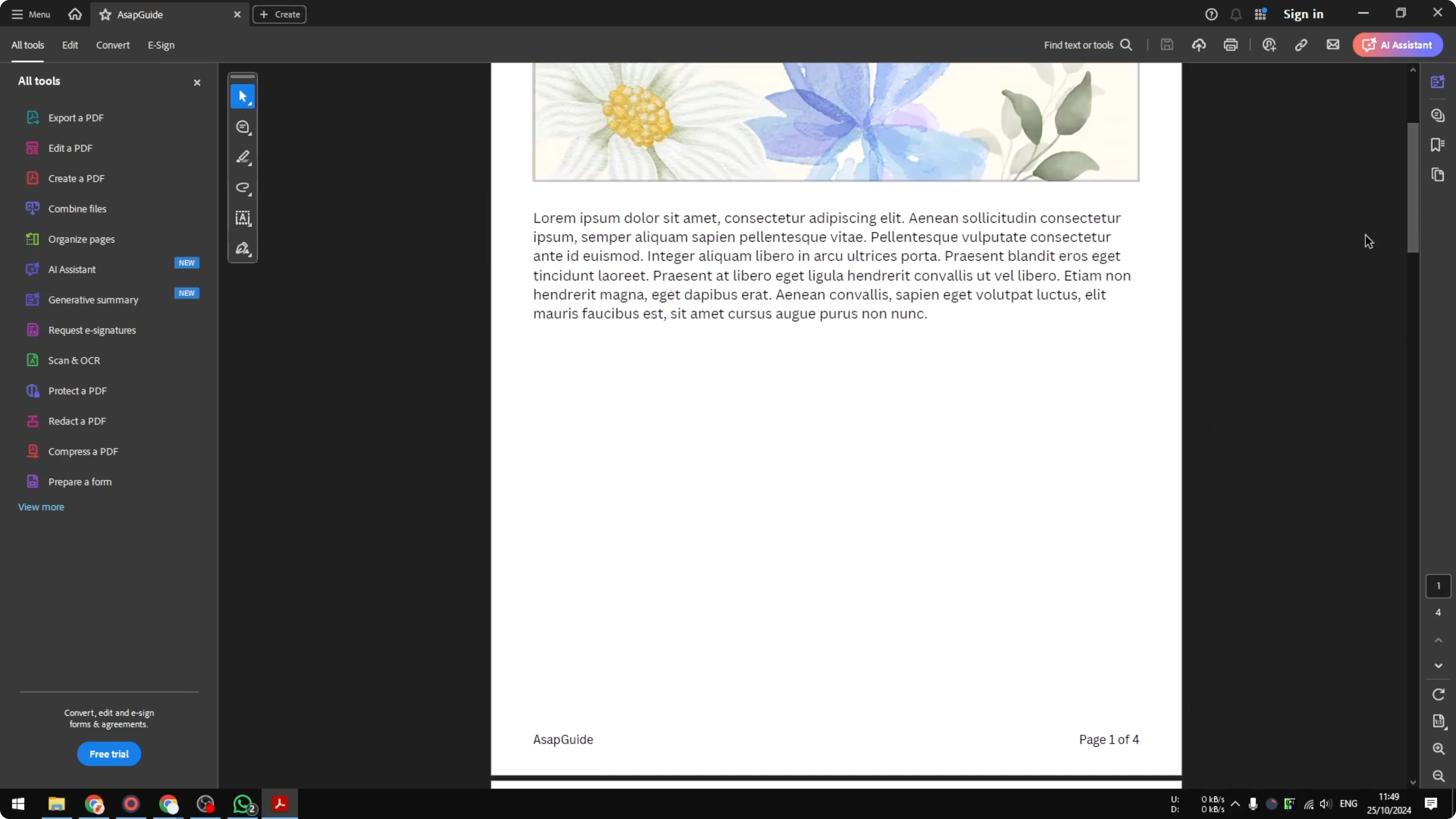
Canva will compile all slides into one PDF document that includes the notes. Open the exported file in a PDF reader like Adobe Acrobat and you will see each slide at the top with its notes below, one slide per page.
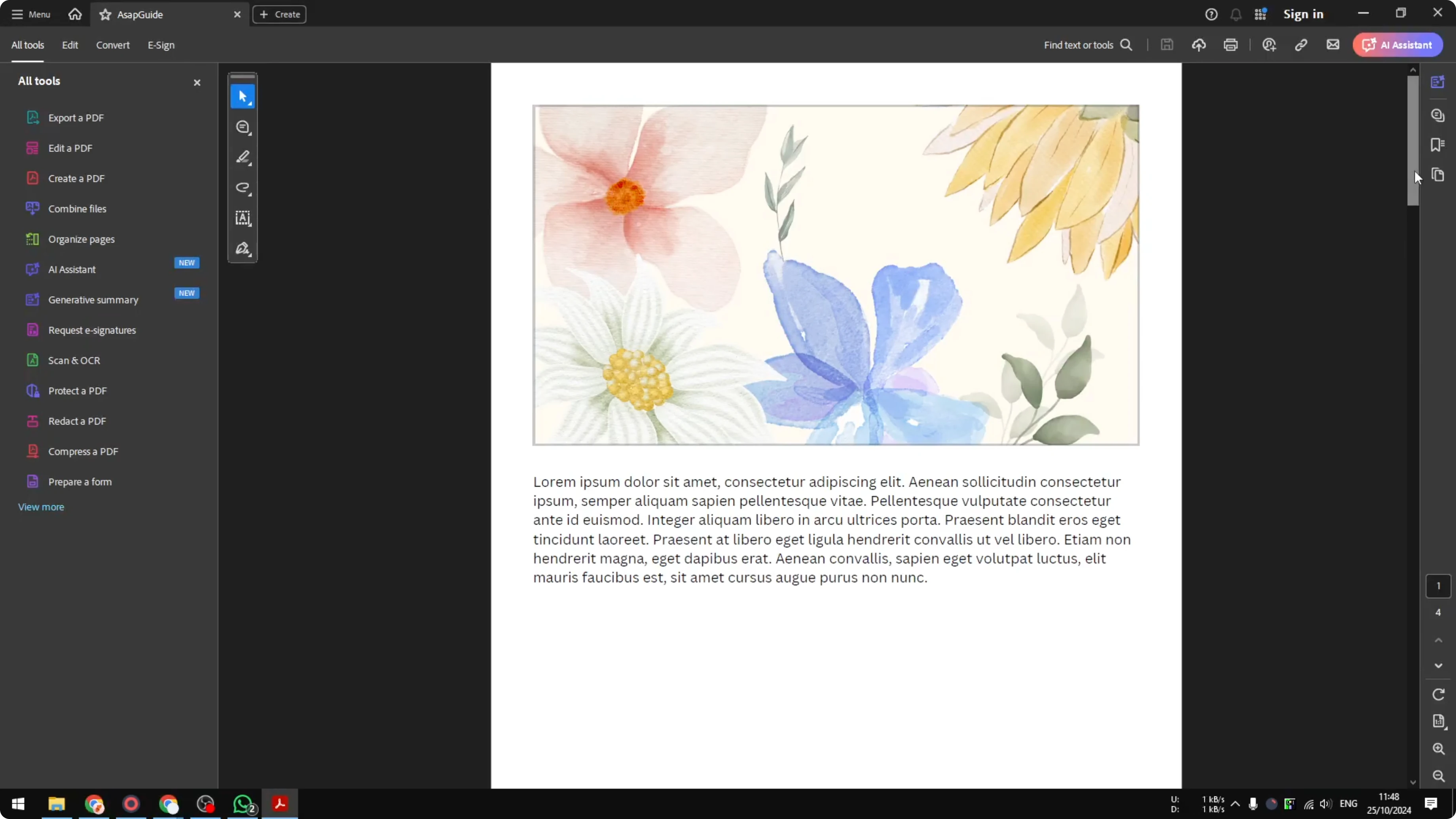
While you are polishing visuals, consider accessibility too and add alt text to pictures in Canva before exporting your materials.
Print multiple slides per page for Print Canva Presentation with Notes
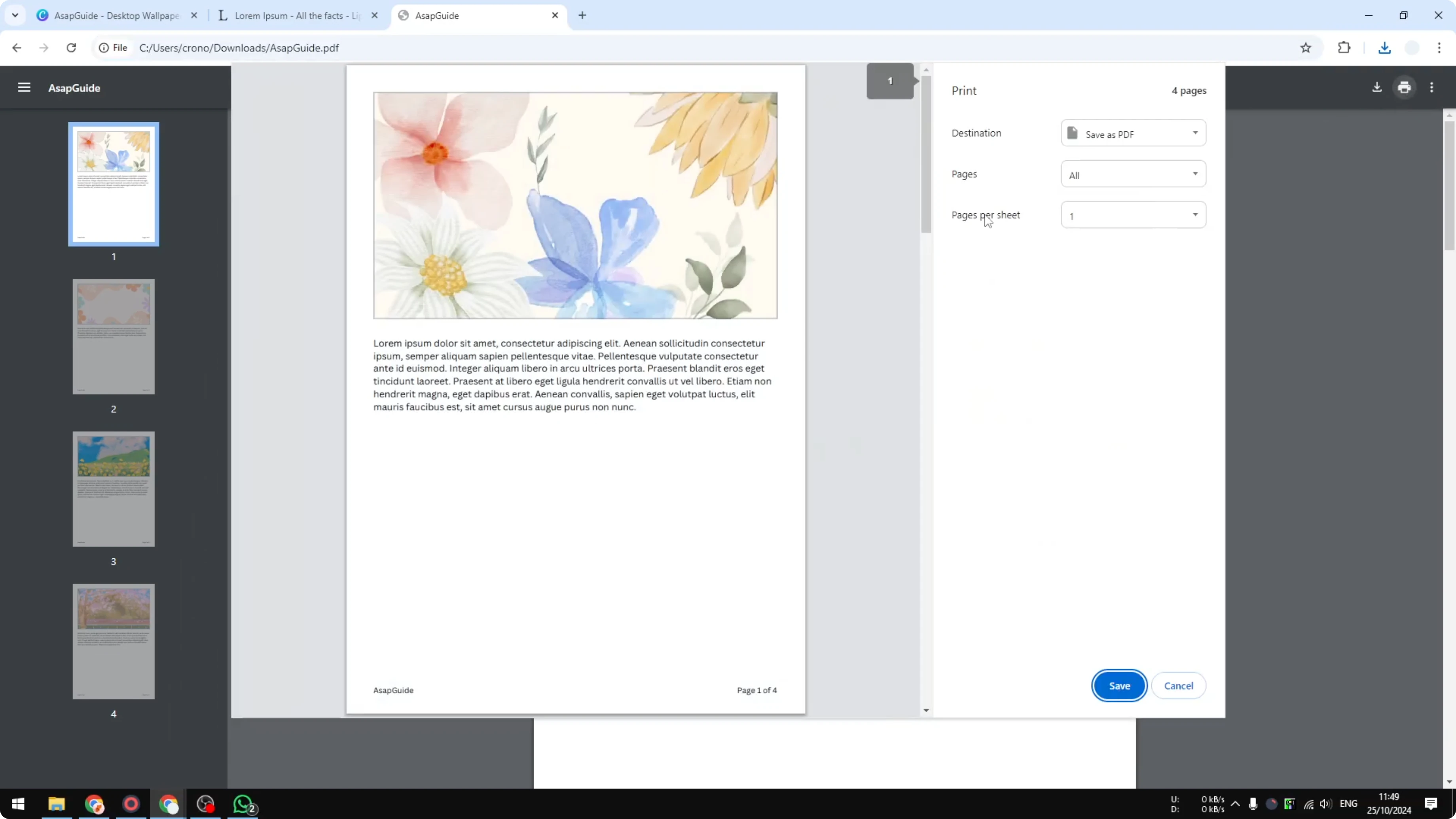
The default layout uses one page per slide-with-notes, which can leave a lot of empty space at the bottom. If you want to save paper, open the PDF in Google Chrome and print multiple pages per sheet.
Use Chrome print settings
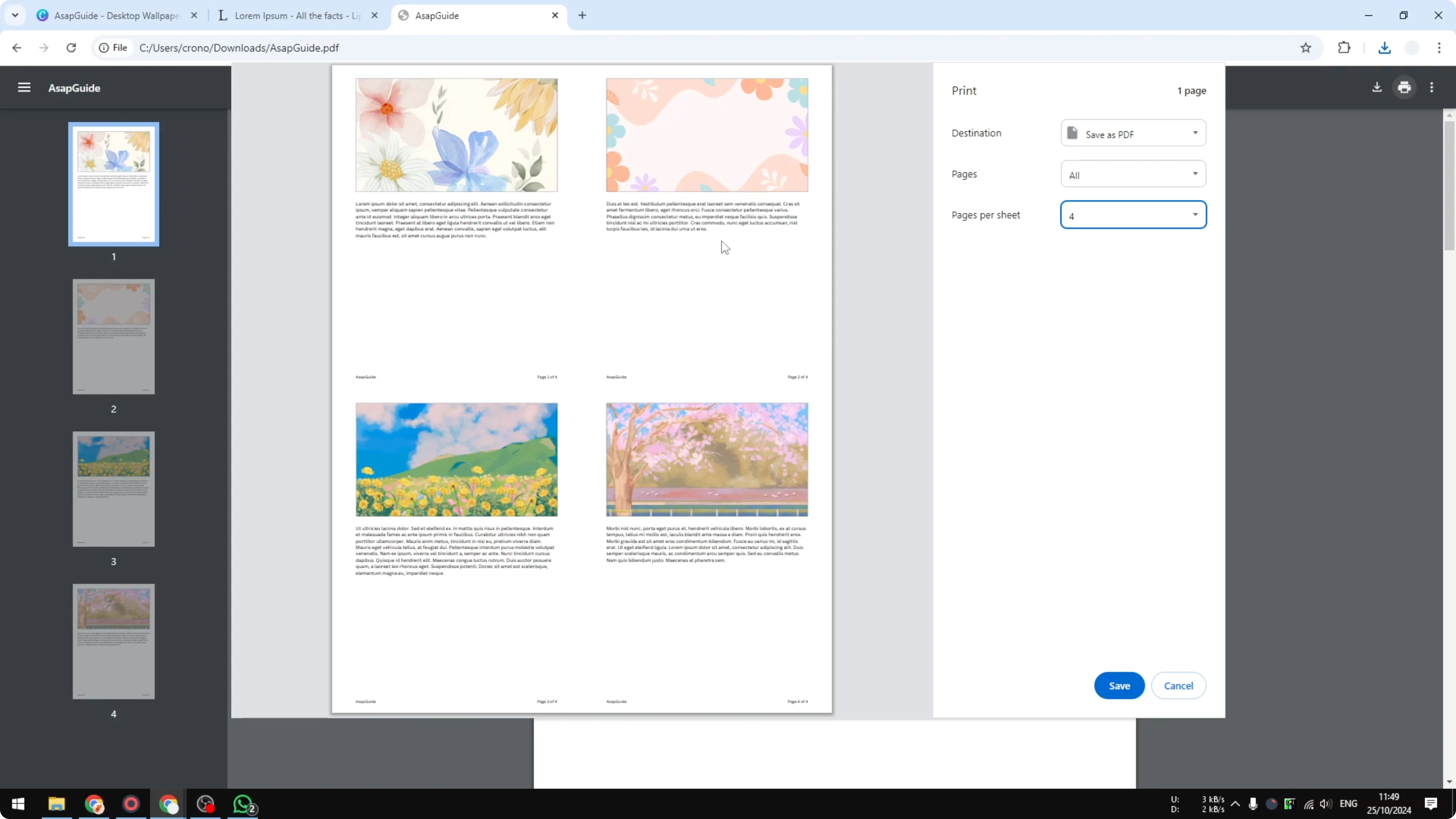
Open the exported PDF in Google Chrome. Press Ctrl+P on Windows or Cmd+P on Mac to open Print. Open More settings and set Pages per sheet to 2 or 4. Preview the result and print.
It is not going to be perfect because there can still be unused space, but it reduces the number of sheets you need. If that tradeoff works for you, it is an easy way to print your Canva presentation with notes while using fewer pages.
Read More: 3D Book Cover Canva
Final thoughts
Prepare your notes in Canva, export as PDF Standard or PDF Print, and make sure Include notes is turned on. For a compact printout, open the PDF in Chrome and set Pages per sheet to 2 or 4. That is the simplest way to print a Canva presentation with the notes included without wasting paper.
Recent Posts

How to Visualize Yourself as a Pixelized Character with AI?
How to Visualize Yourself as a Pixelized Character with AI?

How to Revive Faded Memories and Enhance Image Clarity with AI?
How to Revive Faded Memories and Enhance Image Clarity with AI?

How to Visualize Yourself as an Animal Crossing Character with AI?
How to Visualize Yourself as an Animal Crossing Character with AI?